How to Keep Your WordPress Site Updated
Every WordPress site is built from three moving parts: WordPress core, themes, and plugins. Each one gets updated regularly sometimes weekly. Skip those updates for long enough, and you’re not just missing new features. You’re leaving known security holes wide open.
Here’s the good news: keeping WordPress updated doesn’t have to be stressful or time consuming. With the right process, it takes minutes, not hours, and it dramatically lowers your risk of a hack, a crash, or a broken checkout page.
This guide walks through exactly what to update, how often, and how to do it safely so an update never turns into an emergency.
Why Updates Matter So Much
It’s tempting to think of updates as optional housekeeping. They’re not. Here’s what’s actually at stake:
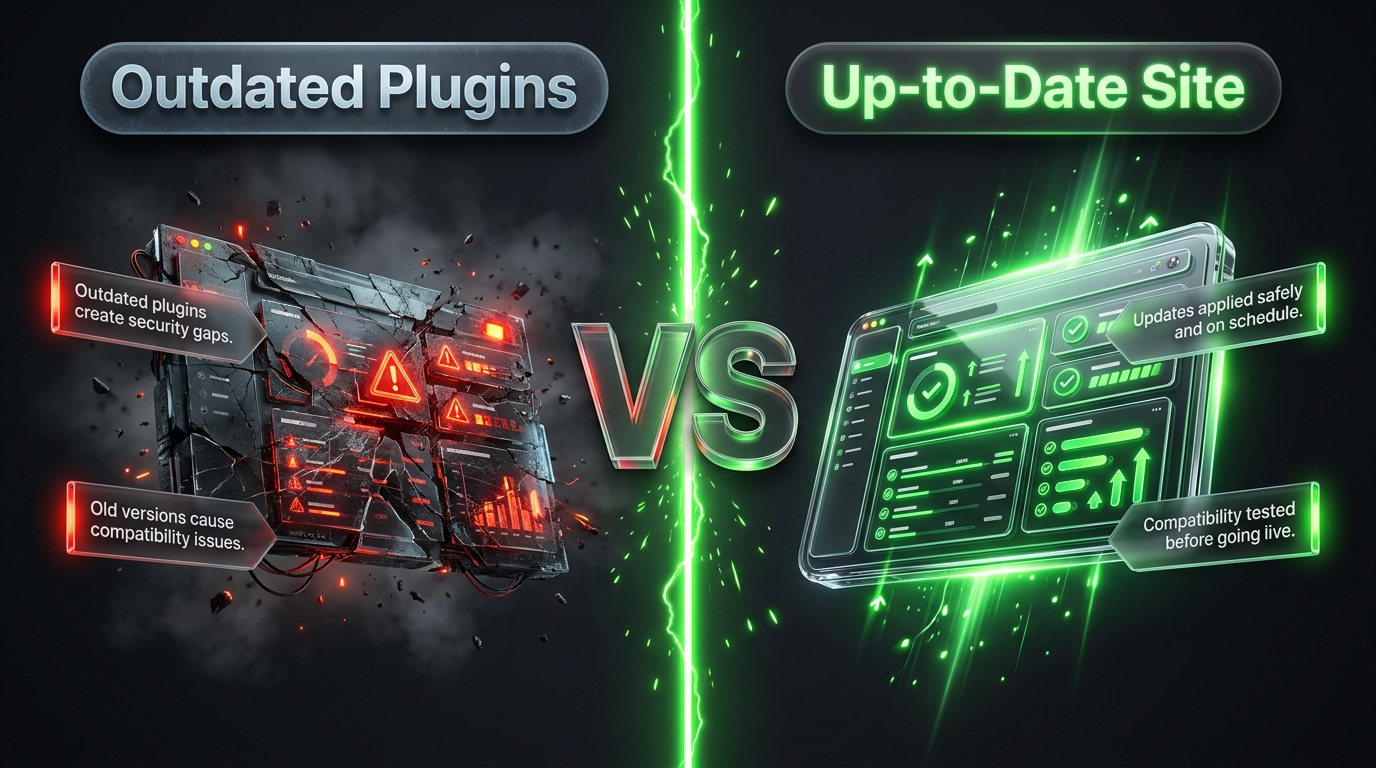
- Security. Most WordPress hacks exploit vulnerabilities that were already patched in a newer version. If you haven’t updated, you’re an easy target.
- Compatibility. Plugins and themes are built against specific versions of WordPress and PHP. Falling behind increases the chance that something eventually breaks.
- Performance. Updates often include speed improvements and bug fixes that make your site run more efficiently.
- New features. Updates aren’t only defensive they also bring useful new functionality you might actually want.
- Support. Outdated software is harder to get help with. Developers focus support on current versions.
In short: updates are one of the cheapest, easiest ways to protect your site. Ignoring them is one of the most common and most preventable causes of WordPress security breaches.
What Actually Needs Updating
1. WordPress Core
This is the underlying software that runs your entire site. WordPress releases:
- Major updates (new features, several times a year)
- Minor updates (security and bug fixes, released as needed)
Minor updates are usually installed automatically by WordPress itself. Major updates require your manual approval.
2. Plugins
Plugins add functionality contact forms, SEO tools, ecommerce features, and more. Because plugins are built by thousands of different developers, they vary widely in update frequency and quality. Some are updated weekly; others may be abandoned entirely.
3. Themes
Your theme controls the design and layout of your site. Like plugins, themes need regular updates to stay compatible with the latest WordPress core version and to patch any security issues.
4. PHP Version
PHP is the programming language WordPress is built on. Your hosting provider controls which PHP version your site runs, but you can usually change it yourself from your hosting dashboard. Running an old PHP version can silently slow your site down and create compatibility issues with modern plugins.
How Often Should You Update?
A simple way to think about frequency:
| Update Type | Recommended Frequency |
|---|---|
| Security patches | Immediately |
| Plugins | Weekly to biweekly |
| Themes | Monthly, or as released |
| WordPress core (minor) | Automatic |
| WordPress core (major) | Within a few weeks of release, after testing |
| PHP version | Reviewed every 6 to 12 months |
Letting updates pile up makes each one riskier, because more changes are happening at once, and it becomes harder to know which update caused a problem if something breaks.
The Safe Way to Update WordPress
Updating isn’t just clicking “Update Now” and hoping for the best. A few extra minutes of preparation can save you hours of cleanup if something goes wrong.
Step 1: Back Up Your Site First
Before touching any update, make sure you have a current backup of both your files and your database. If an update breaks something, a backup lets you roll back in minutes instead of starting over.
Good backup plugins include UpdraftPlus, BackWPup, and Duplicator. Many hosting providers also offer built-in backup tools.
Step 2: Check Compatibility
Before updating a plugin or theme, glance at its changelog or update notes. Look for:
- Which WordPress version it now requires
- Any mentioned breaking changes
- Reviews or comments from other users who’ve already updated
This is especially important for major version jumps.
Step 3: Use a Staging Site if Possible
A staging site is a private copy of your website where you can test changes safely before applying them live. Many hosts (like WP Engine, Kinsta, and SiteGround) offer one-click staging environments.
If you have access to staging:
- Clone your live site to staging
- Apply the updates there
- Test key functionality (forms, checkout, navigation)
- If everything works, apply the same updates to your live site
Step 4: Update One Thing at a Time (When Possible)
If you’re updating several plugins, consider updating them individually rather than all at once especially for plugins that power critical functionality like payments or forms. This makes it much easier to identify the culprit if something breaks.
For minor routine updates on a stable site, batch updating is usually fine. Save the one-at-a-time approach for major updates or mission-critical plugins.
Step 5: Test Your Site After Updating
Once updates are applied, don’t just walk away. Spend a few minutes checking:
- Homepage and key landing pages load correctly
- Navigation menus work
- Contact forms submit successfully
- Checkout process works (for ecommerce sites)
- No visible errors or broken layouts
Step 6: Monitor for a Few Days
Some issues don’t show up immediately. Keep an eye on your site’s uptime monitoring and error logs for a few days after a major update, just to be safe.
Automating the Process
You don’t have to do everything manually. WordPress offers built in options, and several plugins can automate much of this workflow:
- Enable automatic updates for minor core releases this is on by default and should stay that way.
- Enable automatic plugin updates for trusted, well reviewed plugins you don’t need to manually vet each time.
- Use a management plugin like ManageWP or MainWP if you run multiple WordPress sites, so you can update everything from a single dashboard.
- Set up update notifications so you know when something needs your attention rather than checking manually.
A balanced approach: automate updates for low risk, well tested plugins, but keep manual review for anything tied to payments, user data, or core site functionality.
What to Do When an Update Breaks Something
Even with careful preparation, updates occasionally cause conflicts. If your site breaks after an update:
- Don’t panic. Most update issues are fixable within minutes.
- Identify the cause. If you updated multiple things, deactivate plugins one at a time to isolate the problem.
- Check error logs. Your hosting dashboard or a plugin like WP Debugging can show you the specific error.
- Roll back if needed. Restore your backup, or revert the specific plugin/theme to its previous version using a plugin like WP Rollback.
- Contact plugin support. If it’s clearly a bug in the plugin itself, reporting it helps you and other users get a fix faster.
This is exactly why the backup step earlier isn’t optional it’s your safety net when something doesn’t go as planned.
Handling Abandoned Plugins and Themes
Sometimes a plugin or theme simply stops receiving updates. This is a genuine security risk, even if the plugin still technically works.
Signs a plugin may be abandoned:
- No updates in over a year
- Developer not responding to support requests or reviews
- WordPress.org listing shows it hasn’t been tested with recent WordPress versions
If you spot any of these signs, it’s worth actively searching for a well maintained alternative rather than waiting for a problem to force your hand.
Building an Update Routine You’ll Actually Follow
The biggest reason updates get neglected isn’t laziness it’s the lack of a simple, repeatable system. Here’s a routine that works for most site owners:
Weekly (15 to 20 minutes):
- Log in to your dashboard and review available updates
- Apply plugin and theme updates
- Quickly click through your homepage and one or two key pages
Monthly (30 to 45 minutes):
- Review any major WordPress core update and test it on staging if available
- Check for abandoned plugins or themes
- Confirm your backup system is still running correctly
Quarterly:
- Review your PHP version and consider upgrading if you’re behind
- Audit your plugin list and remove anything unused
- Test a full backup restoration to confirm it actually works
Put these on a recurring calendar reminder, and updates stop being a source of anxiety — they just become routine maintenance, like changing the oil in a car.
Final Thoughts
Keeping WordPress updated is one of the simplest, highest-leverage things you can do to protect your site. It costs a small amount of regular time, but it prevents the kind of security breaches and compatibility disasters that can cost you far more in lost revenue, lost data, or lost trust with your visitors.
Back up first. Test when you can. Update consistently rather than all at once. Follow that process, and updates go from being a source of dread to a quiet, reliable habit that keeps your site running the way it should.