HOW TO OFFER A FREE GIFT WITH A SHOPIFY PURCHASE
A useful free gift can give customers an extra reason to complete a purchase. Instead of reducing the price of your main product, you can reward a qualifying purchase with a complementary item that adds value to the order.
This guide explains how to offer a free gift with a Shopify purchase using Section Kit Bundles. The six images follow the supplied order and show the route from app installation to a product-page offer. The example unlocks a gift from a selected offer tier; it is not a cart-spend threshold tutorial.
The Main Merchant Challenge: Making Promotions Worthwhile
Merchants often face a difficult choice: attract customers with discounts or protect their margins. Repeated price reductions can make promotions expensive, while a gift that feels unrelated to the purchase may provide little incentive.
There is also an operational challenge. If gift eligibility is unclear, customers may expect an item they do not qualify for. Manually checking qualifying orders and adding gifts creates extra work and increases the chance of fulfillment mistakes. A clear product-page offer and a tested cart flow help make the promotion easier to understand and manage.
Why Use an App for a Free-Gift Offer?
Section Kit Bundles supports free-gift offers, BOGO promotions, quantity breaks, and product bundles. It provides product-page offer widgets and design customization without coding. For the workflow shown here, you create an offer and use Free Gift Settings to select the gift product and the tier that unlocks it.
The app listing identifies Free Gift Tiers among paid-plan features. Check the current plan details before starting so that the feature is available on your store. The steps below follow the interface in your images; labels may change as the app is updated.
Why a Free Gift Can Be Valuable
- Add value to the purchase: a relevant accessory or sample can complement the main product.
- Encourage a larger purchase: a gift attached to a higher tier can give customers a reason to choose that tier.
- Introduce another product: a useful sample can help shoppers discover a related item.
- Keep the offer easy to explain: state what customers must buy and exactly which gift they receive.
A gift has a cost even when it is free to the customer. Include product cost, packing, and any additional shipping expense when evaluating the promotion. Higher revenue alone does not guarantee higher profit.
Plan Your Gift Before Setup
- Choose an in-stock gift product that is relevant to the qualifying purchase.
- Decide which offer tier unlocks the gift—for example, Duo and every larger tier.
- Set the purchased product quantities and prices separately from the gift settings.
- Write a clear gift label and explain the eligibility condition.
- Confirm that the expected margin can cover the gift and fulfillment costs.
For example, a skincare store could offer a sample with its two-unit purchase tier. The two-unit tier remains a paid purchase; the sample is the free gift. This is an illustrative campaign, not the product shown in the images.
Step 1: Install Section Kit Bundles
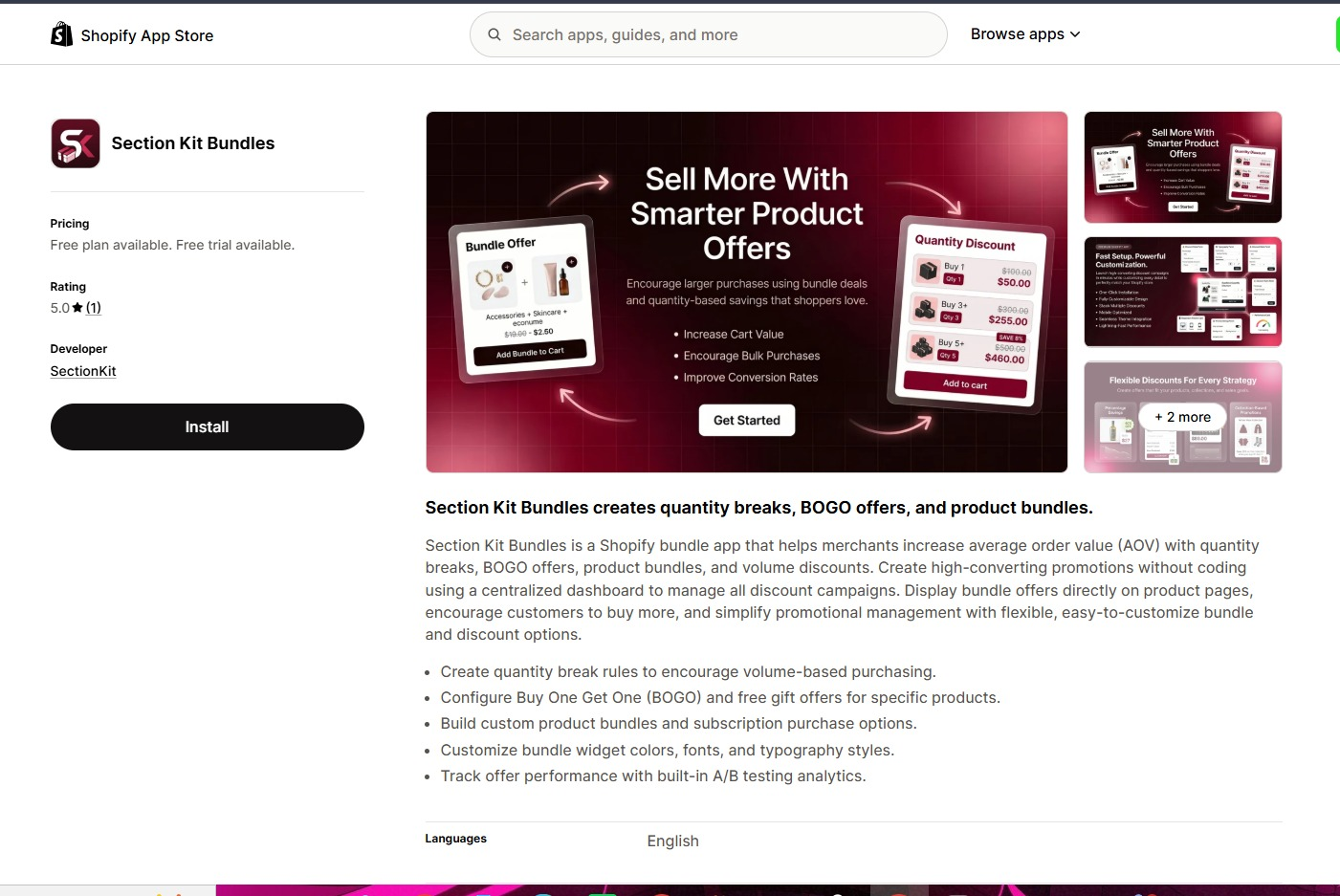
Visit Section Kit Bundles on the Shopify App Store and click Install. Select your store if prompted, review the requested access, and complete installation. Open the app from your Shopify admin.
Step 2: Create a New Bundle from the Dashboard
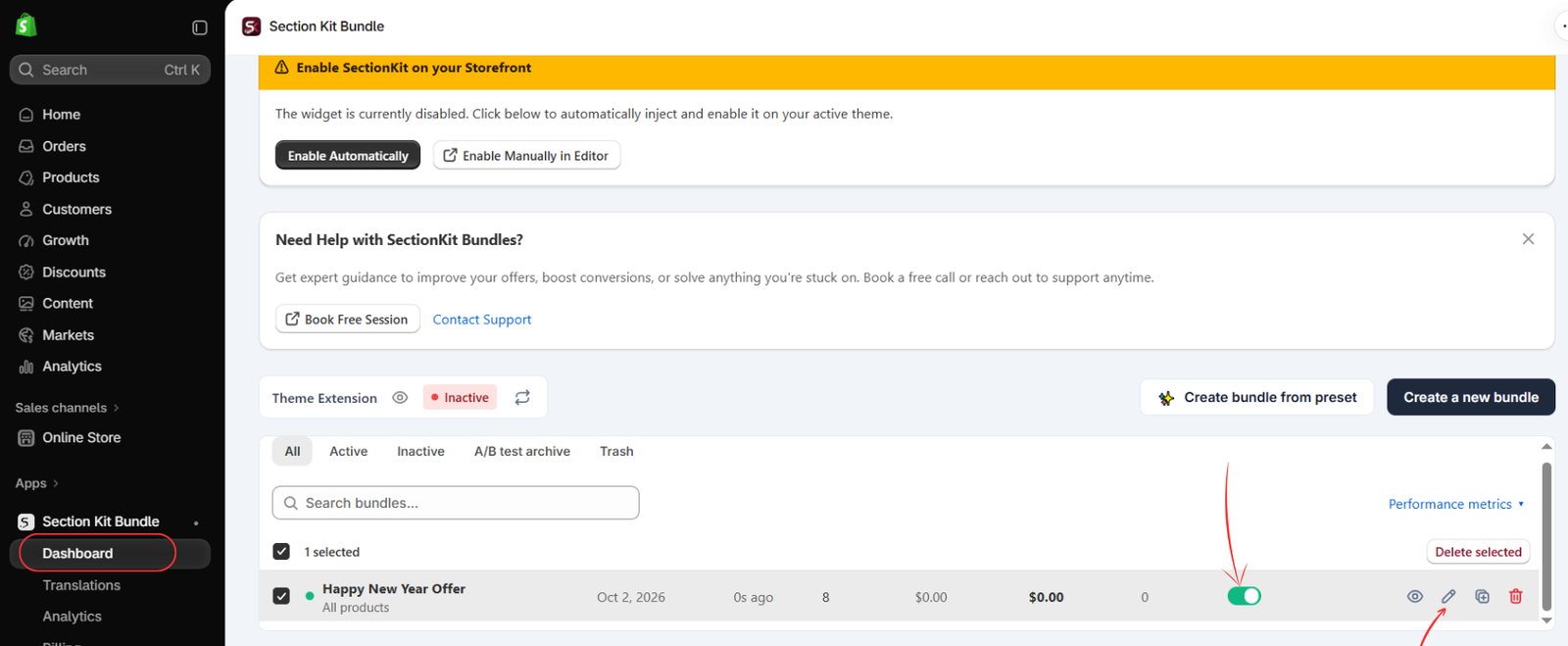
Go to Apps → Section Kit Bundle → Dashboard. Click Create a new bundle, highlighted in the image. This starts the offer setup flow.
The dashboard also shows a storefront enable notice. The offer widget must be enabled before customers can see it. You can follow the automatic enable option or open the theme editor using Enable Manually in Editor. The final image shows the manual app-embed check.
Step 3: Select the Classic Volume Discount Template
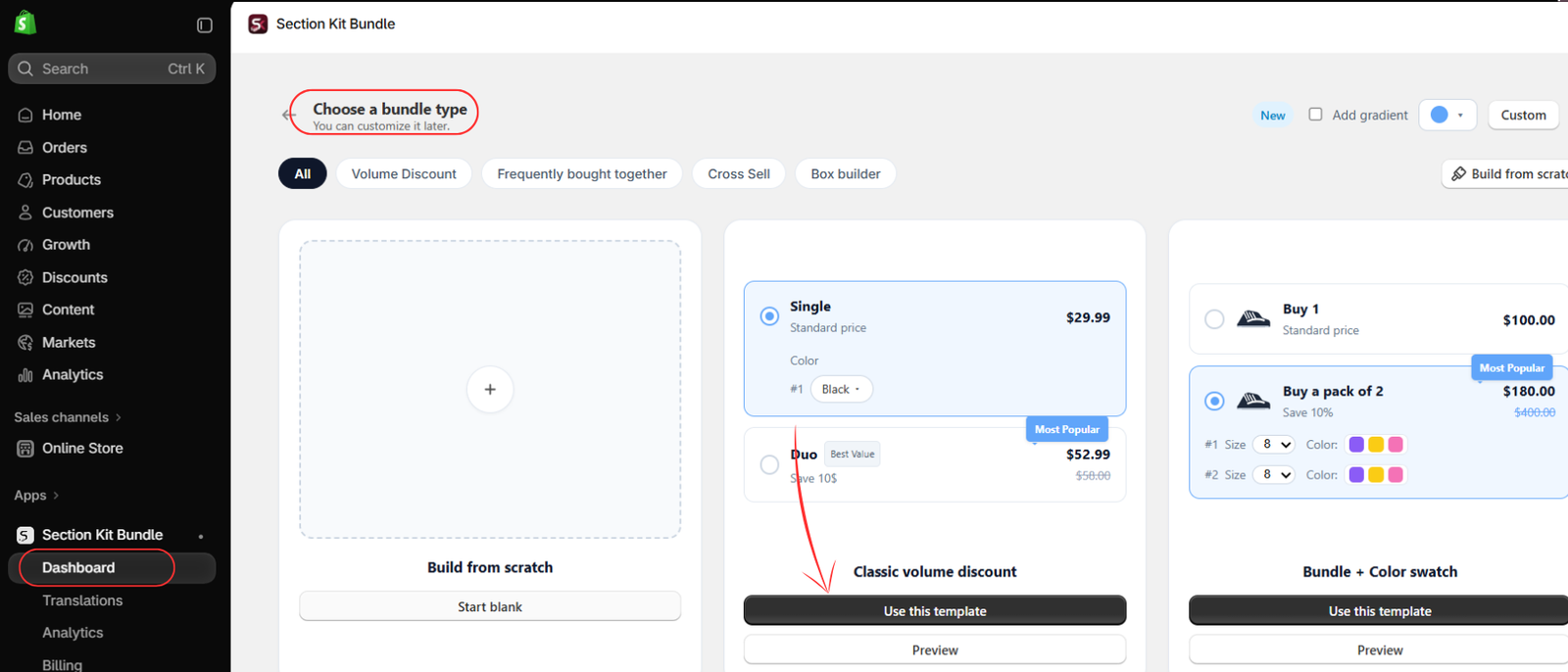
On Choose a bundle type, locate Classic volume discount and click Use this template. This follows the template selected in the supplied image and creates a tiered offer layout to which you can attach a free gift.
Configure the purchased-product tiers in the offer editor before adding the gift. Use clear names such as Single, Duo, and Trio, and verify the quantities and prices for each. These tier configuration fields are not visible in this image, so use the actual controls in your editor rather than copying the template preview prices.
Step 4: Open the Offer Editor and Review Its Status
The fourth image shows the created offer on the dashboard. Locate your campaign and click the pencil icon to edit it. The status toggle is green in the example, indicating that the offer is enabled.
Keep the campaign inactive while making unfinished changes if necessary. Before launch, verify both the offer status and the theme extension. A green offer toggle alone does not resolve the inactive storefront extension notice visible in this image.
Step 5: Configure the Free Gift and Publish
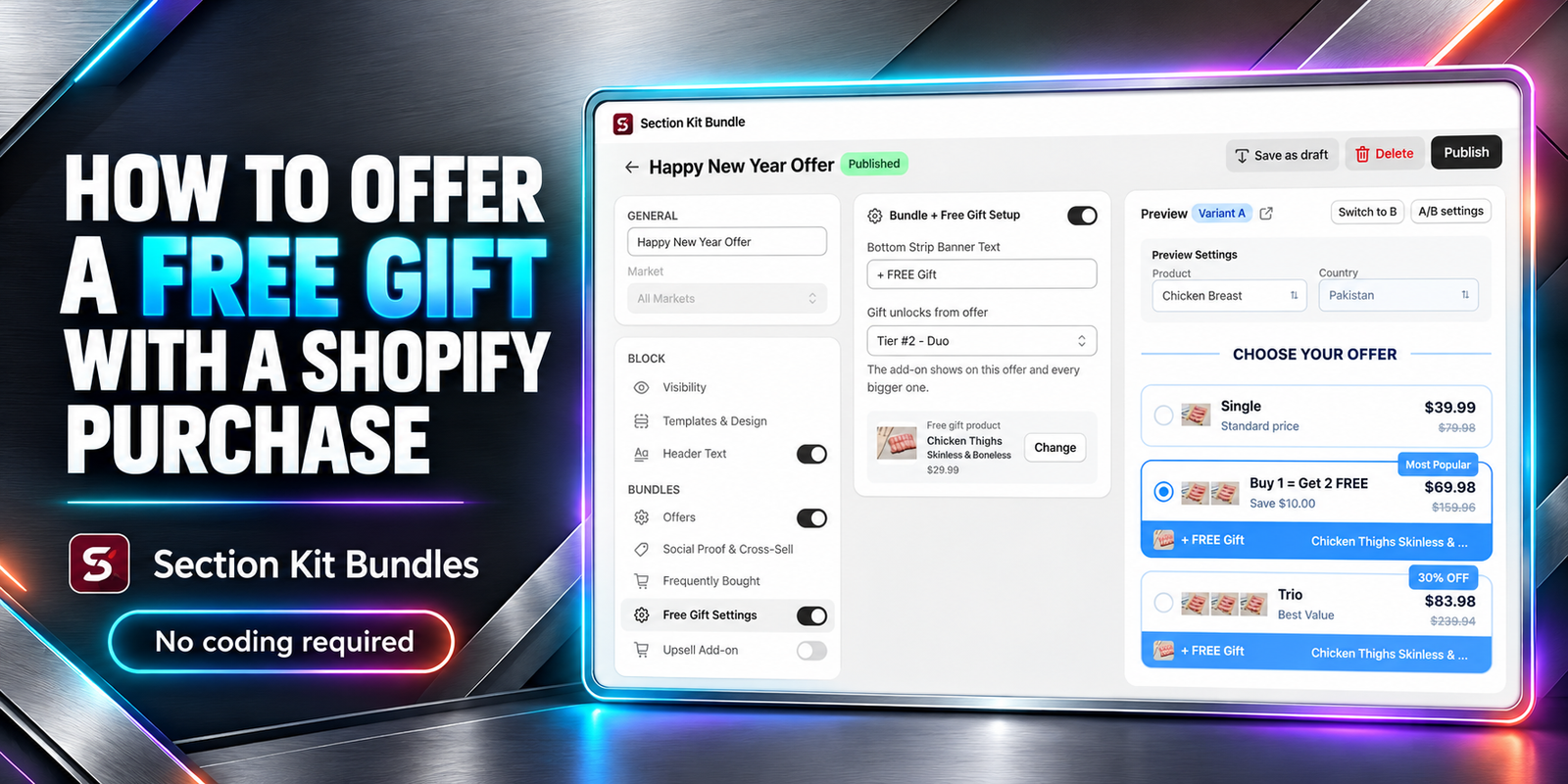
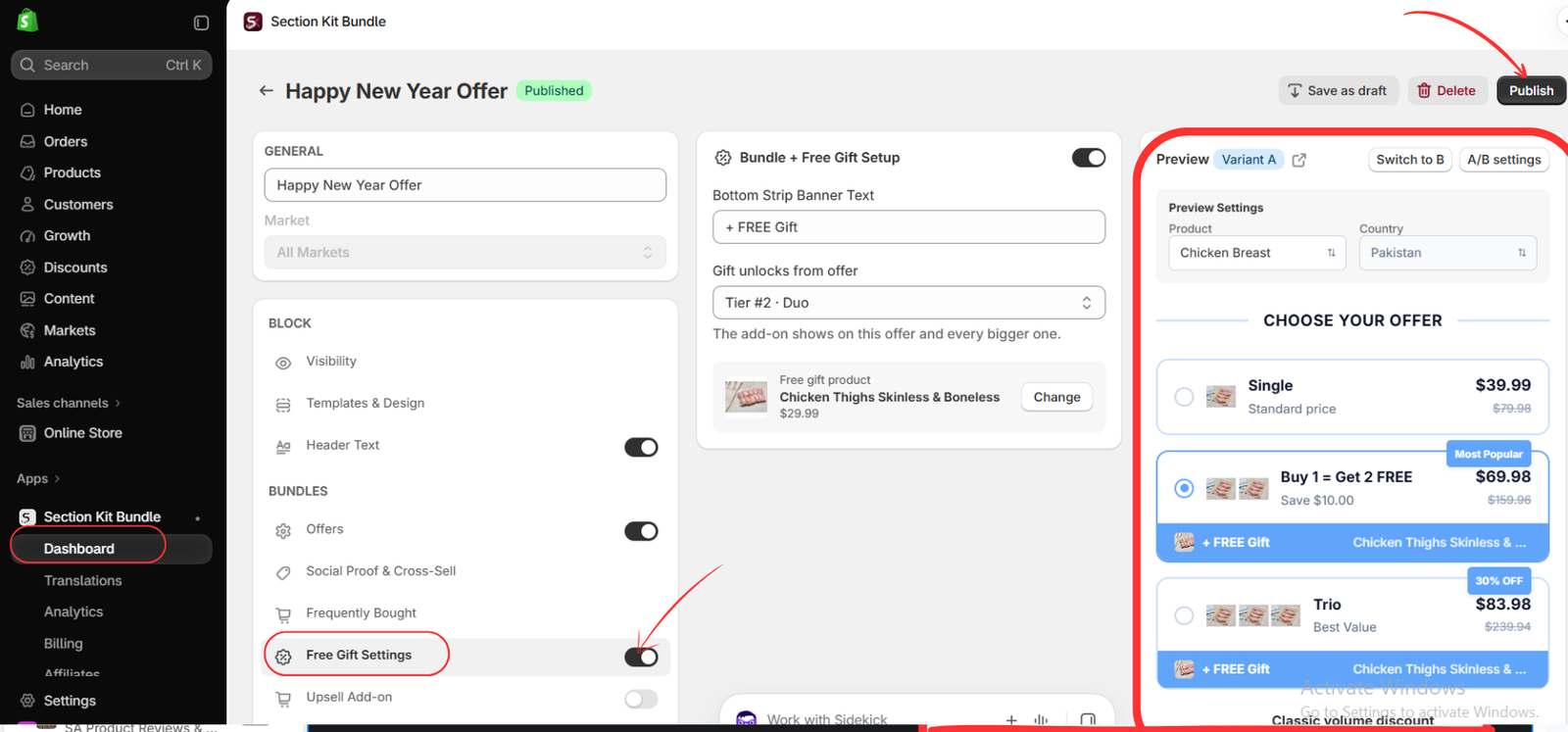
In the editor, open Free Gift Settings and enable its toggle. In the central panel, confirm that Bundle + Free Gift Setup is enabled. The image shows the key controls used to attach a gift to the offer.
- Bottom Strip Banner Text: enter a short label such as “+ FREE Gift.”
- Gift unlocks from offer: choose the first qualifying tier. The example selects Tier #2 – Duo.
- Free gift product: click Change to select the intended gift product. Confirm the correct product and any variant selection presented by the app.
The helper text explains that the gift add-on appears on the selected offer and every bigger one. With Duo selected, the preview shows the gift strip beneath Duo and Trio, while Single has no gift strip. This makes the qualifying purchase clear.
The product picker shows the gift product’s catalog price. That is not proof that the customer will be charged for the gift; verify the final gift price in the cart and checkout. The example also contains BOGO wording in a tier label. Use wording that accurately describes your own offer instead of copying an unrelated “Buy 1 = Get 2 FREE” label.
Review the offer’s product and market visibility, check the preview, and click Publish. Keep the gift name readable so shoppers know what they will receive.
Step 6: Enable the App Embed and Save the Theme
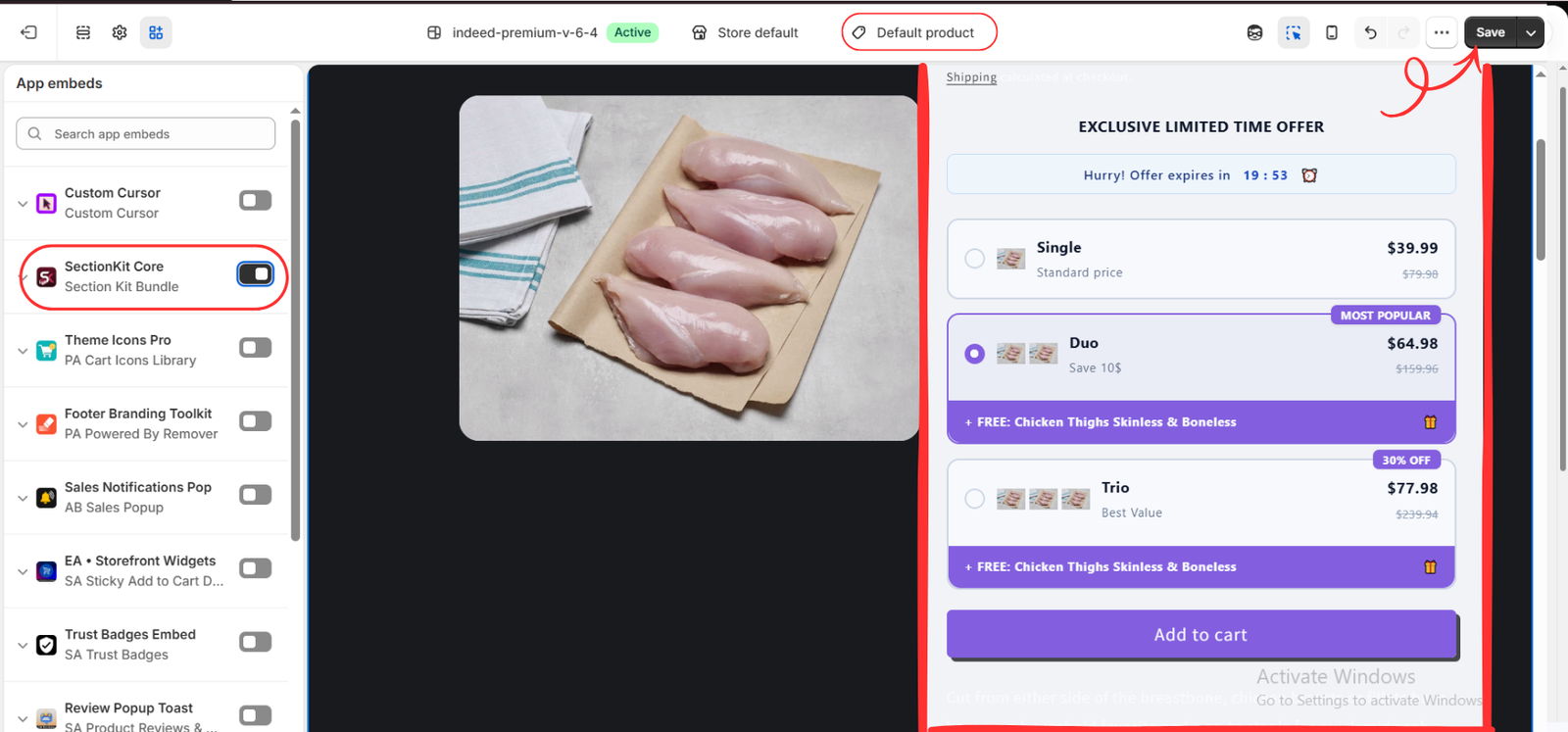
Open your Shopify theme editor and view the relevant product template. In App embeds, locate SectionKit Core — Section Kit Bundle and turn it on. The final image highlights this embed and the Save button. Click Save to retain your theme changes.
Inspect the product-page preview. The example shows a purple gift strip under the Duo and Trio tiers and an Add to cart button beneath the offer. Confirm that the published gift, qualifying tiers, labels, and prices match your intended campaign. The example prices differ between the editor and theme images, so use your configured values as the reference.
Test the Free Gift Before Promoting It
- Select a nonqualifying tier and confirm that it does not grant the gift.
- Select the qualifying tier and verify that the correct purchased quantity and gift reach the cart through the intended purchase flow.
- Check a larger tier to confirm that the gift remains available as configured.
- Verify that the gift is free in checkout and that the paid products retain the intended prices.
- Reduce the purchase below eligibility and confirm the gift is removed or no longer remains free according to the configured rules.
- Check mobile presentation, gift stock, variant behavior, and interaction with any other active discounts.
Do not assume that the preview proves automatic gift addition or checkout eligibility. Test these behaviors on the storefront before advertising the campaign. If the gift is displayed but missing from the order, use the app’s support option to confirm the required purchase flow and settings.
Common Problems and What to Check
- The gift offer is missing: check publication, dashboard status, eligible products and markets, and the saved app embed.
- The gift appears on the wrong tier: review Gift unlocks from offer and remember that it applies to that tier and larger ones.
- The wrong gift appears: check the selected gift product and variant.
- The customer is charged for the gift: review the configuration and test the checkout before launching.
- The promotion is unprofitable: adjust the qualifying tier or choose a gift with a lower total fulfillment cost.
Measure the Promotion’s Results
After launch, compare qualifying purchases, average order value, conversion rate, and profit after gift costs. Watch gift inventory and fulfillment accuracy. If customers rarely choose the qualifying tier, review whether the gift is relevant and whether the eligibility condition is easy to understand.
Change one meaningful element at a time, such as the gift or the qualifying tier, so that you can interpret the results. Use the app’s available analytics and testing features where your plan supports them.
Conclusion
To offer a free gift with a Shopify purchase, create a clear qualifying offer, select the gift product, and set the tier that unlocks it. With Section Kit Bundles, the illustrated workflow uses Free Gift Settings and a product-page widget to communicate the reward.
Publish the offer, enable and save the app embed, then test the complete purchase flow. Explore Section Kit Bundles to create a free-gift campaign that fits your products, customers, and margins.




