How to Optimize Your WooCommerce Store for Speed
Let’s talk about something that quietly kills more online stores than people realize: slow loading speed.
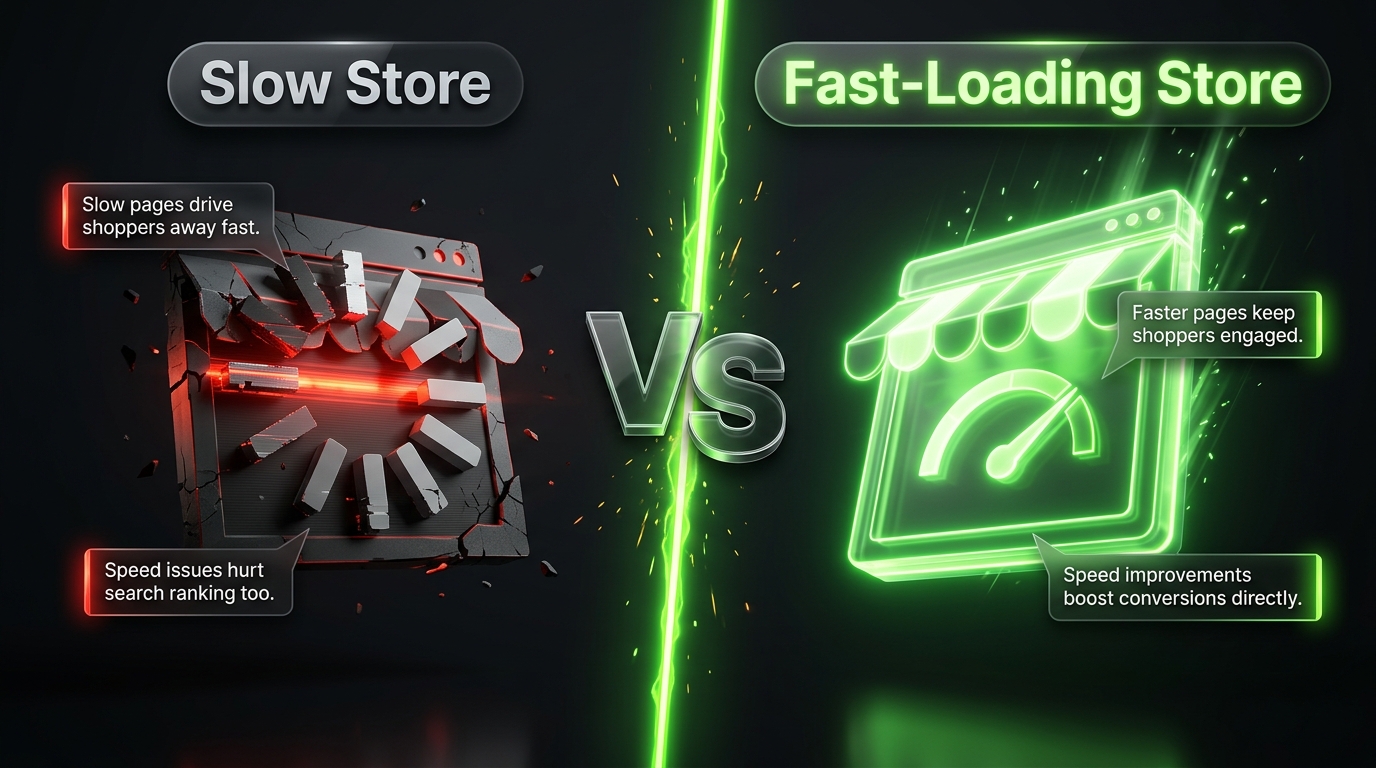
You could have the best products, the nicest photos, and the most convincing descriptions, but if your store takes forever to load, most visitors will simply leave before they even see any of it. And here’s the thing, this isn’t just annoying for customers, it actually hurts your sales, your search rankings, and your overall reputation.
So let’s go through exactly how to speed up your WooCommerce store, step by step, in plain simple terms.
Why Speed Matters So Much for Ecommerce
Before jumping into the fixes, let’s quickly understand why this is such a big deal.
People are impatient. Most visitors expect a page to load within a couple of seconds. Anything slower, and a large chunk of them will simply leave.
Speed affects conversions. Studies repeatedly show that even small delays in loading time can significantly reduce the number of visitors who actually complete a purchase.
Google cares about speed too. Page speed is a ranking factor, meaning slower stores can end up buried lower in search results compared to faster competitors.
Mobile users are especially sensitive. With so much shopping happening on phones, often on slower mobile networks, speed matters even more than it does on desktop.
Basically, speed isn’t just a technical detail, it directly affects how much money your store makes. Let’s fix it.
Step 1: Choose Quality Hosting
This is where speed problems often start, and no amount of optimization afterward can fully make up for bad hosting.
Cheap, overcrowded shared hosting means your website is competing for resources with potentially hundreds of other websites on the same server. If those other sites get a traffic spike, your store slows down too, even though it has nothing to do with you.
Look for hosting that offers:
- Solid state drives (SSDs) instead of older hard drives
- Built-in caching specifically for WordPress
- A content delivery network (CDN) option
- Enough resources allocated for ecommerce traffic patterns
If you’ve been struggling with speed despite trying everything else, your hosting is often the real culprit.
Step 2: Pick a Lightweight Theme
Some WordPress themes come loaded with extra features, animations, and design elements you might never even use, and all of that extra code slows your site down.
Look for themes specifically known for being lightweight and fast, such as Astra, Neve, or GeneratePress. These themes are built with performance as a priority, rather than piling on unnecessary bells and whistles.
If you’re currently using a heavy, feature packed theme and struggling with speed, switching to a lighter option can sometimes make a noticeable difference on its own.
Step 3: Use a Caching Plugin
Caching is one of the most effective ways to speed up your WooCommerce store, and thankfully, it’s also one of the easiest to set up.
Here’s a simple way to think about it: without caching, your server has to rebuild your page from scratch every single time someone visits. With caching, a ready-made version of the page gets saved and served instantly instead, cutting down loading time significantly.
Popular caching plugins include:
- WP Rocket a premium option known for being beginner-friendly and highly effective
- W3 Total Cache a free option with more advanced, technical settings
- WP Super Cache another solid free choice, simpler to configure
Most caching plugins offer a fairly straightforward setup process, and even just enabling the basic default settings can lead to a noticeable speed improvement.
Step 4: Optimize Your Images
Images are often the biggest culprit behind slow loading ecommerce sites, since product photos tend to be large files, and stores usually have a lot of them.
A few ways to fix this:
Compress your images before uploading. Tools like TinyPNG or ShortPixel can shrink file sizes significantly without noticeably hurting image quality.
Use the correct image dimensions. Don’t upload a massive 4000 pixel wide photo if it’s only going to display at 800 pixels wide on your page.
Use modern image formats. Formats like WebP are often smaller than traditional JPEG or PNG files while maintaining similar quality.
Enable lazy loading. This means images only load as visitors scroll down to them, rather than all loading at once when the page first opens. Many caching plugins include this feature built in.
Step 5: Use a Content Delivery Network (CDN)
A CDN stores copies of your website’s files across multiple servers located around the world. When someone visits your store, the files load from the server closest to them, rather than one single server that might be far away.
This is especially helpful if you have customers in different countries or regions, since it significantly reduces loading times for visitors far from your main hosting server.
Popular CDN options include Cloudflare, which offers a solid free plan that’s easy to set up, even for beginners.
Step 6: Clean Up Your Plugins
It’s tempting to install a plugin for every little feature you want, but each additional plugin adds extra code that needs to load, which can slow your site down.
Go through your installed plugins and ask yourself honestly:
- Am I actually using this?
- Does it provide enough value to justify the added load time?
- Is there a lighter alternative available?
Deactivate and delete anything you’re not actively using. It’s also worth checking if any of your plugins overlap in functionality, since running multiple plugins that do similar things can create unnecessary bloat.
Step 7: Optimize Your Database
Over time, your WordPress database accumulates a lot of unnecessary data, like old post revisions, spam comments, and expired transient data. This buildup can slow down your site’s overall performance.
Plugins like WP Optimize or Advanced Database Cleaner can help clean this up automatically, removing unnecessary clutter and keeping your database running efficiently.
It’s a good idea to run this kind of cleanup periodically, especially as your store grows and accumulates more data over time.
Step 8: Minimize the Use of Sliders and Heavy Animations
Sliders, especially image carousels on your homepage, look nice, but they’re often surprisingly heavy on page load times, since they typically load multiple large images and extra scripts all at once.
Consider replacing sliders with a single, well-optimized hero image instead. Similarly, be cautious with heavy animations or video backgrounds, since these can significantly slow down your site, especially on mobile devices.
Step 9: Limit the Number of Products Displayed Per Page
If your category pages try to load a huge number of products all at once, this can slow things down significantly, especially if each product includes multiple images.
Consider limiting the number of products shown per page and adding pagination, or using a “load more” button that loads additional products only when needed, rather than all at once upfront.
Step 10: Keep Everything Updated
This might sound unrelated to speed, but outdated WordPress core files, themes, and plugins often run less efficiently than their updated counterparts, and can sometimes create compatibility issues that slow things down further.
Make it a habit to regularly update:
- WordPress core
- Your active theme
- All installed plugins
- PHP version, if your hosting allows manual updates
Newer versions often include performance improvements alongside security fixes, so staying updated benefits you in multiple ways.
Step 11: Test Your Site’s Speed Regularly
You can’t improve what you don’t measure. Use tools like Google PageSpeed Insights, GTmetrix, or Pingdom to check your store’s loading speed and get specific recommendations for improvement.
These tools will highlight exactly what’s slowing your site down, whether it’s unoptimized images, render-blocking scripts, or server response times, giving you a clear roadmap for what to fix next.
It’s worth testing periodically, not just once, since new plugins, updates, or added content can gradually affect your site’s speed over time.
Common Speed Mistakes to Avoid
Ignoring mobile speed. Always test your store’s speed specifically on mobile devices, not just desktop.
Using too many plugins. Every plugin adds some load time, so be selective about what you truly need.
Uploading unoptimized images. This remains one of the most common and easily fixable speed issues.
Choosing cheap, overcrowded hosting. No amount of optimization can fully compensate for poor-quality hosting.
Forgetting to test after making changes. Always re-check your site speed after installing new plugins or making design changes, to catch any new issues early.
How Fast Should Your Store Actually Be?
As a general target, aim for your store to load in under three seconds, ideally closer to one to two seconds if possible. The faster, the better, both for user experience and for search engine rankings.
Keep in mind that speed can vary depending on the page. Your homepage might load quickly, while a product page loaded with images could be slower. It’s worth testing multiple different types of pages across your store, not just the homepage alone.
Final Thoughts
Speed optimization isn’t a one-time task you complete and forget about. It’s an ongoing process that benefits from regular attention as your store grows and changes over time.
Start with the fundamentals: good hosting, a lightweight theme, proper caching, and optimized images. From there, keep testing, keep cleaning up unnecessary plugins, and stay on top of updates.
A faster store means happier customers, better search rankings, and ultimately, more completed sales. It’s one of those behind-the-scenes improvements that might not be visible to your customers directly, but they’ll absolutely feel the difference, even if they don’t consciously notice why.