How to Personalize WordPress Content for Each Visitor
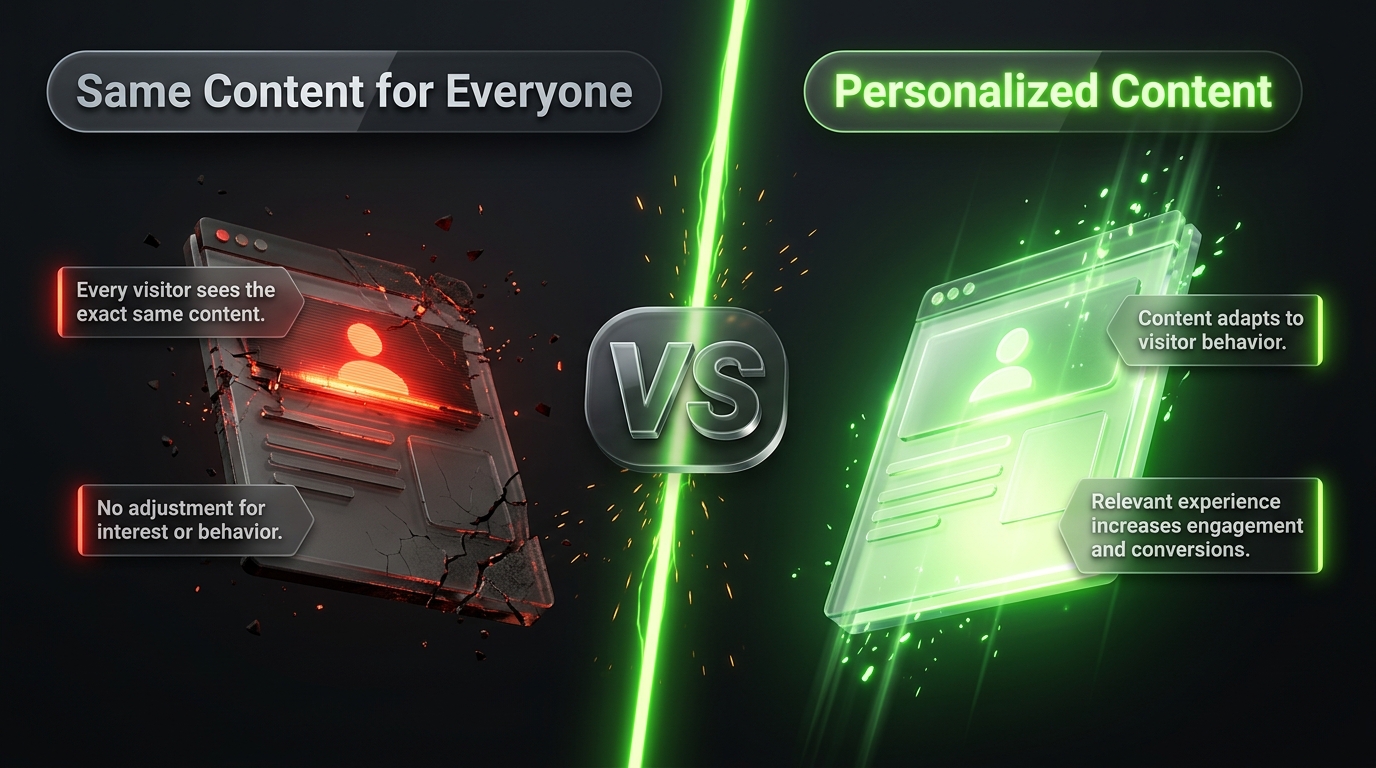
Imagine two people landing on your website at the exact same moment. One is a first time visitor who found you through a search engine, the other is a returning customer who has purchased from you twice before. Right now, most WordPress sites show both of them the exact same homepage, the exact same offers, and the exact same messaging. That is a missed opportunity.
Content personalization changes what a visitor sees based on who they are, where they came from, or how they have behaved on your site before. Done well, it makes every visitor feel like the page was built specifically for them, which tends to translate directly into higher engagement, more email signups, and more sales. In this guide we will cover what personalization actually looks like on WordPress, the tools that make it possible, and practical ways to start using it on your own site.
What Content Personalization Actually Means
Personalization is simply the practice of adjusting what a visitor sees based on available information about them. That information might include their location, the device they are using, how many times they have visited your site, which page referred them, whether they are already a subscriber, or what they have previously purchased.
Instead of a single static homepage that everyone sees, a personalized site might show a first time visitor an introductory offer, while a returning subscriber sees a message thanking them for their loyalty along with a related product recommendation. The underlying page might be the same, but the specific content block, headline, or call to action changes depending on who is looking at it.
Why Personalization Improves Results
Generic content asks every visitor to do the mental work of figuring out whether your message applies to them. Personalized content removes that friction by speaking directly to their specific situation, which naturally increases the odds they take action.
Personalization also respects the fact that visitors arrive at different stages of readiness. Someone visiting your site for the first time usually needs education and trust building, while someone who has already read several of your posts and joined your email list is much closer to a purchase decision. Showing both groups identical content ignores this difference and often undersells to the second group while overselling to the first.
Types of Personalization You Can Use on WordPress
Personalization does not require an all or nothing approach. Most sites start small with one or two tactics and expand from there once they see results.
Location Based Personalization
Adjusting content based on a visitor’s location is one of the simplest forms of personalization to set up. This might mean displaying local pricing in the correct currency, showing store hours for the nearest physical location, or mentioning a city by name in your headline to increase relevance.
Location data is usually detected automatically through the visitor’s IP address, so no extra step is required from the visitor themselves.
Behavior Based Personalization
This approach adjusts content based on what a visitor has actually done on your site. A visitor who has viewed a specific product category multiple times might see a related recommendation the next time they visit, while someone who abandoned a cart might see a reminder banner encouraging them to complete their purchase.
Behavior based personalization tends to produce some of the strongest results since it responds directly to demonstrated interest rather than a guess.
New Visitor Versus Returning Visitor Content
A simple but effective tactic is showing different messaging to first time visitors compared to people who have been on your site before. A first time visitor might see an introductory offer or a short explainer about who you are, while a returning visitor skips straight to more advanced content or a direct call to action, since they no longer need the introduction.
Referral Source Personalization
Content can also adjust based on where a visitor came from. Someone arriving from a specific email campaign might see a headline that matches the exact offer mentioned in that email, while someone arriving from a general search engine result sees a broader, more educational message.
Matching your landing page message to whatever brought the visitor there, sometimes called message match, is one of the most reliable ways to reduce bounce rates and improve conversions.
Subscriber and Customer Status Personalization
Sites that already have an email list or a customer base can personalize based on that relationship. A logged in customer might see a personalized dashboard with their order history, while a subscriber who has not yet purchased sees a targeted offer designed to convert them into a first time buyer.
Tools for Personalizing WordPress Content
Several WordPress plugins make personalization accessible without requiring custom development work.
If Menu. This lightweight plugin lets you show or hide specific content blocks based on conditions like whether a visitor is logged in, their device type, or which page referred them.
Nelio Content Personalization or similar dynamic content plugins. These tools let you build content blocks that change based on a defined set of rules, all managed from your WordPress dashboard.
OptinMonster. Beyond its popup features, OptinMonster includes targeting rules that let you show different offers based on referral source, geographic location, and on site behavior like scroll depth or exit intent.
HubSpot for WordPress. Since HubSpot tracks each visitor as a contact, its smart content features can display different messages to first time visitors, known leads, and existing customers, all pulled from the same CRM data used across your other marketing.
WooCommerce with dynamic pricing and recommendation addons. Online stores can personalize product recommendations, pricing, and promotional banners based on past purchase behavior using addons built specifically for WooCommerce.
Elementor Pro’s dynamic content features. For sites already using Elementor, its Pro version includes conditional display options that let you build personalized sections directly within the page builder you already use.
How to Get Started With Personalization Step by Step
Personalization can feel overwhelming if you try to build everything at once. Starting small and expanding gradually tends to produce better results than attempting a complete overhaul immediately.
Step 1: Identify Your Highest Value Personalization Opportunity
Rather than personalizing everything at once, look for the single change most likely to produce a meaningful result. This is often your homepage headline, a specific high traffic landing page, or a returning visitor message on a page with a high bounce rate.
Step 2: Choose the Right Tool for That Opportunity
Match the tool to the specific tactic you plan to use. A simple new versus returning visitor message might only need a lightweight plugin like If Menu, while a full behavior based recommendation engine for an online store might require a more robust WooCommerce addon.
Step 3: Define Your Segments Clearly
Before building anything, write down exactly who each version of your content is meant for. A vague segment like interested visitors is much harder to build rules around than a specific one like visitors who viewed the pricing page but did not sign up within the last seven days.
Step 4: Build and Test Your First Personalized Element
Start with one content block, such as a headline or a call to action banner, and build the personalized version alongside the default version everyone else sees. Preview both versions carefully to confirm the logic is working correctly before publishing.
Step 5: Measure the Impact
Compare engagement, conversion rate, or whatever metric matters most for that particular page, between visitors who saw the personalized version and those who saw your original default content. This tells you whether the effort was worth the result and helps guide where to focus next.
Step 6: Expand Gradually
Once your first personalized element shows positive results, move on to the next opportunity. Sites that build personalization gradually, learning from each step, tend to end up with a more effective system than those who try to personalize every page at once without any testing along the way.
Personalization Ideas Worth Trying
If you are looking for a practical starting point, a few ideas tend to work well across many types of WordPress sites.
Show a different headline to visitors arriving from a specific ad campaign compared to organic search traffic, matching the language they already saw before clicking through. Display a returning visitor banner that acknowledges someone has been to your site before, along with a more direct call to action than a first time visitor would see. Recommend content or products based on a category a visitor has previously browsed, rather than showing the same generic recommendations to everyone. Adjust your call to action based on whether someone is already on your email list, offering something different to a new visitor than to an existing subscriber who has already taken that first step.
Common Personalization Mistakes to Avoid
Personalization done poorly can feel intrusive rather than helpful, so a few pitfalls are worth watching for.
Avoid referencing personal information in a way that feels unsettling rather than helpful, such as mentioning a visitor’s exact location too aggressively or referencing behavior in a way that feels like surveillance rather than genuine relevance. Overcomplicating your segments early on is another common mistake, since building ten different visitor segments before you have tested even one tends to slow you down without proving which approach actually works. Finally, forgetting to test your personalized content across devices and browsers can lead to a broken experience for some visitors, so always preview thoroughly before publishing anything live.
Frequently Asked Questions
Does personalization require collecting sensitive personal data? No. Most effective personalization relies on behavioral signals already available through normal site analytics, such as pages visited, referral source, or device type, rather than sensitive personal information.
Will personalization slow down my WordPress site? It can if implemented poorly, particularly with plugins that load excessive scripts. Choosing a well coded, purpose built plugin and testing your page speed after implementation helps avoid this issue.
Is personalization only useful for online stores? No. Blogs, service businesses, membership sites, and lead generation sites can all benefit from personalization, whether that means recommending related content, adjusting a call to action, or tailoring a message based on referral source.
How do I know if personalization is actually working? Compare key metrics, such as conversion rate or time on page, between visitors who see personalized content and those who see your default version. A meaningful improvement confirms the effort is paying off.
Final Thoughts
Content personalization turns a WordPress site from a single static experience into something that adapts to each visitor’s actual situation. You do not need to personalize everything at once, and in fact you probably should not. Start with one clear opportunity, choose a tool that fits that specific need, measure the results honestly, and expand gradually from there.
Over time, these small, deliberate adjustments compound into a site that consistently feels more relevant to every visitor who arrives, which is exactly the kind of experience that turns casual browsers into loyal subscribers and customers.