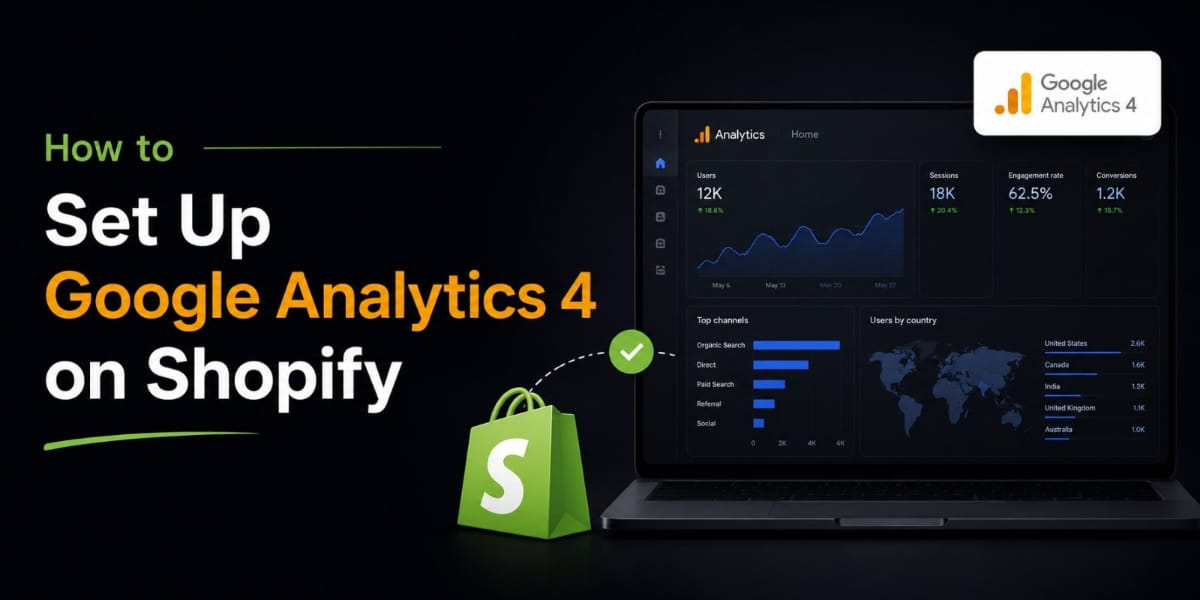
How to Set Up Google Analytics 4 on Shopify (Complete Step by Step Guide)
Here’s something that surprises a lot of Shopify merchants when they first hear it Shopify’s built in analytics and Google Analytics 4 are not the same thing, and you actually need both.
Shopify tells you what happened in your store how many orders, how much revenue, which products sold. But Google Analytics 4 tells you why how people found your store, what they did while they were there, where they dropped off, and which marketing channels are actually bringing in buyers versus people who just browse and leave.
Without GA4 connected to your Shopify store, you’re making marketing decisions with half the information you need.
GA4 is now Google’s primary analytics platform, with Universal Analytics no longer collecting data all historical UA properties are now read only. For Shopify merchants, this means that installing GA4 is no longer optional, but an essential foundation for understanding user behaviour, measuring marketing performance, and optimising your store.
In this guide I’m going to walk you through exactly how to set it up, step by step, without making it more complicated than it needs to be.
What is GA4 and Why is it Different from the Old Google Analytics?
Before we get into the setup, let me quickly explain what changed and why it matters.
Universal Analytics, known as GA3, was Google’s previous platform. The biggest change from GA3 to GA4 is the data model. Universal Analytics used a session based data model that collected data based on “hits.” Sessions started when users arrived, and ended when they exited your website, or after 30 minutes of inactivity. If a user left your site and returned later, GA3 would treat this as a new session even if it was the same person using the same device.
GA4 collects more accurate data with an event based model. Every interaction that a user has on your website is classified as an “event” whether that’s loading a page, clicking a link, or viewing a video. Each event can have multiple parameters that offer additional context about the interaction, such as the page URL or button name.
Why does that matter for you? It means GA4 gives you a much more complete picture of the customer journey. You can track a single customer across multiple sessions, multiple devices, and multiple visits before they finally buy. That’s information the old Google Analytics simply couldn’t give you.
Step 1 Create Your GA4 Account and Property
If you already have a GA4 account set up, skip to Step 2. If you’re starting from scratch, here’s how to create it.
First, go to analytics.google.com and click on “Start measurement.” Give the account a name this is usually your business or brand name.
Next, you will need to name the property. The property name can be whatever you want, but it is best to name it after your brand or website. After that, choose the country in which your company is located, the reporting time zone, and the main currency in which your company operates.
For Pakistani merchants set your time zone to Pakistan Standard Time (UTC+5) and your currency to PKR if you’re primarily selling locally, or USD if you’re targeting international customers. This affects how your reports display and compare over time, so get it right from the start.
After clicking Next, you will see several simple questions to answer. After that, you should select your business objectives. To make things simpler, select “Get baseline reports.” Click Create.
Setting Up Your Data Stream
After creating the property, you need to create a data stream this is what connects your website to your GA4 property.
Since you are running a Shopify store, you should select “Web.” Then you must enter the URL of your website and the name of your website. You can opt for enabling Enhanced Measurement. Enhanced Measurement was created to help store owners get as many events in the report as possible we recommend using it. After you select everything you want, press the “Create Stream” button.
Enhanced Measurement is worth enabling because it automatically tracks scroll depth, outbound clicks, site search, video engagement, and file downloads without any extra code. Turn it on.
After creating the stream, you’ll see your Measurement ID it looks like G XXXXXXXXXX. Copy this. You’ll need it in the next step.
Step 2 Connect GA4 to Your Shopify Store
Now that your GA4 property is created, you need to connect it to Shopify. There are a few ways to do this. I’ll walk you through the easiest method first the Google and YouTube Channel App and then explain when you’d want to use Google Tag Manager instead.
Method 1 The Google & YouTube Channel App (Easiest)
This is the recommended method for most Shopify merchants who don’t have a developer on hand.
There are multiple ways to install the Google & YouTube Channel App. The first way is to go to Online Store, then Preferences, and scroll down until you see Google Analytics. You will see a yellow banner with “Manage pixel here.” Click on it. You are then redirected to the Google & YouTube Channel App. The second way is to use the search bar in your Shopify admin, search for the Google channel app, and click on Google & YouTube.
Once you’re in the app:
Go to Sales Channels, then Google, and click the Connect button to connect your Google account. A pop up window will appear where you need to sign in to your Google account. Click on Allow to authorise the Google Channel App to access your account.
Finally, in the Connect a Google Analytics property section, select your GA4 property from the drop down and click Connect. The selected GA4 property will then be connected to your Shopify store.
If you already have the app installed, go into the app and select the “Optimise Your Business with Google Analytics” home card, select your Google Analytics 4 property, and connect your property.
That’s it for the basic connection. But there’s an important limitation to know here.
Non-Shopify-Plus stores will not be able to track checkout steps with this method.
So if you’re on a standard Shopify plan and you want to track what happens inside the checkout process which is where a huge amount of valuable data lives you’ll need to use Google Tag Manager or Shopify’s Customer Events (Custom Pixels) feature. More on that below.
Method 2 Google Tag Manager (Recommended for More Control)
Google Tag Manager (GTM) is a free tool from Google that lets you manage all your tracking codes in one place without touching your store’s code every time you need to add or change something. It’s a bit more technical to set up initially, but once it’s done, it’s far more flexible.
Adding Google Analytics to Shopify with Google Tag Manager is harder and requires more technical skills, but it is a recommended way of doing it. Of course, if you are feeling overwhelmed, you can always pay a specialist to do it for you.
Here’s how to do it:
First, go to tagmanager.google.com and create a free account. Create a new container, name it after your store, and select Web as the target platform. You’ll be given a GTM code snippet two pieces of code that need to go into your Shopify theme.
In your Shopify admin, go to Online Store, then Themes, then click Actions on your current theme, then Edit Code. Find the theme.liquid file. Paste the first GTM code snippet right after the opening <head> tag. Paste the second snippet right after the opening <body> tag. Save the file.
Now back in GTM, create a new tag:
Select GA4 Configuration as the tag type. Enter your Measurement ID (the G XXXXXXXXXX from Step 1). Set the trigger to All Pages. Name the tag something clear like “GA4 — All Pages” and save it.
For Shopify specifically, GTM allows you to track checkout events and post purchase behaviour that native integrations often miss.
Before you publish, always test using GTM’s Preview mode. Enter your store URL and you’ll be able to see exactly which tags are firing on which pages. Once everything looks correct, click Submit to publish your container live.
Step 3 Enable Ecommerce Tracking
This is the step most people skip, and it’s the most important one. Just connecting GA4 to Shopify gives you basic traffic data. But to see actual purchase data product views, add to cart events, checkout steps, and completed purchases you need to enable ecommerce tracking.
Google Analytics lets you track behaviours that happen on your website, known as events, to generate more useful reports. Beyond learning how many people visit your website, you can see which products are most frequently added to a cart or how often people log into their account.
The key ecommerce events you want to be tracking are:
view item when someone views a product page
add to cart when someone adds a product to their cart
begin checkout when someone starts the checkout process
purchase when an order is completed, including the order value, product details, and quantity
If you used the Google & YouTube Channel App, most of these standard events fire automatically on your storefront pages. The checkout tracking limitation only kicks in for the checkout steps themselves on non Plus stores.
If you used GTM, you’ll need to set up ecommerce event tags manually or use a dataLayer based setup. For most merchants without a developer, using a specialist or a pre built GA4 ecommerce app is worth the cost to get this right.
Step 4 Verify Your Setup is Working
Never assume your tracking is working just because you completed the setup steps. Always verify it.
Your new GA4 setup can take 24 to 48 hours to process data from your Shopify store. You can verify the connection using the Realtime reports or the Debug View. Go to Admin, then Debug View in the left navigation to monitor real-time events.
Here’s how to check:
Open your GA4 property. Go to Reports, then Realtime. Open your Shopify store in another browser tab and browse around visit a product page, add something to cart. Watch the Realtime report. You should see events firing as you interact with the store. If you see page view events and add to cart events appearing in real time, your tracking is working.
If you see nothing check that your Measurement ID is correct, that your Google & YouTube app is properly connected, and that your theme changes saved correctly if you used GTM.
Using GA4 DebugView
For a more detailed check, use DebugView. Deploying tags is one thing. Confirming they actually work is another. Most analytics issues stem from broken implementations that go unnoticed for weeks or months.
In Chrome, install the Google Analytics Debugger extension. Enable it, then go to GA4’s Admin section and click DebugView. Browse your store with the extension active and you’ll see every single event firing in real time, with all the parameters included. This is the most reliable way to confirm your setup is complete and accurate.
Step 5 Link GA4 to Google Ads (If You’re Running Ads)
If you’re running Google Ads alongside your Shopify store which you probably should be linking GA4 to Google Ads unlocks a lot of additional capability.
Linking a Google Analytics account with a Google Ads account will help you analyse your potential or existing customers’ activity in your store. Visit the admin panel of Google Analytics and navigate to the Analytics property you want to link, then follow the linking process to connect your Google Ads account.
Once linked, you can import GA4 conversions directly into Google Ads, see GA4 audience data in your Ads campaigns, and track the complete customer journey from ad click to purchase with proper attribution. For merchants spending any money on Google Ads, this connection is essential.
Step 6 Set Up Key Reports You’ll Actually Use
GA4 has a lot of reports. Most of them you’ll never look at. Here are the specific ones worth bookmarking for your Shopify store.
Acquisition Reports
Go to Reports, then Acquisition, then Traffic Acquisition. This shows you exactly where your visitors are coming from organic search, paid ads, social media, email, direct. More importantly, it shows you which channels actually convert, not just which ones send traffic.
Ecommerce Purchase Reports
Go to Reports, then Monetisation, then Ecommerce Purchases. This is where you see which products are selling, how many people are buying them, and the revenue each product generates. Cross reference this with your Shopify product reports to get the full picture.
Funnel Exploration
This one is in the Explore section, not the standard Reports section. Go to Explore, then create a new Funnel Exploration. Set up your funnel stages:
session_start → view_item → add_to_cart → begin_checkout → purchase
This shows you exactly where in that journey you’re losing customers. If 1,000 people add to cart but only 200 reach checkout, you have an abandoned cart problem. If 500 people reach checkout but only 200 purchase, you have a checkout friction problem. These are completely different problems with different solutions, and the funnel report is how you tell them apart.
Cohort Analysis
Go to Explore, then Cohort Exploration. This groups your customers by when they first purchased and shows how they behave over the following months. Are customers coming back for a second purchase within 30 days? 60 days? 90 days? This is your retention signal, and it’s one of the most valuable reports in GA4 for growing brands.
Common Mistakes to Avoid
Let me save you from the errors that trip up a lot of Shopify merchants during GA4 setup.
Wrong time zone or currency Set this correctly when creating your property. If your reporting time zone doesn’t match your business time zone, your daily reports will be off and it’s messy to fix later.
Not enabling Enhanced Measurement This is a free way to get automatic tracking of scroll depth, outbound clicks, and site search. There’s no reason not to turn it on.
Assuming the setup is working without verifying Always check Realtime reports or DebugView after setup. A lot of merchants complete the setup steps and then discover three months later that purchase events weren’t tracking correctly and they’ve lost all that data permanently.
Installing GA4 multiple times If you use both the Google & YouTube Channel App and manually add a GTM tag, you can end up tracking everything twice and doubling your data. Pick one method and stick with it.
Not linking to Google Ads If you’re running ads, this connection is not optional. Without it, your attribution data is incomplete.
A poorly executed setup can lead to misleading reports, missed conversions, and wasted advertising budgets, making it difficult to optimise your store, understand user journeys, or make business decisions with confidence.
Take the time to do it right once. It’s much easier than trying to fix broken tracking later.
What You Can Track with GA4 on Shopify
Once your setup is properly in place, here’s what you’ll have visibility on that Shopify alone can’t give you:
Traffic sources with conversion data not just which channels send visitors, but which channels send buyers, and how much those buyers spend.
Customer journey across multiple sessions see that someone visited from an Instagram ad on Monday, came back through Google search on Thursday, and finally bought on Saturday after clicking an email. This is proper attribution that helps you understand your real marketing performance.
Behaviour on product pages scroll depth, time on page, which elements people click, where they exit. Shopify doesn’t track any of this.
Checkout funnel drop off see exactly which stage of checkout causes the most abandonment.
Audience segments for retargeting create custom audiences in GA4 based on behaviour (visited product page but didn’t purchase, added to cart but didn’t checkout) and use them directly in Google Ads.
How Long Until Data Starts Showing?
There is a time delay of 24 to 48 hours for data to appear inside Google Analytics.
So don’t panic if you complete the setup and the reports look empty. Check Realtime to confirm events are firing, then give it 24-48 hours for your full reports to populate. After that, you should see all your traffic, events, and conversion data flowing in properly.
Final Thoughts
GA4 setup is one of those things that feels intimidating the first time but is actually very manageable once you break it down into steps. And once it’s done, you’ll have access to a level of customer insight that most small Shopify stores simply don’t have which means you can make smarter marketing decisions, catch conversion problems earlier, and grow faster.
The key things to remember:
Create your GA4 property first and copy your Measurement ID. Connect using the Google & YouTube Channel App for simplicity, or GTM for more control. Enable ecommerce tracking so purchase events fire correctly. Verify everything is working using Realtime reports and DebugView. Link to Google Ads if you’re running paid campaigns. Set up your Funnel Exploration and Acquisition reports and check them weekly.
Do those six things and you’ll be in far better shape than the majority of Shopify merchants who either haven’t set up GA4 at all, or set it up incorrectly and don’t know it.