HOW TO SET UP TIERED DISCOUNTS ON SHOPIFY: BUY 2 SAVE 10%, BUY 3 SAVE 20%
Introduction
Want to encourage customers to buy more products from your Shopify store?
Tiered discounts are a useful way to increase purchase quantities by rewarding customers for buying multiple items.
Instead of offering the same discount on every order, you can create quantity-based promotions such as Buy 2, Save 10% and Buy 3, Save 20%.
These offers give shoppers a clear reason to purchase more items, while helping merchants increase their average order value (AOV).
In this guide, you’ll learn how to set up tiered discounts using Section Kit Bundles, with step-by-step instructions and screenshots from the app.
What Are Tiered Discounts?
Tiered discounts are pricing offers that provide different savings depending on how many products a customer purchases.
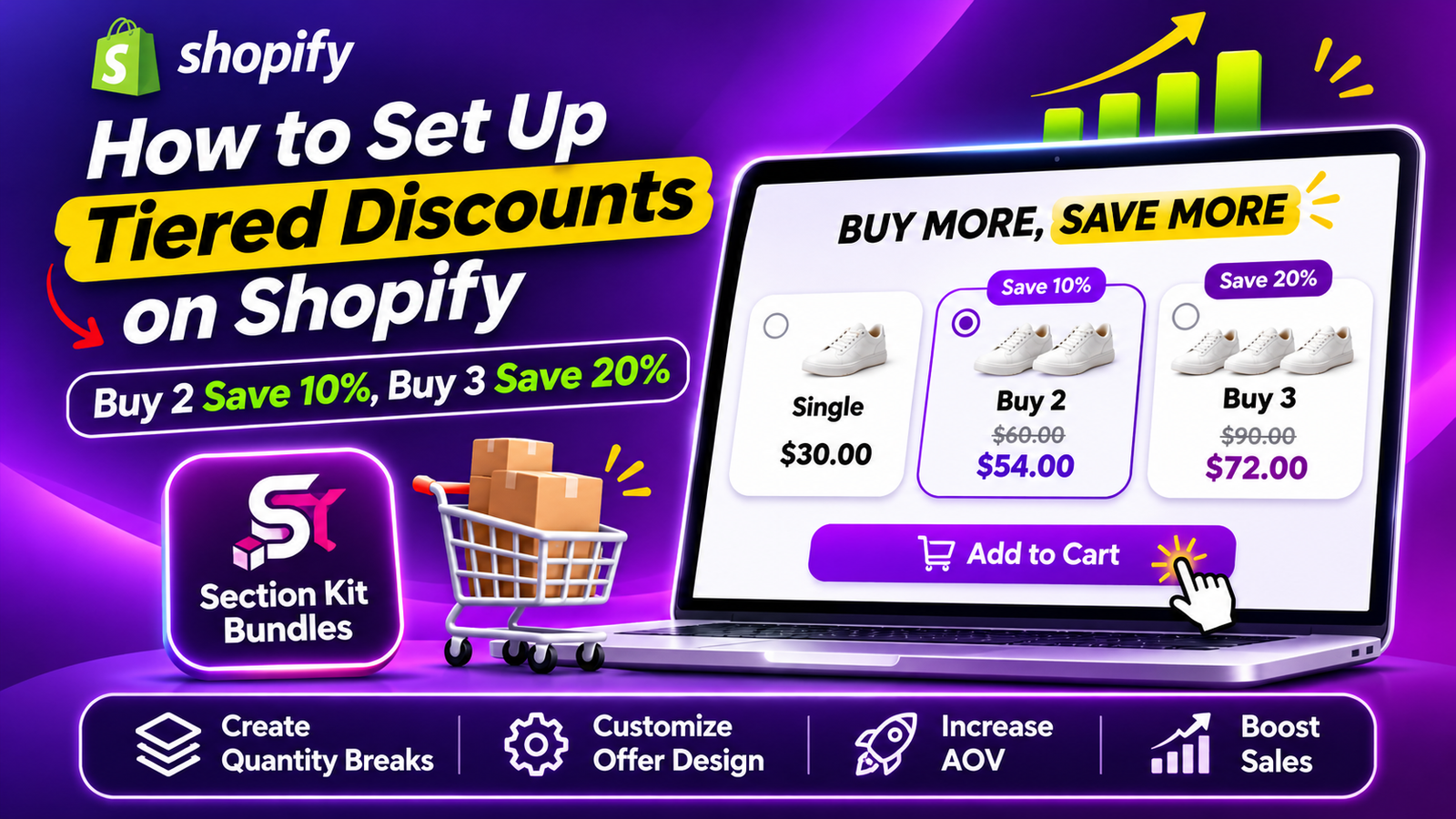
For example, imagine you’re selling a product for $30.
| Quantity | Discount | Total price |
|---|---|---|
| Buy 1 | No discount | $30.00 |
| Buy 2 | Save 10% | $54.00 |
| Buy 3 | Save 20% | $72.00 |
Customers who purchase more units receive a larger discount.
This strategy is commonly used for clothing, skincare, supplements, accessories, and other products customers frequently buy in multiples.
Why Tiered Discounts Matter for Shopify Stores
Tiered discounts can help merchants:
- Encourage customers to purchase additional quantities.
- Increase average order value.
- Promote multi-item purchases.
- Create attractive quantity-based offers.
- Give customers a clear comparison between pricing options.
However, discounts should be planned carefully to protect profit margins. Higher order values do not always mean higher profits.
How to Set Up Tiered Discounts Using Section Kit Bundles
Step 1: Open the Shopify App Store

Image 1: Search for Shopify App Store on Google and open the official website.
Open your browser and search for Shopify App Store. Select the official result to access Shopify’s app marketplace.
The Shopify App Store contains tools for product bundling, store design, marketing, inventory management, and more.
Step 2: Search for Section Kit Bundles
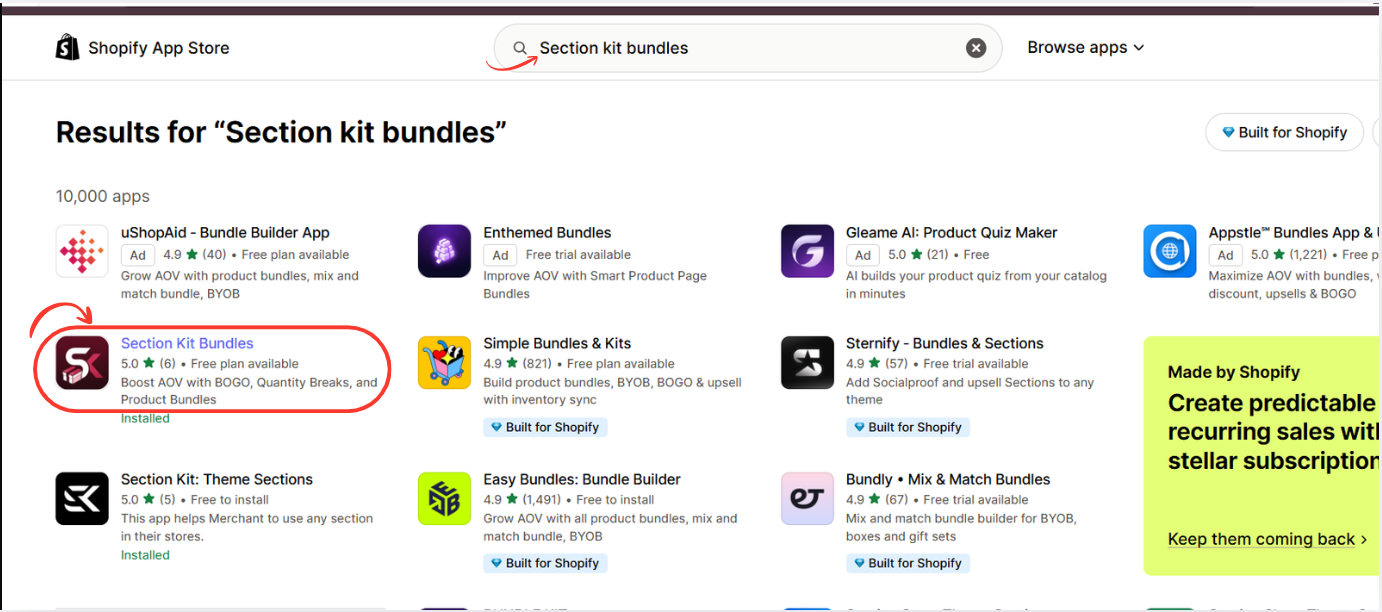
Image 2: Search for Section Kit Bundles and select the highlighted app.
In the Shopify App Store search bar, type Section Kit Bundles.
Find the app in the results and click its listing. The app supports BOGO promotions, quantity breaks, product bundles, and volume discounts. Shopify App Store
Open the app listing, review the available plans, and click Install. Once installation is complete, open the app from your Shopify admin.
You can also visit the app directly: Section Kit Bundles on the Shopify App Store.
Step 3: Install Section Kit Bundles
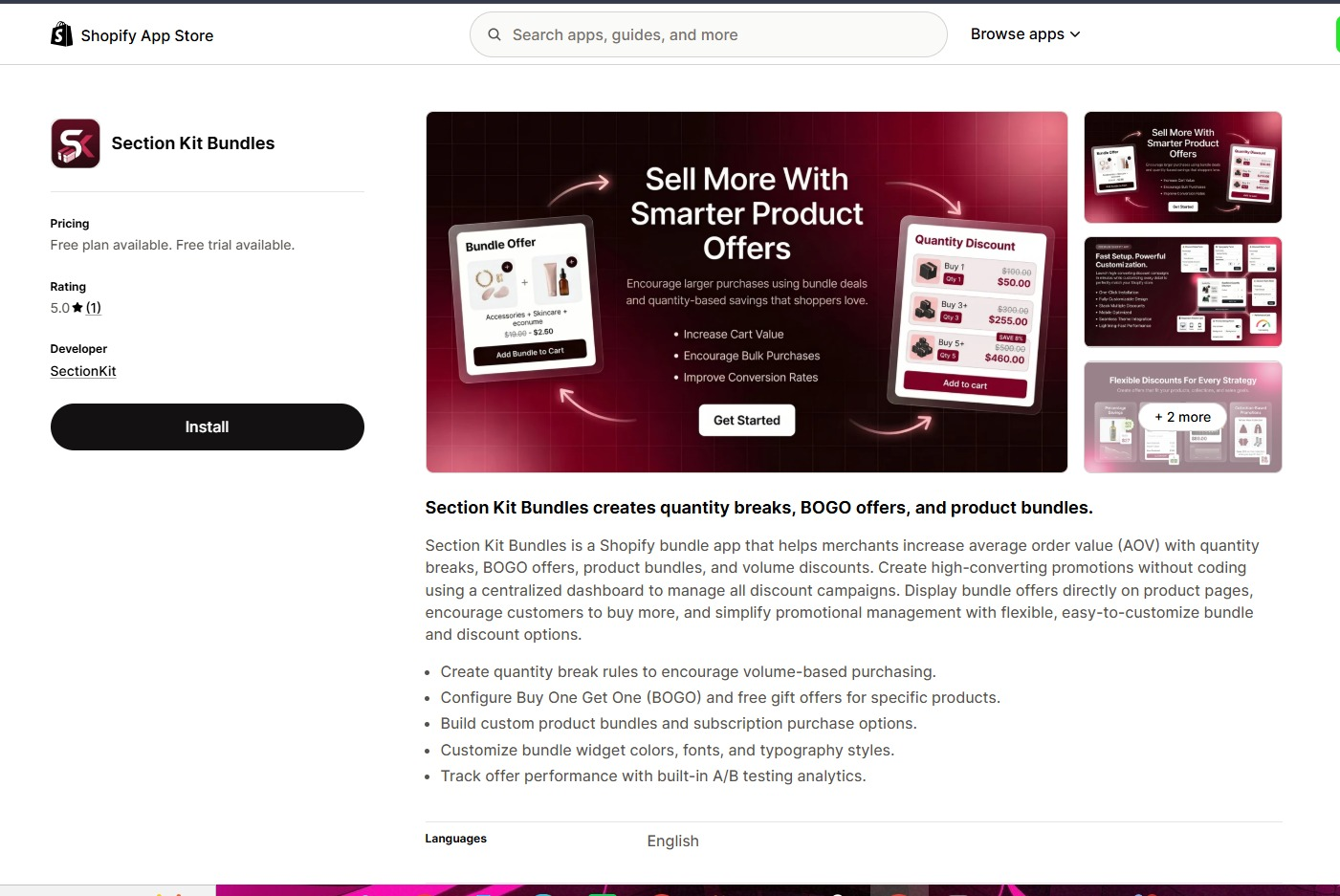
Visit Section Kit Bundles in the Shopify App Store, click Install, select your store, and review the requested access. Complete installation and open the app in Shopify admin. If already installed, proceed to its dashboard.
Step 4: Start a New Offer From the Dashboard
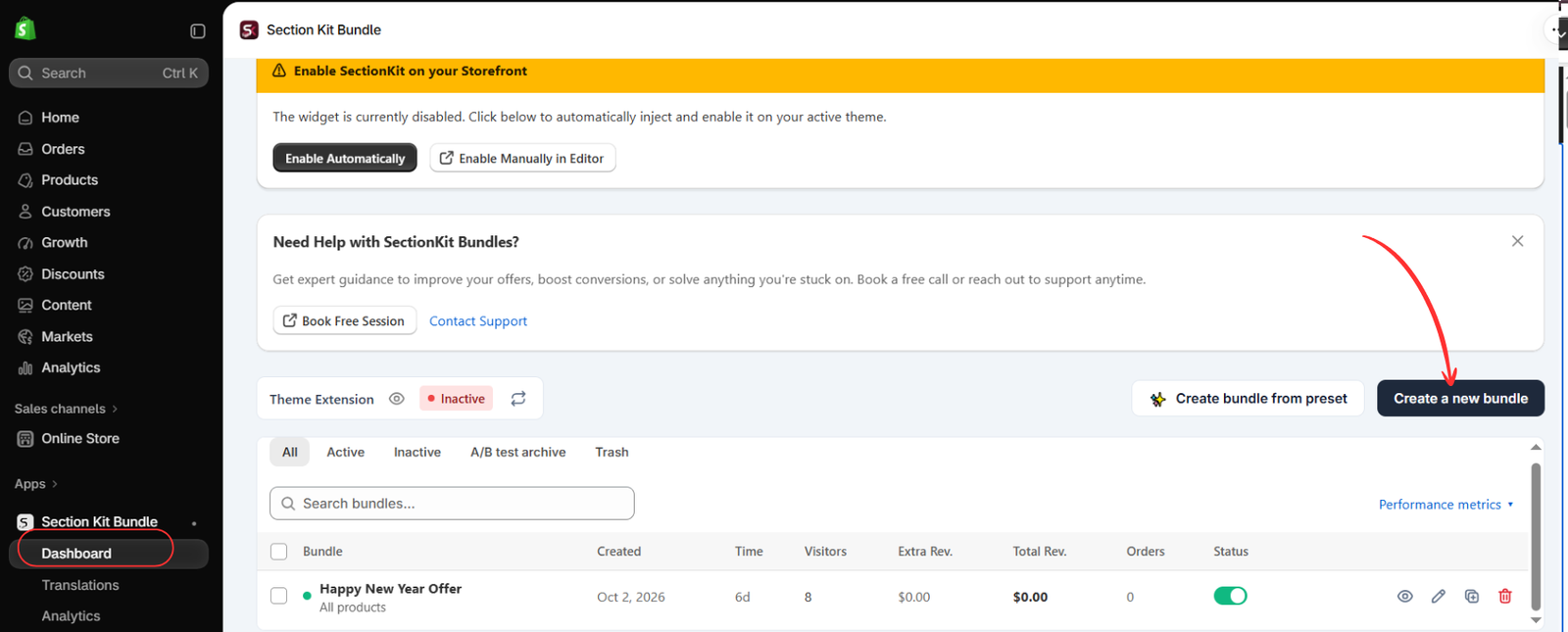
Open Apps → Section Kit Bundle → Dashboard and click Create a new bundle. Give the promotion a descriptive name so you can identify it later.
Image 2 shows the theme extension as Inactive. The offer’s status and storefront integration need separate checks before customers can use the widget.
Step 5: Explore the Available Bundle Designs

Image 4: The Section Kit Bundles template gallery displays different offer designs, including BOGO and multi-quantity layouts.
The app provides multiple ready-made templates.
In your screenshot, the highlighted examples include a BOGO — Buy X Get Y Free offer and a multi-option Choose Your Offer layout.
For tiered discounts, choose a design that clearly displays the available quantities and their corresponding savings.
A good quantity-break layout makes it easy for shoppers to compare offers without needing to calculate the discounts themselves.
Step 6: Configure Your Tiered Discount Offer

Image 5: Configure your offer, review the bundle preview, and use the Publish button when the setup is complete.
After selecting your template, the bundle editor opens.
Enter a descriptive offer name, such as Buy More, Save More, and choose which products or collections should display the offer.
Configure your quantity tiers to provide:
| Tier | Quantity | Discount |
|---|---|---|
| Single | 1 product | Regular price |
| Duo | 2 products | 10% off |
| Trio | 3 products | 20% off |
For a product priced at $30, the discounted totals would be $54 for two units and $72 for three units.
The screenshot shows the editor’s Visibility, Bundle markets, Publish Bundle, and live preview areas. It also highlights BOGO Configuration, which is a separate promotional feature. For this tutorial, make sure the actual offer pricing is configured as a quantity discount rather than unintentionally creating a buy-one-get-one-free promotion.
Check the calculated prices in the preview before publishing.
When everything is correct, click Publish in the upper-right corner.
Step 7: Customize the Bundle Appearance
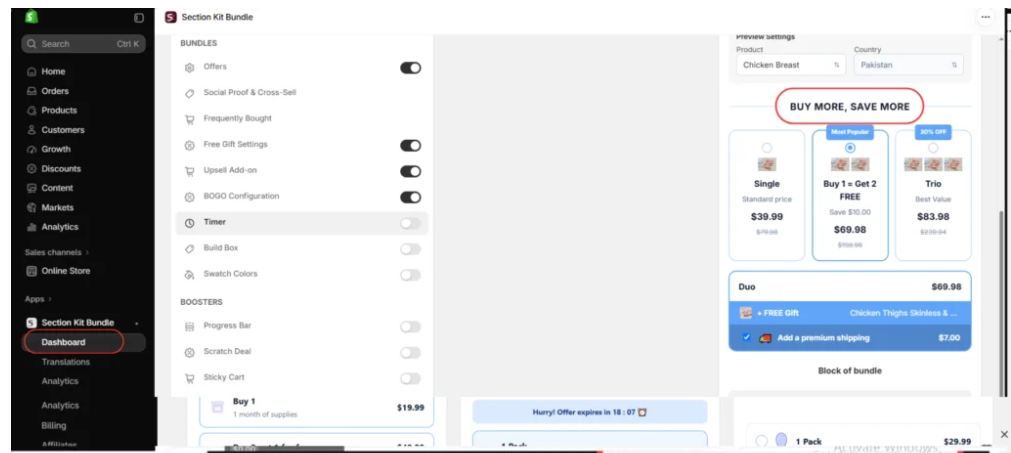
Image 6: Customize the bundle display and preview how customers will see the quantity-based offer.
Section Kit Bundles provides a visual preview that helps you review how your offer will appear on the storefront.
Your screenshot shows a BUY MORE, SAVE MORE heading and three purchase options: Single, Duo, and Trio.
To create a clear tiered discount display, use labels such as:
- Single — Regular Price
- Duo — Save 10%
- Trio — Save 20%
You can also highlight the most attractive offer with a visual label, provided the wording is accurate.
The preview includes optional promotional features such as gifts and additional offers. Use these only when they fit your promotion.
Keep the design simple and make the final prices easy to understand.
Step 8: Activate Your Bundle
After publishing your offer, return to the Section Kit Bundles dashboard.
Find your newly created bundle and confirm that its status is active.

If the offer is inactive, enable it using the status toggle.
Also verify that the offer is assigned to the correct products, collections, and markets.
Step 9: Enable Section Kit Bundles in Your Shopify Theme
To display your tiered discount offer on your storefront, enable the app’s theme extension.
- Open Shopify Admin → Online Store → Themes.
- Click Customize on the theme you want to use.
- Open the App embeds panel.
- Find SectionKit Core — Section Kit Bundle.
- Enable the app embed.
- Click Save.
Once enabled, preview an eligible product page to confirm that the quantity discount offer appears correctly.
If you are using a draft theme, remember that its changes will not appear on your published storefront until the theme is published.
Best Practices for Tiered Discounts
Keep your discount structure simple. Two or three quantity tiers are often easier for customers to compare than a long list of offers.
Make the savings visible and ensure that the discounted totals are accurate.
You should also calculate your margins before publishing a promotion. A 20% discount may increase order value but reduce profitability if your product costs are already high.
Finally, monitor the results of your promotion. Compare average order value, conversion rate, units per order, and profit per order to understand whether your tiered discounts are performing well.
Frequently Asked Questions
Can I create Buy 2 Save 10% and Buy 3 Save 20% offers on Shopify?
Yes. Quantity-based discount offers can be configured using a suitable Shopify bundling or discount app such as Section Kit Bundles.
What is the difference between tiered discounts and BOGO offers?
Tiered discounts reduce prices based on purchase quantities. BOGO promotions provide an additional item free or at a discount when customers meet specific purchase conditions.
Can I customize the bundle design?
Yes. Section Kit Bundles provides templates and visual customization options to help merchants match their offers to their storefronts.
Will tiered discounts automatically increase my sales?
Not necessarily. They can encourage larger purchases, but their effectiveness depends on product demand, discount value, pricing, and customer behavior.
Conclusion
Tiered discounts are a practical way to encourage Shopify customers to purchase more products in a single order.
By creating offers such as Buy 2 Save 10% and Buy 3 Save 20%, you can make multi-item purchases more attractive while giving customers a clear incentive to increase their cart quantity.
With Section Kit Bundles, you can build quantity-based promotions, customize their appearance, publish your offers, and display them directly on your Shopify product pages.
Start with a simple discount structure, test the final pricing, and monitor performance to determine which offers work best for your store.




