How to Speed Up Your Shopify Store on Mobile
Let me ask you something simple.
When did you last open your own Shopify store on your phone and actually time how long it took to load?
If the answer is never or not recently you might be sitting on one of the biggest revenue problems in your business without even knowing it.
Mobile speed is not a technical issue reserved for developers. It is a money issue. Every extra second your store takes to load is pushing real customers away before they ever see your products.
And here is the number that should make this feel urgent.
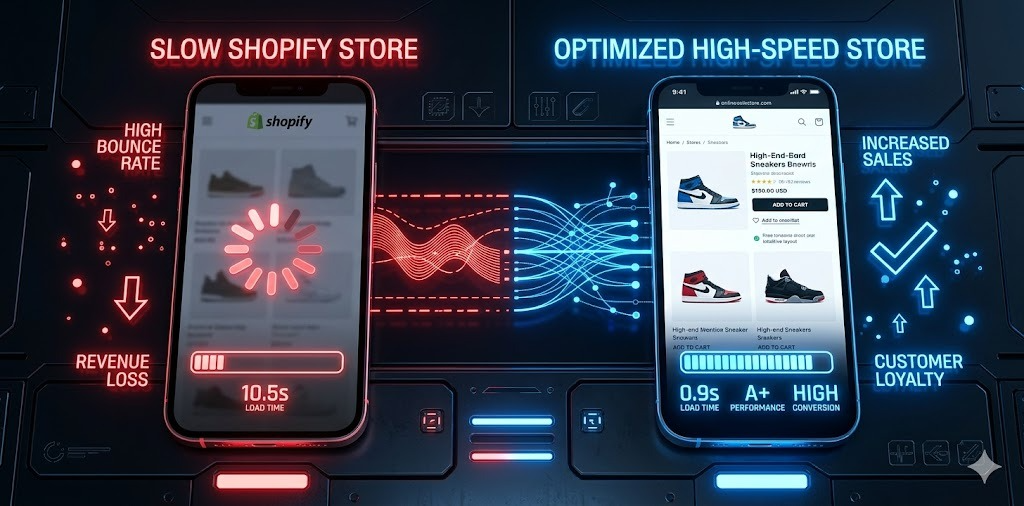
Google’s research shows that as page load time increases from one second to three seconds, the chance of a mobile visitor bouncing increases by 32%. From one second to five seconds that probability jumps by 90%.
Those are not small numbers. And those are not hypothetical customers. Those are real people who clicked your ad, tapped your link, and left before your page finished loading.
This guide covers everything you need to know to make your Shopify store genuinely fast on mobile. Not slightly faster. Actually fast.
Why Mobile Speed Is a Completely Different Problem
Before we get into the fixes, let’s understand why mobile speed deserves its own attention.
A store that loads quickly on desktop can still feel painfully slow on mobile. Here is why.
Connection speed is different. Desktop users are mostly on broadband or fast WiFi. Mobile users are frequently on 4G or 3G cellular connections slower, less stable, and more affected by where someone is physically standing. The same page that loads in one second on your home WiFi might take four seconds on a mobile connection downtown.
Processing power is different. Even a modern smartphone has less processing power than a laptop. Pages with heavy JavaScript, complex animations, and lots of dynamic elements render slower on phones than on computers.
How pages are rendered is different. Mobile browsers handle pages differently from desktop browsers. Some things that load efficiently on desktop create bottlenecks on mobile.
This is why you cannot check your store on a desktop and assume the mobile experience is fine. You need to measure mobile performance separately and fix it specifically.
Start Here: Measure Before You Fix Anything
The biggest mistake store owners make when trying to speed up their store is jumping straight into changes without understanding what is actually causing the problem.
Speed issues have specific causes. And fixing the wrong thing first wastes your time with minimal improvement to show for it.
So before you change a single thing, measure your current performance.
Google PageSpeed Insights
Go to pagespeed.web.dev and enter your store URL. When the results load, make sure you are looking at the Mobile tab not Desktop.
You will get a score from 0 to 100 and a breakdown of specific issues. The score gives you a benchmark. The breakdown tells you what to fix first.
The four metrics worth understanding are:
Largest Contentful Paint (LCP) how long before the biggest visible element on the page loads. Usually your hero image or main product image. Target: under 2.5 seconds.
Total Blocking Time (TBT) how long JavaScript prevents the page from responding. High TBT makes pages feel frozen even after they look like they have loaded. Target: under 200 milliseconds.
Cumulative Layout Shift (CLS) how much page elements jump around as the page loads. When content shifts while you are about to tap something, it is jarring and causes accidental taps. Target: under 0.1.
First Input Delay (FID) how long before the page responds to the first tap or click. Target: under 100 milliseconds.
Run this test on three pages. Your homepage. Your most important collection page. Your best-selling product page. Speed problems often affect specific page types differently and you need the full picture.
GTmetrix
GTmetrix gives you a visual waterfall breakdown a chart showing every file that loads when someone visits your page and exactly how long each one takes. This is particularly useful for spotting specific heavy files or slow loading resources that are dragging everything down.
Run both tests. Write down your scores and the specific issues flagged. Now you have a clear starting point and a priority list of what to fix.
Fix One: Optimize Your Images This Is Where Most Speed Is Lost
If there is one single change that will improve your Shopify store’s mobile speed more than anything else, this is it.
Images are almost always the largest files on any e-commerce page. A single unoptimized product photo can be several megabytes. On a collection page with 20 products, that adds up to a page asking a mobile connection to download enormous amounts of data before the customer sees anything useful.
That is why image optimization comes first. Always.
Compress Every Image Before Uploading
The most impactful thing you can do is compress your images before they ever reach Shopify.
Compression reduces file size typically by 60 to 80% without any visible reduction in quality. A product photo that started at 4 megabytes can be compressed to under 200 kilobytes without your customers noticing any difference in how it looks.
The tools that make this easy are TinyPNG, Squoosh, and ImageOptim. All free. All effective.
Make compression a standard step in your workflow. Every image before it goes onto your store gets compressed. No exceptions. This one habit alone will keep your store significantly faster over time.
Match Image Dimensions to How They Are Actually Displayed
Uploading a 4000 by 4000 pixel image for a thumbnail that displays at 600 by 600 pixels is serving four times more data than necessary. Every time someone loads that page on mobile, their connection is downloading image data that never actually gets used.
Check your theme documentation for recommended image dimensions. Use those as your target. You do not need to upload massive images Shopify automatically generates multiple sizes from whatever you upload, but starting with appropriately sized originals means every version it generates is leaner.
Let Shopify Serve WebP Automatically
WebP is a modern image format that delivers significantly smaller file sizes than JPEG or PNG while looking identical in quality. A WebP image is typically 25 to 35% smaller than a comparable JPEG.
The good news is that Shopify automatically serves WebP versions of your images to browsers that support it. You do not need to do anything special just upload your images through the standard Shopify image upload and the conversion happens automatically.
The only catch is that this only works for images hosted through Shopify. If you are linking to images hosted on an external server, they do not benefit from this conversion.
Check That Lazy Loading Is Enabled
Lazy loading means images below the visible screen below the fold do not load until the user scrolls down to them. This way when someone first arrives on your page, only the images they can immediately see need to load. Everything else waits until it is needed.
Most modern Shopify themes implement lazy loading automatically. But it is worth checking. If your theme does not do this, a performance optimization app or a small code addition can implement it.
Fix Two: Cut Down Your Apps
This is the conversation most Shopify store owners resist. But it might be the most impactful thing you do after images.
Every app installed on your store that has a storefront presence adds code that loads every time a visitor browses your pages. JavaScript files. CSS stylesheets. External API calls. All running in the background while your customer is trying to see your products.
One or two well coded apps have a manageable impact on performance.
But most Shopify stores have far more than that. Many have ten, fifteen, or twenty apps installed over time — added one by one for good reasons, never removed even after the need for them passed. The cumulative effect on mobile performance can be severe.
Do an Honest App Audit Right Now
Go to your Shopify admin. Open your list of installed apps. For every single one, ask yourself three questions.
Am I actually using this right now? Not did I use it six months ago. Not does it sound useful. Am I using it actively today?
Does it provide enough value to justify slowing down every page for every visitor?
Is there a built in Shopify feature that does the same thing? Many apps replicate functionality that Shopify has built natively or that is included in modern themes. These are easy wins remove the app and use what you already have.
Remove Everything You Are Not Using
Be ruthless here. If an app has been sitting unused for months, remove it. The performance cost it carries every day is not worth the convenience of having it available just in case.
One important thing to do after removing apps. Check your theme code for leftover script tags from apps you have uninstalled. Many apps add code to your theme files during installation and that code does not always disappear when you uninstall the app. These orphaned scripts keep loading on every page even though the app they belonged to is gone.
If you are not comfortable editing theme code, most Shopify developers can clean this up quickly and affordably.
When Evaluating New Apps
Before adding any new app going forward, check how it loads its code. Apps that load scripts asynchronously meaning they load in the background without blocking the rest of the page are significantly better for performance than apps that load synchronously and hold everything up while they do it.
Look for performance reviews specifically in the app’s reviews. Search for comments that mention speed or loading time. Developers of performance-conscious apps often advertise this specifically.
Fix Three: Choose a Fast Theme
Your Shopify theme is the foundation everything else is built on. A slow theme makes every other optimization harder. A fast theme gives you a head start.
Theme performance varies significantly. Some themes prioritize visual impact lots of animations, rich design elements, complex layouts. These look impressive on desktop but often carry significant performance costs on mobile. Other themes are built with performance as a core design principle. These load faster, score better in speed tests, and deliver a better mobile experience.
How to Test a Theme’s Speed Before Committing
Every theme in the Shopify Theme Store has a demo store. Before switching to any theme, put the demo URL into Google PageSpeed Insights and check the mobile score.
A score above 70 on the demo before any of your products, customizations, or apps are added is a promising sign. A score below 50 on the demo means you are starting from a slow foundation that will be difficult to improve.
Shopify’s Dawn Theme
Shopify’s free Dawn theme is worth mentioning specifically because it was designed with performance as a primary goal. It consistently scores well in mobile speed tests. If you are starting a new store or considering a switch and your current theme is significantly slow, Dawn is worth serious consideration.
If Switching Themes Is Not Practical
Maybe you have invested significant customization in your current theme. Switching is not always realistic.
In that case, you can still improve your current theme’s performance through code optimization. This includes minifying JavaScript and CSS files to remove unnecessary whitespace and comments, removing unused CSS rules that are defined in the theme but never actually applied, and moving render blocking scripts out of the page header so they do not delay the initial page load.
These are technical changes that require editing theme files. If you are comfortable with HTML and CSS you can work through these with Shopify’s developer documentation as a guide. If not, a Shopify developer can handle it quickly.
Fix Four: Reduce What Loads on Every Page
Not everything on your store needs to load on every page. But many themes and apps load all their code on every single page regardless of whether that page actually uses it.
A live chat widget loading on your checkout page. A product review app loading on your homepage. A loyalty program widget loading on a policy page. None of these things are needed on those pages but they add load time to them anyway.
This is called unnecessary code loading and it is one of the less obvious but significant sources of mobile slowness.
Defer JavaScript That Is Not Immediately Needed
JavaScript that is not needed for the initial page render can be deferred loaded after the page’s visible content has appeared rather than before it. This means your customer sees your products faster even if some background functionality takes a moment longer to become available.
Adding the defer attribute to non critical script tags in your theme code is the technical way to do this. Most render-blocking JavaScript issues flagged in PageSpeed Insights can be addressed this way.
Remove Unused Code From Your Theme
Over time, most Shopify themes accumulate code from features that were added and then removed, from sections that are no longer in use, and from apps that were uninstalled without cleaning up their code.
This unused code adds to the size of files that load on every page without providing any value. A periodic code audit either done by yourself if you are comfortable in the theme editor, or by a developer can identify and remove this dead weight.
Fix Five: Use a Content Delivery Network Properly
Shopify automatically serves your store through a global content delivery network meaning your store’s files are hosted on servers distributed around the world and delivered to each visitor from the server closest to their location.
This is already built in and works automatically for images and assets you upload through Shopify. You do not need to set anything up.
But there are ways you can make sure you are getting the full benefit of this.
Keep All Assets Inside Shopify
Any images, fonts, or files hosted on external servers and linked into your store do not benefit from Shopify’s CDN. They have to be fetched from wherever that external server is located, which can add significant latency especially for mobile visitors who are geographically distant from that server.
Wherever possible, upload assets to Shopify directly rather than hosting them externally. This keeps everything on Shopify’s fast, globally distributed infrastructure.
Be Careful With External Fonts
Custom web fonts from services like Google Fonts or Adobe Fonts need to be fetched from external servers. Each font file adds a request and a download. Mobile browsers also need to load the font before rendering text in that font, which can cause a flash of invisible text or a layout shift as the font loads.
If you use a custom font, consider hosting it through Shopify by uploading the font files directly to your theme’s Assets folder. This keeps the font on Shopify’s CDN and eliminates the external server request.
If you use Google Fonts, preconnecting to Google’s font server in your theme’s head section reduces the time it takes to establish that connection and fetch the font.
Fix Six: Optimize Your Mobile Checkout for Speed
Your checkout pages deserve their own speed focus because cart abandonment on mobile is significantly higher than on desktop and slow checkout pages are a major contributor.
Shopify’s native checkout is already well-optimized for performance and you cannot directly edit most of its code on standard plans. But there are things you can control.
Enable Shop Pay
Shop Pay is Shopify’s accelerated checkout option that saves customer information and allows returning customers to check out in one tap. Beyond the conversion benefit, Shop Pay pages are extremely fast optimized by Shopify specifically for speed.
Enable Shop Pay in your Shopify payment settings if you have not already. It is free and the combination of speed and reduced friction makes a measurable difference to mobile checkout completion rates.
Reduce Apps That Load in Checkout
Some apps add code to your checkout pages upsell widgets, trust badges, custom fields. Each one adds load time to what should be your fastest, most frictionless page.
Review what is loading on your checkout pages specifically. Remove any app added elements that are not clearly contributing to conversion. The checkout page is not the place to load extra functionality at the cost of speed.
Fix Seven: Optimize Your Mobile Homepage
Your homepage is typically the first page a new visitor sees and it needs to load fast especially on mobile where first impressions are made in seconds.
Many Shopify homepage designs are overloaded with content. Multiple image banners. Promotional sliders. Featured collection grids. Testimonial sections. Instagram feeds. Video backgrounds. Each one adds to the load time of what should be a lean, fast-loading entry point to your store.
Question Every Section on Your Homepage
Go through your homepage section by section and ask for each one whether it is genuinely contributing to conversions or whether it is just adding visual weight.
Promotional sliders carousels that automatically cycle through multiple banner images are a particularly common culprit. Research consistently shows that most users never see beyond the first slide because they move on before the slider advances. Meanwhile, the slider loads multiple large images and runs JavaScript animations. Consider replacing your slider with a single strong hero image. You lose nothing in conversion and gain significantly in speed.
Auto-playing videos in the background of sections look impressive but carry enormous load costs on mobile. If you have background video on your homepage, consider whether a well chosen static image delivers similar impact with a fraction of the load time.
Use Sections Thoughtfully
The fewer sections your homepage loads, the faster it loads. This does not mean a sparse or bare homepage. It means every section should earn its place by serving a clear purpose for the customer.
A clean homepage with five well chosen sections that loads in two seconds converts better than a comprehensive homepage with fifteen sections that loads in seven seconds. Speed wins over completeness every time on mobile.
Fix Eight: Implement Browser Caching Effectively
When a visitor comes to your store for the first time, their browser downloads all the files it needs your theme’s CSS, JavaScript, images, fonts. The second time they visit, if caching is implemented properly, their browser already has those files saved locally and does not need to download them again.
This makes repeat visits significantly faster than first visits.
Shopify handles caching for its own infrastructure automatically. Your theme files, images, and Shopify hosted assets are served with appropriate cache headers.
But third-party scripts loaded from external servers — analytics tools, chat widgets, app code often have poor caching configurations that force them to be downloaded fresh on every visit.
When you reduce the number of third-party scripts loading on your store as discussed in the app audit section you are also reducing the number of uncached resources that need to reload on every visit. This is another reason why a lean app setup pays dividends for mobile performance.
Fix Nine: Monitor Your Speed Continuously
Optimizing your store’s mobile speed is not a one time project. It is an ongoing practice.
Every new app you install has the potential to slow things down. Every new image added without compression adds weight. Theme updates sometimes introduce new code that affects performance. Your speed today does not guarantee your speed three months from now.
Set a reminder to run PageSpeed Insights on your key pages once a month. Track your scores over time. If you see your score dropping, you know something changed and you can investigate what.
Google Search Console’s Core Web Vitals report updates regularly and flags pages that are failing performance thresholds. Check it as part of your regular analytics review.
When you make any significant change to your store installing a new app, updating your theme, adding a new homepage section run a speed test immediately after. This gives you a direct before and after comparison and tells you immediately whether the change had a meaningful impact on performance.
Set Up Real User Monitoring
PageSpeed Insights and GTmetrix simulate a page load under controlled conditions. Real user monitoring captures what your actual visitors experience on their actual devices and connections.
Tools like Hotjar and Microsoft Clarity show you how real users behave on your mobile store and can reveal performance-related behavior patterns — like users who arrive and immediately leave, or users who start the checkout process and abandon it.
Combining simulated speed test data with real user behavior data gives you the most complete picture of where performance problems are affecting actual customer experiences.
Fix Ten: Test on Real Devices, Not Just Simulators
Chrome DevTools has a mobile simulation mode that lets you preview how your store looks and performs at different mobile screen sizes. It is a useful tool but it is not the same as testing on an actual phone.
Simulators do not fully replicate the processing constraints of a real mobile device. They do not replicate real cellular connection behavior. And they do not capture the tactile experience of navigating a store with your actual finger on an actual touchscreen.
Pick up your phone. Open your store in your mobile browser. Navigate through it as if you were a customer visiting for the first time.
How long does the homepage take to appear? How does the collection page feel to scroll? How fast does tapping on a product load the product page? How smooth is the Add to Cart interaction? How does the checkout feel?
Do this regularly. At least once a month. And ideally do it on different network conditions on WiFi, on 4G, and if possible in an area with weaker signal.
The friction you feel during this process is exactly what your mobile customers are experiencing. Every slow moment, every hesitation, every tap that takes a beat longer than expected those are your optimization targets.
Putting It All Together
Mobile speed improvement is not a single fix. It is a collection of compounding improvements that together create a store that feels fast, responsive, and professional on every phone.
Here is the practical order to work through everything covered in this guide.
Start by measuring. Run PageSpeed Insights on your key pages and note your current mobile scores. This is your baseline.
Then fix your images. Compress everything. Match dimensions to display sizes. This alone often moves the needle more than anything else.
Then audit your apps. Remove everything unused. Check for orphaned code from uninstalled apps. Evaluate remaining apps for their performance impact.
Then review your theme. If it is scoring poorly in speed tests, investigate whether optimization or a switch makes sense.
Then work through the remaining fixes deferred JavaScript, external assets, homepage optimization, checkout streamlining in order of impact based on what PageSpeed Insights flagged for your specific store.
Then set up ongoing monitoring so you catch regressions before they become significant problems.
And throughout all of it, keep testing on your actual phone. Real device testing catches things that no tool will flag.
Final Thoughts
Your Shopify store’s mobile speed is directly connected to your conversion rate, your customer experience, your bounce rate, and even your search engine rankings — Google uses mobile page speed as a ranking factor.
Every improvement you make to mobile speed is an improvement to all of those things simultaneously.
The stores that are winning on mobile right now are not necessarily the ones with the best products or the biggest budgets. They are the ones where someone took the time to measure performance honestly, work through the fixes systematically, and keep monitoring over time.
Your customers are on mobile. Their time is short and their patience is limited.
Give them a store that loads fast and they will stay, browse, and buy.
Make them wait and they will leave.
It really is that simple.