HOW TO USE AI CHAT TO REVIEW SHOPIFY SALES AND ORDER DATA
Introduction
Understanding your Shopify sales and order data is one of the most important parts of running a successful store. When you know what is selling, when customers are buying, and how your orders are performing, you can make better decisions about marketing, products, and growth.
The problem is that many merchants do not always have time to manually review reports, compare numbers, or dig through different dashboards. That is where AI can save time. Instead of checking everything manually, you can ask an AI assistant to review your Shopify sales and order data for you and get a clear explanation in simple words.
In this guide, I will show you how to use PA Claude Connector to review Shopify sales and order data with AI chat, using the exact screenshots you attached.
The Merchant’s Problem
Many Shopify merchants face the same challenges when trying to review store performance:
- Sales reports can feel overwhelming
- Order data is often scattered across dashboards
- It takes time to understand trends
- Merchants may not know what questions to ask
- Important insights can be missed
- Manual analysis can slow down decision-making
For store owners who want quick answers, this process can become frustrating.
Why Use an AI Assistant for Sales and Order Analysis?
An AI assistant can make this process much easier.
Instead of manually studying every report, you can simply ask questions like:
- How were my sales in the last 30 days?
- Can you review my order data?
- What does my revenue trend look like?
- Which products are driving results?
- Can you generate a report from my store data?
This saves time and helps merchants get direct, easy-to-understand answers.
Introducing PA Claude Connector
If you want an easier way to review Shopify store data, PA Claude Connector is designed for that purpose.
With this app, merchants can:
- Access AI chat inside Shopify
- Ask questions about store sales and order data
- Review insights quickly
- Get easy-to-read explanations
- Generate reports based on store data
- Save time compared to manual analysis
App Link:
https://apps.shopify.com/claude_connecter_-app
Why This Matters for Shopify Merchants
Using AI to review sales and order data gives merchants several advantages:
- Faster analysis
- Better visibility into business performance
- Less manual work
- Easier decision-making
- Helpful reporting support
- More confidence when planning next steps
This is especially useful for busy merchants who want answers quickly without spending too much time inside analytics dashboards.
Step-by-Step Guide: How to Use AI Chat to Review Shopify Sales and Order Data
Step 1: Open the Official Shopify App Store
First, open Google Chrome or another web browser.
Search for Shopify App Store and press Enter.
Click the official Shopify App Store result to open Shopify’s application marketplace.

Image 1: Search for Shopify App Store on Google and click the official result highlighted by the red arrow.
Image explanation
The screenshot shows the Google search results page.
At the top, the search term shopify app store is highlighted in red. Another red arrow points toward the official Shopify App Store website.
Click this result to access the marketplace, where you can find applications for Shopify analytics, content creation, and store management.
Step 2: Search for PA Claude Connector
Once you open the Shopify App Store, locate the search field at the top.
Type PA Claude Connector and search.
Find the app named PA Claude Connector, identified by its orange-and-white icon, and click it.
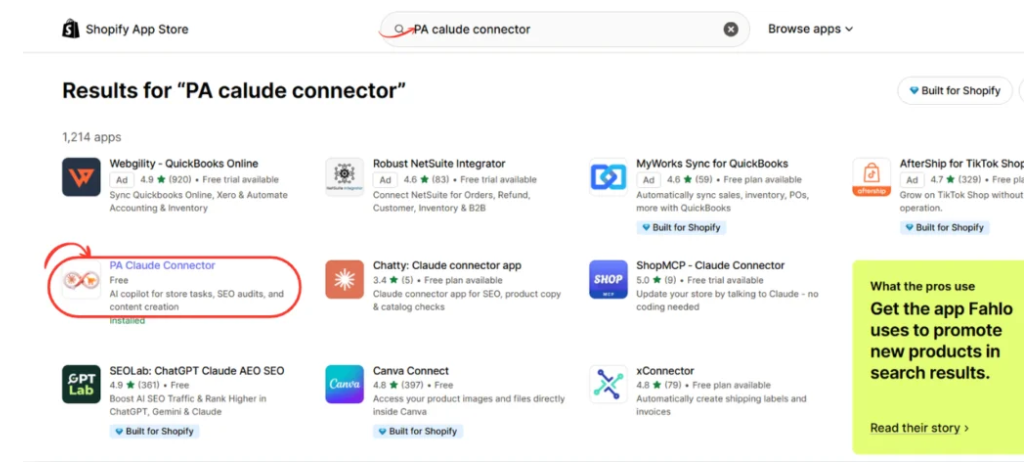
Image 2: Locate PA Claude Connector in the Shopify App Store results and select the app highlighted in red.
Image explanation
The screenshot displays Shopify App Store search results.
The red circle highlights the correct application, PA Claude Connector.
The app’s short description identifies it as an AI copilot for store tasks, SEO audits, and content creation.
The example also displays an Installed status, meaning the app is already installed in that particular store.
Merchants who haven’t installed it should open the listing to begin installation.
Step 3: Install or Open PA Claude Connector
After opening the app listing, review its features and pricing information.
Click Install if you are a new user and complete Shopify’s authorization process.
If the application is already installed, click Open.
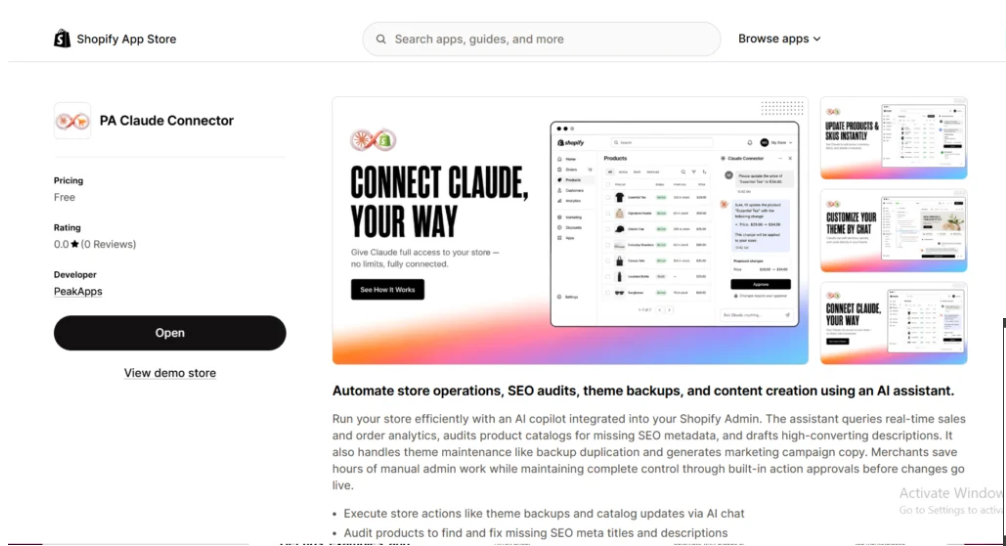
Image 3: Open the official PA Claude Connector listing and use the Install or Open button to access the application.
Image explanation
The screenshot shows PA Claude Connector’s official listing.
On the left, you can see its name, developer information, pricing, and the black Open button.
The featured gallery on the right shows the app’s integration with Shopify and its AI-assisted store management capabilities.
Once you click Open, PA Claude Connector launches inside your Shopify admin.
Step 4: Open Claude Assistant and Ask About Your Sales
Inside the Shopify admin dashboard, find PA Claude Connector in the Apps sidebar.
Click Claude Assistant.
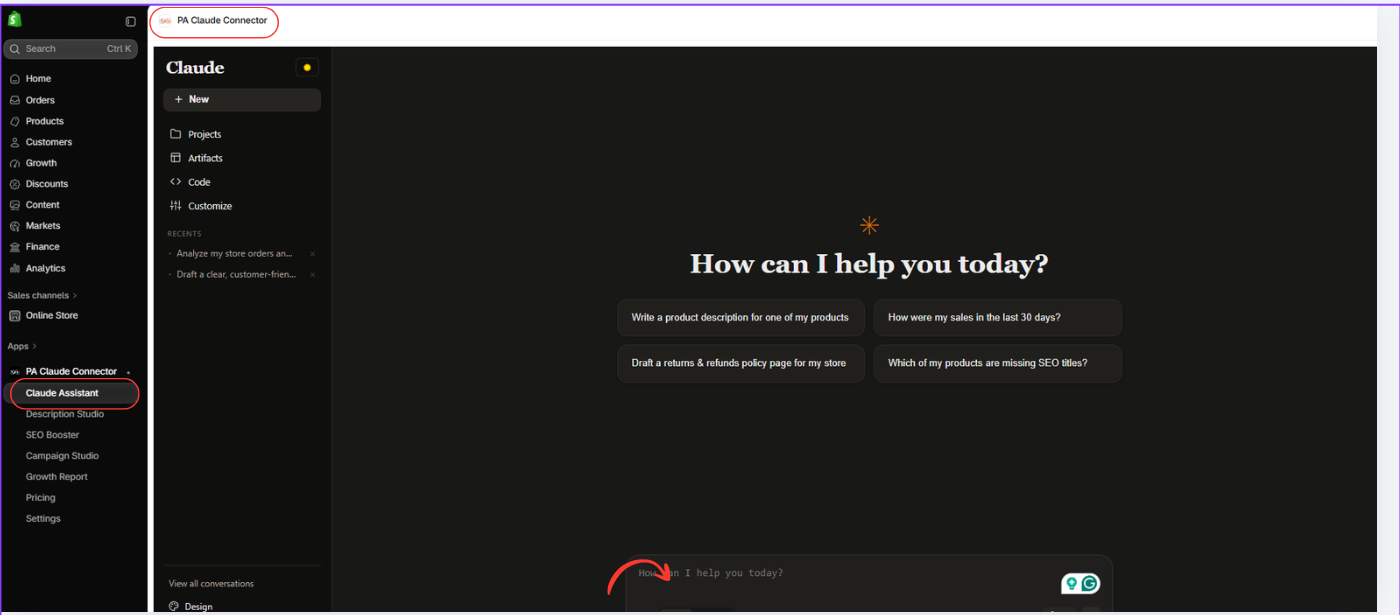
This opens the AI chat workspace, where you can ask questions about your Shopify store using natural language.
For example, you can ask:
- How were my sales in the last 30 days?
- Analyze my Shopify orders.
- What is my total revenue this month?
- Can you prepare a report about my store’s sales performance?
PA Claude Connector Claude Assistant dashboard and AI chat
Image 4: Open Claude Assistant and use the chat field to ask questions about Shopify sales, orders, and store performance.
Image explanation
The screenshot shows the actual Claude Assistant workspace within PA Claude Connector.
The left sidebar highlights Claude Assistant, while the central workspace displays the heading How can I help you today?
Several suggested questions are available, including one asking about sales in the last 30 days.
At the bottom, the AI chat input is highlighted by a red arrow.
Click this input, type your question, and submit it.
Example prompt
Copy this prompt Copy
Analyze my Shopify sales and orders for the last 30 days. Show total revenue, number of orders, average order value, and important trends. Explain what the data means, highlight any issues, and recommend practical next steps. Clearly identify any missing information.
Why this step matters: You don’t need to manually build a complicated report to ask an initial question. You can describe the analysis you need in everyday language.
Step 5: Review the AI Analysis and Generate a Sales Report
After submitting your question, Claude Assistant analyzes the available store information and prepares a response.
Depending on the data accessible to the app, the response may include revenue figures, order counts, average order value, comparisons, limitations, and suggested actions.
Claude Assistant sales analysis with recommendations and downloadable DOCX report

Image 5: Claude Assistant displays sales findings, recommended next steps, and a downloadable report document.
Image explanation
The screenshot shows Claude Assistant presenting a detailed analysis of store sales.
The AI discusses the implications of a low order count and a high average order value.
For example, the visible analysis references a single order worth $1,415.90.
The assistant also identifies that conclusions drawn from only one order are not statistically reliable.
Below the analysis, Claude provides recommended next steps such as verifying tracking, reviewing the sales funnel, and checking SEO.
Most importantly, the screenshot shows a generated DOCX report with a Download button.
This is a particularly useful feature for Shopify merchants because the AI can turn its analysis into a document that can be saved, shared, or reviewed later.
The report shown is based on the example store’s available data. It should not be treated as a general Shopify sales benchmark.
Step 6: Open and Review the AI-Generated Order Report
After Claude generates a report, use the available Download button to access the document.
Review its findings, calculations, and recommendations.

The report can organize order information into sections, making it easier to understand and communicate the results.
PA Claude Connector showing generated order data report and deeper sales analysis
Image 6: Review the AI-generated order analysis and document, including order totals, historical comparisons, and recommended actions.
Image explanation
The screenshot shows two areas.
On the left — Claude Assistant
The chat contains an analysis of order data and recommended next steps.
Below the response, there is a DOCX document card titled order data?, with a Download button.
On the right — Report content
The report contains a section titled Order Data — Deeper Dive.
It compares three reporting windows:
| Reporting window | Orders | Revenue |
|---|---|---|
| Last 7 days | 1 | $1,415.90 |
| Last 30 days | 1 | $1,415.90 |
| Last 90 days | 1 | $1,415.90 |
The AI observes that the same single order appears in all three periods.
It also explains that it does not have line-item or order-detail access for that analysis, so it cannot confirm exactly which products were purchased.
Instead, it identifies potential interpretations and recommended next steps while distinguishing them from confirmed findings.
This is an important part of responsible AI sales analysis: the assistant should explain both what the available data shows and what cannot be verified.
Why report generation is useful
Instead of copying numbers manually into a separate document, merchants can use AI to prepare a structured report from the information available to the app.
A downloadable report can be useful for internal meetings, reviewing sales performance, discussing marketing priorities, and sharing findings with team members.
Always verify important figures against Shopify’s original reports, particularly before making financial or advertising decisions.
Benefits of Using AI Chat for Shopify Sales Analysis
With PA Claude Connector, merchants can ask questions about store performance, receive plain-language analysis, and generate reports from available data.
This can reduce repetitive manual work and make analytics easier to interpret.
The greatest advantage is not simply receiving numbers—it is being able to ask follow-up questions, explore possible explanations, and obtain a structured summary of what the data means.
Conclusion
Reviewing Shopify sales and order data doesn’t need to involve manually examining multiple dashboards every time you need an answer.
With PA Claude Connector, merchants can ask Claude questions about sales, orders, revenue, and store performance directly from the Shopify admin.
As demonstrated by your screenshots, Claude Assistant can explain sales findings, identify important limitations, recommend next steps, and generate downloadable DOCX reports.
This makes it a useful tool for merchants who want to understand their business data more efficiently while keeping important decisions grounded in verified Shopify figures.
Ready to review your Shopify sales and orders using AI?Install PA Claude Connector on Shopify




