How to Use Shopify Sidekick (The Built in AI Assistant)
Let’s talk about Sidekick. If you’ve been running your Shopify store and ignoring that little purple icon sitting in the corner of your admin, you’re leaving a genuinely useful assistant on the table. This isn’t some gimmicky chatbot that gives you generic advice you could’ve googled yourself. Sidekick actually sees your store, understands your data, and can take real action inside your admin. In this guide, I’m going to walk you through exactly how to use it, what it’s good at, where it falls short, and how to build it into your daily routine so it actually saves you time instead of just being another thing you forgot exists.
What Sidekick Actually Is
Before we get into the how, let’s clear up the what. Sidekick is Shopify’s AI assistant designed to make it easier for you to start, run, and grow your business on Shopify. It has direct access to your Shopify data, understands commerce workflows, and takes action in your admin, which is a very different thing from a generic AI tool that can’t see your store or complete tasks for you.
That last part is the key distinction. If you’ve ever asked ChatGPT for help with your Shopify store, it can give you general advice, but it has no idea what your actual products are, what your sales look like this week, or how your checkout is configured. Sidekick knows all of that because it’s built directly into your admin and connected to your live data.
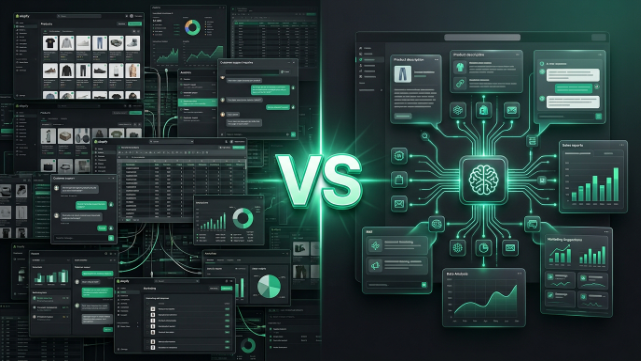
It’s important to understand that Sidekick isn’t the same thing as Shopify Magic, even though people use the terms interchangeably. Magic is the set of embedded generation buttons you click inside specific features, like generating a product description or editing an image. Sidekick is the conversational agent, a chat sidebar you open from any admin page where you describe what you want in plain English, and it plans, executes, and reports back, often calling Magic in the background to actually generate the content. Think of it like this, Magic is a set of buttons, Sidekick is an agent.
Opening Sidekick For The First Time
Here’s the part that surprises a lot of merchants, there’s basically no setup involved. You open your Shopify admin and click the purple glasses icon, and that’s it, no configuration needed. A chat panel opens up, and you just start typing.
There’s no learning curve of memorizing commands or specific phrasing either. You talk to it the way you’d talk to a new employee who’s smart but needs clear instructions. If your first message is vague, it’ll usually ask a clarifying question rather than guessing wildly and making a mess of things.
One thing worth knowing before you dive in, if you run a store with a team, every staff member can use Sidekick based on their own admin permissions. It respects your existing access controls, so a staff member without access to financial reports won’t suddenly be able to pull that data through Sidekick either. That makes it safe to roll out across your whole team without worrying about permission leaks.
Asking Sidekick About Your Store Performance
The most natural place to start is simply asking questions. This is where Sidekick genuinely shines, because it can analyze your sales data and identify operational bottlenecks in a conversational way instead of you digging through report after report.
Try asking something like “what were my best selling products last week” or “which collection has the lowest conversion rate right now.” You’ll get a real answer pulled from your actual store data, not a generic explanation of how conversion rates work. This alone replaces a good chunk of the time merchants usually spend clicking through the Analytics section trying to find the right report.
You can go more specific too. Ask about a particular product’s return rate, or which day of the week brings in the most orders, or how your mobile conversion compares to desktop. The more specific your question, the more useful the answer tends to be. Vague questions get vague answers, so it helps to be as clear as you can about exactly what you want to know.
Using Sidekick To Set Up Automations
This is where Sidekick moves from “helpful analyst” to genuinely doing work for you. It can help you set up automations within Shopify Flow and other workflow tools, and for common workflows, it can generate the logic and even create the automation with your approval.
A practical example, you could type something like “tag any customer whose lifetime spend exceeds $500 as VIP and send them a thank-you email,” and Sidekick builds that Shopify Flow automation for you rather than you manually navigating the Flow builder and figuring out the conditional logic yourself. For straightforward workflows like this, it does genuinely solid work.
Where it gets trickier is with more complex conditional workflows, especially ones involving third-party apps outside Shopify’s native ecosystem. Those may still need manual fine-tuning after Sidekick sets up the initial version. So think of Sidekick as giving you a strong first draft of your automation rather than a guaranteed finished product for anything complicated. It gets you most of the way there quickly, and you polish the rest.
Getting Content Written Through Sidekick
Sidekick can help with marketing content too, generating things like emails and blog posts through the conversation itself. What makes this different from just clicking the Magic button inside a product description field is that you can iterate through conversation, asking it to revise tone, add specific details, or restructure the content through follow-up messages.
So if the first draft of your email is too formal, you just tell it “make this more casual” or “add urgency around the sale ending Friday” and it adjusts. That back-and-forth conversational refinement is genuinely more flexible than the one shot generation you get from clicking a single Magic button somewhere in your admin.
That said, keep your expectations grounded. The output from these tools tends to be functional and covers the right topics but benefits from personalization and brand voice editing before you actually publish it. Don’t just copy paste and hit send. Read it, adjust it so it sounds like you, and then use it.
Customizing Your Store’s Look Through Sidekick
If you’ve ever wanted to change your theme but didn’t want to dig through dozens of settings panels, Sidekick can help here too. You can describe the look you want in natural language, and Sidekick suggests specific theme settings, color palettes, and layout adjustments.
It’s worth being clear about the limits though. It cannot fundamentally redesign your store from scratch, but it does significantly speed up visual customization tasks. So if you want to go from a light theme to a warmer, more autumnal color palette ahead of a seasonal sale, that’s a great use case. If you’re trying to completely reimagine your store’s layout and structure, you’re probably still looking at a theme developer or a more hands-on design process.
The Approval Step And Why It Matters
Here’s something that genuinely reassured me about how Shopify built this tool. Sidekick doesn’t just go off and make changes to your live store without asking. Sidekick will always present a preview and require you to click Approve, which is a deliberate safety feature rather than a limitation.
Yes, this means Sidekick can’t run fully unattended overnight jobs the way some fully autonomous AI agents claim to. But honestly, for most merchants, that’s exactly what you want. You don’t want an AI tool quietly changing your prices or editing your live product pages while you’re asleep without your knowledge. The approval step keeps you in the driver’s seat while still letting the AI do the heavy lifting of drafting and preparing the change.
Custom App Generation With Sidekick
For merchants on higher-tier plans, there’s a more advanced feature worth knowing about. Sidekick’s custom app generation feature lets you describe an internal tool and have Sidekick build it using Polaris components and the GraphQL Admin API. So instead of hiring a developer to build a simple internal tool, like a barcode inventory scanner or a bulk order editor, you describe what you need in plain language and Sidekick builds a working app for your admin.
The catch is that this capability is available to merchants on Grow, Advanced, Shopify Plus, and Enterprise plans, so if you’re on a Basic plan, this particular feature may not be available to you the same way. It’s still worth knowing this exists as your store grows, because it can save you real development costs down the line.
Making Sidekick Part Of Your Daily Routine
The merchants who get the most out of Sidekick aren’t the ones who open it once out of curiosity and forget about it. They’re the ones who build small habits around it. Start your morning by asking Sidekick for a quick performance snapshot instead of manually checking three different report screens. When you’re about to write a promotional email, open Sidekick and draft it there instead of starting from a blank page. When you notice something looks off in your sales numbers, ask Sidekick to dig into it before you spend twenty minutes clicking through filters yourself.
If you’ve got a team, it’s worth putting together a simple internal guideline, even just a short document specifying which tasks should go to Sidekick, which need manual work, and what your review process looks like before anything AI-generated goes live. Establishing a mandatory review step before publishing AI content is a small habit that prevents almost every embarrassing mistake merchants run into with these tools.
Where Sidekick Still Needs You
I want to be honest here rather than oversell this tool. Sidekick is genuinely useful, but it has real limits. It can misunderstand complex, highly technical requests. Its content drafts, while functional, usually need your personal brand voice layered in before they’re publish ready. And for anything involving significant financial decisions or major structural changes to your store, you should always be the final check, not the AI.
Treat Sidekick as an incredibly capable assistant who’s read your entire store’s data and workflows, but who still needs your judgment and brand instinct to turn a good draft into something that’s actually yours.
Using Sidekick As A Pakistani Shopify Merchant
If you’re running your store from Pakistan, there are a few ways Sidekick fits particularly well into your day-to-day operations.
Since a large share of orders here still come through Cash on Delivery, you can ask Sidekick directly about your COD performance, things like which products have the highest COD refusal rates, or which cities show the most order cancellations. That data usually sits buried inside standard reports, but Sidekick can surface it conversationally in seconds.
If you’ve integrated JazzCash or Easypaisa through a payment gateway app, you can ask Sidekick to help draft simple, clear checkout explanations for customers who might be unfamiliar with digital payment methods, since a lot of cart abandonment in Pakistan happens simply because buyers hesitate at unfamiliar payment steps.
For shipping, if you’re working with Leopards, TCS, or M&P, you can ask Sidekick to pull data on delivery delays or compare performance across couriers based on your own order history, helping you make smarter fulfillment decisions instead of guessing which courier is actually reliable in which city.
And since Sidekick adapts to your store’s language settings and can help you in multiple languages, your team can ask questions in whichever language they’re most comfortable working in, which matters if you’ve got staff who are more comfortable in Urdu than English for day-to-day communication.
Final Thoughts
Sidekick is one of those tools that quietly becomes indispensable once you actually build the habit of using it. It won’t run your store for you, and it shouldn’t, but it removes a huge amount of the manual digging, drafting, and clicking that eats up a merchant’s week. Start small, ask it a few questions about your store performance, let it draft your next promotional email, and see how naturally it fits into your workflow from there.
If you’d rather have someone set this up properly for your store, from configuring your brand voice to training your team on the right way to use Sidekick alongside your existing workflows, that’s exactly the kind of work we do at TheScriptFlow. We help Shopify merchants across Pakistan and beyond get real, measurable value out of these AI tools instead of just clicking around aimlessly. Reach out to us at thescriptflow.com and let’s get your store running smarter.