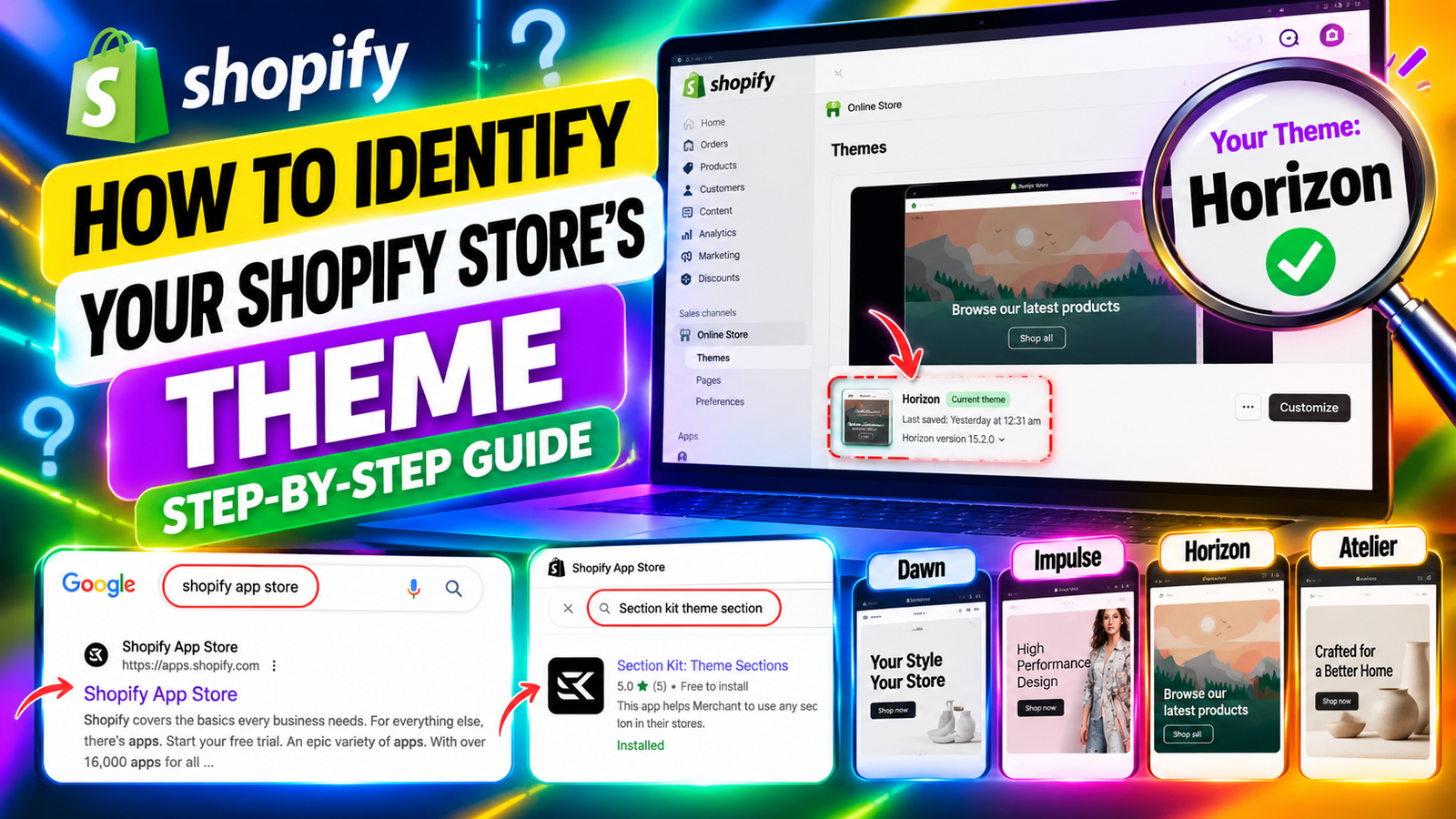
HOW TO IDENTIFY YOUR SHOPIFY STORE’S THEME
Introduction
Every successful Shopify store starts with a well-designed theme. Your Shopify theme determines how your website looks, how customers navigate your products, and how different sections appear across your storefront.
Whether you’re running a fashion store, electronics business, beauty brand, or general eCommerce website, choosing the right theme plays an important role in creating a professional shopping experience.
However, many Shopify merchants are unsure which theme their store is currently using.
This becomes especially challenging when merchants install multiple themes, test different layouts, or work with developers who customize their storefronts.
Knowing your Shopify theme is essential when you want to make design changes, install new sections, troubleshoot layout issues, or improve your website’s appearance.
Fortunately, Shopify provides a way to identify your current theme directly from your admin dashboard.
Additionally, applications such as Section Kit: Theme Sections help merchants work with their installed themes by allowing them to add and customize sections on the appropriate storefront.
In this guide, we’ll explain why identifying your Shopify theme matters, the common challenges merchants face, and how to find and work with your store’s theme using Shopify and Section Kit: Theme Sections.
What is a Shopify theme?
A Shopify theme is a collection of templates, layouts, styles, and features that control your online store’s appearance and much of its storefront functionality.
It determines how important website elements are displayed, including:
- Homepage banners and featured collections.
- Product pages and product information.
- Navigation menus and headers.
- Collection pages and product grids.
- Footer sections and copyright information.
- Typography, colors, and spacing.
- Mobile and desktop layouts.
Shopify offers both free and paid themes, allowing merchants to choose designs based on their business requirements.
Some popular Shopify themes include Dawn, Horizon, Atelier, Impulse, Refresh, and Craft.
Each theme offers different design options and customization capabilities.
Why is knowing your Shopify theme important?
Identifying your Shopify theme helps you make better decisions when customizing and maintaining your online store.
1. Easier theme customization
Knowing your theme helps you understand which layouts, settings, and sections are available.
2. Better app compatibility
Some Shopify applications interact with theme sections, app blocks, or storefront code. Identifying the correct theme helps you configure and test these integrations.
3. Faster troubleshooting
When something is not displaying correctly, knowing your theme and its version can help developers and support teams investigate the issue.
4. Safer design changes
Identifying your published theme helps prevent accidental changes to the wrong theme.
5. Improved website management
Merchants can organize their theme library, test draft themes, and prepare redesigns more effectively.
6. More effective section customization
Knowing which theme you are editing is particularly important when adding custom sections through applications such as Section Kit: Theme Sections.
Common challenges Shopify merchants face
Although identifying a Shopify theme may seem simple, merchants often encounter difficulties.
Multiple installed themes
Shopify allows merchants to keep several themes in their theme library. This can make it confusing to distinguish the published theme from draft themes.
Custom theme names
Developers sometimes rename themes or create duplicates with names such as “Copy of Horizon” or “Custom Theme.”
Limited technical knowledge
New Shopify merchants may not know where to find theme information inside their admin dashboard.
Uncertainty when installing sections
Merchants may accidentally add a section to a draft theme instead of the published storefront.
Working with developers and agencies
When multiple people manage the same store, it can become difficult to identify which theme is being edited.
Switching between themes
Merchants who regularly test designs may struggle to keep track of which theme contains their latest customizations.
These challenges highlight the importance of understanding how Shopify manages themes.
How Shopify apps help merchants manage their themes
Shopify applications can simplify different aspects of theme customization.
Depending on their functionality, apps may allow merchants to add sections, configure app blocks, customize storefront elements, and select which installed theme should receive changes.
For example, a merchant using multiple themes may need to add a promotional banner to the published theme while testing a different layout on a draft theme.
An application that provides theme selection can make this process more convenient.
However, it is important to distinguish between identifying a theme and customizing a theme.
Shopify’s admin dashboard is the authoritative place to identify your published theme. Apps such as Section Kit: Theme Sections complement this process by helping you select an installed theme when adding and customizing sections.
Introducing Section Kit: Theme Sections
Section Kit: Theme Sections is a Shopify application designed to help merchants customize their storefronts with ready-made theme sections.
Instead of building every design element from scratch, merchants can explore available sections and add suitable designs to their Shopify themes.
The application provides a section gallery where merchants can manage installed sections, explore additional designs, and open the theme customizer.
One particularly useful capability is the ability to choose a theme when working with sections.
This helps merchants avoid confusion when they have multiple themes installed.Explore Section Kit: Theme Sections on the Shopify App Store
Key benefits of Section Kit: Theme Sections
Ready-made storefront sections
Merchants can explore reusable designs for different parts of their websites.
Theme selection
When adding supported sections, merchants can choose the Shopify theme they want to customize.
Section management
The My Sections gallery provides a centralized place to view and manage sections.
Theme editor integration
Merchants can open the Shopify theme customizer to continue working on their selected designs.
Reduced development effort
Ready-made sections can reduce the need to build common storefront elements manually.
Flexibility across themes
Merchants can work with different installed themes, subject to the app’s compatibility and section requirements.
Step-by-step guide: How to identify your Shopify store’s theme
The following procedure explains how to find your current Shopify theme and use Section Kit: Theme Sections to select a theme for customization.
All five original images are included below in the exact order you shared them.
Step 1: Search for the Shopify App Store
Start by opening Google in your web browser.
Enter Shopify App Store in the search bar and press Enter.
Locate the official Shopify App Store website in the search results.
Click the result to open Shopify’s application marketplace.
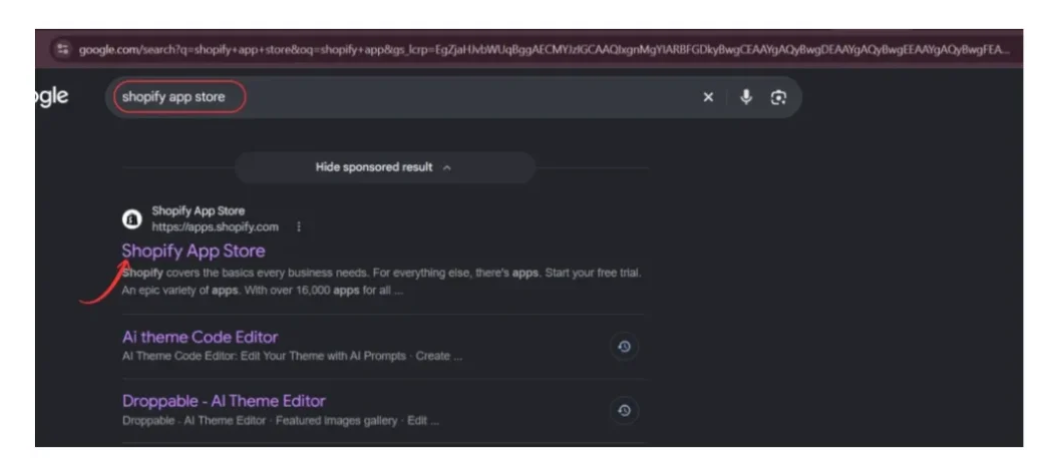
The Shopify App Store provides applications for storefront design, marketing, product management, customer engagement, and other eCommerce operations.
You can use the marketplace to find applications that help customize your Shopify theme.
Step 2: Find Section Kit: Theme Sections
Once the Shopify App Store opens, locate the search bar at the top of the page.
Enter the following search term:
Section kit theme section

Press Enter to view the results.
Find the application named Section Kit: Theme Sections.
Original image showing Section Kit: Theme Sections in Shopify App Store search resultsImage 2: Locate Section Kit: Theme Sections in the Shopify App Store search results.
Click the application to open its listing.
Review the available features and pricing information before installation.
If the application is already installed, you can open it directly from your Shopify admin dashboard.
Step 3: Install Section Kit from the Shopify App Store
Go to the Section Kit: Theme Sections listing on the Shopify App Store and click Install. Choose your store, review the permissions, and approve the installation. The app needs access to your Online Store theme so it can add sections to it.

Step 4: Identify your current Shopify theme
Now open your Shopify admin dashboard.
From the left sidebar, navigate to:
Online Store → Themes
This area displays your published theme and any additional draft themes saved in your theme library.
Look at the main theme preview card.
The theme information identifies the theme currently published on your storefront.
In the provided example, the published theme is Horizon.
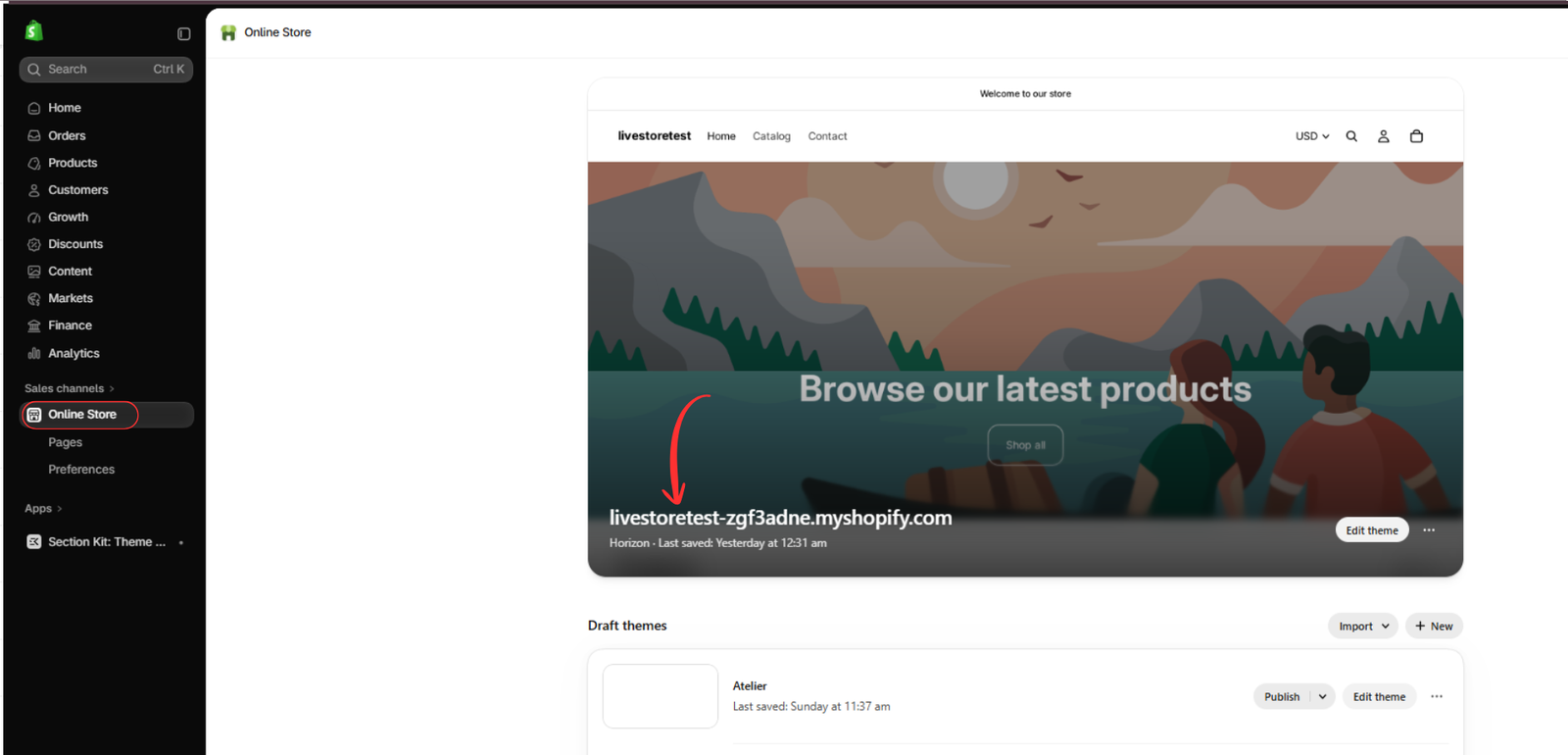
Image 3: Open Online Store to identify the published Horizon theme and the additional Atelier draft theme.
The image shows a storefront using Horizon, with Atelier available as a draft theme.
This distinction is important because changes made to a draft theme will not automatically appear on your published storefront.
To find the theme version, open the theme editor and review its theme information or settings, where available.
Important: If your theme has been renamed, the displayed name may not reveal the original theme. In that situation, review the theme details or ask the developer who installed it.
Step 5: Open Section Kit and navigate to My Sections
After identifying your Shopify theme, open the Section Kit: Theme Sections application from the Shopify admin sidebar.
Inside the application, locate the My Sections option.
Click My Sections to open your section gallery.
This area displays the sections available in your account.
You may see different categories of sections, such as:
- Hero banners.
- Footer sections.
- FAQ accordions.
- Feature cards.
- Social feeds.
- Promotional banners.
Each section includes a preview and customization controls.

In the example, the gallery contains sections such as SK Partner Rows, SK Footer, SK FAQs Accordion, SK Social Feeds Banner, and SK Hero Banner.
To work with a section, locate the design you want to use and click Customize.
This begins the process of adding or configuring that section on a selected Shopify theme.
Step 6: Select the Shopify theme you want to customize
After choosing a section, Section Kit displays a theme-selection interface.
This is an important step because your Shopify store may contain several installed themes.
In the provided example, the theme-selection window displays:
- debut-vintage-theme
- Horizon
- Copy of Horizon
- Atelier
The green indicator beside Horizon identifies the published theme in this example.
Other entries represent additional themes available in the store’s theme library.
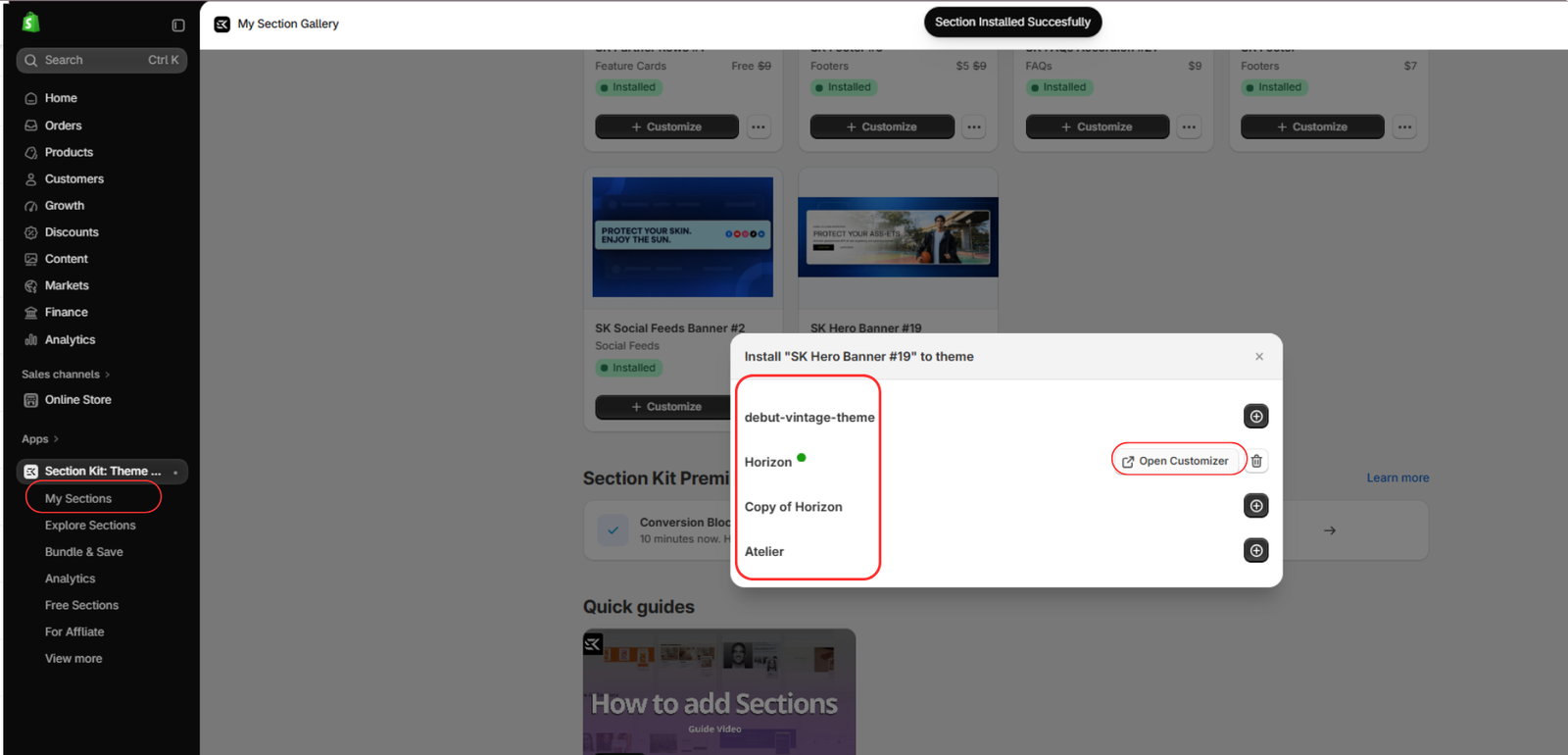
Choose the theme you want to customize.
For example, if you want the section to appear on your live storefront, select the published theme, Horizon.
If you want to test the design before publishing, select a suitable draft theme instead.
Depending on the section’s installation status, you may see an add control or an Open Customizer button.
Click Open Customizer to continue editing the selected theme.
This workflow helps merchants distinguish between installed themes and choose the correct destination for their sections.
Step 7: Verify the selected theme in Shopify Theme Editor
Once the Shopify theme editor opens, confirm that you are editing the intended theme.
Check the theme name displayed in the editor.
If you selected Horizon, verify that the editor is showing Horizon rather than another installed theme.
Then locate the section you added or selected.
Review its settings and customize the available options according to your store’s design requirements.
Depending on the section, customization options may include text, images, colors, typography, spacing, and layout controls.
Click Save after making your changes.
If you are working on a draft theme, remember that saving the theme does not publish it.
Step 8: Preview your changes before publishing
After customizing the section, preview your storefront.
Check how the section appears on both desktop and mobile devices.
Verify that the design matches your store’s branding and does not interfere with existing content.
If you are using a draft theme, review the changes carefully before deciding whether to publish that theme.
This helps prevent accidental changes to your live storefront.
Step 9: Keep track of your installed Shopify themes
If you frequently work with multiple themes, develop a simple naming and management process.
For example, you might maintain:
| Theme | Purpose |
|---|---|
| Horizon | Published storefront |
| Copy of Horizon | Testing new sections |
| Atelier | Future redesign |
| Custom Development Theme | Developer testing |
These are example labels; your actual theme library may differ.
Keeping themes organized helps merchants and developers understand which version is being used for each task.
Additional tips for identifying and managing Shopify themes
Always check the published theme first
Before customizing your store, identify the theme currently published on your storefront.
Avoid editing the wrong theme
When using applications that support theme selection, double-check the selected theme before making changes.
Keep draft themes organized
Rename or document draft themes where appropriate so you can distinguish testing versions from production versions.
Preview new sections before publishing
Test layout changes on a draft theme whenever possible.
Review app compatibility
Make sure the application and sections you plan to use are compatible with your selected theme.
Maintain theme backups
Duplicate your theme before making substantial changes so you have a version to return to if necessary.
Frequently asked questions
How do I find out which Shopify theme my store is using?
Open your Shopify admin and navigate to Online Store → Themes. The published theme appears in the main theme area.
Can I identify my Shopify theme without using an app?
Yes. Shopify provides theme information directly in the admin dashboard. You do not need a third-party app to identify your own published theme.
What is the difference between a published theme and a draft theme?
A published theme is the design currently displayed on your live storefront. A draft theme is an additional theme that you can customize and preview without making it live.
Can I have multiple Shopify themes installed?
Yes. Shopify allows you to keep additional themes in your theme library, but only one theme is published for your online store at a time.
Can Section Kit identify my published theme?
Section Kit’s theme-selection interface can show the themes available for section installation and indicate the published theme, as demonstrated in the provided image. Shopify’s admin remains the primary source for theme identification.
Can I add Section Kit sections to different Shopify themes?
Yes, the app provides a theme-selection workflow for supported sections. Availability and behavior can depend on the selected theme and section.
Does installing Section Kit change my published theme?
Installing the application alone does not publish a different Shopify theme. You choose where to add and customize supported sections.
Can I customize a draft theme using Section Kit?
The provided theme-selection interface shows draft themes alongside the published theme, allowing you to select a suitable theme for supported section installations.
What if my Shopify theme has been renamed?
A custom name may make it harder to recognize the original theme. Review its details, version information, and development history to identify it more accurately.
Is Section Kit: Theme Sections free?
The app listing shown in your image indicates that it is free to install. Individual sections and advanced features may have separate pricing.
Conclusion
Identifying your Shopify theme is an important first step toward effective storefront customization.
Whether you’re making small design improvements, installing new sections, troubleshooting layout issues, or preparing a complete website redesign, knowing which theme you’re working with helps you avoid unnecessary confusion.
Shopify makes it possible to identify your published theme directly from the admin dashboard.
For merchants who want to go further with storefront customization, Section Kit: Theme Sections provides a convenient way to explore ready-made sections, manage installed designs, and select the appropriate Shopify theme for supported section installations.
By following the steps in this guide, you can identify your current theme, understand the difference between published and draft themes, and customize the correct storefront with greater confidence.
Ready to improve your Shopify store’s design?Install Section Kit: Theme Sections from the Shopify App Store




