HOW TO ADD AN IMAGE WITH TEXT OVERLAY SECTION IN SHOPIFY

Introduction
A visually appealing Shopify store can make a strong first impression on potential customers. One of the most effective ways to showcase products, highlight promotions, and communicate your brand story is by adding an image with text overlay section in Shopify.
An image with text overlay section combines high-quality visuals with compelling headings, descriptions, and call-to-action buttons. Instead of displaying plain images, merchants can create engaging promotional banners that encourage customers to explore their products and collections.
However, Shopify’s default theme sections may offer limited layouts, animations, or customization options. Store owners who want advanced designs sometimes need to edit theme code or hire developers.
Fortunately, Section Kit: Theme Sections provides ready-made solutions that allow merchants to create professional image and text sections without coding.
In this tutorial, we will show you how to add and customize an Image With Text Overlay-style section using Section Kit, with all six of your original screenshots.
The Merchant’s Challenge: Why Adding Image With Text Overlay Sections Can Be Difficult
Shopify merchants often face several challenges when designing attractive storefront banners.
Limited design flexibility
Some Shopify themes provide only basic image and text sections, restricting where headings, descriptions, and buttons can appear.
Custom coding requirements
Creating an advanced image slider with text overlays may require knowledge of Liquid, CSS, HTML, and JavaScript.
Poor mobile responsiveness
Banners that look attractive on desktop may appear cramped or difficult to read on smaller devices.
Difficulty highlighting promotions
Without properly designed promotional sections, important offers, new arrivals, and featured collections may go unnoticed.
Inconsistent branding
Merchants need control over typography, imagery, colors, spacing, and button styling to maintain a consistent storefront design.
Using a customizable Shopify section helps address these challenges.
Why Are Image With Text Overlay Sections Important?
Image with text overlay sections help merchants communicate their message visually while encouraging visitors to take action.
They are particularly useful for highlighting new collections, seasonal campaigns, bestselling products, special promotions, and brand stories.
A well-designed section can improve the visual hierarchy of a page, make important messages easier to notice, and guide shoppers toward relevant products or collections.
When combined with a clear call-to-action button, it can also simplify navigation.
Introducing Section Kit: Theme Sections
Section Kit: Theme Sections is a Shopify app that allows store owners to add ready-made, customizable sections without manually modifying theme code.
For this tutorial, we will use the SK Image with Text Slider section.
This section combines images, descriptive text, headings, and optional call-to-action buttons with interactive slider functionality. It can create the visual effect of an image with text overlay while also supporting multiple promotional slides.
Key Features of SK Image with Text Slider
- Three unique layouts: Choose between the available design presets.
- Image and text combinations: Display high-quality images with headings, descriptions, and buttons.
- Up to eight customizable slides: Feature multiple products, collections, or promotions.
- Smooth transitions: Use the available fade transitions and optional autoplay.
- Navigation controls: Enable previous and next arrows.
- Flexible customization: Edit text, images, button labels, URLs, and layout settings.
- Responsive design: Adapt the section to different devices.
The provided app screenshots show this particular section as free to add to your library, although pricing can change.
App Link: Install Section Kit: Theme Sections
Step-by-Step Guide: How to Add an Image With Text Overlay Section in Shopify
Follow these six steps to add the SK Image with Text Slider section to your Shopify store.
Step 1: Open the Shopify App Store
Start by opening Google and searching for Shopify App Store.
Select the official Shopify App Store result, as shown in the screenshot.
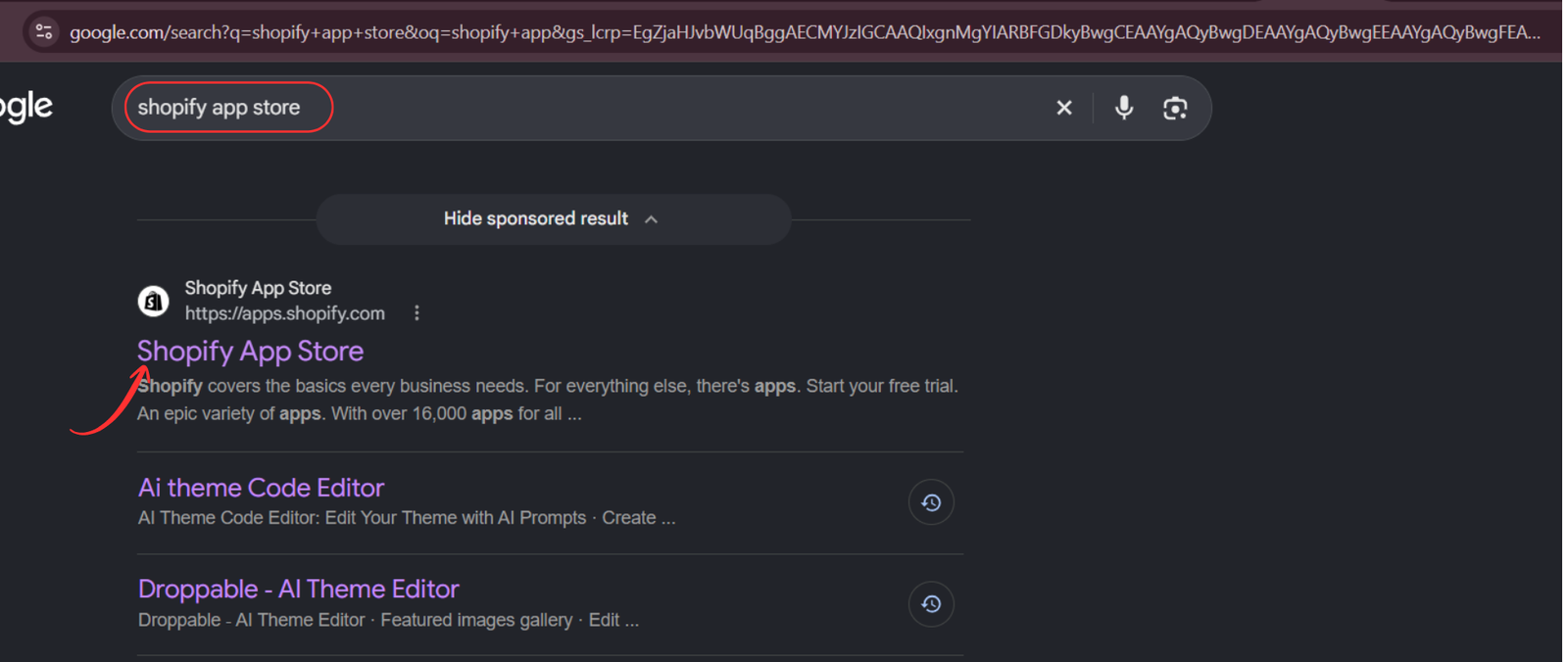
Image 1: Find and open the official Shopify App Store.
You can also visit Shopify App Store directly.
Step 2: Search for Section Kit: Theme Sections
Once inside the Shopify App Store, use the search bar to enter Section Kit Theme Sections.
Locate the app named Section Kit: Theme Sections, identifiable by its black-and-white app icon in the provided screenshot.
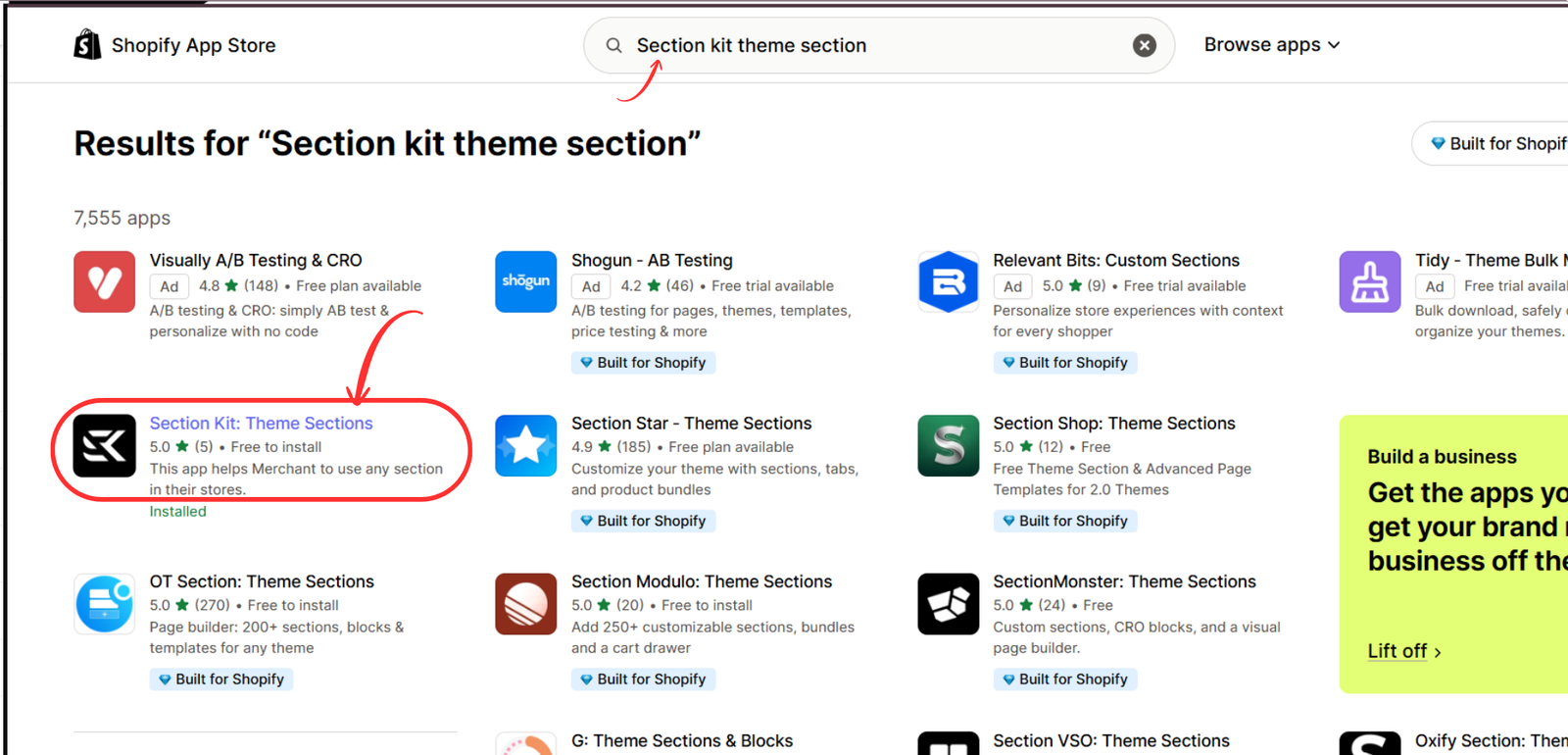
Shopify App Store search results highlighting Section Kit Theme Sections
Image 2: Search for Section Kit: Theme Sections and select the correct app.
Open the app listing and follow the installation process if you have not already installed it.
Step 3: Open the App in Your Shopify Admin
After installation, open Section Kit from your Shopify admin.
The app gives you access to its section library, allowing you to explore different layouts and design elements for your storefront.

You can begin by selecting Explore Sections from the left-hand menu.
Step 4: Open Section Kit and Search for the Image Section
First, log in to your Shopify admin dashboard.
Open the Section Kit: Theme Sections app from your installed applications.

Once the app opens, click Explore Sections in the left sidebar.
Locate the search bar and type image.
You will see several image-related sections, including SK Image with Text Slider, SK Image with Text #19, and other image-and-text designs.
For this tutorial, locate SK Image with Text Slider and click More Info.
Section Kit Explore Sections search for image with text sliderImage 1: Search for “image” in Section Kit’s Explore Sections library and locate SK Image with Text Slider.
This section is suitable for showcasing promotional content and branded visuals together with text.
Step 5: Preview the Section and Add It to My Sections
After clicking More Info, a popup displays the section’s design preview, description, and available customization features.
The preview demonstrates how an image can be combined with a text overlay containing a heading, description, navigation arrows, and a call-to-action button.
The section also includes slider features such as multiple slides, smooth transitions, and optional autoplay.

In the screenshot, SK Image with Text Slider is marked as Free.
Click Add to My Sections to save the section to your Section Kit library.
SK Image with Text Slider details popup and Add to My Sections buttonImage 2: Review the Image with Text Slider preview and click Add to My Sections.
Once added, the section will be available in your personal gallery.
Step 6: Open My Sections and Click Customize
Next, navigate to My Sections from the Section Kit sidebar.
This page displays all the sections available in your personal library.
Find the section named SK Image with Text Slider.
You should see its preview thumbnail, status, and customization button.
Click Customize beneath the section.
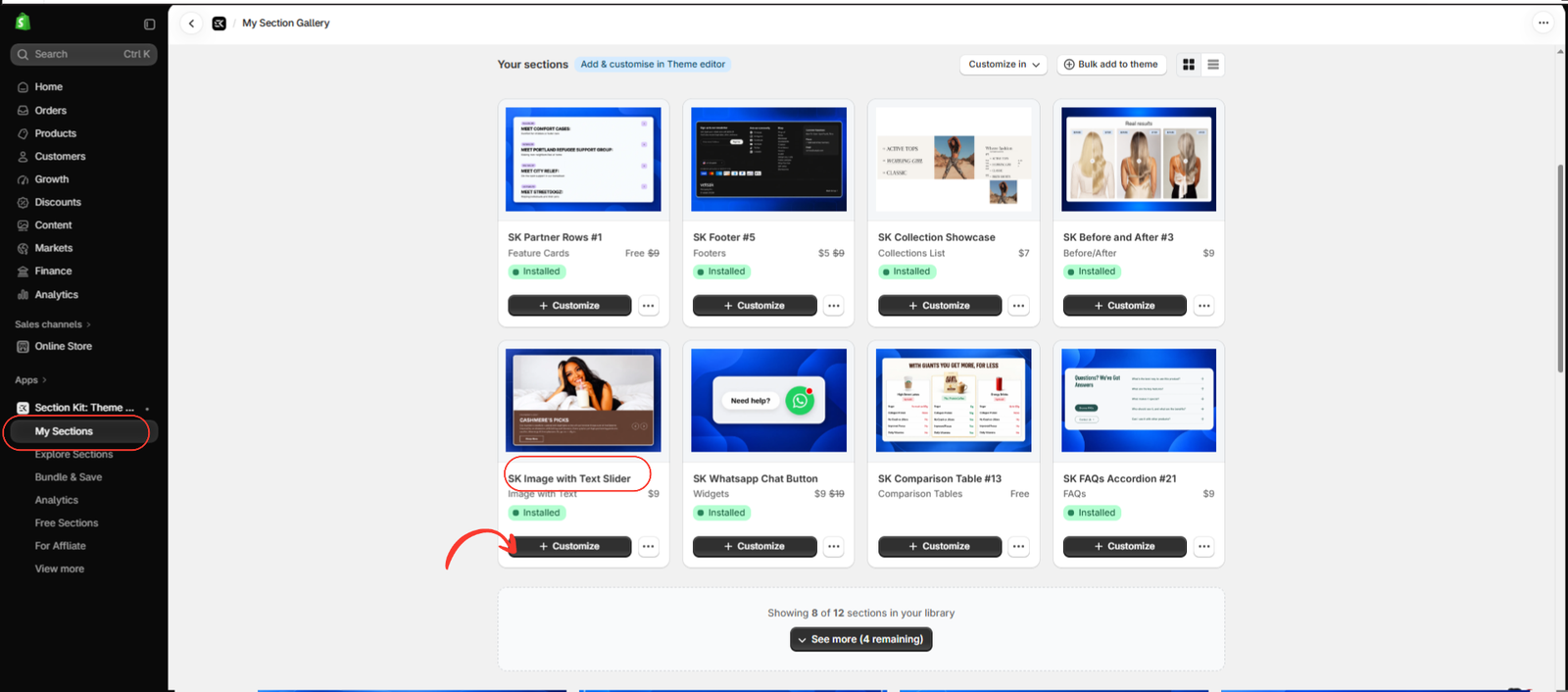
Image 3: Locate SK Image with Text Slider in My Sections and select Customize.
You can now proceed to install the section into your Shopify theme.
Step 7: Install the Section Into Your Shopify Theme
After selecting Customize, Section Kit allows you to choose the Shopify theme you want to edit.
Select your preferred theme. Using a draft theme is useful if you want to test the design before making it live.
After installation, click Open Customizer to access Shopify’s visual theme editor.

Image 4: Example of Section Kit’s theme installation dialog and Open Customizer button. This screenshot displays a previously installed WhatsApp section, but illustrates the same theme-selection workflow.
Once the theme editor opens, you can add the image and text slider to the page you want to customize.
Step 8: Install the Section Into Your Shopify Theme
After selecting Customize, Section Kit allows you to choose the Shopify theme you want to edit.
Select your preferred theme. Using a draft theme is useful if you want to test the design before making it live.
After installation, click Open Customizer to access Shopify’s visual theme editor.
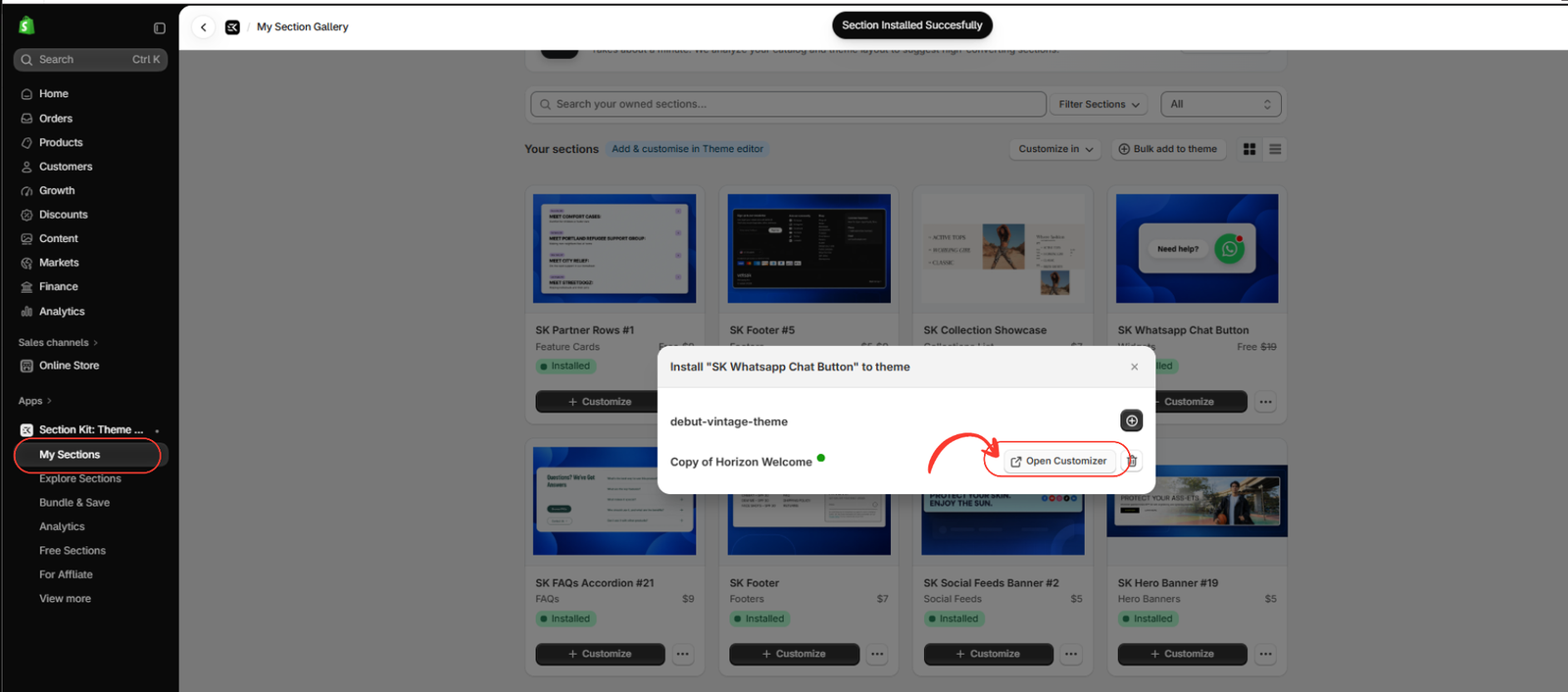
Image 4: Example of Section Kit’s theme installation dialog and Open Customizer button. This screenshot displays a previously installed WhatsApp section, but illustrates the same theme-selection workflow.
Once the theme editor opens, you can add the image and text slider to the page you want to customize.
Step 9: Add the Image With Text Slider in Shopify Theme Editor
Inside the Shopify theme editor, select the page template where you want the section to appear.
For example, you can place it on your homepage to feature a new collection or a seasonal campaign.
Then follow these instructions:
- Click Add section in the left sidebar.
- Type image in the search field.
- Locate SK Image with Text Slider.
- Click the section to add it to your page.

Image 5: Search for SK Image with Text Slider in Shopify’s theme editor and add the section to your page.
The image slider will now appear in your Shopify page layout.
You can reposition the section within your template and begin customizing its content.
Step 10: Customize the Image, Text, and Call-to-Action Button
Once you have added the section, select SK Image with Text Slider in the left sidebar.
The section contains individual slide blocks that allow you to create different promotional messages.
In the provided screenshot, the selected slide includes an image, eyebrow text, a heading, supporting text, and a button.
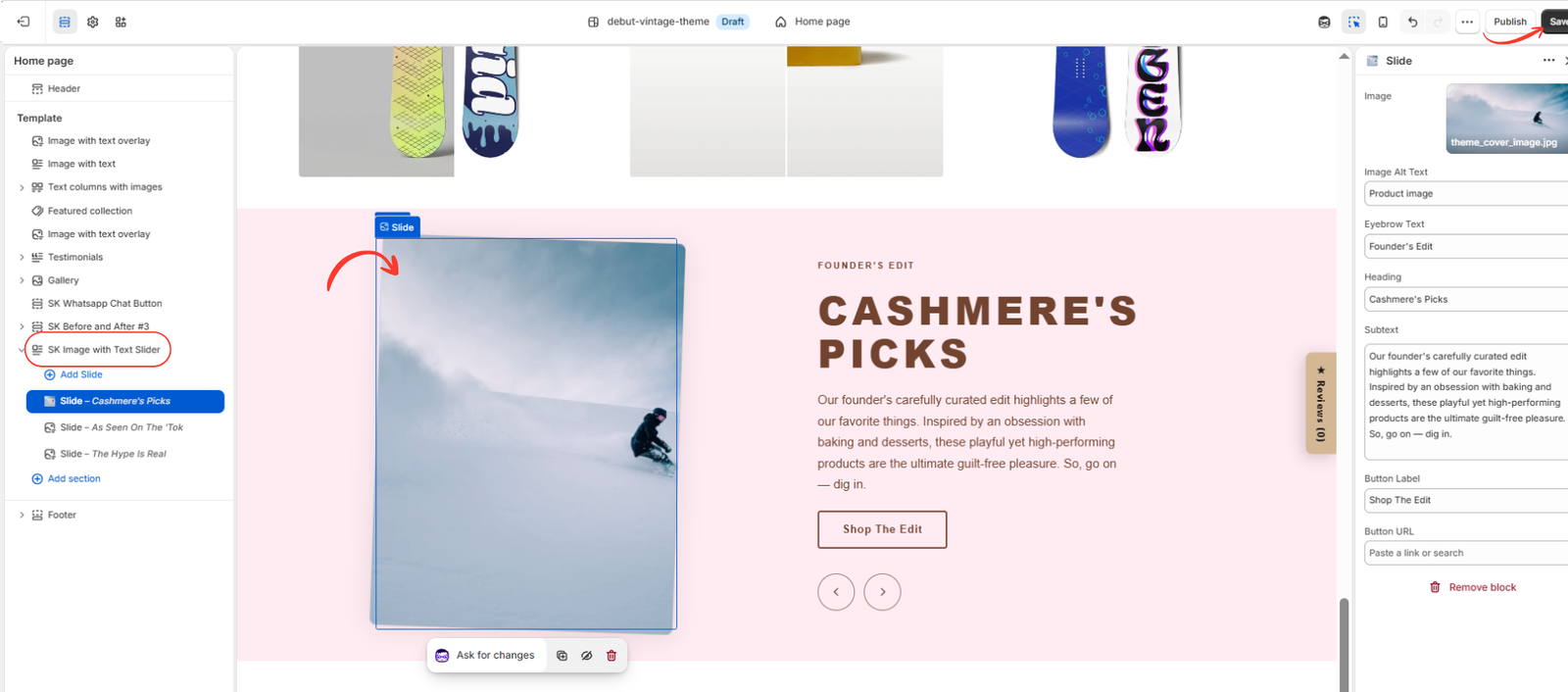
Image 6: Customize the slide’s image, eyebrow text, heading, description, button label, and destination URL.
Customize the image
Click the Image field and upload a high-quality image that represents your product, collection, or promotion.
Edit the eyebrow text
The eyebrow text is a short label displayed above the main heading.
For example:
NEW COLLECTION or LIMITED-TIME OFFER
Add a heading
Choose a clear headline that communicates your main message.
For example:
DISCOVER OUR LATEST COLLECTION
Write the supporting text
Add a short description that explains your promotion or introduces the featured products.
Customize the button
The section also provides Button Label and Button URL settings.
For example, use Shop Now as the label and connect it to your featured collection page.
Add additional slides
Use Add Slide to create more promotional slides.
You can add different images, headings, descriptions, and call-to-action buttons for each slide.
Save and publish
When you have finished customizing the section, click Save in the top-right corner.
If you are using a draft theme, publish it when you are ready for the changes to appear on your live storefront.
Your image with text slider section is now ready to use.
Best Practices for Image With Text Overlay Sections
Use high-quality, relevant images
Choose images that clearly represent your products or promotion. Avoid blurry, heavily compressed, or distracting visuals.
Keep text short and readable
Use a strong heading and concise supporting text. Ensure the text has sufficient contrast against its background.
Add a clear call to action
Buttons such as “Shop Now,” “Explore Collection,” and “Discover More” help guide customers to relevant pages.
Optimize your images
Compress large images appropriately to help maintain your Shopify store’s loading performance.
Design for mobile devices
Preview the section on both desktop and mobile. Make sure images, text, and buttons remain readable and accessible.
Avoid too many promotional slides
Although the Section Kit section supports up to eight slides, use only as many as your content requires. Too many competing messages may distract customers.
Frequently Asked Questions (FAQs)
1. How do I add an image with text overlay section in Shopify?
You can use Section Kit: Theme Sections. Install the app, select SK Image with Text Slider, add it to your sections library, and customize it through Shopify’s theme editor.
2. Is the SK Image with Text Slider section free?
The section is shown as free in your provided screenshots. Check the current app for updated pricing and availability.
3. Can I add multiple images and text slides?
Yes. The section supports up to eight customizable slides, allowing you to display multiple promotions or featured products.
4. Can I change the heading, description, and button?
Yes. Each slide provides editable fields for eyebrow text, heading, subtext, button label, and button URL.
5. Can I use the section on my Shopify homepage?
Yes. You can add it to a compatible homepage template using Shopify’s theme editor.
6. Does the section support mobile devices?
The section is designed with responsive styling. Preview it on mobile and desktop to confirm it looks appropriate with your particular theme and content.
7. Do I need coding knowledge to install this section?
No. The standard installation and customization process can be completed using Section Kit and Shopify’s visual theme editor.
8. What is the difference between an image with text overlay and an image with text slider?
A standard image with text overlay usually displays one promotional image with text layered over it.
An image with text slider combines image and text content with slider functionality, allowing visitors to navigate through multiple slides.
Section Kit’s SK Image with Text Slider provides this additional functionality.
Conclusion
Adding an image with text overlay section in Shopify is an effective way to create a visually engaging storefront and highlight important content.
Whether you want to promote new arrivals, showcase featured collections, introduce your brand, or display seasonal offers, a professionally designed image and text section can help you communicate your message more clearly.
With Section Kit: Theme Sections, you can add a customizable image and text slider without writing Liquid, CSS, or JavaScript code.
Simply explore the section library, choose your design, install it into your Shopify theme, and customize the images, text, and buttons.
Ready to enhance your Shopify storefront?Get Section Kit: Theme Sections on Shopify




