HOW TO USE PA AI IMAGE GENERATOR TO IMPROVE YOUR WIX STORE PRODUCT PHOTOS
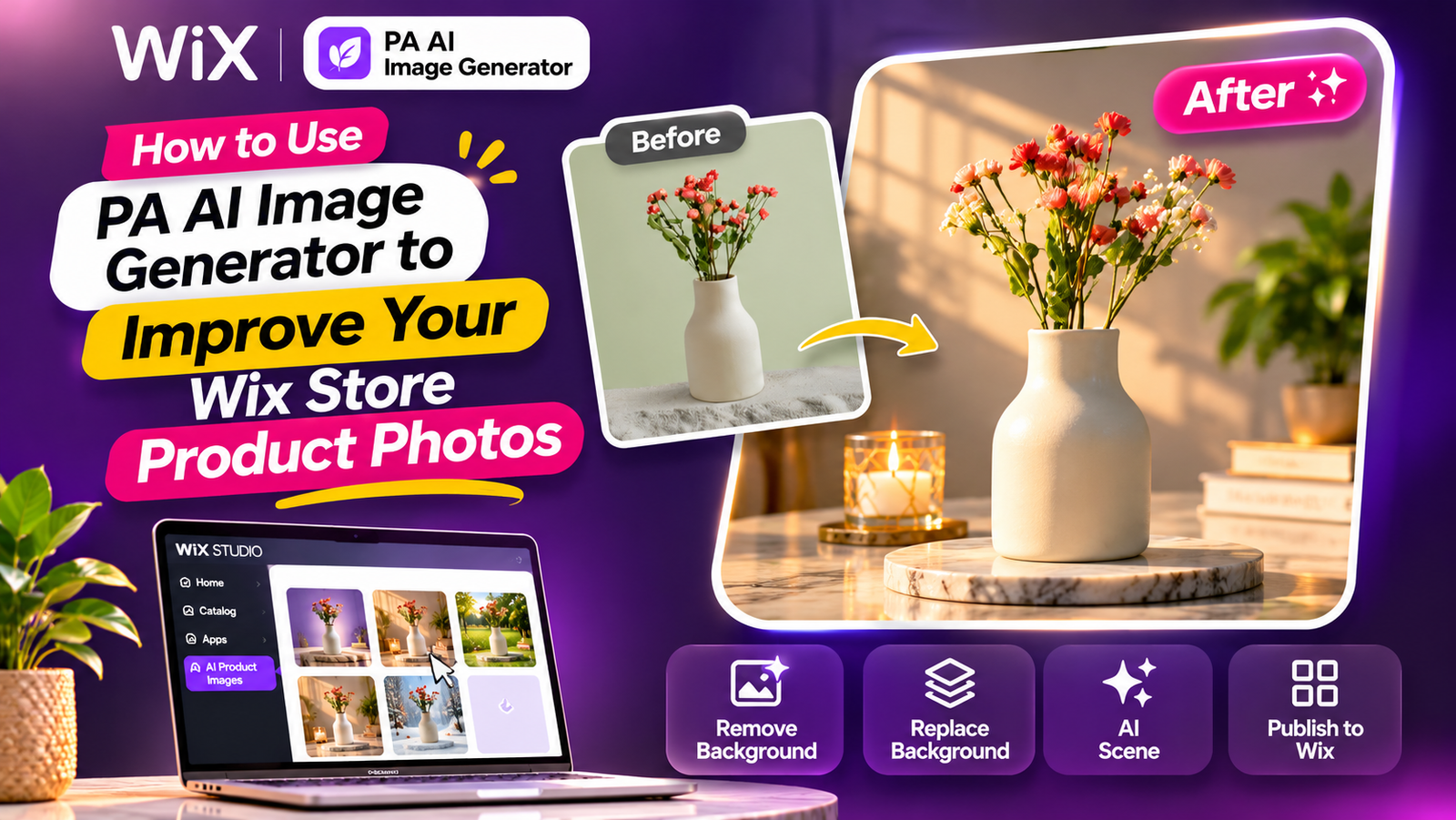
Introduction
Product photography is one of the most important elements of a successful Wix online store. When customers browse your products, clear and attractive images help them understand what you’re selling and evaluate the quality of your products.
However, many Wix merchants struggle with poor lighting, distracting backgrounds, inconsistent image styles, and expensive professional photoshoots.
Creating studio-quality product images traditionally required photographers, cameras, lighting equipment, and editing software.
Fortunately, AI-powered product photography makes this process easier.
With PA AI Image Generator, you can improve existing product photographs, remove unwanted backgrounds, create realistic lifestyle scenes, and publish edited images directly from your Wix dashboard.
In this guide, you’ll learn how to use PA AI Image Generator to improve your Wix store product photos, including step-by-step instructions, screenshots, AI photography prompts, and useful tips.
Why Professional Product Photos Matter for Wix Stores
High-quality product images help customers evaluate what they are purchasing.
Improving your product photography can help you:
-
Create a professional-looking online store.
-
Highlight important product features.
-
Maintain consistent product backgrounds.
-
Present products in realistic environments.
-
Improve the appearance of product collections.
-
Support customer confidence.
-
Create attractive promotional visuals.
Good product photography should also accurately represent the real item customers will receive.
Common Product Photography Problems
1. Distracting backgrounds
Products photographed in cluttered environments can look unprofessional.
2. Poor lighting
Dark or uneven lighting makes product details difficult to see.
3. Inconsistent images
Different backgrounds, colors, and lighting styles can make an entire product catalog appear disorganized.
4. Expensive photography
Professional photoshoots may require photographers, models, studio equipment, and editing services.
5. Limited editing skills
Not every merchant has experience using advanced image editing software.
What Is PA AI Image Generator?
PA AI Image Generator is a product photography app developed by TheScriptFlow and available through the Wix App Market.
The application provides:
-
One-click background removal.
-
Solid-color and custom background replacement.
-
AI-generated lifestyle scenes.
-
Custom AI photography prompts.
-
Predefined scene options.
-
Product image editing within the Wix dashboard.
-
Publishing edited images as the main product photograph.
Its official listing also advertises batch editing and a free plan with five starting credits.
How to Use PA AI Image Generator in Wix: Step-by-Step Guide
Step 1: Open the Wix App Market
Open Google and search for Wix App Store.
Select the official Wix App Market website.

Image 1: Search Google for the official Wix App Market.
Step 2: Search for PA AI Image Generator
Inside the Wix App Market, locate the app search bar.
Type PA AI Image Generator and search.

Image 2: Enter PA AI Image Generator in the app search bar.
Step 3: Select PA AI Image Generator
Find PA AI Image Generator by TheScriptFlow in the search results.
Click the application to open its listing.

Image 3: Select PA AI Image Generator from the results.
Step 4: Install the App on Your Wix Store
On the application listing page, click Add to Site.
Choose your Wix website if requested and complete the installation process.

Image 4: Install PA AI Image Generator on your Wix website.
Direct installation link: PA AI Image Generator – Wix App Market
Step 5: Open the Application From Your Wix Dashboard
After installation, open your Wix dashboard.
Navigate to Apps → AI Product Images.

Image 5: Access AI Product Images from the Apps menu.
You will see the products available in your Wix store.
Step 6: Choose the Product You Want to Improve
Browse your product catalog and select an item.
For this example, we’ll use a Ceramic Flower Vase.

Image 6: Select the Ceramic Flower Vase from your product catalog.
Step 7: Open Photo Studio
After selecting your product, open Photo Studio.
Choose the photograph you want to edit.

Image 7: Open Photo Studio and review the editing features.
The editor provides three main options:
Remove background: Isolates the product from its original background.
Replace background: Applies a chosen solid color.
AI scene: Generates a new background or lifestyle environment using a text prompt.
Step 8: Select Your Original Product Photo
Choose the photograph you want to improve from the available product images.
The main photo is selected by default, but you can choose another image.

Image 8: Select the original product photograph before editing.
Use a clear source photograph with accurate product colors and visible details.
Step 8: Create a Spring-Themed AI Product Photo
Scroll to AI scene and enter a spring-themed text prompt.
Your first new screenshot shows a prompt requesting a female model in an elegant pastel dress holding a vase in a bright spring garden.

Image 8: Enter a spring photography prompt and click Create AI scene. The screenshot shows the request processing, with an earlier result still visible.
Example spring prompt:
Click Create AI scene and review the generated photograph.
Step 9: Review the Completed Spring Image
After generation finishes, the app displays the original photograph and its AI-generated result.

Image 9: The original ceramic flower vase is transformed into a spring garden lifestyle photograph featuring a model in a pastel outfit.
The generated image includes natural greenery, soft outdoor lighting, and small flowers in the background.
This type of visual can be useful for spring collection pages, seasonal promotions, or social media campaigns.
Step 10: Create a Summer-Themed AI Product Photo
Next, create a summer scene using the same original vase photograph.
Use a prompt that describes warm sunlight, Mediterranean styling, neutral architecture, and vibrant greenery.

Image 10: The AI scene tool generates a summer lifestyle photograph featuring warm golden lighting, a model in a flowing dress, and Mediterranean-style surroundings.
Example summer prompt:
The summer example uses warm tones and bright lighting to create an inviting seasonal atmosphere.
Step 11: Create an Autumn-Themed AI Product Photo
For autumn, use a warmer and cozier environment.
Choose earthy brown tones, dried leaves, pampas grass, and soft interior lighting.

Image 11: The original vase is shown beside an AI-generated autumn scene featuring an adult model in brown clothing, warm lighting, and dried decorative plants.
Example autumn prompt:
This style can work well for autumn home decor campaigns and cozy seasonal collections.
Step 12: Create a Winter-Themed AI Product Photo
Finally, create a winter-themed image using soft lighting, elegant white tones, and seasonal decorative elements.
Your fifth screenshot shows a model holding the ceramic vase in a softly decorated winter scene.

Image 12: The original product is transformed into a winter lifestyle photograph with an elegant white outfit, soft snow-inspired decorations, and warm background lights.
Example winter prompt:
Five AI Prompts to Improve Wix Product Photos
1. Professional studio
Create a clean professional studio product photograph with soft lighting, a neutral background, realistic shadows, and sharp details. Preserve the original product appearance.
2. Luxury advertising
Transform my product into a premium commercial advertising photograph with sophisticated lighting, an elegant background, and a luxurious visual style.
3. Natural lifestyle
Place my product in a realistic modern living room with natural sunlight, tasteful furniture, and warm neutral colors.
4. AI model photography
Create a realistic lifestyle photograph featuring an adult AI model naturally holding my product in an elegant setting. Preserve all product details.
5. Seasonal photography
Create a beautiful seasonal lifestyle photograph with appropriate colors, decorations, natural lighting, and a professional ecommerce style.
Best Photography Styles for Different Wix Stores
| Product category | Recommended photography style |
|---|---|
| Skincare | White studio with soft lighting |
| Jewelry | Luxury close-up photography |
| Home decor | Modern living room lifestyle |
| Fashion accessories | Editorial lifestyle with models |
| Electronics | Clean technology studio |
| Perfumes | Dark premium advertising |
| Handmade products | Warm natural environments |
| Seasonal collections | Spring, summer, autumn, winter scenes |
Benefits of Using PA AI Image Generator
Professional product presentation
Create more polished product photographs from existing images.
Reduced photography expenses
Experiment with new backgrounds and lifestyle settings without arranging a separate photoshoot for every variation.
Creative flexibility
Use text prompts to request different styles, scenes, and lighting conditions.
Consistent product images
Choose similar backgrounds and lighting across related products.
Direct Wix integration
Edit and publish product photographs from within your Wix dashboard.
Tips for Getting Better AI Photography Results
Start with a clear original photograph. Good source images help produce more reliable results.
Describe your desired lighting. Specify natural daylight, studio lighting, or dramatic commercial lighting.
Use consistent backgrounds. Choose approved colors for related product collections.
Preserve product accuracy. AI can accidentally alter labels, packaging, shapes, colors, and other important details.
Review before publishing. Compare every generated image with its original photograph.
Test different prompts. Small changes to lighting and composition instructions can produce different results.
Common Mistakes to Avoid
-
Using low-quality source photographs.
-
Writing vague AI prompts.
-
Creating unrealistic product backgrounds.
-
Allowing AI to alter important product characteristics.
-
Mixing unrelated photography styles.
-
Publishing without reviewing generated results.
-
Using AI-generated models as if they were real customer endorsements.
Frequently Asked Questions
What is PA AI Image Generator for Wix?
It is a product photography application that provides background editing, AI lifestyle scene generation, and product image publishing tools within the Wix dashboard.
Can I remove product photo backgrounds?
Yes. The application includes a one-click background removal feature.
Can I replace product backgrounds with custom colors?
Yes. You can use preset background colors or enter custom HEX values.
Can I create lifestyle images with AI models?
Your screenshots demonstrate AI-generated lifestyle scenes featuring models presenting products.
Can I publish generated images directly to Wix products?
Yes. The application provides a Publish to product (becomes main photo) option.
Does the app have a free plan?
Yes. Its official Wix App Market listing currently advertises a free plan with five starting credits.
Will my original product images remain available?
The app states that original images remain in the product gallery after an AI-generated photograph becomes the main photo.
Conclusion
Improving Wix product photography doesn’t have to require expensive equipment, professional photographers, or complicated editing software.
With PA AI Image Generator, merchants can remove distracting backgrounds, create clean product images, generate lifestyle scenes, and publish updated photographs directly to their Wix store.
For the best results, begin with clear original photographs, use descriptive AI prompts, maintain consistent visual styling, and review every image for accuracy before publishing.