HOW TO INCREASE AVERAGE ORDER VALUE ON SHOPIFY WITH PRODUCT BUNDLES

Introduction
Getting customers to visit your Shopify store is only half the challenge. The next step is encouraging them to purchase more products in a single order.
One effective way to do this is through product bundling.
Instead of selling products individually, you can create attractive offers such as Buy One Get One Free (BOGO), quantity discounts, and frequently bought together deals.
These offers give shoppers a reason to add more items to their carts while helping merchants increase their average order value (AOV).
In this guide, you’ll learn how product bundles work, why they matter, and how to create bundle offers using Section Kit Bundles, with your actual app screenshots and step-by-step instructions.
What Is Average Order Value (AOV)?
Average order value is the average amount customers spend each time they place an order.
AOV = Total Revenue ÷ Number of Orders
For example, if your Shopify store generates $2,000 from 50 orders, your AOV is $40.
If customers start purchasing bundles and your store generates $2,500 from the same number of orders, your AOV increases to $50.
This means you generate more revenue per order without necessarily needing more customers.
Why Product Bundles Can Increase AOV
Product bundling encourages customers to purchase multiple items together rather than buying only one product.
Some common strategies include:
- BOGO offers: Encourage customers to purchase additional products with a free or discounted item.
- Quantity discounts: Offer better value when customers purchase two, three, or more units.
- Frequently bought together: Recommend complementary products that customers may want to purchase together.
- Bundle offers with gifts: Make larger purchases more attractive by including additional benefits.
The key is to create offers that customers genuinely find valuable. Bundling can increase AOV, but discounts should also be evaluated against profit margins.
How to Increase AOV Using Section Kit Bundles
We’ll use Section Kit Bundles to demonstrate how to create product bundle offers, customize their appearance, and display them on your Shopify storefront.
Step 1: Open the Shopify App Store

Image 1: Search for Shopify App Store on Google and open the official website.
Open your browser and search for Shopify App Store. Select the official result to access Shopify’s app marketplace.
The Shopify App Store contains tools for product bundling, store design, marketing, inventory management, and more.
Step 2: Search for Section Kit Bundles
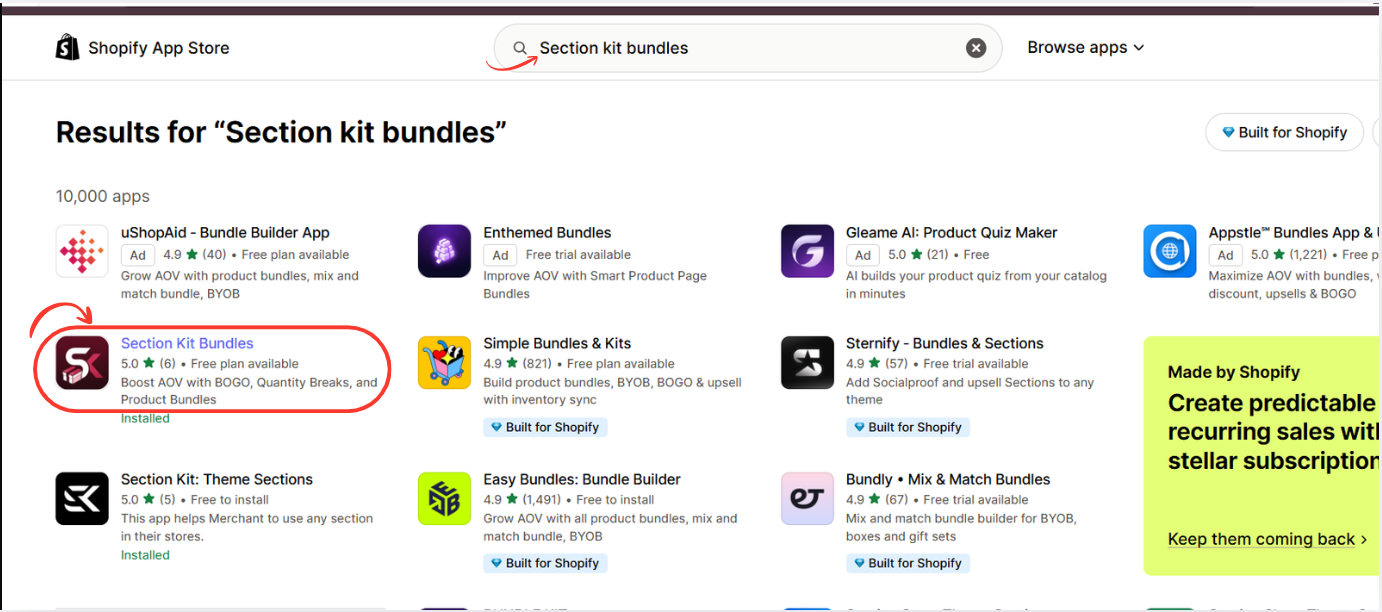
Image 2: Search for Section Kit Bundles and select the highlighted app.
In the Shopify App Store search bar, type Section Kit Bundles.
Find the app in the results and click its listing. The app supports BOGO promotions, quantity breaks, product bundles, and volume discounts. Shopify App Store
Open the app listing, review the available plans, and click Install. Once installation is complete, open the app from your Shopify admin.
You can also visit the app directly: Section Kit Bundles on the Shopify App Store.
Step 3: Open the Dashboard and Create a Bundle

Image 3: Open the Section Kit Bundles dashboard and click Create a new bundle.
After opening Section Kit Bundles, you’ll arrive at the main dashboard.
This is where you can view your existing bundle offers, check their status, and access performance information.
Click Create a new bundle in the upper-right corner.
You’ll be taken to the bundle template selection area, where you can choose the type of promotion you want to create.
Step 4: Explore Different Bundle Templates
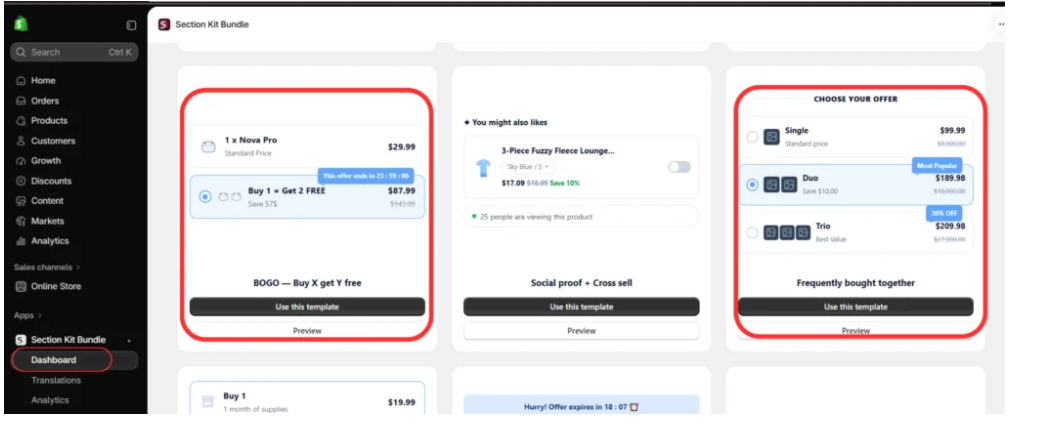
Image 4: Explore the available templates, including BOGO offers and frequently bought together bundles.
Section Kit Bundles offers several ready-made templates to help you create promotions without starting from scratch.
In your screenshot, you can see examples such as BOGO — Buy X Get Y Free and Frequently Bought Together.
A BOGO offer encourages shoppers to purchase an additional product to receive another item free or at a discount.
A frequently bought together offer is useful for recommending complementary products, such as a phone case alongside a phone or socks alongside shoes.
Choose the template that best matches your products and business goals.
Step 5: Choose a Bundle Type

Image 5: Select a bundle category and click Use this template under your preferred offer design.
On the Choose a bundle type screen, you’ll see different categories, including Volume Discount, Frequently Bought Together, Cross Sell, and Box Builder.
You can also choose to build an offer from scratch.
For increasing average order value, quantity-based offers are a useful starting point because they give customers an incentive to purchase multiple units.
Click Use this template under the design you prefer.
Step 6: Select a Volume Discount Template

Image 6: Select Volume Discount and compare the Classic Volume Discount and Bundle + Color Swatch templates.
Click Volume Discount to filter the available templates.
Two examples shown in your screenshot are:
Classic Volume Discount: Displays quantity-based purchase options, such as buying one unit at the regular price or two units at a better combined price.
Bundle + Color Swatch: Allows customers to select quantities while choosing product options such as colors or sizes.
These templates can be particularly useful for apparel, accessories, beauty products, and other items customers may want to buy in multiples.
Select the most appropriate template and configure the products, quantities, discounts, and appearance in the bundle editor.
Step 7: Activate Your Bundle Offer
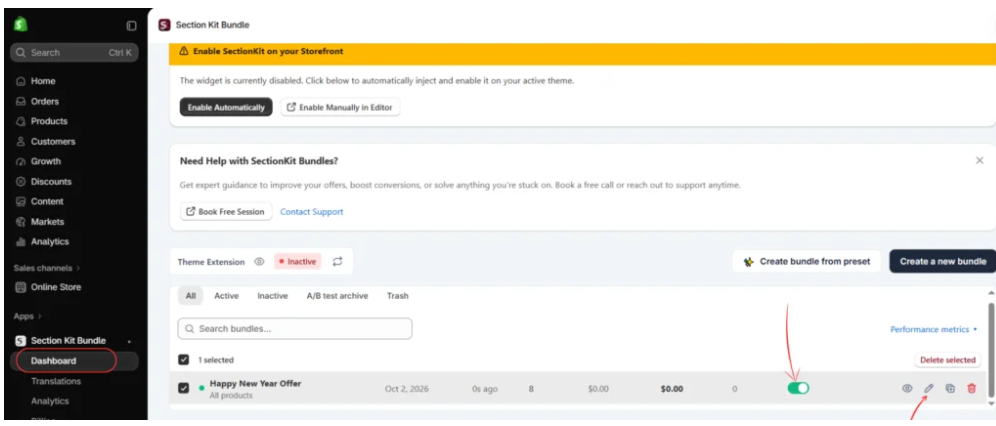
Image 7: Return to the dashboard and use the status toggle to activate your bundle offer.
After configuring and saving your bundle, return to the Section Kit Bundles dashboard.
Locate your offer in the bundle list and check its status.
In your screenshot, the Happy New Year Offer has a green status toggle, indicating that the offer is enabled within the app.
Make sure your intended bundle is active and that the correct products and discount rules have been selected.
An active bundle in the dashboard may still require the Shopify theme extension to be enabled before it appears on the storefront.
Step 8: Customize Your Bundle Design
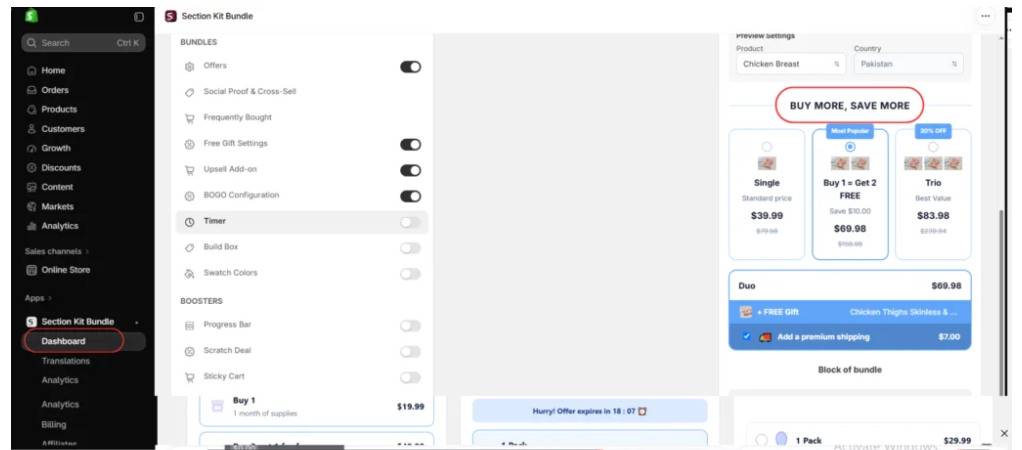
Image 8: Customize bundle options and preview the offer before displaying it on your store.
Section Kit Bundles includes a visual editor where you can adjust your bundle’s appearance and additional promotional features.
Your screenshot shows several options, including offers, frequently bought together, free gifts, BOGO configuration, timers, progress bars, and other promotional elements.
The preview displays a three-option offer under the heading BUY MORE, SAVE MORE.
A clear bundle design should help customers understand the difference between purchasing one, two, or three items.
Keep the pricing visible, use concise offer descriptions, and highlight the option that provides the most relevant value.
For example, if you offer a discount for purchasing two units, make sure customers can immediately see the total price and the savings.
Step 9: Enable Section Kit Bundles in Your Shopify Theme

Image 9: Enable the SectionKit Core app embed in Shopify’s theme editor and click Save.
To display your bundle offers on your storefront, you need to enable the app’s theme extension.
Follow these steps:
- Open Shopify Admin → Online Store → Themes.
- Click Customize on your selected theme.
- Open the App embeds panel.
- Locate SectionKit Core — Section Kit Bundle.
- Enable the toggle.
- Click Save in the upper-right corner.
Your screenshot shows the app embed enabled and a bundle offer displayed on the product page.
Once saved, preview your storefront and confirm that customers can see and select the bundle options.
Test the offer with an eligible product and verify that the correct pricing is applied before making it available to customers.
How to Make Product Bundles More Effective
Creating a bundle is only the beginning. To improve its performance, consider the following strategies.
- Offer meaningful savings: Customers should understand why purchasing a bundle is better value than purchasing a single item.
- Highlight popular options: Labels such as “Most Popular” can help draw attention to a particular quantity tier when the claim is accurate.
- Bundle complementary products: Combine items that naturally work together.
- Keep offers simple: Avoid overwhelming customers with too many choices.
- Monitor profitability: Higher AOV does not automatically mean higher profit.
- Test different offers: Compare BOGO, quantity discounts, and complementary bundles to identify what works for your store.
Section Kit Bundles also advertises built-in offer performance and A/B testing capabilities, which can help merchants evaluate different promotions. Shopify App Store
Frequently Asked Questions
Do product bundles increase average order value on Shopify?
They can. Bundles encourage customers to purchase additional products or quantities, which may increase the amount spent per order. Results depend on pricing, product relevance, and customer demand.
Can I create BOGO offers with Section Kit Bundles?
Yes. The app supports BOGO offers, quantity discounts, and other bundle types.
Do I need coding knowledge to create product bundles?
No. Section Kit Bundles provides templates and a visual interface for configuring offers without manually coding the bundle display.
Can I customize the appearance of bundle offers?
Yes. The app provides design customization options, including colors and typography, to help match offers to your store’s theme.
How can I tell whether my bundles are working?
Track your average order value, bundle orders, total revenue, conversion rate, and profit margins. Compare results before and after launching an offer, while accounting for other changes to your store.
Conclusion
Increasing average order value is an important way to grow Shopify revenue without relying entirely on acquiring new customers.
Product bundles help you encourage larger purchases by offering quantity discounts, BOGO promotions, and complementary product recommendations.
With Section Kit Bundles, you can create and customize these offers using ready-made templates, manage them from a centralized dashboard, and display them directly on your Shopify product pages.
Start with a simple offer, test its performance, and refine your bundle strategy based on real customer behavior.




