IS IT SAFE TO LET AI EDIT YOUR SHOPIFY THEME CODE?

Introduction
Customizing a Shopify store often requires editing Liquid, HTML, CSS, or JavaScript code. Whether you want to add a new product section, fix a broken layout, improve mobile responsiveness, or build interactive features, theme customization plays an important role in creating a professional storefront.
However, manually editing Shopify theme code can be intimidating, especially for merchants without technical experience.
One incorrect modification may affect the appearance or functionality of a product page, collection grid, navigation menu, or checkout-related storefront component.
This has led many Shopify merchants to ask an important question:
Is it safe to let AI edit your Shopify theme code?
The answer is that AI-assisted editing can be a reasonably safe and efficient approach when the right precautions are taken. However, AI-generated code is not automatically error-free, and changes should always be reviewed and tested before being applied to a live store.
With tools like AI Theme Code Editor by SectionKit, merchants can use natural-language instructions to request theme modifications, inspect generated code, and use available preview and sandbox workflows.
In this guide, we’ll explain the potential benefits and risks of AI theme editing and demonstrate how AI-generated features can appear and function inside a real Shopify theme using your original screenshots.
The Merchant’s Challenge: Why Editing Shopify Theme Code Can Be Risky
Shopify themes contain multiple interconnected files that control different parts of a storefront.
A seemingly minor change to one file may influence another section or feature.
1. Accidental layout problems
Incorrect CSS, Liquid, or HTML changes may cause product images, buttons, menus, or sections to display incorrectly.
2. Broken functionality
JavaScript modifications may affect interactive features such as product variants, navigation drawers, sliders, or cart buttons.
3. Theme compatibility issues
Not every customization works the same way across Shopify themes. A modification designed for Dawn may require adjustments before working with another theme.
4. Difficulty reversing changes
Merchants who modify a published theme without creating a backup may struggle to recover their previous design.
5. AI-generated mistakes
AI can produce incorrect syntax, incompatible code, or changes that do not fully match the merchant’s request.
6. Privacy and security considerations
Theme code may contain configuration details, third-party integrations, and storefront logic. Merchants should understand an app’s permissions and data-handling practices before granting access.
These risks make it important to use a structured editing workflow rather than automatically trusting every generated modification.
Is It Actually Safe to Use AI for Shopify Theme Editing?
Yes, AI can be used to assist with Shopify theme editing, but safety depends on the workflow, permissions, and testing process.
A responsible approach includes working on a duplicate theme, making focused requests, reviewing generated changes, previewing the results, and verifying that important storefront features still function.
AI should be treated as a development assistant rather than an infallible replacement for testing or code review.
For simple layout adjustments or section customization, AI assistance may save considerable manual effort.
For complex integrations, security-sensitive changes, or critical purchasing functionality, additional developer review may still be appropriate.
Introducing AI Theme Code Editor by SectionKit
AI Theme Code Editor helps merchants customize their Shopify themes through natural-language instructions.
Instead of manually writing every line of Liquid, CSS, or JavaScript, merchants can describe the changes they want to make.
The app provides an integrated workspace that includes a theme file explorer, code editor, AI assistant, and theme preview options.
Key features
- Natural-language theme editing: Describe changes using simple English instructions.
- AI-generated code: Request new Shopify sections, custom blocks, and layout modifications.
- Theme file explorer: Inspect Shopify theme files in an organized workspace.
- Sandbox workflow: Review and save draft modifications.
- Live Preview: Inspect available storefront previews before applying changes.
- Theme customization: Modify layouts, spacing, styling, and functionality.
- Code transparency: Review the generated modifications rather than working only with an opaque result.
The app offers an accessible way to request and manage theme customizations, but merchants should still verify each modification before applying it to their published store.
App Link: Install AI Theme Code Editor on Shopify
Step 1: Open the Shopify App Store
First, open your browser and search Google for Shopify App Store.
Click the official Shopify App Store result.
You can also visit https://apps.shopify.com directly.
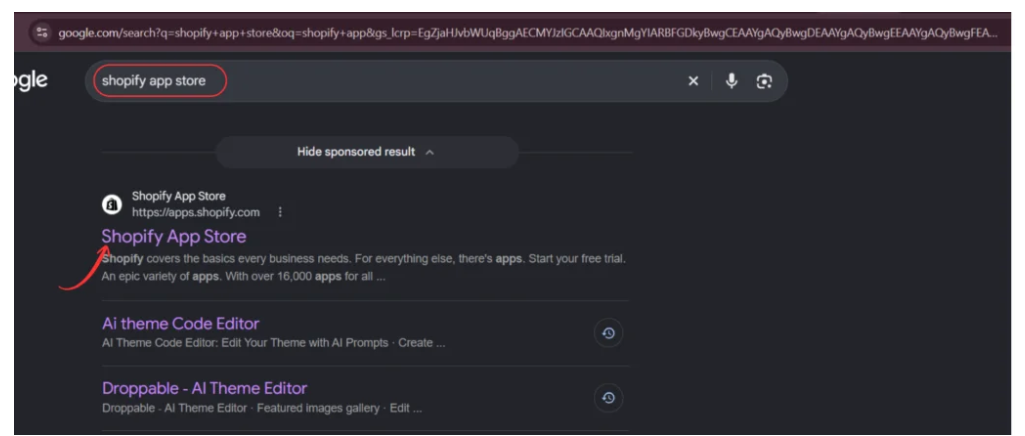
Image 1: Search Google for the official Shopify App Store.
The Shopify App Store provides applications that help merchants customize storefronts, manage operations, and improve shopping experiences.
Step 2: Search for AI Theme Code Editor
Once you open the Shopify App Store, locate the search bar.
Type AI Theme Code Editor.
Find the application named AI theme Code Editor, identified by its code-editor icon.
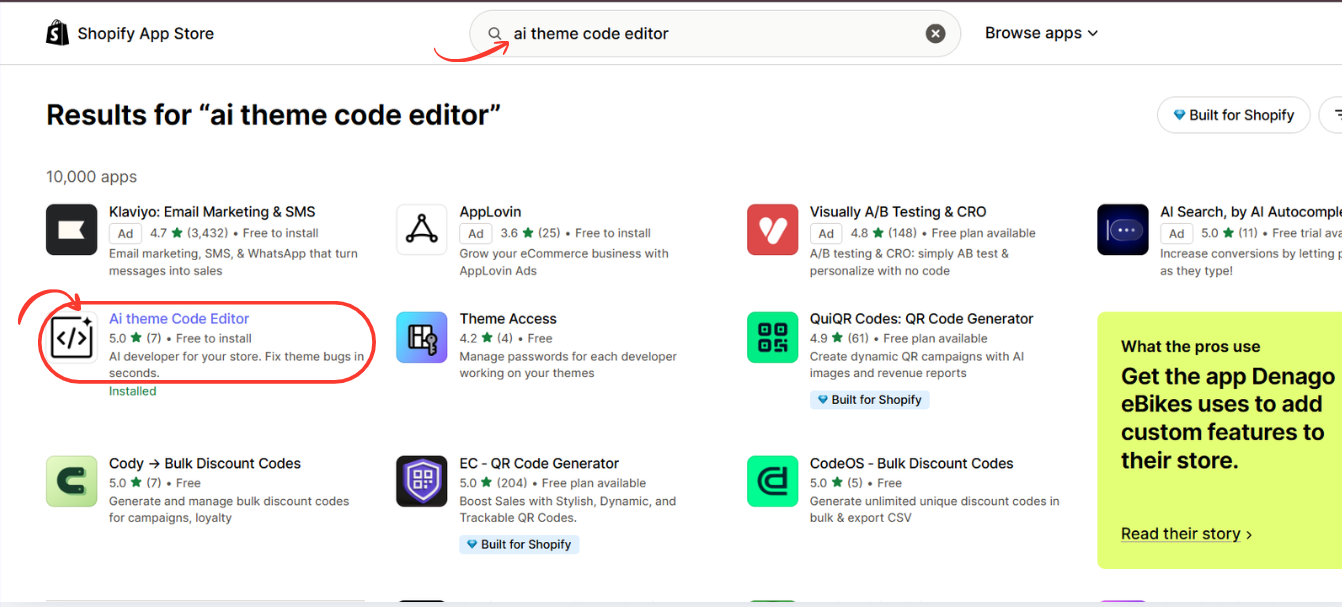
Image 2: Search for AI Theme Code Editor and select the application from the results.
Click the app listing to open its installation page.
Step 3: Install AI Theme Code Editor
On the app listing, review the available features and installation information.
Click Install and follow Shopify’s authorization process.
If the application is already installed, you may see Open instead.

Image 3: Open the AI Theme Code Editor listing and install the application.
After installation, you can access the app directly from your Shopify admin.
Step 4: Connect Your Shopify Theme
Open AI Theme Code Editor from your Shopify admin dashboard.
Navigate to Connected Themes in the app sidebar.
The Connected Themes page allows you to select which Shopify theme you want to work on.
Click Connect theme if your desired theme is not already connected.
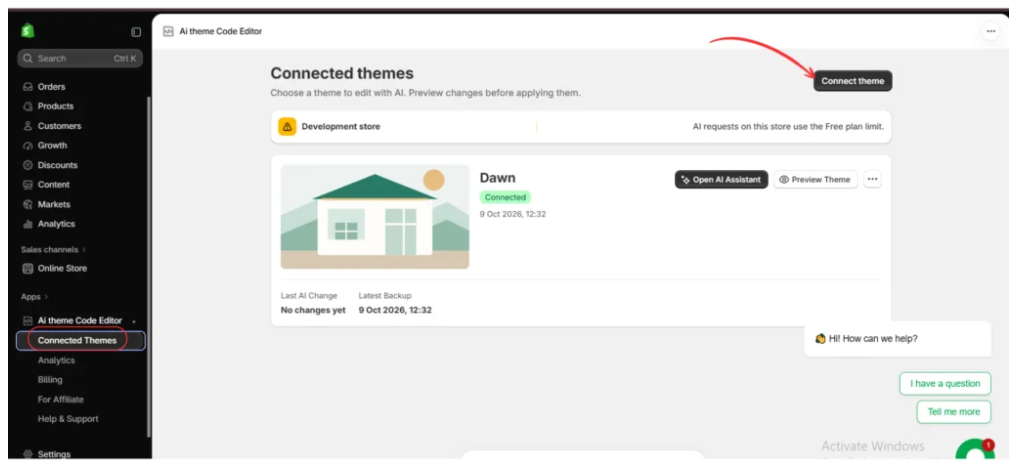
Image 4: Open Connected Themes and connect the Shopify theme you want to optimize for mobile devices.
In the example screenshot, the Dawn theme is already connected.
Before editing, verify that you have selected the correct theme.
Consider making a duplicate of your Shopify theme so that your original version remains available if a change causes unexpected behavior.
Step 5: Open the AI Assistant
After connecting your Shopify theme, locate it in the Connected Themes dashboard.
Click Open AI Assistant.
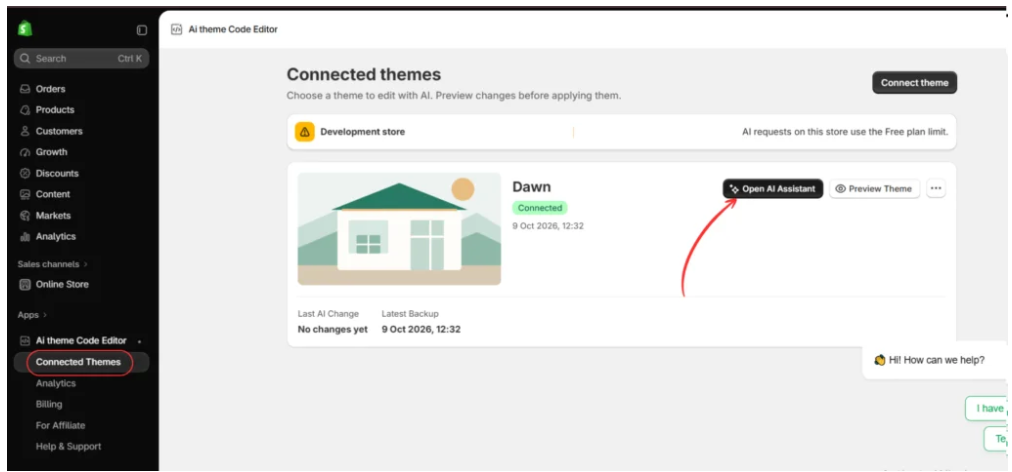
Image 5: Click Open AI Assistant to begin troubleshooting your Shopify theme.
The AI editing workspace will open.
You will see the theme file explorer on the left, the code editor in the center, and the AI Assistant panel on the right.
Step 6: Tell AI to Fix Your Mobile Layout
Inside the AI Theme Code Editor workspace, locate the AI Assistant chat box.
Describe the mobile layout issue you want to fix.
For example, if your Shopify collection page looks broken on smartphones, ask the AI to identify and correct the relevant responsive styling problems.
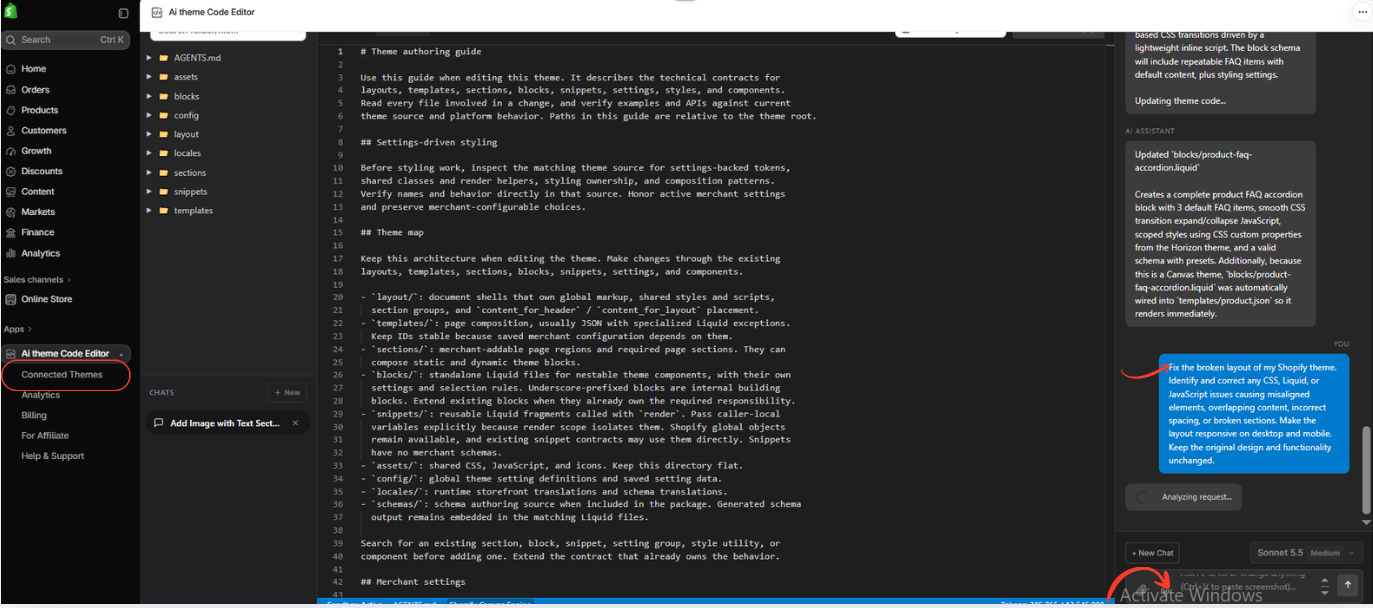
Image 6: Use the AI Assistant to describe the layout problem and request targeted theme code changes.
Real Examples: AI-Generated Sections Working in a Shopify Theme
The following examples use your four original screenshots to demonstrate how custom features can be created or modified with AI assistance and subsequently displayed and customized through Shopify’s theme editor.
The screenshots show actual editor interfaces and rendered sections. They do not, by themselves, establish a complete security audit, independent performance test, or proof that every AI-generated change will work correctly.
Example 1: A Custom Tax Calculator Displayed in Shopify
One example shows a section called SK Calculator Tax added to a Shopify theme.
The section displays a customer-facing calculator titled “Estimate Your Tax.”
It includes an input for the product price and a dropdown for choosing a region.
The screenshot shows options such as California, Texas, and the United Kingdom (VAT).
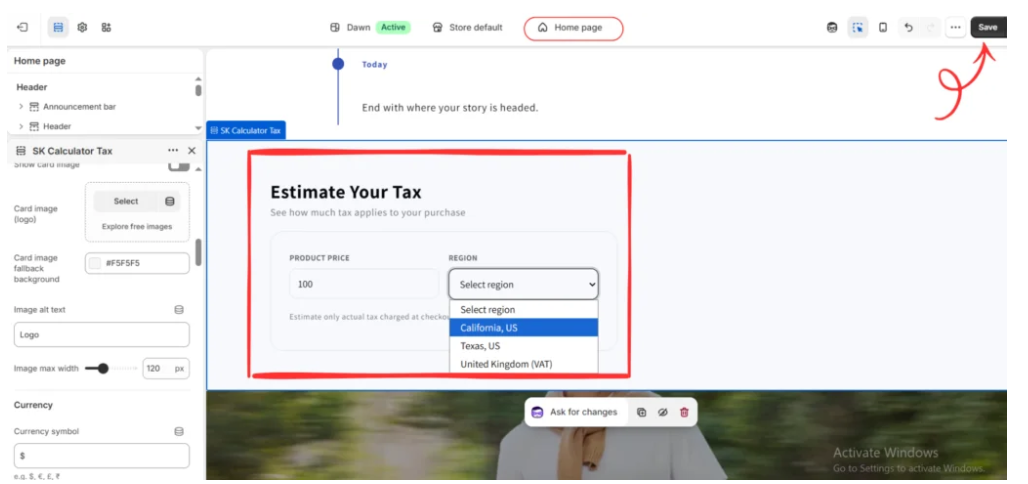
Image 1: A tax calculator section rendered in the Shopify theme editor, with product price and region selection controls.
This example demonstrates how a custom calculator interface can be displayed inside a Shopify page.
The Shopify theme editor also shows settings for the calculator’s appearance, including images, fallback colors, and currency-related options.
What this demonstrates: A custom section can be rendered and visually customized within the theme editor.
What still needs verification: The screenshot does not establish that the calculator’s tax calculations are accurate for all jurisdictions or suitable for real tax compliance. Its calculations and storefront behavior would need separate testing.
Example 2: AI Theme Code Editor Generating Custom Product Card Code
Your second screenshot shows the AI Theme Code Editor workspace.
The central editor displays a custom section file:
sections/custom-product-cards.liquid
The AI Assistant panel explains that the section includes configurable columns, card sizes, product selection, and responsive mobile layout settings.
The assistant also describes generating the section with inline styling and Shopify schema settings.
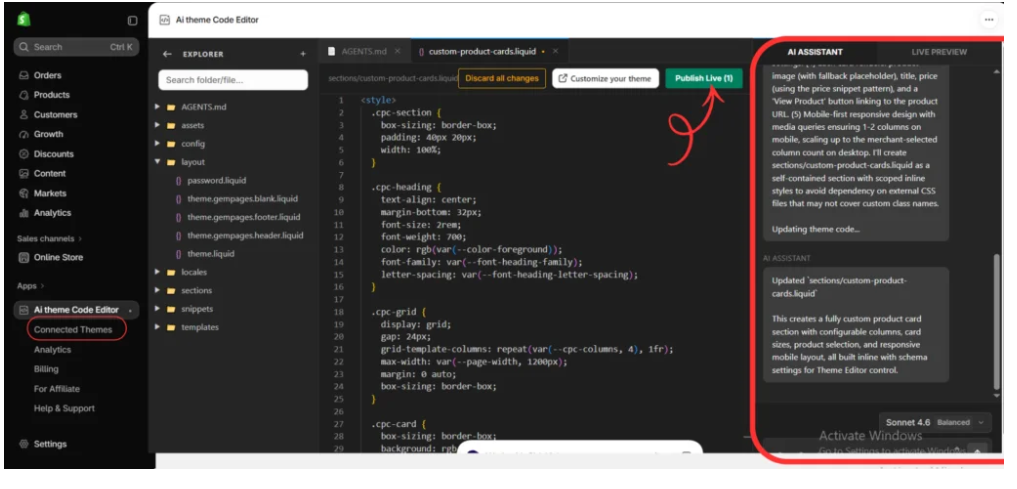
Image 2: AI Theme Code Editor displaying generated product-card section code and its AI Assistant explanation.
This example demonstrates several useful aspects of AI-assisted theme development.
The generated code is visible within the editor, allowing merchants or developers to review the changes.
The application also displays a Publish Live control, providing an application workflow for the generated modifications.
However, the presence of a publishing control does not mean every generated change is safe to publish immediately.
Before using it, merchants should verify the selected theme, inspect the generated code, confirm backup availability, and review the effect on existing storefront features.
Example 3: A Custom Protein Calculator Appearing on the Shopify Homepage
Your third screenshot shows the Shopify theme editor with a custom section named SK Protein Calculator.
The section appears on the homepage and displays a dark-themed interface titled “Protein Intake Calculator.”
It also includes a country selection dropdown.
The screenshot shows the section integrated into the page layout and represented in the Shopify theme editor sidebar.

Image 3: A custom Protein Intake Calculator section displayed on a Shopify homepage template.
This example illustrates how a custom section can become part of a Shopify storefront layout.
Rather than appearing only as generated source code, the section is visible in the editor’s page preview.
The presence of a custom section inside the theme editor is useful evidence that the theme can render it.
However, merchants should still test all inputs, calculations, and related interactive functionality on the storefront.
Example 4: Customizing the AI-Generated Section Through Shopify’s Theme Editor
The fourth screenshot provides a closer view of the SK Protein Calculator’s customization settings.
The editor displays options such as Layout style, Card position, and Card max width.
The calculator preview also shows the country selection interface.

Image 4: Customizing the Protein Calculator’s layout style, card positioning, and width using Shopify theme editor controls.
This demonstrates another important benefit of building a Shopify section with an appropriate schema.
Rather than requiring the merchant to manually edit the code for every design change, the section can expose editable settings through Shopify’s native theme editor.
This makes future visual customization more accessible.
The screenshot also highlights the Save button, which merchants can use to save their theme editor configuration.
These examples show that custom sections can be represented and configured inside a real Shopify theme. They support the usefulness of the workflow, while reinforcing the need to test each feature independently.
Step-by-Step Guide: How to Edit Your Shopify Theme Safely With AI
The following process combines the app workflow with practical safeguards for protecting your existing storefront.
Step 1: Create a Backup of Your Shopify Theme
Before allowing an AI assistant to make changes, open your Shopify admin and navigate to Online Store → Themes.
Find the theme you want to edit, open its actions menu, and create a duplicate.
Working on a duplicate theme helps protect your published storefront from unexpected modifications.
Step 2: Install AI Theme Code Editor
Visit the AI Theme Code Editor Shopify App Store listing.
Click Install and complete Shopify’s authorization process.
Review the requested permissions to understand what the app can access and modify.
Step 3: Connect the Theme You Want to Customize
Open AI Theme Code Editor from your Shopify admin.
Navigate to Connected Themes.
Choose the appropriate theme, preferably a duplicate or unpublished version for initial testing.
Then click Open AI Assistant.
Step 4: Describe Your Requested Change
Use the AI Assistant to explain exactly what you want.
For example, you might request a custom product card section, a responsive layout adjustment, or a new calculator.
A focused request reduces unnecessary modifications.
Copy This Prompt for Safer Shopify Theme Editing
AI Theme Editing Prompt Copy
Review my Shopify theme and make the requested change safely. Work only on the connected duplicate or draft theme. Inspect existing Liquid, CSS, JavaScript, and schema before editing. Preserve all existing features, styling, responsiveness, and functionality. Make only the necessary changes, avoid unrelated files, explain what was modified, and let me review and preview the result before applying it to my live store.
Add a specific description of the feature or problem you want the AI to address.
Step 5: Review the AI-Generated Code
After submitting your request, inspect the files and modifications proposed by the AI.
Check whether the changes affect only the intended section or feature.
Pay particular attention to unexpected deletions, global style changes, external scripts, and modifications to important purchasing controls.
If the change is unclear, ask the AI Assistant to explain it before proceeding.
Step 6: Save and Preview the Changes
Use the app’s available sandbox controls to save draft changes.
Then open the preview workflow.
Inspect the affected page on desktop and mobile.
Test navigation, product selection, buttons, forms, and any other relevant interactions.
Step 7: Customize the Section Through Shopify’s Theme Editor
If the AI has created a section with editable schema settings, open Shopify’s theme editor.
Locate the new section and customize the available fields.
Your Protein Calculator screenshot illustrates how section layout, positioning, and width can be controlled from the editor.
Step 8: Publish Only After Testing
Once you have reviewed the code and tested the changes, use the appropriate application or theme publishing workflow.
Confirm that you are publishing to the intended theme and that a backup is available.
After publication, test the live storefront once more to verify that everything works as expected.
What Are the Real Risks of Letting AI Edit Shopify Theme Code?
AI-assisted theme editing has practical benefits, but merchants should understand the potential risks.
| Potential risk | Recommended precaution |
|---|---|
| Incorrect or incomplete code | Review the generated changes and test affected pages |
| Broken layout or styling | Use a duplicate theme and check desktop and mobile |
| Unintended changes to other features | Request focused modifications and inspect the changed files |
| Problems with existing apps | Test integrations and important storefront interactions |
| Difficult recovery | Maintain a backup and verify restoration options |
| Data or access concerns | Review app permissions, privacy practices, and connected services |
| Poor site performance | Test loading behavior after adding new scripts or sections |
These precautions do not eliminate every risk, but they help reduce the likelihood and impact of unsuccessful modifications.
Benefits of Using AI for Shopify Theme Customization
Faster development workflows
AI may reduce the amount of manual coding required for straightforward customizations.
Easier experimentation
Merchants can describe new ideas and test proposed changes without writing all the code themselves.
More accessible theme editing
Natural-language instructions make some development tasks more approachable for nontechnical store owners.
Custom storefront features
AI can assist in creating sections such as product cards, calculators, promotional blocks, and other storefront components.
Support for existing theme modifications
AI can help investigate layout problems, styling conflicts, and certain code errors.
Visible code and editing controls
An integrated code editor allows merchants to inspect proposed changes instead of relying solely on a finished output.
Frequently Asked Questions (FAQs)
1. Is it safe to let AI edit my Shopify theme code?
AI-assisted editing can be reasonably safe when changes are limited, reviewed, tested, and made with backups available. It is not risk-free.
2. Can AI-generated code break a Shopify store?
Yes. Incorrect Liquid, CSS, HTML, or JavaScript changes can affect layout and functionality, which is why testing is necessary.
3. Can AI Theme Code Editor create custom Shopify sections?
Yes. The provided screenshots show the app generating a custom product-card section and other custom sections displayed in Shopify’s theme editor.
4. Can I preview AI-generated changes before publishing?
AI Theme Code Editor provides sandbox and preview functionality. Merchants should use the available review controls and verify the changes before publishing.
5. Can I customize AI-generated sections afterward?
Yes, when the generated section includes suitable Shopify schema settings. Your Protein Calculator screenshot shows layout and appearance controls in the theme editor.
6. Should I create a backup before using AI?
Yes. Creating a duplicate theme before making significant changes is an important precaution.
7. Does AI Theme Code Editor work with Shopify Dawn?
Your screenshots show the AI Theme Code Editor workflow alongside Shopify’s Dawn theme.
8. Can AI-generated calculators be trusted automatically?
No. Calculators involving taxes, nutrition, pricing, or other consequential values require separate testing of the underlying formulas and data.
9. Is AI Theme Code Editor free?
The app has been shown as free to install, with paid plans and usage-based options available. Check the current listing for accurate pricing.
10. Can AI completely replace a Shopify developer?
AI can help automate some coding tasks, but complex changes, integrations, security reviews, and critical storefront functionality may still require an experienced developer.
Conclusion
Is it safe to let AI edit your Shopify theme code?
It can be, provided that you use AI as an assistant within a controlled development process rather than automatically accepting every generated modification.
The practical examples in this article show custom features appearing inside Shopify’s theme editor, including calculator sections and configurable layout settings.
These screenshots demonstrate that AI-assisted workflows can produce usable theme components. They do not establish that every generated feature is correct, secure, or ready for immediate publication.
With AI Theme Code Editor by SectionKit, merchants can describe customizations in plain English, inspect generated theme code, and use the available editing and preview workflows.
By creating backups, reviewing changes, testing functionality, and publishing carefully, Shopify merchants can make better use of AI-powered customization tools.
Want to explore AI-assisted Shopify theme editing?Install AI Theme Code Editor on Shopify




