HOW TO SHOW A LIVE VISITOR COUNTER ON SHOPIFY PRODUCT PAGES
Shopify Tutorial | Live Visitor Counter | Social Proof | AB Sales Popup | 2026

Introduction
Imagine a customer visiting your Shopify store and discovering a product they like. They browse the product images, read the description, and check the price, but they aren’t quite ready to make a purchase.
Now imagine that the product page displays a small message:
“12 people are currently browsing this store.”
This simple message helps communicate that other shoppers are also exploring your website.
For Shopify merchants, a live visitor counter can be a useful way to display genuine visitor activity and add a social proof element to their storefront.
However, adding a real-time visitor counter manually may require custom development, visitor session tracking, and Shopify theme modifications.
Fortunately, AB Sales Popup allows Shopify merchants to configure visitor counters, customize their appearance, and add them to their storefront without manually writing code.
In this guide, you’ll learn how to show a live visitor counter on Shopify product pages, customize its colors and text, and display verified visitor activity using AB Sales Popup.
We’ll also walk through the process with actual screenshots from the app.
What Is a Live Visitor Counter on Shopify?
A live visitor counter is a storefront element that displays the number of visitors actively browsing a website or product page within a defined period.
For example, a visitor counter might display:
people are currently browsing this store.
Illustrative visitor counter design — not live data.
A counter can help shoppers understand that a store is active and that other customers are browsing at the same time.
Some visitor counters measure activity across the entire store, while others track individual product pages.
AB Sales Popup’s provided screenshots show a Store visitor source and a Live Visitors (Last 5 minutes) measurement option. Therefore, the displayed number should be described as store-wide activity unless a product-specific tracking source is explicitly configured.
Why Add a Live Visitor Counter to Your Shopify Store?
1. Build customer confidence
New visitors may be unfamiliar with your Shopify brand.
Showing genuine visitor activity can help communicate that your store is being used by other shoppers.
2. Add real-time social proof
Unlike static promotional text, a live visitor counter can reflect changing activity over time.
This creates a more dynamic shopping experience.
3. Highlight store engagement
A counter helps communicate how many people are actively exploring your store during the selected time window.
4. Complement product-page trust elements
Visitor counters can work alongside product reviews, trust badges, purchase notifications, and other storefront elements.
5. Support conversion experiments
Merchants can test whether displaying verified visitor activity improves engagement or purchasing behavior.
However, visitor counters do not guarantee higher conversions, and their effect will vary by store and audience.
Common Problems When Adding Visitor Counters Manually
Many Shopify themes do not include detailed visitor counter customization settings by default.
Building a counter manually may require tracking active sessions, determining the correct time window, updating the displayed count, and connecting the component to Shopify theme sections.
Merchants may also encounter problems with styling, mobile layouts, or inaccurate counts.
This is why using an app with built-in visitor counting and customization controls can simplify the process.
Introducing AB Sales Popup
AB Sales Popup is a Shopify app that provides sales notifications, visitor counters, countdown timers, sold counters, and stock countdown features.
Its Visitor Counter feature allows merchants to customize how visitor activity is displayed on their storefront.
Key Features of AB Sales Popup
- Live visitor counter functionality.
- Verified visitor session counting.
- Customizable visitor counter text.
- Basic and Custom counter themes.
- Background, font, number, and icon color settings.
- Multiple message templates.
- Visitor time-window settings.
- Store visitor source selection.
- Flat and Capsule display styles.
- Shopify theme app block integration.
The app also offers other social proof features, including purchase notifications and product sales counters.
App Link: Install AB Sales Popup on Shopify
Step-by-Step Guide: How to Add a Live Visitor Counter to Shopify Product Pages
Follow the steps below using your six original screenshots, placed in the exact order provided.
Step 1: Search for the Shopify App Store on Google
First, open Google in your browser.
Search for Shopify App Store and click the official Shopify App Store result.

Image 1: Finding the official Shopify App Store through Google search.
As shown in the screenshot, the search term Shopify App Store is highlighted, and the official result appears below it.
You can also visit the official website directly at apps.shopify.com.
The Shopify App Store contains applications that help merchants customize their stores, manage marketing, and improve their shopping experience.
Step 2: Search for AB Sales Popup
Once you’re inside the Shopify App Store, locate the search bar at the top.
Type AB Sales Popup into the search field.
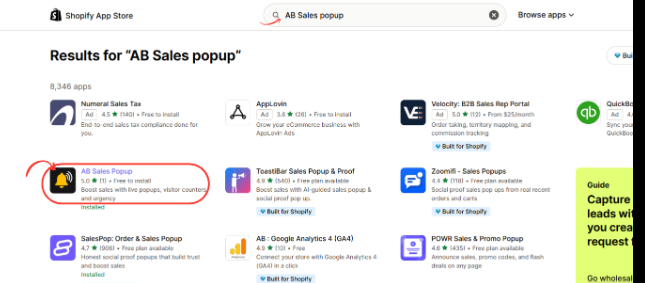
Image 2: Searching for AB Sales Popup in the Shopify App Store and locating its listing.
Image explanation: Your screenshot highlights AB Sales Popup in the search results.
The app uses a black icon featuring a yellow notification bell.
Its listing mentions live popups, visitor counters, and urgency tools.
Click AB Sales Popup to open the app listing.
Step 3: Install and Open AB Sales Popup
On the app listing page, you’ll see details about its features and capabilities.
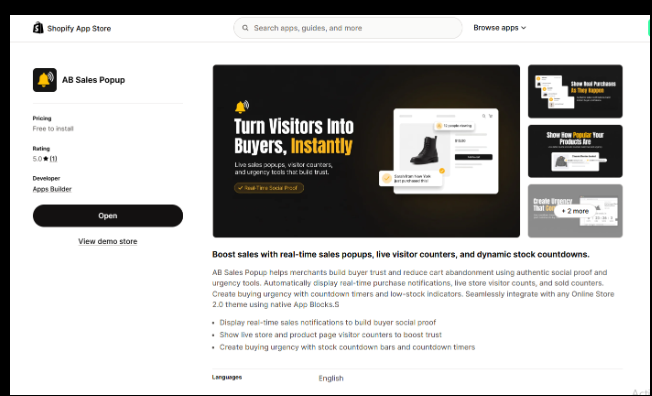
Image 3: AB Sales Popup listing, featuring real-time sales notifications, visitor counters, and countdown tools.
Image explanation: This screenshot shows the official AB Sales Popup listing.
Its main promotional image highlights social proof notifications and visitor engagement.
The description mentions live store and product-page visitor counters alongside purchase notifications and other urgency features.
Click Install if you have not installed the application.
If the app is already installed, click Open.
After installation, AB Sales Popup becomes accessible from your Shopify Admin.
Step 4: Open the Visitor Counter Feature
From Shopify Admin, navigate to:
Apps → AB Sales Popup → Dashboard
Scroll to the Manage Features section.
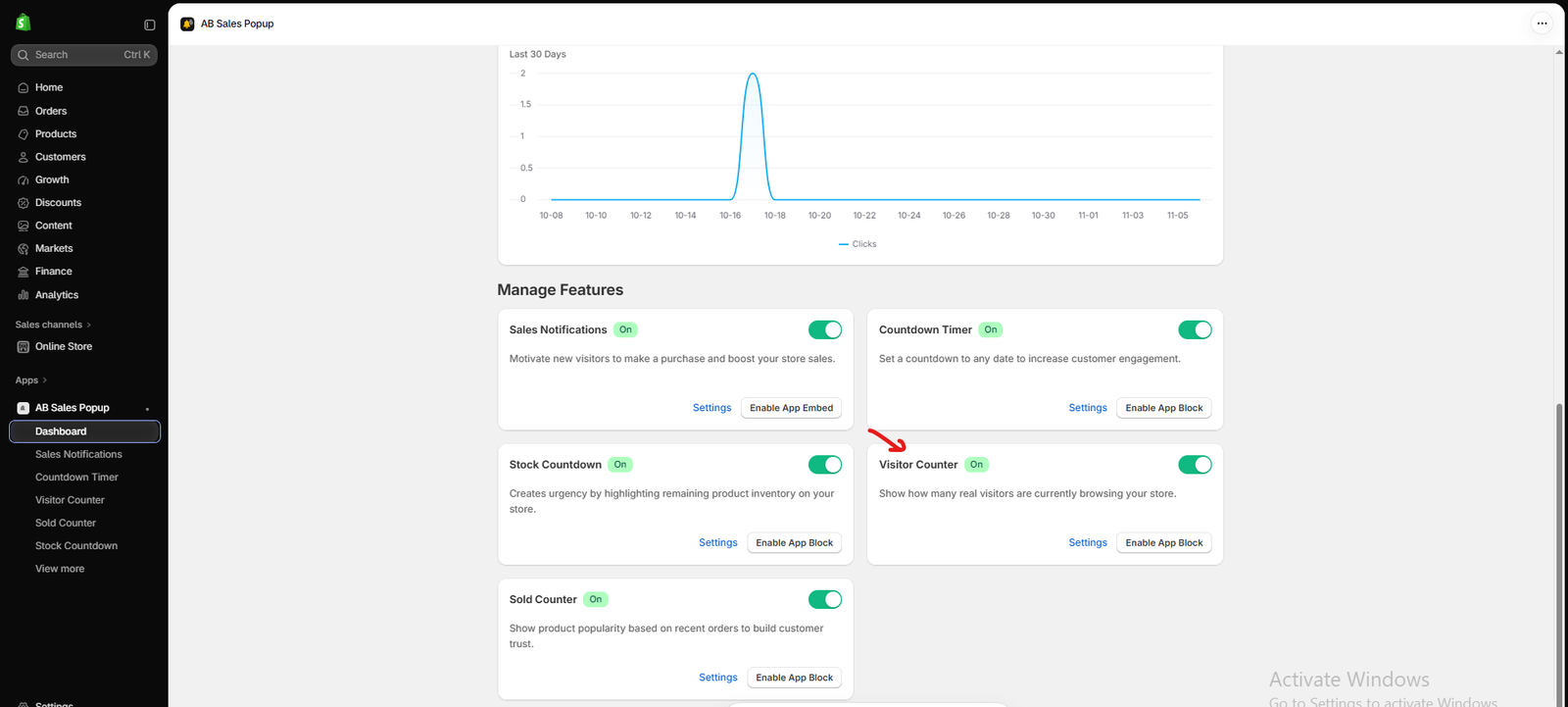
Image 4: AB Sales Popup dashboard showing Visitor Counter enabled under Manage Features.
Image explanation: The screenshot displays the app’s dashboard with several available features:
- Sales Notifications
- Countdown Timer
- Stock Countdown
- Visitor Counter
- Sold Counter
The Visitor Counter section is highlighted with a red arrow.
It includes a green On status, a Settings link, and an Enable App Block button.
Make sure the Visitor Counter feature is turned On.
Click Settings, or select Visitor Counter from the left sidebar, to customize the feature.
Step 5: Customize the Visitor Counter Message and Tracking Settings
Inside Visitor Counter, scroll down to Content Settings and Visitor Counter Settings.

Image 5: Customizing the visitor counter’s message, font, icon, visitor source, time window, and display style.
Image explanation: This screenshot shows several important settings.
Under Heading text, you can customize what customers see on your storefront.
The example uses a message with the dynamic placeholder {{visitor_number}}, which represents the visitor count.
The interface provides several message variations, including phrases about people currently browsing the store or exploring products.
You can also configure:
Heading font family: Choose the font used for the counter message.
Heading font size: Adjust the displayed text size.
Text alignment: Control the message’s alignment.
Choose an icon: Select a suitable icon, such as an eye symbol.
Base visitor count on: The screenshot shows Live Visitors (Last 5 minutes).
Visitor source: The example is set to Store.
Style: Choose between Flat and Capsule.
For a product page, it is important that the message describes what is actually being counted.
If the source is Store, use wording such as “people are currently browsing this store” rather than claiming the number represents viewers of the specific product.
Step 6: Choose the Visitor Counter Theme and Colors
Return to the top of the Visitor Counter page to configure its appearance.

Image 6: AB Sales Popup Visitor Counter settings showing Basic and Custom themes, color options, dynamic messages, and preview.
Image explanation: Your screenshot shows the Visitor Counter feature turned On.
The page offers two theme choices: Custom and Basic.
When using Custom, merchants can modify the appearance through dedicated color fields.
The example displays these values:
| Setting | Example value |
|---|---|
| Background color | #FFFFFF |
| Font color | #000000 |
| Visitor count color | #FF6666 |
| Icon color | #FF6666 |
| Theme | Custom |
On the right side, the Preview panel displays an example counter containing the number 3 and a message about users present on the store.
This is a configuration preview, not independent evidence of live visitor traffic.
You can change the colors to match your Shopify theme.
For example, beauty stores might choose soft pink, while technology brands may prefer blue or dark gray.
Keep the counter readable and avoid color combinations with poor contrast.
Step 7: Enable the Visitor Counter App Block on Your Product Page
After customizing the counter, return to the AB Sales Popup dashboard.
Under the Visitor Counter feature, click Enable App Block.
This should take you into the appropriate Shopify theme customization workflow.
In the Shopify theme editor:
- Select the product page template you want to customize.
- Locate the section where you want the visitor counter to appear.
- Click Add block and select the AB Sales Popup Visitor Counter block if available.
- Position the block near the product information, where it does not interrupt essential controls.
- Click Save.
The six screenshots supplied cover the app installation and Visitor Counter settings. They do not show the actual product-page app block placement screen, so this step describes the expected Shopify theme editor workflow rather than claiming that placement was demonstrated.
Step 8: Preview the Live Visitor Counter on Your Shopify Product Page
After saving the configuration, open your Shopify product page preview.
Check whether the visitor counter appears in the selected position.
Confirm that the displayed text matches the visitor tracking source and time window.
Also review the counter’s appearance on mobile and desktop.
If the counter doesn’t appear, check that the feature is turned On, the relevant app block is added to the correct template, and the theme changes have been saved.
Where Should You Place a Visitor Counter on a Shopify Product Page?
The best position depends on your store layout.
A visitor counter can be placed near the product title, pricing information, or purchase section, provided it does not interfere with important controls.
For example, a compact counter near the product description can remain visible without dominating the page.
Avoid placing it over product images, the quantity selector, or the Add to Cart button.
A clean layout is more important than making the counter unusually large.
Best Practices for Shopify Live Visitor Counters
Use verified visitor counts
Display actual visitor activity rather than artificially inflated numbers.
Match the wording to the data
A store-wide count should be described as store-wide activity. Do not label it as a product-specific count unless the data genuinely measures that product page.
Keep the design simple
Use a short, readable message with a small icon.
Match your store branding
Choose colors and fonts that complement your Shopify theme.
Avoid creating artificial urgency
A visitor counter should communicate real engagement, not make unsupported claims that a product is about to sell out.
Test mobile usability
Verify that the counter is clearly visible without covering important product information.
Monitor performance
Evaluate whether the counter contributes to a better shopping experience using actual store analytics.
Live Visitor Counter vs Sales Popup: What’s the Difference?
| Feature | Live Visitor Counter | Sales Popup |
|---|---|---|
| Shows visitor activity | Yes | Not its primary purpose |
| Shows recent purchases | No | Yes |
| Displays visitor numbers | Yes | Not necessarily |
| Provides social proof | Can | Can |
| Supports dynamic activity messaging | Yes | Yes |
| Main purpose | Communicate active browsing | Highlight authentic purchases |
AB Sales Popup includes both features, so merchants can decide which is more suitable for their storefront.
Frequently Asked Questions
1. What is a live visitor counter on Shopify?
A live visitor counter displays the number of active visitors according to a configured tracking source and time window.
2. Can I add a visitor counter without coding?
Yes. AB Sales Popup provides a configurable visitor counter and an app block integration workflow.
3. Can I show the visitor counter on product pages?
The app provides an Enable App Block control, and its listing describes product-page visitor counter functionality. Placement depends on the Shopify theme and available app block support.
4. Can I customize the visitor counter text?
Yes. The app provides editable heading text and dynamic visitor-number placeholders.
5. Can I change the visitor counter colors?
Yes. You can customize background, font, visitor number, and icon colors.
6. Does the visitor counter show real visitors?
The supplied interface describes verified, real-time customer sessions. The actual count depends on the selected visitor source and tracking time window.
7. Can I change the visitor counter style?
Yes. The screenshots show Basic and Custom themes, as well as Flat and Capsule styles.
8. Will a live visitor counter increase Shopify sales?
It may contribute to social proof, but there is no guaranteed conversion increase. Merchants should test its effect on actual store performance.
9. Is AB Sales Popup free to install?
The supplied Shopify App Store screenshot shows Free to install. Check the current listing for plan limits, billing, and usage allowances.
Conclusion
A live visitor counter can be a useful addition to Shopify product pages when it displays genuine visitor activity and is presented clearly.
It helps communicate that customers are actively browsing your store and can complement other social proof elements.
With AB Sales Popup, merchants can configure visitor count messages, choose different themes, customize text and colors, select visitor tracking settings, and add the counter through Shopify’s theme customization system.
The screenshots in this guide demonstrate how to find the app, access the Visitor Counter feature, customize its appearance, and configure a real-time visitor count.
For the best results, keep your messaging accurate, use appropriate styling, and test the counter’s appearance and functionality across different devices.
Want to display real visitor activity on your Shopify storefront?Install AB Sales Popup on Shopify




