HOW TO ADD A LOGO BAR (“AS SEEN IN”) TO YOUR SHOPIFY HOMEPAGE
Introduction
Building customer trust is one of the most important challenges for Shopify merchants. When visitors discover a new online store, they often look for signs of credibility before deciding whether to purchase.
One effective way to showcase credibility is by adding a logo bar to your Shopify homepage.
A logo bar, often called an “As Seen In” section, displays logos of publications, media outlets, business partners, or organizations associated with your brand.
For example, if your business has genuinely been featured in a publication or collaborated with another company, displaying the relevant logo can help communicate that relationship.
However, many Shopify themes offer limited logo display options. Merchants may struggle to create attractive scrolling logo bars without custom coding.
Fortunately, Section Kit: Theme Sections makes it easy to add a customizable logo bar directly to your Shopify storefront.
In this tutorial, we will explain how to add an “As Seen In” logo bar using Section Kit, with step-by-step instructions and your six original screenshots.
The Merchant’s Challenge: Why Adding a Logo Bar Can Be Difficult
Limited theme customization
Some Shopify themes include basic logo lists, but they may not offer scrolling marquees, flexible spacing, or advanced styling options.
Coding requirements
Creating a continuous scrolling logo bar may require custom Liquid, CSS, and JavaScript.
Inconsistent logo dimensions
Partner and publication logos often have different sizes, proportions, and colors. Displaying them consistently can be challenging.
Mobile responsiveness
A logo bar needs to remain readable and attractive across desktop, tablet, and mobile screens.
Lack of visual credibility
New visitors may not immediately recognize a store’s reputation. Genuine media and partnership logos can provide useful context.
These challenges make a flexible, customizable logo bar section valuable for Shopify merchants.
Why Add an “As Seen In” Logo Bar to Shopify?
A professionally designed logo bar can help demonstrate brand credibility and highlight meaningful business relationships.
It can be used to showcase legitimate media coverage, recognized brand partnerships, certifications, or organizations that have publicly endorsed or worked with your business.
An attractive logo bar can also enhance the visual appearance of your homepage without taking up too much space.
For best results, only display logos that you have permission or a legitimate basis to use, and avoid implying endorsements that have not occurred.
Introducing Section Kit: Theme Sections
Section Kit: Theme Sections is a Shopify app that helps merchants customize their stores using ready-made storefront sections.
Instead of manually developing sections or relying on expensive customizations, merchants can choose from available designs and customize them through Shopify’s visual theme editor.
For this tutorial, we will use SK Logo Bar Marquee #4.
This section creates a continuous scrolling logo bar that can display media logos, brand partners, sponsors, certifications, and other relevant organizations.
Key Features of SK Logo Bar Marquee #4
- Infinite logo scrolling: Create a continuously moving logo marquee.
- Multiple layout styles: Choose between available logo presentation styles.
- Custom logo styling: Adjust image sizes, spacing, and logo color treatments.
- Animation controls: Customize scrolling speed and other available animation options.
- Responsive layouts: Configure the logo bar for desktop and mobile.
- Flexible spacing: Adjust section spacing to match your Shopify theme.
- No-code installation: Add the section using Section Kit and Shopify’s theme editor.
In your screenshots, SK Logo Bar Marquee #4 is shown as a free section with three included presets.
App Link: Section Kit: Theme Sections
Step 1: Open the Shopify App Store
Start by opening Google and searching for Shopify App Store.
Select the official Shopify App Store result, as shown in the screenshot.
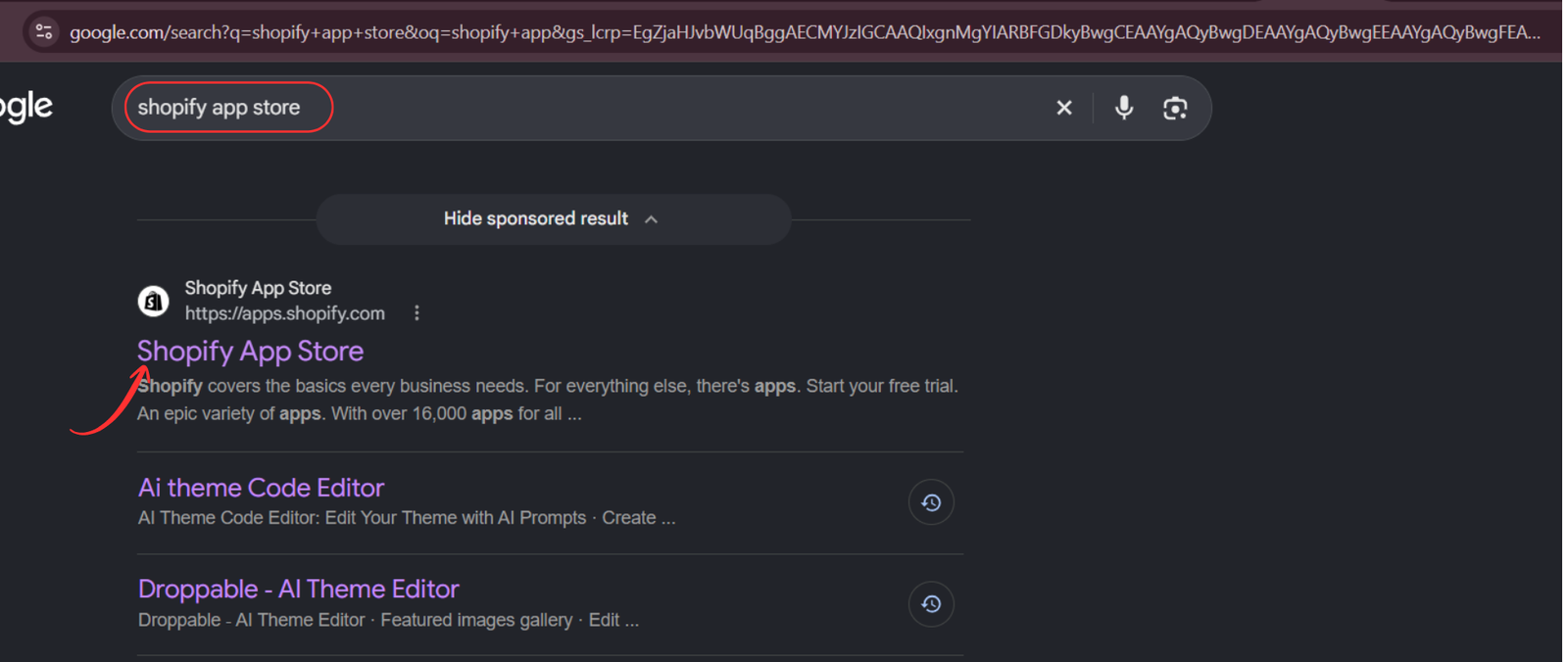
Image 1: Find and open the official Shopify App Store.
You can also visit Shopify App Store directly.
Step 2: Search for Section Kit: Theme Sections
Once inside the Shopify App Store, use the search bar to enter Section Kit Theme Sections.
Locate the app named Section Kit: Theme Sections, identifiable by its black-and-white app icon in the provided screenshot.
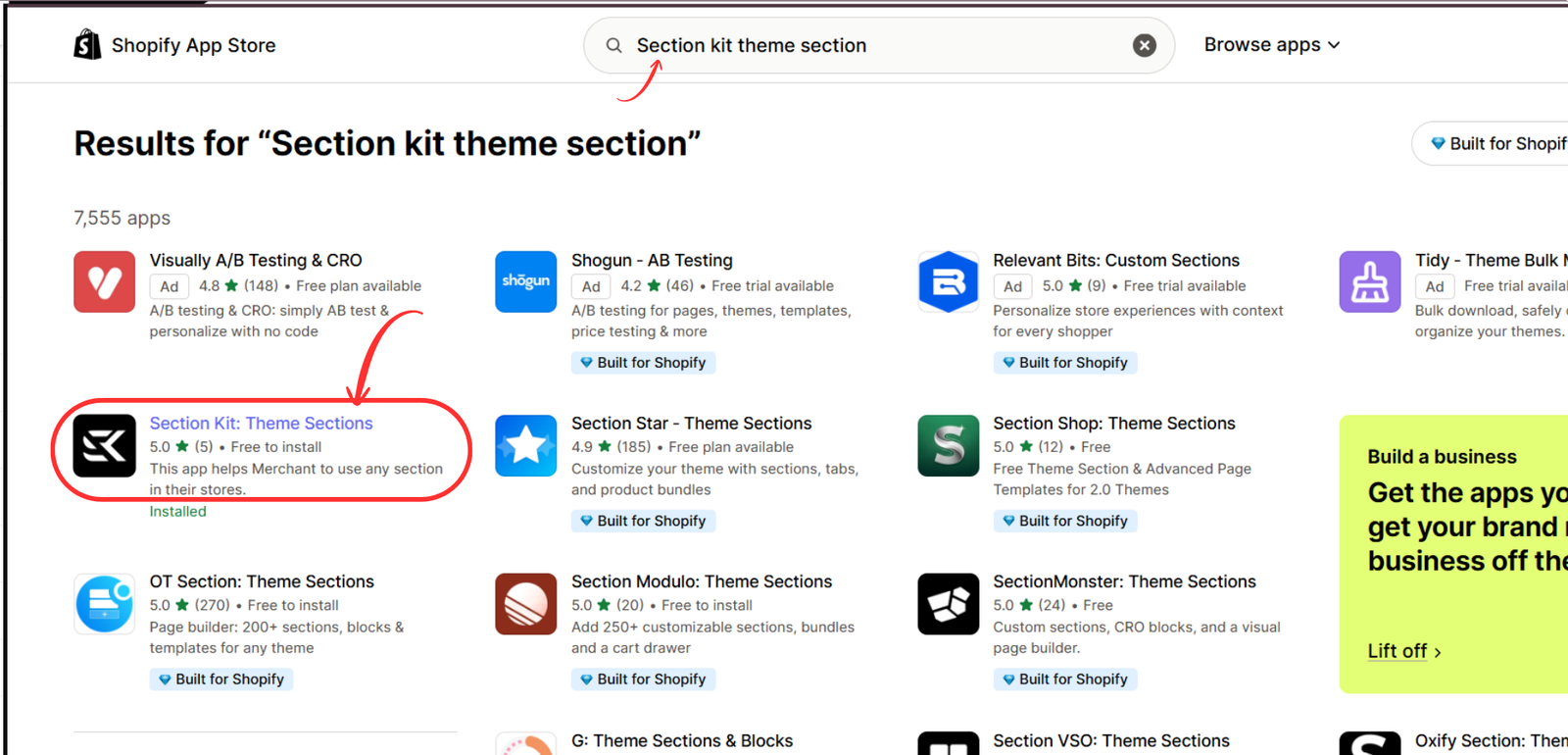
Shopify App Store search results highlighting Section Kit Theme Sections
Image 2: Search for Section Kit: Theme Sections and select the correct app.
Open the app listing and follow the installation process if you have not already installed it.
Step 3: Open the App in Your Shopify Admin
After installation, open Section Kit from your Shopify admin.
The app gives you access to its section library, allowing you to explore different layouts and design elements for your storefront.

You can begin by selecting Explore Sections from the left-hand menu.
Step 4: Open Section Kit and Search for Logo Bar
First, log in to your Shopify admin dashboard.
Open Section Kit: Theme Sections from your installed Shopify apps.
Navigate to Explore Sections in the left sidebar.
Locate the search bar and type logo.
You will see several logo-related sections, including SK Logo Bar #2, SK Logo Bar Marquee #4, SK Logo Bar #3, and other available designs.
For this tutorial, locate SK Logo Bar Marquee #4 and click More Info.

Image 1: Search for “logo” inside Section Kit and locate SK Logo Bar Marquee #4.
This section is designed to display logos in a smooth, continuously scrolling marquee.
Step 5: Preview the Logo Bar and Add It to My Sections
After clicking More Info, a preview window displays the section’s design, details, and available features.
The preview shows a horizontal logo bar with a bright background and multiple brand logos.
You can review the section’s layout and styling options before adding it to your library.
The screenshots show features such as infinite scrolling, layout variations, custom logo styling, and responsive design controls.
Click Add to My Sections.
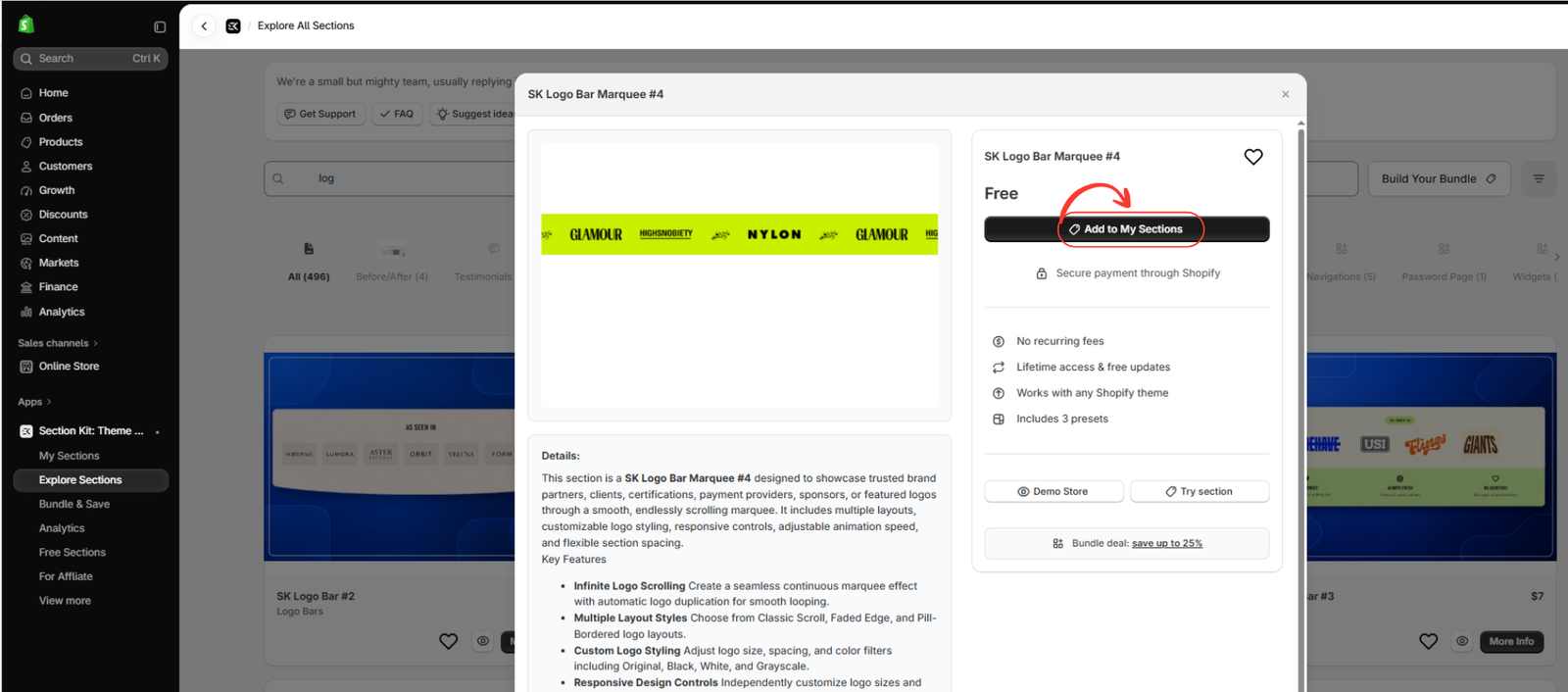
Image 2: Preview SK Logo Bar Marquee #4 and click Add to My Sections.
This adds the section to your personal Section Kit library.
Step 6: Open My Sections and Locate the Logo Bar
Next, navigate to My Sections from the Section Kit sidebar.
This page displays the sections you have saved to your library.
Find SK Logo Bar Marquee #4 among your available sections.
The section card shows a thumbnail preview, its name, and the customization option.
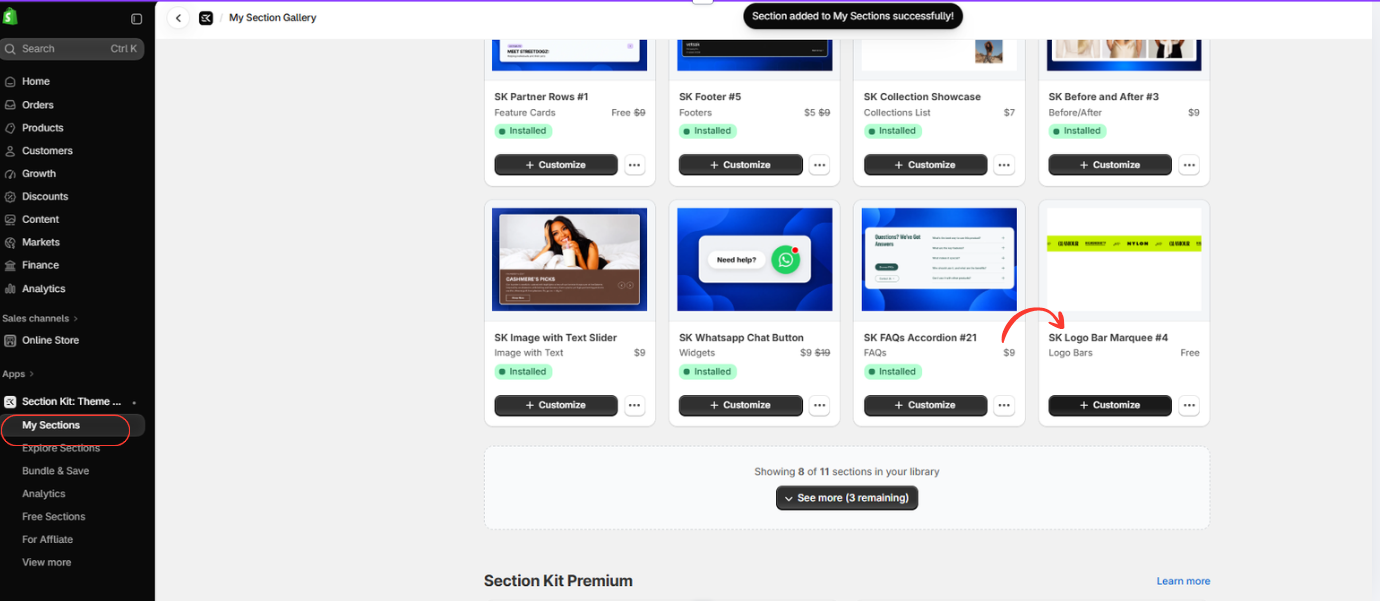
Image 3: Find SK Logo Bar Marquee #4 in My Sections.
Click Customize beneath the section to begin adding it to your Shopify theme.
Step 7: Install the Logo Bar Into Your Shopify Theme
After selecting Customize, Section Kit displays a theme selection window.
Choose the Shopify theme where you want the logo bar to appear.
If you are testing a new design, consider installing the section into a draft theme first.
Once installed, click Open Customizer to launch Shopify’s theme editor.

Image 4: Example of the Section Kit theme installation window and Open Customizer option. This screenshot shows a previously installed WhatsApp section, but the same theme-selection workflow is used.
The theme editor will open, allowing you to add the logo bar to your homepage.
Step 8: Add the Logo Bar Section to Your Shopify Homepage
Inside Shopify’s theme editor, make sure you are editing the Home page template.
In the left sidebar, click Add section.
A section search window will appear.
Follow these instructions:
- Type logo in the search box.
- Locate SK Logo Bar Marquee #4 in the search results.
- Click the section to add it to your homepage.
- Move it to the position where you want the logo bar displayed.

Image 5: Search for SK Logo Bar Marquee #4 and add it to the Shopify homepage.
A useful location is beneath your homepage hero banner, where visitors can see your brand’s genuine affiliations or media recognition early in their shopping experience.
Step 9: Customize the Logos, Appearance, and Save
After adding the section, select SK Logo Bar Marquee #4 in the theme editor sidebar.
The logo bar will appear in your homepage preview.
The section includes individual Logo blocks where you can upload and manage your images.
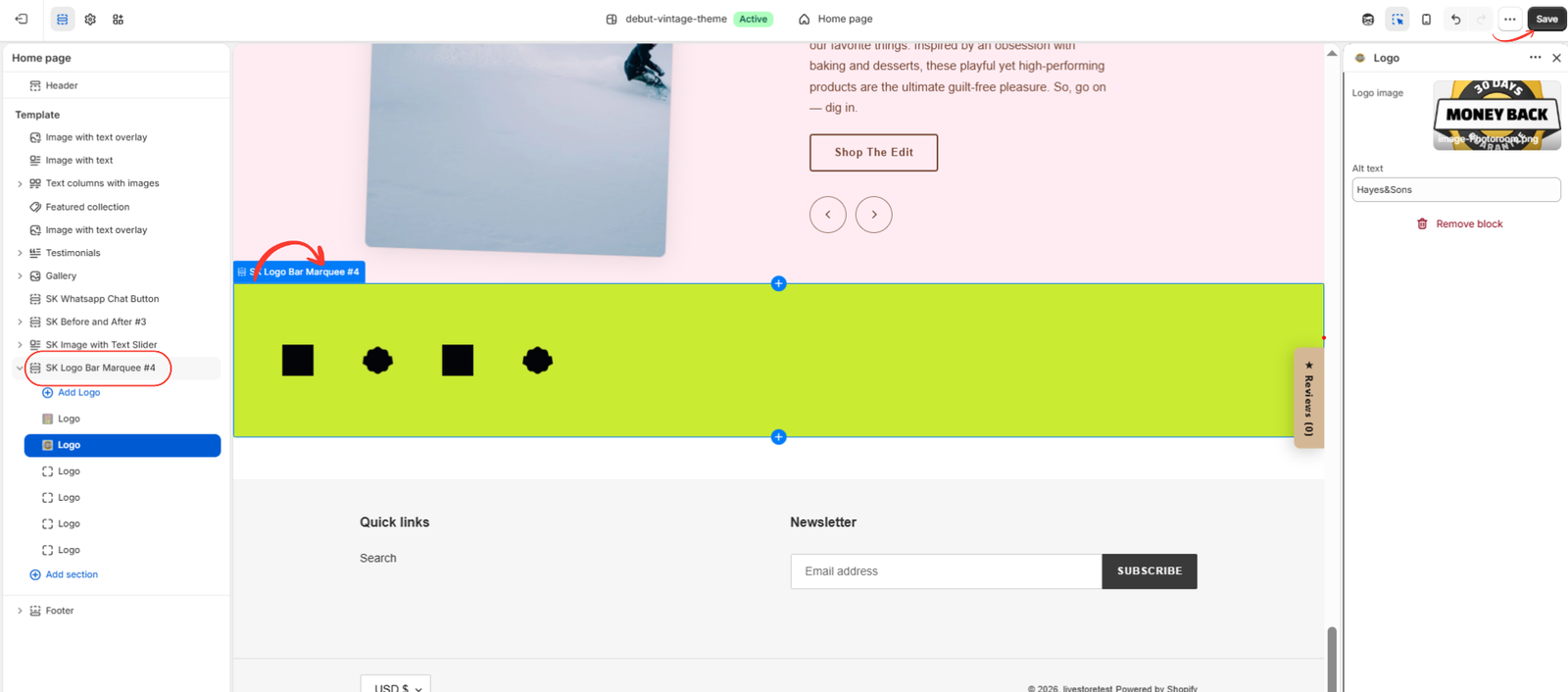
Image 6: Customize the logo bar, upload individual logos, update image alt text, and save the changes.
Upload your logos
Click an individual Logo block and select the logo image you want to display.
Use properly sized, high-quality logo files for a clean presentation.
Customize the logo images
Upload logos for publications, partners, certifications, or other organizations that you are legitimately entitled to feature.
Add image alt text
Use descriptive alt text that identifies each logo.
For example: “ABC Magazine logo.”
Customize logo sizes and spacing
Adjust the available design settings to create a consistent visual appearance.
Set the scrolling animation
Configure the marquee animation speed and presentation style according to your design preferences.
Choose a background color
Select a color that provides adequate contrast and complements your storefront.
Preview the section
Test the logo bar on desktop and mobile to check image clarity, spacing, scrolling, and readability.
Save your changes
After completing the customization, click Save in the top-right corner of Shopify’s theme editor.
If you are working on a draft theme, publish it only when you are ready to make the changes live.
Your Shopify homepage now has a customizable logo bar.
Best Practices for Creating a Professional Logo Bar
Use authentic logos
Only display media coverage, partnerships, certifications, or endorsements that are genuine and appropriately authorized.
Maintain consistent sizing
Keep logos visually balanced so one brand does not dominate the entire section.
Avoid overcrowding
Use a manageable number of logos that customers can recognize and read.
Keep the design simple
Choose a clean background and avoid excessive visual effects that distract from the logos.
Optimize for mobile
Ensure that logos remain visible and that the scrolling speed is comfortable on smaller devices.
Use descriptive section headings
Depending on what your logos represent, suitable headings include “As Seen In,” “Trusted Partners,” “Our Partners,” or “Featured In.”
Avoid using “As Seen In” for companies that have not actually featured your business.
Frequently Asked Questions (FAQs)
1. How do I add an “As Seen In” section to Shopify?
Install Section Kit: Theme Sections, search for SK Logo Bar Marquee #4, add it to your library, install it into your Shopify theme, and customize it through the theme editor.
2. Is the Section Kit Logo Bar Marquee free?
SK Logo Bar Marquee #4 is displayed as free in the provided screenshots. Check the current app interface for the latest pricing.
3. Can I upload my own logos?
Yes. The section provides individual Logo blocks where you can upload your images.
4. Can I change the scrolling speed?
The section description includes adjustable animation speed controls.
5. Does the logo bar work on mobile?
The section offers responsive design settings. Always preview the result on different devices.
6. Can I add multiple logos?
Yes. You can add multiple Logo blocks to showcase different organizations or partners.
7. Do I need coding knowledge?
No. You can complete the installation and customization using Section Kit and Shopify’s visual theme editor.
8. Will adding a logo bar increase sales?
A genuine, well-presented logo bar may strengthen customer confidence, but it does not guarantee increased conversions or sales.
Conclusion
Adding a logo bar to your Shopify homepage is a practical way to showcase authentic media recognition, brand partnerships, and other relevant affiliations.
A professional “As Seen In” section can improve your storefront’s visual presentation and help visitors understand your brand’s credibility.
With Section Kit: Theme Sections, you can create a customizable, continuously scrolling logo bar without writing Liquid, CSS, or JavaScript code.
Simply choose the SK Logo Bar Marquee section, add it to your library, install it into your theme, upload your logos, and customize the appearance.
Ready to enhance your Shopify homepage?Install Section Kit: Theme Sections




