HOW TO USE LOW STOCK MESSAGES AND SCARCITY HONESTLY ON SHOPIFY
Shopify Tutorial | Low Stock Alerts | Inventory Scarcity | Stock Countdown Bar | AB Sales Popup | 2026

Introduction
Have you ever visited an online store and seen a message like “Only 5 items left in stock!”?
Such messages can encourage shoppers to make a purchasing decision sooner, especially when they are genuinely interested in the product.
However, there is a significant difference between displaying authentic inventory information and creating artificial scarcity.
Some Shopify stores use exaggerated stock messages, fabricated inventory numbers, or misleading urgency claims to pressure customers into buying. Although these tactics may attract attention, they can also damage customer trust.
The better approach is to use real inventory data to create honest scarcity messages.
With AB Sales Popup, Shopify merchants can configure stock countdown bars, display remaining product quantities, customize stock messages, and choose where inventory notifications appear.
In this guide, you’ll learn how to use low-stock messages honestly, avoid misleading scarcity tactics, and configure a stock countdown bar on your Shopify product pages without coding.
What Are Low Stock Messages on Shopify?
Low-stock messages are notifications that tell customers when a product has limited inventory available.
For example, a Shopify product page might display:

Only 8 items left in stock!
Available inventory: 8 units
Illustrative example. The quantity must match real available inventory before displaying it to shoppers.
Such messages help customers understand product availability.
When inventory is genuinely low, displaying that information can make a purchasing opportunity feel time-sensitive without using misleading tactics.
Why Do Shopify Stores Use Low Stock Messages?
1. Communicate genuine product availability
Customers can see when a product has a limited number of units remaining.
2. Help customers make timely decisions
Accurate inventory information can help shoppers decide whether to purchase immediately or risk waiting until the product is unavailable.
3. Reduce uncertainty
Customers may appreciate knowing whether an item is widely available or close to selling out.
4. Highlight limited inventory collections
Seasonal products, limited editions, and products with genuine supply constraints may benefit from clear availability messaging.
5. Support trustworthy urgency marketing
Rather than inventing demand, Shopify merchants can communicate real inventory conditions.
However, low-stock messages do not guarantee increased conversion rates. Their effectiveness depends on the product, audience, and overall shopping experience.
Honest Scarcity vs Fake Scarcity
| Honest scarcity | Misleading scarcity |
|---|---|
| Showing 5 remaining units when 5 are genuinely available | Claiming only 5 remain when hundreds are available |
| Automatically updating quantities after purchases | Displaying the same invented number continuously |
| Showing sold-out status when inventory reaches zero | Continuing to advertise false low-stock urgency |
| Using accurate variant inventory | Applying one variant’s low stock to every variant |
| Explaining genuine limited editions | Calling continuously replenished products exclusive without justification |
The golden rule: Every stock quantity or scarcity claim should be supported by actual inventory information.
Why Fake Low Stock Messages Can Hurt Your Shopify Store
Customer trust
If shoppers repeatedly see the same low-stock warning despite continued product availability, they may question the store’s credibility.
Poor customer experience
Overly aggressive urgency messaging can make shoppers feel pressured rather than informed.
Reputation damage
Misleading scarcity claims may lead to negative feedback and lower confidence in future promotions.
Legal risks
The US Federal Trade Commission identifies false scarcity and urgency claims as potentially deceptive design practices, including misleading statements about product demand or availability. Federal Trade Commission
For Shopify merchants, the safest approach is to communicate only availability information that is accurate, relevant, and verifiable.
How to Add Honest Low Stock Messages on Shopify Using AB Sales Popup
AB Sales Popup is a Shopify application that offers tools for displaying customer activity, countdown timers, inventory notifications, and social proof.
Its Stock Countdown feature includes customizable inventory messages, stock-count variables, progress bars, sold-out messaging, product targeting, and display controls.
App link: Install AB Sales Popup on Shopify
Step 1: Open the Shopify App Store
Open Google and search for Shopify App Store.
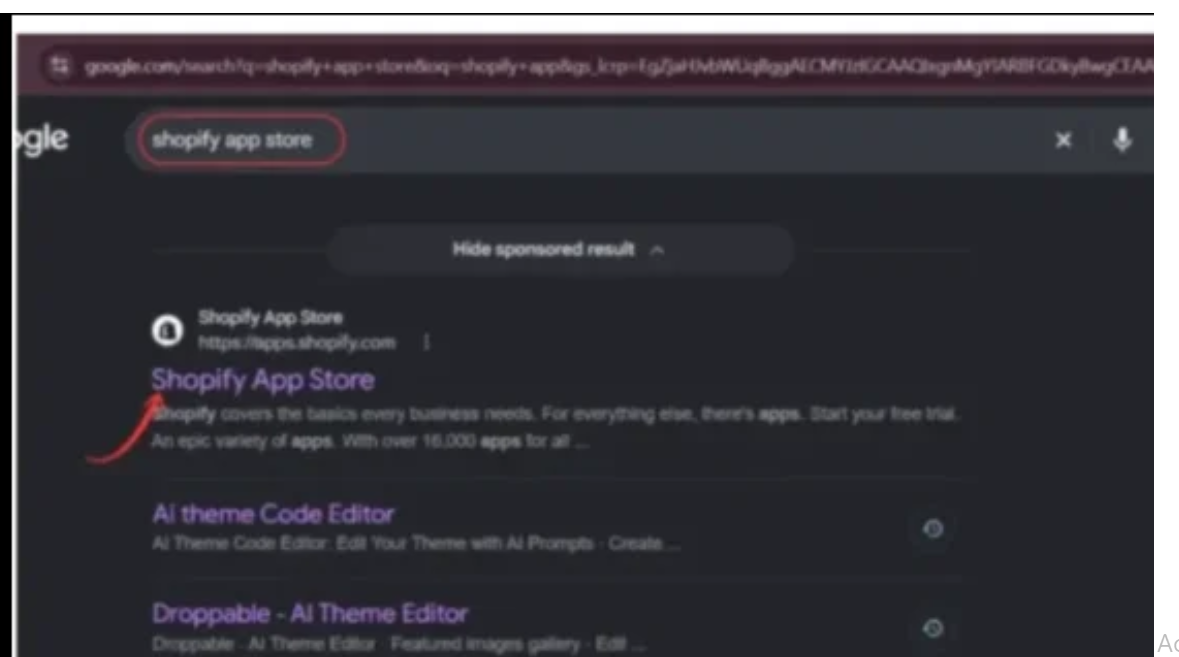
Image 1: Find the official Shopify App Store through Google search.
Image explanation: The screenshot highlights the official Shopify App Store search result.
Click the result or visit apps.shopify.com directly.
Step 2: Search for AB Sales Popup
Once you’re inside the Shopify App Store, search for AB Sales Popup.

Image 2: Search for AB Sales Popup and locate the app with its black-and-yellow notification bell icon.
Image explanation: Your screenshot highlights the AB Sales Popup application in the search results.
Click the application name to open its listing.
Step 3: Install and Open AB Sales Popup
On the application listing page, click Install.
If you’ve already installed the app, click Open.

Image 3: AB Sales Popup app listing showing sales notifications, live visitor counters, and countdown features.
Image explanation: The screenshot shows the official app listing with its product preview and available installation or Open action.
After installing, navigate to the application from Shopify Admin.
Step 4: Enable Inventory Tracking in Shopify
Before displaying stock quantities, verify that Shopify is tracking inventory accurately.
Navigate to:
Shopify Admin → Products → Select a Product → Inventory
Enable inventory tracking for the product or relevant variant, then enter the correct available quantity.
Shopify recommends tracking actual product quantities and keeping stock information up to date. Products can also be configured to continue selling after inventory reaches zero, so merchants should review overselling settings when displaying scarcity messages. Shopify Help Center+1
For example, if a particular shoe size has only four units available, ensure you’re communicating the quantity for that variant rather than suggesting that only four pairs exist across the entire product.
Step 5: Open the AB Sales Popup Dashboard
Navigate to:
Shopify Admin → Apps → AB Sales Popup → Dashboard
Scroll down to Manage Features.

Image 4: AB Sales Popup Stock Countdown interface used to configure inventory scarcity messaging.
Image explanation: This screenshot shows the Stock Countdown configuration screen, which you can reach from the application’s Manage Features dashboard.
On the dashboard, locate Stock Countdown, turn it On, and click Settings.
You can also open Stock Countdown from the app’s left sidebar.
Step 6: Customize Your Low Stock Message
Inside Stock Countdown, open Content Settings.
Image 5: Stock Countdown Content & Design settings showing the heading field, stock variables, and live preview.
Image explanation: The screenshot shows the Heading text field containing a message with two dynamic variables.
{{stock_number}} represents stock quantity, and {{sold_number}} represents sold quantity.
An example message is:
“Hurry up! Only {{stock_number}} items left in stock.”
Step 8: Set a Genuine Low-Stock Threshold
Scroll down to Stock Countdown Settings.
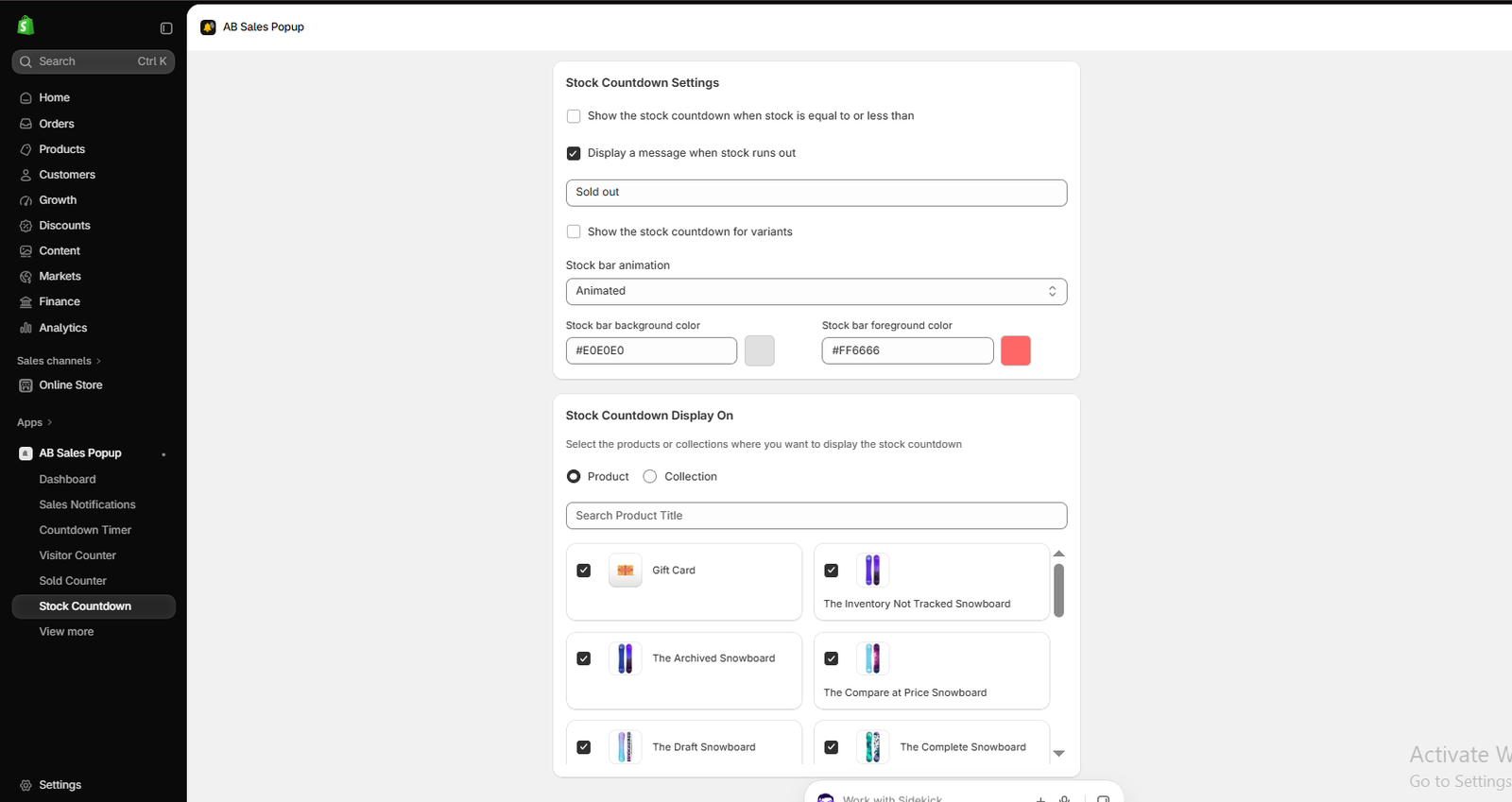
Image 6: Stock Countdown Settings showing the low-stock condition, sold-out message, variant option, and stock bar controls.
Image explanation: Your screenshot shows an option labeled:
Show the stock countdown when stock is equal to or less than
Enable this condition and configure an appropriate threshold.
For example:
| Actual available inventory | Threshold | Display low-stock message? |
|---|---|---|
| 30 units | 10 units | No |
| 12 units | 10 units | No |
| 8 units | 10 units | Yes |
| 3 units | 10 units | Yes |
The threshold determines when the message is shown. It shouldn’t change the quantity itself or imply an inventory shortage that does not exist.
For stores with frequent restocking, evaluate whether phrases such as “Last Chance” or “Almost Gone” accurately reflect product availability.
Step 9: Configure a Sold-Out Message
Under Stock Countdown Settings, find:
Display a message when stock runs out
Your screenshot shows this option enabled, with the text:
Sold out
This message should appear only when the relevant product or variant is genuinely unavailable for purchase under your store’s inventory rules.
If a product accepts backorders, clearly communicate the backorder or preorder arrangement instead of implying it is immediately available for shipment.
Step 10: Configure Variant-Specific Stock Messaging
The same settings section includes:
Show the stock countdown for variants
Enable this option if you want to use the app’s variant-related countdown functionality.
For example, a clothing product may have the following inventory:
| Variant | Available stock |
|---|---|
| Small | 18 |
| Medium | 4 |
| Large | 12 |
| Extra Large | 2 |
If a shopper selects Medium, the relevant stock message should communicate four remaining units, not the total stock of every size.
Test that the stock display updates correctly when a visitor switches variants.
Step 11: Customize the Stock Progress Bar
Scroll to the Stock bar controls.

Image 7: Configure stock bar animation, background color, and foreground color.
Image explanation: Your screenshot shows Stock bar animation set to Animated.
It also includes fields for:
| Setting | Screenshot value |
|---|---|
| Stock bar background | #E0E0E0 |
| Stock bar foreground | #FF6666 |
| Animation | Animated |
You can change these settings to match your brand colors.
The progress bar should be visually meaningful. Make sure its fill reflects a defined inventory measure rather than presenting an arbitrary indication of scarcity.
Step 12: Select Products or Collections
Scroll down to Stock Countdown Display On.
The screenshot shows two options: Product and Collection.
Choose the relevant products or collections where you want to display stock countdowns.
For example, you may want to use low-stock messages on limited-edition products, seasonal products, or inventory-tracked bestsellers.
Avoid showing precise stock quantities for products with unreliable or untracked inventory.
If your store uses multiple locations, verify that inventory available to online customers is represented correctly. Shopify’s fulfillment availability depends partly on the locations that can ship to the customer’s delivery zone. Setting up fulfillable inventory
Step 13: Save and Enable the Stock Countdown
Once you’ve configured your settings, click Save.
Return to the AB Sales Popup dashboard and select Enable App Block for Stock Countdown.
In the Shopify Theme Editor, add the Stock Countdown app block to the appropriate product template or supported section.
Save the theme and preview the storefront.
Confirm the message displays accurately and behaves properly when product inventory changes.
Best Practices for Using Low Stock Messages Honestly
Display actual inventory quantities
Never manually invent stock figures to increase urgency.
Use messages only when inventory is genuinely low
Choose a practical threshold based on your product’s inventory and sales pattern.
Keep inventory synchronized
Regularly verify quantities across warehouses, fulfillment providers, and Shopify.
Handle variants correctly
Don’t apply a low-stock claim about one product variant to all other variants.
Avoid making unsupported predictions
Claims such as “This will sell out today” should not be presented as fact without reliable supporting evidence.
Don’t confuse popularity with scarcity
A product may be popular without being low in stock. Use sold counters and stock counters for their intended, distinct purposes.
Keep messages simple and professional
Customers should be able to understand the actual availability without feeling overwhelmed.
Low Stock Messages That Build Trust
| Situation | Suggested honest message |
|---|---|
| 5 units actually available | “Only 5 units currently available” |
| Selected size has 3 units | “3 left in your selected size” |
| Limited-edition product | “Limited edition — 12 units available” |
| Product genuinely sold out | “Currently sold out” |
| Backorders accepted | “Available on backorder” |
| Inventory not tracked | Avoid claiming an exact remaining quantity |
These messages should only be used when they correspond to the store’s actual inventory and sales policies.
Do Low Stock Messages Increase Shopify Conversions?
They can help certain shoppers make timely purchasing decisions, but they are not guaranteed to improve conversion rates.
A genuine low-stock alert is useful when scarcity is relevant to a customer’s decision.
However, some customers may respond negatively to aggressive or repetitive urgency messages.
To evaluate performance, compare a product page with an accurate stock message against a version without the message using a controlled A/B test.
Measure conversion rate, add-to-cart rate, and revenue per visitor. Also monitor customer complaints and inventory accuracy.
Frequently Asked Questions
1. Are low-stock messages allowed on Shopify?
Yes. Merchants can display product availability information, provided the messages are accurate and comply with applicable consumer protection requirements.
2. Can I show the exact number of products remaining?
Yes, when the quantity is reliably tracked and the message clearly represents the relevant available inventory.
3. Can fake scarcity claims be illegal?
Yes. False product availability or urgency claims can potentially violate consumer protection laws.
4. Can I add stock countdown bars without coding?
Yes. AB Sales Popup provides Stock Countdown configuration and Shopify app block integration.
5. Can I display stock messages only when inventory falls below a certain number?
Yes. The app includes a low-stock threshold setting.
6. Can I customize stock bar colors?
Yes. The Stock Countdown settings include background and foreground color controls.
7. Can I show different stock messages for product variants?
The app includes a variant-related Stock Countdown option. Test the actual behavior with your selected variants before publishing.
8. Should every Shopify product display a low-stock message?
No. It is generally more appropriate to show stock warnings on products where limited availability is accurate and relevant.
Conclusion
Low-stock messages can be useful for Shopify merchants, but their value depends on accuracy and trust.
Real inventory data helps customers understand product availability and make informed purchasing decisions.
Fake scarcity messages, invented stock numbers, and misleading urgency claims may provide short-term attention but can undermine long-term customer confidence.
With AB Sales Popup, Shopify merchants can configure stock countdown bars, customize scarcity messages, set inventory thresholds, and choose where stock information appears.
The most important principle is simple:
Use real stock numbers, communicate availability clearly, and never manufacture scarcity.
Ready to display genuine low-stock information on your Shopify product pages?Install AB Sales Popup on Shopify




