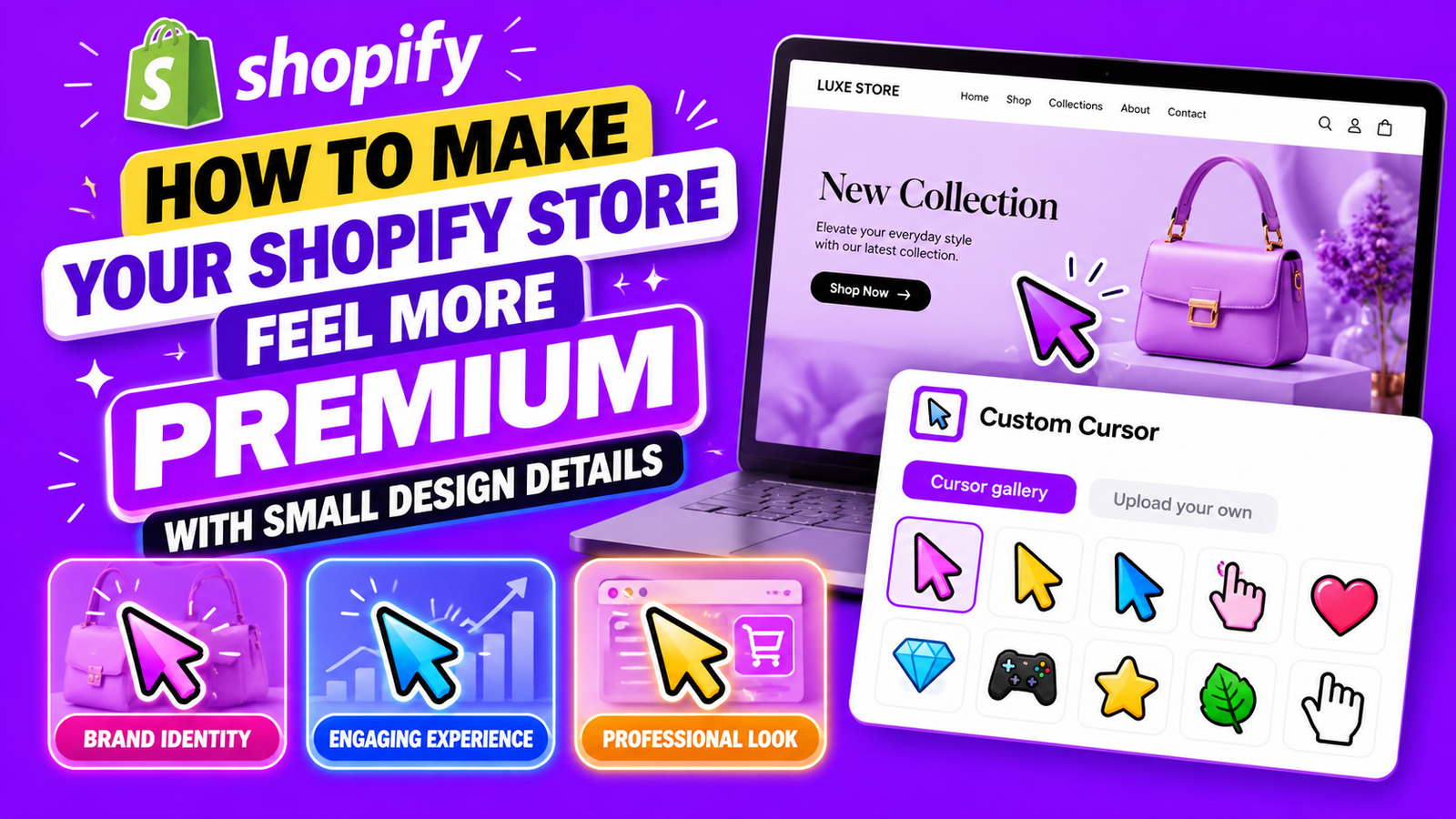
HOW TO MAKE YOUR SHOPIFY STORE FEEL MORE PREMIUM WITH SMALL DESIGN DETAILS
Introduction
Creating a premium Shopify store does not always require an expensive theme, a complete redesign, or advanced development skills. Sometimes, the smallest design improvements can make the biggest difference in how customers perceive your brand.
From typography and product photography to button styling, spacing, and custom cursors, every visual detail contributes to the overall shopping experience.
A premium online store should feel professional, consistent, easy to navigate, and thoughtfully designed.
For Shopify merchants, the challenge is finding ways to improve the appearance of their storefront without introducing unnecessary complexity or compromising performance.
In this guide, we’ll explore practical design improvements that can help your Shopify store feel more premium. We’ll also explain how the Custom Cursor app can add a distinctive finishing touch to your storefront without requiring manual coding.
The Merchant’s Challenge: Why Some Shopify Stores Look Basic
Many Shopify merchants invest considerable time in choosing products, creating collections, and setting up their online stores. However, even with excellent products, the storefront may still feel generic.
This often happens because the store relies heavily on default theme settings without developing a consistent visual identity.
Customers may encounter inconsistent fonts, crowded layouts, mismatched colors, low-quality product images, or distracting visual elements.
These details can affect how professional a store feels, particularly when customers are comparing multiple brands.
Another challenge is balancing appearance with usability. Merchants sometimes add animations, popups, and other decorative features without considering whether those elements improve the shopping experience.
The goal of premium design is not to add more features. It is to make every design choice feel intentional.
Why Small Design Details Matter
A premium shopping experience is created through consistency.
When product images, headings, buttons, backgrounds, and interactive elements work together, the store feels more polished.
Small improvements can also make the website easier to use. Clear typography improves readability, consistent spacing makes content easier to scan, and predictable navigation helps customers find products.
Visual details can strengthen brand recognition, but they should support the shopping journey rather than compete with it.
1. Choose a Consistent Brand Color Palette
One of the simplest ways to make a Shopify store feel more premium is to use a consistent color palette.
Choose a primary brand color, a complementary accent color, and a small selection of neutral background colors.
Use these colors consistently across your storefront, including buttons, headings, promotional banners, and interactive elements.
For example, a luxury jewelry store might combine cream, charcoal, and muted gold. A modern technology store might prefer navy, white, and electric blue.
Avoid introducing too many unrelated colors. A limited palette usually creates a more cohesive appearance.
2. Improve Your Store’s Typography
Typography plays a major role in how customers perceive a brand.
A carefully selected font can communicate elegance, creativity, simplicity, or modernity.
Use readable fonts for product descriptions and navigation menus. Reserve decorative typography for headings or selected promotional content.
Maintain consistent font sizes and weights throughout the store.
For a premium appearance, focus on clear visual hierarchy. Customers should immediately recognize the main heading, supporting text, and primary call-to-action button.
3. Use High-Quality Product Photography
Product images are among the most important visual elements of an ecommerce store.
Customers cannot physically inspect products before purchasing, so photographs help communicate quality, materials, colors, and details.
Use consistent lighting, image proportions, and backgrounds across your catalog.
Include close-up photographs where relevant, especially for products such as jewelry, clothing, cosmetics, and accessories.
Lifestyle photography can also help customers understand how products look or function in real-world situations.
A visually consistent product catalog can make even a simple Shopify theme feel more professional.
4. Create More Space Between Design Elements
Crowded layouts can make an online store feel overwhelming.
Whitespace, also called negative space, helps separate content and draw attention to important elements.
Increase spacing between product sections, headings, images, and buttons where needed.
Avoid filling every available area with promotional messages.
A premium design often feels calmer because visitors can focus on one important action at a time.
5. Personalize Small Interactive Elements
Interactive elements can help make a Shopify store feel more distinctive.
Buttons, hover states, navigation transitions, and mouse cursors are small details that customers encounter while browsing.
A custom cursor can complement a brand’s visual identity by replacing the standard mouse pointer with a design that matches the store.
For example, a fashion brand might use a subtle pink pointer, while a gaming store could choose a colorful themed cursor.
However, personalization should never make navigation harder. Keep the cursor recognizable and avoid excessive animation.
Introducing Custom Cursor for Shopify
Custom Cursor is a Shopify app designed to help merchants personalize their storefronts with different mouse pointer styles and interactive cursor effects.
The app provides a gallery of cursor designs, customization options, and the ability to upload custom cursor artwork, depending on the selected plan.
Merchants can preview their selections, adjust cursor settings, and enable the app through the Shopify theme editor.
This makes it possible to add a branded interactive detail without manually editing Liquid, CSS, or JavaScript.
App link: Custom Cursor on the Shopify App Store
6. Keep Buttons and Navigation Consistent
Buttons should have a consistent appearance throughout the storefront.
Use the same border radius, typography, and primary button color across product pages, collection pages, and promotional sections.
Make important actions such as Add to Cart and Checkout easy to identify.
Navigation menus should also be simple and predictable.
A premium store should feel effortless to browse. Customers should not have to guess where to click or how to return to a previous page.
7. Use Subtle Animations Instead of Distracting Effects
Animations can make a Shopify store feel modern when used carefully.
Subtle hover transitions, smooth menu interactions, and restrained cursor effects can add visual interest.
However, too many animations can create distractions and may introduce performance or accessibility problems.
Choose effects that suit your brand and test them across desktop browsers.
If visitors prefer reduced motion, your storefront should respect that preference wherever possible.
8. Make Your Store Feel Premium on Mobile
A premium desktop experience is not enough.
Your Shopify store should also look polished on smartphones and tablets.
Check that product images scale correctly, buttons remain easy to tap, and text is readable without zooming.
Avoid oversized banners or excessive popups that interrupt the mobile shopping experience.
Custom mouse cursors mainly affect desktop visitors, so mobile optimization should remain a separate priority.
9. How to Add a Premium Custom Cursor to Your Shopify Store
If you want to introduce a small but distinctive design detail, you can use Custom Cursor to personalize your mouse pointer.
The following steps use the actual app images you shared.
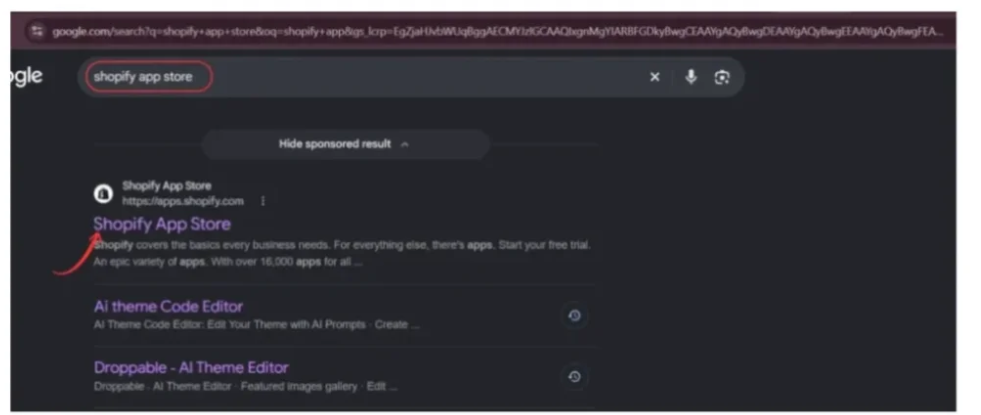
Step 1: Find the Shopify App Store
Open Google and search for Shopify App Store. Select the official Shopify App Store website to explore available apps.
Step 2: Search for Custom Cursor
In the Shopify App Store search bar, enter custom cursor app. Find the Custom Cursor listing in the results.

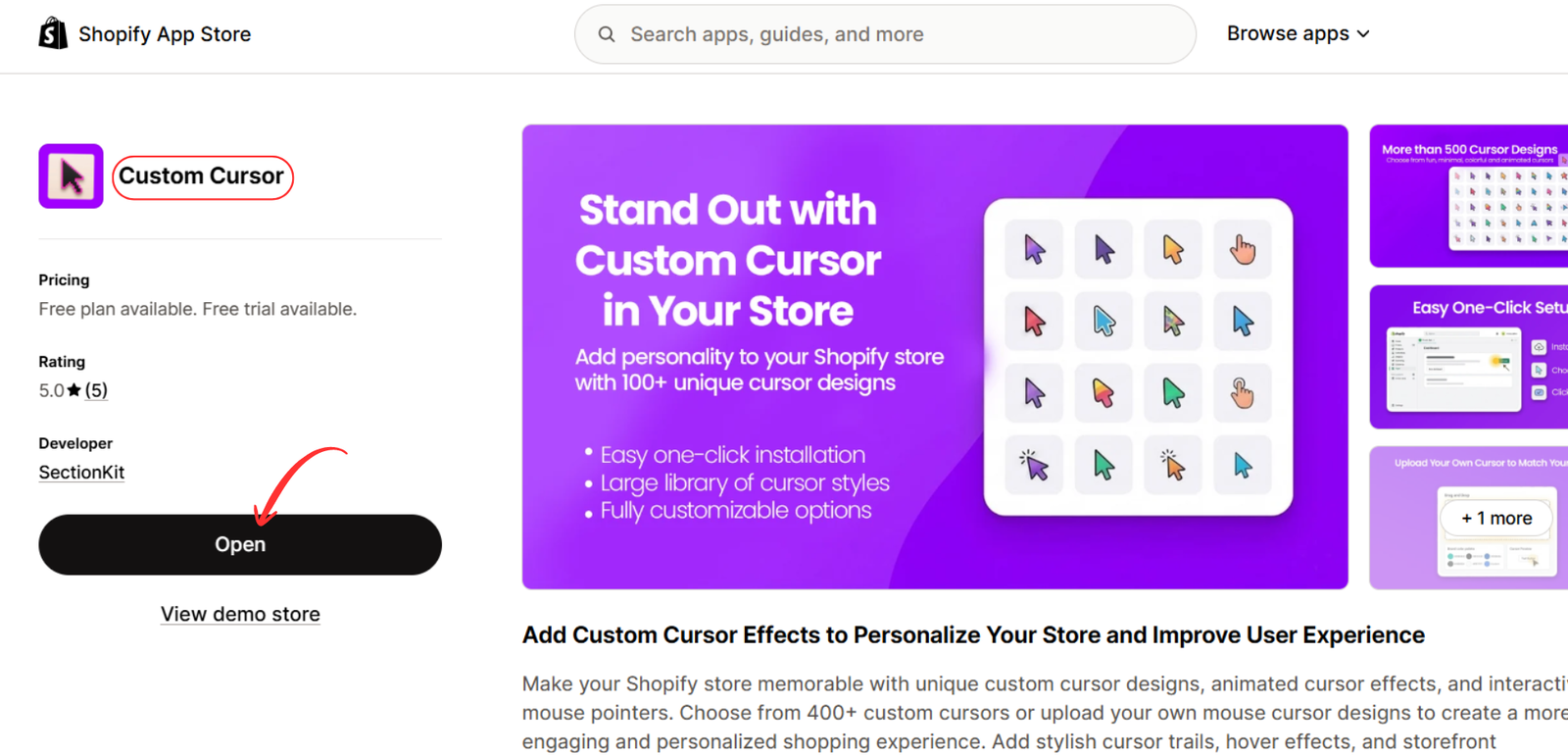
Step 3: Install or Open the App
Select the Custom Cursor app to open its listing. Review the available features and pricing, then install it. If the app is already installed, select Open.
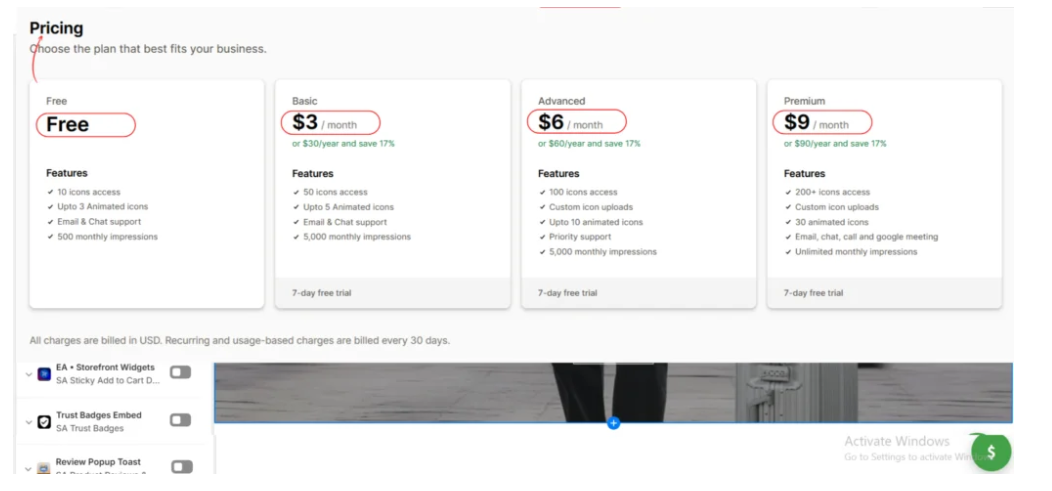
Step 4: Review the Available Plans
The app offers a free option and paid plans with additional cursor designs, uploads, and features. Select the plan that fits your store’s requirements.
Step 5: Explore the Available Cursor Designs
Open Custom Cursor → Explore All Cursors from your Shopify admin.
Browse the gallery and choose a design that complements your store’s visual identity. You can explore different categories, including aesthetic, gaming, seasonal, and decorative cursor styles.
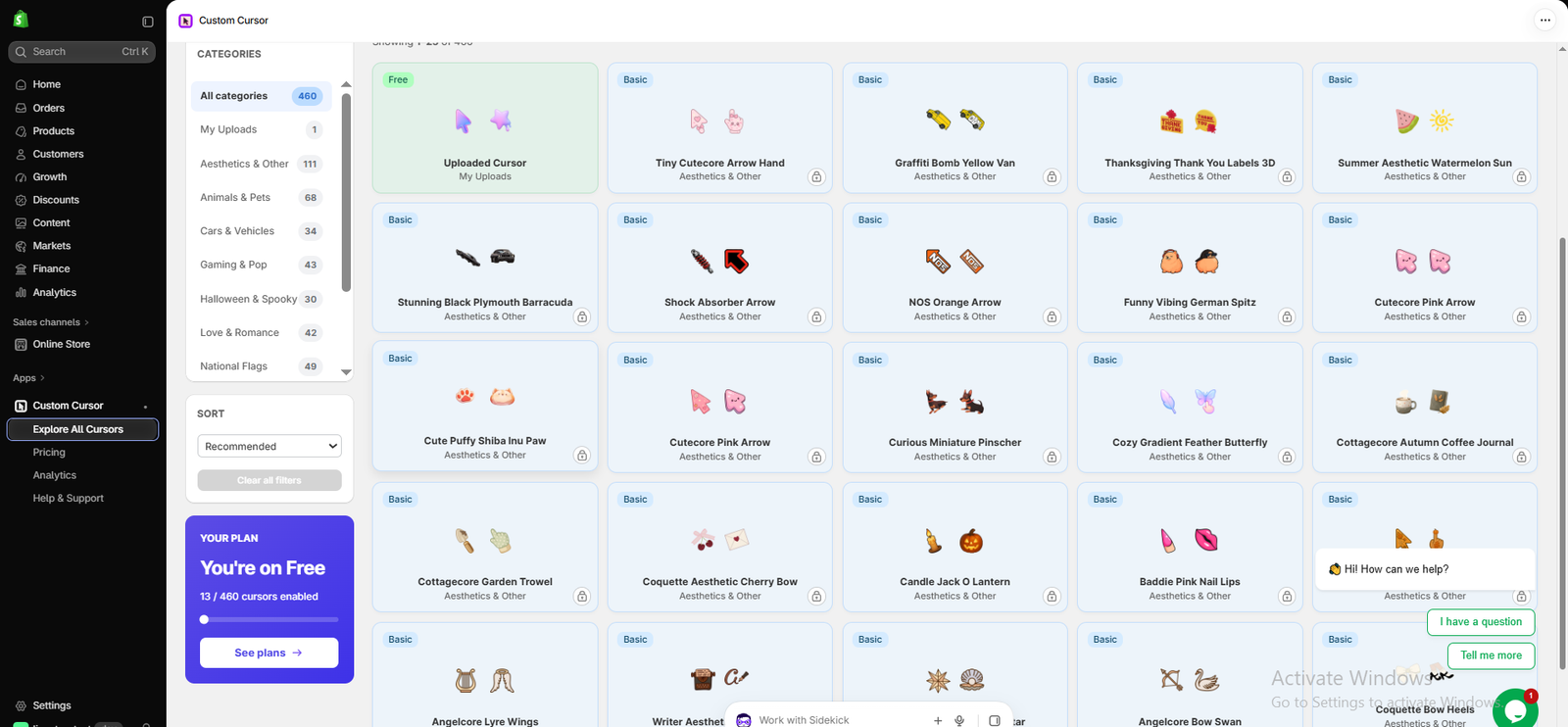
Image 1: Explore different cursor styles inside the Custom Cursor app.
Step 2: Select a Cursor That Matches Your Brand
Choose a design that complements your store’s colors and overall style.
For a premium appearance, prioritize subtle designs that remain easy to recognize. Preview the cursor and adjust its size before publishing.
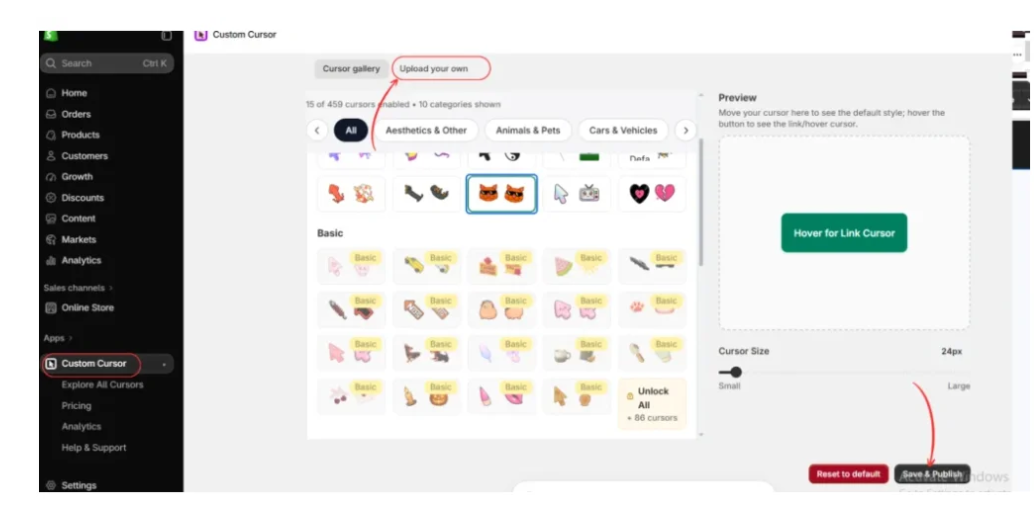
Step 3: Enable Custom Cursor in Your Shopify Theme
Go to Online Store → Themes → Customize → App embeds.
Find Custom Cursor and enable its toggle. Click Save to apply the change to the selected theme.
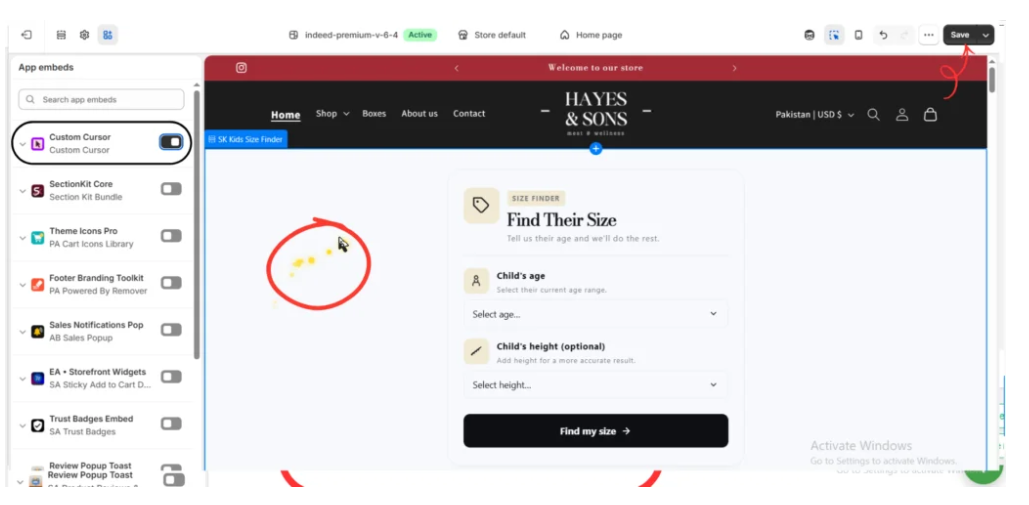
Step 4: Preview the Custom Cursor on Your Storefront
Once enabled, preview your Shopify storefront and move the mouse around the page.
In the example below, the store uses a themed cursor with a subtle visual effect. The cursor appears over the homepage banner, demonstrating how even a small interactive detail can personalize the storefront.
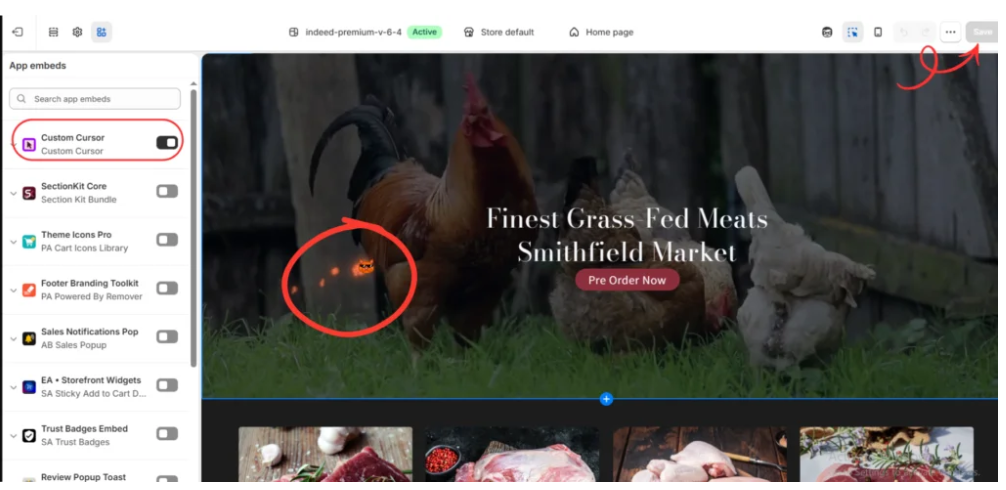
Check that the cursor remains visible against product images, banners, and background colors. Test navigation links, product buttons, and other important interactions before publishing your changes.
10. Avoid Common Premium Design Mistakes
Premium design is not about adding as many visual elements as possible.
A store can look less professional when every section uses a different font, color, animation, or decorative effect.
Avoid excessive popups, oversized cursors, unnecessary animations, inconsistent product photography, and crowded page layouts.
Instead, prioritize simplicity, consistency, and usability.
A well-designed custom cursor should feel like a natural extension of your brand, not an obstacle to shopping.
Frequently Asked Questions
How can I make my Shopify store look more premium without changing the theme?
Start by improving typography, product images, color consistency, spacing, and button styling. You can also introduce subtle interactive details using compatible Shopify apps.
Do small design details really matter in ecommerce?
Yes. Small details contribute to the overall impression of a store and can make navigation clearer. However, no single decorative element guarantees higher conversions.
Can a custom cursor make my Shopify store look more professional?
A carefully chosen custom cursor can reinforce your brand identity, especially for creative or visually distinctive stores. It should remain recognizable and easy to use.
Can I add a custom cursor without coding?
Yes. The Custom Cursor app provides a visual interface for selecting designs and enabling them through Shopify’s theme editor.
Will a custom cursor work on every Shopify theme?
Compatibility can vary. Test the app on your selected theme, including important pages and interactive elements, before publishing.
Does a custom cursor affect mobile users?
Most touchscreen devices do not display a traditional mouse pointer. Custom cursors are primarily useful for desktop browsing experiences.
Conclusion
Making a Shopify store feel premium does not always require a major redesign or expensive development work.
Thoughtful typography, consistent colors, high-quality product photography, balanced spacing, and carefully selected interactive elements can create a more cohesive shopping experience.
Custom cursors are one way to add personality to a storefront. When implemented carefully, they can reinforce your brand’s visual identity without distracting customers from shopping.
With Custom Cursor, Shopify merchants can explore different cursor designs, personalize their mouse pointer, and add subtle visual effects without manually editing theme code.
Explore the app: Custom Cursor for Shopify




