HOW TO MATCH YOUR CURSOR COLOR TO YOUR SHOPIFY BRAND PALETTE

Shopify Tutorial | Custom Cursor Design | Brand Color Matching
Introduction
Your Shopify store’s colors are more than decorative elements. They help establish your brand identity, create visual consistency, and make your storefront recognizable to customers.
From your logo and navigation menu to your product pages and Add to Cart buttons, every color contributes to your store’s overall appearance.
However, one small design element that merchants often overlook is the mouse cursor.
Most Shopify stores use the default black or white browser cursor. While this is perfectly functional, a custom cursor can provide an additional opportunity to reinforce your branding.
For example, a fashion boutique with a soft pink color palette could use a matching pastel cursor. A luxury jewelry store with gold and cream branding might choose an elegant golden pointer. Similarly, a gaming store with neon green accents could use a vibrant green cursor.
The challenge is selecting a cursor color that looks attractive without affecting usability.
A cursor that blends into the background can become difficult to see, while an overly bright or animated cursor may distract shoppers from your products.
Fortunately, applications such as Custom Cursor Pro help Shopify merchants explore cursor styles, adjust their appearance, and upload custom designs on eligible plans.
In this guide, you’ll learn how to match your cursor color to your Shopify brand palette, choose suitable color combinations, and configure your cursor using Custom Cursor Pro.
What is a Shopify brand color palette?
A Shopify brand color palette is the collection of colors used consistently throughout your online store.
These colors typically appear in your logo, website background, buttons, headings, promotional banners, and other design elements.
Most brands use a combination of primary, secondary, accent, and neutral colors.
Example Shopify brand palette
Primary
#6D28D9
Secondary
#F5D0FE
Accent
#F59E0B
Neutral
#F8FAFC
Image: Example of a coordinated four-color palette for a Shopify storefront.
Primary color: The main color representing your brand.
Secondary color: A supporting color used to create visual balance.
Accent color: A contrasting color used for highlights, promotional elements, or calls to action.
Neutral colors: Background and text colors such as white, black, gray, and cream.
When choosing a custom cursor, you should consider how these colors work together.
The best cursor color is not necessarily your primary brand color. It is the color that complements your storefront while remaining visible across different backgrounds.
Why matching your cursor color to your brand matters
A consistent brand appearance can help create a more polished shopping experience.
1. Stronger visual consistency
A matching cursor can complement your logo, buttons, and website color scheme.
2. More distinctive storefront design
Small interactive details can help differentiate your store from websites using default styling.
3. Better design harmony
A carefully selected cursor can fit naturally into the rest of your storefront.
4. More recognizable brand personality
Different cursor colors can reinforce playful, elegant, minimalist, or futuristic brand styles.
5. Improved visual usability
Choosing a cursor with sufficient contrast makes it easier for customers to follow the pointer.
However, a custom cursor is primarily a design enhancement. It does not automatically improve conversions, increase customer trust, or boost search rankings.
Common challenges Shopify merchants face
Choosing the wrong shade
A cursor may technically match a brand color but still look too bright, dark, or saturated against the storefront.
Poor contrast
A white cursor on a white background or a dark cursor on a black background may become difficult to see.
Inconsistent branding
A bright neon cursor can look out of place on a minimalist luxury website.
Different backgrounds across pages
A cursor that works on the homepage may be difficult to see on product pages with different background colors.
Limited built-in cursor options
Shopify themes generally do not provide extensive native cursor customization galleries.
Difficulty creating custom cursor graphics
Merchants without design or coding experience may struggle to create and install branded cursor assets.
These challenges make it important to understand basic color selection before choosing a custom cursor.
How to choose the right cursor color
Before installing a cursor application, identify the colors already used throughout your Shopify store.
Look at your logo, header, navigation menu, product page backgrounds, buttons, and promotional banners.
Choose a cursor that complements these elements rather than introducing an unrelated color.
For example, if your store uses a white background with purple buttons, a purple cursor with a darker outline may be easier to see than a white cursor.
If your storefront has a dark background, a lighter cursor may provide better contrast.
Introducing Custom Cursor Pro
Custom Cursor Pro, listed as Custom Cursor on the Shopify App Store, helps merchants personalize their storefronts using ready-made cursor designs, custom uploads, and optional visual effects.
The application is developed by SectionKit and provides a visual interface for browsing cursor styles, previewing designs, adjusting cursor size, and applying supported effects.
For merchants who want a cursor that matches their exact brand colors, custom cursor uploads are particularly useful.
You can prepare a cursor graphic using your preferred brand colors and upload it through an eligible plan.Explore Custom Cursor Pro on the Shopify App Store
Why use Custom Cursor Pro for brand matching?
The app provides a gallery of different cursor designs, including minimalist, colorful, and illustrated options.
Merchants can preview cursor designs before publishing, adjust their size, and upload custom graphics on supported plans.
The custom upload feature is especially relevant when you want to use a specific brand color rather than choosing from existing cursor designs.
The application also offers optional cursor effects, which can be used selectively to complement your storefront.
Step-by-step guide: How to match your Shopify cursor to your brand colors
Follow these steps to find Custom Cursor Pro, select a cursor style, and customize your storefront.
The original app images are included directly in the tutorial.
Step 1: Open the Shopify App Store
Start by opening Google and searching for Shopify App Store.
Click the official Shopify App Store result to access the marketplace.

Image 1: Search for the Shopify App Store using Google.
Step 2: Find the Custom Cursor application
Inside the Shopify App Store, locate the search bar.
Enter custom cursor app and press Enter.
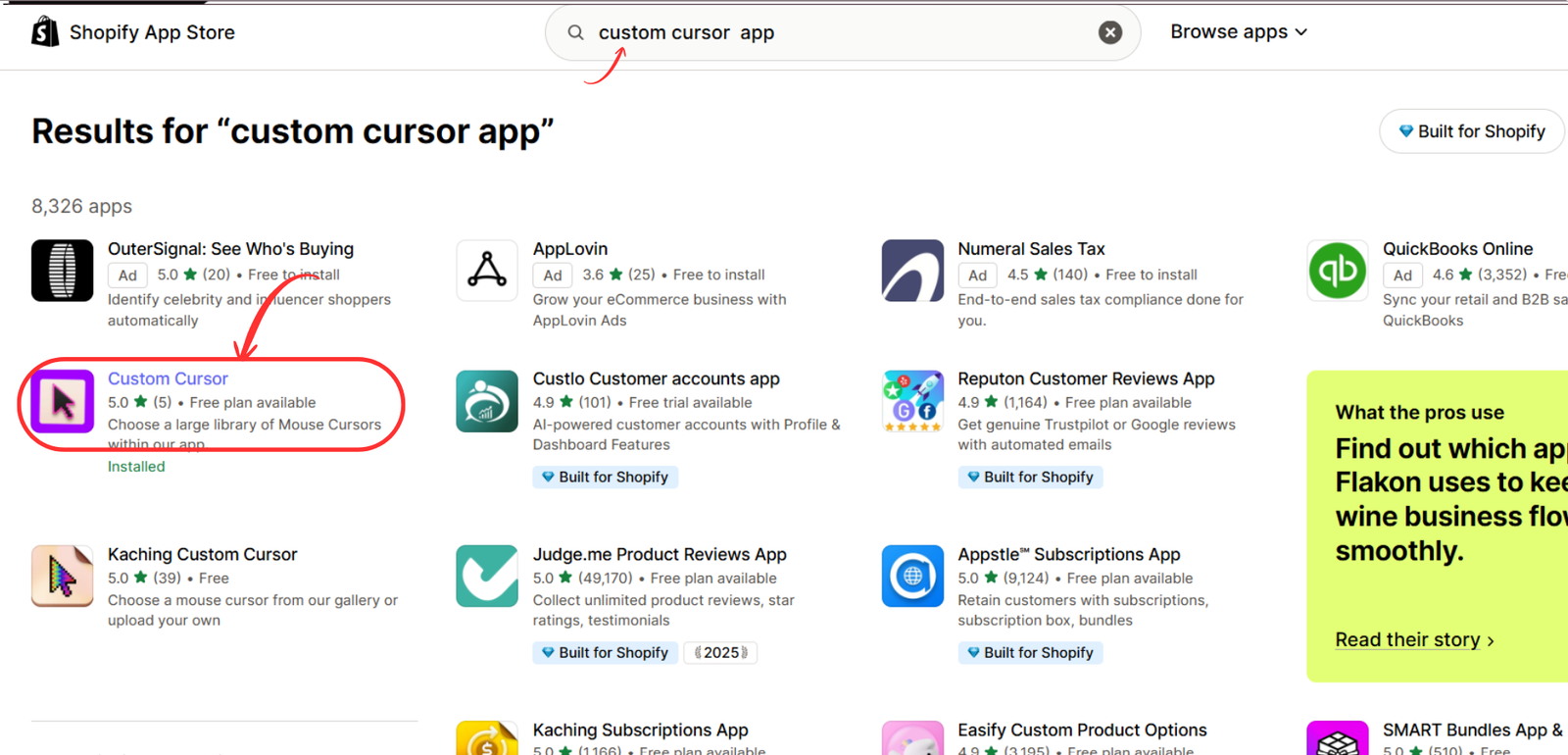
Find the application named Custom Cursor, developed by SectionKit.
Custom Cursor app in search resultsImage 2: Locate Custom Cursor in Shopify App Store search results.
Step 3: Install and open the application
Open the app listing and review the available features.
Click Install to add the application to your store.
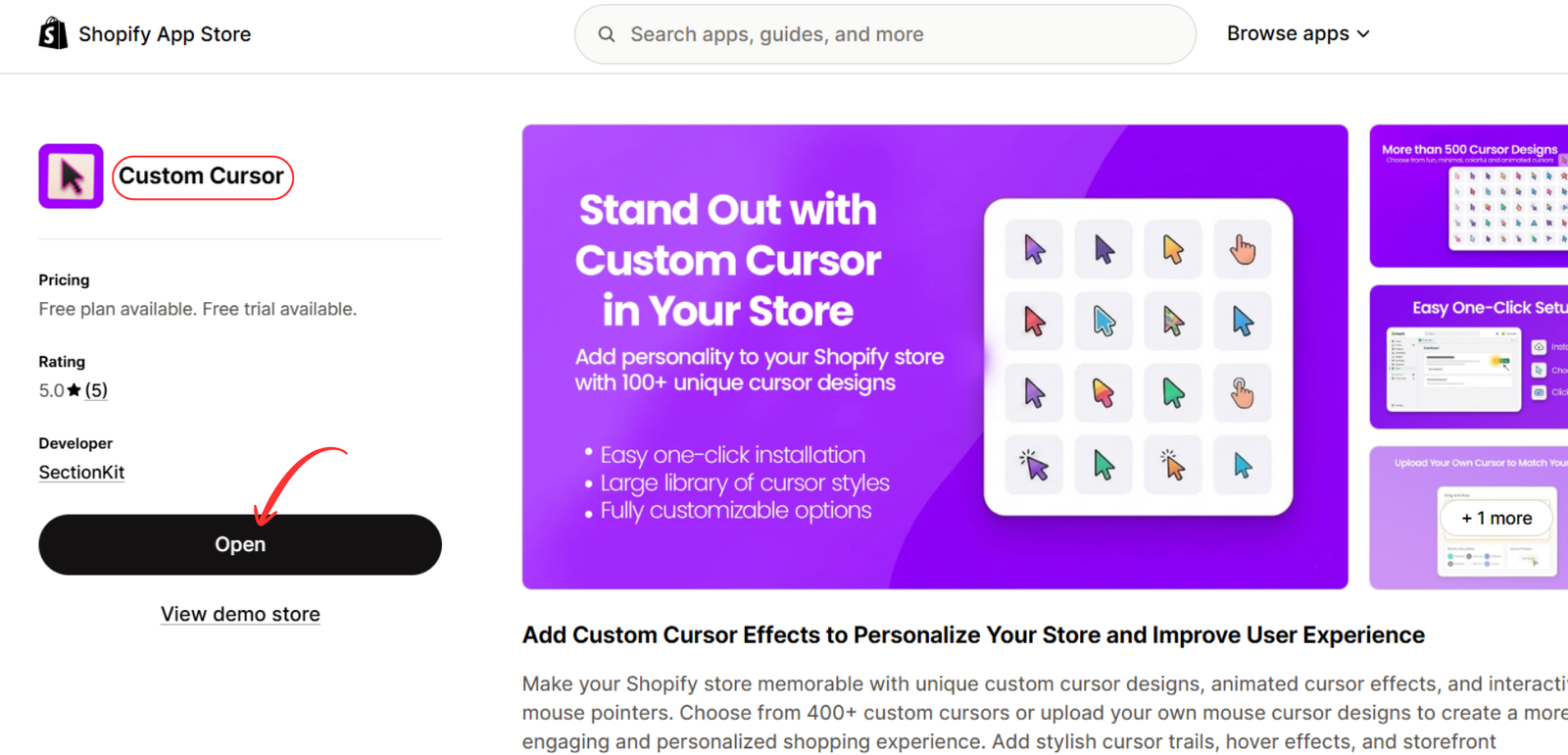
If the app is already installed, click Open.
Custom Cursor application listingImage 3: Open the Custom Cursor application listing.
Step 4: Choose a plan based on your customization needs
Custom Cursor Pro provides several subscription options.
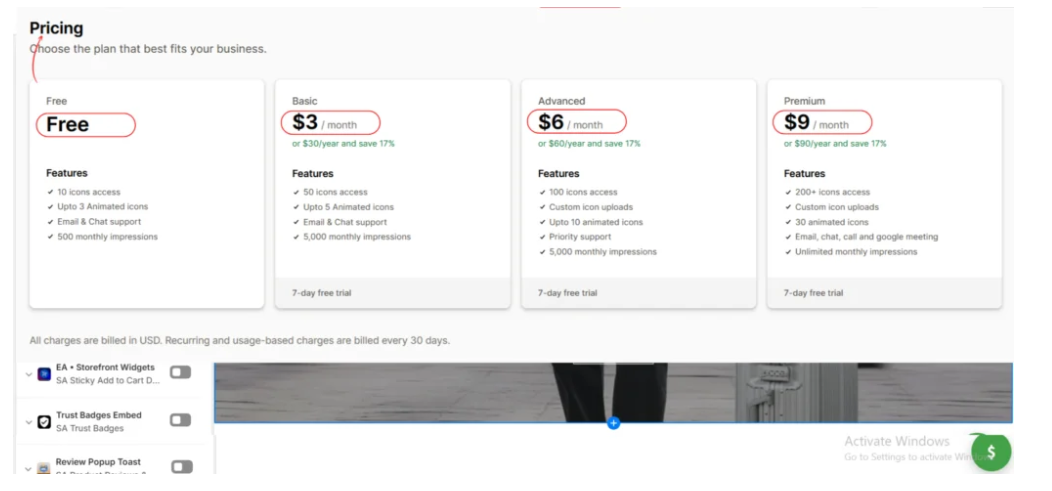
Image 4: Review the available Custom Cursor pricing plans.
| Plan | Price shown | Key option |
|---|---|---|
| Free | $0 | Limited ready-made cursor selection |
| Basic | $3/month | Expanded cursor library |
| Advanced | $6/month | Custom cursor uploads |
| Premium | $9/month | Additional designs and effects |
For merchants who want a cursor using an exact brand color, a plan that supports custom image uploads may be particularly useful.
Prices and plan features may change, so check the current details inside the app.
Step 5: Explore the cursor gallery
Open Custom Cursor Pro from your Shopify admin.
Navigate to the cursor gallery.
Browse the available designs and categories to find a style that complements your brand.
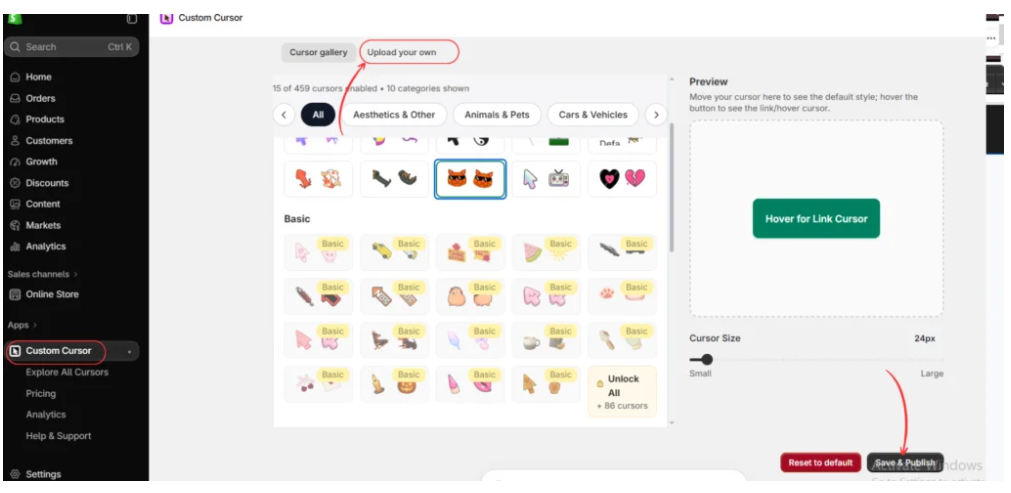
Image 5: Explore cursor styles and locate the Upload your own option.
If you find a ready-made cursor that matches your brand colors, you can select it directly.
If you need an exact color, consider preparing a custom cursor image using your brand’s HEX code.
Step 6: Select and preview your cursor
Choose a cursor from the gallery.
Review its appearance in the preview panel.
Image 6: Select a cursor and review its appearance in the preview area.
Use the cursor size slider to adjust its appearance.
A small cursor may look elegant, but it should still be easy to locate.
A large cursor can be visually expressive, but it should not cover important product information.
Step 7: Compare different cursor designs
Try several cursor designs to see which works best with your store’s palette.
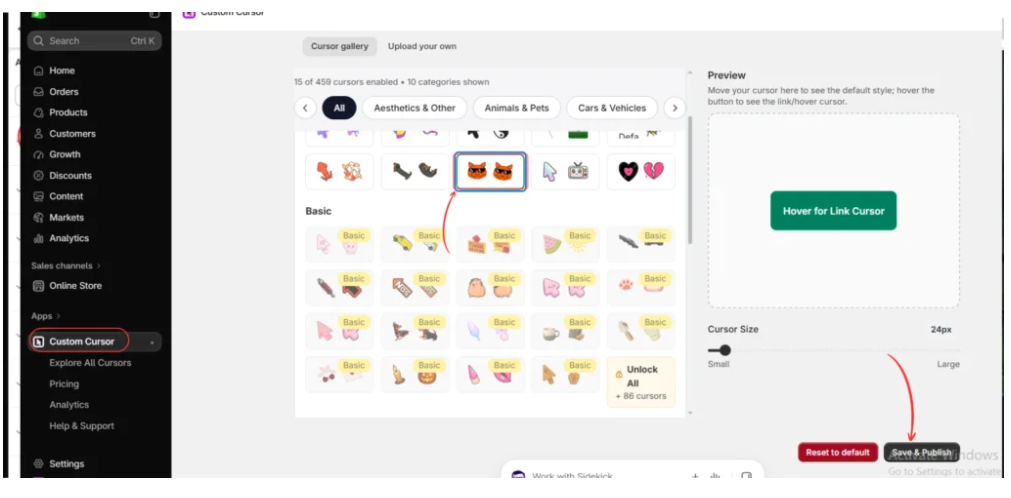
Image 7: Compare different cursor styles and save your preferred design.
For example, a store with a pastel pink palette may benefit from a soft-colored pointer, while a dark technology storefront may require a lighter or brighter design.
Click Save & Publish when satisfied.
Step 8: Explore the free cursor collection
If you’re just beginning with cursor customization, explore the available free designs.
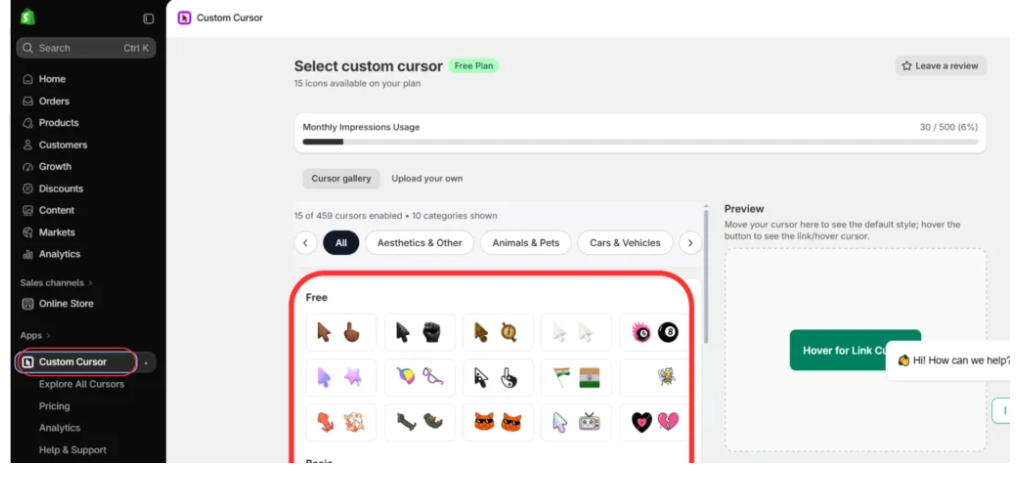
Image 8: Browse free cursor designs to find a suitable starting point.
The free collection allows you to experiment with different styles before deciding whether you need more advanced options.
Step 9: Add optional cursor effects
Navigate to the Custom Cursor Effects section.
The app displays different visual effects that can accompany cursor movement.
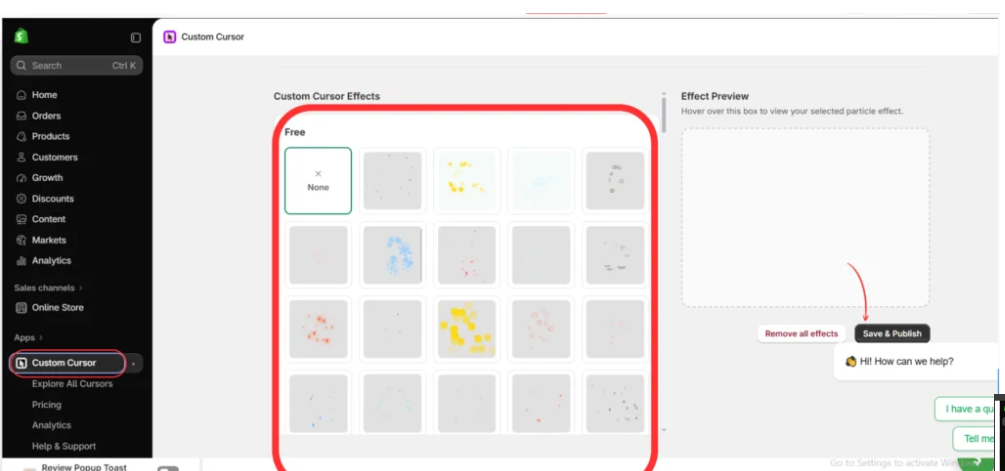
Image 9: Preview optional cursor effects before publishing.
Choose an effect that complements your store’s visual identity.
For a luxury store, subtle effects are often more suitable than excessive animations.
For a gaming store, a colorful effect may fit the brand, provided it remains comfortable to use.
Select None if you prefer a simple cursor without additional effects.
Click Save & Publish to apply your configuration.
Step 10: Enable the Custom Cursor app embed
Open your Shopify admin and navigate to:
Online Store → Themes → Customize
Inside the theme editor, click App embeds.
Find Custom Cursor and enable the toggle.
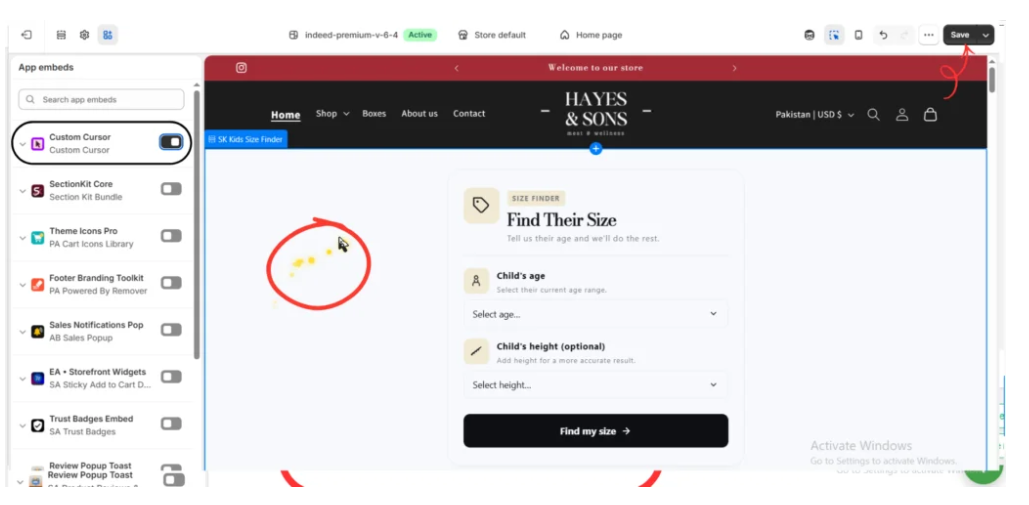
Image 10: Enable the Custom Cursor app embed and save your Shopify theme.
Click Save.
Preview your storefront and check whether the cursor matches your brand’s colors and remains visible throughout the website.
Step 11: Upload an exact brand-colored cursor if needed
If the existing cursor gallery does not contain a suitable color, you can create a custom cursor graphic.
Start by finding your brand’s HEX color code in Shopify’s theme color settings or your brand style guide.
For example, if your brand’s primary color is #7C3AED, you can create a purple cursor using that color.
Prepare a small transparent PNG or another file format supported by the app.
Return to Custom Cursor Pro and select Upload your own if your plan includes that feature.
Upload your graphic, review the preview, and save the configuration.
For better visibility, consider adding a contrasting outline around the cursor.
Step 12: Test the cursor across your Shopify storefront
After publishing, review your cursor on different pages.
Test it on the homepage, product pages, collection pages, navigation menus, and footer.
Check both light and dark backgrounds.
Make sure the cursor remains visible when hovering over images, buttons, and other interactive elements.
If the cursor becomes difficult to see, consider using a contrasting outline or choosing a different shade.
Common mistakes to avoid
Matching the background too closely
A cursor should complement your background without disappearing into it.
Using too many colors
A cursor with excessive colors can make a minimalist storefront feel cluttered.
Ignoring contrast
Check whether the cursor remains recognizable on all major storefront backgrounds.
Choosing an overly large cursor
Large cursors can obscure product images and important interface elements.
Adding unnecessary animations
Visual effects should enhance your storefront rather than distract customers.
Forgetting to test after publishing
Always preview your live storefront after enabling the cursor.
Frequently asked questions
How do I match my Shopify cursor color to my brand?
Identify your primary brand colors, choose a cursor with a complementary shade, and test its visibility across different storefront backgrounds.
Can I use my exact brand HEX color for a cursor?
Yes, you can create a custom cursor graphic using your brand’s HEX color and upload it through a supported custom cursor application.
Does Shopify allow custom cursor colors?
Shopify themes can support custom cursor styling through code or compatible third-party applications.
Can I upload my own cursor design?
Custom Cursor Pro supports custom cursor uploads on eligible subscription plans.
What cursor color works best on a white background?
Darker colors such as black, navy, deep purple, and dark green generally provide stronger visibility on white backgrounds.
What cursor color works best on a dark background?
Light colors such as white, cyan, pale yellow, and bright purple may be easier to see, depending on the background.
Should my cursor match my logo exactly?
Not necessarily. A complementary color with stronger contrast may provide a better user experience.
Do custom cursor colors affect Shopify SEO?
Cursor color itself is not a direct SEO ranking factor. Focus on usability, accessibility, and storefront performance.
Will my custom cursor appear on mobile?
Ordinary touchscreen devices do not display a mouse pointer. Custom cursor behavior primarily applies to devices with mouse or trackpad input.
Conclusion
Matching your custom cursor color to your Shopify brand palette is a small but meaningful design decision.
A well-chosen cursor can complement your logo, website backgrounds, navigation elements, and product pages while reinforcing your store’s visual identity.
Fashion stores may prefer pastel cursors, jewelry brands can explore elegant gold tones, gaming stores may benefit from vibrant neon colors, and technology stores can use modern blue or cyan designs.
However, color matching should never come at the expense of usability.
Choose a cursor that is easy to see, appropriately sized, and consistent with your overall storefront design.
With Custom Cursor Pro, merchants can explore ready-made cursor styles, preview different designs, adjust cursor size, and upload custom graphics on eligible plans.
By following this guide, you can create a more coordinated Shopify storefront without manually modifying your theme’s cursor code.Explore Custom Cursor Pro on the Shopify App Store




