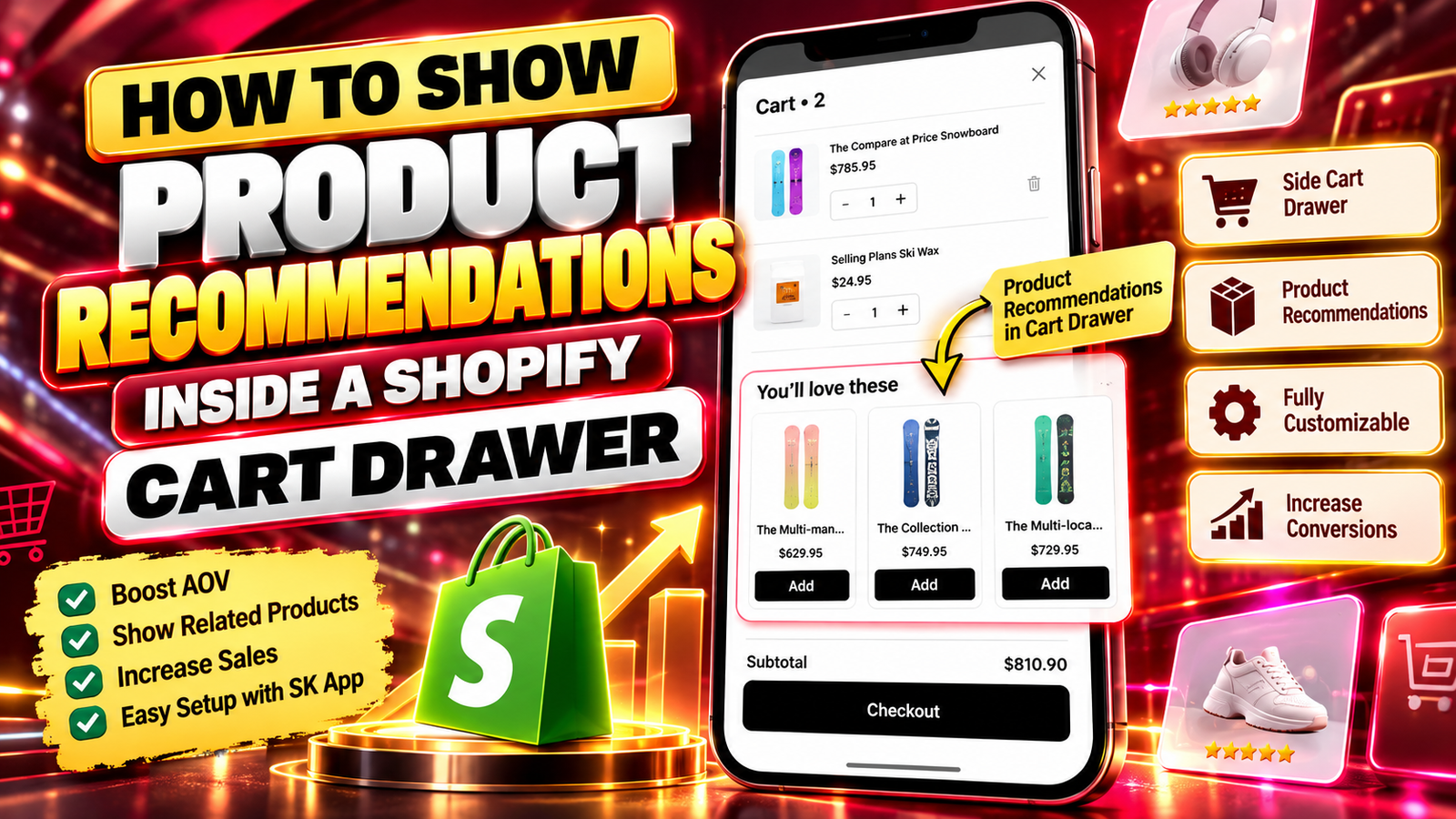
HOW TO SHOW PRODUCT RECOMMENDATIONS INSIDE A SHOPIFY CART DRAWER
Introduction
Adding product recommendations inside a Shopify cart drawer is an effective way to introduce customers to complementary products before checkout. Rather than sending shoppers back to product pages, merchants can display relevant suggestions directly inside the cart.
With SA Sticky Add to Cart Drawer, Shopify merchants can customize their cart drawer, enable upsell products, and create a more convenient shopping experience.
Challenges Shopify Merchants Face
Many Shopify stores rely on basic cart layouts that show only selected products, quantities, and checkout buttons. This can limit product discovery and make it harder to encourage additional purchases.
Customers may also leave the cart to search for accessories or related items, introducing unnecessary steps before checkout.
Why Product Recommendations Matter
Relevant cart recommendations can help customers discover useful accessories, complementary products, and other items they might otherwise overlook.
They can also support higher average order value (AOV), although results depend on recommendation relevance, pricing, and customer behavior.
Why Use SA Sticky Add to Cart Drawer?
The SA Sticky Add to Cart Drawer app offers a customizable side cart, upsell product recommendations, sticky add-to-cart features, and cart design controls.
Instead of building a custom cart recommendation system from scratch, merchants can configure the available options through the app.
Step-by-Step: How to Show Product Recommendations in a Shopify Cart Drawer
Step 1: Open the Shopify App Store
Open Google and search for Shopify App Store. Click the official result to visit the marketplace.
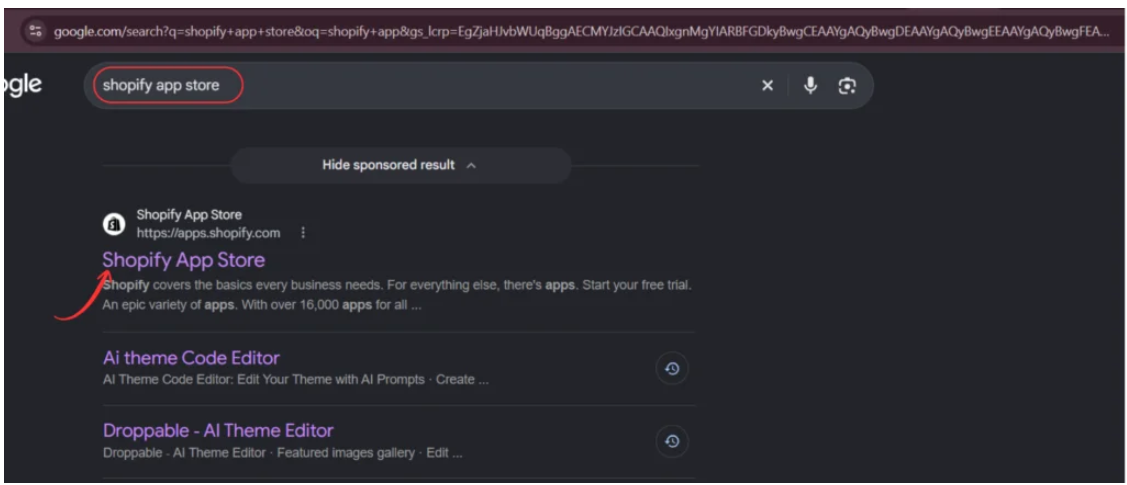
Image 1: Find the official Shopify App Store.
Step 2: Search for SA Sticky Add to Cart Drawer
In the Shopify App Store search bar, type Sticky add to cart drawer.
Locate SA Sticky Add to Cart Drawer in the results and open its listing.
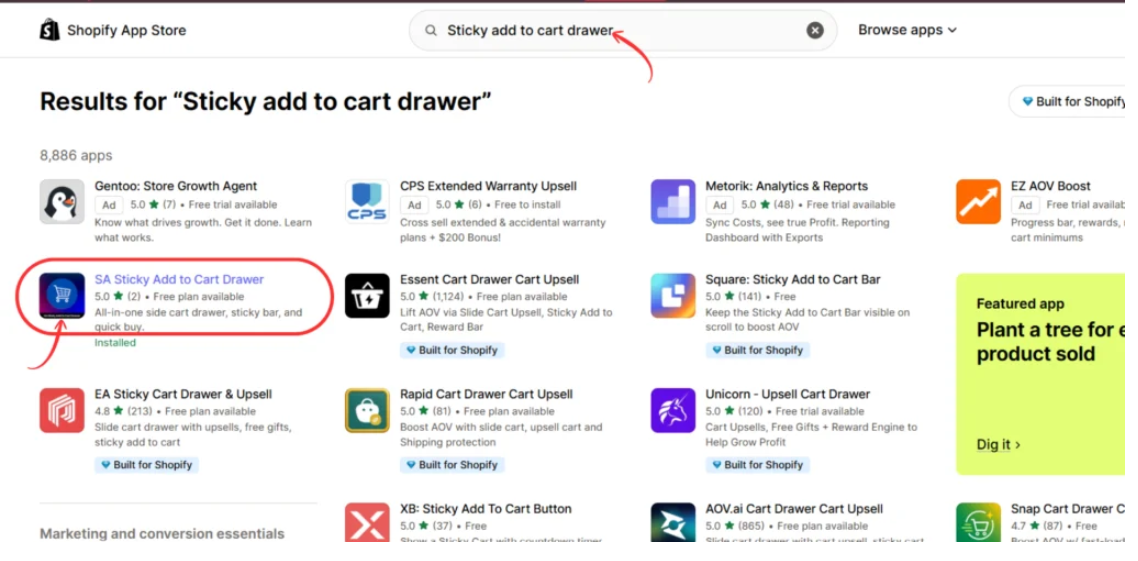
Image 2: Find SA Sticky Add to Cart Drawer in the search results.
Step 3: Install the Application
Visit the official app listing and click Install.
Complete the Shopify installation process to add the application to your store.
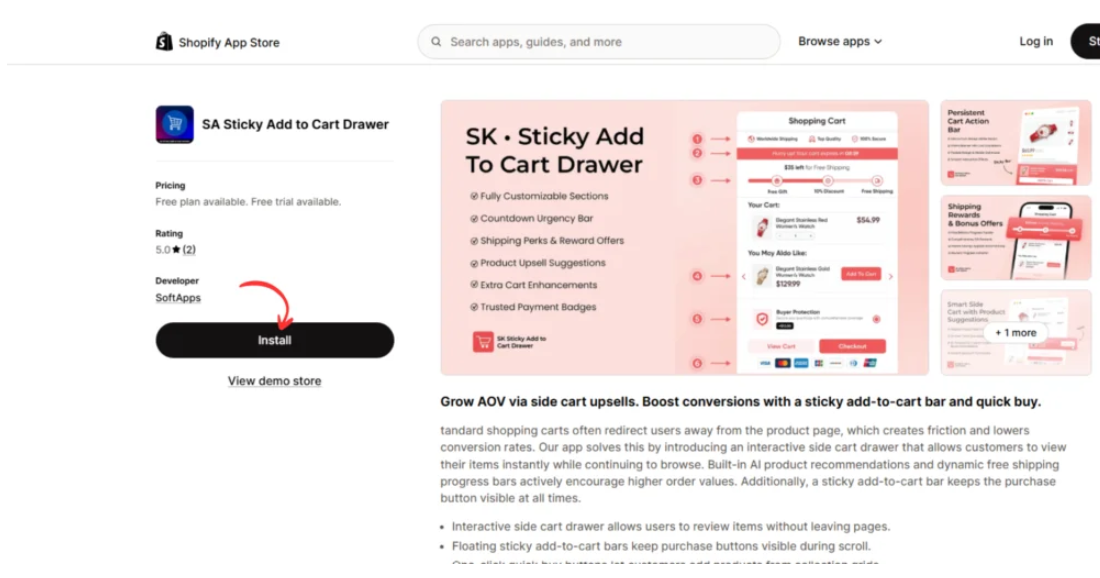
Image 3: Install the application from the Shopify App Store.
Step 4: Open the App Dashboard
Once installed, click Open from the app listing or launch the application through your Shopify admin.
The dashboard provides access to cart drawer configuration, upsell settings, and other available customization features.
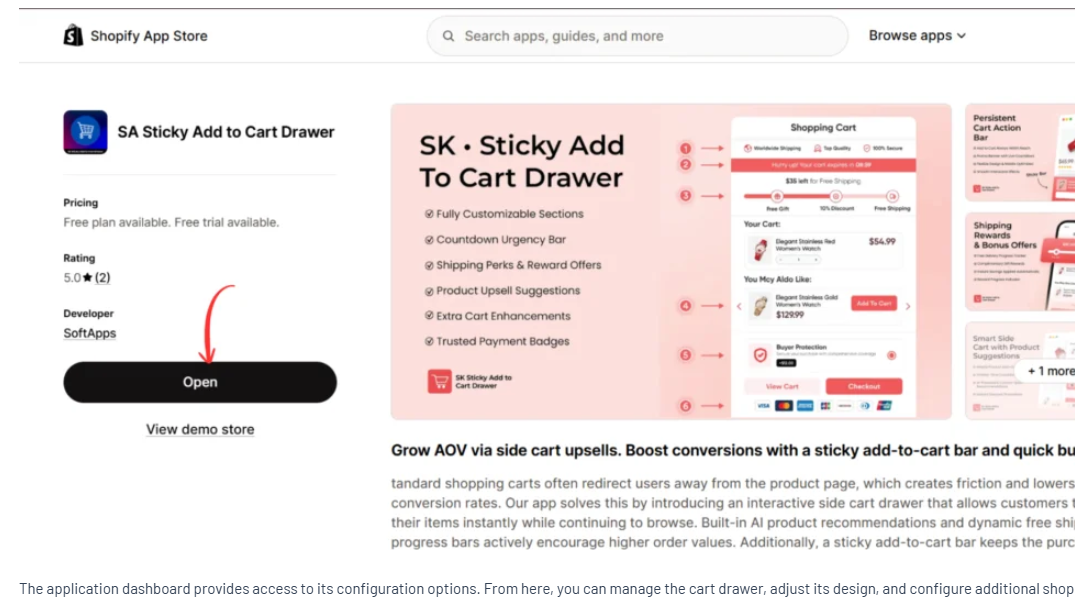
Image 4: Open SA Sticky Add to Cart Drawer.
Step 5: Configure Side Cart & Upsell
Inside the app, navigate to Setups → Side Cart & Upsell.
Explore the available settings, including general configuration, header design, body design, upsell products, and footer design.
Enable Upsell Products and configure relevant product suggestions. For example, a clothing store might recommend matching accessories, while an electronics store could suggest compatible add-ons.
Preview the cart drawer and click Save Settings when finished.
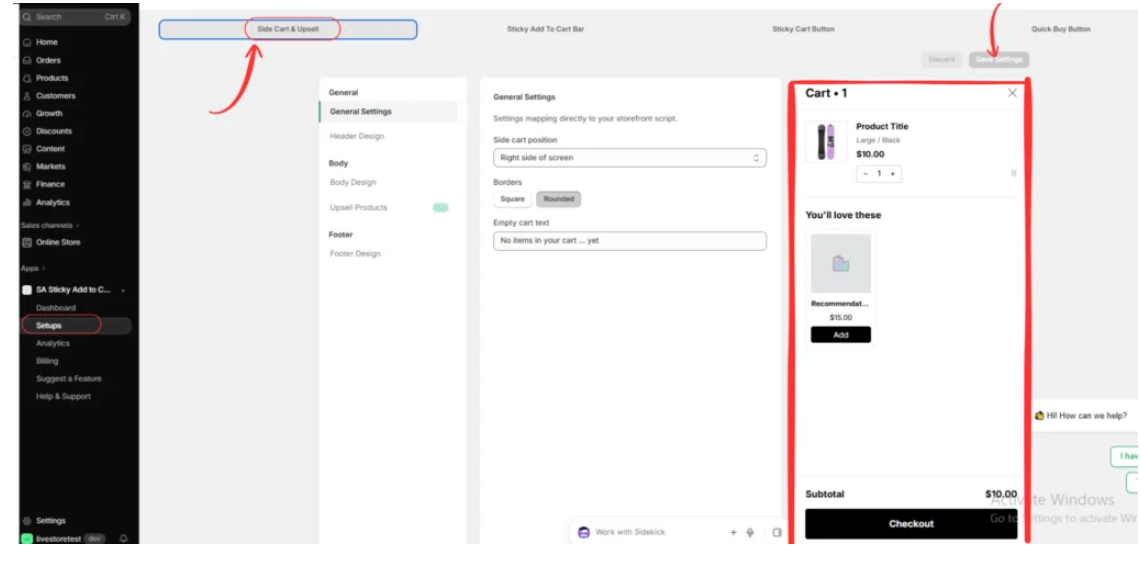
Image 5: Configure the Side Cart & Upsell settings and product recommendations.
Step 6: Enable the App in Your Shopify Theme
Go to Shopify Admin → Online Store → Themes → Customize.
Open App embeds and locate EA • Storefront Widgets for SA Sticky Add to Cart Drawer.
Enable the app embed to activate the supported storefront functionality.
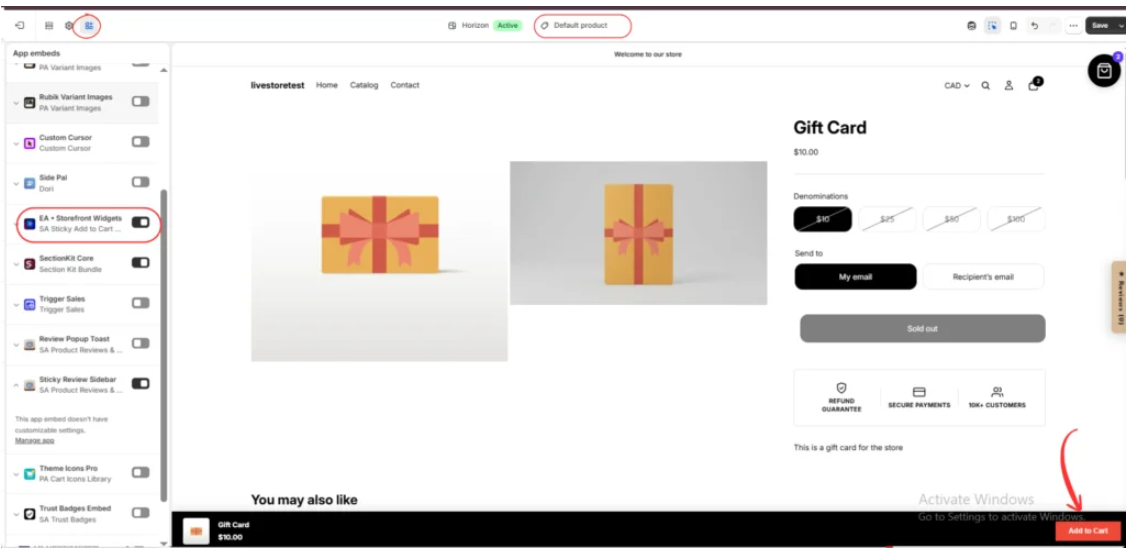
Image 6: Enable the app embed in your Shopify theme.
Step 7: Preview Product Recommendations in the Cart Drawer
Open your storefront preview and add a product to the cart.
The configured drawer can show the selected products, prices, quantities, and a You’ll love these section containing recommended items.
Check that the product images, prices, and Add buttons work correctly. Test the experience on mobile and desktop, then save your theme changes.
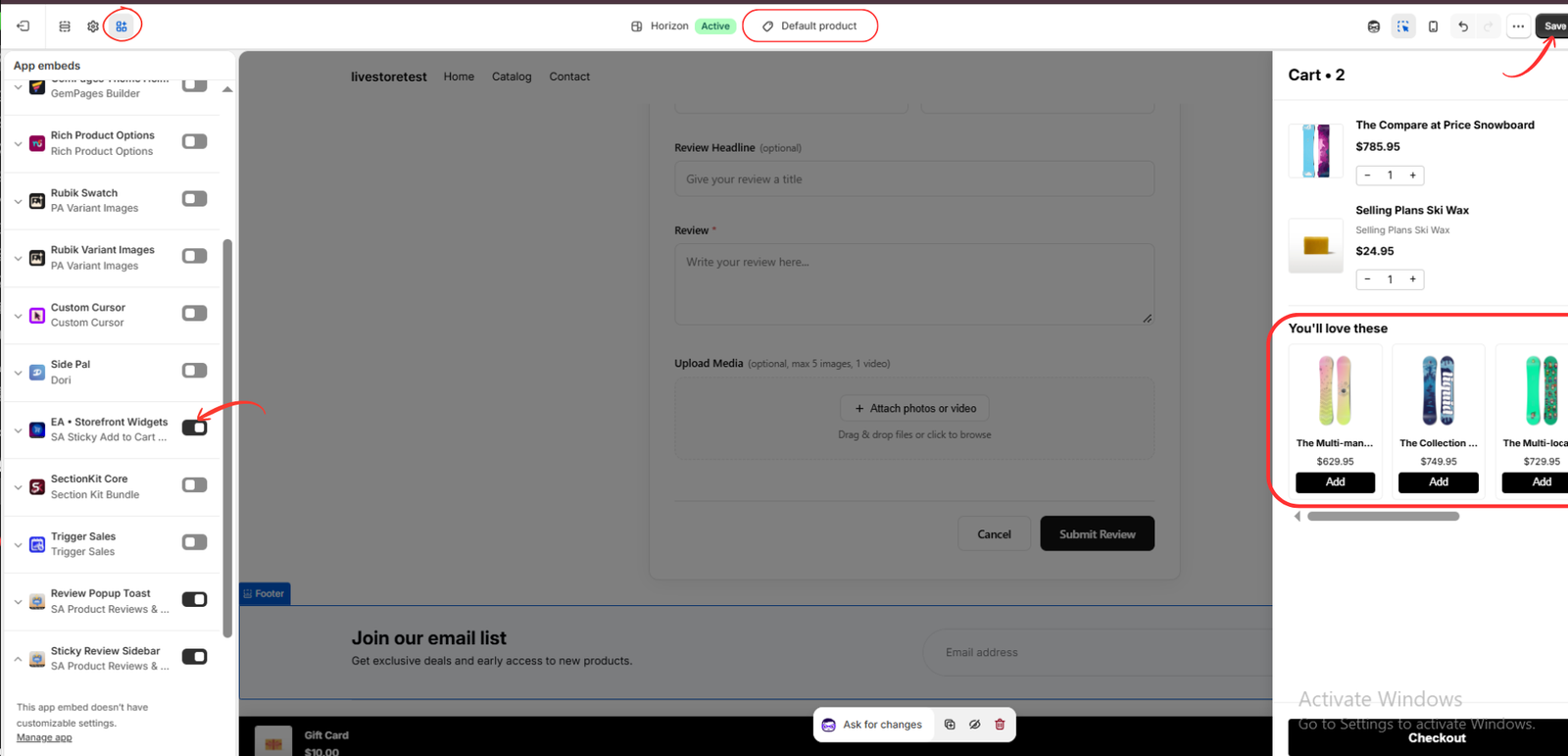
Image 7: Preview recommended products inside the Shopify cart drawer.
Best Practices for Cart Drawer Recommendations
Keep recommendations relevant to the customer’s selected products. Avoid overcrowding the cart with too many suggestions, and use clear product images and pricing.
Monitor average order value, recommendation add-to-cart rates, and checkout conversion to understand whether your configuration is helping customers.
Conclusion
Displaying product recommendations inside a Shopify cart drawer can create additional opportunities for product discovery and complementary purchases.
SA Sticky Add to Cart Drawer helps merchants configure upsell recommendations, customize cart layouts, and present related products without developing an entire cart drawer manually.
Get started with SA Sticky Add to Cart Drawer on the Shopify App Store.




