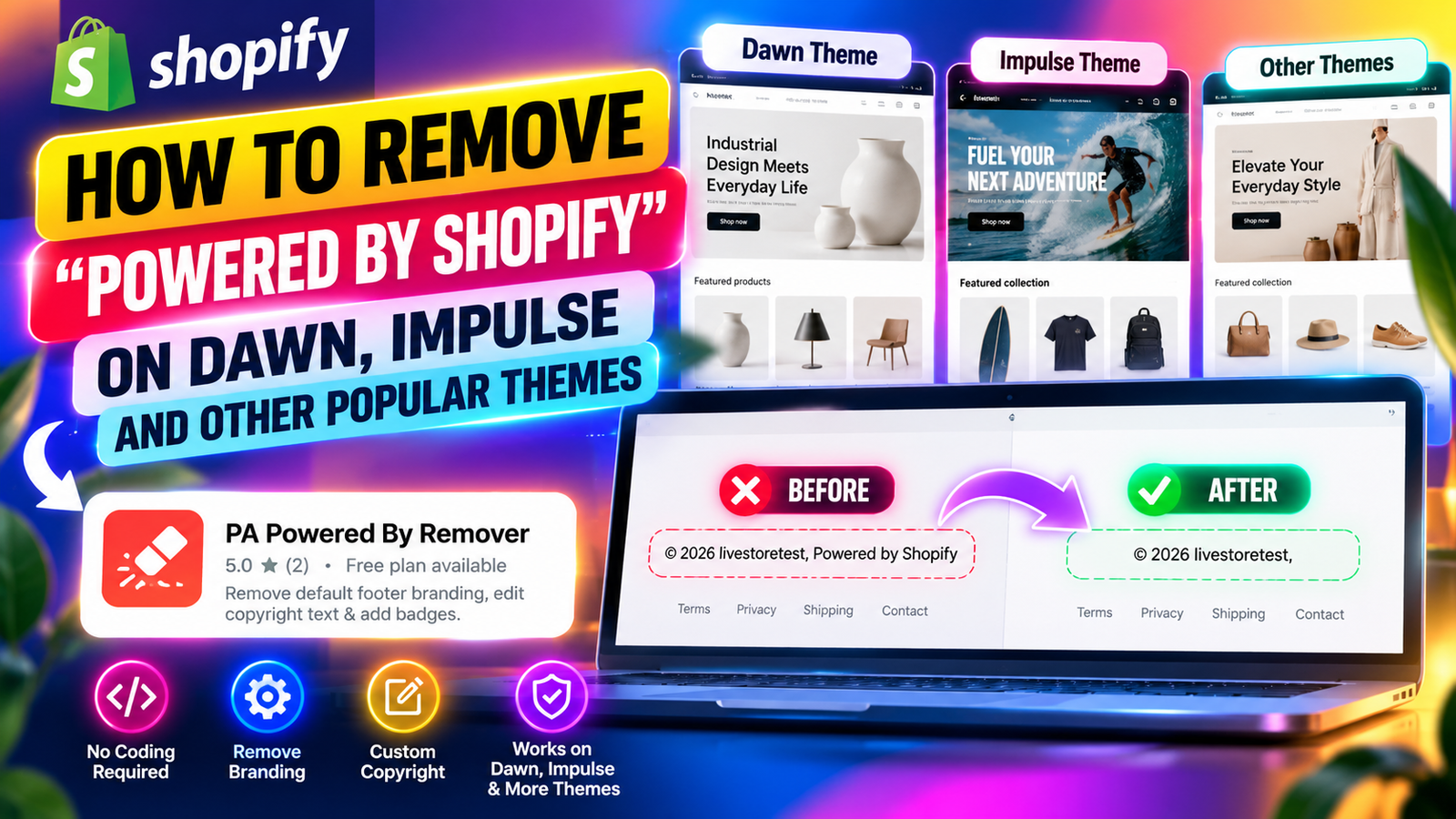
HOW TO REMOVE “POWERED BY SHOPIFY” ON DAWN, IMPULSE AND OTHER POPULAR THEMES
Shopify Tutorial | Theme Customization | Footer Branding
Introduction
A professional Shopify store is built through thoughtful design, consistent branding, and attention to detail. From your homepage layout to your product pages and footer, every element contributes to the overall shopping experience.
However, one common issue many Shopify merchants encounter is the default “Powered by Shopify” text displayed at the bottom of their online stores.
Whether you are using Shopify’s popular Dawn theme, the premium Impulse theme, or another theme such as Atelier, Horizon, Refresh, or Craft, you may want to remove this attribution to create a cleaner, more personalized storefront.
Although some Shopify themes provide built-in options for removing footer attribution, merchants may find the process confusing, especially when working with customized or third-party themes.
Fortunately, you don’t necessarily need to edit Liquid code manually.
With the PA Powered By Remover app, merchants can manage footer attribution and customize copyright information through a centralized dashboard.
In this guide, we’ll explain the challenges merchants face when removing default footer branding, why customization matters, and how to remove “Powered by Shopify” across popular Shopify themes using a straightforward, step-by-step approach.
Why does Shopify display “Powered by Shopify” in the footer?
Many Shopify themes automatically include a small attribution at the bottom of the storefront.
It typically appears in a format similar to:
© 2026 Your Store Name. Powered by Shopify
This text identifies Shopify as the eCommerce platform powering the website.
While the attribution does not prevent a store from looking professional, many merchants prefer to display only their own business name and copyright information.
For example, a customized footer might display:
© 2026 Your Brand Name. All Rights Reserved.
This allows merchants to maintain a more consistent brand identity throughout their online stores.
Common challenges merchants face with different Shopify themes
Removing the default footer attribution can be straightforward in some themes but more complicated in others.
1. Different theme structures
Shopify themes do not all use identical footer layouts or settings. The location and implementation of attribution text may differ between Dawn, Impulse, Atelier, Horizon, and other themes.
2. Difficulty locating footer settings
Some themes provide options for editing footer content directly, while others require merchants to modify default theme text through Shopify’s language-content editor.
3. Limited coding knowledge
Merchants who cannot find a built-in option may attempt to edit Liquid files. Without technical experience, identifying the correct code can be challenging.
4. Concerns about theme updates
Manual theme modifications can require additional maintenance when a store changes themes or installs major updates.
5. Inconsistent branding across themes
Merchants who frequently test or switch themes may want a consistent approach to managing their footer branding.
6. Risk of removing important footer elements
Editing the wrong code can affect copyright information, navigation links, or other footer components.
These challenges make it useful to have a simple way to manage footer attribution without unnecessary theme code modifications.
How footer attribution differs across popular Shopify themes
Different Shopify themes offer different customization options.
| Shopify theme | Footer customization considerations |
|---|---|
| Dawn | Often supports removal through Shopify’s default theme-content editing tools |
| Impulse | Footer settings and theme-content options may differ by version |
| Atelier | Custom footer layouts and typography may require additional verification |
| Horizon | Uses Shopify’s newer theme architecture and customizable sections |
| Refresh | Footer attribution can often be managed through native theme-content settings |
| Craft | May provide standard Shopify footer text customization options |
The exact method depends on your theme version and whether its footer has been customized.
For many standard Shopify themes, you can first try Online Store → Themes → Edit default theme content and search for “powered.” If the relevant field is available, clearing the attribution text may be sufficient.
For merchants who prefer a dedicated app dashboard, PA Powered By Remover provides another approach.
Introducing PA Powered By Remover
PA Powered By Remover is a Shopify application developed by PeakApps that helps merchants remove default footer attribution and customize copyright information without manually editing Liquid files.
The application offers a centralized dashboard where merchants can configure footer settings and activate them through Shopify’s theme app embed functionality.View PA Powered By Remover on Shopify App Store
Key features of PA Powered By Remover
- Remove default footer attribution: Hide the “Powered by Shopify” text.
- Custom copyright information: Replace default attribution with personalized business information.
- No manual coding required: Manage supported settings through the app interface.
- Theme app embed integration: Activate footer customization through Shopify’s theme editor.
- Centralized dashboard: Manage branding settings in one place.
- Additional footer features: Access payment icons, trust badges, and other tools depending on the selected plan.
The app offers a free plan, while certain advanced features may require a paid subscription.
Why removing default footer branding matters
Greater brand consistency
Removing platform attribution allows merchants to create a footer that better matches their store’s branding.
Cleaner website appearance
A simple footer can make important information easier to find and reduce unnecessary visual clutter.
Personalized copyright information
Merchants can display their business name, copyright notice, and other relevant information.
Simplified store management
Using a dedicated application can reduce the need for manual code editing.
Flexibility when testing themes
Merchants who experiment with different Shopify themes can use a consistent configuration workflow, although compatibility should always be tested individually.
Removing the attribution is primarily a branding decision. It does not automatically improve SEO rankings, conversions, or store performance.
Step-by-step guide: How to remove “Powered by Shopify” on Dawn, Impulse and other themes
Follow these steps to configure PA Powered By Remover and apply your footer customization.
The images below are your original PA Powered By Remover screenshots, arranged in the same order you provided.
Step 1: Search for the Shopify App Store
Start by opening Google in your browser.
Enter Shopify App Store in the search bar and press Enter.
Find the official Shopify App Store website in the search results and open it.
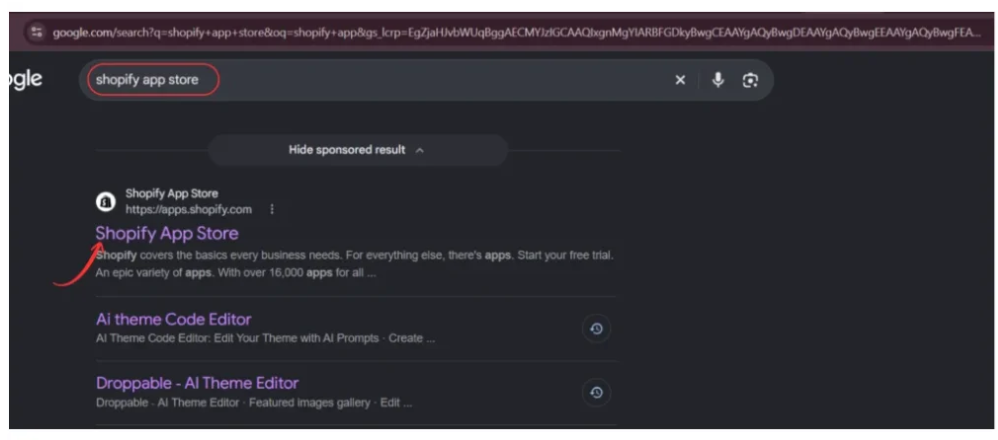
Image 1: Search for the official Shopify App Store on Google.
The Shopify App Store provides applications for improving storefront design, marketing, inventory management, customer engagement, and other business operations.
Once the App Store opens, you can search for the application needed to remove default footer branding.
Step 2: Find PA Powered By Remover
Inside the Shopify App Store, locate the search bar at the top of the page.
Enter:
PA Powered By Remover
Press Enter to display the available applications.
Locate PA Powered By Remover, developed by PeakApps, in the search results.
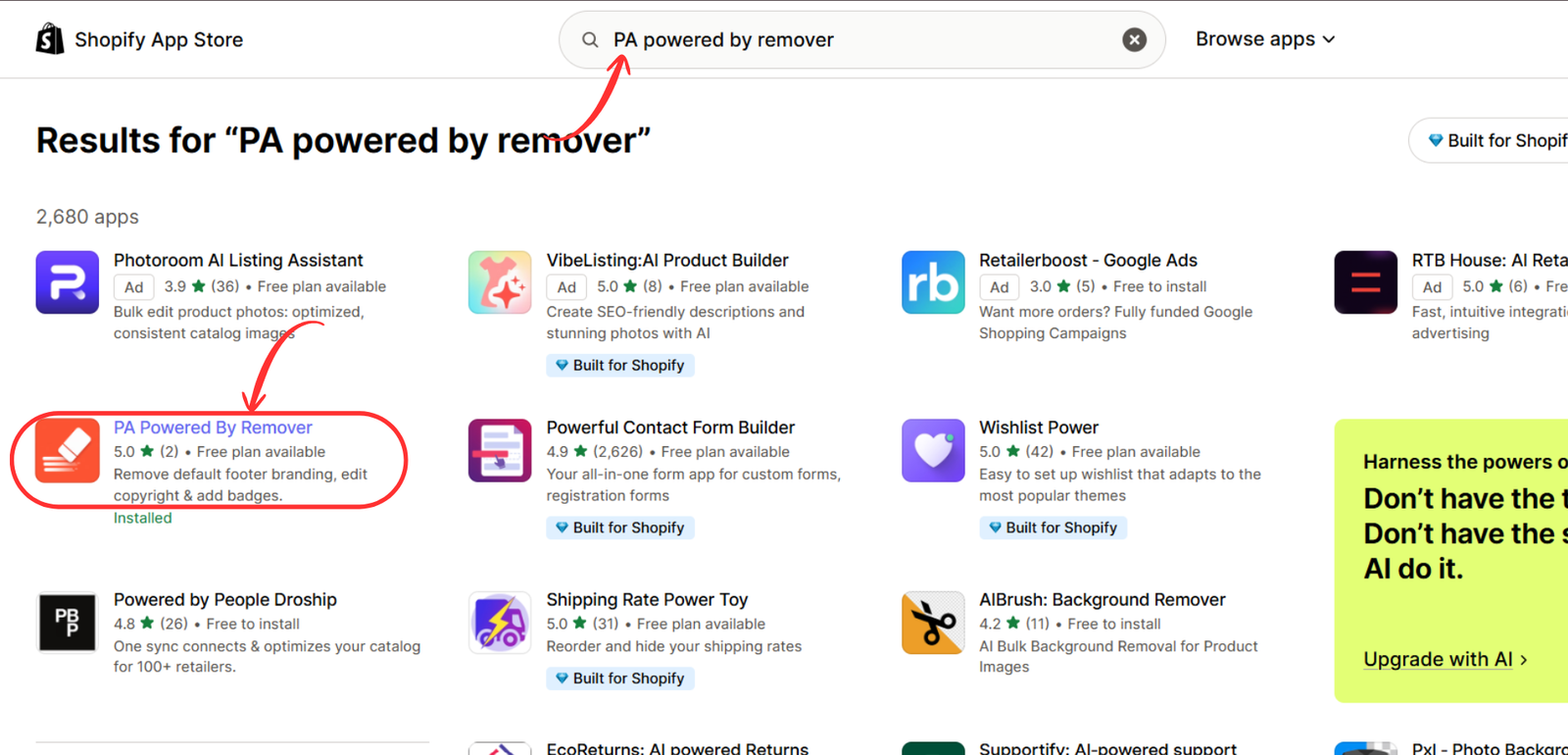
Image 2: Locate PA Powered By Remover in the Shopify App Store search results.
Make sure you select the correct application before continuing.
Click the application name to open its listing page.
Step 3: Install and open PA Powered By Remover
On the application listing page, review the available features, pricing information, screenshots, and application description.
PA Powered By Remover is designed to simplify footer branding customization for Shopify merchants.
Click Install if the app is not already installed.
If you have previously installed the app, Shopify may display an Open button instead.
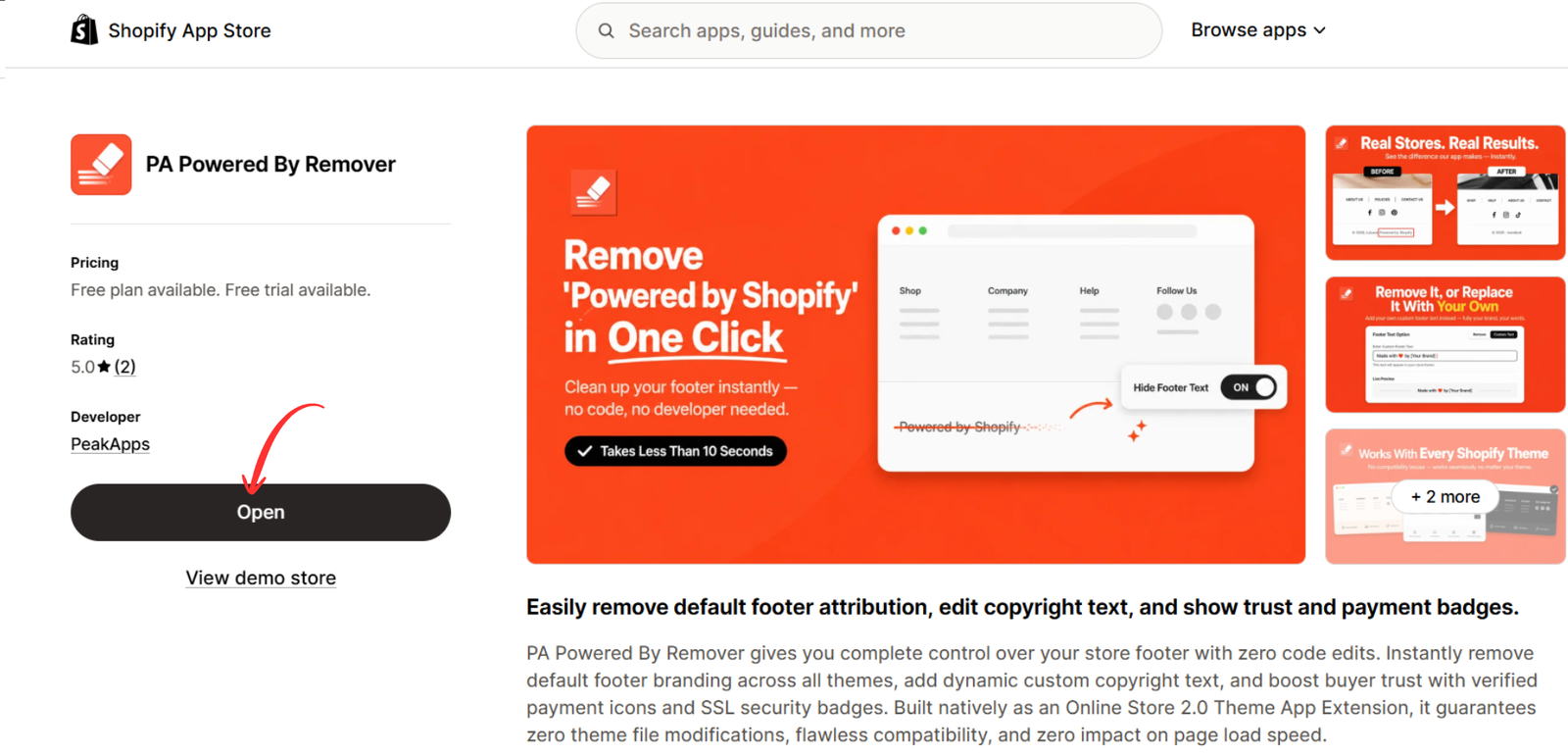
Image 3: Review the PA Powered By Remover app listing and proceed with installation.
Follow Shopify’s authorization instructions to complete installation.
Once the app is installed, you can access it directly from your Shopify admin dashboard.
Step 4: Configure the Remove Branding settings
After opening PA Powered By Remover, navigate to the Remove Branding section in the application’s sidebar.
The Branding & Footer Dashboard contains the settings needed to customize your storefront footer.
Under Store Attribution Settings, locate the checkbox labeled:
Remove 'Powered by Shopify' credit
Enable this checkbox to configure the removal of Shopify’s default attribution.
Next, locate the Custom Copyright Text field.
Enter your preferred copyright information, such as:
© 2026 Your Brand Name. All Rights Reserved.
Depending on the available functionality, you may also be able to insert dynamic tags for the store name and current year.
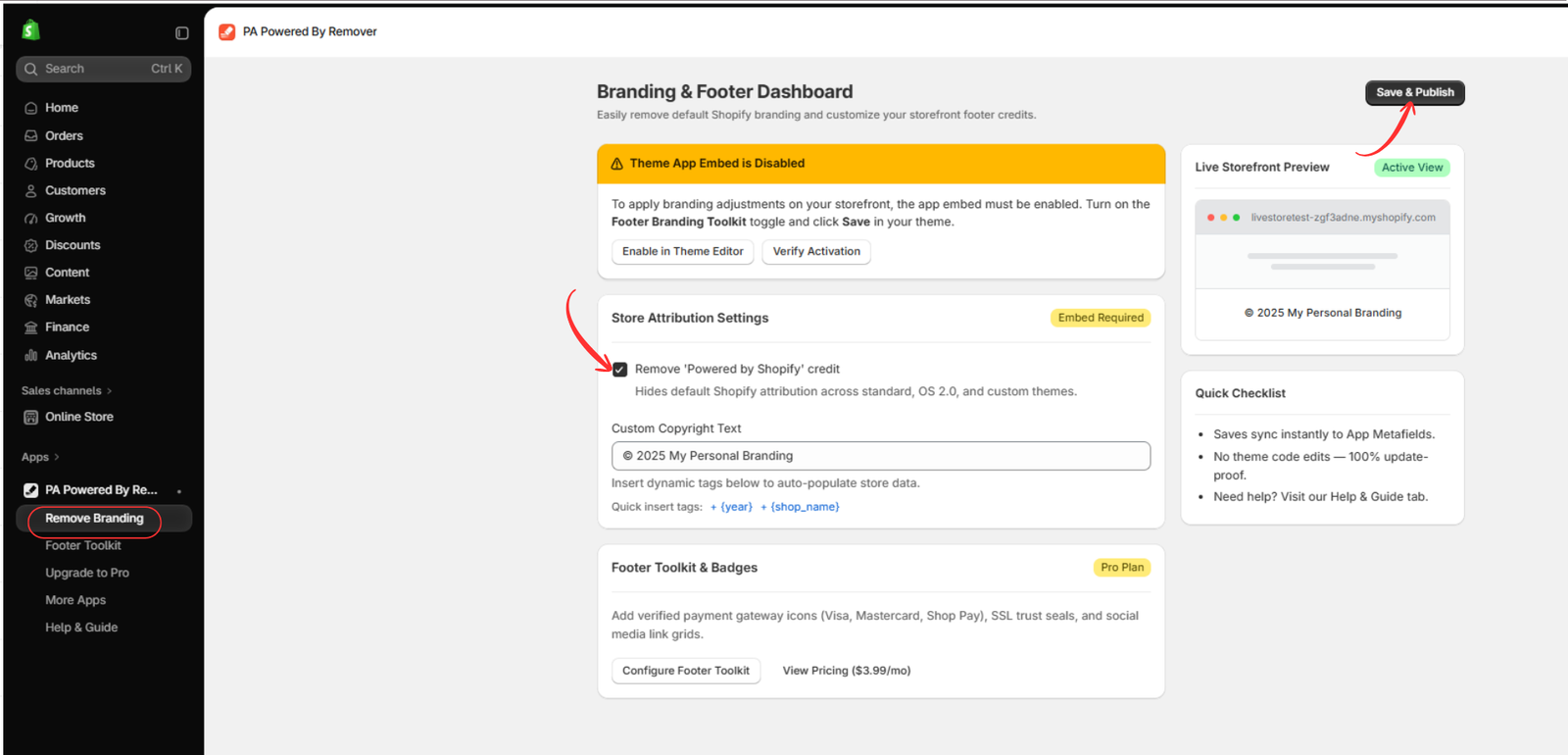
Image 4: Enable the footer attribution removal setting and customize your copyright information.
After making your changes, click Save & Publish.
If the application indicates that the theme app embed is disabled, continue to the next step.
Step 5: Open the Shopify Theme Editor
Once your branding preferences are saved, open the Shopify theme editor.
From your Shopify admin, navigate to:
Online Store → Themes → Customize
If you are using Dawn, Impulse, Horizon, Atelier, or another theme, make sure you select the correct theme before proceeding.
When the editor opens, locate the App embeds icon in the left sidebar.
Click the icon to display your installed app embeds.
Find Footer Branding Toolkit, associated with PA Powered By Remover.
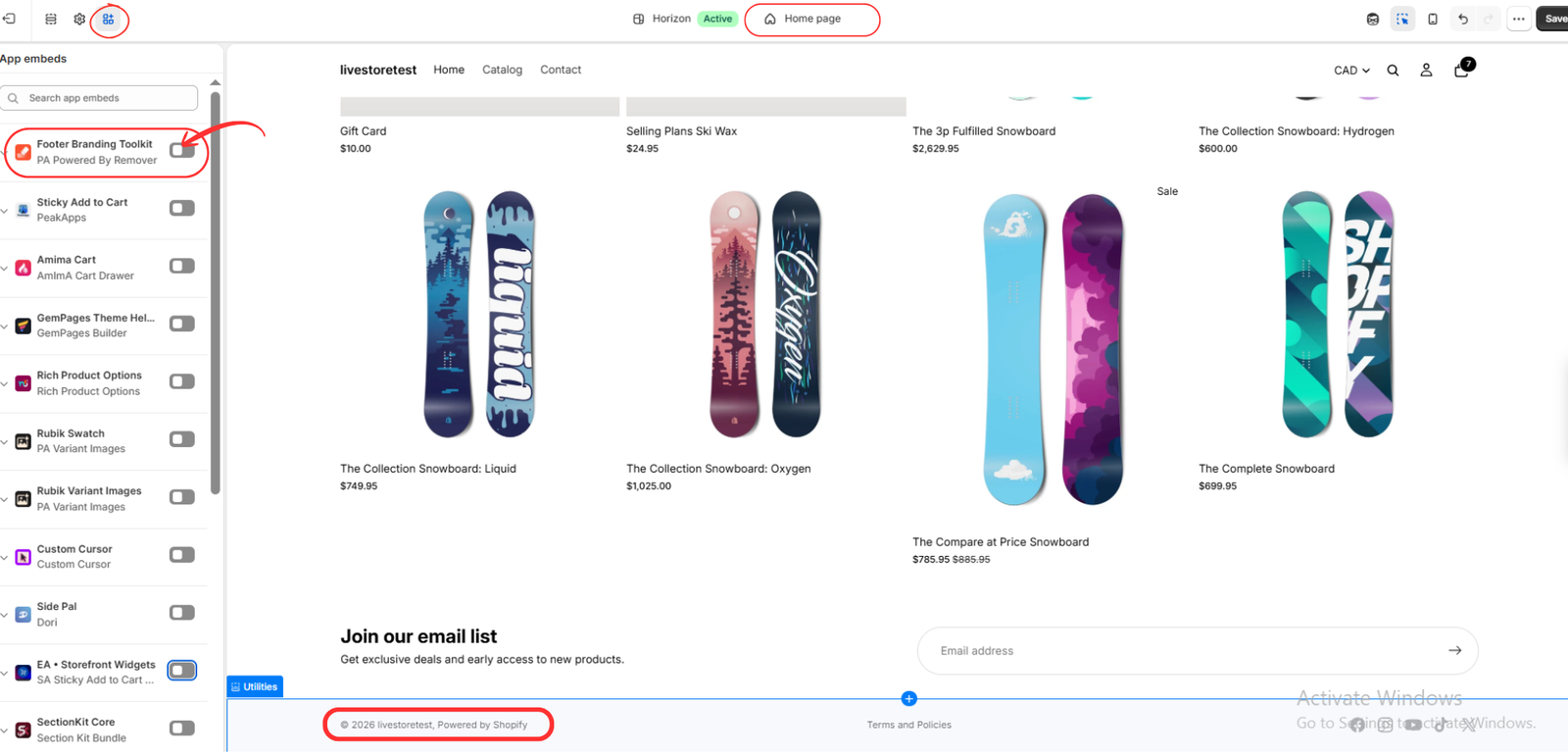
Image 5: Locate Footer Branding Toolkit in the Shopify Theme Editor’s App embeds section.
If the app embed is disabled, its settings will not yet be applied through the theme.
Step 6: Enable Footer Branding Toolkit and save
Locate the toggle next to Footer Branding Toolkit.
Switch the toggle on to activate the app embed.
Once enabled, click Save in the upper-right corner of the Shopify theme editor.
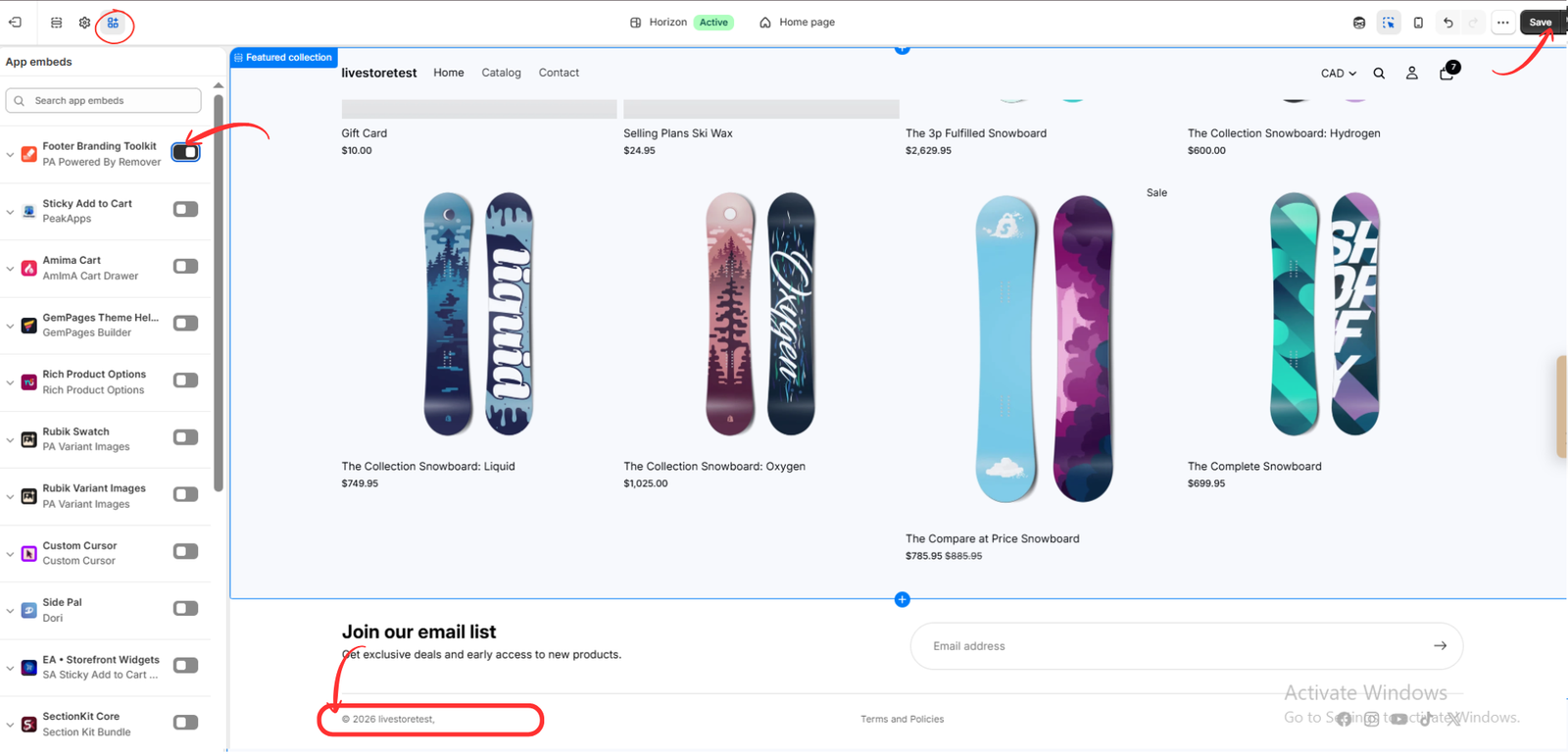
Image 6: Enable the app embed, save the theme, and verify the updated footer.
After saving, scroll to the bottom of your storefront preview.
If the application is properly configured and compatible with your theme’s footer implementation, the default “Powered by Shopify” attribution should no longer appear.
You should see your preferred copyright information instead.
Step 7: Verify the changes on another Shopify theme
If you manage multiple Shopify themes, it is important to confirm that the footer customization works correctly with each theme.
For example, you may have Dawn as your published theme and Atelier as a draft theme.
Open the theme editor for the alternative theme and locate its App embeds section.
Enable Footer Branding Toolkit if it is available and required for that theme.
Then save the changes and inspect the footer preview.
The following image shows the Atelier theme with the Footer Branding Toolkit enabled and the default attribution removed.
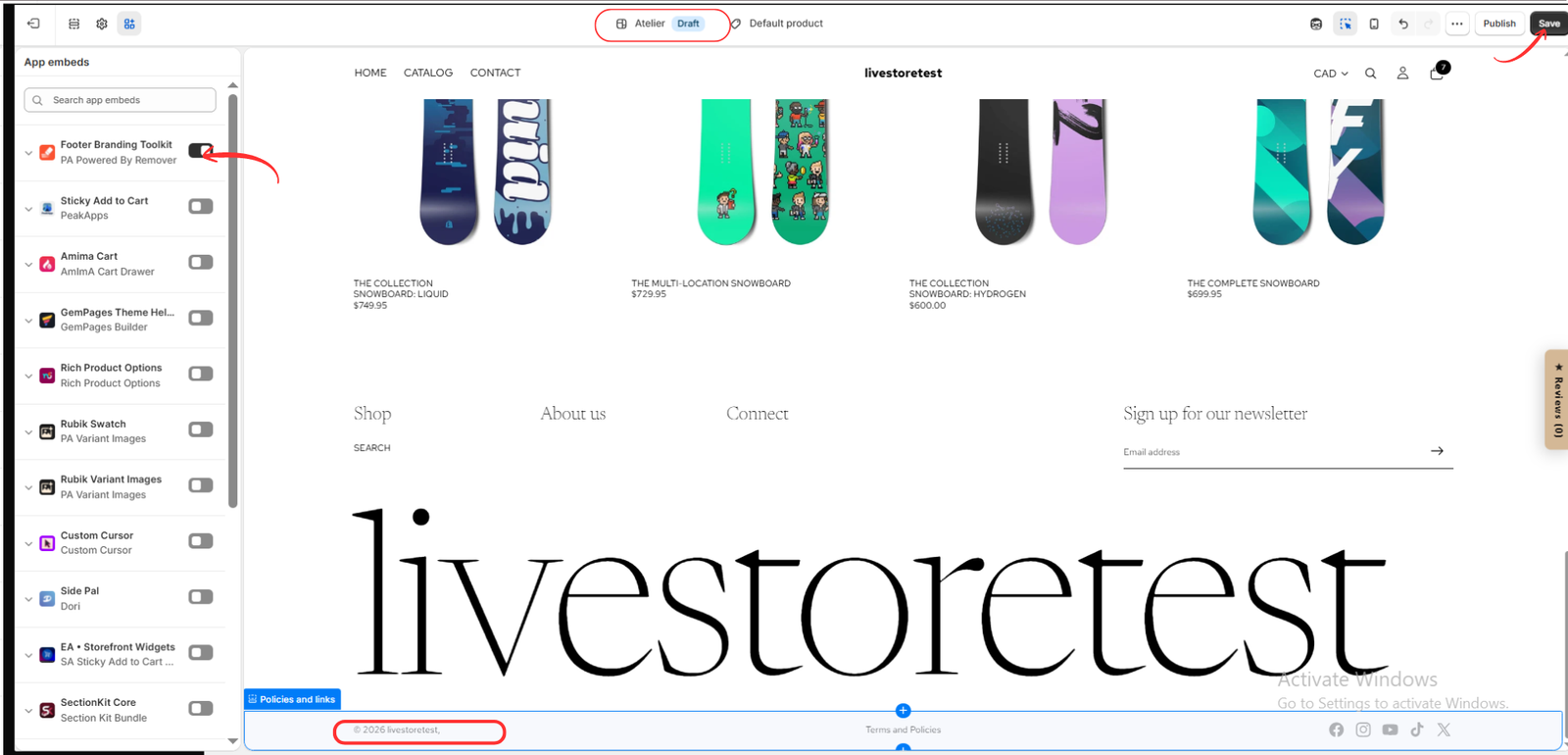
Image 7: PA Powered By Remover activated on the Atelier draft theme, demonstrating footer customization on another Shopify theme.
In this example, the footer displays the store’s copyright information without the default “Powered by Shopify” text.
This demonstrates how the same app configuration workflow can be used when working with another theme.
However, app embed settings are theme-specific, so enabling the app in one theme does not necessarily activate it in every other theme.
Before publishing a different theme, verify that the app embed is enabled and the footer displays correctly.
Step 8: Check the updated footer on your live store
After completing the configuration, open your live Shopify storefront.
Scroll down to the footer and confirm that the attribution has been removed.
Check the following details:
- Your customized copyright text is displayed correctly.
- Important footer links remain accessible.
- The layout looks consistent with your store branding.
- The footer works correctly on mobile and desktop.
- No unintended changes have occurred to other theme elements.
If the attribution remains visible, return to the app dashboard and confirm that the removal option is enabled.
Also verify that the app embed is activated in the theme you are currently previewing or publishing.
For heavily customized themes, additional compatibility adjustments may be necessary.
Additional tips for customizing Shopify footers
Removing default attribution is only one part of creating a professional footer.
Keep your copyright information updated
Use an appropriate copyright notice that includes your business name and current year.
Organize essential footer links
Include useful links such as Contact Us, Privacy Policy, Refund Policy, Shipping Policy, and Terms of Service.
Maintain consistent typography
Choose fonts and text sizes that match your store’s overall design.
Optimize for mobile devices
Ensure that footer text and navigation links remain readable on smaller screens.
Avoid excessive visual elements
Keep your footer clean and organized rather than overcrowding it with unnecessary badges or links.
Test changes before publishing
If you are using a draft theme, verify the footer customization in preview mode before publishing it to your live storefront.
Frequently asked questions
Can I remove “Powered by Shopify” from the Dawn theme?
Yes. Dawn commonly supports removal through Shopify’s native theme-content editing tools. You can also use an app-based solution if you prefer that workflow.
Does PA Powered By Remover work with the Impulse theme?
The app is intended to support Shopify theme customization, but compatibility with a particular Impulse version should be verified on your store.
Can I remove the attribution from Atelier or Horizon?
The provided screenshots demonstrate the app workflow on Horizon and Atelier. Results can depend on the theme version and footer implementation.
Do I need to edit Liquid code?
Not when the app-based method works correctly. The application allows you to configure supported settings without manually editing theme files.
Can I use the app with multiple themes?
You can configure and test the app on different themes, but app embeds may need to be enabled separately for each theme.
Will removing “Powered by Shopify” affect SEO?
Removing the attribution itself is not expected to affect your search engine rankings. Avoid accidentally removing important navigation links or other footer elements.
Can I add custom copyright text?
Yes. PA Powered By Remover includes a custom copyright text field.
Is PA Powered By Remover free?
The app listing indicates that a free plan is available. Certain advanced features may require a paid subscription.
Conclusion
Removing “Powered by Shopify” from your store footer is a simple way to create a more personalized storefront.
Whether you are using Dawn, Impulse, Atelier, Horizon, or another Shopify theme, customizing your footer helps you maintain greater control over your brand presentation.
While some themes offer built-in options for editing attribution text, PA Powered By Remover provides an alternative for merchants who prefer a dedicated dashboard and an app-based customization process.
By following the steps in this guide, you can configure your footer branding, enable the app embed, and verify the changes across different Shopify themes without manually editing Liquid code.
Remember to test each theme separately, especially when switching between published and draft themes.
Ready to customize your Shopify footer?Install PA Powered By Remover from the Shopify App Store




