HOW TO REPLACE PRODUCT PHOTO BACKGROUNDS IN WIX USING AI
Introduction
Professional product photographs play an important role in creating an attractive Wix online store. However, dull backgrounds, distracting objects, and inconsistent background colors can make even high-quality products look unprofessional.
Traditionally, changing product photo backgrounds required Photoshop, professional editing skills, or hiring a graphic designer. Fortunately, artificial intelligence has made this process much simpler.
With PA AI Image Generator, you can replace product photo backgrounds in Wix using AI directly from your website dashboard.
Whether you want a clean white background, a premium black background, or a custom color that matches your brand, you can update your product photographs without arranging another photoshoot.
This step-by-step guide explains how to replace product image backgrounds and create a more visually consistent Wix store.
Why Product Photo Backgrounds Matter for Wix Stores
The background of a product photograph can influence how customers perceive the quality and appearance of a product.
Choosing the right background can help you:
-
Highlight important product details.
-
Create a professional storefront.
-
Maintain consistent brand colors.
-
Reduce unnecessary visual distractions.
-
Create attractive promotional images.
-
Save time and reduce photo editing expenses.
-
Improve the overall shopping experience.
Common Product Background Problems Wix Merchants Face
Inconsistent Product Photography
Using different backgrounds across product collections can make an online store appear disorganized.
Distracting Background Elements
Unnecessary objects and busy environments can draw attention away from your products.
Backgrounds That Do Not Match Your Brand
Product photographs with unrelated background colors may not complement your website’s overall visual identity.
Expensive Photo Editing Services
Hiring professional editors for every product photograph can become costly, particularly for small businesses.
Limited Seasonal Marketing Images
Merchants often need different product visuals for Christmas, Valentine’s Day, Black Friday, and other promotional campaigns.
AI background replacement provides a practical way to address these challenges.
What Is AI Product Background Replacement?
AI product background replacement uses artificial intelligence to identify the foreground of a product photograph and replace its surrounding background with a different color or environment.
Unlike traditional manual editing, AI-powered tools reduce the need for complex image selection and masking.
PA AI Image Generator offers several product photography features for Wix merchants, including background removal, solid-color background replacement, custom colors, AI-generated lifestyle scenes, and before-and-after image comparisons.
Explore PA AI Image Generator on the Wix App Market
Step 1: Install PA AI Image Generator
Visit the Wix App Market and search for PA AI Image Generator.
Open the application listing and click Add to Site to install it on your Wix website.
Click the official Wix App Market search result to access the marketplace.

Image 1: Search for Wix App Store on Google and open the official Wix App Market.
Alternatively, visit the Wix App Market directly.
Step 2: Search for PA AI Image Generator
Once you have opened the Wix App Market, locate the application search bar.
Type PA AI Image Generator into the search field and press Enter.
Image 2: Enter PA AI Image Generator into the Wix App Market search bar.
The marketplace will display applications related to AI image generation and product photography.
Step 3: Select PA AI Image Generator
From the search results, locate the PA AI Image Generator application.
Look for the app with the description “Turn product photos into studio-quality images.”

Image 3: Locate and select PA AI Image Generator from the Wix App Market search results.
Click the application to open its official listing page.
Step 4: Add PA AI Image Generator to Your Wix Website
On the application listing page, you can explore the app’s features and available plan information.
Click the blue Add to Site button to begin the installation process.

Image 4: Click Add to Site to install PA AI Image Generator on your Wix website.
Follow the installation instructions and select your Wix website when prompted.
You can also access the application directly using the following link:
Add PA AI Image Generator to Your Wix Store
Step 5: Open AI Product Images in Your Wix Dashboard
After installing the application, navigate to your Wix website dashboard.
Locate Apps in the left-hand navigation menu.
Click AI Product Images to open the application.

Image 5: Navigate to Apps and select AI Product Images inside your Wix dashboard.
The application displays your product catalog, allowing you to access existing product images directly.
Step 6: Select the Product You Want to Edit
Inside the AI Product Images dashboard, browse your available products.
You can also use the product search field to locate a specific item.
For this tutorial, we will select the Ceramic Flower Vase.

Image 6: Select a product from your Wix catalog to start editing its photographs.
Open the product to access its available images and photo editing tools.
Step 7: Replace the Product Background and Preview the Result
After selecting your preferred color, click the Replace background button.
The application will process the selected image and display the updated photograph in the Result section.

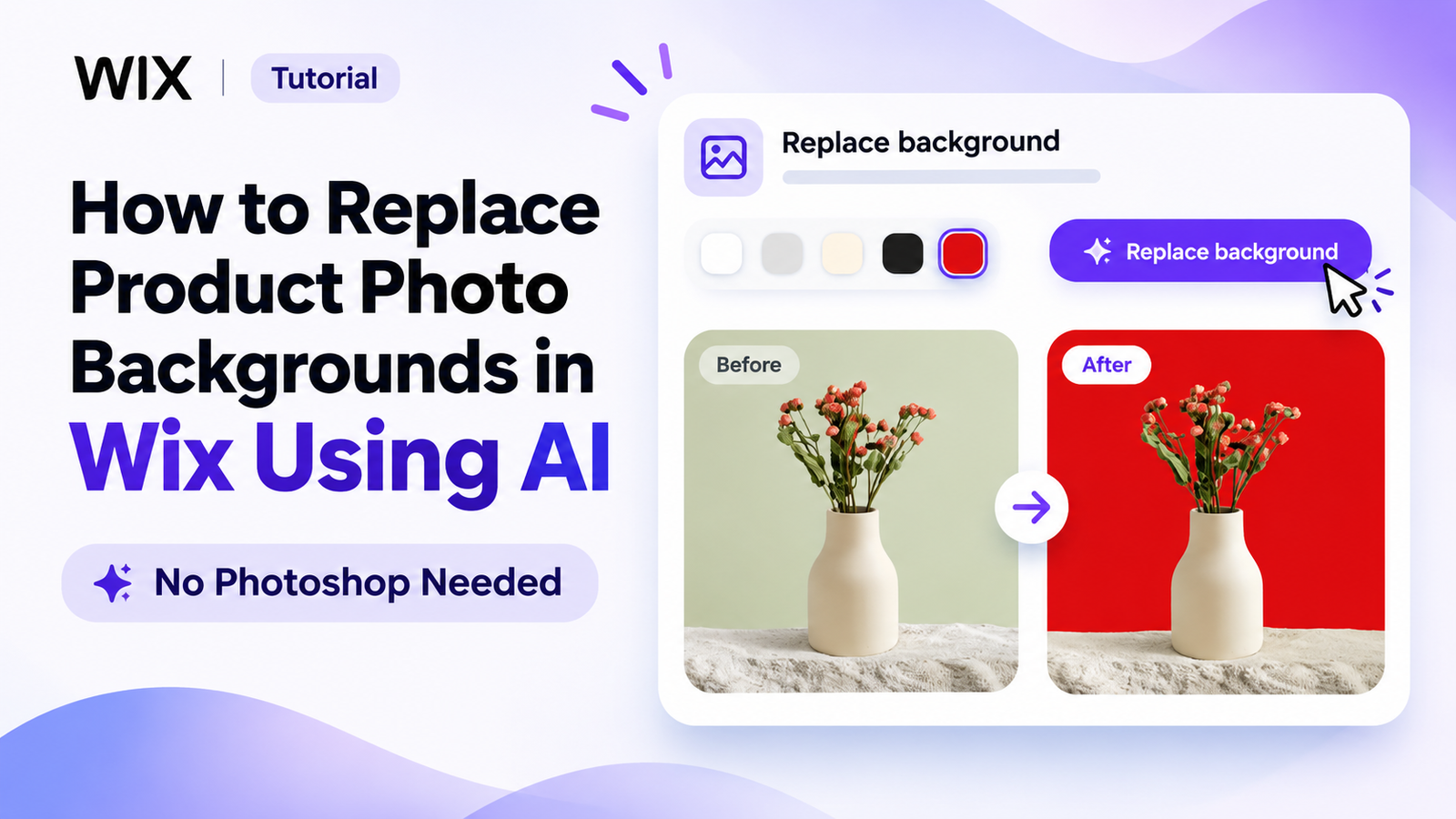
Image 1: Select a custom background color, click Replace background, and compare the original product photograph with the AI-edited result.
The application displays two images side by side:
-
Before: The original product photograph with a light green background.
-
After: The updated product photograph with a bright red background.
As demonstrated in the screenshot, the background color changes while the ceramic vase, flowers, and fabric surface remain visible.
Step 8: Publish the Updated Product Image
Once you are satisfied with the result, click Publish to product (becomes main photo).
The updated image becomes your main product photograph, while your original photographs remain in the product gallery.
You have successfully replaced your product photo background without using Photoshop.
AI Background Replacement vs. Traditional Photo Editing
| Feature | AI Background Replacement | Traditional Photo Editing |
|---|---|---|
| Editing process | Automated | Manual or automated |
| Technical skills | Minimal | Often required |
| Background customization | Presets and custom colors | Extensive customization |
| Editing time | Generally shorter | Depends on complexity |
| Additional software | Not required in this workflow | Often required |
| Wix integration | Available | Depends on the tool |
| Best suited for | Ecommerce merchants | Professional designers |
How Background Replacement Can Improve Your Wix Store
Strengthen Brand Identity
Use background colors that complement your brand logo, website design, and marketing materials.
Create Consistent Product Collections
Apply similar backgrounds across related products to maintain a visually organized catalog.
Highlight Product Features
Choose contrasting background colors that make important product details easier to see.
Create Seasonal Marketing Visuals
Update product backgrounds for Valentine’s Day, Christmas, Black Friday, and other promotional events.
Reduce Photography Expenses
Create multiple background variations from existing product photographs without arranging additional photoshoots.
Common Background Replacement Mistakes to Avoid
Choosing Distracting Colors
Avoid background colors that compete with the product for customer attention.
Using Too Many Background Styles
Maintain a consistent photography style across related product collections.
Ignoring Product Edges
Check that the background replacement has not removed important product details.
Publishing Without Previewing
Always compare the original and edited photographs before publishing the updated image.
Using Poor-Quality Original Photographs
Start with clear, well-lit photographs to support better AI editing results.
Frequently Asked Questions (FAQs)
Can I replace product photo backgrounds in Wix without Photoshop?
Yes. PA AI Image Generator allows you to replace product image backgrounds directly from your Wix dashboard without using Photoshop.
Can I choose a custom background color?
Yes. You can select a custom color using the color picker or enter a HEX color code.
Can I replace a product background with white?
Yes. White is one of the predefined background color options available in the application.
Will replacing the background delete my original product image?
According to the application’s publishing interface, your original photographs remain in the product gallery.
Does background replacement require credits?
Yes. The application interface shown in the earlier screenshots indicates that each background replacement uses one credit.
Can I create lifestyle backgrounds instead of solid colors?
Yes. PA AI Image Generator includes a separate AI Scene feature that allows you to generate creative environments around your products.
Can changing product backgrounds help improve sales?
Professional and consistent product photography can support customer confidence and product visibility. However, sales improvements depend on several other factors.
Conclusion
Replacing product photo backgrounds in Wix is a practical way to improve your online store’s visual appearance without investing in expensive photography equipment or complicated editing software.
With PA AI Image Generator, you can customize background colors, create consistent product images, and experiment with different visual styles directly from your Wix dashboard.
Whether you want clean white backgrounds or bold promotional colors, AI makes product photography more accessible.
Try PA AI Image Generator on the Wix App Market Today




