HOW TO REPLACE SHOPIFY FOOTER CREDITS WITH YOUR BRAND NAME

Introduction
When you create a Shopify store, your website may display the default “Powered by Shopify” text at the bottom of the footer. Although this credit is common among Shopify stores, many merchants prefer to replace it with their own brand name to create a more personalized and professional storefront.
Your footer is an important part of your website. It contains information such as contact details, navigation links, policies, newsletter subscriptions, and copyright notices.
Replacing the default Shopify footer credit with your business name can help make your store’s branding more consistent.
The good news is that you don’t need advanced coding knowledge to make this change.
With PA Powered By Remover, you can remove the default Shopify footer credit and add custom copyright text directly from your Shopify admin.
In this guide, we’ll explain how to replace Shopify footer credits with your brand name, using real screenshots and step-by-step instructions.
What Are Shopify Footer Credits?
Shopify footer credits are the default attribution text that can appear at the bottom of a Shopify storefront.
A common example is:
© 2026, Your Store Name Powered by Shopify
This text identifies Shopify as the ecommerce platform powering the website.
While there’s nothing inherently wrong with displaying this credit, some merchants prefer a cleaner footer that focuses entirely on their business.
For example, you might want your footer to display:
© 2026, Your Brand Name
This keeps the copyright information while giving your brand more prominence.
Why Replace Shopify Footer Credits With Your Brand Name?
1. Create a More Professional Storefront
A consistent footer helps your website look more polished.
When customers reach the bottom of your website, seeing your brand name instead of default platform attribution can reinforce your store’s identity.
2. Strengthen Brand Recognition
Your brand should remain recognizable throughout the shopping experience.
Using your business name in the footer is a small way to maintain that consistency.
3. Customize Your Copyright Information
Instead of relying on default footer wording, you can display a copyright notice that better reflects your business.
For example:
© 2026, Urban Fashion
Or:
© 2026, Urban Fashion. All Rights Reserved.
Only use copyright and ownership statements that accurately represent your business.
4. Avoid Unnecessary Theme Code Editing
Manually changing Shopify footer code may require navigating theme files and editing Liquid templates.
For merchants unfamiliar with coding, this can be inconvenient and potentially introduce errors.
A dedicated app provides an alternative way to manage footer attribution without manually editing theme code.
Introducing PA Powered By Remover
PA Powered By Remover is a Shopify app designed to help merchants manage their store’s footer branding.
It allows you to remove the default “Powered by Shopify” credit and configure custom copyright text.
The app also provides a footer toolkit with additional branding options, depending on the selected plan.
Instead of searching through Shopify theme files, you can manage the available footer settings through the app dashboard.
How to Replace Shopify Footer Credits With Your Brand Name: Step-by-Step Guide
Follow these six steps to remove the default Shopify footer credit and display your own brand name.
Step 1: Open the Shopify App Store
First, open your browser and search for Shopify App Store on Google.
Find the official Shopify App Store result and click it to open the marketplace.
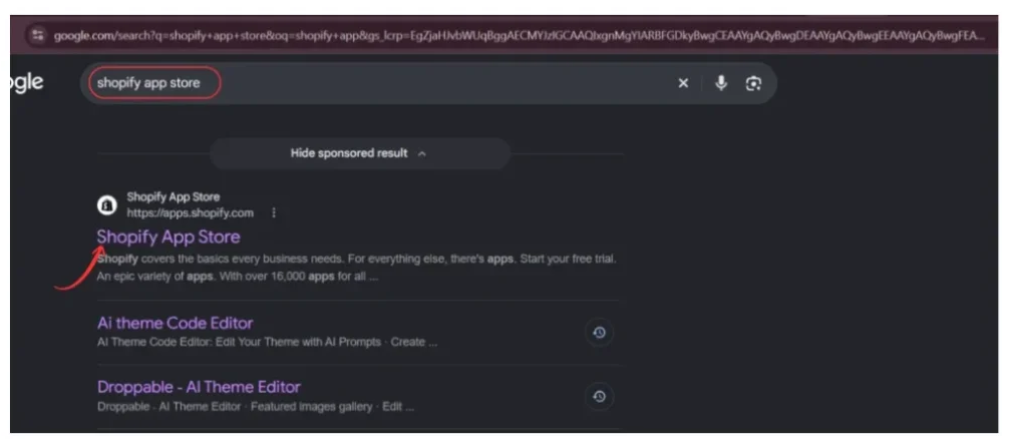
Image 1: Search for Shopify App Store and open the official website.
Alternatively, visit apps.shopify.com directly.
The Shopify App Store allows you to discover apps that extend your store’s features, including tools for branding and footer customization.
Step 2: Search for PA Powered By Remover
Once you’re inside the Shopify App Store, locate the search bar at the top.
Type PA Powered By Remover and search.
Look for the app with the orange icon and the name PA Powered By Remover, as highlighted in the screenshot.
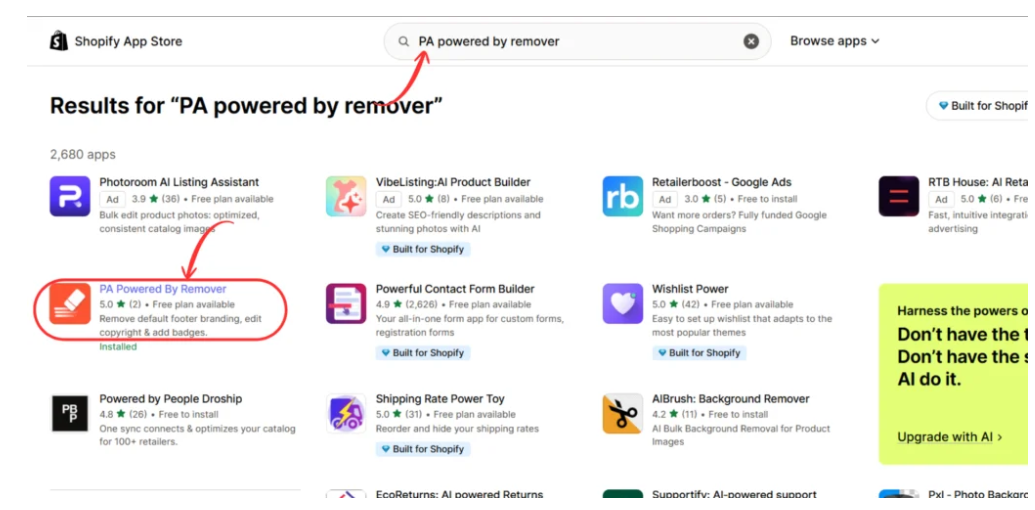
Image 2: Search for PA Powered By Remover and select the correct app.
Open its listing to view the features, pricing information, and installation options.
Step 3: Install and Open PA Powered By Remover
After selecting the app, you’ll reach its Shopify App Store listing.
The listing introduces the app’s footer customization features, including removing the default Shopify attribution and managing copyright text.
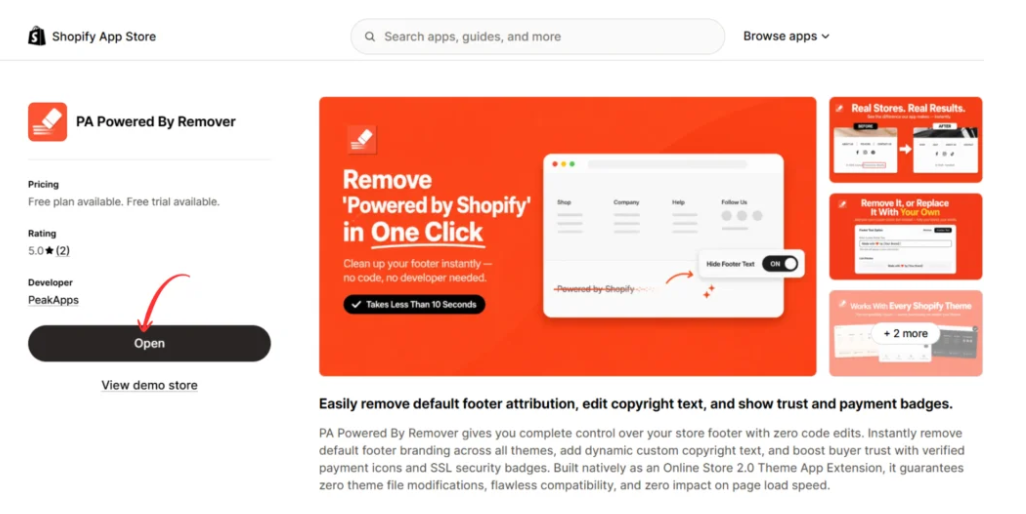
Image 3: Open the PA Powered By Remover app from its Shopify App Store listing.
Click Install if you haven’t installed the app yet, and follow Shopify’s authorization process.
If the app is already installed, you’ll see the Open button instead.
Click Open to access the app dashboard.
Step 4: Remove Shopify Branding and Add Your Brand Name
After opening the app, navigate to Remove Branding from the left sidebar.
You’ll see the Branding & Footer Dashboard, which contains the footer attribution settings.
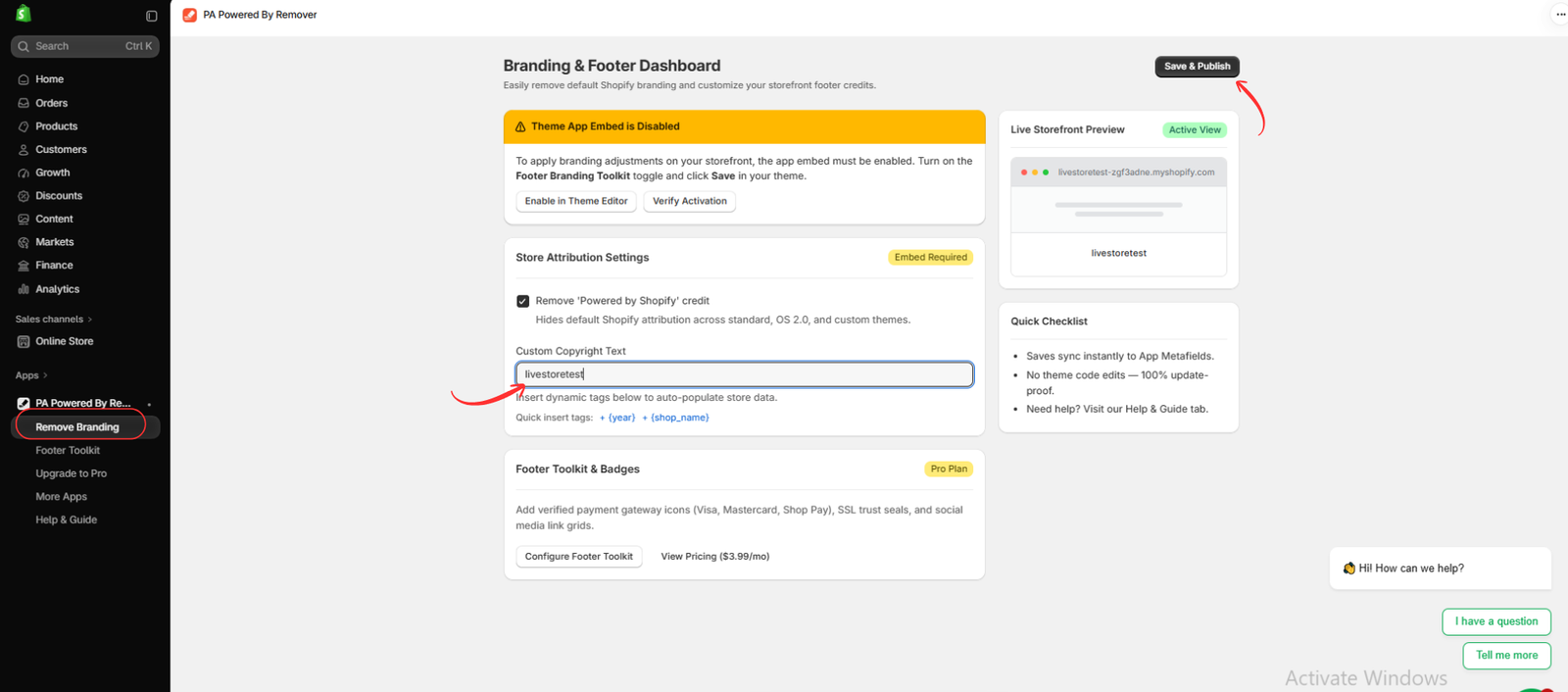
Image 4: Open Remove Branding, enable removal of the Shopify credit, and enter your custom copyright text.
Follow these instructions:
- Find Store Attribution Settings.
- Select the checkbox labeled Remove ‘Powered by Shopify’ credit.
- Locate the Custom Copyright Text field.
- Enter your store’s brand name or preferred copyright notice.
- Click Save & Publish at the top of the app dashboard.
For example, if your store is called Modern Trends, you could enter:
© 2026, Modern Trends
The screenshot also shows quick-insert options for the current year and shop name, which can help you maintain a consistent copyright notice.
Important: If the dashboard displays Theme App Embed is Disabled, you must enable the app embed in your Shopify theme before the changes can appear on your storefront.
Step 5: Enable the Footer Branding Toolkit in Shopify Theme Editor
The next step is to activate the app embed in your Shopify theme.
From the app dashboard, click Enable in Theme Editor.
Alternatively, navigate to Shopify Admin → Online Store → Themes → Customize, then open App embeds.
Find the app embed named Footer Branding Toolkit under PA Powered By Remover.
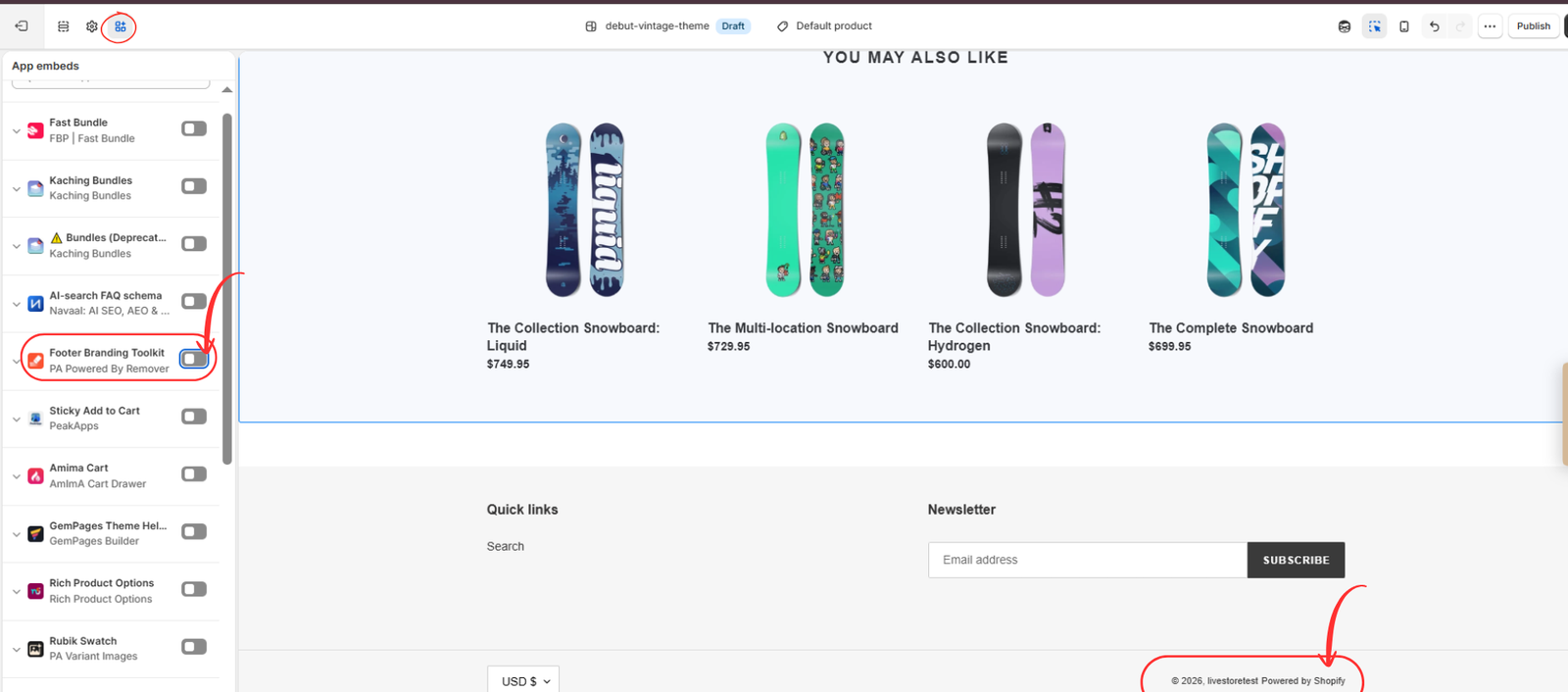
Image 5: Locate the Footer Branding Toolkit app embed in Shopify’s theme editor.
Turn on the toggle beside Footer Branding Toolkit.
The screenshot shows the default footer credit still appearing at the bottom of the storefront before the change is fully applied.
After enabling the app embed, click Save in the top-right corner of the theme editor.
Make sure you’re editing the theme you intend to update. Changes made to an unpublished draft theme won’t automatically appear on your live storefront.
Step 6: Verify Your New Footer Branding
Once the app embed is enabled and the changes are saved, check your storefront preview.
Scroll to the bottom of the page and inspect the footer.

Image 6: The updated footer displays the store’s copyright text without the default Powered by Shopify attribution.
In the screenshot, the footer now displays:
© 2026, livestoretest
The default “Powered by Shopify” text is no longer visible.
This confirms that the footer branding change has been applied in the theme preview.
For your own store, the footer should display the brand name or copyright text you entered.
Finally, open your storefront in a separate browser tab and verify that the footer appears correctly on desktop and mobile.
If the default credit still appears, confirm that the app embed is enabled, your settings are saved, and you’re checking the correct theme.
Before and After: Shopify Footer Branding
Here’s a simple comparison of how your footer can look before and after customization.
| Before | After |
|---|---|
| © 2026, Your Store Powered by Shopify | © 2026, Your Brand Name |
| Default platform attribution | Custom brand-focused copyright text |
| Standard Shopify footer wording | Personalized footer branding |
This small customization can make your footer more consistent with the rest of your storefront.
Common Mistakes to Avoid When Editing Shopify Footer Credits
Editing the Wrong Theme
Shopify allows merchants to maintain multiple themes.
If you customize an unpublished theme, the changes won’t appear on your live store until that theme is published.
Always check which theme you’re editing.
Forgetting to Enable the App Embed
Configuring the app dashboard alone may not be enough.
Make sure the Footer Branding Toolkit app embed is enabled and saved in the theme editor.
Entering Incorrect Copyright Information
Double-check your business name, spelling, and copyright year.
Avoid displaying ownership claims that don’t accurately represent your business.
Forgetting to Test Mobile View
Your footer should display correctly on smaller screens as well as desktops.
After making changes, preview your store on mobile to confirm that the copyright text remains readable and properly aligned.
Frequently Asked Questions
Can I remove Powered by Shopify without coding?
Yes. You can use a Shopify app such as PA Powered By Remover to manage footer attribution without manually editing theme code. Some themes also provide built-in options for changing footer text.
Is it allowed to remove Powered by Shopify?
Generally, Shopify merchants can customize or remove the default storefront attribution. However, changing the footer does not remove any separate contractual, legal, or attribution obligations that may apply to other content.
Can I replace Powered by Shopify with my own brand name?
Yes. You can configure custom copyright text using PA Powered By Remover and display your store’s brand name in the footer.
Does removing Powered by Shopify improve SEO?
Removing the default footer credit does not directly guarantee better search engine rankings.
The main benefit is branding and presentation rather than a measurable SEO improvement.
Will the app work with every Shopify theme?
Compatibility can depend on how your theme renders its footer. Test the change on your specific theme and contact app support if the attribution remains visible.
Do I need to edit Shopify Liquid code?
Not when the app works with your theme as intended. PA Powered By Remover uses app-based settings and a theme app embed to apply its footer customization.
Conclusion
Replacing the default Shopify footer credits with your own brand name is a simple way to make your storefront look more personalized and professional.
Your footer is one of the final elements customers see when browsing your website. Displaying consistent brand information can help create a more polished shopping experience.
With PA Powered By Remover, you can remove the default “Powered by Shopify” text, add custom copyright information, and manage your footer branding without manually editing Shopify theme files.
Whether you’re launching a new Shopify store or improving an existing one, customizing your footer is a small but useful branding improvement.
Ready to replace Shopify footer credits with your brand name?
Install PA Powered By Remover on the Shopify App Store and customize your store’s footer today.




