HOW TO REPLACE WIX PRODUCT MAIN IMAGES WITH AI-GENERATED PHOTOS
Introduction
Product images are among the first things customers notice when visiting an online store. A clear, attractive main product image can help customers understand what you’re selling and create a positive first impression.
However, many Wix merchants use basic product photographs with poor lighting, distracting backgrounds, or inconsistent visual styles.
Creating new professional photographs traditionally requires expensive equipment, photographers, studio lighting, and editing software.
Fortunately, artificial intelligence offers a more accessible alternative.
With PA AI Image Generator, you can transform existing product photographs into professional-looking images and publish the edited version as your main Wix product photo.
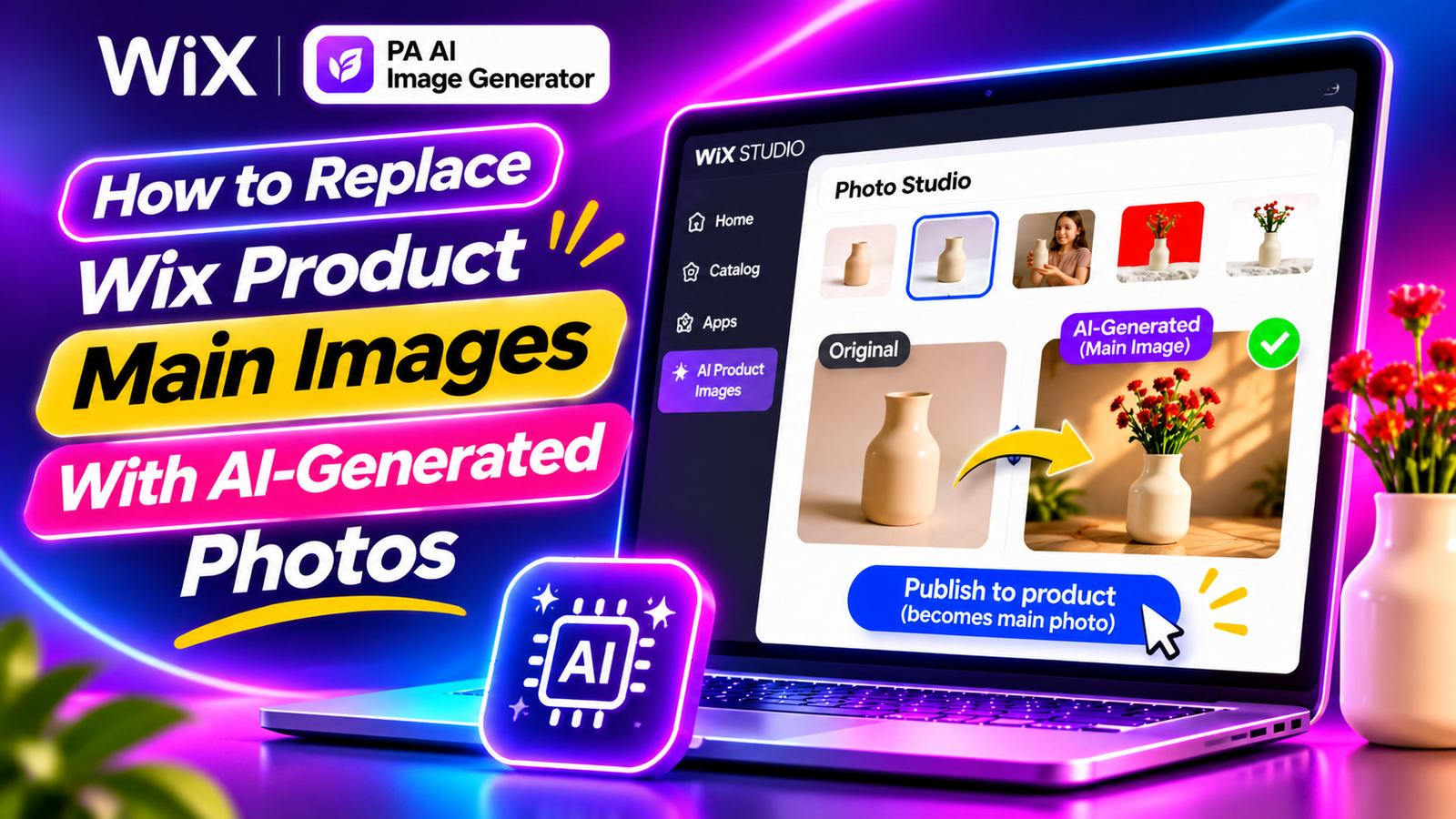
In this tutorial, you’ll learn how to replace Wix product main images with AI-generated photos, including how to select an original photograph, generate an AI scene, review the result, and publish it directly to your Wix store.
Why Your Wix Main Product Image Matters
Your main product image is the primary photograph customers see when browsing product listings and viewing your product page.
An effective main image should make the product easy to identify and accurately represent its appearance.
Professional main images can help you:
-
Create a stronger first impression.
-
Improve product visibility.
-
Make product collections look more organized.
-
Highlight important product details.
-
Maintain consistent visual branding.
-
Present products in attractive environments.
-
Support customer confidence.
Common Problems With Wix Product Main Images
1. Distracting backgrounds
Unwanted objects, cluttered environments, and inconsistent surroundings can take attention away from your products.
2. Poor lighting
Dark photographs, harsh shadows, and uneven brightness may hide important product details.
3. Inconsistent photography styles
Different backgrounds and camera angles can make your product catalog appear disorganized.
4. Unprofessional appearance
Basic product photographs sometimes lack the clean presentation associated with professional ecommerce stores.
5. Expensive photography updates
Arranging a new photoshoot for every product or campaign can become costly.
6. Difficulty replacing existing photographs
Merchants may worry about changing the wrong image or losing access to their original photographs.
What Is an AI-Generated Main Product Image?
An AI-generated main product image is an edited photograph that uses artificial intelligence to create a new visual presentation for an existing product.
For example, you might start with a simple photograph of a ceramic flower vase.
Using AI, you can place the vase in a luxurious studio, create a modern living room background, or add professional-looking lighting.
The new photograph can then be published as the primary product image.
It’s important that the resulting photograph continues to represent the real product accurately.
Introducing PA AI Image Generator for Wix
PA AI Image Generator is a product photography application available on the Wix App Market.
It helps merchants improve product photographs directly from their Wix dashboard.
Its features include background removal, background replacement, AI lifestyle scene generation, custom text prompts, predefined photography environments, before-and-after comparisons, and product image publishing.
One of its most useful features is the ability to publish an edited image using the Publish to product (becomes main photo) option.
App link: PA AI Image Generator – Wix App Market
How to Replace Wix Product Main Images Using AI: Step-by-Step Guide
Step 1: Open the Wix App Market
Open Google and search for Wix App Store.
Click the official Wix App Market result.

Image 1: Search Google for the official Wix App Market.
You can also visit the Wix App Market directly.
Step 2: Search for PA AI Image Generator
Inside the Wix App Market, locate the application search bar.
Enter PA AI Image Generator and search for the application.

Image 2: Search for PA AI Image Generator inside the Wix App Market.
Step 3: Select PA AI Image Generator
Find PA AI Image Generator by TheScriptFlow in the search results.
Click the application to open its listing page.

Image 3: Select PA AI Image Generator from the available search results.
Step 4: Install PA AI Image Generator
On the application’s listing page, click Add to Site.
Follow the installation instructions to connect the app to your Wix store.

Image 4: Click Add to Site to install PA AI Image Generator.
Direct app link: Install PA AI Image Generator
Step 5: Open the App in Your Wix Dashboard
After installation, open your Wix website dashboard.
Navigate to Apps → AI Product Images.

Image 5: Access AI Product Images from your Wix dashboard.
The application displays the products available in your store.
Step 6: Select the Product You Want to Update
Browse your catalog and choose the product whose main image you want to replace.
For this tutorial, we’ll use a Ceramic Flower Vase.

Image 6: Select the Ceramic Flower Vase product from your Wix catalog.
Step 7: Open the Photo Studio
After choosing your product, open the Photo Studio.
The application displays available photographs and image editing options.

Image 7: Open Photo Studio to access your product photographs and AI editing features.
You can remove backgrounds, replace backgrounds, or generate AI scenes.
Step 8: Choose the Original Product Photograph
In Photo Studio, select the image you want to transform.
The interface indicates that the main photograph is selected by default, but you can choose another photograph from the product gallery.

Image 8: Choose the product photograph you want to edit from the available image thumbnails.
Make sure you’ve selected the correct photograph before beginning the editing process.
Step 9: Enter an AI Product Photography Prompt
Scroll to the AI scene section.
Enter a description of how you want the new photograph to look.
For this example, use:

Image 9: Describe the professional photography style you want to create using the AI scene feature.
The purple-background result visible in this screenshot belongs to a previous edit, rather than the new AI scene request.
Step 10: Generate the New AI Product Image
After entering the prompt, click Create AI scene.
The application begins processing the photograph.
During generation, the interface displays Working….
Image 10: Generate the new AI product photograph using your custom prompt.
According to the application interface shown in your screenshots, AI scene generation uses two credits per operation.
Step 11: Review the Original and AI-Generated Images
Once generation finishes, scroll down to the Result section.
The application displays the original product photograph alongside the new AI-generated version.
Image 11: Compare the original ceramic flower vase photograph with the AI-generated studio version featuring dramatic lighting and a dark background.
The AI-generated image gives the vase a more sophisticated advertising-style presentation.
Before publishing, confirm that the product remains accurately represented.
Check the product’s shape, colors, materials, dimensions, textures, and important details.
Step 12: Publish the AI-Generated Photo as the Main Image
Once you’re satisfied with the generated image, click Publish to product (becomes main photo).
This action sets the selected AI-generated photograph as the main image for the Wix product.
The application interface also states that your original photographs remain in the product gallery.
Important: The original photo may remain in the gallery, but the AI-generated photo becomes the new main image.
Step 13: Verify the Updated Product Page
After publishing, open the product page on your Wix website.
Confirm that:
-
The AI-generated photograph appears as the main product image.
-
The image displays correctly on desktop and mobile.
-
The product is accurately represented.
-
The original photographs remain available in the gallery as indicated by the app.
-
No important details have been distorted.
For additional protection, keep an independent backup of your original product photographs.
Best AI Photography Styles for Main Wix Product Images
Choosing the right photography style depends on your product category and brand identity.
| Product category | Recommended main image style |
|---|---|
| Skincare | Clean white studio with soft lighting |
| Jewelry | Premium neutral background with sharp details |
| Home decor | Minimalist studio or elegant interior |
| Fashion accessories | Editorial lighting with a neutral background |
| Electronics | Modern studio with subtle reflections |
| Handmade products | Natural textures and warm lighting |
| Perfumes | Luxury advertising-style studio |
Main Product Images vs. Lifestyle Images
Both image types have different purposes.
Main product images should make the product easy to identify, show important details, and accurately represent the item.
Lifestyle images show the product in context, such as a vase on a table or a handbag being carried.
For many ecommerce stores, a clean main product photograph combined with additional lifestyle images provides a useful balance.
Five AI Prompts for Professional Wix Main Product Images
1. Clean white studio
Create a professional ecommerce product photo with a clean white background, soft natural shadows, centered composition, and accurate product colors and details.
2. Luxury studio
Create a premium commercial product photo with elegant studio lighting, a dark neutral background, and a sophisticated composition. Preserve all original product details.
3. Minimalist catalog
Display my product against a soft cream background with balanced lighting, minimal distractions, and realistic shadows.
4. Home decor
Place my product in a stylish modern interior with natural daylight, subtle decorations, and a professional photography style. Keep the product unchanged.
5. Modern advertising
Create an eye-catching commercial product photograph featuring an elegant background, balanced lighting, and realistic product details.
Benefits of Replacing Wix Main Product Photos With AI
Professional product presentation
AI-generated scenes can help merchants create more polished photographs from existing product images.
Reduced additional photography costs
Merchants can experiment with different backgrounds and lighting without arranging a separate photoshoot for each visual concept.
Consistent product catalogs
Similar prompts and background styles can help maintain a cohesive appearance.
Creative flexibility
Merchants can create different photography variations for seasonal campaigns and promotional materials.
Direct product publishing
PA AI Image Generator provides an option to publish the edited photograph as the product’s main image.
Best Practices Before Replacing Your Main Product Image
Start with a clear original photograph. AI works from the image you select, so good source material is important.
Preserve product accuracy. Ensure the generated image doesn’t misrepresent the product’s shape, color, materials, or features.
Choose an appropriate background. The main photograph should make the product easy to identify.
Avoid excessive visual effects. Dramatic lighting can look attractive, but customers still need to understand what they’re purchasing.
Review before publishing. Compare the generated image with the original.
Keep original photographs. Maintain independent backups of important source images.
Check the published page. Verify that the correct photograph appears as the main image.
Common Mistakes to Avoid
-
Selecting the wrong original photograph.
-
Using overly complicated AI prompts.
-
Generating unrealistic product colors or materials.
-
Publishing without reviewing the result.
-
Using distracting backgrounds for the primary product image.
-
Assuming the original image remains the main photo after publishing.
-
Failing to inspect the updated product page on mobile.
Frequently Asked Questions
How do I replace a Wix product’s main image with an AI-generated photo?
Open PA AI Image Generator, select a product and photograph, create an AI scene, review the result, and click Publish to product (becomes main photo).
Can I create AI product images directly from Wix?
Yes. PA AI Image Generator provides product photography editing tools within the Wix dashboard.
Will my original photographs be deleted?
The application interface states that original photographs remain in the product gallery when an AI-generated photo becomes the main image. Keeping a separate backup is still recommended.
Can I choose which photograph AI edits?
Yes. Photo Studio displays available product image thumbnails and lets you select the photograph to edit.
Can I use AI to create studio-quality photographs?
You can use text prompts to request studio-style backgrounds, lighting, and compositions. Results depend on the original photograph and AI generation.
How many credits does AI scene generation use?
The supplied screenshots indicate two credits per AI scene generation. Check the application for current pricing and usage limits.
Can I restore my previous main product photo?
The screenshots show that original photographs remain in the gallery, but they do not establish a dedicated one-click restoration feature. Check your available product gallery controls before making changes.
Will AI-generated main images increase my sales?
Professional-looking product images can support customer confidence, but they do not guarantee increased sales or conversions.
Conclusion
Replacing outdated or unprofessional Wix product photographs can help improve your online store’s visual presentation.
With PA AI Image Generator, merchants can select existing product photos, generate professional-looking AI scenes, and publish edited photographs directly as their main Wix product images.
The application also indicates that original photographs remain in the product gallery after publishing, giving merchants access to their earlier images.
By combining accurate product representation, professional photography styles, and careful image reviews, you can create a more consistent and appealing ecommerce store.