HOW TO SHOW SALES POPUPS ON MOBILE WITHOUT HURTING THE EXPERIENCE
Shopify Tutorial | Mobile Sales Popups | Social Proof | Mobile Conversion Optimization | AB Sales Popup | 2026

Introduction
Mobile shopping has become an essential part of ecommerce. Customers frequently browse Shopify stores on their phones, compare products, read reviews, and place orders without using a desktop computer.
However, the mobile shopping experience comes with one major challenge: limited screen space.
A sales popup that looks attractive on a desktop can become distracting on a smartphone. It may cover product images, interfere with navigation, or block important buttons.
This doesn’t mean Shopify merchants should avoid sales popups on mobile.
When configured properly, genuine sales notifications can provide useful social proof without disrupting the shopping experience.
In this guide, you’ll learn how to display mobile-friendly sales popups using AB Sales Popup, including how to customize positioning, timing, appearance, and notification content without editing theme code.
Why Sales Popups Can Be a Problem on Mobile
Mobile visitors interact with ecommerce websites differently from desktop users.
A mobile screen has less room for product information, navigation, sticky Add to Cart buttons, chat widgets, and promotional messages.
Baymard Institute’s mobile ecommerce usability research highlights the challenges customers face when navigating shopping websites on smaller screens. Baymard
Poorly configured sales popups can create several problems.
Popups cover important buttons
A notification appearing over an Add to Cart button may interrupt customers who are ready to purchase.
Notifications occupy too much screen space
Large popups can make product images or descriptions difficult to view.
Popups appear too frequently
Repeated notifications may distract customers from evaluating a product.
Customers cannot dismiss popups easily
A difficult-to-close notification can be particularly frustrating on a touchscreen.
Notifications compete with other widgets
Chat buttons, cookie notices, and sticky cart bars may already occupy part of the screen.
Why Mobile-Friendly Sales Popups Matter
Sales popups should communicate genuine customer purchasing activity without becoming the main focus of the page.
A properly configured mobile notification can display authentic purchases, complement the store’s design, and remain unobtrusive.
The objective is not to make every visitor notice a popup. It is to make useful purchase information available while keeping the shopping experience comfortable.
Introducing AB Sales Popup
AB Sales Popup is a Shopify application that allows merchants to configure purchase notifications and other social proof features.
Its Sales Notifications feature supports custom themes, dynamic purchase information, notification timing, desktop and mobile positioning, and product targeting.
The application also offers visitor counters, sold counters, stock countdown bars, and promotional countdown timers.
App link: AB Sales Popup — Shopify App Store
Step-by-Step Guide: How to Optimize Shopify Sales Popups for Mobile
Step 1: Open the Shopify App Store
Open Google and search for Shopify App Store, then select the official result.

Image 1: Find the official Shopify App Store using Google.
Image explanation: The screenshot highlights the official Shopify App Store result. You can also visit apps.shopify.com directly.
Step 2: Search for AB Sales Popup
Inside the Shopify App Store, search for AB Sales Popup.

Image 2: Locate AB Sales Popup in the Shopify App Store results.
Image explanation: The application is highlighted in the search results. Select the listing with the black-and-yellow notification bell icon.
Step 3: Install and Open AB Sales Popup
Open the app listing and click Install. If the application is already installed, select Open.
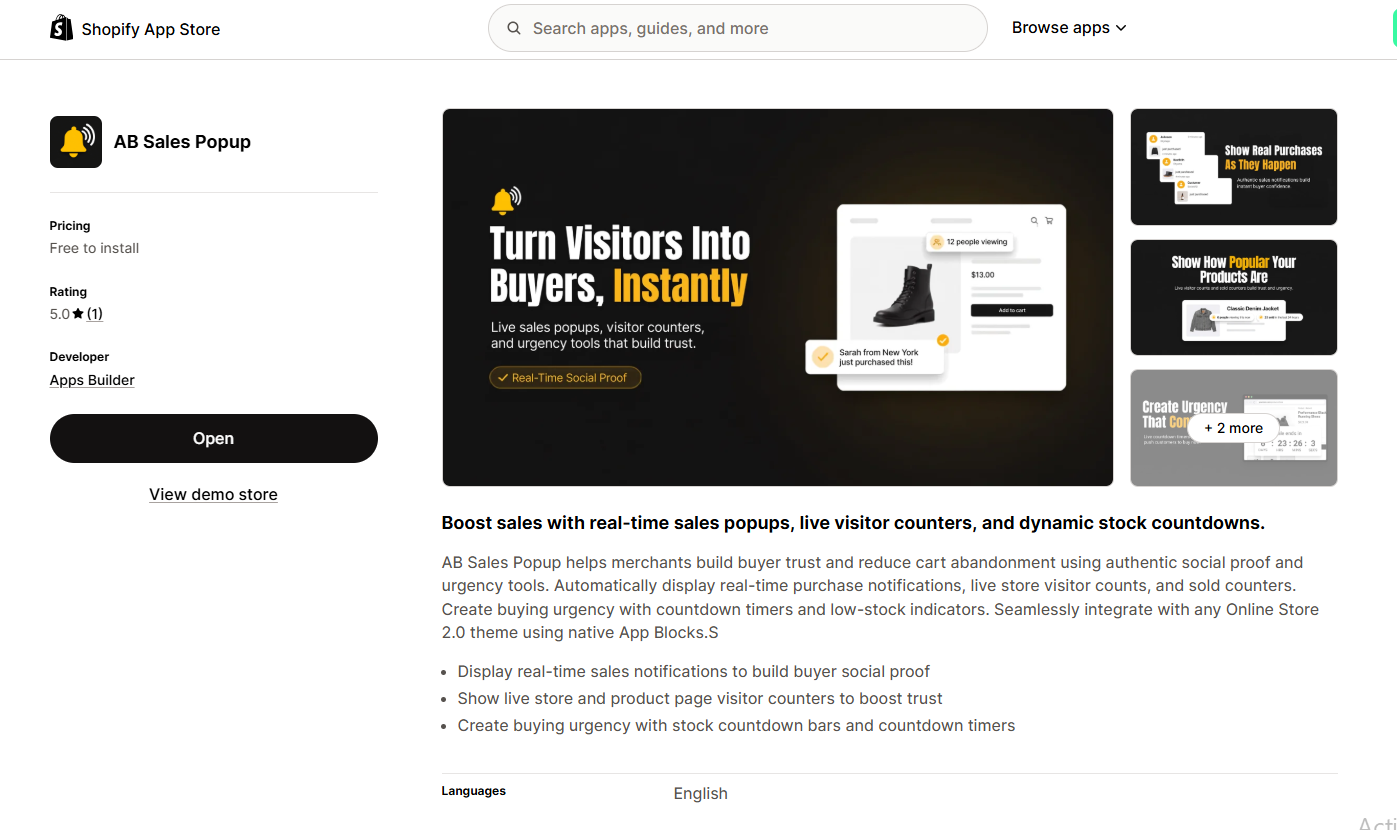
Image 3: The AB Sales Popup listing displaying its purchase notification and social proof features.
Image explanation: The listing introduces the application’s sales notifications and other engagement tools.
Once installed, access it through your Shopify Admin.
Step 4: Enable Sales Notifications
Navigate to Shopify Admin → Apps → AB Sales Popup → Dashboard.
Scroll down to the Manage Features section.

Image 4: AB Sales Popup dashboard displaying Sales Notifications and the available controls.
Image explanation: The dashboard displays Sales Notifications, Countdown Timer, Stock Countdown, Visitor Counter, and Sold Counter.
Ensure Sales Notifications is enabled, then click Settings or use the Sales Notifications option in the sidebar.
Step 5: Select a Mobile-Friendly Popup Theme
Open the Popup Content tab.
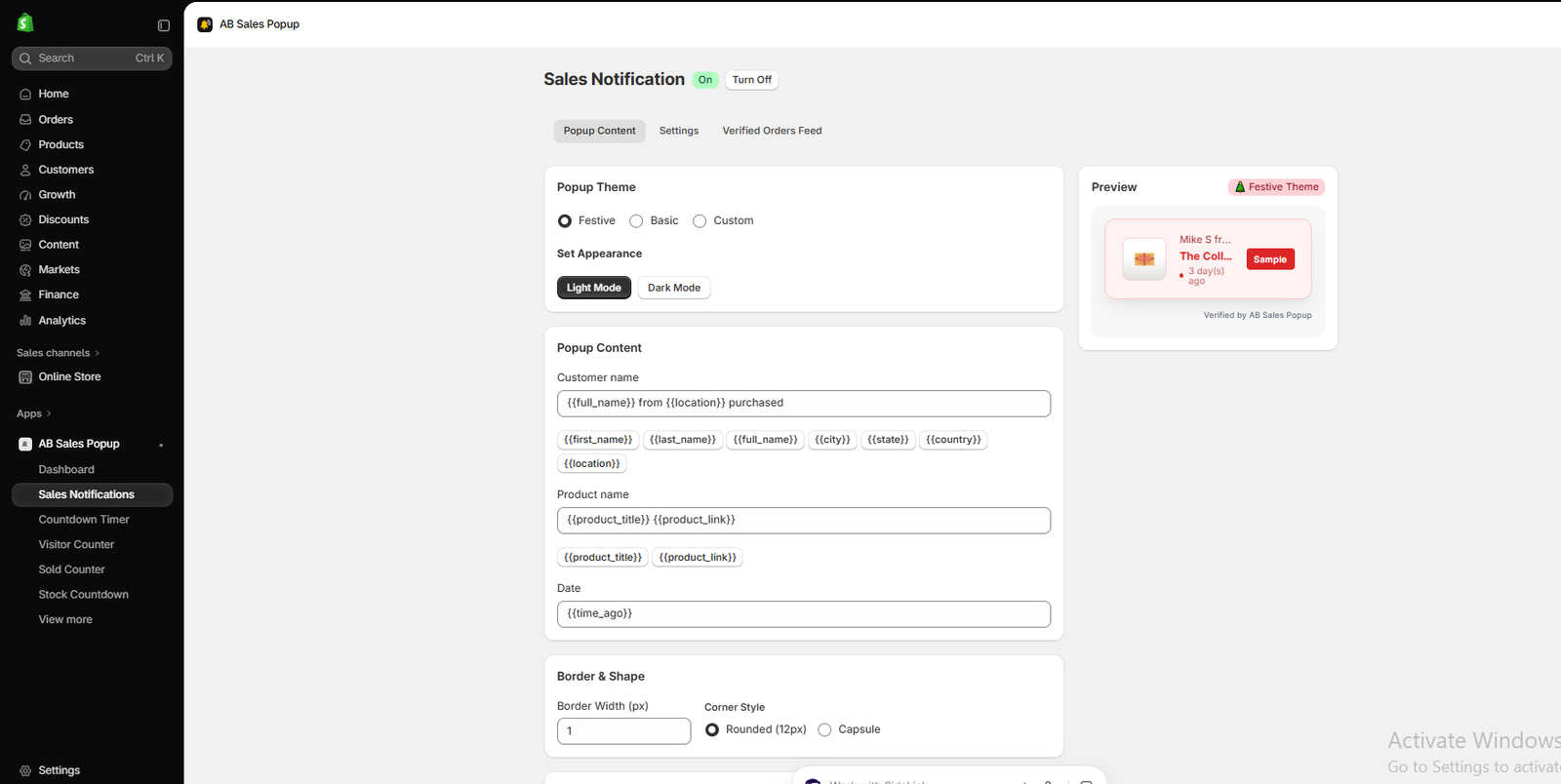
Image 5: Popup Content settings showing Festive, Basic, and Custom theme options.
Image explanation: AB Sales Popup offers three theme options and Light Mode or Dark Mode.
For mobile shoppers, the Basic theme is a sensible starting point because it uses a relatively simple layout.
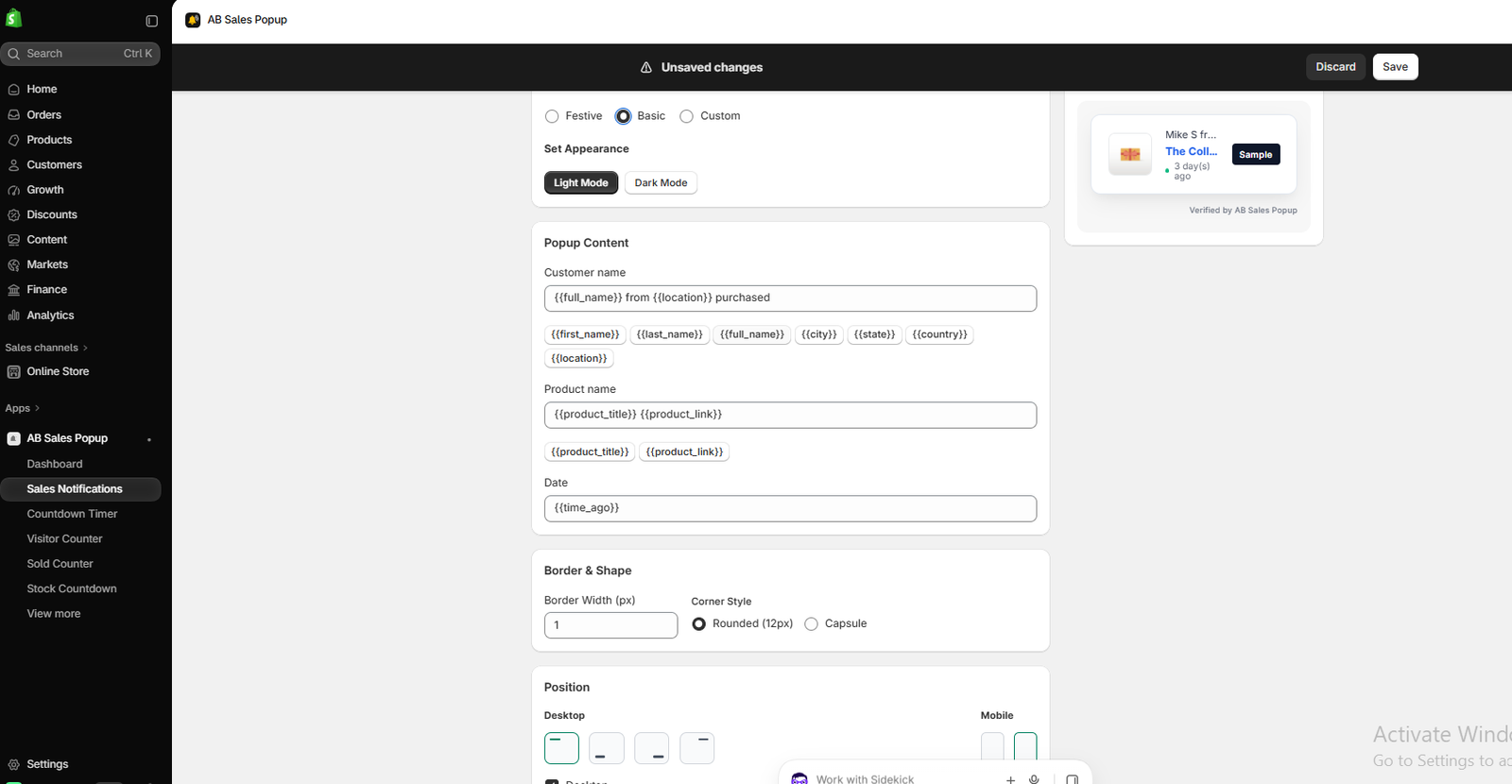
Image 6: The Basic notification design with a compact purchase-information preview.
Choose a theme that is easy to read and doesn’t overwhelm your storefront. Preview it on an actual phone before deciding which design to publish.
Step 6: Customize Popup Colors and Borders
Select Custom if you want to match the notification to your brand.

Image 7: Custom Color Palette controls for background, text, accent, and border colors.
Image explanation: Your screenshot shows four adjustable color fields.
A simple combination such as a white background, dark text, and a subtle border can make the notification easier to read.
Avoid excessive color contrast or flashing visual effects that distract visitors from shopping.
Step 7: Keep Mobile Popup Content Short
Scroll to Popup Content.

Image 8: Configuring purchase-notification content and popup shape.
Image explanation: The screenshot shows fields for Customer name, Product name, and Date.
The app supports dynamic variables such as {{first_name}}, {{location}}, {{product_title}}, and {{time_ago}}.
For mobile displays, keep messages concise and based on genuine purchase data.
A long customer name, product title, or location can make a notification difficult to read on smaller screens.
You can also choose Rounded or Capsule styling in the Border & Shape section.
Step 8: Choose a Suitable Mobile Popup Position
In the same editor, scroll down to Position.

Image 9: The Position section provides separate placement options for desktop and mobile.
Image explanation: At the bottom of your supplied screenshot, the app shows desktop position choices on the left and mobile position choices on the right.
The Mobile section includes two position options, which let you choose the vertical side of the screen.
Choose the position that least interferes with your theme’s important controls.
For instance, if your Shopify store uses a sticky Add to Cart button at the bottom of the mobile screen, test whether positioning the popup higher is less disruptive.
The appropriate position depends on your theme, navigation layout, chat widgets, and other fixed elements.
Step 9: Adjust Notification Timing for Mobile Visitors
Open the Settings tab.

Image 10: Display settings for initial delay, display duration, and time between sales notifications.
Image explanation: The screenshot shows an initial delay of 2 seconds, a display duration of 5 seconds, and 5 seconds between notifications.
Those are the screenshot’s values, not necessarily the best settings for every mobile store.
For a less intrusive experience, consider testing:
| Setting | Suggested starting point |
|---|---|
| Initial delay | 8–12 seconds |
| Display duration | 4–6 seconds |
| Delay between notifications | 20–30 seconds |
| Popup design | Basic or minimal Custom |
| Mobile placement | Away from purchase controls |
| Close button | Visible |
These are experimental starting points, not guaranteed conversion-optimized values.
Step 10: Give Mobile Customers Control
Scroll to Advanced Settings.

Image 11: Advanced settings including cart-page notification controls and the option to hide the close button.
Image explanation: The app provides an option labeled Hide the close button.
For a better mobile experience, consider leaving that option unchecked so customers can dismiss the notification.
Also consider selecting Disable popups on cart page to prevent unnecessary interruptions during the purchase process.
Step 11: Save and Activate the Sales Popup
Click Save to store your notification settings.
Return to the dashboard and select Enable App Embed under Sales Notifications.
In Shopify Admin, open Online Store → Themes → Edit theme, then go to App embeds and activate the appropriate app embed.
Save your changes.
Shopify’s official documentation confirms that app embeds can be enabled and managed from the theme editor. Extend your theme with apps
Step 12: Test Sales Popups on Mobile Before Publishing
Open your theme editor and switch to mobile preview.
Shopify provides a mobile preview control so you can inspect how your storefront appears on smaller screens. Theme editor features overview
Check that the popup does not cover the Add to Cart button, product variants, navigation, or sticky purchasing controls.
Test the storefront on a real phone as well, since the editor preview may not reveal every interaction issue.
Your supplied screenshots show the app’s desktop settings and mobile positioning controls, rather than a completed phone-sized storefront preview.
Desktop vs Mobile Sales Popups
| Feature | Desktop | Mobile |
|---|---|---|
| Available screen space | Larger | Limited |
| Popup size | Can be moderately larger | Should remain compact |
| Position | Multiple corners may work | Avoid fixed purchase controls |
| Content length | More space available | Short and readable |
| Notification frequency | Test carefully | Usually worth testing less frequently |
| Close button | Important | Especially important |
Frequently Asked Questions
1. Are sales popups good for mobile Shopify stores?
They can provide useful social proof when based on genuine purchases and designed to avoid obstructing mobile shopping.
2. Can sales popups hurt mobile conversions?
Yes. Notifications that are too large, too frequent, or poorly positioned may distract customers and interrupt purchasing.
3. Can I change the mobile popup position without coding?
Yes. AB Sales Popup includes separate position controls for desktop and mobile.
4. How long should a mobile sales popup stay visible?
You can start by testing 4–6 seconds, then adjust according to content length and actual customer behavior.
5. Should I disable popups on the cart page?
Consider doing so when notifications could interfere with the purchase process.
6. Can mobile customers dismiss sales notifications?
AB Sales Popup provides a setting to hide the close button. Leave the close button visible when you want visitors to dismiss notifications.
7. Should I show fake purchase notifications on mobile?
No. Purchase notifications should represent authentic customer activity, regardless of device type.
8. How do I test my Shopify mobile popup design?
Use Shopify’s mobile theme preview and test your storefront on real smartphones. Check positioning, readability, timing, and interference with important buttons.
Conclusion
Sales popups can add useful social proof to a Shopify store, but the mobile shopping experience should always come first.
Large, frequent, or poorly positioned notifications can frustrate customers and interfere with purchasing.
By choosing a compact design, using genuine purchase information, adjusting notification timing, and selecting an appropriate mobile position, merchants can create a more balanced experience.
With AB Sales Popup, Shopify merchants can customize sales notifications, manage desktop and mobile placement, and control when popups appear through a visual interface.
The best mobile sales popup is one that provides useful information without interrupting the customer’s shopping journey.Install AB Sales Popup on Shopify




