SALES POPUPS VS VISITOR COUNTERS: WHICH FITS YOUR SHOPIFY STORE?
Shopify Guide | Sales Popups | Live Visitor Counters | Social Proof | AB Sales Popup | 2026

Introduction
Building customer trust is one of the biggest challenges for Shopify merchants, especially when running a new online store.
You might have attractive product images, competitive pricing, and a professional storefront, but visitors may still leave without purchasing.
One possible reason is uncertainty. Customers may wonder whether other people are buying from your store or whether your products are popular.
This is where sales popups and live visitor counters can help.
Both tools provide social proof, but they communicate different types of customer activity.
A sales popup displays information about a genuine purchase, while a visitor counter shows how many people are currently browsing your store or a particular product page.
For example:
- Sales popup: “Someone from New York purchased Running Sneakers 10 minutes ago.”
- Visitor counter: “12 people are currently browsing this store.”
Both can provide useful information, but which one is more suitable for your Shopify business?
In this guide, we’ll compare sales popups and visitor counters, explain their benefits, and show you how to configure both using AB Sales Popup, with actual screenshots from the application.
What Are Sales Popups on Shopify?
Sales popups are small notifications that display purchase activity on a Shopify storefront.
They usually contain information such as the purchased product, purchase time, and limited customer or location details.
When connected to authentic orders, sales popups demonstrate that customers have already made purchases from the store.
Benefits of sales popups
Sales popups can help merchants communicate genuine purchasing activity, highlight products customers are buying, and strengthen credibility.
They are particularly useful for stores with an established order history.
However, displaying notifications too frequently can distract shoppers, so merchants should carefully configure popup timing and placement.
What Is a Live Visitor Counter on Shopify?
A live visitor counter displays the number of visitors browsing your Shopify store or product pages during a defined period.
For example, it might display:
12 people are currently viewing this store
Illustrative example only. The count is not live visitor data.
Visitor counters help customers understand current browsing activity.
Unlike sales popups, visitor counters do not represent completed purchases.
They show visitor activity rather than transaction history.
Benefits of visitor counters
A visitor counter can communicate genuine store activity, be displayed in a compact format, and provide a simple visual signal of interest.
For newer Shopify stores that have traffic but few completed purchases, a truthful visitor counter may be more useful than an empty purchase notification feed.
Sales Popups vs Visitor Counters: Key Differences
| Feature | Sales Popups | Visitor Counters |
|---|---|---|
| Main purpose | Show actual purchase activity | Show active visitors |
| Data source | Customer orders | Website sessions |
| Social proof type | Completed purchases | Current browsing interest |
| Display | Popup notification | Compact counter |
| Best for | Stores with order history | Stores with active traffic |
| Customization | Themes, content, position, timing | Text, colors, icon, counter style |
| Main consideration | Purchase authenticity | Accurate visitor counts |
Neither tool automatically increases conversions. The right choice depends on your store’s traffic, purchase history, and customer experience.
Introducing AB Sales Popup for Shopify
AB Sales Popup provides Shopify merchants with multiple social proof and urgency tools through a single application.
Its features include:
- Sales Notifications
- Visitor Counter
- Sold Counter
- Stock Countdown
- Countdown Timer
Merchants can configure both sales popups and visitor counters without manually editing Shopify theme code.
App link: AB Sales Popup — Shopify App Store
Step-by-Step Guide: How to Set Up Sales Popups and Visitor Counters on Shopify
Step 1: Search for the Shopify App Store
Open Google in your browser and type Shopify App Store into the search bar.
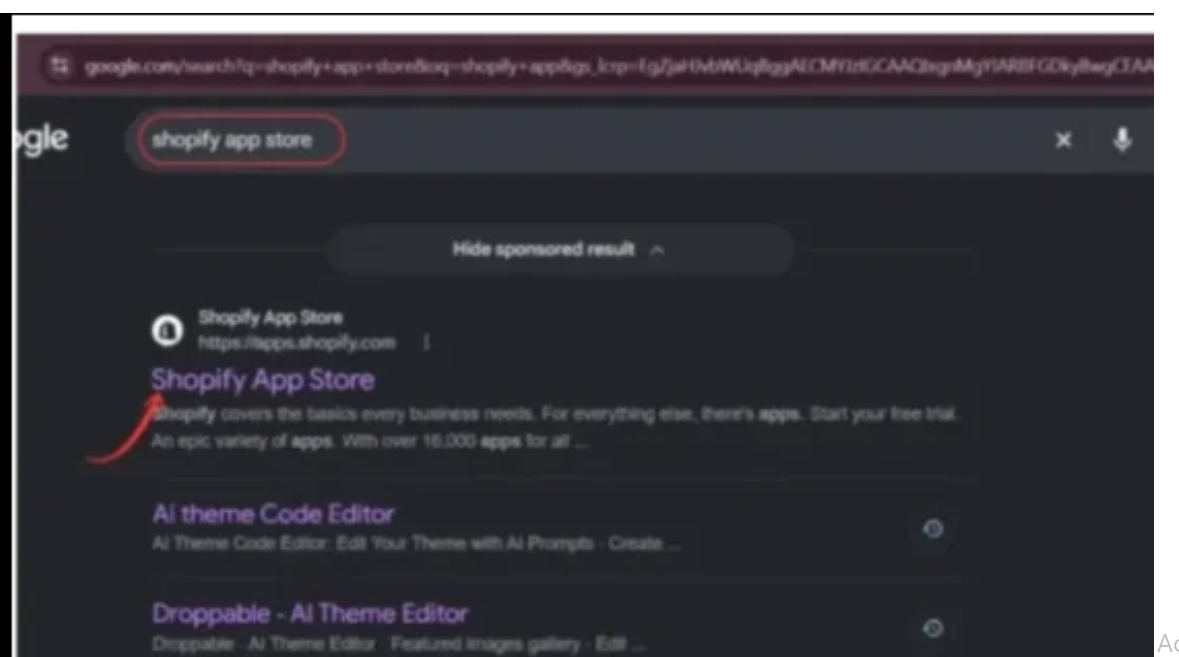
Image 1: Searching Google for the official Shopify App Store.
Image explanation: The screenshot shows the Shopify App Store search result highlighted with a red arrow.
Click the official result to access the Shopify App Store. Alternatively, visit apps.shopify.com.
Step 2: Search for AB Sales Popup
After opening the Shopify App Store, locate the search bar and type AB Sales Popup.

Image 2: Finding AB Sales Popup in the Shopify App Store search results.
Image explanation: The screenshot highlights AB Sales Popup with a red circle.
Look for the black app icon featuring a yellow notification bell. The listing describes sales popups, visitor counters, and urgency features.
Click the application to open its details page.
Step 3: Install and Open AB Sales Popup
On the app listing, review the available features and click Install.
If the application is already installed, click Open.
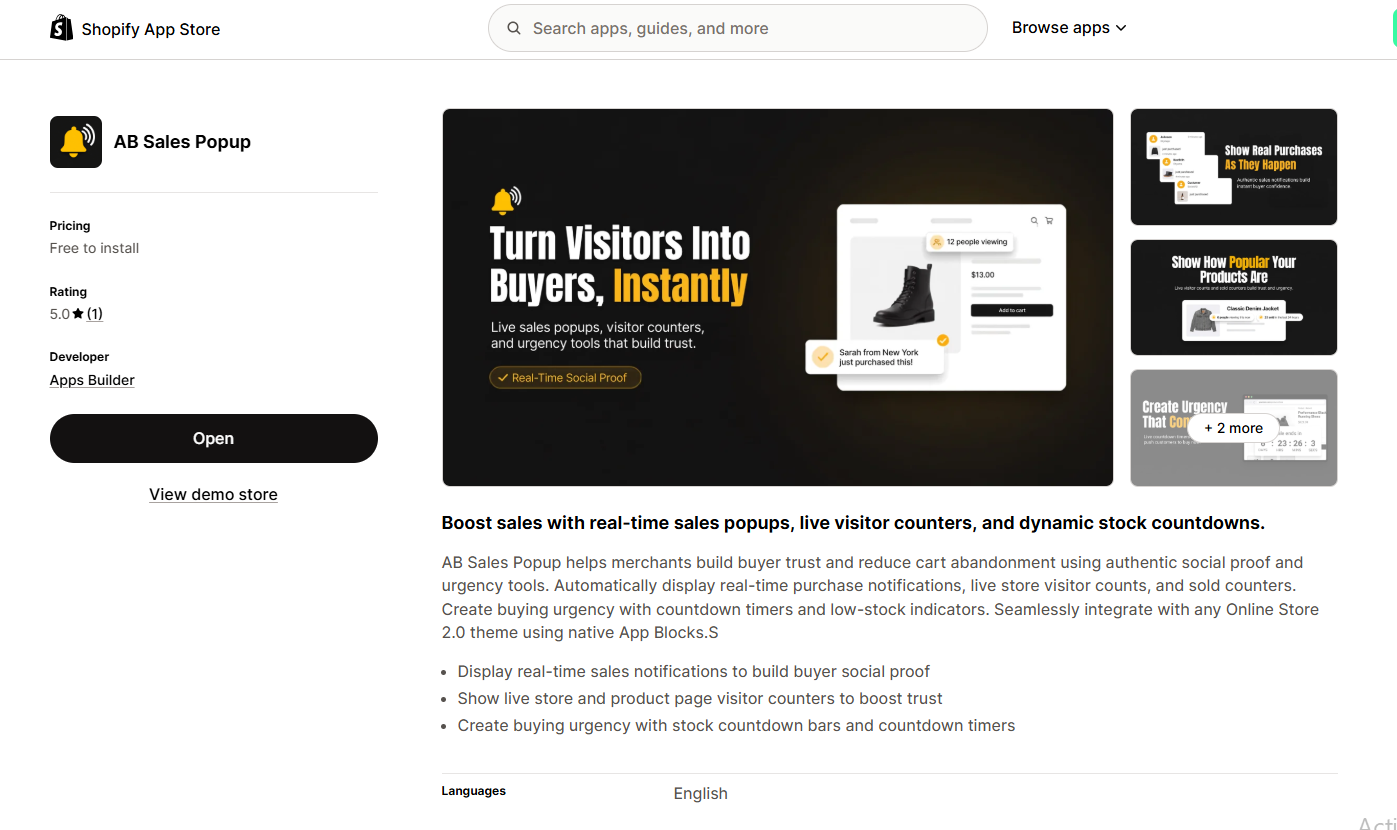
Image 3: Official AB Sales Popup listing displaying the app description, screenshots, and Open button.
Image explanation: Your screenshot shows the AB Sales Popup listing and its main promotional image.
The app is designed to help Shopify merchants display sales notifications, visitor counters, and other urgency elements.
Once installation is complete, the application will be accessible through your Shopify Admin.
Step 4: Open the AB Sales Popup Dashboard
Navigate to:
Shopify Admin → Apps → AB Sales Popup → Dashboard
Scroll down to Manage Features.

Image 4: AB Sales Popup dashboard showing Sales Notifications, Visitor Counter, and other available features.
Image explanation: The dashboard provides separate cards for Sales Notifications, Countdown Timer, Stock Countdown, Visitor Counter, and Sold Counter.
Each feature includes an enable/disable toggle and relevant configuration options.
For this comparison, focus on two sections:
Sales Notifications: Used to display purchase activity.
Visitor Counter: Used to show active visitor counts.
We’ll configure both so you can evaluate which one fits your Shopify store.
Part 1: How to Set Up Sales Popups on Shopify
Step 5: Enable and Customize Sales Notifications
From the dashboard, click Settings under Sales Notifications, or select Sales Notifications from the left sidebar.
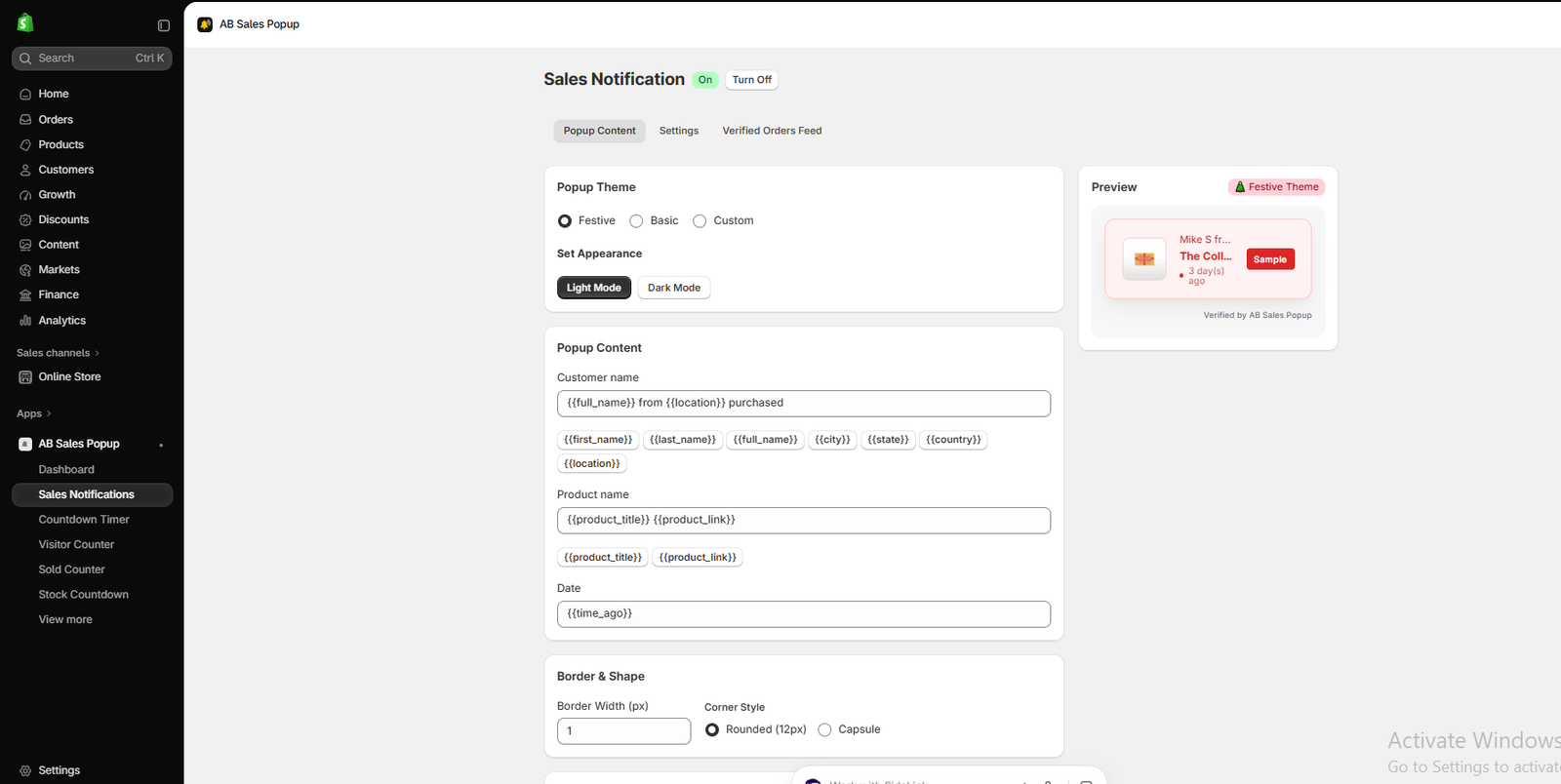
Image 5: Sales Notification settings showing popup themes, appearance options, purchase information, and live preview.
Image explanation: Your screenshot shows the Sales Notification feature turned On.
Under Popup Theme, you can select Festive, Basic, or Custom.
The screenshot shows the Festive theme selected, with Light Mode enabled.
The Popup Content section contains fields for customer name, product name, and date.
For example, the customer name field contains:
{{full_name}} from {{location}} purchased
The product name field uses {{product_title}} and {{product_link}}.
The date field uses {{time_ago}}.
These variables allow the notification to display order-related information when suitable data is available.
The Preview panel on the right demonstrates the notification design.
For genuine social proof, ensure that the displayed purchases correspond to authentic orders. Use privacy-conscious customer information, and do not present sample notifications as verified purchases.
Step 6: Configure Sales Popup Timing and Targeting
Next, open the Settings tab.

Image 6: Configuring sales popup delay, display duration, notification frequency, and product targeting.
Image explanation: The screenshot shows several important settings:
| Setting | Example value |
|---|---|
| Initial delay | 2 seconds |
| Display duration | 5 seconds |
| Delay between notifications | 5 seconds |
| Randomize delay | Off |
| Show notifications in random order | Off |
The Initial delay controls how long the app waits before displaying a notification.
The Display duration controls how long each notification remains visible.
The Delay between notifications sets the time between consecutive popups.
Below those options, Show Notification On allows you to select products or collections.
Choose where notifications should appear and use reasonable delays to avoid disrupting the customer’s shopping experience.
Step 7: Activate Sales Popups on Your Storefront
After completing your settings, click Save.
Return to the AB Sales Popup dashboard and locate Sales Notifications.
Click Enable App Embed and enable the related app embed inside your Shopify theme editor.
Save your theme and preview the storefront.
Check that notifications appear correctly on desktop and mobile, do not cover important buttons, and use genuine purchase information.
Part 2: How to Add a Live Visitor Counter to Shopify
Step 8: Open the Visitor Counter Feature
Return to the AB Sales Popup dashboard.
Locate Visitor Counter under Manage Features.
Click Settings, or select Visitor Counter from the left sidebar.
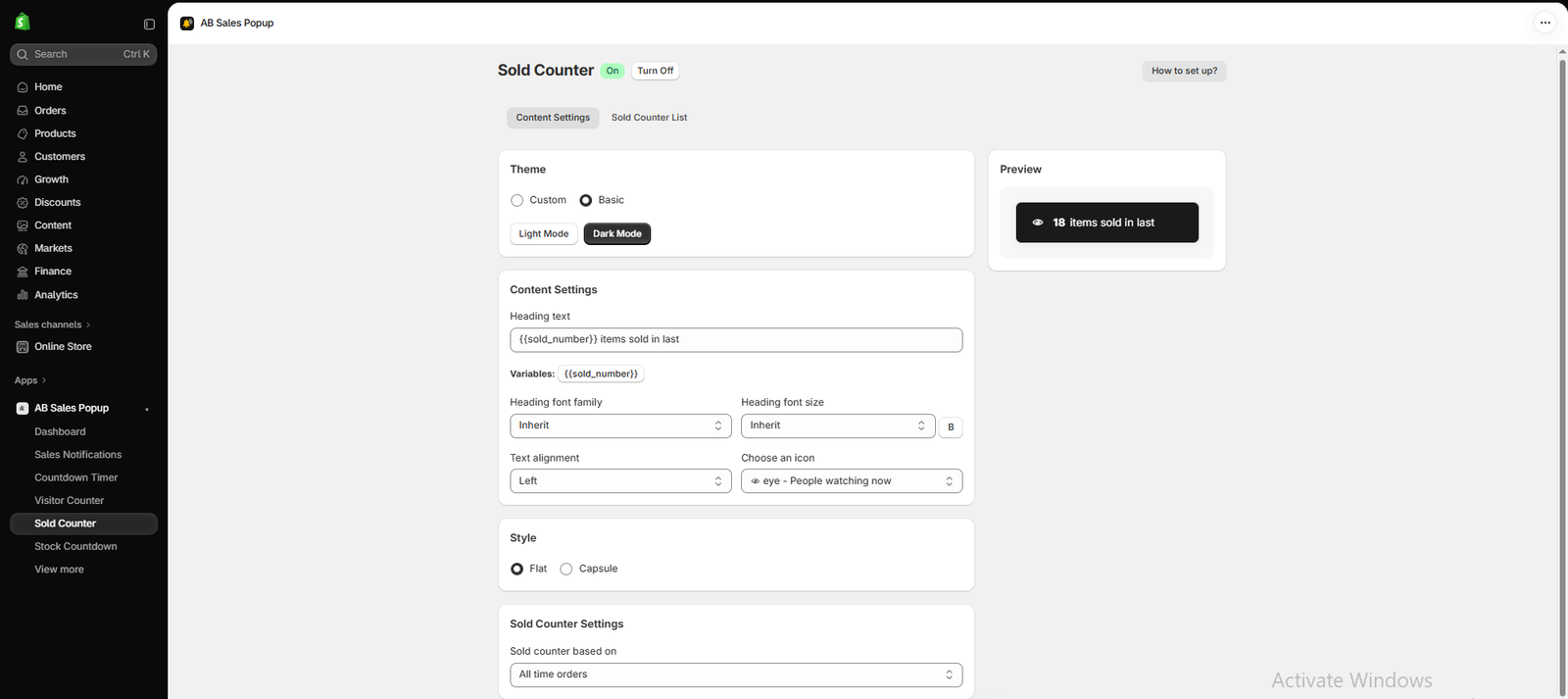
Image 7: Visitor Counter settings showing theme selection, colors, dynamic visitor count, and live preview.
Image explanation: Your screenshot shows the Visitor Counter feature enabled.
At the top, the app explains that the counter reflects verified, real-time customer sessions within the selected time window.
The Preview panel shows an example reading 3 users are present on our store.
This is a screenshot preview, not a live count of your current visitors.
Under Theme, the app provides Custom and Basic styling options.
The screenshot shows a custom appearance with these example values:
| Setting | Example value |
|---|---|
| Background | #FFFFFF |
| Font color | #000000 |
| Visitor count color | #FF6666 |
| Icon color | #FF6666 |
You can adjust the colors to match your Shopify brand.
Step 9: Customize Visitor Counter Text and Live Visitor Data
Scroll down to the Content Settings section.

Image 8: Editing the Visitor Counter heading, dynamic visitor variable, typography, visitor source, and counter style.
Image explanation: The screenshot shows the Heading text field containing:
{{visitor_number}} users are present on our store.
The {{visitor_number}} variable represents the visitor count supplied by the app.
You can customize the accompanying text using the available presets.
For example, you could use a message explaining how many people are currently browsing the store.
Below the heading settings, the screenshot shows:
Base visitor count on: Live Visitors (Last 5 minutes).
Visitor source: Store.
Style: Flat, with Capsule also available.
The selected five-minute window means the counter is based on sessions within that recent period, not necessarily the number of people viewing the same page at the exact same second.
For accurate social proof, keep the counter linked to genuine visitor sessions and describe the metric truthfully.
Step 10: Customize Visitor Counter Appearance
The Visitor Counter settings also provide controls for typography, icon choice, and display style.
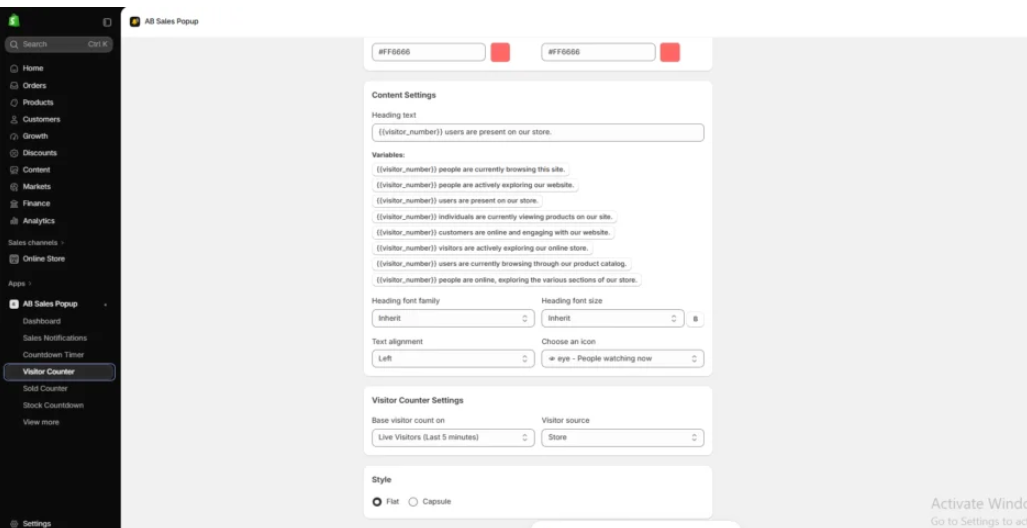
You can select the heading font family, font size, text alignment, and an icon.
Choose a design that is readable and complements the rest of your product page.
A compact Flat style may work well for a minimal Shopify storefront, while Capsule can provide a more prominent counter appearance.
Avoid making the counter so large that it interferes with product information.
Step 11: Add the Visitor Counter to Your Shopify Theme
After configuring the Visitor Counter, save your settings.
Return to AB Sales Popup → Dashboard → Visitor Counter and click Enable App Block.

Open your Shopify theme editor and navigate to the product page template where you want the counter to appear.
Add the Visitor Counter app block to a supported section and place it near relevant product information.
Save your theme changes.
Your supplied screenshots show the Visitor Counter app settings and the Enable App Block control, but not its final placement in the Shopify theme editor. No unrelated screenshot has been substituted.
Step 12: Preview Both Features and Compare Their Appearance
Open your Shopify storefront.
Check the Sales Notifications feature to confirm that genuine purchase popups display properly.
Then check the Visitor Counter to verify that the displayed activity accurately reflects the configured visitor measurement.
Test each feature on desktop and mobile.
Make sure neither one covers important elements such as product prices, variant selectors, or Add to Cart buttons.
Which Is Better: Sales Popups or Visitor Counters?
The right choice depends on your store’s current situation.
Sales popups may be better when your store has regular orders
If your Shopify store already receives consistent purchases, sales notifications can highlight genuine purchase activity.
They may be especially useful when introducing a successful product to new shoppers.
Visitor counters may be better when your store has traffic but limited order history
If your Shopify store is relatively new but receives visitors, a visitor counter can communicate real browsing activity without inventing purchases.
However, if very few people are currently visiting the store, the counter may offer little social proof.
Using both can work when each adds value
Sales notifications and visitor counters communicate different information, so they can complement each other.
For example, a compact visitor counter could appear near product information while occasional genuine purchase notifications appear in a lower corner.
The important point is to avoid overwhelming customers with too many alerts.
Which Tool Fits Your Shopify Store?
| Store situation | Suggested starting point |
|---|---|
| New store with very few orders | Visitor Counter, if there is meaningful real traffic |
| Established store with regular purchases | Sales Popups |
| Store with strong traffic and sales | Test both together |
| Minimalist premium store | Compact Visitor Counter |
| Store running frequent promotions | Sales Popups with carefully controlled timing |
These are starting recommendations, not guaranteed conversion outcomes.
Best Practices for Using Social Proof on Shopify
Always display genuine data
Sales notifications should reflect actual orders, and visitor counters should show accurately measured traffic.
Avoid excessive notifications
Too many popups can interrupt customers and reduce the quality of their browsing experience.
Choose mobile-friendly designs
Both features should work properly on smaller screens without covering essential purchasing controls.
Use consistent styling
Match your notifications and counters to your Shopify theme’s fonts, colors, and layout.
Test which feature performs better
Compare conversion rates, add-to-cart activity, and customer behavior when using sales popups, visitor counters, or both.
An A/B test can help determine which approach is more suitable for your audience.
Frequently Asked Questions
1. What is the difference between sales popups and visitor counters?
Sales popups show purchase activity, while visitor counters display recent or current browsing activity.
2. Are sales popups better than visitor counters?
Not necessarily. Sales popups are useful when you have genuine purchase activity, while visitor counters can be helpful when you have meaningful visitor traffic.
3. Can I use both on my Shopify store?
Yes. AB Sales Popup provides separate Sales Notifications and Visitor Counter features.
4. Can I customize sales popup positions?
Yes. The Sales Notifications interface includes separate desktop and mobile positioning controls.
5. Can I change visitor counter colors?
Yes. You can customize background, text, number, and icon colors.
6. Can I show genuine customer purchases?
The application includes a Verified Orders Feed tab. Verify that your purchase notification data accurately represents real orders before publishing.
7. Does a visitor counter show exact live traffic?
The screenshot shows a configurable metric based on Live Visitors (Last 5 minutes). Its meaning depends on the time window and visitor source selected.
8. Do sales popups and visitor counters increase conversions?
They may help communicate relevant social proof, but results vary. Test them against your store’s actual conversion performance.
Conclusion
Sales popups and visitor counters can both help Shopify merchants make genuine customer activity more visible.
However, they serve different purposes.
Sales popups are generally better suited to stores that have authentic purchase activity worth highlighting.
Visitor counters can help communicate active browsing interest, making them useful when a store has meaningful traffic.
If your Shopify store has both traffic and regular sales, you can also test both features together.
With AB Sales Popup, merchants can configure sales notifications, customize visitor counters, adjust their appearance, and manage display settings through a single Shopify application.
For the best results, prioritize accurate data, professional styling, and a shopping experience that respects customer attention.
Want to add sales popups or a live visitor counter to your Shopify store?Install AB Sales Popup on Shopify




