HOW TO CREATE SEASONAL PRODUCT BACKGROUNDS FOR YOUR WIX STORE USING AI
Introduction
Seasonal product photography is an effective way to refresh your Wix online store throughout the year. Customers often respond to visual content that reflects the current season, whether it’s colorful spring flowers, sunny summer scenes, cozy autumn interiors, or elegant winter settings.
However, creating separate product photoshoots for every season can be expensive and time-consuming. Merchants may need different locations, models, decorations, lighting setups, and photography equipment.
Fortunately, AI-powered product photography makes seasonal image creation more accessible.
With PA AI Image Generator, Wix merchants can transform existing product photographs into seasonal lifestyle images using text prompts.
In this tutorial, you’ll learn how to create seasonal product backgrounds for your Wix store using AI, including step-by-step examples for spring, summer, autumn, and winter.
Why Seasonal Product Photography Matters
Seasonal photography helps keep your ecommerce store visually relevant throughout the year.
It can help you:
-
Refresh product pages without arranging new photoshoots.
-
Create seasonal advertising visuals.
-
Maintain customer interest with new imagery.
-
Develop content for seasonal promotions.
-
Experiment with different colors and environments.
-
Present existing products in new lifestyle settings.
-
Maintain consistent branding across campaigns.
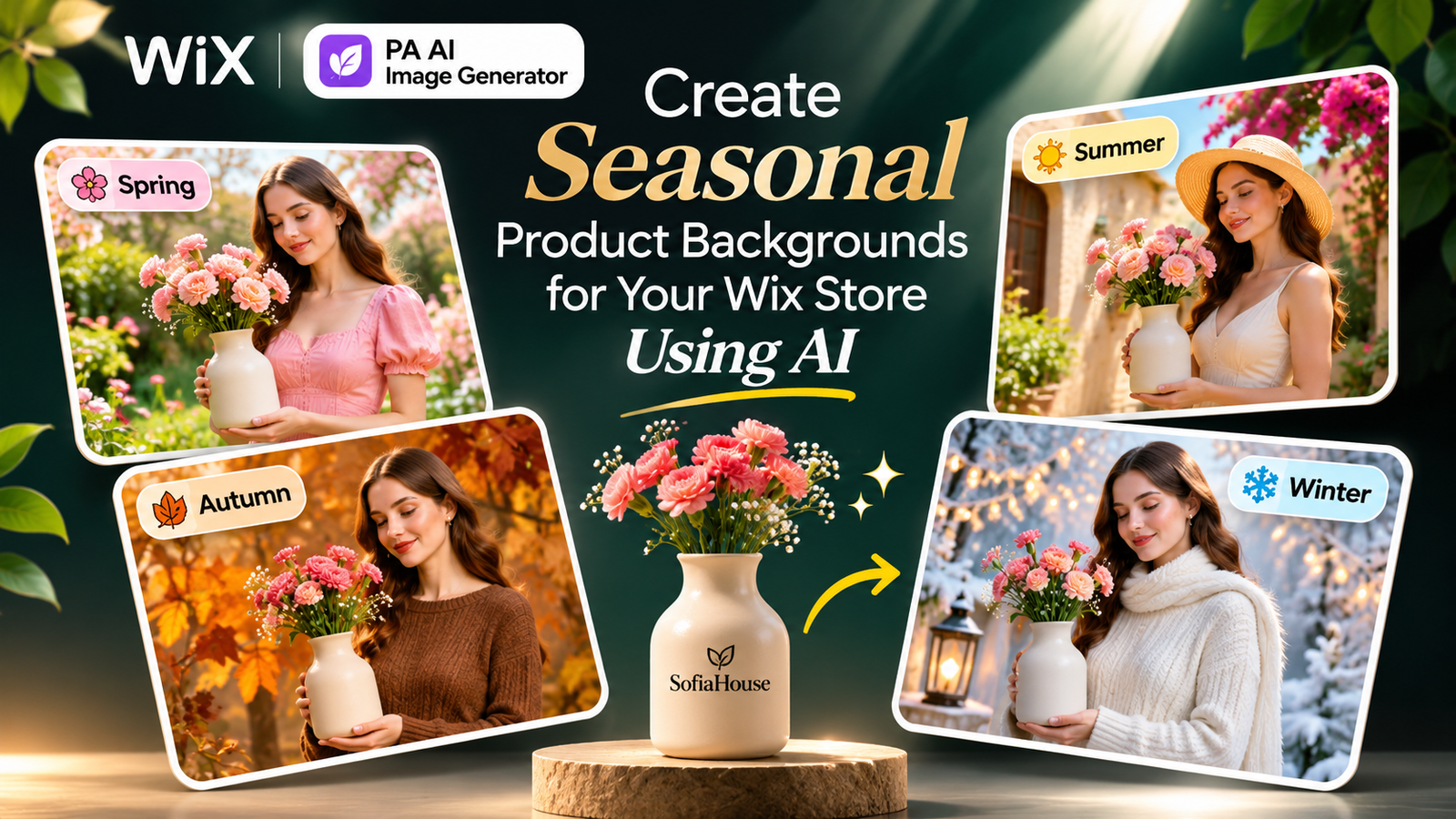
For example, a ceramic flower vase can appear in a bright spring garden, a sunny Mediterranean setting, a cozy autumn interior, or an elegant winter environment.
Common Challenges With Seasonal Product Photography
Expensive seasonal photoshoots: Arranging different photography locations and decorations for each season can increase business expenses.
Limited photography equipment: Small ecommerce businesses may not have professional cameras, lighting, or seasonal props.
Time-consuming image editing: Creating seasonal backgrounds manually can require advanced editing skills.
Inconsistent photography styles: Using different photographers or editing methods may produce inconsistent results.
Limited lifestyle images: Merchants may have ordinary product photographs but need seasonal marketing visuals.
What Are AI Seasonal Product Backgrounds?
AI seasonal product backgrounds are digitally generated environments that reflect a specific season or campaign.
For example, an existing product photograph can be transformed into:
-
A spring garden with flowers and greenery.
-
A sunny summer scene with warm golden lighting.
-
A cozy autumn environment with earthy colors.
-
An elegant winter interior with soft decorative lighting.
Rather than photographing the product in each environment, AI attempts to create the new scene around an existing product image.
The product’s original appearance should still be checked carefully before the generated image is published.
Introducing PA AI Image Generator for Wix
PA AI Image Generator is an AI-powered product photography app available on the Wix App Market.
The application provides tools for:
-
Removing product image backgrounds.
-
Replacing backgrounds with custom colors.
-
Generating AI lifestyle scenes.
-
Creating seasonal imagery using text prompts.
-
Selecting different scene presets.
-
Comparing original and edited images.
-
Publishing AI-edited images to Wix products.
For this guide, we’ll focus on the AI scene feature.
How to Create Seasonal Product Backgrounds in Wix: Step-by-Step Guide
Step 1: Open the Wix App Market
Open Google and search for Wix App Store.
Select the official Wix App Market website.

Image 1: Search for the official Wix App Market.
Step 2: Search for PA AI Image Generator
Inside the Wix App Market, locate the search field.
Enter PA AI Image Generator and search.

Image 2: Search for PA AI Image Generator in the Wix App Market.
Step 3: Select PA AI Image Generator
Find PA AI Image Generator by TheScriptFlow in the search results.
Click the application to open its listing page.

Image 3: Select PA AI Image Generator from the search results.
Step 4: Install PA AI Image Generator
On the app’s listing page, click Add to Site.
Follow the instructions to add the application to your Wix website.

Image 4: Install PA AI Image Generator on your Wix store.
Direct app link: Install PA AI Image Generator
Step 5: Open the App From Your Wix Dashboard
After installation, open your Wix website dashboard.
Navigate to Apps → AI Product Images.

Image 5: Access AI Product Images from the Apps menu.
Step 6: Select the Product You Want to Edit
Browse your product list and select the item you want to feature in seasonal photography.
For this tutorial, we’ll use a Ceramic Flower Vase.

Image 6: Choose a product for your seasonal photography campaign.
Step 7: Open Photo Studio
After selecting your product, open Photo Studio.
Choose the original product photograph you want to transform.

Image 7: Open Photo Studio and locate the AI scene feature.
You can use the same original photograph as the starting point for different seasonal scenes.
Step 8: Create a Spring-Themed AI Product Photo
Scroll to AI scene and enter a spring-themed text prompt.
Your first new screenshot shows a prompt requesting a female model in an elegant pastel dress holding a vase in a bright spring garden.

Image 8: Enter a spring photography prompt and click Create AI scene. The screenshot shows the request processing, with an earlier result still visible.
Example spring prompt:
Click Create AI scene and review the generated photograph.
Step 9: Review the Completed Spring Image
After generation finishes, the app displays the original photograph and its AI-generated result.

Image 9: The original ceramic flower vase is transformed into a spring garden lifestyle photograph featuring a model in a pastel outfit.
The generated image includes natural greenery, soft outdoor lighting, and small flowers in the background.
This type of visual can be useful for spring collection pages, seasonal promotions, or social media campaigns.
Step 10: Create a Summer-Themed AI Product Photo
Next, create a summer scene using the same original vase photograph.
Use a prompt that describes warm sunlight, Mediterranean styling, neutral architecture, and vibrant greenery.

Image 10: The AI scene tool generates a summer lifestyle photograph featuring warm golden lighting, a model in a flowing dress, and Mediterranean-style surroundings.
Example summer prompt:
The summer example uses warm tones and bright lighting to create an inviting seasonal atmosphere.
Step 11: Create an Autumn-Themed AI Product Photo
For autumn, use a warmer and cozier environment.
Choose earthy brown tones, dried leaves, pampas grass, and soft interior lighting.

Image 11: The original vase is shown beside an AI-generated autumn scene featuring an adult model in brown clothing, warm lighting, and dried decorative plants.
Example autumn prompt:
This style can work well for autumn home decor campaigns and cozy seasonal collections.
Step 12: Create a Winter-Themed AI Product Photo
Finally, create a winter-themed image using soft lighting, elegant white tones, and seasonal decorative elements.
Your fifth screenshot shows a model holding the ceramic vase in a softly decorated winter scene.

Image 12: The original product is transformed into a winter lifestyle photograph with an elegant white outfit, soft snow-inspired decorations, and warm background lights.
Example winter prompt:
This image style can be useful for winter promotions, holiday collections, and elegant seasonal marketing.
Step 13: Review and Publish Your Seasonal Images
After generating the seasonal versions, compare each AI image with the original product photograph.
Check the product’s shape, colors, material, and important visual features.
The app provides a Publish to product (becomes main photo) option.
According to the interface, selecting this option makes the generated image the main photograph while the original photos remain in the product gallery.
Benefits of AI Seasonal Product Photography
Lower production costs
Merchants can create different seasonal variations from existing photographs without organizing a new physical photoshoot every time.
Faster seasonal campaign preparation
Once you have a suitable original image, text prompts can help generate new visual concepts.
Consistent product identity
Reusing the same original photograph can support continuity across seasonal campaigns, although AI results still require accuracy checks.
Creative marketing opportunities
You can test multiple seasonal backgrounds and use suitable images for collections, banners, social media, and advertising.
Flexible visual presentation
Seasonal colors, lighting, environments, and props can be adjusted through descriptive prompts.
Best Seasonal Photography Ideas for Wix Stores
| Store category | Spring | Summer | Autumn | Winter |
|---|---|---|---|---|
| Beauty | Floral studio | Tropical setting | Warm neutrals | Elegant festive decor |
| Jewelry | Pastel flowers | Golden sunlight | Brown velvet | Silver and white studio |
| Home decor | Fresh greenery | Mediterranean interiors | Cozy living room | Winter home styling |
| Fashion | Pastel outfits | Outdoor summer looks | Earth-tone outfits | Winter fashion scenes |
| Accessories | Floral accents | Beach-inspired backdrop | Warm studio | Minimal festive setting |
Tips for Creating Better Seasonal AI Images
Start with a clear original photograph. A good source image helps AI distinguish the product from the background.
Describe the season precisely. Instead of saying “make this seasonal,” mention specific colors, lighting, plants, materials, and environments.
Maintain your brand identity. Choose seasonal colors that complement your normal brand palette.
Keep the product recognizable. Seasonal styling should enhance the photograph, not change the product itself.
Avoid misleading product details. AI-generated scenes may unintentionally alter materials, dimensions, or decorative features.
Review the model and surrounding objects. Pay attention to hands, shadows, reflections, and how the product is being held.
Common Mistakes to Avoid
-
Using vague seasonal prompts.
-
Combining too many different seasonal styles in one image.
-
Changing the product’s actual colors or appearance.
-
Adding decorations that obscure important product details.
-
Publishing AI-generated photographs without checking accuracy.
-
Using seasonal images that conflict with the store’s visual branding.
-
Assuming that AI-generated people represent real customers.
Frequently Asked Questions
Can I create seasonal product backgrounds for my Wix store using AI?
Yes. PA AI Image Generator provides an AI scene feature that accepts seasonal text prompts and generates new environments around existing product photographs.
Can I create spring, summer, autumn, and winter photos from one product?
Yes. Your screenshots demonstrate four different seasonal scenes created using the same original ceramic vase photograph.
Can I include AI-generated models in seasonal product photography?
Yes. The supplied examples show AI-generated adult models holding a product in seasonal environments.
Do I need a professional photographer?
You can create additional AI lifestyle scenes from existing product photographs without arranging a separate professional photoshoot for every season.
How many credits does seasonal AI scene generation use?
The supplied Photo Studio interface indicates that AI scene generation uses two credits per operation. Verify current usage terms in the application.
Can I publish seasonal images directly to Wix products?
Yes. The application provides a Publish to product (becomes main photo) option.
Will my original product photographs remain available?
The app interface states that original photographs remain in the product gallery when a generated image is published as the main photo.
Are seasonal AI photos guaranteed to improve sales?
No. Seasonal images can make campaigns more relevant and visually appealing, but sales results depend on the audience, product, pricing, and overall marketing strategy.
Conclusion
Seasonal product photography is an effective way to refresh your Wix store’s visual appearance throughout the year.
However, traditional seasonal photoshoots can require significant time, money, and preparation.
With PA AI Image Generator, you can transform existing product photographs into spring, summer, autumn, and winter lifestyle scenes using descriptive AI prompts.
From colorful spring gardens to elegant winter environments, the application gives merchants additional creative options for seasonal marketing.
For the best results, maintain product accuracy, use consistent branding, and review every generated image before publishing.