HOW TO ADD SEASONAL HEADER ICONS FOR BLACK FRIDAY AND HOLIDAY SALES
Shopify Store Customization | Black Friday & Holiday Icons | Seasonal Cart Design | 2026

Introduction
Holiday shopping seasons are among the most important promotional periods for Shopify merchants. Events such as Black Friday, Cyber Monday, Christmas, Halloween, and Valentine’s Day provide opportunities to refresh your storefront and create a shopping experience that matches the occasion.
While merchants often update homepage banners, product collections, discount offers, and promotional colors, one small design element is frequently overlooked: the shopping cart icon.
Your Shopify cart icon is visible throughout the shopping experience. Customizing it for a holiday campaign can help create a consistent seasonal appearance across your storefront.
For example, a Halloween campaign might feature a pumpkin-themed cart icon with an orange badge, while a Christmas campaign could use a Santa hat icon with festive green accents.
However, manually changing cart icons for every seasonal campaign can be time-consuming, particularly if your Shopify theme requires Liquid, SVG, or CSS modifications.
Fortunately, PA Cart Icons Library offers a Seasonal Icon Schedules feature that allows merchants to schedule holiday-themed cart icons and badge colors automatically.
With this feature, merchants can prepare seasonal designs in advance, configure start and end dates, and have the storefront return to its default icon after the campaign ends.
In this guide, we’ll explain how to add seasonal header icons for Black Friday and other holidays using PA Cart Icons Library, with real screenshots from the application.
What Are Seasonal Shopify Header Icons?
Seasonal header icons are special versions of your storefront’s navigation icons designed to match a particular holiday, sale, or promotional period.
Instead of using the same default cart icon throughout the year, merchants can temporarily display holiday-themed alternatives.
For example:
| Occasion | Seasonal icon | Suggested badge color |
|---|---|---|
| Halloween | Pumpkin cart | Orange |
| Black Friday & Cyber Monday | Sale tag cart | Red |
| Christmas | Santa hat cart | Green |
| Valentine’s Day | Heart cart | Crimson or pink |
Seasonal icons can complement your store’s holiday banners, promotional announcements, and overall visual theme.
The important consideration is to keep the cart recognizable and functional while adding festive styling.
Why Use Seasonal Header Icons on Shopify?
1. Create a consistent holiday shopping experience
A holiday campaign often includes banners, discounts, product collections, and promotional graphics. Matching your cart icon to the campaign can make your storefront feel more coordinated.
2. Make promotional periods visually distinctive
A temporary seasonal icon helps differentiate your holiday storefront from your everyday design.
3. Reduce repetitive design work
Instead of manually changing icons for every event, merchants can schedule seasonal changes ahead of time.
4. Automatically restore the default design
Scheduled campaigns can revert to the usual cart icon after their configured end date.
5. Customize cart badge colors
Using coordinated cart badge colors can reinforce seasonal branding without requiring a complete header redesign.
The Problem With Manually Changing Holiday Cart Icons
Without a scheduling tool, Shopify merchants may need to edit their theme every time a promotional campaign begins or ends.
For example, a merchant might change the cart icon for Black Friday and then need to update it again for Christmas.
This process can require locating theme files, uploading new SVG icons, modifying styles, and remembering to restore the previous design.
Failing to revert these changes can leave outdated holiday graphics visible long after the promotion has ended.
A seasonal scheduling tool makes these changes easier to manage.
Introducing PA Cart Icons Library
PA Cart Icons Library is a Shopify application that helps merchants customize their storefront header icons without manually editing theme code.
In addition to its collection of cart icon designs, the app includes a Seasonal Icon Schedules section for managing holiday campaigns.
Its Automated Holiday Switcher is designed to change the storefront cart icon and badge color during a scheduled campaign, then return to the default configuration when the campaign finishes.
Key features
- Seasonal cart icon scheduling.
- One-click holiday campaign presets.
- Halloween pumpkin icon.
- Black Friday sale tag icon.
- Christmas Santa hat icon.
- Valentine’s Day heart icon.
- Custom campaign names.
- Start and end date controls.
- Seasonal cart badge accent colors.
- Automatic return to default icons after a scheduled campaign.
- Custom seasonal campaign configuration.
Shopify App: PA Cart Icons Library
Step-by-Step Guide: How to Add Seasonal Header Icons to Shopify Without Coding
The tutorial below uses all 10 of your actual screenshots in the original order, with each screenshot placed directly under its corresponding step.
Step 1: Open Shopify App Store and Install PA Cart Icons Library
First, open your browser and visit the Shopify App Store.
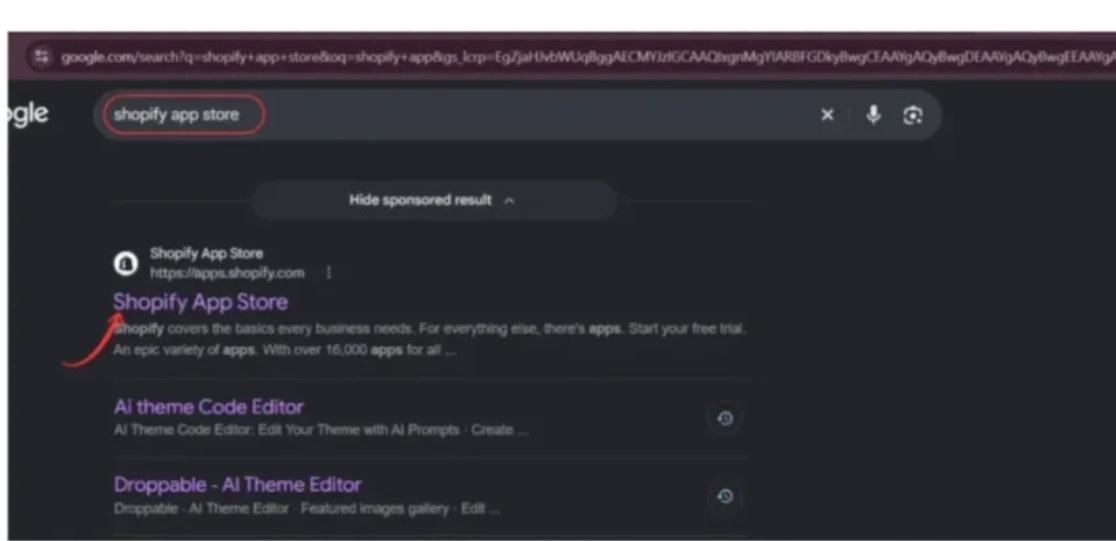
Search for PA Cart Icons Library and select the app from the search results.
Open its listing, review the available features, and click Install to add it to your Shopify store.

If the application is already installed, click Open.
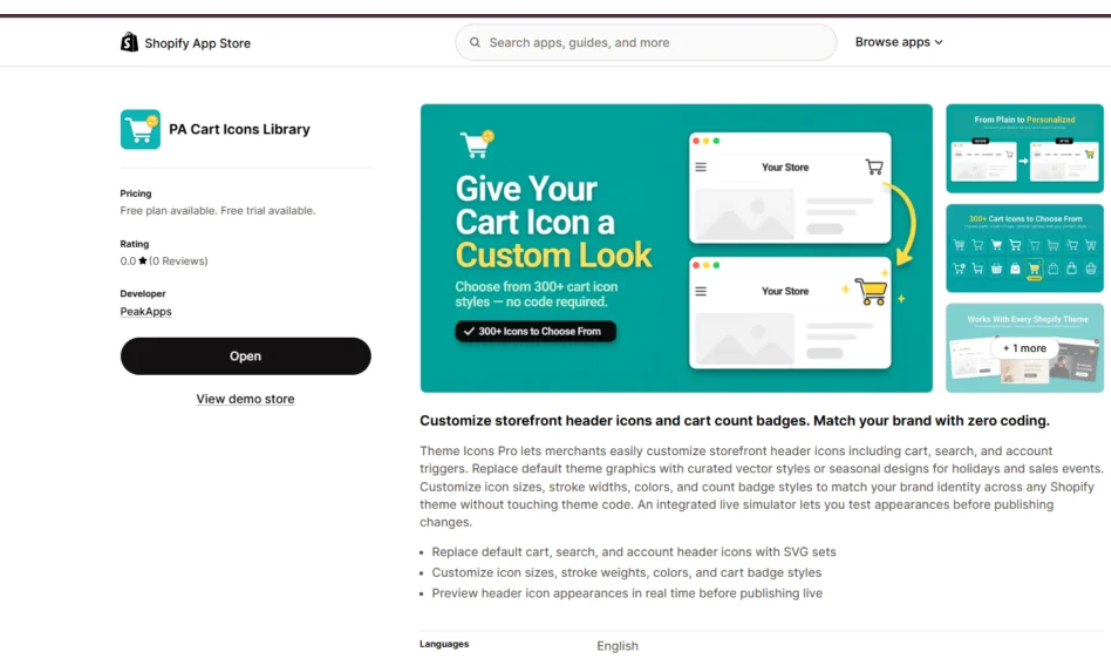
Once installed, it will appear under Apps in your Shopify Admin.
Step 2: Open the Seasonal Icon Schedules Dashboard
Inside Shopify Admin, navigate to:
Apps → PA Cart Icons Library → Seasonal Schedules

Image 1: Seasonal Icon Schedules dashboard showing the Automated Holiday Switcher, configured campaigns, and holiday presets.
Image explanation: This screenshot shows the main Seasonal Icon Schedules page.
At the top, the Automated Holiday Switcher explains how seasonal icons and cart badge colors change automatically during active campaigns.
The page contains two important sections:
Configured Campaigns: Displays seasonal campaigns that have been scheduled.
One-Click Holiday Packs: Provides ready-made holiday presets that merchants can configure.
A Schedule Custom Campaign button is also available for creating a campaign manually.
The screenshot shows that no seasonal campaigns have been scheduled yet.
Step 3: Explore the Available Holiday Icon Packs
On the right side of the Seasonal Schedules page, locate One-Click Holiday Packs.

Image 2: Four holiday packs for Halloween, Black Friday, Christmas, and Valentine’s Day.
Image explanation: This screenshot displays four holiday campaign presets.
Halloween Spooky Special: A Halloween pumpkin-themed cart icon with an orange badge.
Black Friday & Cyber Monday (BFCM): A sale tag cart icon with a red accent badge.
Christmas & Holiday Season: A festive Santa hat cart icon with a green badge.
Valentine’s Day Love Fest: A romantic heart icon with a crimson badge.
Each preset has a Configure Schedule button.
Merchants can select the holiday that matches their upcoming campaign.
Step 4: Configure a Halloween Seasonal Campaign
To create a Halloween campaign, find Halloween Spooky Special and click Configure Schedule.

Image 3: Halloween campaign configuration showing the seasonal icon, orange badge color picker, and date fields.
Image explanation: The screenshot shows the Schedule Seasonal Campaign dialog.
The campaign name is set to Halloween Spooky Special.
The Holiday Icon field displays Halloween Pumpkin, and the Seasonal Badge Accent Color is set to orange (#ff7518).
The screenshot also shows start and end date fields, along with Save & Activate Schedule.
What should merchants do?
Choose an appropriate start and end date for the Halloween promotion, confirm the pumpkin cart icon, select a suitable orange accent, and save the schedule.
The screenshot’s sample campaign is historical; use your own upcoming dates rather than copying expired dates.
Step 5: Choose the Holiday Cart Icon Style
Inside the campaign configuration dialog, click the Holiday Icon dropdown.

Image 4: Selecting the Halloween Pumpkin cart icon from the available seasonal icon options.
Image explanation: The dropdown displays the following icon choices:
- Halloween Pumpkin
- Black Friday Sale Tag
- Christmas Santa Hat
- Valentine Heart
The selected option is Halloween Pumpkin.
This demonstrates that merchants can choose from different seasonal icon styles within the configuration interface.
Select the icon that matches your campaign theme.
Step 6: Set Up a Black Friday and Cyber Monday Campaign
For Black Friday and Cyber Monday, return to the One-Click Holiday Packs section and click Configure Schedule under Black Friday & Cyber Monday (BFCM).
Image 5: Black Friday and Cyber Monday campaign configured with a sale tag icon, red badge accent, and scheduled dates.
Image explanation: The screenshot displays a Black Friday campaign with the following example settings:
| Setting | Example value |
|---|---|
| Campaign name | Black Friday & Cyber Monday (BFCM) |
| Holiday icon | Black Friday Sale Tag |
| Badge accent | #d82c0d |
| Start date | November 20, 2026 |
| End date | December 2, 2026 |
The selected red accent is intended to give the cart badge a promotional appearance during the campaign.
What should merchants do?
Adjust the campaign dates to match the store’s actual Black Friday promotion.
For reference, Black Friday in 2026 falls on November 27, and Cyber Monday falls on November 30.
If your promotion starts early or runs afterward, configure the start and end dates accordingly.
Step 7: Select the Black Friday Sale Tag Icon
Click the Holiday Icon dropdown in the Black Friday campaign.
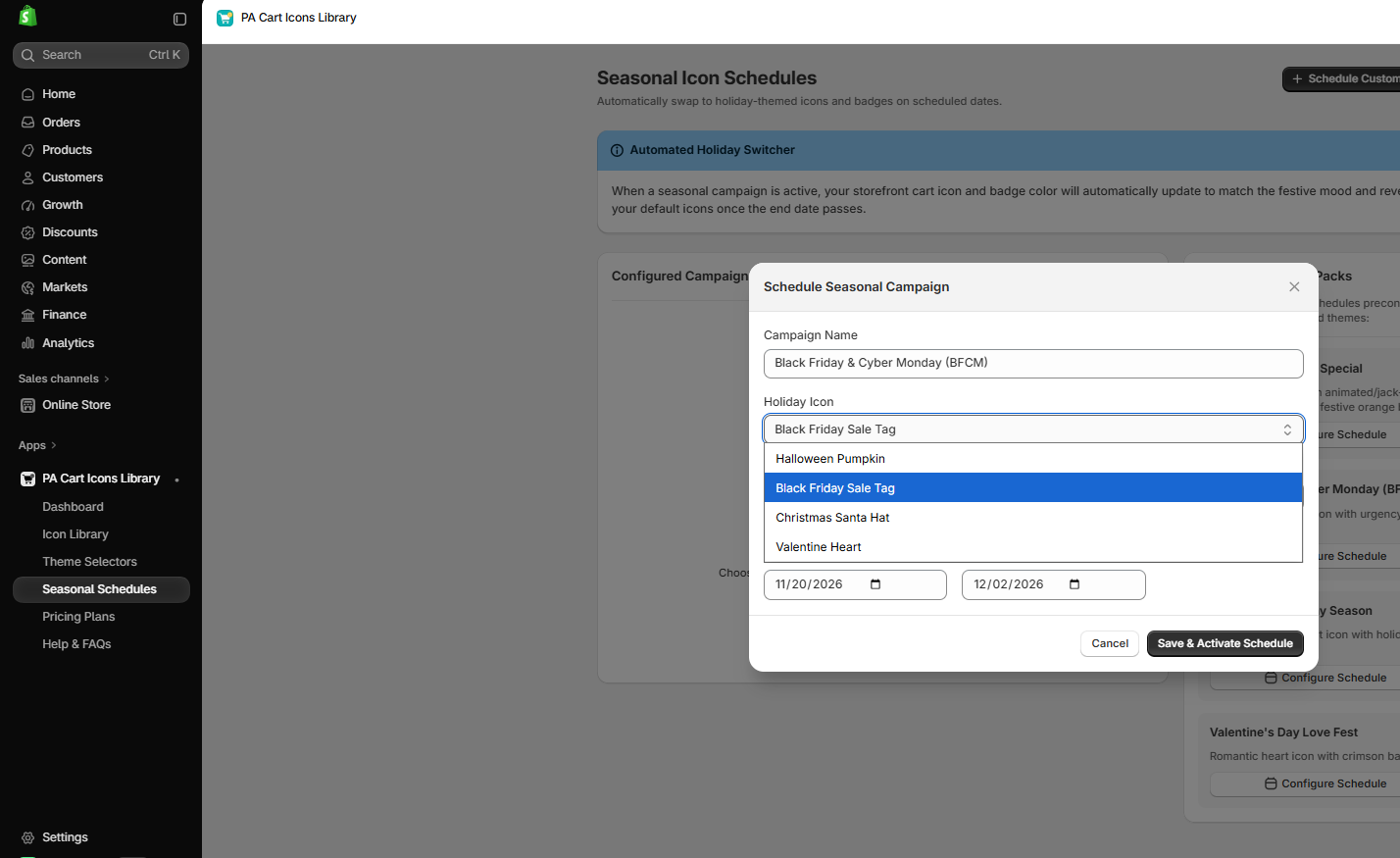
Image 6: Selecting the Black Friday Sale Tag cart icon for the seasonal promotion.
Image explanation: The dropdown shows Black Friday Sale Tag highlighted.
This option is designed to give the shopping cart a sale-themed appearance during the campaign.
Merchants can use this design alongside Black Friday banners, special collections, and discount promotions.
The cart icon remains a navigation control rather than a replacement for the actual discount or promotion information.
Step 8: Customize the Black Friday Cart Badge Color
Next, click the Seasonal Badge Accent Color field.
Use the color picker to select your preferred shade.

Image 7: Using the seasonal badge color picker to customize the Black Friday campaign accent.
Image explanation: Your screenshot shows the color picker open while configuring the Black Friday campaign.
The badge accent field has been changed to a bright green (#25ef3d).
This demonstrates that the merchant is not restricted to the original red preset.
You can choose the color that matches your store’s holiday design.
For example, a bold sale campaign may use red, a luxury Black Friday campaign may use dark green or gold, and a minimalist design may use black with an appropriate contrasting accent.
Always ensure that the cart badge remains readable against the selected background.
Step 9: Configure a Christmas and Holiday Season Campaign
Next, locate Christmas & Holiday Season in the One-Click Holiday Packs section.
Click Configure Schedule.
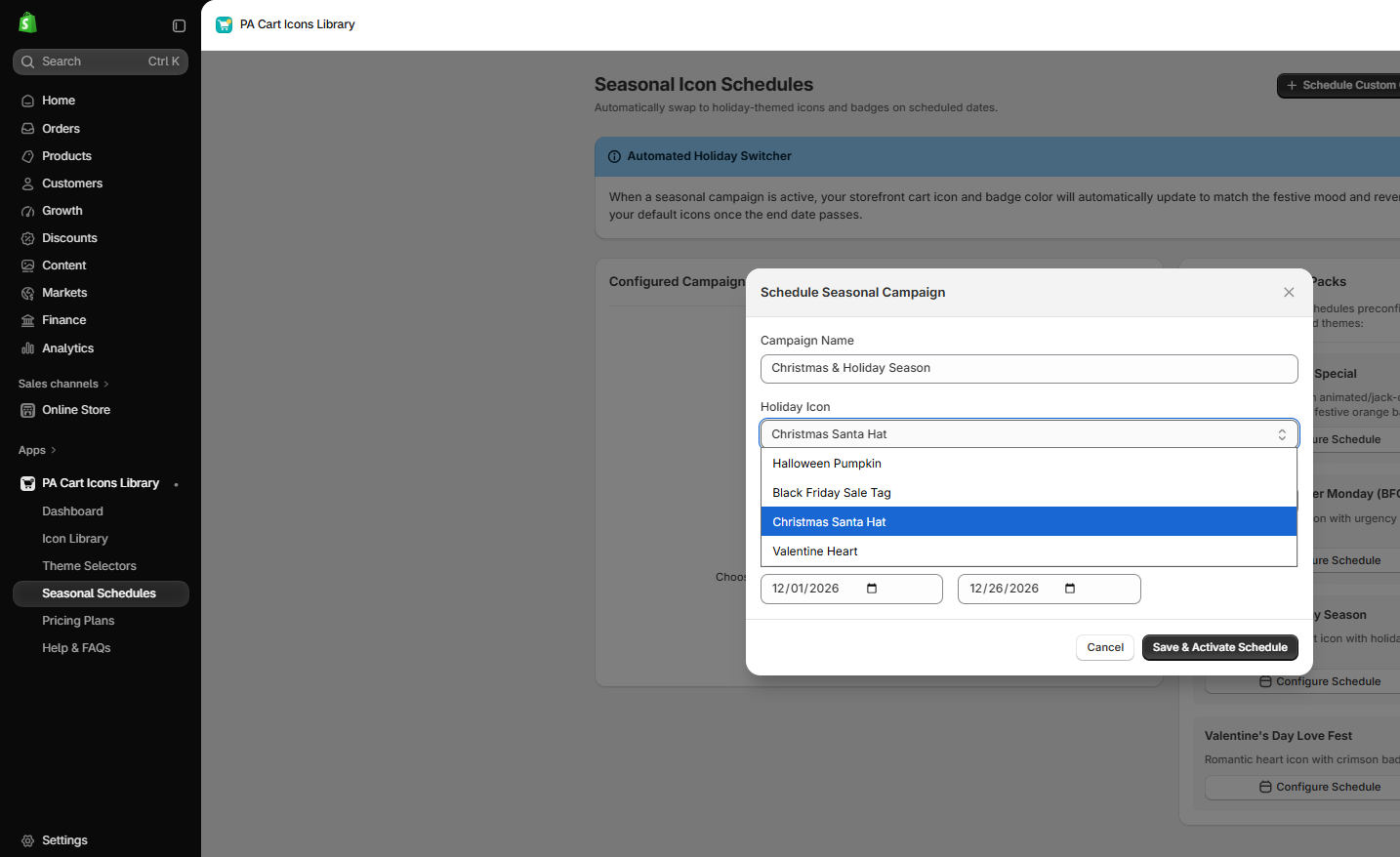
Image 8: Christmas and Holiday Season campaign configured with the Christmas Santa Hat cart icon.
Image explanation: The screenshot shows the Christmas seasonal campaign configuration.
The selected Holiday Icon is Christmas Santa Hat.
The example dates are December 1, 2026, through December 26, 2026.
The dropdown also displays the other seasonal icon styles.
What should merchants do?
Choose the Christmas Santa Hat option, set dates matching your holiday campaign, and select a festive badge color.
You might choose pine green, red, or a brand-specific holiday accent.
Once configured, click Save & Activate Schedule.
Step 10: Create a Valentine’s Day Campaign
The Seasonal Schedules feature also supports Valentine’s Day campaigns.
Find the Valentine’s Day Love Fest preset and click Configure Schedule.

Image 9: Valentine’s Day Love Fest configuration using a heart cart icon and crimson badge color.
Image explanation: The screenshot shows a Valentine’s Day campaign with the following settings:
| Setting | Example value |
|---|---|
| Campaign name | Valentine’s Day Love Fest |
| Holiday icon | Valentine Heart |
| Badge accent | #e63946 |
| Start date | February 1, 2027 |
| End date | February 15, 2027 |
A heart-themed cart icon can complement Valentine’s Day marketing for gift stores, jewelry brands, fashion merchants, and other relevant product categories.
Adjust the dates based on your promotional calendar.
Step 11: Confirm the Valentine’s Day Icon Style
Open the Holiday Icon dropdown in the Valentine’s Day campaign.

Image 10: Selecting Valentine Heart from the seasonal cart icon dropdown.
Image explanation: The screenshot shows the Valentine Heart icon selected.
The campaign includes a crimson badge accent and February 2027 schedule dates.
After confirming the selection, click Save & Activate Schedule to schedule the campaign.
Repeat the process for any other holiday campaigns you want to prepare.
Step 12: Verify Your Campaigns and Shopify Theme Integration
After creating a schedule, return to the main Seasonal Schedules dashboard and check whether the campaign appears under Configured Campaigns.
Also confirm that the PA Cart Icons Library app embed is enabled in your Shopify theme editor:
Online Store → Themes → Edit theme → App embeds → Theme Icons Pro
Save your theme settings if you’ve changed them.
During the scheduled period, review the storefront to confirm the seasonal icon and badge color are displayed correctly.
Once the scheduled end date has passed, verify that the default cart icon and badge styling have returned.
Best Seasonal Cart Icon Ideas for Shopify Stores
Halloween: Pumpkin-Themed Cart Icons
Halloween-themed cart icons can complement stores running October promotions.
Orange, black, and purple are common seasonal color choices.
Black Friday: Sale Tag Cart Icons
Black Friday campaigns often use strong promotional styling.
A sale tag icon with a contrasting cart badge can complement a store’s discount banners and promotional messaging.
Christmas: Santa Hat Cart Icons
Christmas campaigns can use festive icon designs with red, green, and gold accents.
These styles are especially suitable for gift-oriented promotions.
Valentine’s Day: Heart-Themed Cart Icons
Heart icons and crimson or pink accents can support Valentine’s Day storefront designs.
The style should still be recognizable as the shopping cart control.
Seasonal Icons vs Permanent Cart Icon Customization
| Feature | Permanent icon customization | Seasonal icon scheduling |
|---|---|---|
| Purpose | Everyday storefront branding | Holiday campaign styling |
| Icon changes | Remains until changed | Follows configured dates |
| Badge colors | Standard brand colors | Seasonal accent colors |
| Holiday presets | Not necessary | Available |
| Automatic return to default | Not applicable | Supported by the seasonal switcher |
| Best use | Long-term header design | Temporary promotions |
Both approaches can be useful.
The everyday cart icon should match your store’s overall brand identity, while seasonal icons can provide temporary visual changes during promotions.
Tips for Using Seasonal Header Icons Effectively
Keep the cart icon recognizable
Holiday decorations should not make the cart difficult for customers to identify.
Match your campaign colors
Use badge accents that complement your holiday banners and promotional graphics.
Schedule changes in advance
Configure your seasonal campaigns before the promotion begins to reduce last-minute work.
Check campaign dates carefully
Ensure the start and end dates reflect your actual promotional schedule.
Avoid conflicting schedules
If two seasonal campaigns overlap, check how the app prioritizes them rather than assuming which campaign will take precedence.
Test desktop and mobile layouts
Confirm that each seasonal icon displays correctly and maintains normal cart behavior.
Frequently Asked Questions
1. Can I automatically change my Shopify cart icon for Black Friday?
Yes. PA Cart Icons Library includes a Seasonal Icon Schedules feature for configuring temporary holiday cart icon changes.
2. Can I add a Christmas cart icon without coding?
Yes. The app includes a Christmas & Holiday Season preset with a Santa hat cart icon.
3. Does PA Cart Icons Library provide Halloween icons?
Yes. The provided screenshots show a Halloween Pumpkin option.
4. Can I change the cart badge color for seasonal campaigns?
Yes. The Schedule Seasonal Campaign dialog contains a Seasonal Badge Accent Color field.
5. Will my original cart icon return after the holiday?
The Automated Holiday Switcher is designed to restore default icons when a scheduled campaign ends. Verify the behavior on your storefront.
6. Can I schedule multiple holiday campaigns?
The interface supports a Configured Campaigns section and multiple holiday presets. Review overlapping dates before saving campaigns.
7. Can I choose my own campaign dates?
Yes. The schedule dialog includes Start Date and End Date fields.
8. Does the seasonal icon change my product discounts?
No. The feature shown changes storefront icon styling. Product discounts and promotional pricing must be configured separately.
9. Can I use seasonal icons with Shopify Dawn and Horizon?
The app’s Theme Icons Pro interface indicates support for automatic selector detection in Dawn, Horizon, and Online Store 2.0 themes. The final appearance should be tested with your specific theme.
10. Is coding required?
The demonstrated process uses PA Cart Icons Library’s visual configuration controls without requiring manual edits to Shopify Liquid or CSS files.
Conclusion
Seasonal storefront customization can help Shopify merchants create a consistent holiday shopping experience.
While homepage banners, discounts, and promotional collections often receive most of the attention, smaller details such as shopping cart icons and cart count badges can also contribute to the overall visual theme.
With PA Cart Icons Library, merchants can schedule holiday-themed cart icons for Halloween, Black Friday, Cyber Monday, Christmas, and Valentine’s Day.
The app’s Seasonal Icon Schedules feature provides ready-made holiday presets, configurable campaign dates, custom badge accent colors, and automatic switching between seasonal and default icon designs.
As demonstrated in the screenshots, merchants can select a holiday preset, customize its icon and color, configure the dates, and save the campaign without manually editing theme code.
For the best results, prepare seasonal campaigns in advance, choose visually consistent colors, and test the cart functionality throughout the promotional period.
Give your Shopify storefront a festive appearance with seasonal cart icons.Install PA Cart Icons Library on Shopify




