IS IT SAFE TO CONNECT AN AI ASSISTANT TO YOUR SHOPIFY STORE? PERMISSIONS EXPLAINED
Shopify Security Guide | AI Store Management | PA Claude Connector by PeakApps | 2026
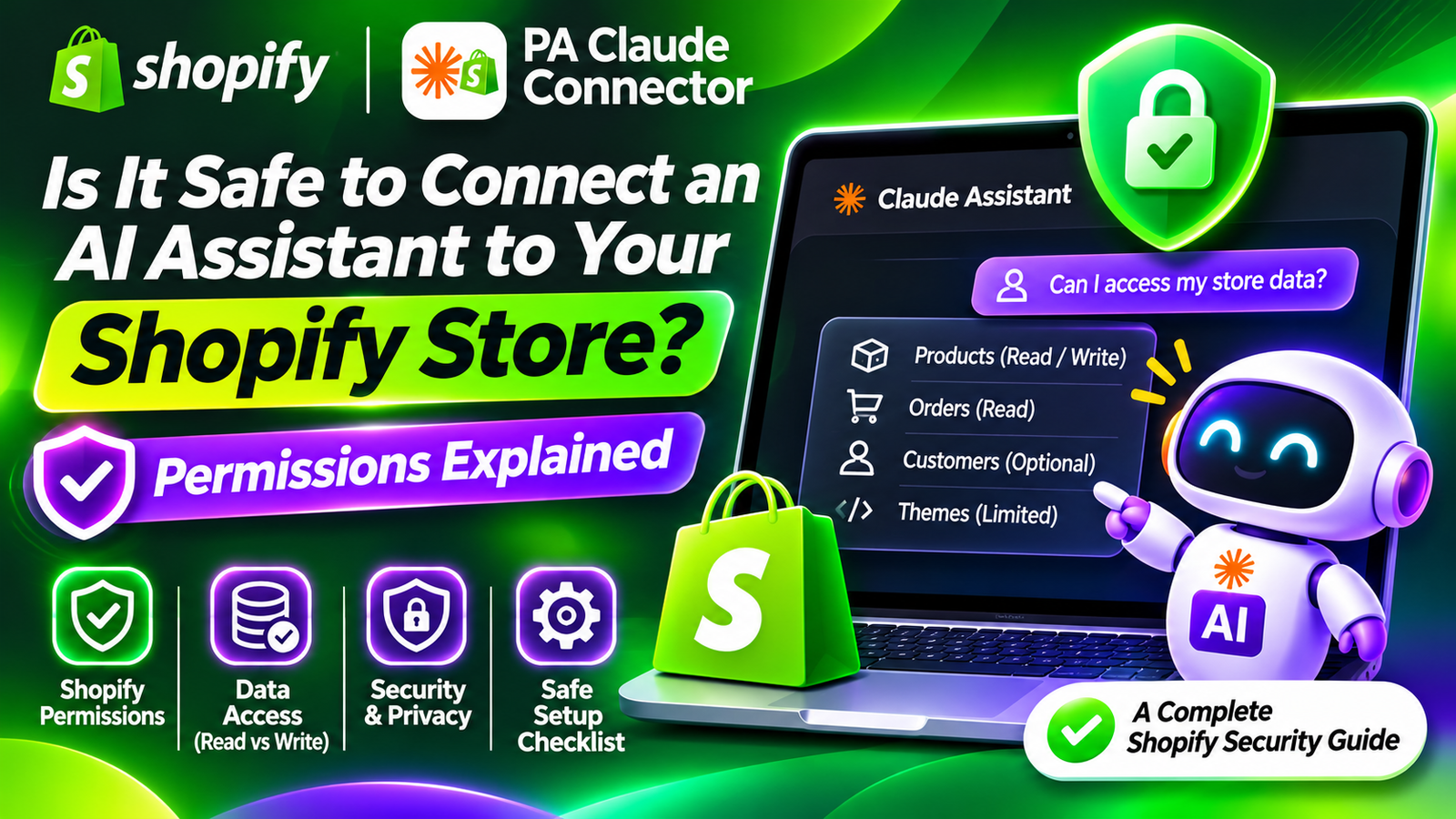
Introduction
Artificial intelligence is changing how Shopify merchants manage their online stores. From generating product descriptions and reviewing sales reports to identifying SEO problems and creating marketing campaigns, AI-powered assistants can make everyday business operations easier.
But before connecting an AI assistant to your Shopify store, one important question deserves attention:
Is it safe to give an AI assistant access to your Shopify store?
Your Shopify store contains valuable business information, including product catalogs, inventory quantities, customer information, orders, sales data, and theme settings. Providing access to an unfamiliar application without reviewing its permissions could create unnecessary security and privacy risks.
Fortunately, Shopify provides an authorization system that helps merchants understand and control what third-party applications can access.
Applications such as PA Claude Connector by PeakApps offer AI-assisted store management features, but merchants should understand how permissions, data access, and application authorization work before using any AI integration.
In this guide, we’ll explain Shopify AI assistant permissions, the difference between read and write access, potential security risks, and how to use AI tools more responsibly.
Why Shopify Store Security Matters When Using AI
An online store is more than a website displaying products.
It contains business information that supports daily operations, including customer records, product prices, order histories, inventory details, and website configurations.
If an application receives unnecessary permissions, it may have access to information or operations beyond what is needed for its primary purpose.
For example, an AI application designed only to draft product descriptions may not need permission to modify customer accounts or manage theme files.
Reviewing permissions helps merchants reduce unnecessary access and understand what an application is authorized to do.
Shopify displays requested access during the installation process and provides tools for reviewing app permissions afterward. Installing and setting up apps+1
What Are Shopify App Permissions?
Shopify app permissions determine which areas of your store an application can access and what actions it can perform.
These permissions are often represented by API access scopes.
For example:
read_productsallows access to supported product information.write_productsallows supported product modifications.read_ordersallows access to supported order information.read_themesallows supported theme information access.write_themesrelates to modifying themes, subject to additional Shopify restrictions.
The specific capabilities of each permission are defined by Shopify’s API and may depend on other authorization requirements. Shopify+1
Understanding Read Permissions vs. Write Permissions
One of the most important things merchants should understand is the difference between read and write access.
| Permission type | What it generally means | Example |
|---|---|---|
| Read access | The application can retrieve permitted information | Reviewing product titles or order totals |
| Write access | The application can perform permitted changes | Updating a product description or inventory information |
Read permissions
Read permissions allow an application to retrieve data within its authorized scope.
For example, an AI assistant may need product-reading access to review your catalog and identify missing descriptions.
However, read-only access does not automatically mean that data cannot leave Shopify. An authorized third-party application may process or retain information according to its functionality and privacy practices.
Write permissions
Write permissions allow an application to modify permitted resources.
For example, an AI product content tool may need appropriate write permissions to update a product description directly in Shopify.
Because changes can affect live store operations, write permissions deserve additional attention.
The safest general approach is to grant only the access necessary for the application’s intended functionality.
What Store Information Can an AI Assistant Access?
The answer depends on the application, its approved scopes, and the features it provides.

Product information
AI tools may use product information to generate descriptions, examine catalog quality, or identify missing metadata.
Sales and order information
An authorized assistant may retrieve order totals, sales figures, or other accessible business information to help prepare analysis.
Customer information
Certain applications may request access to customer data. This deserves particular attention because it may include personal information.
Shopify applies additional requirements to protected customer data, and approved access scopes alone do not necessarily provide unrestricted access. shopify–dev.storefront-preview-proxy.getredo.com+1
Theme information
AI tools that support theme-related workflows may request permission to view themes or perform authorized operations.
Direct modification of theme files can require additional Shopify approval.
Marketing information
Some applications use catalog or campaign information to help prepare advertising copy, newsletters, and other marketing content.
Are Shopify AI Assistants Automatically Safe?
No application is automatically risk-free simply because it uses artificial intelligence or appears in an app marketplace.
Shopify’s app review process provides a level of oversight, but merchants should still review an application’s developer, requested permissions, privacy policy, and operating practices. About apps+1
An AI assistant can be a reasonable choice when its permissions are appropriate, its data handling is transparent, and merchants retain suitable control over important changes.
However, there are several risks worth understanding.
Potential Risks of Connecting AI to Shopify
1. Excessive application permissions
An application may request access to more areas of your store than you expect.
Always compare requested permissions with the features you intend to use.
2. Accidental changes to live data
If an application can modify products or other resources, an incorrect instruction or implementation error could produce unwanted changes.
3. Customer data exposure
Customer information requires careful handling because it may contain personally identifiable details.
4. Incorrect AI-generated content
AI can produce inaccurate product information, unsupported marketing claims, or unsuitable store policies.
5. Theme modification problems
Changes to theme code can affect storefront appearance and functionality.
6. Data retention and third-party processing
Depending on the application, information may be transmitted to external AI services or retained for processing.
Read the application’s privacy policy to understand how data is handled.
7. Malicious or misleading instructions
AI systems can sometimes be influenced by malicious instructions hidden in information they process. Merchants should be especially cautious when a tool can both read external content and perform store changes.
Introducing PA Claude Connector for Shopify
PA Claude Connector by PeakApps brings Claude-powered functionality into the Shopify admin environment.
The app includes multiple tools for store management and content creation.
Based on the application interfaces demonstrated in this tutorial series, these include:
| Feature | Purpose |
|---|---|
| Claude Assistant | Ask questions about supported store information |
| Description Studio | Draft product descriptions and metadata |
| SEO Booster | Identify missing SEO titles and descriptions |
| Campaign Studio | Prepare marketing campaign copy |
| Growth Report | Review inventory velocity and sales indicators |
These tools can help merchants organize store tasks and prepare content more efficiently.
However, the availability of a tool does not necessarily mean the application can perform every related operation automatically.
For example, the ability to provide theme backup instructions is different from having permission to duplicate a Shopify theme directly.
App link: PA Claude Connector — Shopify App Store
How Shopify Permissions Protect Your Store
Shopify uses an app authorization system to define permitted API access.
When you install an application, Shopify presents information about the store resources and personal data the app requests.
Merchants can expand the permission categories to see more details before approving installation.
After installation, the app’s permission and activity information can be reviewed from Shopify admin. Installing and setting up apps+1
These controls help limit access, but they do not guarantee that every AI response or app-generated change will be correct.
Why an AI Assistant Might Not Be Able to Modify Your Shopify Theme
An important example comes from your earlier PA Claude Connector screenshots.
When the merchant asked Claude Assistant to duplicate a Shopify theme, the assistant returned an access-denied message.
The error explained that the operation required the write_themes permission and additional Shopify authorization.
This behavior is consistent with Shopify’s theme API restrictions: publicly distributed applications that need to modify themes or theme files generally require an approved exemption in addition to the relevant permission. Shopify+1
Instead of completing the operation, Claude Assistant suggested duplicating the theme manually using Shopify’s theme management interface.
This example demonstrates why merchants should distinguish between what an AI assistant can explain and what it is authorized to do.
A permission error can be an indication that an access restriction is working as intended, rather than evidence that the AI application is unsafe. It also does not prove that the application is secure in every other respect.
Should You Allow AI to Make Changes to Your Shopify Store?
That depends on the task and the controls provided by the application.
For lower-risk tasks, such as drafting marketing copy or summarizing available sales figures, merchants may be comfortable reviewing AI-generated results before using them.
For higher-impact tasks, such as changing product prices, modifying inventory, editing theme files, or updating customer information, additional precautions are appropriate.
Consider requiring a preview or explicit approval before changes are published.
Maintaining backups and reviewing activity can also help reduce the impact of mistakes.
How to Check App Permissions in Shopify
Shopify provides a way to review the access granted to installed third-party applications.
The following steps are based on Shopify’s documented app management workflow.

Step 1: Search for the Shopify App Store
Open Google Chrome or your preferred web browser.
Type Shopify App Store into Google and press Enter.
Find the official Shopify App Store result and click it.

Image 1: Search for Shopify App Store on Google and open the official Shopify application marketplace.
Image explanation
The screenshot shows a Google search results page, with the phrase shopify app store highlighted in red.
A red arrow points toward the official Shopify App Store result.
Click this link to access Shopify’s app marketplace.
You can also open the marketplace directly by visiting https://apps.shopify.com.
This is where you’ll find PA Claude Connector and its official app listing.
Step 2: Search for PA Claude Connector
Once the Shopify App Store opens, locate the search bar.
Enter PA Claude Connector and search.
Find the application with the orange-and-white icon and open its listing.
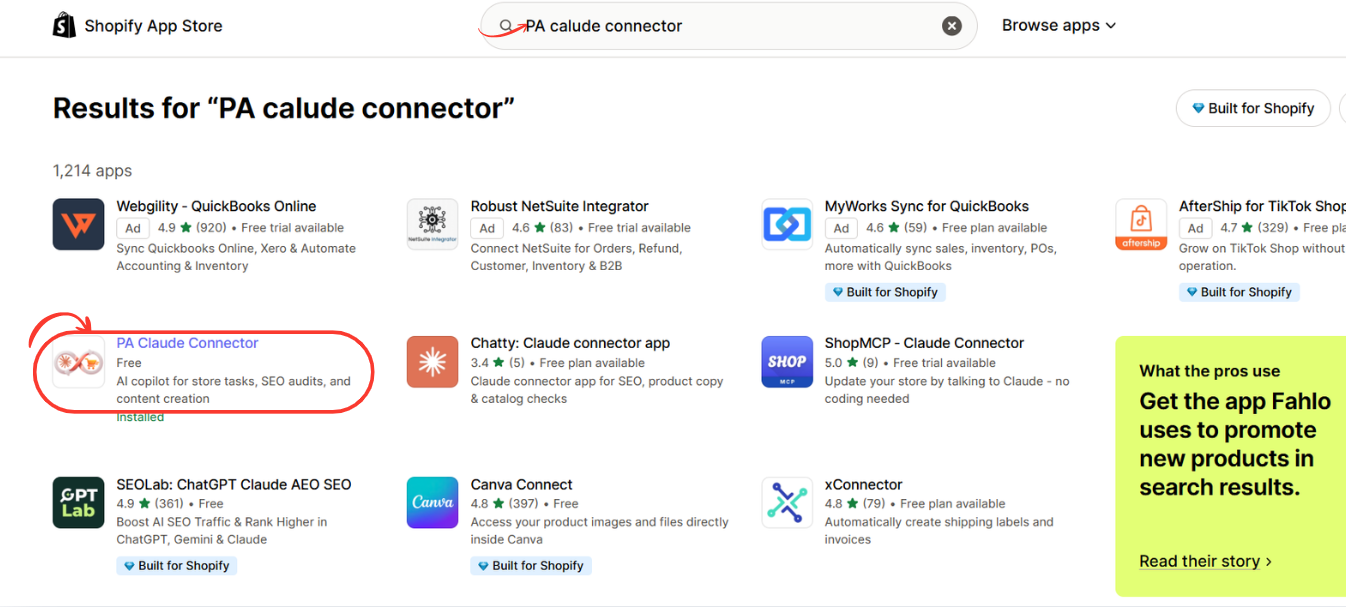
Image 2: Find PA Claude Connector in the Shopify App Store search results and click the highlighted application.
Image explanation
The screenshot displays multiple Shopify applications in the search results.
PA Claude Connector is circled in red.
Its description identifies it as an AI copilot for Shopify store tasks, SEO audits, and content creation.
The example also shows an Installed status, indicating that this Shopify store has already installed the application.
If you’re installing it for the first time, open the app listing to continue.
Step 3: Install PA Claude Connector in Shopify
After opening the application listing, review its description, pricing, and requested functionality.
Click Install to begin the installation process.
Shopify may ask you to sign in or select the store where you want to install the app.
Review the permissions requested by the application and authorize the installation if you’re comfortable with them.
If PA Claude Connector is already installed, click Open instead.

Image 3: Open the PA Claude Connector listing and click Install or Open to access the application in Shopify admin.
Image explanation
The screenshot shows the PA Claude Connector listing.
On the left, the application name, pricing information, developer name, and black Open button are displayed.
The right side contains promotional images explaining the application’s Claude-powered functionality.
The listed developer is PeakApps.
Once installation is complete, the app becomes accessible through your Shopify admin.
Why this step matters: Installing the app provides the foundation for using its Claude-powered tools. The exact connection and authorization process may vary depending on the app version and your store permissions.
Step 4: Open Claude Assistant Inside Shopify Admin
Return to your Shopify admin.
Under Apps, find PA Claude Connector.
Expand the application menu and click Claude Assistant.
This opens the AI chat interface, where you can begin asking questions and using the assistant.

Image 4: Open Claude Assistant from the PA Claude Connector sidebar and locate the AI chat input.
Image explanation
The screenshot shows the Claude Assistant interface inside Shopify.
The Claude Assistant navigation option is highlighted in red.
In the center, the application displays the heading:
How can I help you today?
Several suggested prompts are displayed underneath, including questions about product descriptions, sales performance, returns policies, and missing SEO titles.
A red arrow highlights the message input near the bottom.
This is where you can enter your first question.
Note: This screenshot confirms that the assistant interface is available. It does not independently show the initial Claude authentication or authorization screens.
Step 5: Check Your Claude Connection and Available Plan
Next, check the application status and subscription plan.
In the PA Claude Connector sidebar, click Pricing.
The pricing dashboard displays the available plans and features.
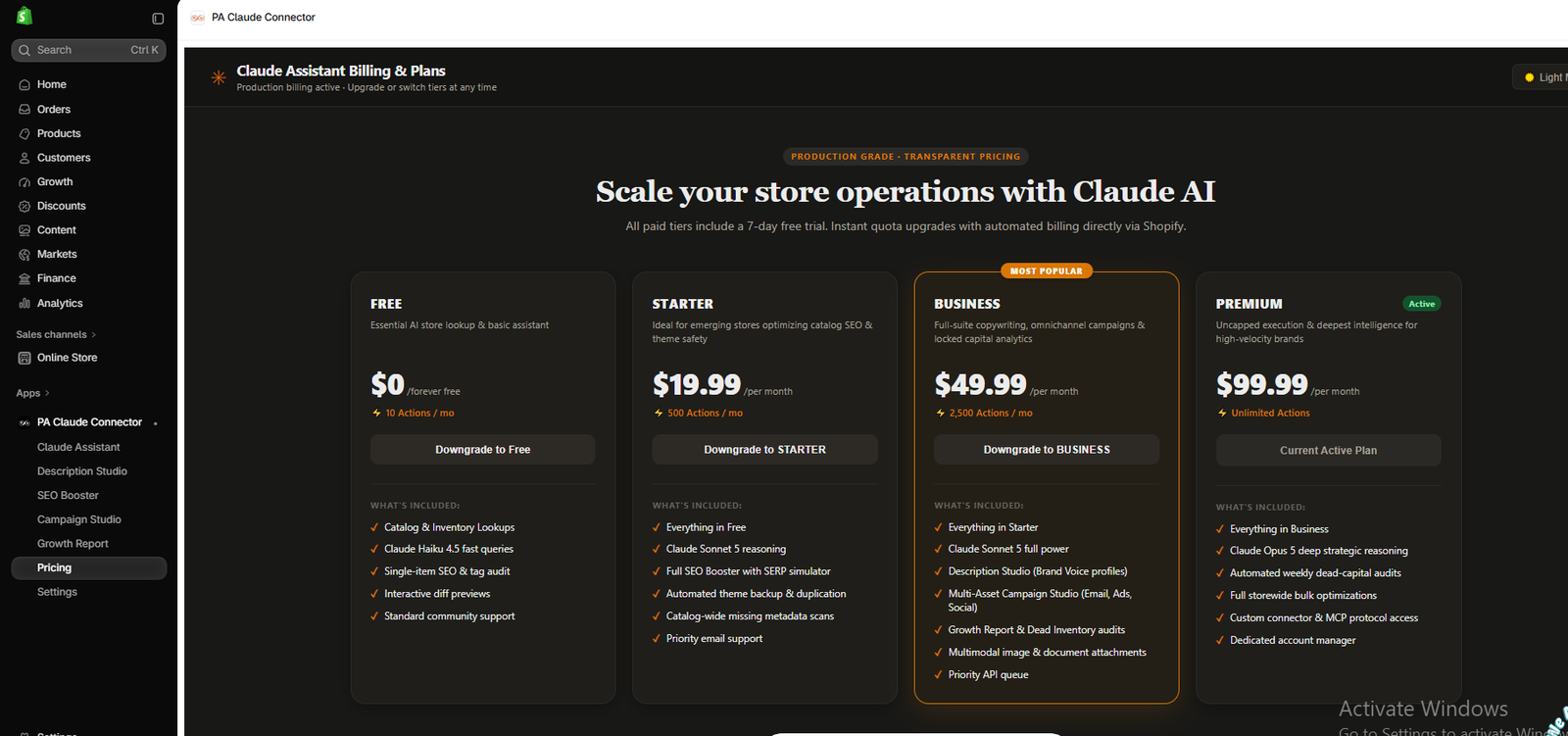
Image 5: Review PA Claude Connector’s subscription plans and the features available under each tier.
Image explanation
The screenshot shows Claude Assistant Billing & Plans, including Free, Starter, Business, and Premium tiers.
The example account has Premium marked as its active plan.
The displayed prices are $0, $19.99, $49.99, and $99.99 per month, respectively.
Different tiers list capabilities such as catalog lookups, SEO tools, Description Studio, Campaign Studio, and Growth Report.
These prices and features are from the supplied screenshot and may change.
How to verify your connection: Open a Claude-powered feature that shows its status. For example, your previous Campaign Studio screenshot displays a green Claude Connected indicator. Then test the connection by submitting a simple supported request.
A subscription being active does not, by itself, prove that every requested Shopify permission is available.
Best Practices for Using AI With Shopify
Give access only when necessary
Choose applications that request permissions appropriate for the operations they provide.
Review important changes
Check product updates, marketing copy, policies, or theme changes before approving publication.
Protect customer information
Avoid unnecessarily entering customer names, addresses, payment details, or other sensitive information into AI prompts.
Maintain theme backups
Before major storefront changes, duplicate your theme or create an appropriate recovery copy.
Verify AI-generated reports
Use original Shopify information when confirming sales figures, order totals, and inventory values.
Keep your team informed
Ensure staff members understand which AI tools are approved and what those tools are allowed to do.
Monitor app activity
Periodically review installed apps, granted permissions, and whether each integration is still necessary.
PA Claude Connector vs. Manually Managing Shopify
| Task | AI-assisted approach | Manual approach |
|---|---|---|
| Product descriptions | Generate drafts using AI | Write descriptions yourself |
| SEO metadata | Find missing fields and draft improvements | Inspect and update each product |
| Sales analysis | Ask questions about accessible data | Review reports directly |
| Marketing content | Generate multiple campaign drafts | Write each version manually |
| Theme backups | Request guidance or supported actions | Duplicate the theme through Shopify |
| Security review | Ask for explanations of permissions | Inspect actual permissions in Shopify admin |
AI can reduce repetitive work, but merchants should retain control over important store decisions.
Frequently Asked Questions (FAQs)
1. Is it safe to connect Claude AI to my Shopify store?
It can be reasonable when you use a trusted integration, review its permissions, understand its privacy practices, and retain appropriate control over store changes. No integration is completely risk-free.
2. Can an AI assistant access my Shopify customers?
Only if the integration has the necessary access and Shopify’s applicable customer-data requirements are satisfied.
3. Can Claude change Shopify product prices?
A compatible integration may be able to modify permitted product data if it has the necessary write access and provides that functionality. Do not assume every Claude integration supports price updates.
4. Can an AI assistant modify my Shopify theme?
Some theme-related operations require additional Shopify permissions or exemptions. The exact capabilities depend on the integration.
5. Does installing an app give it access to everything?
No. Shopify app access is governed by permissions, although some permissions can be broad within a particular resource category.
6. Can I review an app’s permissions after installation?
Yes. Shopify provides app activity and permissions information through the app management interface.
7. What happens if Claude doesn’t have permission to perform an action?
The operation may fail or return an authorization error. The assistant may still be able to explain the task and suggest a permitted alternative.
8. Does an AI assistant automatically publish changes?
Not necessarily. Publishing behavior depends on the application’s capabilities and workflow. Merchants should check whether actions require approval or can execute directly.
9. Can I disconnect an AI app from Shopify?
Yes. Merchants can manage and uninstall installed applications through Shopify admin. Additional cleanup or deletion requests may be necessary for retained data.
10. Is an app safe simply because it appears in the Shopify App Store?
No. App Store review is valuable, but it does not eliminate every possible security, privacy, or operational risk.
11. Should I allow AI to access customer and order information?
Only when the access is justified by the intended functionality and the application’s data handling meets your business requirements.
12. Can PA Claude Connector help with Shopify tasks without requiring every permission?
Its available features depend on the granted permissions and integration capabilities. Some tasks, such as generating content drafts, may be possible even when direct store modifications are restricted.
Conclusion
Connecting an AI assistant to your Shopify store can provide useful opportunities to simplify daily operations, analyze business data, prepare marketing content, and improve catalog management.
However, understanding Shopify permissions is essential before granting an application access to your store.
Read permissions generally allow applications to retrieve authorized information, while write permissions allow supported modifications. Both deserve careful consideration, particularly when customer information, financial records, or live storefront changes are involved.
Shopify’s authorization and activity-review tools help merchants understand what applications can access, but these controls work best when combined with careful application selection, regular reviews, and responsible use of AI-generated content.
With tools such as PA Claude Connector by PeakApps, merchants can explore AI-assisted workflows for store management while remaining attentive to permissions and operational safeguards.
The goal is not to give AI unrestricted control over your business. It is to use AI where it adds value while maintaining appropriate human oversight.
Explore AI-assisted Shopify store management:PA Claude Connector — Shopify App Store




