HOW TO PRICE A SHOPIFY BUNDLE WITHOUT LOSING PROFIT MARGIN

Introduction
Product bundling is one of the most effective ways to encourage customers to purchase more items from your Shopify store. By offering multiple products together at an attractive price, you can increase average order value (AOV) and create a better shopping experience.
However, offering discounts without calculating your costs can reduce your profits.
That’s why choosing the right bundle price is important. Your customers should feel they’re getting a good deal, while your business maintains healthy profit margins.
With Section Kit Bundles, Shopify merchants can create product bundles, quantity discounts, BOGO offers, and customized promotional offers without complicated coding.
In this guide, you’ll learn how to price Shopify bundles correctly and create profitable bundle offers using Section Kit Bundles.
What Is Bundle Pricing on Shopify?
Bundle pricing is a strategy where two or more products are sold together as a single promotional offer.
For example, imagine your Shopify store sells:
- Shampoo — $20
- Conditioner — $15
- Hair Serum — $25
The combined individual selling price is $60.
Instead of selling these products separately, you could offer all three together for $54.
Customers save $6, while your store encourages a larger purchase.
However, the bundle is only profitable if its selling price covers the products’ costs and other relevant expenses.
Why Profit Margin Matters in Product Bundling
A profitable bundle should generate enough revenue to cover its costs while leaving a reasonable return for your business.
Before creating a discount, consider:
- Product manufacturing or purchase costs
- Packaging and fulfillment expenses
- Shipping costs paid by your business
- Payment processing fees
- Marketing and customer acquisition expenses
- Other variable costs associated with the order
Ignoring these expenses can lead to discounts that look attractive but generate very little profit.
How to Calculate Your Shopify Bundle Profit Margin
Use this formula to calculate your bundle’s contribution margin:
Contribution Margin (%) = (Bundle Selling Price − Total Variable Costs) ÷ Bundle Selling Price × 100
For example:
| Description | Amount |
|---|---|
| Regular combined selling price | $60 |
| Discounted bundle price | $54 |
| Total variable costs | $32 |
| Contribution profit | $22 |
| Contribution margin | 40.74% |
In this example, the bundle generates $22 after the listed variable costs, before fixed operating expenses and taxes.
Understanding this calculation helps you choose discounts that fit your business goals.
How Much Discount Should You Offer on a Shopify Bundle?
There is no universal discount percentage that works for every store.
The right discount depends on your product costs, pricing strategy, and desired profit margin.
For example, consider a bundle with a regular combined selling price of $60 and total variable costs of $32.
| Discount | Bundle price | Contribution profit |
|---|---|---|
| 5% | $57 | $25 |
| 10% | $54 | $22 |
| 15% | $51 | $19 |
| 20% | $48 | $16 |
| 30% | $42 | $10 |
This simplified example assumes total variable costs remain constant.
As discounts increase, the contribution profit per bundle decreases.
This is why merchants should calculate their margins before launching quantity discounts or promotional bundles.
Best Strategies for Pricing Profitable Shopify Bundles
1. Start With Small Discounts
You don’t always need to offer 20% or 30% off to encourage customers to purchase a bundle.
Start by testing smaller discounts, such as 5% or 10%.
Monitor customer response and adjust your pricing based on actual sales performance.
2. Bundle Complementary Products
Combining products that naturally work together can make an offer more attractive without requiring a large discount.
For example, a skincare store could bundle a cleanser, moisturizer, and serum.
Customers may appreciate the convenience of purchasing everything together.
3. Use Quantity Discounts
Quantity discounts encourage customers to purchase additional units in exchange for better pricing.
For example:
- Buy 1 — Regular price
- Buy 2 — Save 5%
- Buy 3 — Save 10%
With Section Kit Bundles, merchants can create quantity-based offers using ready-made templates and customize how those offers appear on product pages.
4. Highlight the Value of Each Bundle
Customers should clearly understand why purchasing a bundle is beneficial.
Display the regular combined price, bundle price, and actual savings.
Use clear headings such as BUY MORE, SAVE MORE to communicate the promotion.
5. Monitor Your Profit Margins
A higher average order value doesn’t automatically mean higher profit.
Track your bundle revenue, discount costs, contribution profit, and conversion performance.
Use this information to refine your pricing strategy.
HOW TO CREATE PROFITABLE BUNDLES USING SECTION KIT BUNDLES
Once you’ve calculated your ideal bundle price, you can create your offer using Section Kit Bundles.
The app provides ready-made templates and customization options to help Shopify merchants build attractive bundle offers.
Step 1: Open the Shopify App Store
Open your browser and search for Shopify App Store.

Click the official Shopify App Store website to access Shopify’s app marketplace.
Step 2: Search for Section Kit Bundles
In the Shopify App Store search bar, enter Section Kit Bundles.
Find the app in the search results and open its listing.

App link: https://apps.shopify.com/sectionkit-bundle
Step 3: Install and Open the App
Click Install and complete the installation process.
Once installed, open Section Kit Bundles from your Shopify admin dashboard.

You’ll see the main dashboard, where you can manage existing bundle offers and create new ones.
Step 4: Open the Dashboard and Create a New Bundle
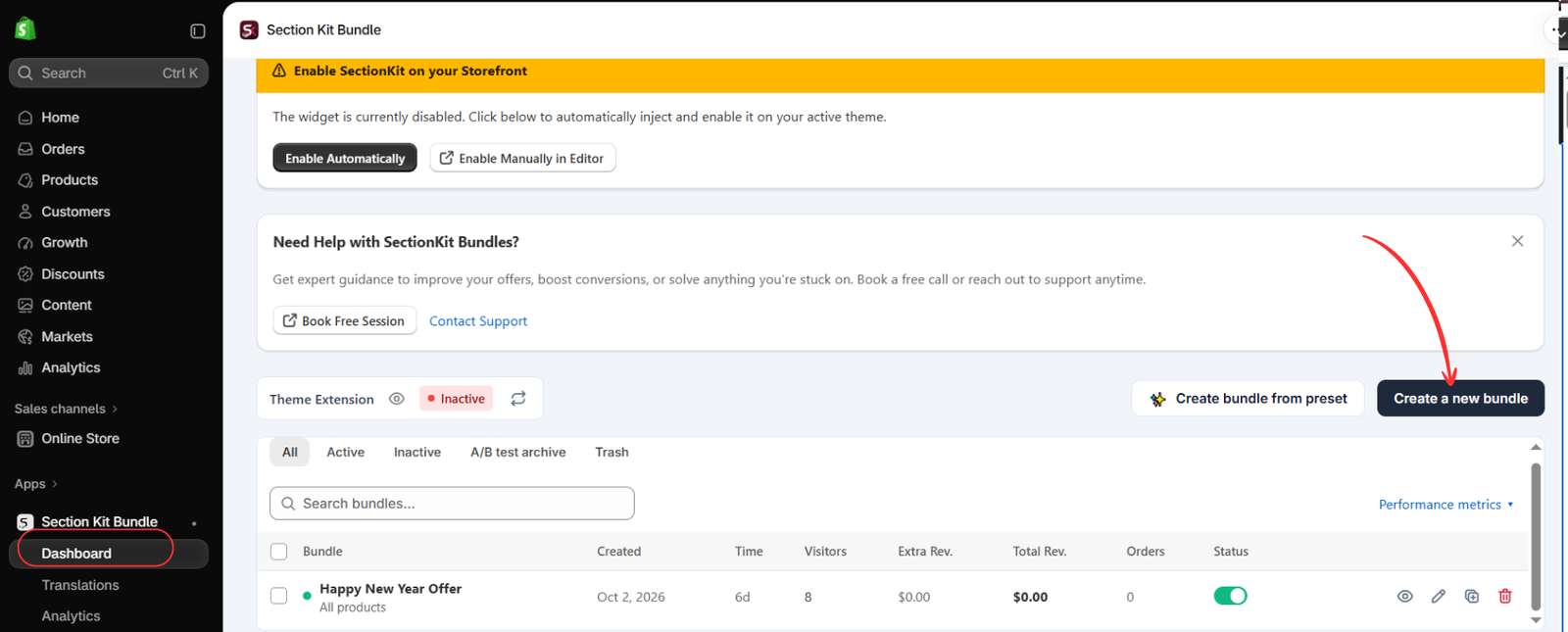
Open Apps → Section Kit Bundle → Dashboard. Click Create a new bundle, as highlighted in Image 2. The dashboard also offers a preset option and shows existing promotions.
The image shows the theme extension as inactive. Creating or activating an offer and enabling its storefront integration are separate checks; complete the theme setup before expecting the widget to appear.
Step 5: Choose the Classic Volume Discount Template
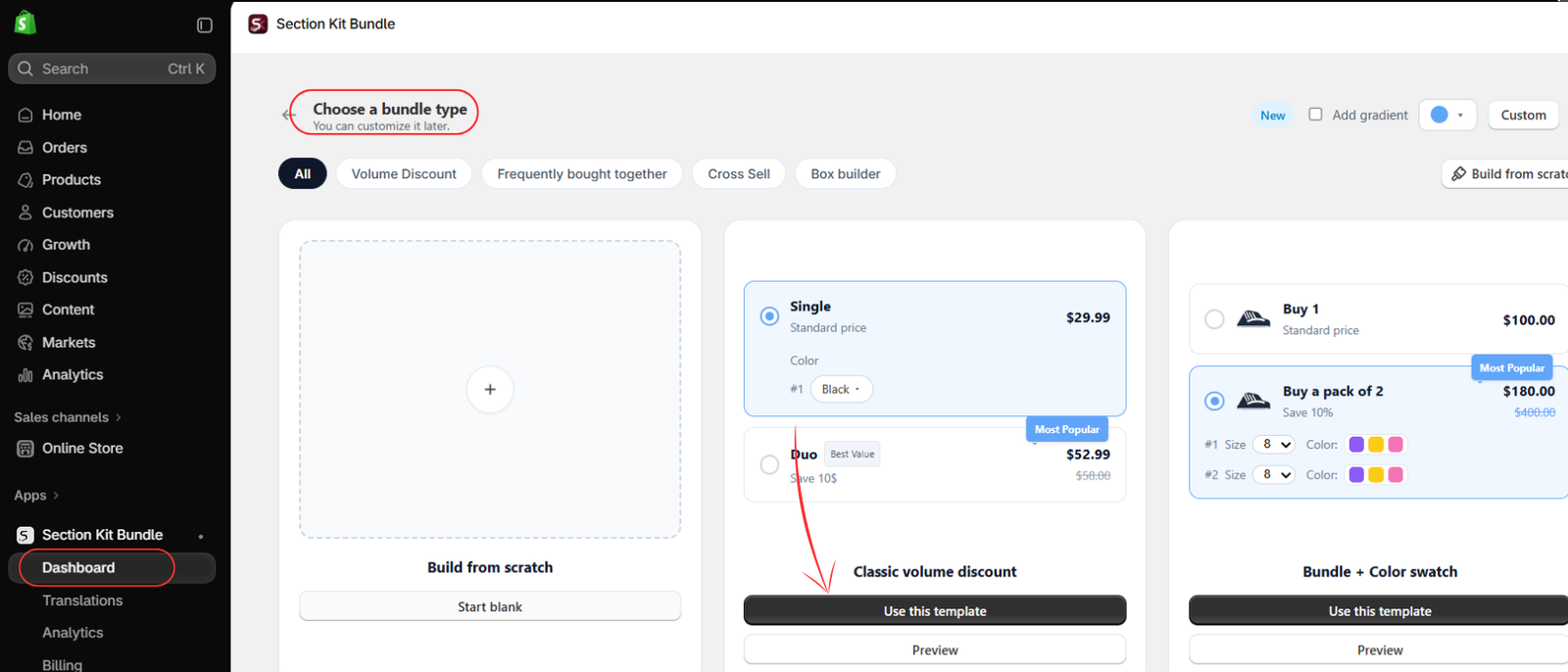
On the Choose a bundle type page, find Classic volume discount and click Use this template. This is the clearest starting point for an offer that rewards larger quantities. Use the preview option if you want to inspect its presentation first.
Step 6: Understand the Alternative Offer Templates
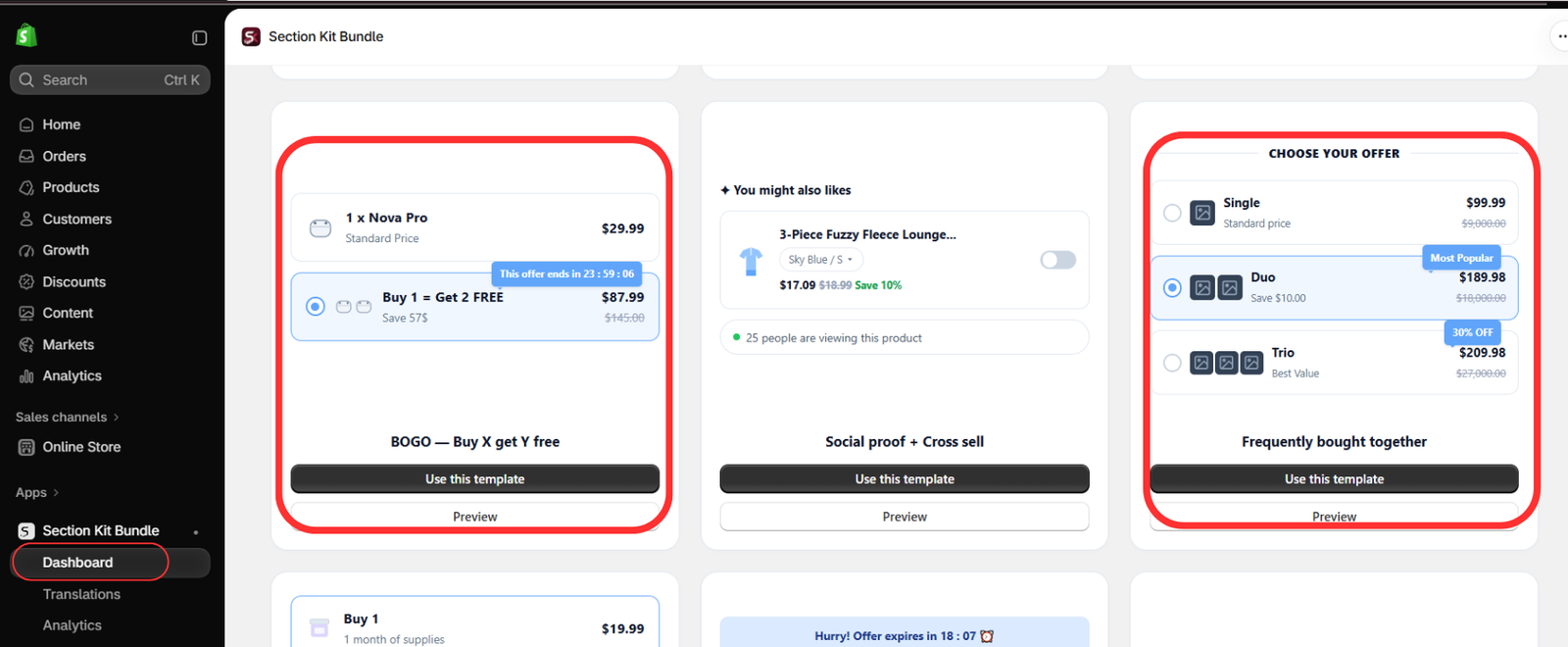
Image 4 highlights BOGO — Buy X get Y free and Frequently bought together. Choose BOGO when the benefit is a free item, or a related-product bundle when customers should purchase complementary products together. For the quantity-discount offer in this guide, continue with the classic volume discount template selected in Step 3.
Keep your offer wording consistent with the actual discount. A percentage discount should not be described as a free-item promotion.
Step 7: Find Your Offer and Open Its Editor
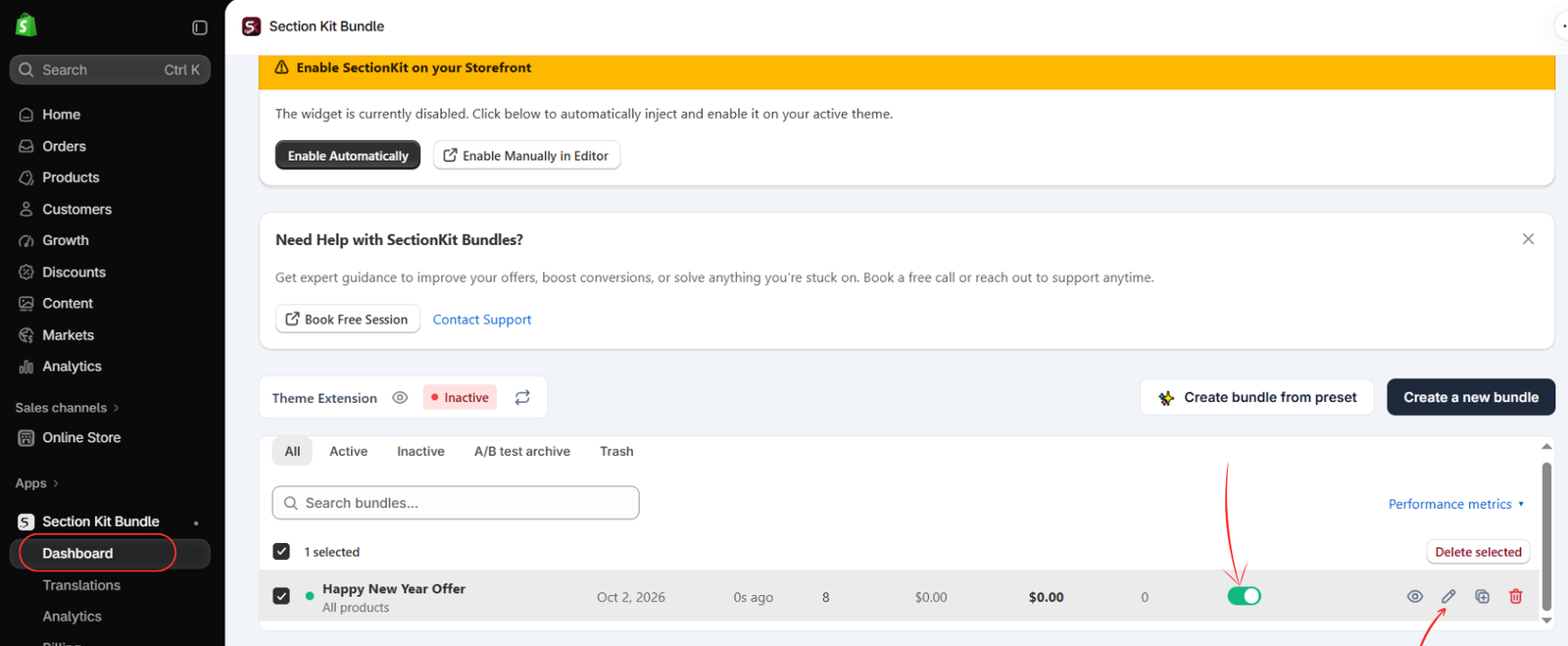
When your offer is saved and appears in the dashboard, locate its row and click the pencil icon to edit it. The highlighted status switch controls whether that offer is active. Finish reviewing its rules before enabling it for customers.
Image 5 shows an existing example named “Happy New Year Offer.” Give your own offer a descriptive name so it is easy to identify later. An active offer switch alone does not confirm that the theme extension is enabled.
Step 8: Configure the Savings and Preview the Widget
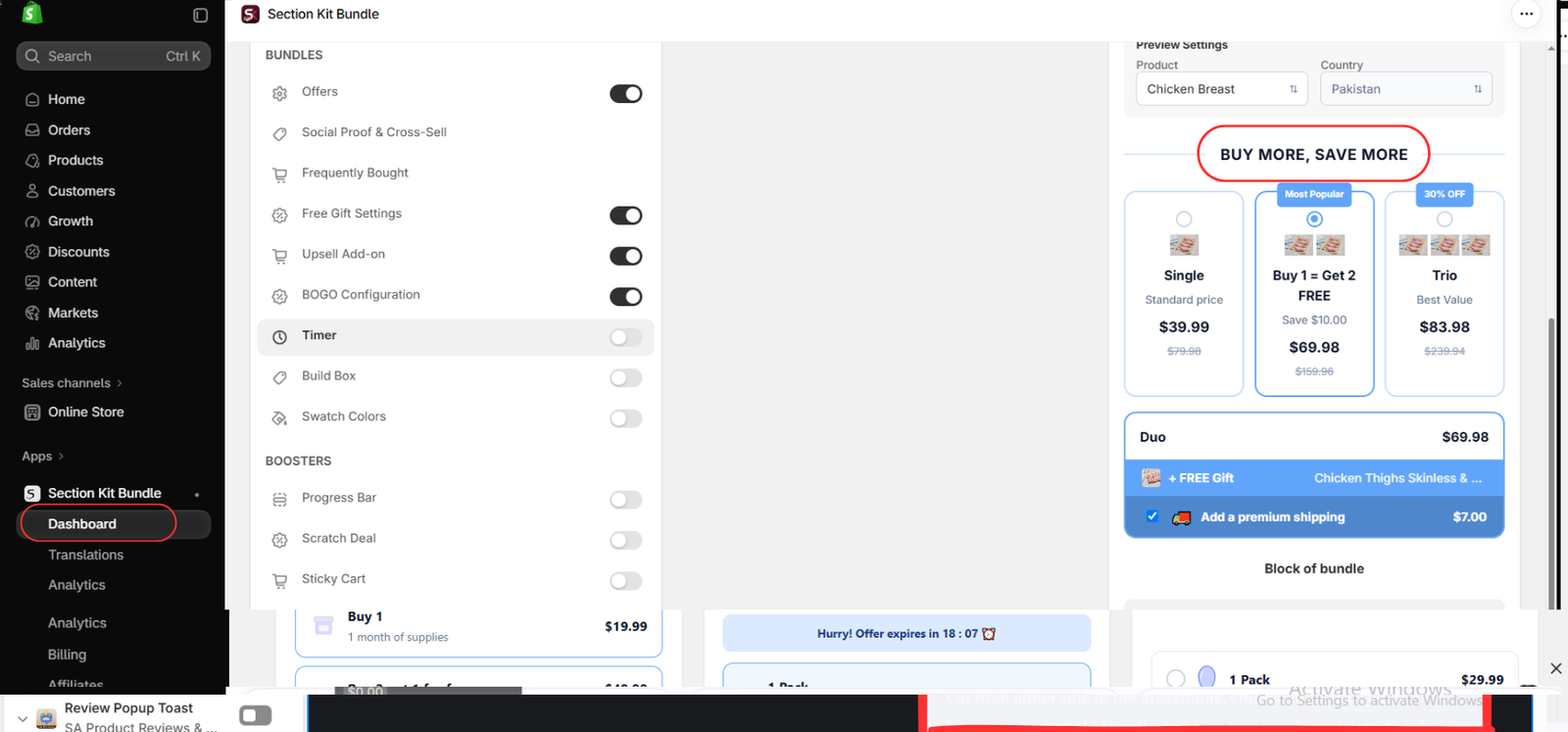
In the offer editor, set the eligible products, quantity choices, and discount values using the available offer controls. Enter a clear heading such as BUY MORE, SAVE MORE, and check the product preview as you adjust the configuration.
For a simple volume discount, use a standard-price single option and discounted choices for larger quantities. Show the total price clearly, and use labels such as “Save 10%” only when the calculation is accurate. Optional free gifts, upsells, or BOGO settings should be enabled only if they are part of your intended promotion.
Image 6 shows the editor’s feature toggles and a mixed example preview. Its free-item wording and prices demonstrate a layout, not a pricing model to copy. The image does not show every quantity or discount input; review those controls in your app before saving. Customize the widget’s colors and typography to fit your store, then save using the editor’s available save control.
Step 6: Configure Your Bundle Pricing
Choose the products or collections included in your offer.
Set the quantities and discounts you want to provide.
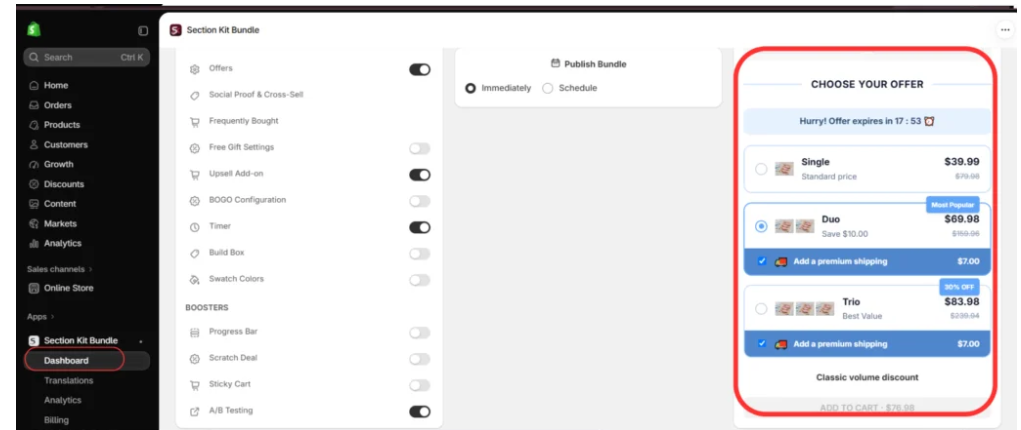
For example, if one product costs $30, you could configure:
| Offer | Price | Savings |
|---|---|---|
| Single | $30 | No discount |
| Duo | $57 | 5% |
| Trio | $81 | 10% |
These are example prices. Before using them, make sure each option meets your target profit margin.
Step 7: Customize Your Bundle Design
Section Kit Bundles includes a visual editor that lets you preview your promotional offers.
You can create a clear presentation using headings such as BUY MORE, SAVE MORE.
Make sure your bundle displays:
- Product quantities
- Regular and discounted prices
- Customer savings
- Clear offer descriptions
An easy-to-understand layout helps shoppers compare the available options.
Step 8: Publish Your Bundle Offer
Once you’ve configured your products, discounts, and design, review the offer settings.

Choose where the bundle should appear and click Publish.
Return to the dashboard and confirm that your offer is active.
Step 9: Enable Section Kit Bundles in Your Shopify Theme
To display your bundle on the storefront:
- Open Shopify Admin → Online Store → Themes.
- Click Customize.
- Open App embeds.
- Find SectionKit Core — Section Kit Bundle.
- Enable the app embed.
- Click Save.
Your bundle offer can then appear on eligible product pages according to its configuration.
Step 10: Test Your Bundle Pricing
Before launching your promotion, test the offer on your storefront.
Select each bundle option and confirm that the correct price is displayed.
Add the products to the cart and verify the final totals at checkout.
Also check shipping charges, inventory behavior, and compatibility with other active discounts.
Once everything works correctly, your bundle is ready for customers.
Benefits of Using Section Kit Bundles
Section Kit Bundles helps Shopify merchants create and manage product offers through a visual interface.
Some of its useful capabilities include:
- Quantity Discounts: Encourage customers to purchase multiple units with tiered pricing.
- BOGO Offers: Create promotional offers involving free or discounted additional products.
- Ready-Made Templates: Start with existing layouts instead of designing every offer from scratch.
- Visual Customization: Adjust the appearance of offers to match your storefront.
- Bundle Management: Create, publish, activate, and manage offers from the app dashboard.
- Storefront Integration: Display configured offers on eligible Shopify product pages.
These features make it easier to present bundle offers while maintaining control over your pricing strategy.
Frequently Asked Questions
What is a good profit margin for Shopify bundles?
There is no fixed margin that works for every business. Your target should depend on your product costs, operating expenses, and profitability goals.
Should I offer 10% or 20% off a Shopify bundle?
Calculate your costs before choosing a discount. A smaller discount may be more profitable, especially for products with lower margins.
Can product bundles increase average order value?
Yes. Bundles can encourage customers to purchase more items in a single order, potentially increasing average order value.
Can I create quantity discounts with Section Kit Bundles?
Yes. Section Kit Bundles provides quantity-based offer templates that merchants can customize for their products.
Can I create bundles without coding?
Yes. Section Kit Bundles provides ready-made templates and a visual editor for creating product bundle offers.
Conclusion
Pricing Shopify bundles correctly is essential for growing your business without sacrificing profitability.
While product bundles can encourage customers to purchase more, offering excessive discounts can reduce your earnings.
By calculating your costs, choosing reasonable discounts, and monitoring performance, you can create offers that provide value to customers while protecting your margins.
With Section Kit Bundles, you can create quantity discounts, BOGO promotions, and customized bundle offers using ready-made templates and an easy-to-use interface.
Start creating your Shopify bundles today.
Install Section Kit Bundles: https://apps.shopify.com/sectionkit-bundle




