HOW TO STYLE THE CART COUNT BADGE ON YOUR SHOPIFY STORE
Shopify Cart Customization Guide | Cart Badge Colors & Styling | No Coding Required | 2026
Introduction
Your Shopify store’s shopping cart icon is one of the most important elements in your storefront header. It helps customers access their selected products and continue toward checkout.
However, the cart icon itself is not the only element that matters. The small notification badge displayed beside the cart icon also plays an important role in communicating how many items a customer has added.
This notification is called the cart count badge.
A well-designed cart count badge can make your storefront look more professional and help shoppers notice changes in their cart.
Unfortunately, many Shopify themes come with default cart badge designs that may not match your store’s branding. The default colors, text styles, and positioning may look inconsistent with the rest of your website.
Changing these settings manually can require editing theme CSS or Liquid code.
Fortunately, you can style the Shopify cart count badge without coding using PA Cart Icons Library.
With PA Cart Icons Library, merchants can customize their cart badge’s background color, text color, and visibility while previewing the result before publishing.
In this guide, we’ll explain what a cart count badge is, why its appearance matters, and how to customize it using PA Cart Icons Library, with actual screenshots from the application.
What Is a Shopify Cart Count Badge?
A cart count badge is a small notification displayed near the shopping cart icon in your Shopify store’s header.
It usually shows the number of items a customer has added to their cart.
For example, when a shopper adds a product, the badge may display the number 1. If additional products are added, the badge updates to reflect the cart quantity according to the theme’s behavior.
The badge helps customers identify that their selected products are in the cart.
A typical cart badge includes three main design elements:
- Badge background: The colored shape behind the number.
- Badge text: The number displayed inside the badge.
- Badge visibility: Whether the cart quantity indicator is displayed.
The colors and styling of the badge should complement your storefront’s header.
Why Cart Count Badge Styling Matters
1. Makes the cart quantity easier to notice
A badge with good color contrast can make the cart quantity more noticeable without distracting from other navigation elements.
2. Supports a consistent brand identity
Your cart badge can use colors that match your brand identity, including your header, buttons, and accent colors.
3. Helps customers recognize cart updates
A visible quantity indicator gives shoppers useful feedback when items are added to or removed from the cart.
4. Improves header appearance
A badge that fits the cart icon’s size, style, and positioning creates a more polished storefront header.
5. Supports mobile usability
Because mobile headers have limited space, a readable cart badge is particularly important.
Problems With Default Shopify Cart Count Badges
Some Shopify themes offer limited cart badge customization through their built-in settings.
Merchants may encounter problems such as a badge color that clashes with their branding, difficult-to-read text, insufficient contrast, or inconsistent styling across desktop and mobile layouts.
Changing the badge manually may involve editing theme CSS, identifying the correct header selectors, and testing the result.
For merchants without coding experience, a dedicated customization app can simplify these tasks.
Introducing PA Cart Icons Library
PA Cart Icons Library helps Shopify merchants customize their storefront header icons and supported cart badge settings without manually editing theme code.
The application provides a library of cart icon styles along with customization options for search and account icons.
Its Theme Icons Pro dashboard also includes dedicated cart badge controls.
Key Features
- 300+ cart icon designs.
- Cart, search, and account icon customization.
- Cart count badge visibility control.
- Custom badge background colors.
- Custom badge text colors.
- Icon size and stroke-width adjustments.
- Live header preview.
- Theme app embed integration.
- Custom SVG support on eligible plans.
- No-code configuration for supported themes.
App Link: PA Cart Icons Library — Shopify App Store
Step-by-Step Guide: How to Style Your Shopify Cart Count Badge Without Coding
This tutorial uses your seven actual PA Cart Icons Library screenshots in the exact order provided, showing the complete badge customization process.
Step 1: Install PA Cart Icons Library and Open the Dashboard
First, open the Shopify App Store.
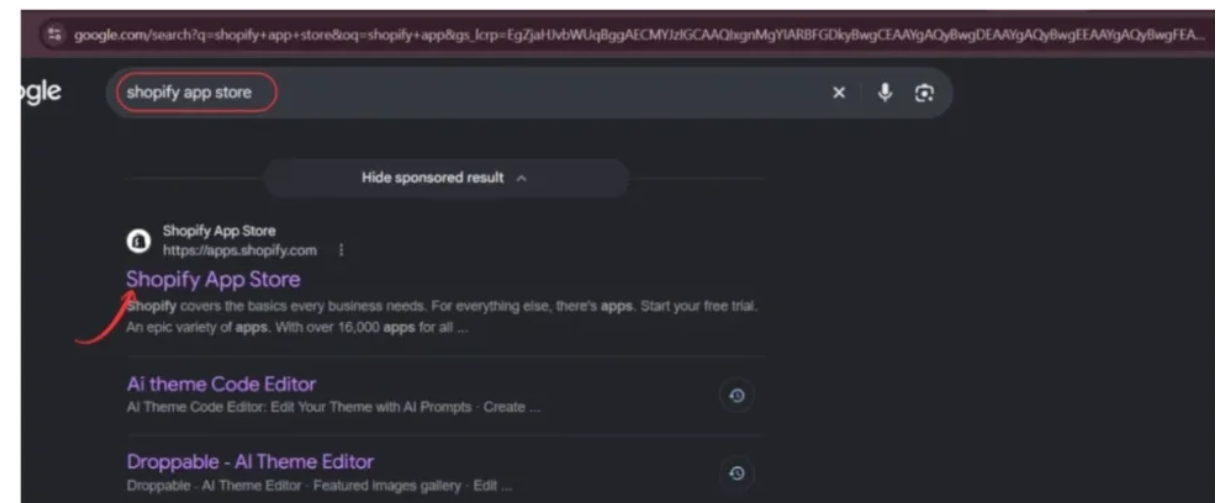
Search for PA Cart Icons Library, select the application from the search results, and open its listing.
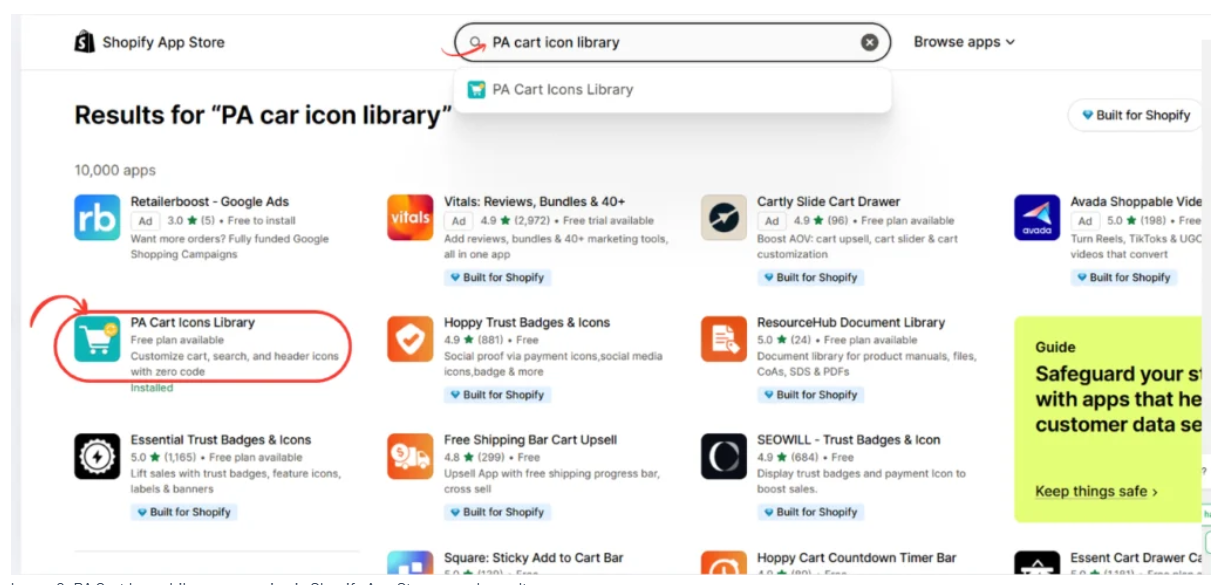
Click Install to add it to your Shopify store. If the app is already installed, click Open.
Once inside Shopify Admin, navigate to:

Apps → PA Cart Icons Library → Dashboard
The screenshot below shows the dashboard after installation and activation.

Image 1: PA Cart Icons Library dashboard showing the active Theme Icons Pro integration, header icon selections, and Live Preview.
Image explanation: The screenshot displays the Theme Icons Pro dashboard, where merchants can customize storefront header icons.
At the top, the green App Embed Status panel indicates that the app embed is active in this example.
The Storefront Integration section shows Enable custom vector icons on storefront checked.
Below it, three dropdown menus allow merchants to choose different cart, search, and account icon designs.
The right side displays a Live Preview panel with the three icons and a cart quantity indicator.
Before editing the badge, make sure your store’s app integration is enabled.
Step 2: Find the Cart Count Badge Settings
Scroll down the Theme Icons Pro dashboard until you reach the Cart Count Badge section.
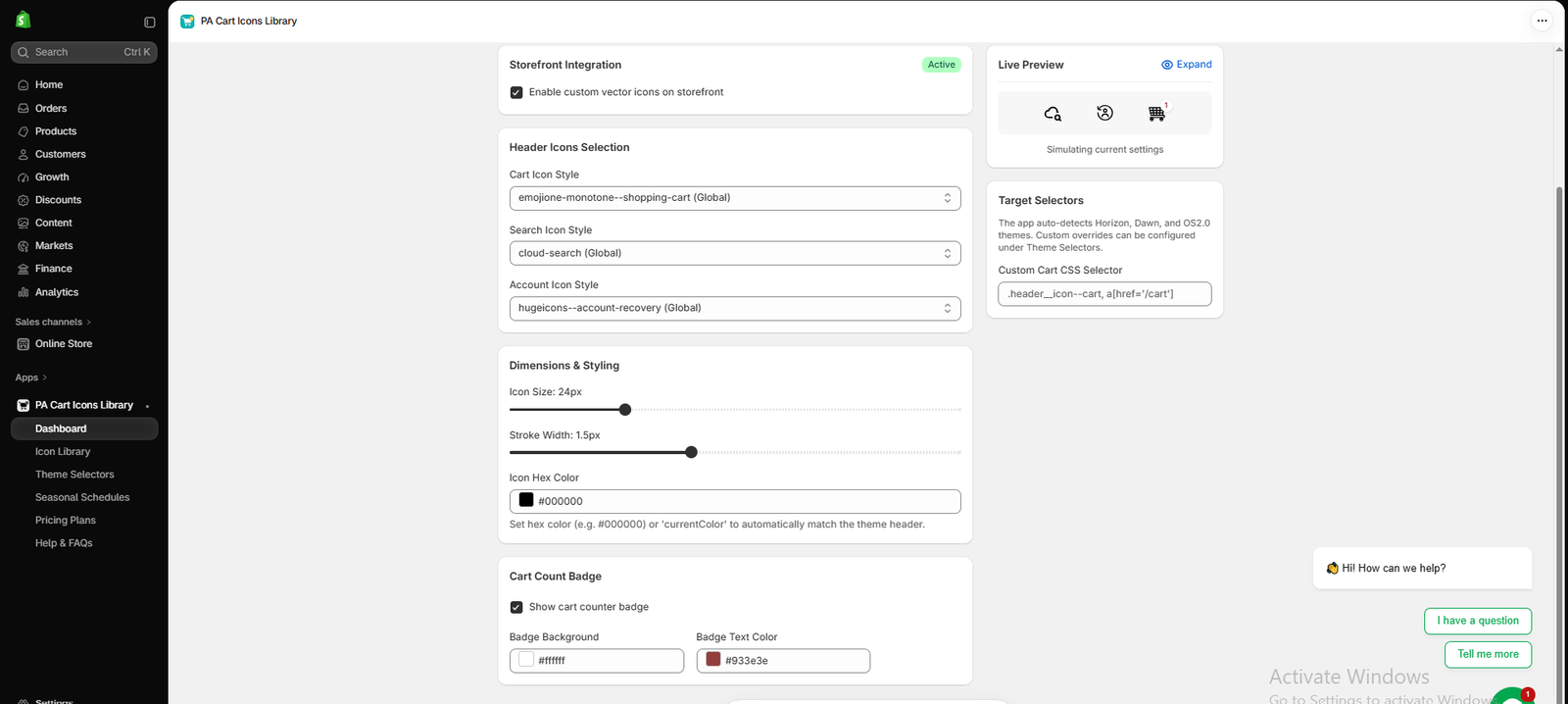
Image 2: The Cart Count Badge section with visibility, Badge Background, and Badge Text Color controls.
Image explanation: This screenshot shows the available badge customization settings.
The Show cart counter badge checkbox controls whether the quantity indicator appears.
Below it, you can see two color fields:
- Badge Background: Controls the background behind the cart quantity.
- Badge Text Color: Controls the color of the quantity number.
The example initially displays a white background (#ffffff) and a dark reddish text color (#933e3e).
The Live Preview on the right shows how these selections look.
Step 3: Change the Cart Badge Background Color
To customize the background, click the Badge Background color field.
A color picker will appear.

Image 3: Changing the cart badge background to red using the built-in color picker.
Image explanation: The screenshot shows the color picker open for the badge background.
The background field is being changed to a red tone, with the hexadecimal value #c03131 entered.
The Live Preview reflects the selected background color.
What should merchants do?
Choose a color that matches your brand while providing enough contrast for the quantity number.
For example, you could choose red for a noticeable accent, green for an earthy brand, or dark charcoal for a minimalist storefront.
You can use the color picker or enter a specific HEX code.
Step 4: Customize the Cart Badge Text Color
After setting the background color, click Badge Text Color.
This setting controls the appearance of the number inside the badge.

Image 4: Changing the cart badge text color using the color picker and HEX input.
Image explanation: The screenshot shows the badge text color picker open.
The example contains a red badge background (#c03131) and a green badge text selection (#51c841).
The Live Preview updates with the chosen styling.
Although this combination demonstrates the customization feature, a stronger contrast is usually preferable for a small cart quantity badge.
For example, white text on a dark red background is often easier to read than green text on red.
Recommended color combinations
| Badge background | Text color | Design style |
|---|---|---|
#C03131 | #FFFFFF | Bold red |
#111827 | #FFFFFF | Minimal dark |
#FACC15 | #111827 | Yellow accent |
#FFFFFF | #111827 | Clean neutral |
#0F766E | #FFFFFF | Modern teal |
Choose a color combination with sufficient contrast, ideally meeting WCAG’s 4.5:1 contrast target for small text.
Step 6: Save Your Cart Count Badge Configuration
After reviewing the final appearance, scroll to the top of the Theme Icons Pro dashboard.
Click Save Configuration.

Image 6: Review the configured badge and save the Theme Icons Pro settings.
Image explanation: Your screenshot shows the cart badge in the Live Preview after its styling has been adjusted.
The badge appears with a red background and a contrasting number.
The Save Configuration button is visible at the top-right of the dashboard.
Clicking Save Configuration stores your selected icon and badge styling settings in the application.
Step 7: Enable the App Embed and Verify Your Cart Badge on Shopify
After saving your settings, open Shopify’s theme editor.
Navigate to:
Online Store → Themes → Edit theme → App embeds
Locate Theme Icons Pro, provided by PA Cart Icons Library.

Image 7: Shopify theme editor showing the enabled Theme Icons Pro app embed and the customized cart badge in the storefront header.
Image explanation: The screenshot shows the Shopify theme editor with the Theme Icons Pro toggle enabled.
The updated cart icon and its red notification badge appear in the top-right area of the storefront preview.
The relevant header icons and the Save button are highlighted.
Final actions: Enable the app embed if it isn’t already active, check the cart badge in the storefront preview, and click Save in the theme editor.
Also test your actual storefront on desktop and mobile. Add and remove a product to confirm the quantity indicator updates correctly.
Your Shopify cart count badge is now customized without manually editing theme code.
Best Cart Count Badge Color Ideas for Shopify Stores
Minimalist Stores
Use a dark charcoal background with white text for a clean and professional appearance.
Fashion and Beauty Stores
Use a refined brand accent, such as burgundy or muted pink, with readable contrasting text.
Technology Stores
Use a dark background with white text or a bright accent with dark text.
Eco-Friendly Stores
Use a deep green or teal badge background with white text.
Bright and Playful Stores
Use a yellow background with dark text to create a noticeable accent without sacrificing readability.
The best choice depends on the overall brand design, header background, and accessibility requirements.
Common Mistakes to Avoid
Using low-contrast colors
Small quantity numbers can be difficult to read. Always check the contrast between the background and text.
Choosing an oversized badge
The badge should remain proportional to the cart icon and should not cover important header elements.
Ignoring mobile devices
Review badge styling on smaller screens, where space is limited.
Forgetting to save configuration
After adjusting your preferences, click Save Configuration inside PA Cart Icons Library.
Not enabling the app embed
If the app embed is disabled, your customizations may not appear in the storefront.
Failing to test cart functionality
A visually attractive badge is useful only if it correctly displays the cart quantity and doesn’t interfere with the cart icon.
Frequently Asked Questions
1. Can I change the Shopify cart count badge color without coding?
Yes. PA Cart Icons Library provides no-code controls for supported cart badge background and text color customization.
2. Can I change the badge background and text colors separately?
Yes. The application provides separate Badge Background and Badge Text Color fields.
3. Can I hide the cart count badge?
The dashboard includes a Show cart counter badge checkbox, which controls badge visibility in the app’s supported integration.
4. Can I preview the badge before publishing?
Yes. Theme Icons Pro includes a Live Preview showing your selected cart badge styling.
5. Can I choose custom brand colors?
Yes. The application provides color pickers and HEX color fields.
6. Will the cart count badge work on mobile?
It is designed for Shopify storefronts, but the exact appearance and behavior depend on theme compatibility. Always test your mobile header.
7. Does the app work with Shopify Dawn and Horizon?
The dashboard indicates support for automatic selector detection on Horizon, Dawn, and Online Store 2.0 themes. Individual theme customizations may require additional testing.
8. Do I need to edit Liquid or CSS?
The demonstrated process uses the application’s configuration controls and Shopify’s theme app embed, without manual theme code editing.
Conclusion
Your Shopify cart count badge may be small, but it is an important part of your store’s header design and shopping experience.
A clearly visible quantity indicator helps customers recognize cart updates, while appropriate colors and styling contribute to a more professional storefront.
However, changing badge colors manually can require editing theme code.
With PA Cart Icons Library, merchants can customize the badge background, text color, and visibility through an easy-to-use dashboard.
As shown in the actual screenshots, the process involves opening Theme Icons Pro, selecting custom colors, previewing the changes, saving the configuration, and enabling the Shopify theme app embed.
For the best results, choose colors that match your brand, maintain strong contrast, and work well on desktop and mobile.
Ready to give your Shopify cart badge a custom look?Install PA Cart Icons Library on Shopify




