HOW TO LET CUSTOMERS REVIEW THEIR CART WITHOUT LEAVING THE PAGE
Introduction
A Shopify cart drawer allows customers to review their selected products without navigating away from the current page. Instead of redirecting shoppers to a separate cart page, an interactive side cart displays their items, quantities, prices, and checkout options in one convenient place.
For Shopify merchants, creating a smooth shopping experience is important. Customers should be able to check their cart, adjust product quantities, and continue shopping without unnecessary interruptions.
SA Sticky Add to Cart Drawer helps merchants create a customizable side cart with product recommendations, quantity controls, and convenient checkout access.
In this guide, we’ll explain the challenges merchants face, why cart drawers matter, and how to set up a cart drawer using SA Sticky Add to Cart Drawer.
Common Problems Shopify Merchants Face
Customers Are Redirected to Separate Cart Pages
Some Shopify themes redirect customers to a dedicated cart page whenever they want to review their purchases.
This can interrupt the shopping experience and require additional navigation.
Customers Cannot Easily Review Cart Items
Shoppers often want to check their selected products, prices, and quantities before checkout.
When this information is difficult to access, the buying process becomes less convenient.
Limited Cart Customization
Many themes offer only basic cart functionality.
Adding a customized cart drawer with quantity controls, product recommendations, and a convenient checkout button may require additional development.
Missed Product Recommendation Opportunities
Traditional cart pages may not prominently display complementary products.
This can limit opportunities to introduce shoppers to accessories and related items.
Why a Shopify Cart Drawer Is Important
A Shopify cart drawer helps customers review their purchases while remaining on the same storefront page.
It can improve shopping convenience by making cart contents more accessible and reducing unnecessary navigation.
A well-designed cart drawer can also display product recommendations, helping customers discover complementary items before checkout.
Why Shopify Stores Need a Cart Drawer App
Creating a custom cart drawer manually may require Shopify Liquid, CSS, JavaScript, and ongoing theme maintenance.
A dedicated application simplifies this process.
SA Sticky Add to Cart Drawer offers features including:
- Interactive side cart drawer
- Product quantity controls
- Upsell product recommendations
- Sticky add-to-cart functionality
- Customizable cart design
- Shipping rewards and progress indicators
- Convenient checkout access
These features help Shopify merchants create a more flexible shopping experience.
Introducing SA Sticky Add to Cart Drawer
SA Sticky Add to Cart Drawer is a Shopify application designed to help merchants customize their shopping cart experience.
With its interactive side cart, customers can review products, update quantities, explore recommendations, and proceed to checkout without navigating to a separate cart page.
App link: https://apps.shopify.com/sk-sticky-add-to-cart-drawer
Step-by-Step: How to Let Customers Review Their Cart Without Leaving the Page
Step 1: Open the Shopify App Store
Open Google and search for Shopify App Store.
Click the official Shopify App Store result to access the marketplace for Shopify applications.

Step 2: Search for SA Sticky Add to Cart Drawer
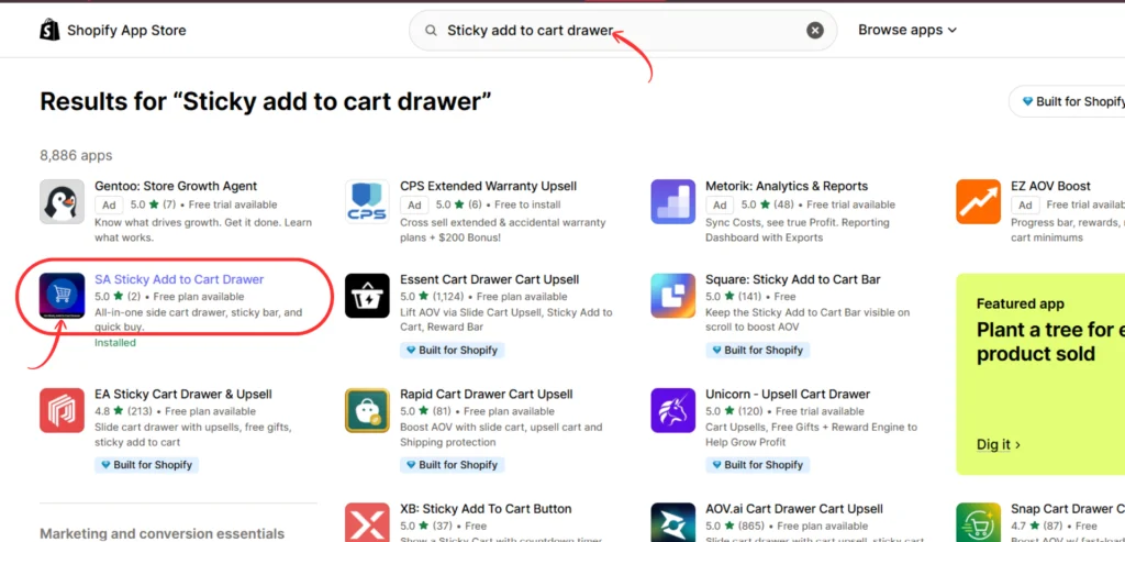
Inside the Shopify App Store, locate the search bar.
Enter Sticky add to cart drawer and search for the application.
Find SA Sticky Add to Cart Drawer in the results and open its listing.
Step 3: Install SA Sticky Add to Cart Drawer
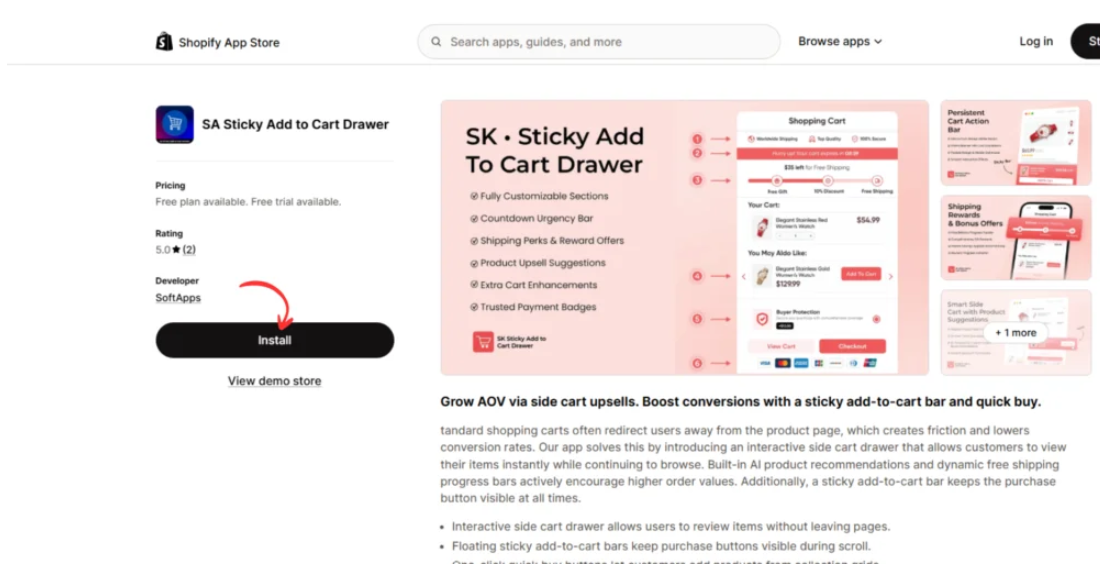
Open the official application listing:SA Sticky Add to Cart Drawer on Shopify App Store
Review the app’s features and available pricing plans.
Click Install and complete the Shopify installation process.
Step 4: Open the Application
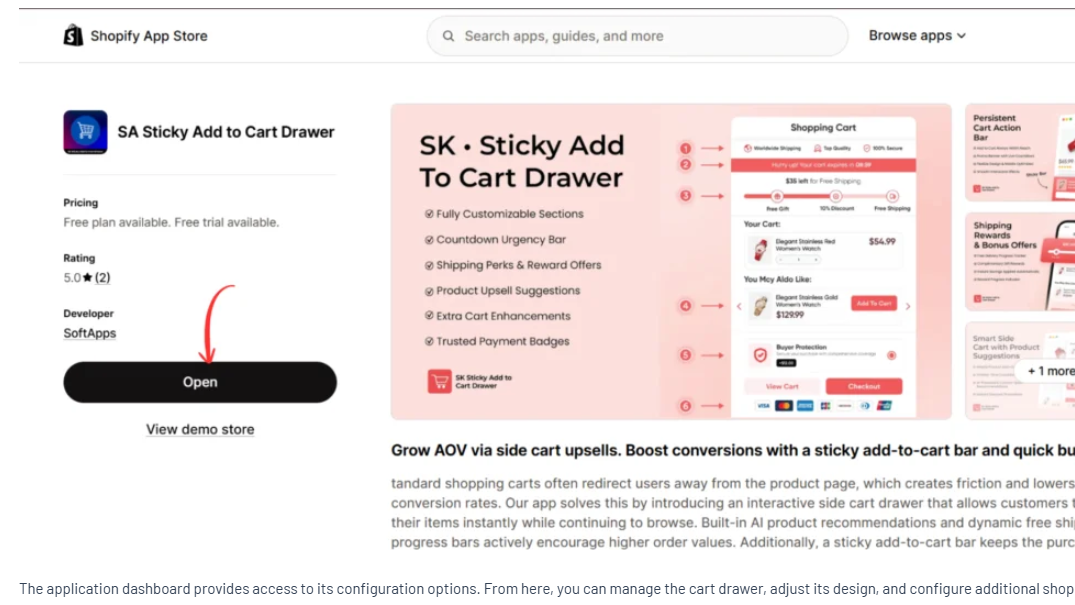
After installation, click Open from the Shopify App Store listing.
You can also access the application from the Apps section of your Shopify admin.
The app dashboard provides access to cart settings, customization options, and other available features.
Step 5: Configure the Side Cart Drawer
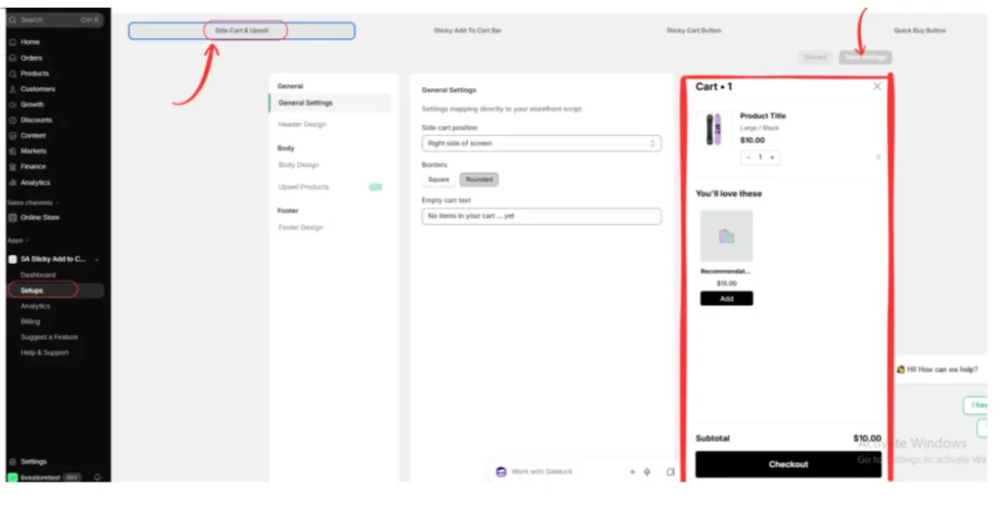
Inside the application, navigate to Setups → Side Cart & Upsell.
This section provides options for customizing your Shopify cart drawer.
Under General Settings, choose your preferred cart position. For a drawer that opens on the right, select Right side of screen.
You can also configure the following options:
- Header Design: Customize the cart heading and appearance.
- Body Design: Adjust how selected products appear.
- Upsell Products: Configure related product recommendations.
- Footer Design: Customize the lower section of the drawer.
Use the preview to check how products, quantities, and checkout controls appear.
Once your configuration is complete, click Save Settings.
Step 6: Enable the Cart Drawer in Your Shopify Theme
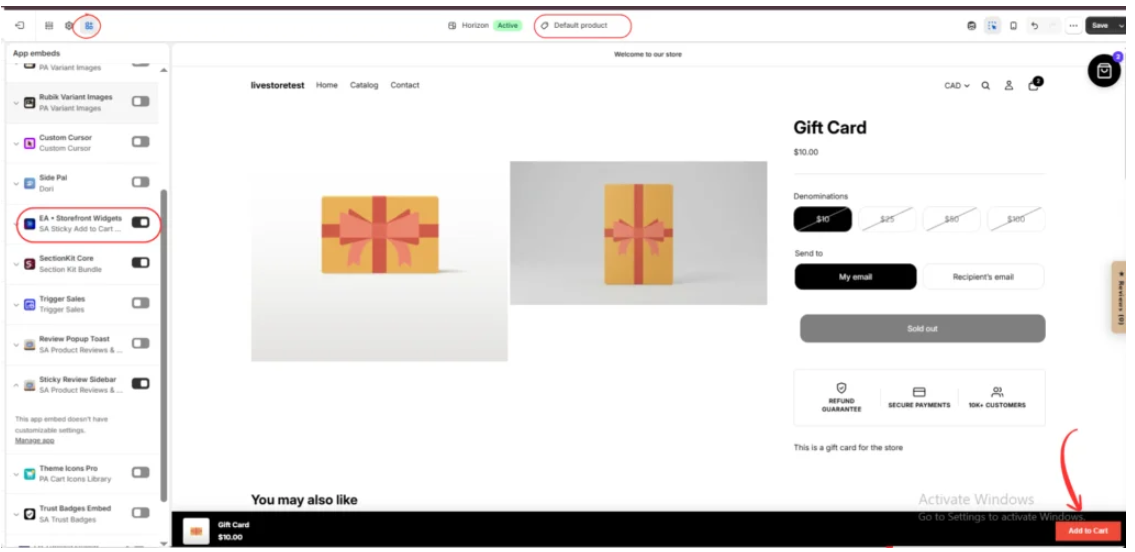
Open your Shopify admin and navigate to Online Store → Themes → Customize.
Inside the theme editor, select App embeds.
Find EA • Storefront Widgets, associated with SA Sticky Add to Cart Drawer.
Enable the app embed to activate the supported storefront features.
After enabling it, navigate to a product page and confirm that the cart functionality appears correctly.
Step 7: Preview the Cart Without Leaving the Page
After enabling the app embed, open your storefront preview and add products to the cart.
The cart drawer appears on the right side of the screen while the original page remains visible in the background.
As shown in your image, the cart drawer includes:
- Cart heading: Displays the number of items currently in the cart.
- Product images and titles: Help customers identify selected items.
- Product prices: Show the prices of cart items.
- Quantity controls: Allow customers to increase or decrease quantities.
- Product recommendations: The You’ll love these section introduces complementary products.
- Checkout button: Provides a convenient way to proceed to checkout.
Customers can review their cart contents and explore recommended products without opening a separate cart page.
Test the drawer on desktop and mobile devices. Verify that quantity controls, product recommendations, and checkout functionality work correctly.
Finally, click Save in the Shopify theme editor.

Best Practices for Shopify Cart Drawers
Display Clear Product Information
Use recognizable product images, readable titles, accurate prices, and accessible quantity controls.
Keep Checkout Visible
Make the checkout button easy to find so customers can complete their purchases without confusion.
Recommend Relevant Products
Display complementary products that relate to the items already selected.
Optimize for Mobile Devices
Ensure that the cart drawer fits smaller screens and that buttons remain easy to use.
Avoid Overcrowding the Drawer
Prioritize cart items, essential pricing information, and checkout functionality.
How SA Sticky Add to Cart Drawer Helps Shopify Merchants
SA Sticky Add to Cart Drawer allows merchants to configure a shopping cart experience that keeps customers on the current page.
Its customizable side cart provides access to selected products, quantity controls, related product recommendations, and checkout functionality.
The application also includes additional cart customization features that can support a smoother shopping experience.
Explore SA Sticky Add to Cart Drawer: https://apps.shopify.com/sk-sticky-add-to-cart-drawer
Conclusion
Allowing customers to review their cart without leaving the page can make the shopping experience more convenient.
An interactive Shopify cart drawer helps customers check selected products, update quantities, discover recommendations, and access checkout from one interface.
With SA Sticky Add to Cart Drawer, Shopify merchants can configure a customizable side cart without building every feature manually.
Get started: https://apps.shopify.com/sk-sticky-add-to-cart-drawer




