CART, BAG OR BASKET ICON: WHICH FITS YOUR SHOPIFY BRAND BEST?
Shopify Store Design Guide | Cart vs Bag vs Basket Icons | PA Cart Icons Library | 2026

Introduction
Your Shopify store’s shopping cart icon may seem like a small design element, but it plays an important role in how customers interact with your storefront.
Whether you’re running a fashion boutique, electronics store, grocery shop, beauty brand, or general eCommerce business, your shopping icon helps visitors recognize where their selected products are stored.
However, not every Shopify brand needs the same icon.
Some stores use a traditional shopping cart, while others prefer a minimalist shopping bag or a modern basket design.
Each option creates a slightly different visual impression.
A shopping bag may complement a luxury fashion boutique, while a traditional cart might be more suitable for an electronics or general merchandise store. A shopping basket can work naturally for grocery, food, and home essentials brands.
The challenge is choosing an icon that matches your brand without sacrificing usability.
Fortunately, PA Cart Icons Library lets Shopify merchants explore different cart, bag, and basket designs and apply their preferred icons without manually editing theme code.
In this article, we’ll compare these three popular icon styles, explain which works best for different Shopify brands, and show how to customize your storefront using actual screenshots from PA Cart Icons Library.
Why Your Shopify Shopping Icon Matters
A shopping icon serves two important purposes: helping customers navigate and supporting your brand’s visual identity.
Customers expect a familiar symbol in the storefront header to represent their shopping cart.
If that icon is difficult to recognize, visually inconsistent, or hidden among other elements, customers may have trouble locating their cart.
Choosing an appropriate icon can help create a cleaner and more intuitive shopping experience.
Brand consistency
The icon should complement your store’s overall visual style.
Customer recognition
Visitors should immediately understand that the symbol opens their cart.
Header appearance
The shape and size of the icon influence how balanced the navigation area looks.
Mobile usability
Simple, recognizable icons are especially valuable on smaller screens.
Shopping experience
A clearly displayed cart control helps customers review their selected products and proceed toward checkout.
Shopping Cart vs Shopping Bag vs Shopping Basket: What’s the Difference?
1. Shopping Cart Icon
The traditional shopping cart is one of the most recognizable eCommerce symbols. It works particularly well for general merchandise, electronics, sports, and multiproduct stores where customers frequently add several items to their orders.
2. Shopping Bag Icon
A shopping bag often creates a clean, boutique-inspired impression. It is popular in fashion, beauty, accessories, jewelry, and other lifestyle storefronts where a minimalist design is desirable.
3. Shopping Basket Icon
A shopping basket can feel familiar and approachable, especially for grocery, food, household, and everyday essentials stores. Its shape can also work for contemporary general retail brands.
Which Icon Is Best for Your Shopify Store?
| Shopify store category | Suggested icon | Reason |
|---|---|---|
| Fashion and apparel | Shopping bag | Clean boutique appearance |
| Luxury accessories | Minimalist bag | Refined, understated design |
| Electronics and gadgets | Shopping cart | Familiar eCommerce symbol |
| Grocery and food | Shopping basket | Fits everyday shopping |
| Beauty and skincare | Shopping bag | Complements lifestyle branding |
| Sports and outdoor | Shopping cart | Clear and functional |
| Home and furniture | Cart or basket | Depends on store aesthetic |
| General merchandise | Shopping cart | Broad customer familiarity |
There is no universally best design. The ideal icon is the one that customers recognize easily and that fits naturally with your store’s overall branding.
Common Problems With Default Shopify Cart Icons
Many Shopify themes include a default cart or bag icon with limited appearance options.
Some merchants discover that their default icon is too small, uses a different visual style from the other header icons, or simply doesn’t reflect their branding.
Replacing an icon manually may require editing Liquid, CSS, or SVG files.
If the theme structure is unfamiliar, these changes can be difficult to manage and maintain.
This is why a visual icon customization app can be useful.
Introducing PA Cart Icons Library
PA Cart Icons Library is a Shopify app that helps merchants customize their storefront cart, search, and account icons without writing code.
The application offers an icon library containing different shopping cart, bag, and basket styles.
Its Theme Icons Pro dashboard allows merchants to select icon designs, adjust colors and sizes, and preview their choices before publishing.
Key features
- 300+ cart icon styles advertised by the app.
- Shopping cart, shopping bag, and basket designs.
- Outline and solid icon variations.
- Searchable icon library.
- One-click Apply to Theme controls.
- Custom icon colors and sizes.
- Stroke-width customization.
- Live header preview.
- Cart count badge customization.
- Shopify theme app embed integration.
App Link: PA Cart Icons Library — Shopify App Store
Step-by-Step Guide: How to Choose and Change Cart, Bag, or Basket Icons on Shopify
This tutorial uses your six original screenshots in the order provided, with each image placed directly below the step it illustrates.
Step 1: Install and Open PA Cart Icons Library
First, open the official Shopify App Store and search for PA Cart Icons Library.
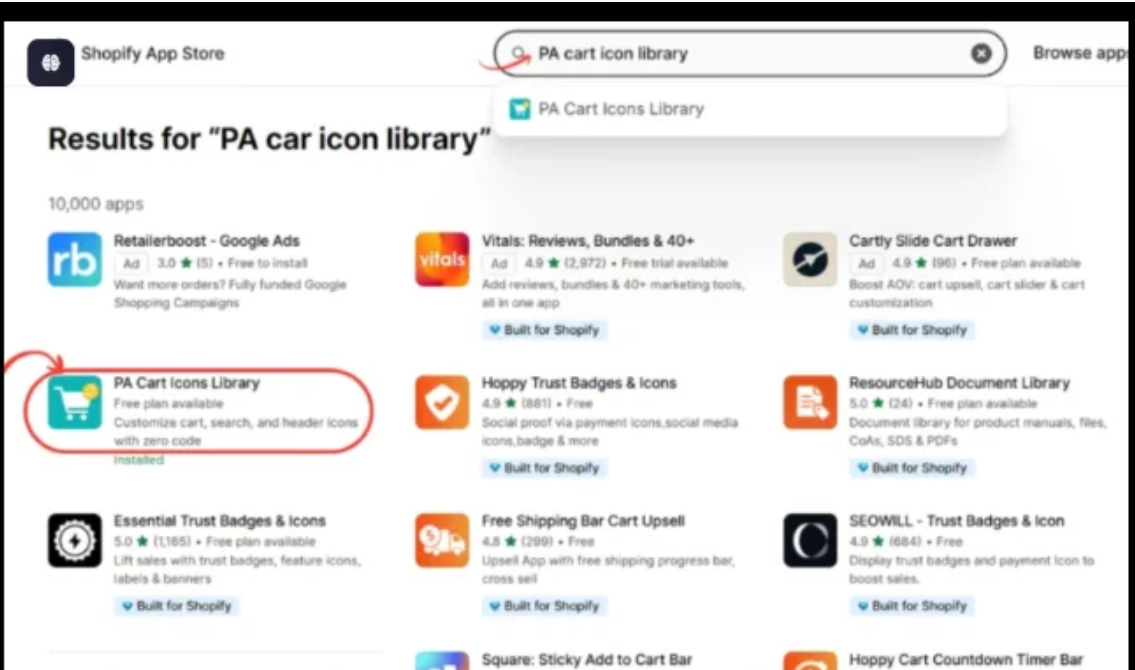
Open the app listing, then click Install to add it to your store.
If you’ve already installed the application, open it through your Shopify Admin.
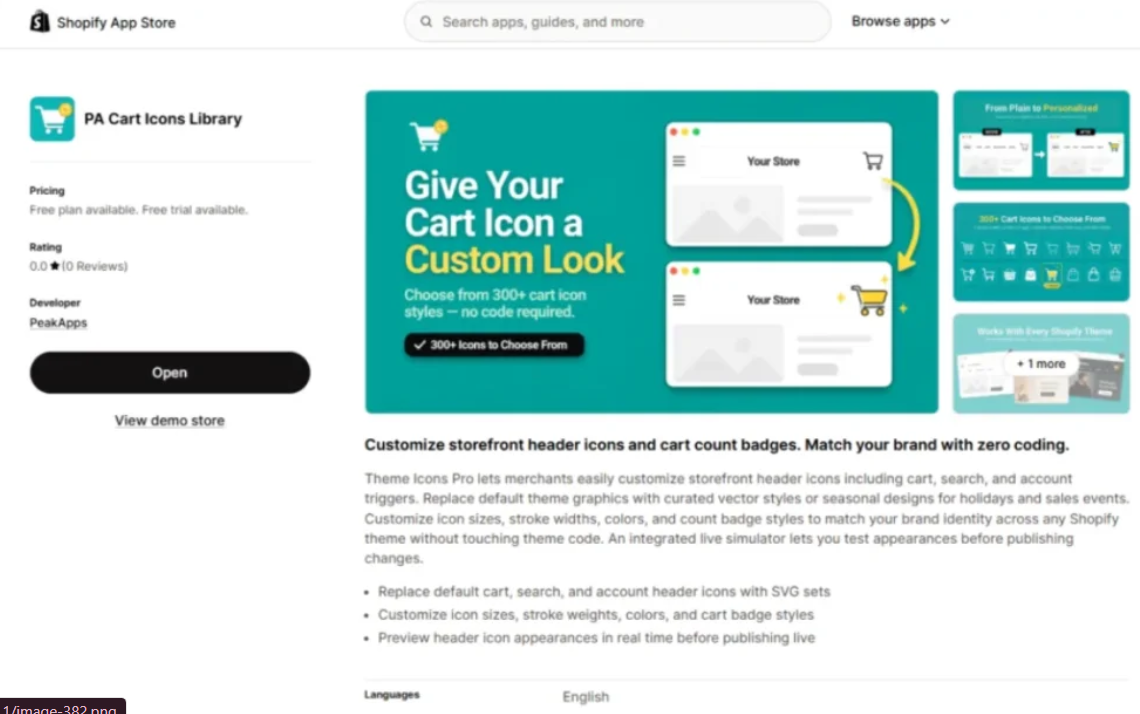
Navigate to:
Shopify Admin → Apps → PA Cart Icons Library → Icon Library
Step 2: Explore the Cart Icon Library
Once the app opens, select Icon Library from the left sidebar.

Image 1: PA Cart Icons Library showing Minimal Bag, Modern Basket, Filled Shopping Bag, and additional cart icon options.
Image explanation: Your screenshot displays the main Icon Library interface.
At the top, merchants can switch between Cart Icons, Search Icons, Account Icons, Wishlist, and Menu categories.
Below those tabs, the search field allows users to look for specific icons, while the style filter helps narrow the available designs.
The first visible options include Minimal Bag, Modern Basket, and Filled Shopping Bag.
Each card contains a preview, icon name, style label, and Apply to Theme button.
For merchants comparing cart, bag, and basket icons, this is a useful starting point.
Step 3: Compare Different Shopping Cart Styles
Scroll down through the Cart Icons collection to discover additional designs.

Image 2: Different shopping cart variations, including filled carts, outlined carts, and specialized cart symbols.
Image explanation: The screenshot shows a selection of cart icons with different shapes and visual styles.
Some use solid cart silhouettes, while others use thin outlines.
A green Active label identifies the icon currently selected in the example.
You can also find specialized designs showing cart checkmarks, download arrows, and other symbols.
For a standard shopping cart control, choose a recognizable cart shape rather than an icon that suggests a different action.
Step 4: Explore Bag and Package-Inspired Icons
Continue scrolling to view other options within the library.
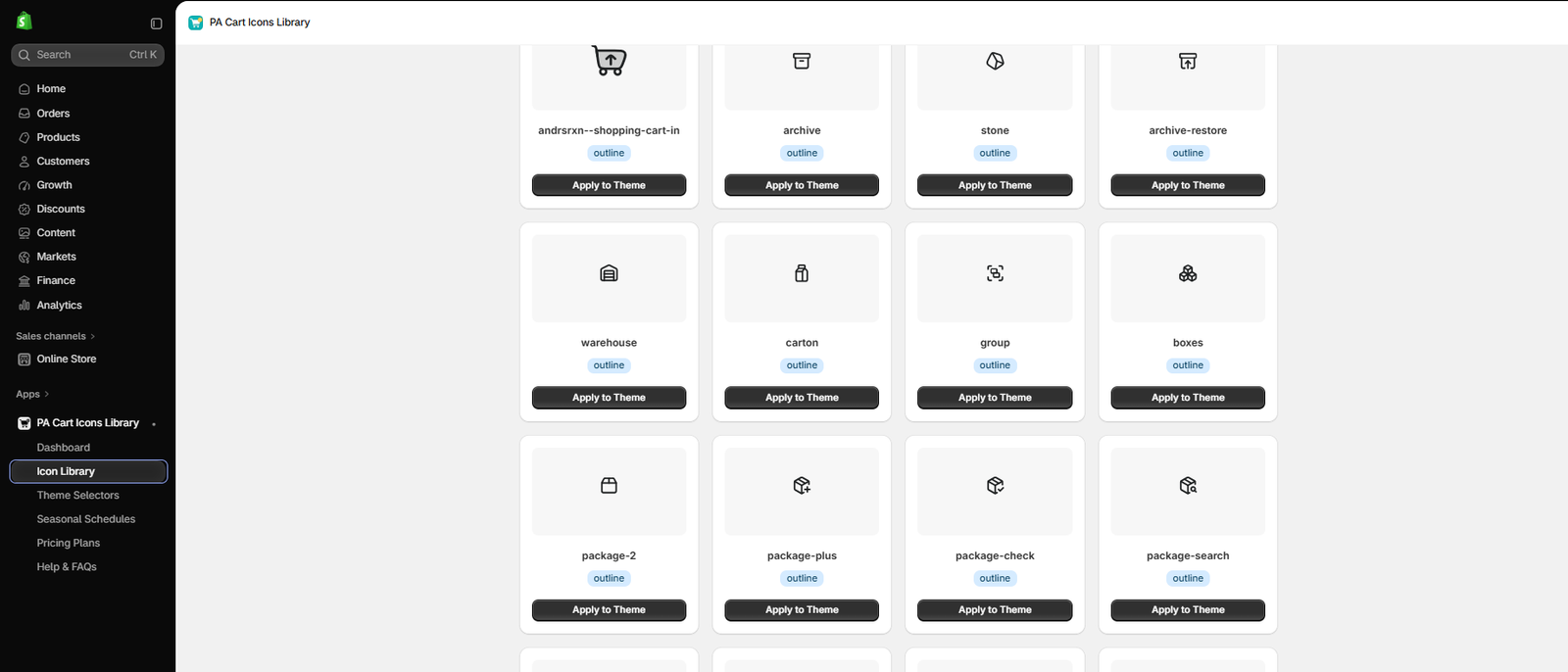
Image 3: Browsing bag, warehouse, carton, package, and other shopping-related symbols.
Image explanation: This screenshot shows a broader range of icons, including Warehouse, Carton, Boxes, Package, and Package Check.
These designs demonstrate how varied the icon library is.
However, not every icon is ideal for the primary shopping cart button.
A package icon might communicate shipping or order fulfillment more strongly than shopping-cart access.
When choosing a storefront icon, prioritize customer recognition over decorative novelty.
Step 5: Compare Minimalist Shopping Bag Designs
Scroll further to explore additional icons suitable for modern and minimalist storefronts.
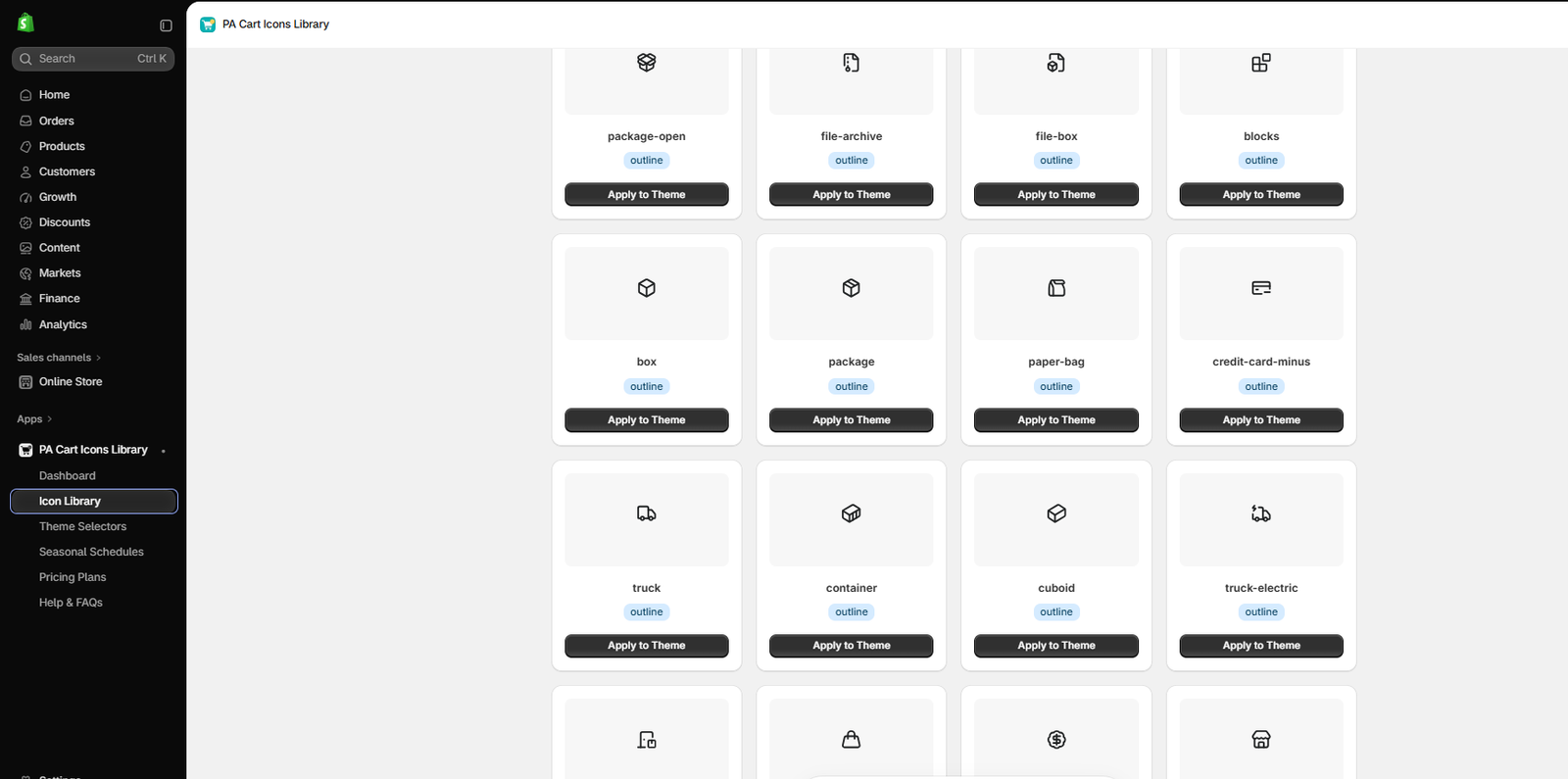
Image 4: Additional minimal shopping-related icons, including Paper Bag, Box, and Package designs.
Image explanation: The screenshot shows several compact outline icons, including Paper Bag and various package symbols.
A simple paper bag design can work particularly well for fashion and lifestyle retailers.
Compared with a traditional shopping cart, a bag icon often occupies less visual space and can complement minimalist header styling.
Choose a design that remains recognizable even when displayed at a small size.
Step 6: Find Shopping Bag and Basket Alternatives
Continue browsing to compare designs that closely represent the shopping experience.
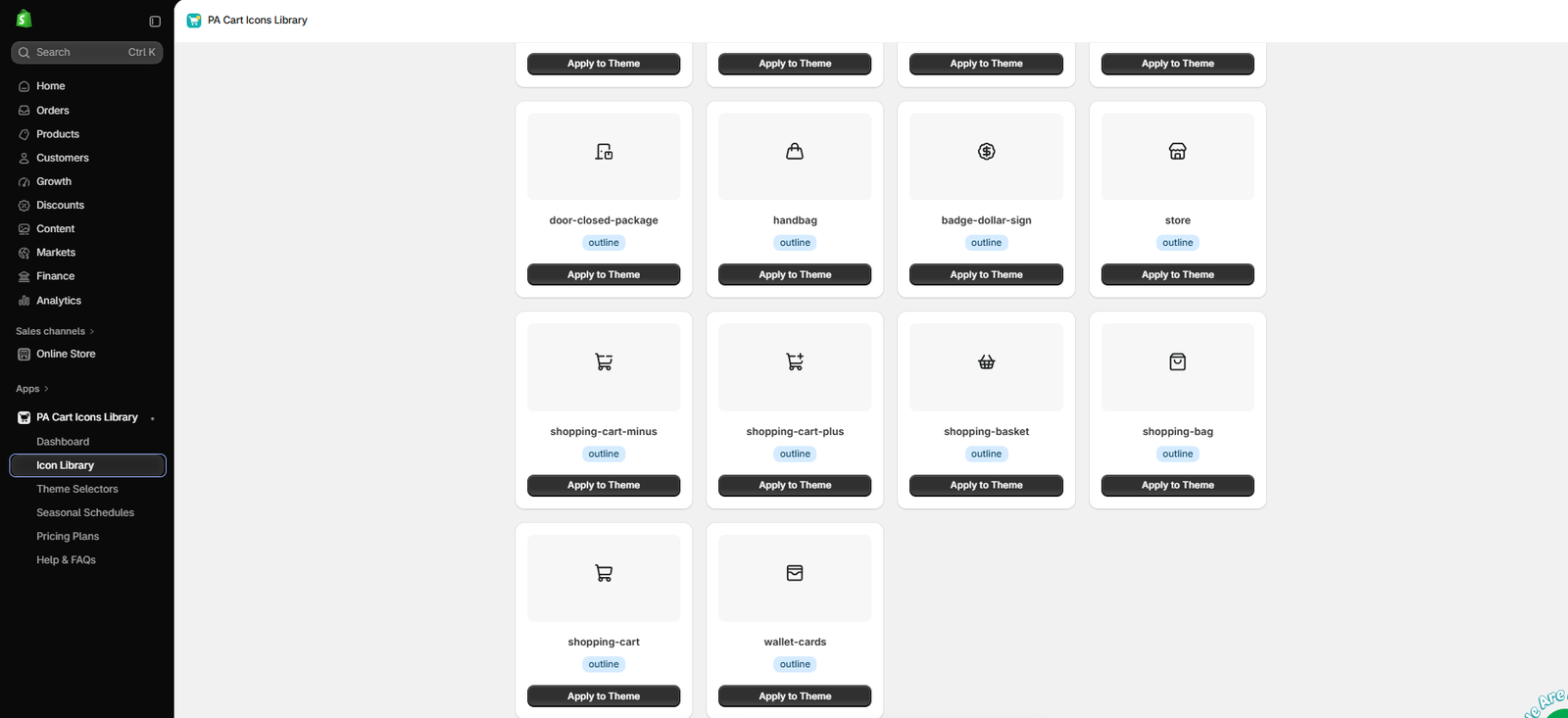
Image 5: PA Cart Icons Library showing Shopping Basket, Shopping Bag, Shopping Cart, and other available icons.
Image explanation: Your screenshot shows several useful designs, including Handbag, Shopping Basket, Shopping Bag, and Shopping Cart.
This is where merchants can compare the three main categories discussed in this article.
A handbag-style icon can create a boutique feel, while a classic shopping cart offers widespread familiarity.
A shopping basket works well for grocery and household retail designs.
After deciding which design fits your brand, click Apply to Theme beneath the preferred icon.
Step 7: Apply Your Preferred Icon to the Shopify Theme
For this demonstration, the bi–search-heart-fill design has been applied as the cart icon.
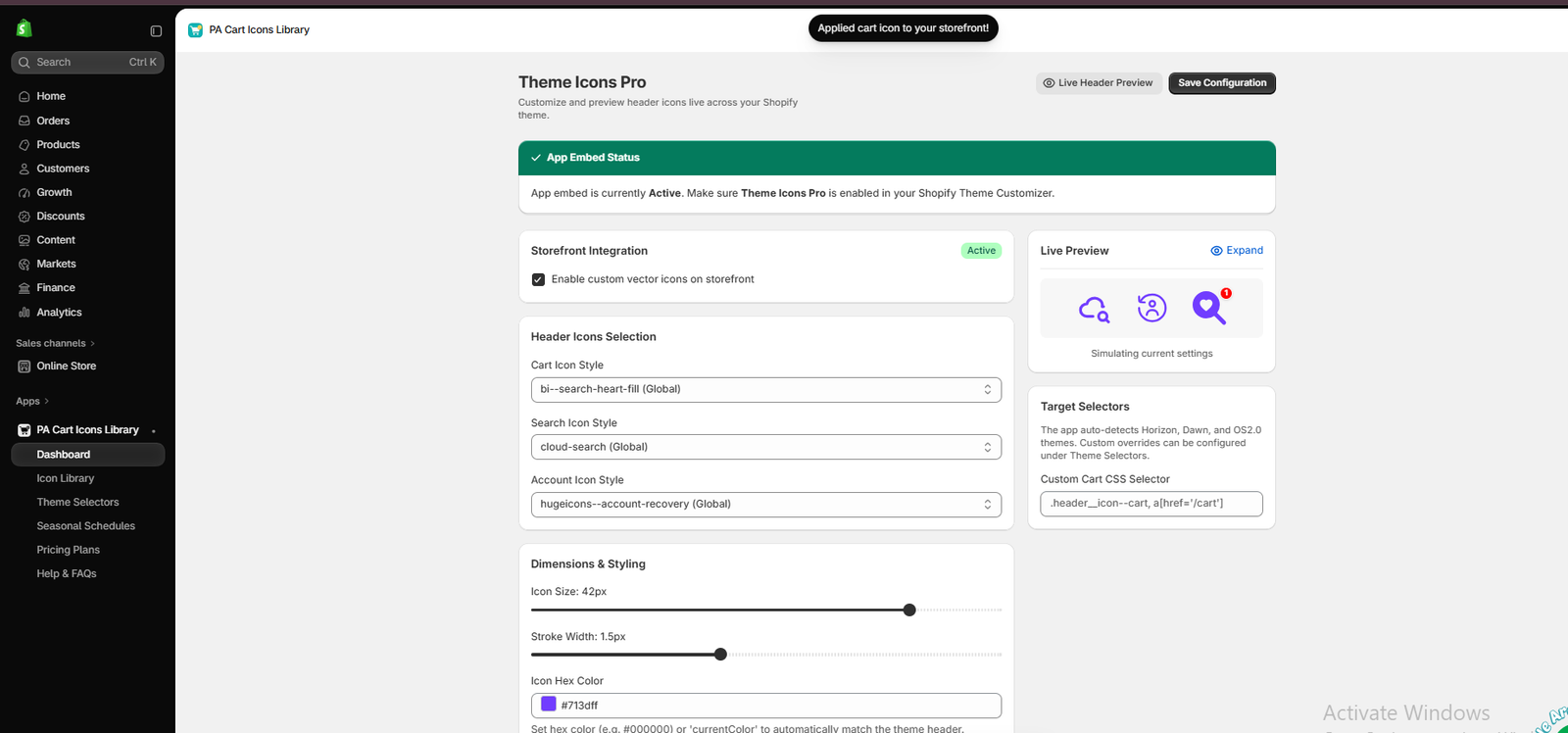
Image 6: Theme Icons Pro showing a successfully applied custom cart icon and its live storefront header preview.
Image explanation: Your screenshot shows a confirmation message at the top indicating that the cart icon has been applied to the storefront configuration.
The Theme Icons Pro dashboard displays the selected Cart Icon Style, alongside Search Icon Style and Account Icon Style.
On the right, the Live Preview shows all three icons in purple with a red cart count badge.
The screenshot also demonstrates customizable settings such as Icon Size, Stroke Width, and Icon Hex Color.
Although this example uses a decorative heart-search symbol, a more recognizable shopping cart, shopping bag, or basket would generally be better for everyday storefront navigation.
Choose the design that suits your brand, then click Save Configuration to retain your preferred settings.
Step 8: Enable the App Embed in Your Shopify Theme
After saving your icon configuration, open your Shopify theme editor.
Navigate to:
Online Store → Themes → Edit theme → App embeds
Find Theme Icons Pro from PA Cart Icons Library and enable it if it is not already active.
Save the theme settings.
Step 9: Preview the Updated Icon on Your Shopify Store
Finally, open your storefront preview and inspect the header.
Check whether the newly selected shopping icon matches your brand’s design and whether the icon is easy to recognize.
Test the mobile and desktop versions of your store.
Click the icon and confirm that it still opens the shopping cart correctly.
A visually attractive icon is only useful when customers can understand and interact with it.
How to Choose the Right Cart Icon for Your Brand
Consider your store’s industry
A fashion boutique and an electronics retailer may benefit from different icon styles.
Keep your header visually consistent
Your cart, search, and account icons should have similar proportions and visual weight.
Avoid confusing symbols
An unusual icon may look creative but can make customers uncertain about its purpose.
Use a suitable size
For many stores, a visible icon around 20–28px is a reasonable starting point. The final size depends on the Shopify theme and layout.
Maintain color contrast
Choose colors that remain readable against your header background.
Test different designs
If you are unsure between cart, bag, and basket styles, test them with customers or compare how each affects navigation and cart interactions.
Does the Type of Shopping Cart Icon Affect Conversions?
The icon style itself does not guarantee more sales.
However, a clear and recognizable icon can help support navigation.
If shoppers struggle to find their cart, they may experience unnecessary friction during checkout.
The most important factors are that the icon is visible, recognizable, clickable, and consistent with the rest of the storefront.
A simple, familiar icon is often a safer design choice than an unusual decorative alternative.
Frequently Asked Questions
1. Which is better for Shopify: cart, bag, or basket?
It depends on your brand. Cart icons are highly recognizable, shopping bags often fit fashion and lifestyle brands, and baskets can suit grocery and household stores.
2. Can I change my Shopify cart icon without coding?
Yes. PA Cart Icons Library provides visual controls for selecting and applying supported cart icon designs.
3. Can I replace a shopping cart with a shopping bag?
Yes. You can choose a shopping bag from the icon library and apply it to your storefront.
4. Does PA Cart Icons Library include basket designs?
Yes. The provided screenshots show Modern Basket and Shopping Basket options.
5. Can I customize the icon color and size?
Yes. The Theme Icons Pro dashboard includes Icon Hex Color, Icon Size, and Stroke Width controls.
6. Can I preview an icon before publishing?
Yes. The dashboard includes a Live Preview section showing the selected header icons.
7. Should luxury Shopify stores use a shopping bag?
A shopping bag can complement a luxury or fashion-oriented visual style, but the best choice depends on your theme and customers.
8. Can I customize search and account icons too?
Yes. PA Cart Icons Library includes separate selections for search and account icons.
Conclusion
Choosing between a shopping cart, shopping bag, and shopping basket icon is a small but meaningful storefront design decision.
A traditional cart offers broad familiarity, a shopping bag can complement elegant fashion and lifestyle branding, and a basket may feel natural for grocery and everyday essentials stores.
The right choice depends on your products, audience, and overall design.
With PA Cart Icons Library, Shopify merchants can explore different designs, compare styles, customize appearance settings, and apply their preferred shopping icons without manually editing theme code.
The screenshots in this guide show how merchants can browse the icon library, compare cart and bag alternatives, apply an icon to their theme, and preview the result.
For the best shopping experience, choose a familiar icon that matches your brand, maintain consistent header styling, and verify that the cart remains easy to access.
Find the perfect cart, bag, or basket icon for your Shopify store.Explore PA Cart Icons Library on Shopify




