SHOPIFY HOMEPAGE SECTIONS THAT HELP TURN VISITORS INTO BUYERS
Introduction
Your Shopify homepage is often the first impression customers have of your brand. A well-designed homepage does more than look attractive. It helps visitors understand what you sell, discover relevant products, build confidence in your business, and take the next step toward purchasing.
However, many Shopify merchants struggle with limited theme sections, repetitive layouts, and expensive custom development.
With Section Kit: Theme Sections, you can explore a library of ready-made Shopify sections, including product grids, collection displays, navigation menus, image-with-text layouts, promotional banners, and more.
Instead of installing a separate app for every small design feature, you can find multiple sections in one place and customize them using Shopify’s theme editor.
In this guide, we’ll explore homepage sections that can support conversions and show you how to add them to your store using Section Kit.
Why Your Shopify Homepage Matters
A homepage should guide customers toward useful information and products without overwhelming them.
An effective homepage can help you:
- Make a strong first impression with attractive visuals.
- Highlight popular products and collections.
- Communicate offers, benefits, and important store information.
- Help visitors navigate your store.
- Build trust through clear, professional design.
- Encourage visitors to explore products and begin shopping.
The goal is not simply to add more sections. It is to choose sections that make the shopping experience easier.
Best Shopify Homepage Sections to Consider
1. Hero Banner Sections
A hero banner is one of the first elements visitors notice when they land on your homepage.
Use it to highlight a seasonal collection, a new product launch, or your store’s main value proposition.
An effective hero banner should include a clear heading, relevant imagery, a short supporting message, and a visible call-to-action button such as Shop Now or Explore Collection.
2. Featured Collection Sections
Featured collections help shoppers discover products without searching through multiple pages.
You can use these sections to display bestsellers, new arrivals, seasonal collections, or category-specific products.
Keep collection titles descriptive and make it easy for customers to reach the full collection.
3. Featured Product Grid
A featured product grid brings selected products directly onto the homepage.
This is particularly useful when you want to showcase your bestselling items or a curated selection of products.
Product images, accurate prices, clear titles, and straightforward navigation can help visitors decide what to explore next.
4. Image With Text Sections
Image-with-text layouts combine visual storytelling with useful information.
They work well for explaining product benefits, introducing your brand, highlighting product materials, or communicating what makes your store different.
Rather than writing long paragraphs, focus on a clear benefit supported by a relevant image.
5. Navigation and Mega Menu Sections
When customers cannot find what they need, they may leave without browsing further.
Navigation sections and mega menus help organize product categories, collections, and important pages.
For stores with large catalogs, clear navigation can be especially valuable.
6. Promotional and Countdown Sections
Promotional sections can draw attention to genuine sales, upcoming launches, or limited-time offers.
Countdown bars can communicate real deadlines, but they should not create misleading urgency through fake or endlessly resetting timers.
7. Social Feed and Brand Story Sections
Social content and brand storytelling can make your homepage feel more engaging.
Use these sections to share authentic brand imagery, explain your mission, or highlight how customers use your products.
Ensure any testimonials, reviews, or endorsements are genuine.
How to Add Shopify Homepage Sections Using Section Kit: Theme Sections
Follow the screenshots below to explore, select, and customize homepage sections.
Step 1: Open the Shopify App Store
Start by opening Google and searching for Shopify App Store.
Select the official Shopify App Store result, as shown in the screenshot.
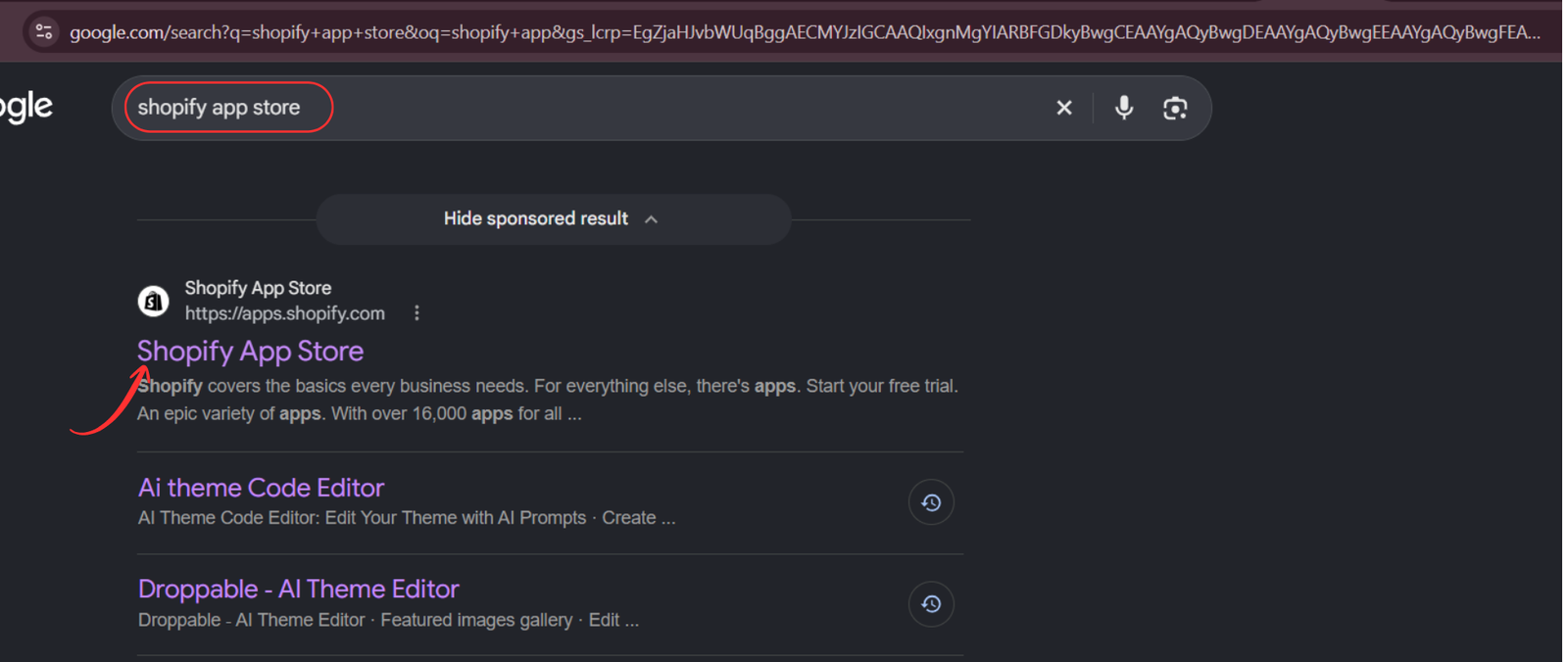
Image 1: Find and open the official Shopify App Store.
You can also visit Shopify App Store directly.
Step 2: Search for Section Kit: Theme Sections
Once inside the Shopify App Store, use the search bar to enter Section Kit Theme Sections.
Locate the app named Section Kit: Theme Sections, identifiable by its black-and-white app icon in the provided screenshot.
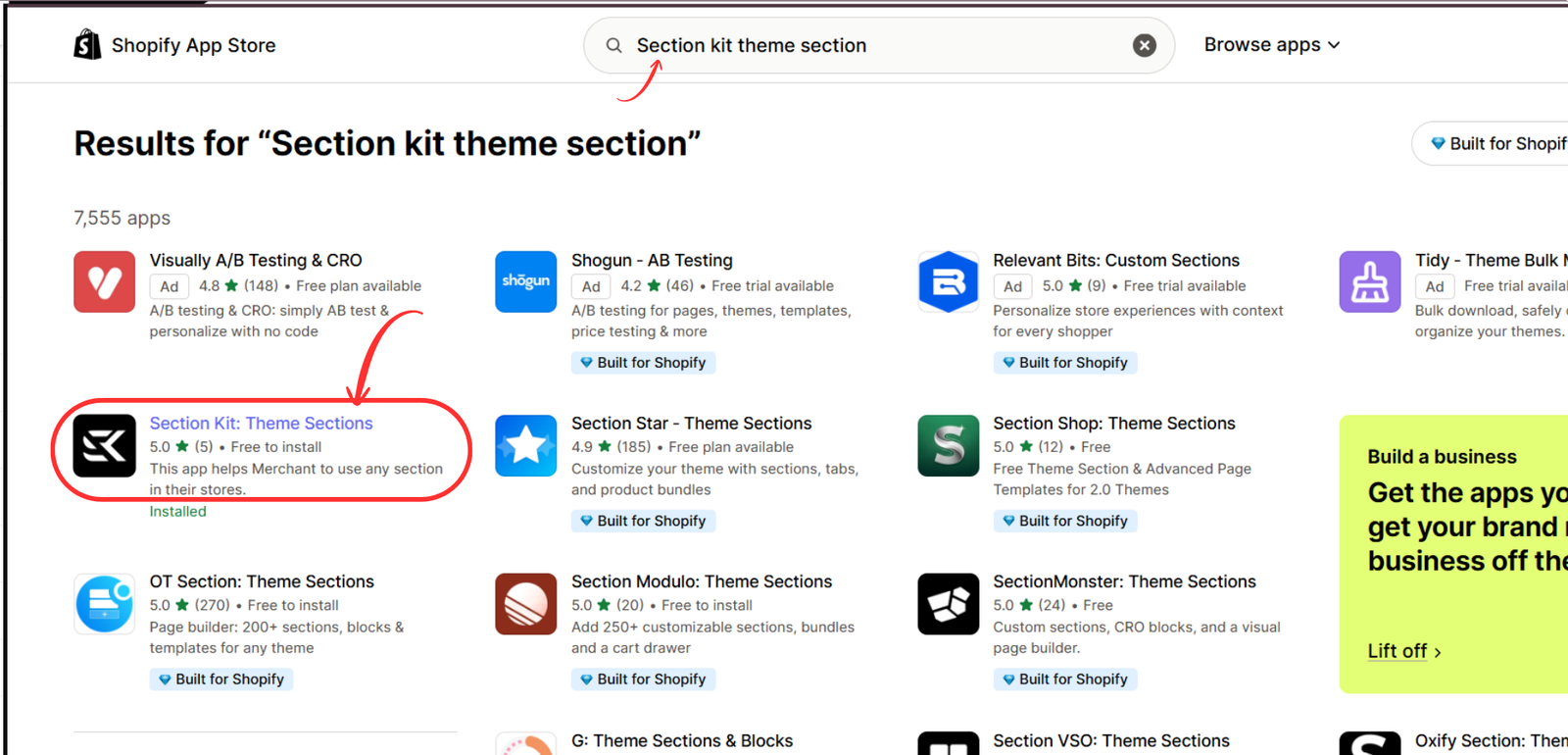
Shopify App Store search results highlighting Section Kit Theme Sections
Image 2: Search for Section Kit: Theme Sections and select the correct app.
Open the app listing and follow the installation process if you have not already installed it.
Step 3: Open the App in Your Shopify Admin
After installation, open Section Kit from your Shopify admin.
The app gives you access to its section library, allowing you to explore different layouts and design elements for your storefront.

You can begin by selecting Explore Sections from the left-hand menu.
Step 4: Explore Homepage Section Designs
Inside Explore Sections, you’ll find a selection of ready-made layouts.
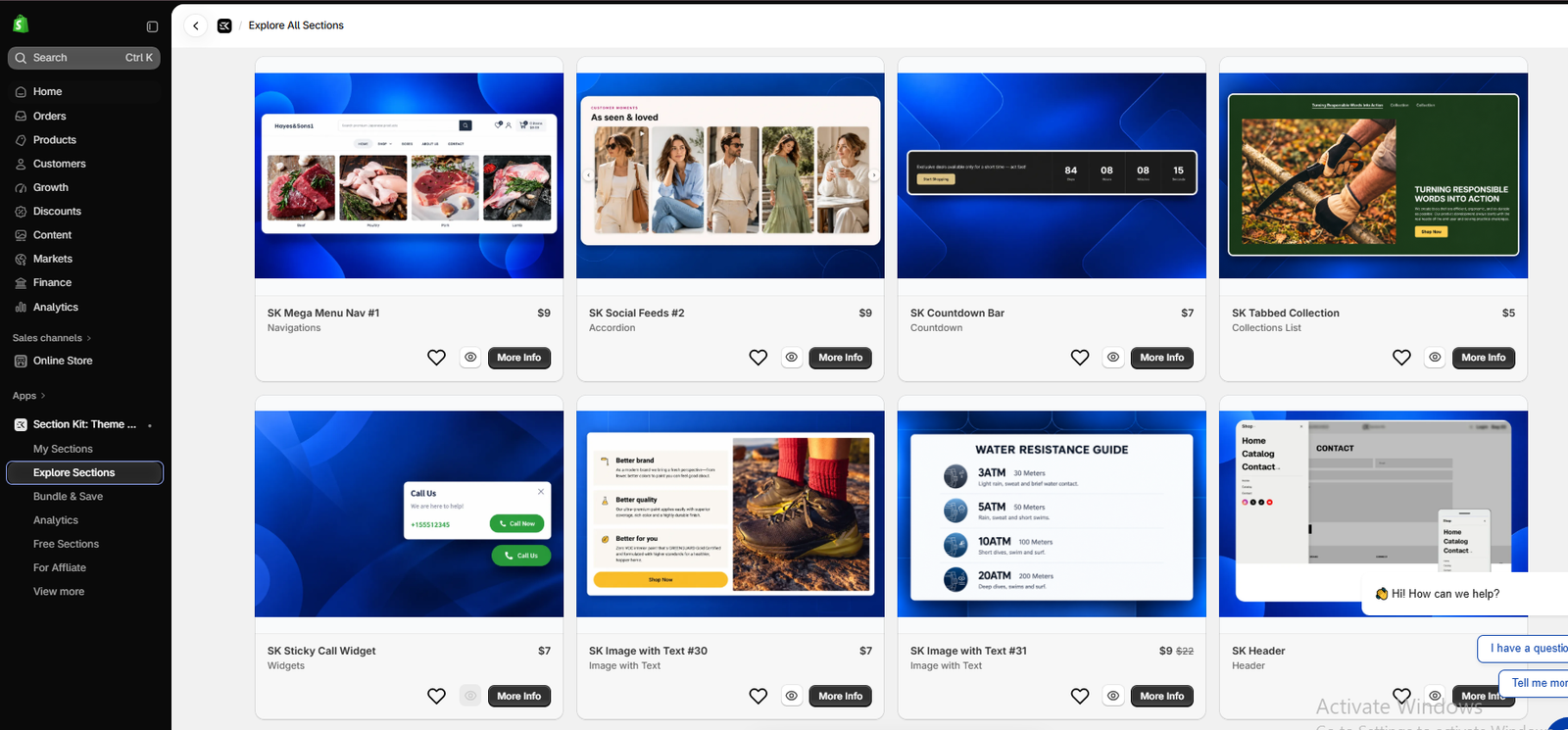
The screenshot below shows several examples, including:
- SK Mega Menu Nav #1
- SK Social Feeds #2
- SK Countdown Bar
- SK Tabbed Collection
- SK Sticky Call Widget
- SK Image with Text sections
Section Kit Explore All Sections library showing homepage layouts
Image 3: Browse homepage sections for navigation, product discovery, promotions, and storytelling.
Choose a section based on your homepage goals. For example, a featured collection may be useful for product discovery, while an image-with-text section may help communicate product benefits.
Step 5: Explore More Product and Navigation Sections
Scroll through the library to discover additional homepage design options.
The following screenshot shows layouts such as SK Collections #14, SK Social Feeds Carousel, SK Header/bar, SK Featured Product Grid, and SK Nav Drawer.
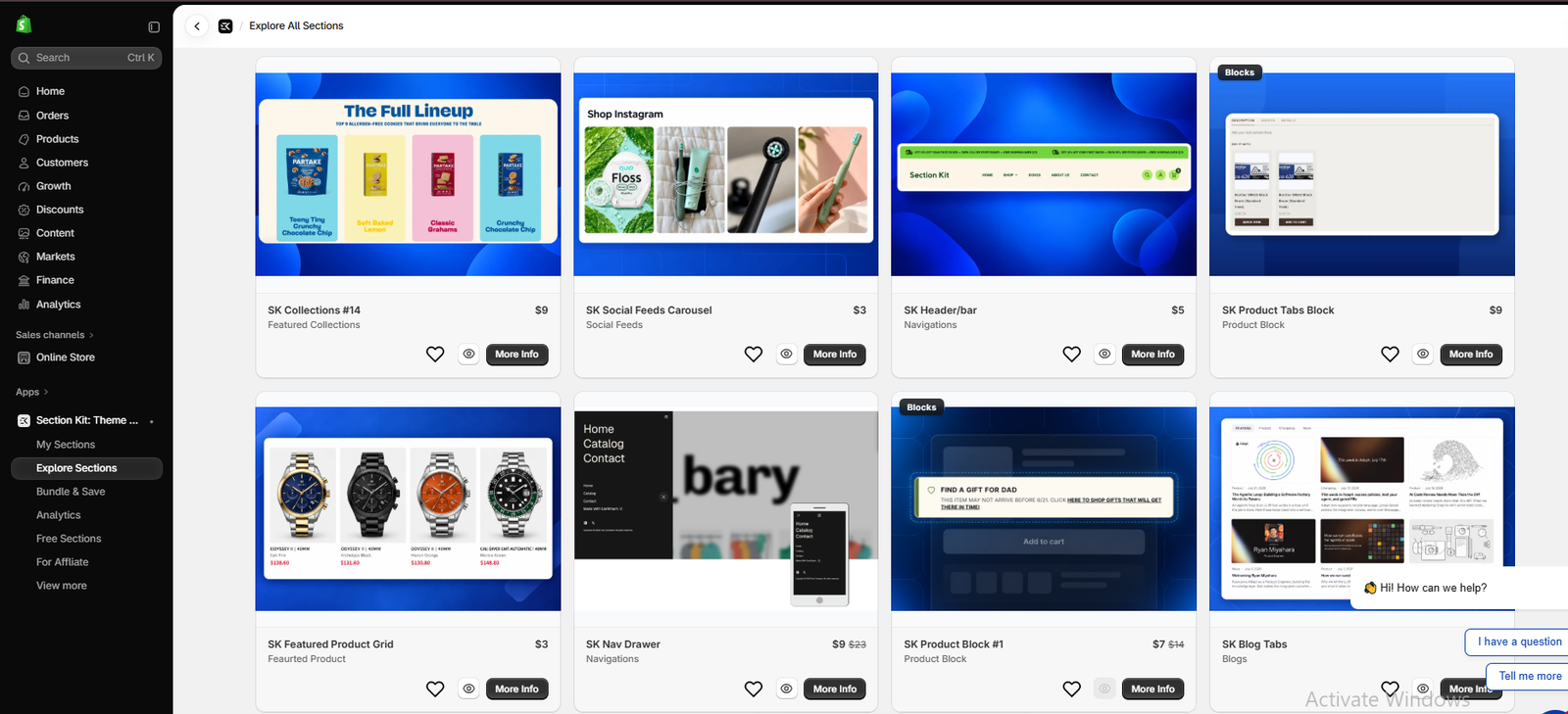
Additional Section Kit sections including featured products and collection layouts
Image 4: Explore product grids, collection layouts, navigation sections, and other storefront components.
You do not need to use every section. Select the ones that support a clear customer journey.
For example, a homepage might begin with a hero banner, continue with featured collections, and then show product benefits and bestsellers.
Step 6: Explore Free Shopify Sections
Section Kit also provides a Free Sections area.
Click Free Sections in the app sidebar to browse the available options.

The screenshot shows examples including:
- SK Hair Type Quiz
- SK Wallpaper Calculator
- SK Body Size Guide
- SK Shipping Estimator
- SK Partner Rows #1
- SK Featured Quote #1
- SK Hero Banner #16
Section Kit Free Sections gallery showing free section examples
Image 5: Browse the free section library and choose a design suitable for your store.
Free sections can be a practical starting point when testing new homepage layouts without purchasing individual paid sections.
Some specialized sections are designed for particular product categories, so choose options that match your business.
Step 7: Open My Sections to Manage Your Designs
Once you have added sections to your library, open My Sections.
This area displays the sections available to your store and provides customization options.
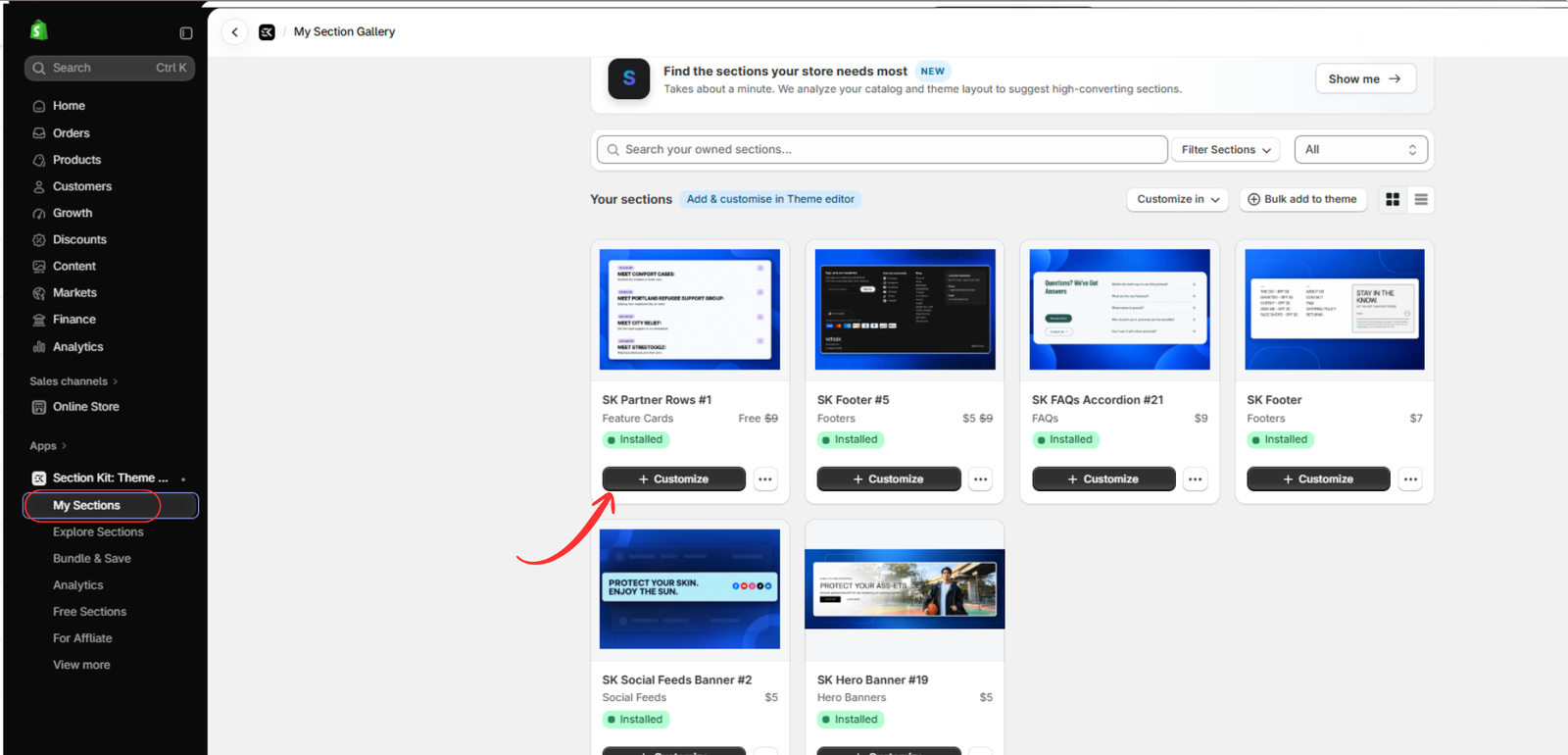
Image 6: Find your installed sections and select Customize to continue.
In this example, SK Partner Rows #1 is available in the section library.
You can use the Customize button to proceed toward editing the section in your Shopify theme.
Step 8: Preview a Section Before Adding It
Before using a section on your homepage, review its design and available features.
In the screenshot below, SK Partner Rows #1 is open in the Section Kit preview panel.

Image 7: Preview a section’s design, read its description, and select Add to My Sections.
The preview shows a layout designed to highlight partners or organizations with headings, descriptions, and interactive elements.
Click Add to My Sections if the section is not already in your library.
This type of layout can be useful for displaying brand partnerships, featured organizations, or other relevant information on your homepage.
Step 9: Customize the Section in Shopify Theme Editor
Return to My Sections, select your section, and open it in the Shopify theme editor.
From there, add the section to your desired homepage template if needed.
You can then adjust the available design settings, such as layout, spacing, colors, text, and content.
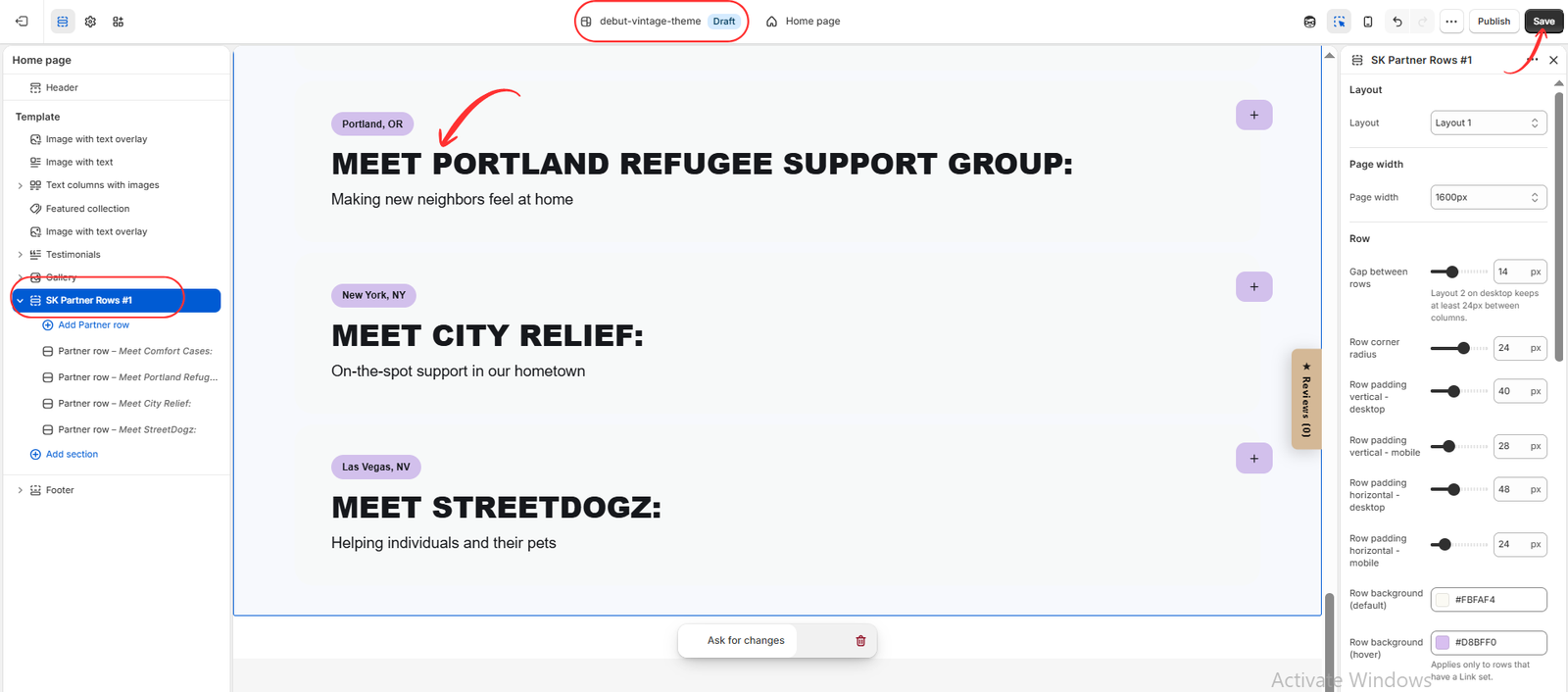
Image 8: Customize the section’s appearance and content directly in Shopify’s theme editor.
In this example, the section is called SK Partner Rows #1 and includes multiple partner rows.
The editor provides controls for page width, spacing between rows, corner radius, padding, and background colors.
After making your changes, click Save.
If you’re working on a draft theme, remember that saving changes does not automatically publish that theme to your live storefront.
Tips for Building a Homepage That Encourages Purchases
A strong Shopify homepage should feel organized rather than crowded.
Start with a compelling hero section that clearly explains what your store offers. Follow it with featured collections or products so visitors can begin shopping quickly.
Use image-with-text sections to explain important benefits, and include genuine trust-building information such as accurate shipping details, customer reviews, or return policies.
Make sure your homepage also works well on mobile devices. Check that headings remain readable, images display correctly, buttons are easy to tap, and sections do not create unnecessary scrolling.
Finally, review your homepage performance using analytics. Monitor how visitors interact with your pages and test changes based on real customer behavior.
Why Choose Section Kit Instead of Installing Separate Section Apps?
Shopify merchants often discover that they need additional homepage features beyond those included in their current theme.
Installing a separate app for a countdown bar, another for a product grid, and another for a custom banner can make store management more complicated.
Section Kit: Theme Sections provides a centralized library where merchants can browse multiple section types, select suitable designs, and customize them through Shopify’s theme editor.
This approach can simplify the process of extending a storefront, although the actual performance impact depends on the sections and other apps installed.
Frequently Asked Questions
Can I add custom sections to my Shopify homepage without coding?
Yes. Compatible ready-made sections from Section Kit can be added and customized using Shopify’s theme editor without manually writing Liquid code.
Can I use multiple Section Kit sections on one homepage?
Yes, provided the sections are compatible with your theme and template. You can combine different layouts to build your desired homepage.
Are all Section Kit sections free?
No. The app offers both free and paid sections. Check each section’s displayed price before adding it.
Will adding more sections automatically increase conversions?
No. Sections can improve product discovery, navigation, and communication, but conversions also depend on your products, pricing, traffic quality, trust, and overall shopping experience.
Can I customize the section after adding it?
Yes. Available customization controls vary by section, but many allow changes to text, colors, spacing, layout, and other design elements.
Conclusion
A successful Shopify homepage is not about using the largest number of sections. It is about choosing the right sections to help customers discover products, understand your brand, and shop confidently.
Hero banners, featured collections, product grids, navigation menus, promotional layouts, and brand storytelling sections can all contribute to a better shopping experience when used thoughtfully.
With Section Kit: Theme Sections, merchants can explore a range of ready-made layouts from one app rather than searching for a separate solution for every small homepage feature.
Start with the sections that matter most to your customers, customize them to match your brand, and continue improving your homepage based on actual store performance.
Ready to improve your Shopify homepage?
Explore Section Kit: Theme Sections on the Shopify App Store and start building a more engaging, conversion-focused storefront today.




