HOW TO DRAFT MARKETING CAMPAIGN COPY FROM YOUR SHOPIFY CATALOG
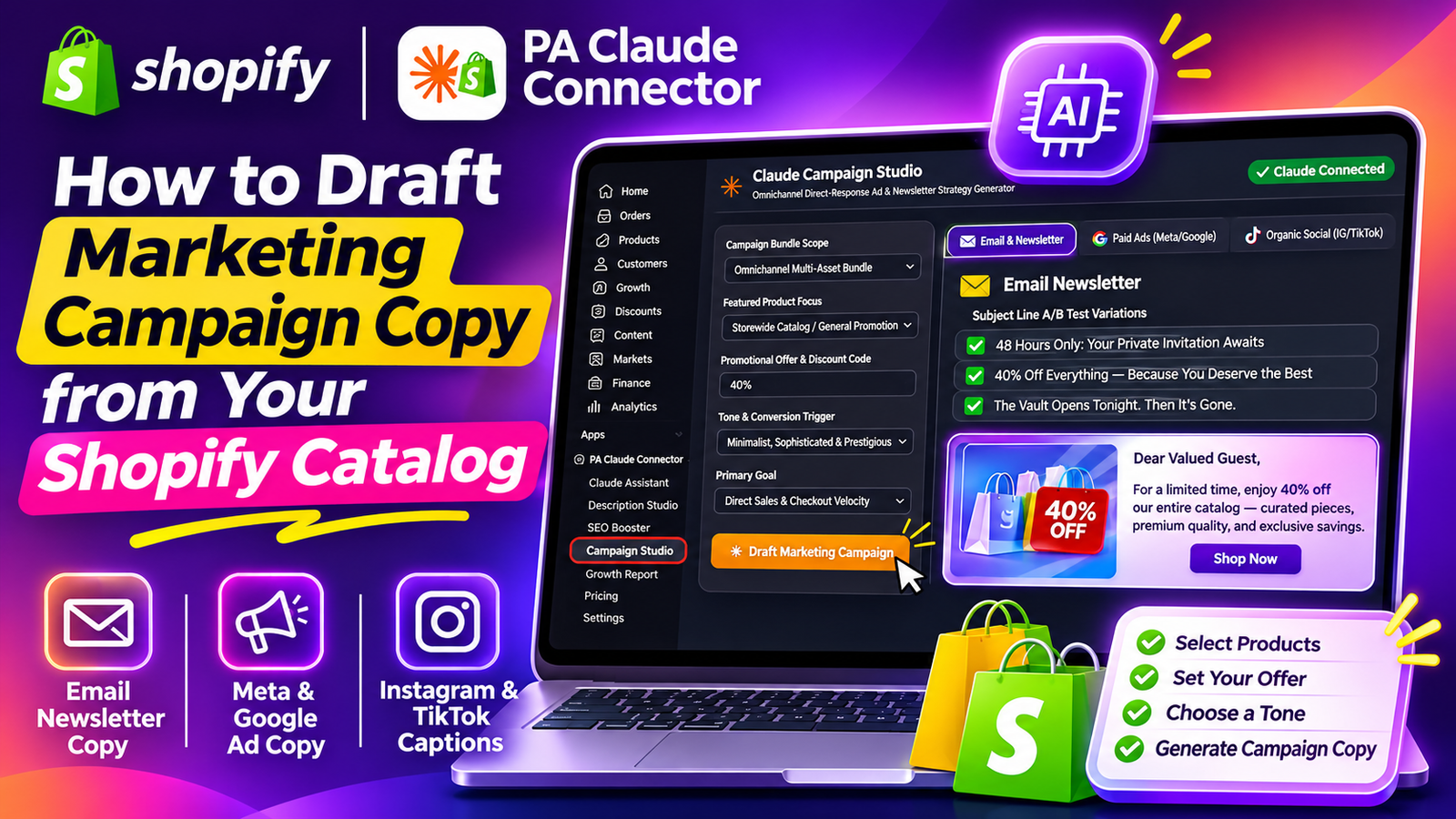
Introduction
Creating successful marketing campaigns is essential for growing a Shopify store. Whether you’re promoting a new product, announcing a seasonal discount, or running advertisements on Facebook and Instagram, your marketing message plays an important role in attracting customers.
However, writing compelling marketing copy for multiple platforms can be challenging and time-consuming.
Shopify merchants often need different versions of promotional content for email newsletters, Meta ads, Google ads, Instagram captions, and other marketing channels. Each platform has its own audience expectations, writing style, and content requirements.
Instead of writing every campaign manually or hiring a copywriter for each promotion, merchants can use AI to prepare marketing campaign drafts using their Shopify product catalog.
PA Claude Connector by PeakApps includes Claude Campaign Studio, which helps merchants create promotional content based on selected products, campaign goals, promotional offers, and brand tone.
In this guide, we’ll explain how to draft marketing campaign copy from your Shopify catalog using AI, with detailed instructions and all eight original screenshots from the application.
The Merchant’s Challenge: Why Creating Marketing Campaigns Is Difficult
1. Writing copy for multiple platforms
A single promotion may require email subject lines, newsletter content, Facebook ad headlines, Google ad text, and Instagram captions.
Writing each version manually takes time.
2. Maintaining a consistent brand voice
Your email campaigns and social media advertisements should reflect the same brand identity, even when their formats differ.
3. Promoting the right products
With a large product catalog, merchants may struggle to decide which items to feature in a campaign.
4. Creating persuasive promotional messages
A good campaign must explain the offer clearly, communicate the product’s value, and encourage customers to take action.
5. Testing different marketing angles
Campaign performance can improve when merchants test different headlines, messages, and calls to action. Preparing those variations manually requires additional effort.
6. Managing campaign production costs
Hiring designers, copywriters, and marketing specialists for every small campaign can be costly, especially for growing Shopify businesses.
Why Use AI for Shopify Marketing Campaigns?
AI-assisted campaign drafting can simplify the content creation process.
Instead of starting from a blank page, merchants can select the campaign type, choose a featured product or catalog-wide promotion, enter an offer, and define the campaign’s primary goal.
The AI then prepares marketing copy based on those inputs.
This approach can help merchants create multiple draft variations, maintain a consistent writing style, and spend more time reviewing and improving campaigns.
AI-generated marketing copy should still be checked carefully for accuracy, brand consistency, advertising compliance, and whether any promotional claims are supported.
Introducing PA Claude Connector and Claude Campaign Studio
PA Claude Connector is a Shopify application developed by PeakApps that provides AI-assisted tools for store management, content creation, SEO, and marketing.
Its Claude Campaign Studio is designed to help merchants draft marketing assets for different promotional channels.
Based on the supplied screenshots, Campaign Studio includes:
- Campaign Bundle Scope for choosing campaign formats.
- Featured Product Focus for selecting products or a storewide promotion.
- Promotional Offer & Discount Code input.
- Tone & Conversion Trigger for defining the writing style.
- Primary Goal for aligning the campaign with a business objective.
- Draft Marketing Campaign for generating the content.
- Separate views for Email & Newsletter, Paid Ads, and Organic Social.
- Copy buttons for reusing generated marketing drafts.
App Link: Install PA Claude Connector on Shopify
Step 1: Search for the Shopify App Store
Open Google and search for Shopify App Store. Click the official Shopify App Store result highlighted by the red arrow.

Image 1: Open the official Shopify App Store from Google search results.
Step 2: Search for PA Claude Connector
Enter PA Claude Connector in the Shopify App Store search bar. Select the application highlighted in the red circle.

Image 2: Locate PA Claude Connector in the Shopify App Store results.
Step 3: Install or Open the App
Open the PA Claude Connector listing. Click Install if you are a new user, or Open if the app is already installed.

Step 4: Install and Open PA Claude Connector
First, visit the official Shopify App Store at https://apps.shopify.com.
Search for PA Claude Connector and open its app listing.
Click Install and complete Shopify’s authorization process. If the app is already installed, click Open.
Inside Shopify admin, locate PA Claude Connector in the Apps sidebar.
Then click Campaign Studio to access the marketing campaign generator.

Image 1: Open PA Claude Connector’s Campaign Studio to access the AI marketing campaign settings and content-generation workspace.
Image explanation
The screenshot shows the Campaign Studio dashboard inside PA Claude Connector.
On the left, the Campaign Studio navigation option is highlighted with a red circle.
The main workspace is divided into two areas.
Left panel — Campaign configuration: This section contains Campaign Bundle Scope, Featured Product Focus, Promotional Offer & Discount Code, Tone & Conversion Trigger, and Primary Goal.
Right panel — Generated campaign content: This area contains three categories:
- Email & Newsletter
- Paid Ads (Meta/Google)
- Organic Social (IG/TikTok)
Before a campaign is generated, the center displays a message indicating that it is ready to draft multi-channel campaign assets.
Why this step matters: Campaign Studio brings multiple marketing-copy workflows into one interface, reducing the need to prepare completely separate drafts for each channel.
Step 5: Choose Your Campaign Bundle Scope
Next, locate Campaign Bundle Scope at the top of the settings panel.
Click the dropdown to choose the type of marketing campaign you want to generate.
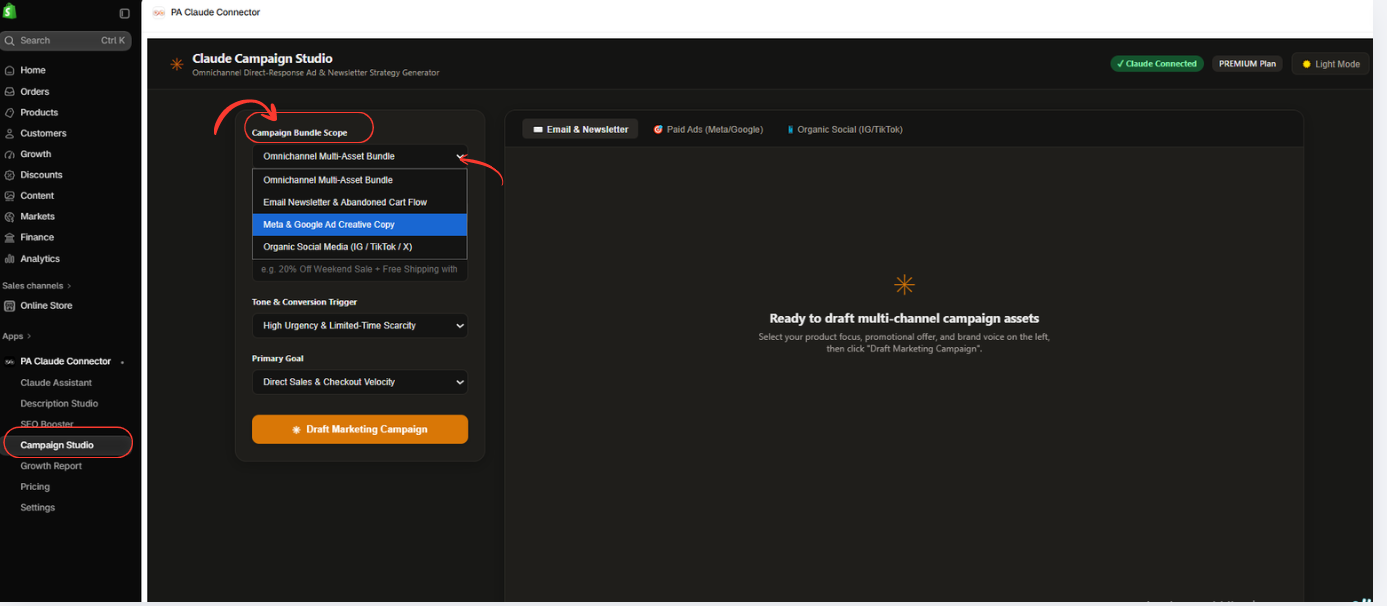
Image 2: Open Campaign Bundle Scope and choose between multi-channel campaigns, email newsletters, paid ads, or organic social media copy.
Image explanation
The screenshot shows the Campaign Bundle Scope dropdown expanded.
The available options include:
| Campaign format | Intended use |
|---|---|
| Omnichannel Multi-Asset Bundle | Prepare promotional copy for multiple marketing channels |
| Email Newsletter & Abandoned Cart Flow | Focus on email and cart-recovery messaging |
| Meta & Google Ad Creative Copy | Generate paid advertising copy |
| Organic Social Media (IG / TikTok / X) | Create social-media promotional captions |
In the screenshot, Meta & Google Ad Creative Copy is highlighted.
Select the option that matches your campaign needs.
For example, if your main objective is promoting a discount through Facebook and Instagram advertising, choose Meta & Google Ad Creative Copy.
If you want content for several platforms, the omnichannel option may be more suitable.
Why this step matters: Selecting the correct campaign scope helps Claude focus on the marketing channels relevant to your promotion.
Step 6: Select a Product From Your Shopify Catalog
After choosing the campaign format, locate Featured Product Focus.
Click the dropdown to select a particular Shopify product or a general storewide promotion.

Image 3: Select a Shopify product or choose Storewide Catalog / General Promotion to create campaign copy for your entire store.
Image explanation
The screenshot shows Featured Product Focus expanded.
The dropdown displays products from the connected Shopify catalog, including:
- Bundle Product #1
- Gift Card
- The Complete Snowboard
- Selling Plans Ski Wax
- Additional snowboard products
The Storewide Catalog / General Promotion option is also visible.
If you are advertising a particular product, select that product to focus the campaign on it.
If you are running a storewide sale, select Storewide Catalog / General Promotion.
For the example shown in the following steps, the campaign uses a storewide promotion.
Why this step matters: Selecting the correct product focus helps connect the marketing message to the items or promotion you actually want customers to discover.
Step 7: Add Your Promotional Offer and Select the Campaign Tone
Now locate Promotional Offer & Discount Code.
Enter the offer you want to promote.
In your screenshot, the merchant has entered 40% to represent the promotional discount.
Next, open Tone & Conversion Trigger.
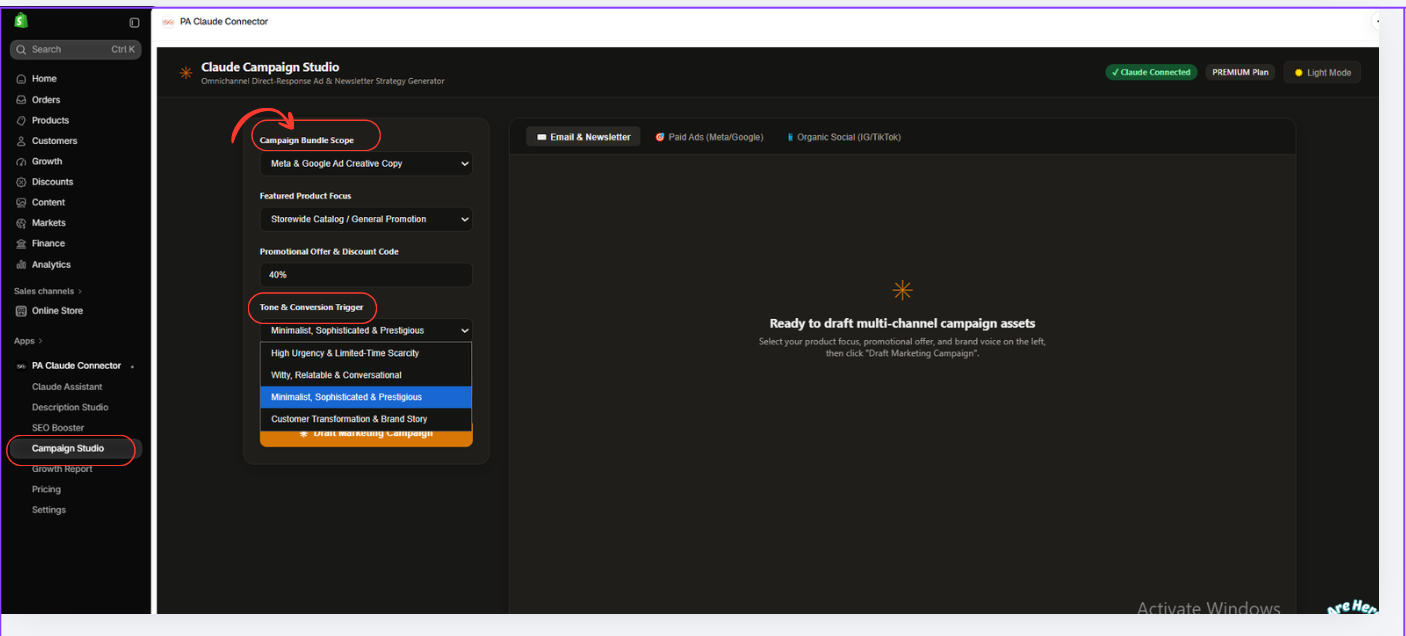
Image 4: Enter the promotional offer and choose a brand-appropriate writing tone for the AI-generated campaign.
Image explanation
The screenshot shows a 40% promotional offer entered in the campaign settings.
Below it, the Tone & Conversion Trigger dropdown is expanded.
The visible options include:
- High Urgency & Limited-Time Scarcity
- Witty, Relatable & Conversational
- Minimalist, Sophisticated & Prestigious
- Customer Transformation & Brand Story
The selected option is Minimalist, Sophisticated & Prestigious.
This tells Claude to use a more refined writing style instead of an aggressively sales-oriented tone.
For example, a luxury accessories store may prefer sophisticated promotional wording, while a casual clothing store may benefit from conversational messaging.
Important: Make sure any discount, scarcity message, promotional deadline, or offer condition used in AI-generated copy is accurate and supported by your actual campaign.
Step 8: Choose Your Primary Marketing Goal
Next, click the Primary Goal dropdown.
This option helps define the outcome your campaign is intended to support.

Image 5: Select your campaign’s primary goal, such as generating sales, clearing inventory, launching products, or re-engaging customers.
Image explanation
The screenshot shows the Primary Goal dropdown with several available options.
| Goal | Purpose |
|---|---|
| Direct Sales & Checkout Velocity | Encourage purchases |
| Clearance & Dead Stock Liquidation | Promote slow-moving inventory |
| New Product Launch & VIP Access | Introduce new products or special access |
| Win-Back Inactive Customers | Re-engage previous customers |
For this example, the selected primary goal is Direct Sales & Checkout Velocity.
This indicates that the marketing copy should focus on promoting the offer and encouraging customers to shop.
Choosing the right objective matters because a product launch campaign requires different messaging from a clearance sale or customer re-engagement campaign.
After selecting your goal, you’re ready to generate the promotional content.
Step 9: Generate Your Email Newsletter Campaign With AI
Once you’ve configured your campaign, click the orange Draft Marketing Campaign button.
Claude Campaign Studio uses the selected settings to prepare marketing copy.
For this example, the campaign is configured with a 40% storewide promotion, a sophisticated brand tone, and a direct-sales objective.
After the draft is generated, open the Email & Newsletter tab.
Image 6: Click Draft Marketing Campaign and review the AI-generated email subject lines, inbox preview text, and newsletter body copy.
Image explanation
The screenshot shows the message Campaign strategy drafted by Claude!, indicating that the app has generated campaign content.
The Email & Newsletter tab is highlighted at the top.
The generated content includes three main areas.
1. Email subject line variations
Claude provides different subject lines for A/B testing.
For example, the screenshot displays:
- “48 Hours Only: Your Private Invitation Awaits”
- “40% Off Everything — Because You Deserve the Best”
- “The Vault Opens Tonight. Then It’s Gone.”
These represent different marketing angles: exclusivity, discount-driven messaging, and urgency.
2. Inbox preview text
The next field contains preview copy that can appear alongside the email subject line in a recipient’s inbox.
3. Email newsletter body
The generated newsletter includes an introduction, promotional message, offer details, and benefit-focused content.
The app also displays Copy and Copy Body Copy buttons, allowing merchants to reuse the content.
Why this step matters: Instead of manually writing several subject lines and an entire newsletter, merchants can prepare multiple draft options from one campaign configuration.
Before sending, verify all offer conditions. For example, don’t use “48 Hours Only” unless the promotion genuinely has that deadline.
Step 10: Generate Meta and Google Advertising Copy
After reviewing the email content, click the Paid Ads (Meta/Google) tab.
This displays AI-generated advertising copy for your campaign.
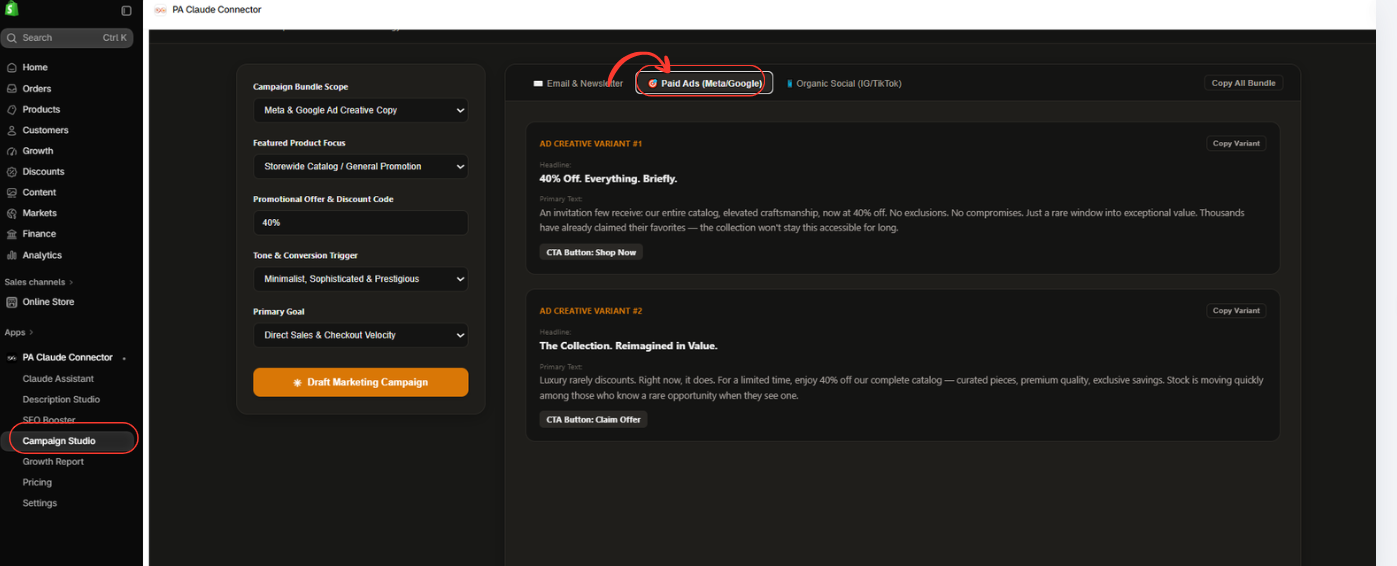
Image 7: Open Paid Ads (Meta/Google) to review advertising headlines, primary text, calls to action, and alternative creative variations.
Image explanation
The screenshot shows the Paid Ads tab highlighted.
Two advertising creative variations are displayed.
Ad Creative Variant #1
The generated headline is:
40% Off. Everything. Briefly.
The corresponding copy promotes the storewide offer using concise, premium-sounding language.
A suggested call-to-action button is Shop Now.
Ad Creative Variant #2
The generated headline is:
The Collection. Reimagined in Value.
This version emphasizes the perceived value of the collection rather than leading only with the discount percentage.
Its suggested call-to-action is Claim Offer.
Each advertising variation includes a Copy Variant button.
These alternatives can help merchants compare different angles before preparing their advertising campaigns.
The screenshot demonstrates generated ad copy, not automatically launched advertisements. Platform-specific character limits, advertising policies, and campaign setup should be checked before publishing.
Step 11: Generate Instagram and TikTok Marketing Captions
Finally, click the Organic Social (IG/TikTok) tab.
This section displays social-media promotional copy based on the same campaign settings.

Image 8: Review AI-generated organic social captions, promotional messaging, hashtags, and Copy Caption options.
Image explanation
The screenshot shows the Organic Social tab selected.
Claude has generated two social media post angles.
Social Post Angle #1
The first caption begins with a promotional hook about the store’s catalog becoming more attractive, followed by the 40% discount announcement.
It includes a call to action encouraging customers to visit the store before the offer ends.
The draft also contains hashtags intended for social-media discoverability.
Social Post Angle #2
The second caption takes a shorter approach, emphasizing the storewide discount and directing customers to the link in the profile.
Both drafts have Copy Caption buttons.
This is useful for Shopify merchants who want to prepare promotional messaging for Instagram, TikTok, and related social channels without writing every caption separately.
Before publishing, adapt the captions to each platform’s style and ensure that the hashtags, promotional details, and calls to action are relevant.
Why Claude Campaign Studio Is Useful for Shopify Merchants
Create multiple campaign assets from one workflow
Campaign Studio lets merchants prepare different types of promotional content without starting a separate writing process for every channel.
Save time on campaign planning
Instead of writing every subject line, advertisement, and caption manually, merchants can generate initial drafts and focus on reviewing and improving them.
Maintain consistent promotional messaging
The selected discount, product focus, brand tone, and business objective help create a common direction across different campaign assets.
Generate multiple marketing variations
Different subject lines, advertisement headlines, and social captions can provide useful starting points for testing different marketing messages.
Promote individual products or the whole catalog
Merchants can choose a featured product or configure a broader storewide promotion.
Simplify campaign preparation
The Copy buttons make it easier to transfer generated content into the marketing tools used for email campaigns, paid advertising, or social-media publishing.
Best Practices for AI-Generated Shopify Marketing Campaigns
- Use accurate product details. Make sure every claim matches your Shopify catalog.
- Verify discounts. Only promote a 40% discount if the offer is actually available.
- Choose an appropriate tone. Your campaign should sound like your brand.
- Avoid misleading urgency. Don’t create artificial deadlines or scarcity claims.
- Test different variations. Compare headlines and messages using actual campaign results.
- Review before publishing. Check spelling, advertising policies, calls to action, and landing-page consistency.
Frequently Asked Questions (FAQs)
1. How can I draft Shopify marketing campaigns with AI?
Install PA Claude Connector, open Campaign Studio, select your campaign type and product focus, add a promotional offer, choose a tone and goal, then click Draft Marketing Campaign.
2. Can Claude create Shopify email marketing copy?
Yes. The screenshots demonstrate AI-generated subject lines, inbox preview text, and email newsletter body copy.
3. Can PA Claude Connector create Facebook and Instagram ad copy?
Its Paid Ads (Meta/Google) workspace provides draft advertising headlines, primary text, and suggested calls to action.
4. Can I generate Instagram and TikTok captions?
Yes. The Organic Social section provides promotional caption variations and copy controls.
5. Can I promote a particular Shopify product?
Yes. Campaign Studio’s Featured Product Focus dropdown displays products from the Shopify catalog.
6. Can I create a campaign for my entire store?
Yes. You can choose Storewide Catalog / General Promotion for a broader marketing campaign.
7. Can AI create different writing styles?
Yes. Campaign Studio provides tone options such as urgency-driven, conversational, sophisticated, and storytelling-based messaging.
8. Does the app publish advertisements automatically?
The screenshots show generated drafts and Copy buttons, not a completed ad publishing workflow. You should use the appropriate advertising platform to review and launch your campaigns.
9. Will AI-generated copy guarantee more sales?
No. AI can simplify campaign creation, but performance depends on the product, audience, offer, creative quality, advertising strategy, and other factors.
10. Where can I install PA Claude Connector?
You can find the app on the Shopify App Store.
Conclusion
Creating professional marketing campaigns for a Shopify store doesn’t have to mean writing separate promotional messages from scratch for every platform.
With PA Claude Connector by PeakApps, merchants can use Claude Campaign Studio to prepare email newsletters, advertising copy, and social-media captions through a single AI-assisted workflow.
By selecting a product focus, promotional offer, brand tone, and campaign objective, merchants can generate multiple draft variations that support a consistent marketing strategy.
The screenshots in this tutorial demonstrate how Campaign Studio produces email subject lines, newsletter copy, Meta and Google advertising variations, and organic social-media captions.
Instead of spending hours preparing every piece of copy manually, merchants can use AI to generate initial campaign assets, refine the messaging, and publish approved content through their preferred marketing channels.
Ready to create your next Shopify marketing campaign with AI?Install PA Claude Connector on Shopify




