HOW TO MAKE YOUR SHOPIFY MOBILE PRODUCT PAGE EASIER TO BUY FROM

Introduction
A Shopify product page should help customers understand a product and purchase it without unnecessary difficulty.
On mobile devices, however, shopping can become more complicated. Customers must navigate smaller screens, scroll through product information, and locate purchase buttons.
Improving the Shopify mobile product page experience can help merchants make shopping more convenient.
One practical improvement is adding a sticky Add to Cart bar that remains accessible as customers scroll.
In this guide, we will explain how to improve mobile product page usability with SA Sticky Add to Cart Drawer.
Common Problems With Shopify Mobile Product Pages
The Add to Cart Button Disappears
When customers scroll through product descriptions and images, the original purchase button may no longer be visible.
Returning to the button requires additional scrolling.
Product Pages Contain Too Much Information
Detailed descriptions, specifications, recommendations, and reviews can make mobile pages feel long and difficult to navigate.
Purchase Controls Are Difficult to Tap
Small buttons and crowded layouts can make purchasing actions harder to use.
Cart Navigation Interrupts Browsing
Customers may need to leave the product page to review their cart.
Inconsistent Mobile Layouts
A feature that looks attractive on desktop may be difficult to use on a smaller screen.
Why Mobile Product Page Optimization Matters
A mobile product page should make important information and purchasing controls easy to find.
Customers should be able to:
- View product images clearly.
- Understand pricing and availability.
- Select the correct product variant.
- Add products to their cart.
- Review selected items.
- Proceed toward checkout.
Reducing unnecessary scrolling and improving button accessibility can make these actions more convenient.
How a Sticky Add to Cart Bar Helps
A sticky purchase bar keeps the Add to Cart action accessible as customers explore product information.
For example, a customer reading product specifications near the bottom of a long page can use the sticky button without returning to the original purchase section.
This is especially useful for stores selling products that require detailed explanations.
Introducing SA Sticky Add to Cart Drawer
SA Sticky Add to Cart Drawer includes sticky purchase controls, a side cart, and additional cart enhancements.
The app allows merchants to configure a sticky Add to Cart bar and preview its appearance within their Shopify theme.
App link: https://apps.shopify.com/sk-sticky-add-to-cart-drawer
Step-by-Step Guide to Improve Your Mobile Product Page
Step 1: Search for the App
Open google and search for Shopify app store

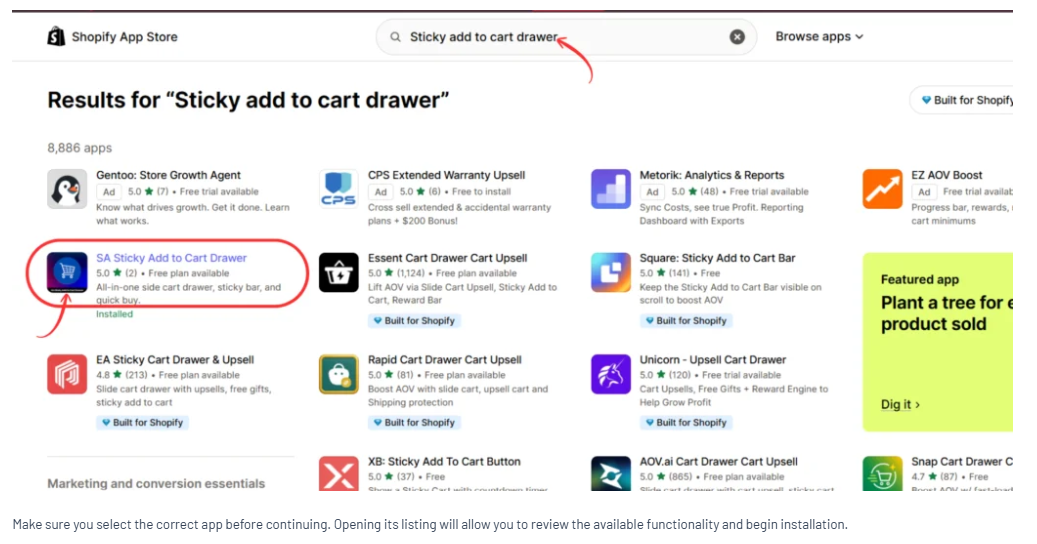
Step 2: Search for the App SA sticky Add to cart Drawer
Open the Shopify App Store and search for SA Sticky Add to Cart Drawer.
Step 3: Install or Open the App
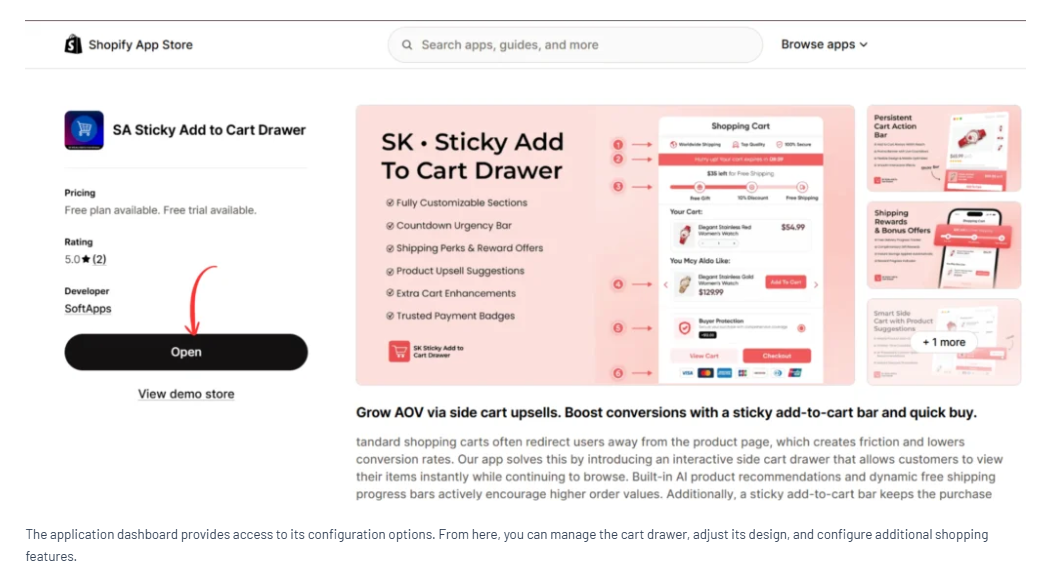
Open the listing and click Install or Open.
Step 4: Activate the Quick Buy Button
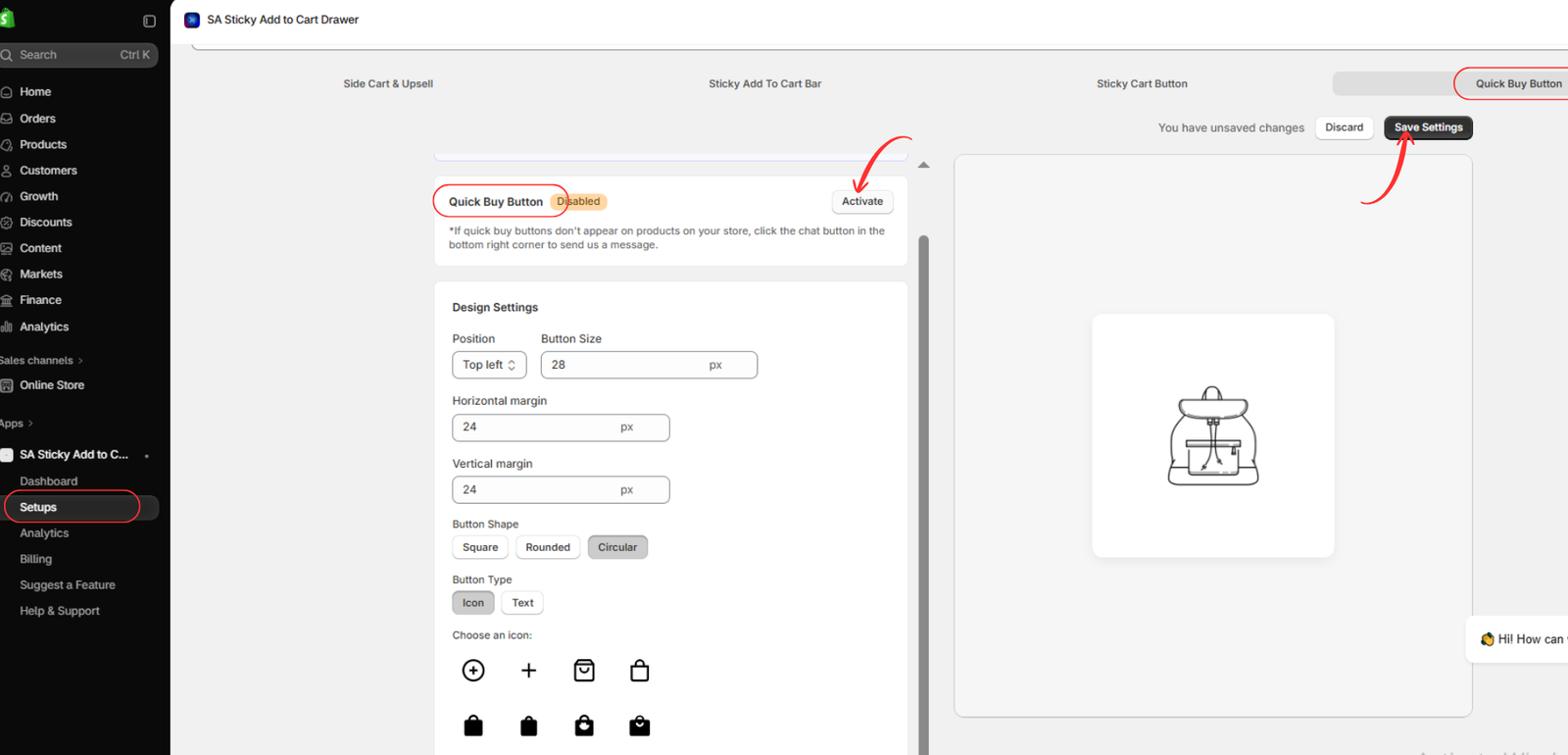
Inside the application, navigate to Setups.
Select Quick Buy Button from the top navigation.
If the feature displays Disabled, click Activate.
After activation, review the available design settings and click Save Settings when your changes are complete.
Step 5: Customize the Quick Buy Button Design
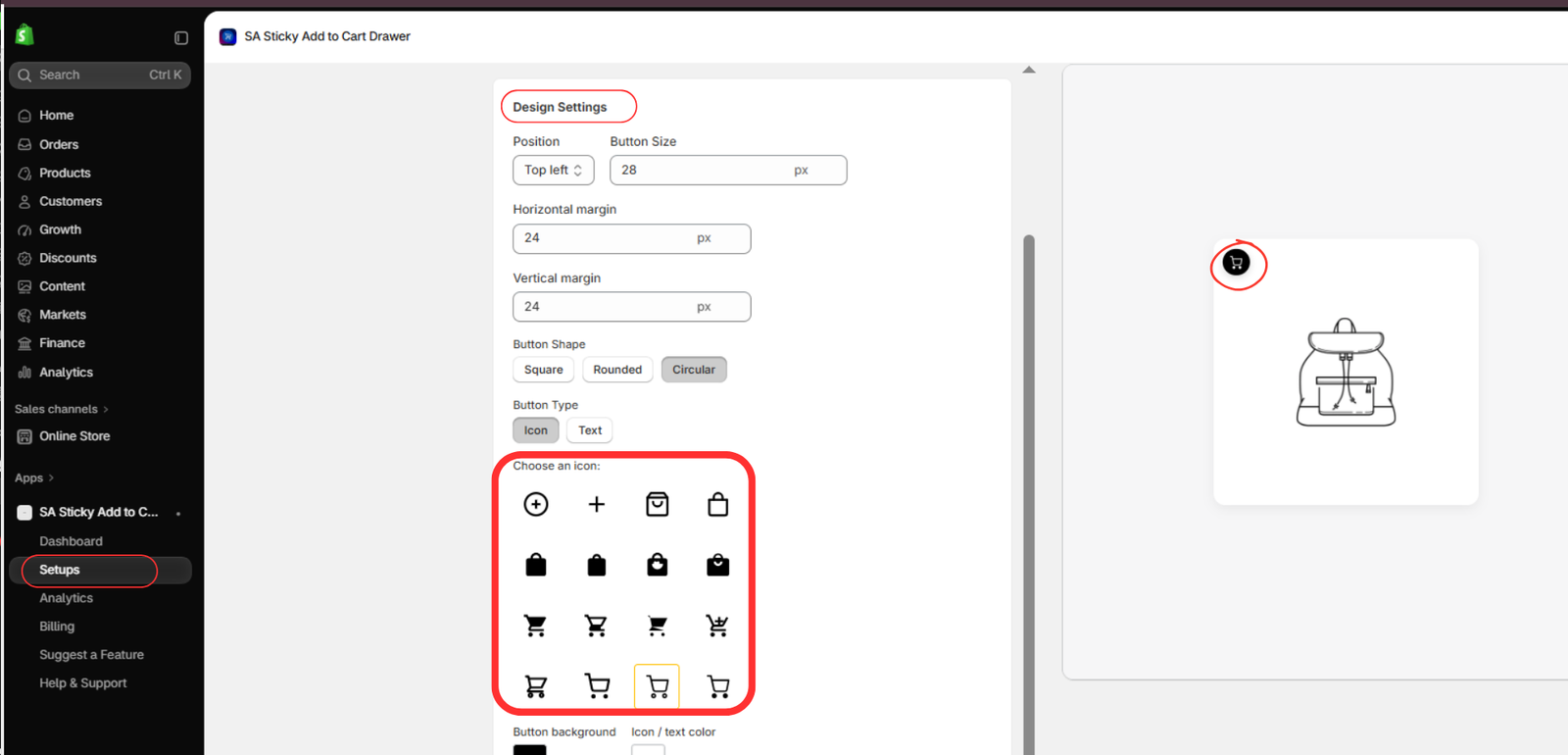
Under Design Settings, customize the appearance of your quick-buy button.
You can adjust the button position, size, horizontal margin, vertical margin, shape, and type.
Choose between square, rounded, and circular button styles. You can also select an icon or text-based button.
The app provides multiple shopping cart, shopping bag, and plus-sign icons.
Use the preview panel to check your design before saving.
Step 6: Enable Quick Buy in the Shopify Theme
Open Shopify Admin → Online Store → Themes → Customize.
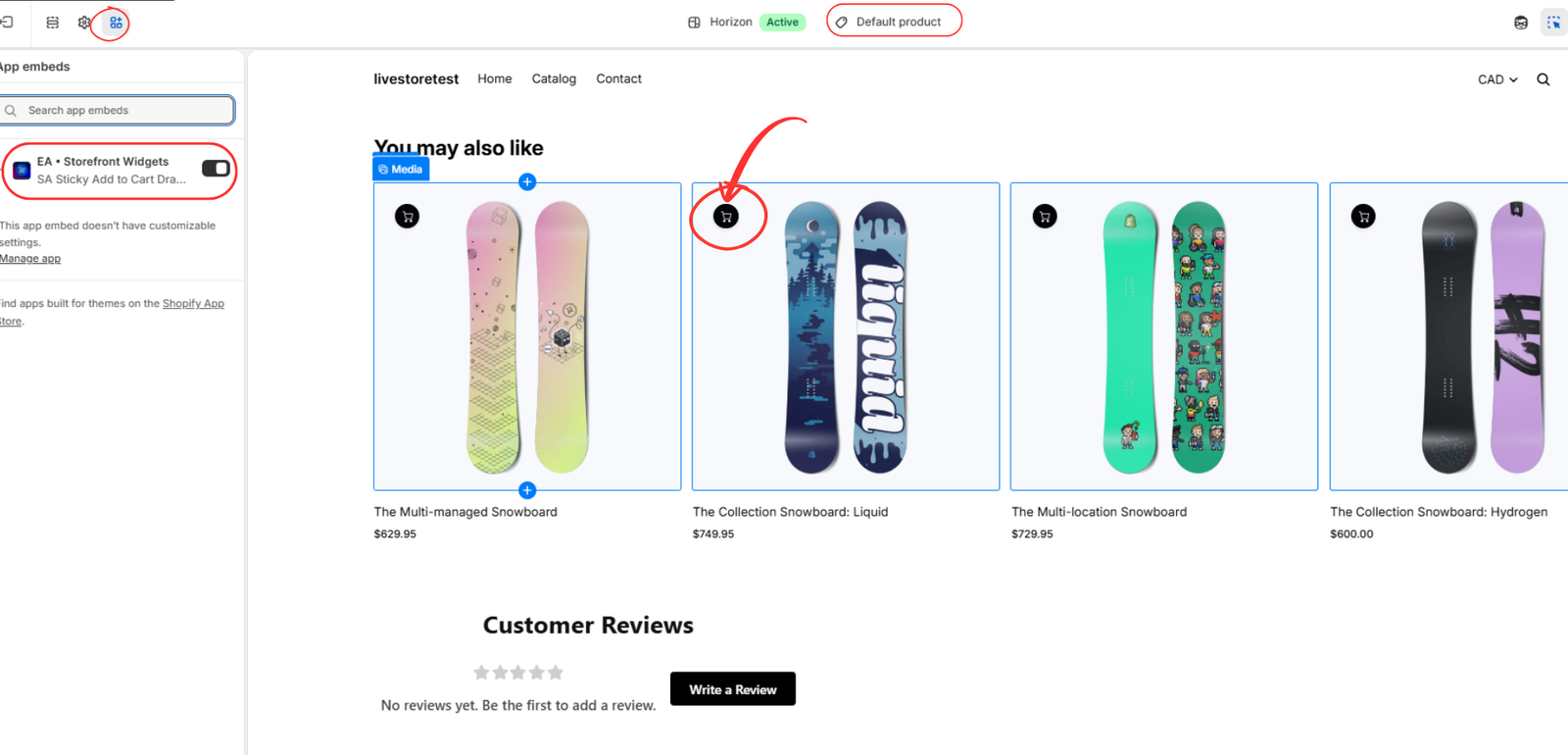
Select App embeds in the theme editor.
Find EA • Storefront Widgets, associated with SA Sticky Add to Cart Drawer, and enable it.
Open a page containing product cards to preview the quick-buy icons.
As shown below, small shopping cart icons appear over the product images, allowing customers to add supported products directly from the listing.
Step 8: Test Quick Buy and the Cart Drawer
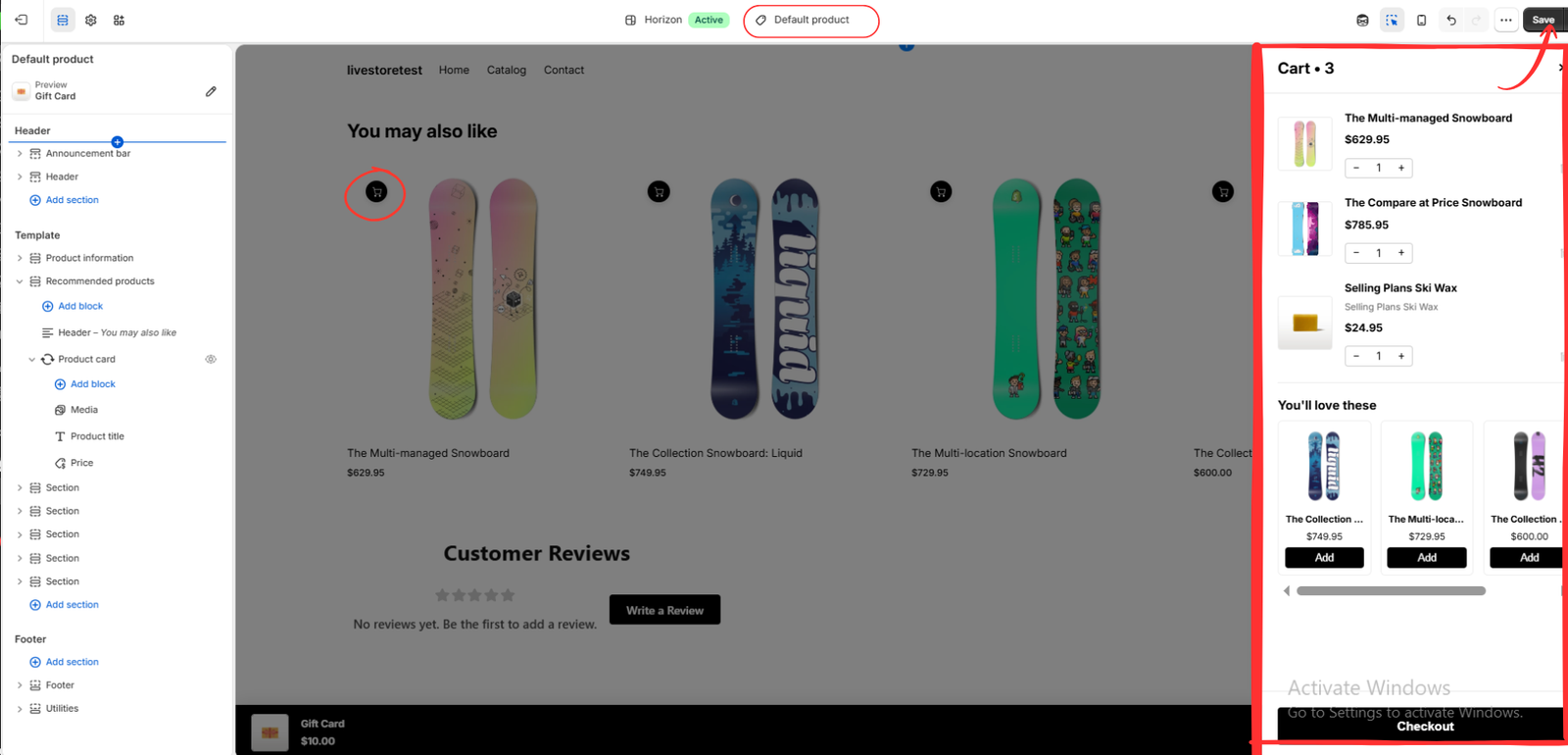
Open your storefront preview and click a quick-buy icon on a product card.
For products that do not require additional option selection, the product can be added directly to the cart.
The side cart drawer then allows customers to review selected products without leaving the current page.
As shown in your final image, the cart drawer displays product images, titles, prices, quantity controls, recommended products, and a checkout button.
Test several products, check the mobile layout, and confirm that cart updates work correctly.
Finally, click Save in the Shopify theme editor.
Step 9: Test the Mobile Shopping Journey
Preview the page on a narrow screen.
Check product variants, sticky button visibility, cart behavior, and checkout navigation.
Save your changes after confirming that everything works correctly.
Additional Mobile Product Page Improvements
Use Clear Product Photography
Provide images that accurately represent the product and help customers understand its features.
Keep Product Descriptions Readable
Use short paragraphs and clear section headings.
Display Pricing Clearly
Make product prices and relevant purchasing information easy to identify.
Improve Loading Performance
Optimize images and avoid unnecessary scripts that slow down the page.
Avoid Intrusive Popups
Popups that cover purchase controls can make mobile shopping more difficult.
Make Product Variants Understandable
Size, color, and other product options should be clearly labeled.
Conclusion
A better Shopify mobile product page helps customers explore products and reach purchasing controls with less effort.
By adding a sticky purchase bar and testing mobile layouts, merchants can make their product pages more convenient.
SA Sticky Add to Cart Drawer provides a practical way to configure this functionality.
Explore the app: https://apps.shopify.com/sk-sticky-add-to-cart-drawer




