HOW TO USE AI TO AUDIT A SHOPIFY PRODUCT CATALOG
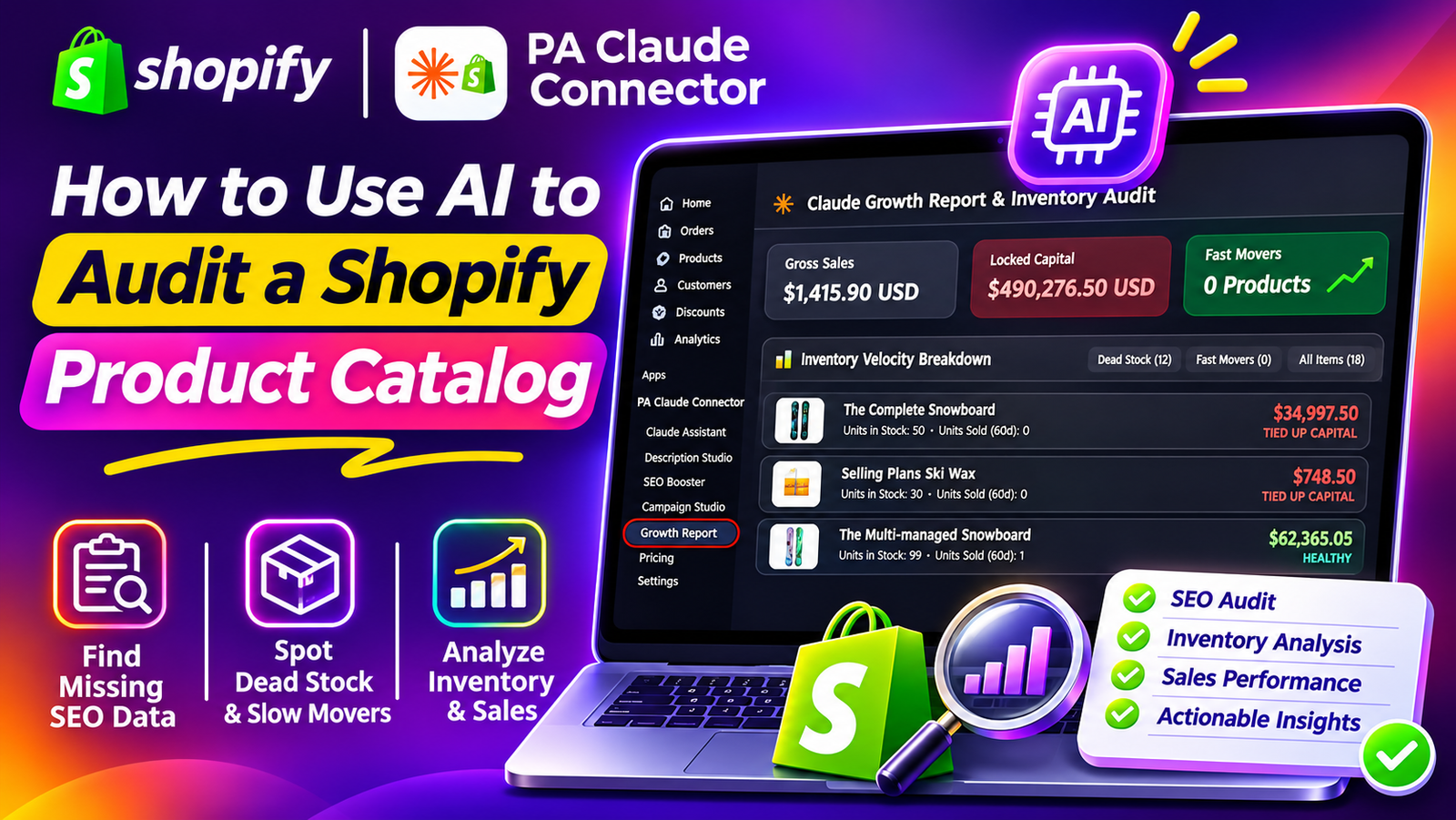
Introduction
Managing a Shopify product catalog involves much more than simply uploading products and waiting for sales. Merchants need to monitor product information, inventory levels, search engine optimization (SEO), sales performance, and slow-moving stock to keep their stores running efficiently.
As a Shopify business grows, maintaining hundreds or thousands of products becomes increasingly challenging. Some products may have missing SEO descriptions, while others may remain unsold for months, tying up valuable inventory capital.
Manually reviewing all this information can take hours, especially when product details and sales data are spread across different Shopify admin reports.
Fortunately, AI-powered tools can simplify this process.
With PA Claude Connector, Shopify merchants can review their product catalog, identify potential SEO issues, examine inventory velocity, and prepare reports using AI-assisted workflows.
In this guide, you’ll learn how to use AI to audit a Shopify product catalog, understand your store’s inventory performance, identify missing SEO metadata, and find products that may need attention.
We’ll also walk through the actual PA Claude Connector interface using your five original screenshots.
What Is a Shopify Product Catalog Audit?
A Shopify product catalog audit is the process of reviewing your store’s products to identify missing information, performance issues, and opportunities for improvement.
It helps merchants evaluate the overall health of their product catalog.
A complete audit may involve examining product titles, descriptions, metadata, inventory quantities, product availability, and sales performance.
For example, a merchant might discover that several products have no SEO meta descriptions or that significant inventory value is tied up in products that haven’t sold recently.
Identifying these issues gives merchants a clearer understanding of where improvements may be needed.
Why Shopify Merchants Need Regular Product Catalog Audits
1. Identify missing product information
Some products may have incomplete descriptions, missing images, or insufficient information to help customers make purchasing decisions.
2. Find missing SEO titles and descriptions
Products without well-written search metadata may be harder for potential customers to understand in search results.
3. Detect slow-moving inventory
Unsold inventory can occupy warehouse space and tie up capital that could otherwise support growing the business.
4. Understand product sales velocity
Knowing which products sell frequently and which remain inactive helps merchants make purchasing and promotional decisions.
5. Improve inventory planning
Catalog analysis can help identify products that may need restocking, repositioning, or clearance strategies.
6. Reduce repetitive manual analysis
Reviewing large product catalogs manually requires time that merchants could spend on marketing, customer experience, or business development.
Common Problems Found During a Shopify Catalog Audit
Missing SEO metadata
Some Shopify products are published without dedicated meta titles or descriptions.
These products may still appear in search results, but merchants have less control over the suggested search snippet.
Products with zero sales
Products that haven’t sold during a selected period may require investigation.
Possible explanations include low demand, poor visibility, pricing issues, seasonality, or insufficient marketing.
Excess inventory
Holding too much stock increases carrying costs and can create cash-flow challenges.
Inconsistent product descriptions
Descriptions that vary considerably in detail, tone, or quality can make the shopping experience less consistent.
Poor product discoverability
Products may be difficult to find because of weak titles, inadequate categorization, or missing collection organization.
Limited visibility into inventory value
Merchants sometimes know how many products they have but not how much stock value is associated with slow-moving items.
Introducing PA Claude Connector for Shopify Catalog Auditing
PA Claude Connector, developed by PeakApps, provides AI-assisted tools for managing different aspects of a Shopify store.
The application includes catalog analysis, SEO auditing, AI product content generation, marketing workflows, and inventory reporting.
Two particularly useful features for catalog auditing are Claude SEO Booster & Audit Center and Claude Growth Report & Inventory Audit.
Claude SEO Booster & Audit Center
This tool helps merchants review their product catalog for missing SEO metadata.
Its interface includes product-level status information, catalog filters, and options for drafting metadata improvements with Claude.
Claude Growth Report & Inventory Audit
This feature focuses on sales performance, inventory movement, and stock value.
It helps merchants examine slow-moving products, identify fast movers, and review inventory-related metrics.
AI-assisted store management
Together, these tools can make product catalog analysis easier by presenting information in organized dashboards and supporting follow-up AI-assisted workflows.
App Link: PA Claude Connector — Shopify App Store
Key Areas to Review During a Shopify Product Catalog Audit
Product SEO health
Review whether important product pages have accurate, relevant titles and meta descriptions.
SEO metadata should describe the actual product rather than relying on generic or repetitive wording.
Product information quality
Check whether product descriptions explain key benefits, specifications, and other important purchasing information.
Inventory availability
Look for products that are out of stock, have low stock quantities, or have unusually high inventory levels.
Sales velocity
Sales velocity describes how quickly products sell over a selected period.
For example, a product that sells frequently may require different inventory planning from a product that has not sold in the last 60 days.
Dead stock
Dead stock generally refers to inventory that is not selling and may be difficult to move.
The exact classification depends on the business, product category, and time period used.
Capital tied up in inventory
Slow-moving stock can represent substantial financial value.
Understanding the amount of capital associated with unsold inventory can help merchants prioritize clearance campaigns and purchasing decisions.
Product performance trends
Review products with consistent sales as well as products whose sales have recently declined.
These patterns can help guide merchandising and marketing activity.
How AI Helps Identify Missing Shopify SEO Metadata
Manually opening every product page to inspect SEO fields is inefficient for larger stores.
AI-assisted SEO auditing tools can organize metadata checks into a centralized dashboard.
In PA Claude Connector, SEO Booster provides a product list with status indicators for missing metadata and products classified as SEO healthy.
Merchants can use this information to prioritize products requiring updates.
For example, a product missing its SEO title and description can be selected for AI-assisted drafting.
The merchant can then review the generated content before applying it to Shopify.
This workflow reduces the need to search for missing metadata manually across the catalog.
How AI Helps Identify Slow-Moving and Dead Stock
Inventory management is another major part of catalog auditing.
Products that have not sold recently may represent tied-up capital, especially when large quantities remain in stock.
The Growth Report interface in PA Claude Connector provides an inventory velocity breakdown.
Merchants can review products classified as dead stock, fast movers, or all inventory items.
For each product, the interface can display stock quantity, units sold during the reporting period, and an associated inventory-value figure.
These details can help merchants decide which products require further investigation.
However, zero sales during a 60-day period do not automatically mean a product is permanently obsolete. Seasonal products, newly launched items, and specialty goods may naturally have slower sales cycles.
Understanding Inventory Velocity Before Making Decisions
Inventory velocity should always be interpreted alongside the product’s business context.
A fast-selling product may indicate strong customer demand, but it could also be temporarily benefiting from a promotion.
Similarly, a slow-moving product may have weak demand or simply require better placement, content, or marketing.
Before making major inventory decisions, examine the product’s selling history, seasonality, cost, margins, and inventory availability.
An AI-generated audit can help identify items worth reviewing, but final decisions should be based on verified business information.
What to Do After Identifying Catalog Problems
Improve missing SEO metadata
Prepare accurate, useful SEO titles and descriptions for products with incomplete metadata.
Update weak product descriptions
Add missing specifications, benefits, and information that customers need.
Review slow-moving product prices
Compare pricing, margins, and competitive positioning before introducing discounts.
Create targeted promotional campaigns
Consider featuring slow-moving products in relevant email or advertising campaigns.
Reassess purchasing quantities
Use historical product demand to inform future stock purchasing decisions.
Monitor the results
After making changes, review product performance again to determine whether the improvements were effective.
Benefits of Using PA Claude Connector for Product Catalog Audits
Faster analysis: Review product SEO and inventory information through dedicated dashboards instead of checking every item manually.
More organized reporting: Examine catalog information using clear metrics, status labels, and product filters.
Better inventory visibility: Identify products with limited recent sales and investigate capital tied up in stock.
SEO improvement opportunities: Find missing metadata and use AI-assisted tools to prepare content updates.
More informed marketing decisions: Use catalog and inventory findings to identify products that may benefit from promotion.
Less repetitive work: Spend more time reviewing meaningful issues rather than manually collecting basic information.
STEP-BY-STEP GUIDE: HOW TO AUDIT YOUR SHOPIFY PRODUCT CATALOG USING AI
The following tutorial uses your five original screenshots in the exact order provided. Each screenshot includes practical instructions, an image caption, and an explanation of what the merchant is seeing.
Step 1: Search for the Shopify App Store
Open Google and search for Shopify App Store. Click the official Shopify App Store result highlighted by the red arrow.

Image 1: Open the official Shopify App Store from Google search results.
Step 2: Search for PA Claude Connector
Enter PA Claude Connector in the Shopify App Store search bar. Select the application highlighted in the red circle.

Image 2: Locate PA Claude Connector in the Shopify App Store results.
Step 3: Install or Open the App
Open the PA Claude Connector listing. Click Install if you are a new user, or Open if the app is already installed.

Step 4: Install PA Claude Connector and Review the Available Plans
First, open the official Shopify App Store.
Search for PA Claude Connector and select the application developed by PeakApps.
Click Install if you’re using it for the first time, or Open if the app is already installed.
Once inside the application, you can access its tools through the Shopify admin sidebar.
Click Pricing to review the available plans and their included features.

Image 1: PA Claude Connector’s pricing dashboard showing Free, Starter, Business, and Premium plans with their included features.
Image explanation
The screenshot shows the Claude Assistant Billing & Plans page.
On the left, the Pricing option is selected in the PA Claude Connector sidebar.
Four plan cards are displayed:
| Plan | Price shown | Monthly action allowance |
|---|---|---|
| Free | $0 | 10 actions |
| Starter | $19.99/month | 500 actions |
| Business | $49.99/month | 2,500 actions |
| Premium | $99.99/month | Unlimited actions |
These prices and limits are taken from your screenshot and should be checked against the current app listing before publication.
The Starter plan lists SEO Booster and catalog-wide missing metadata scans among its features.
The Business plan lists Growth Report and dead inventory audits, along with other functionality.
The Premium plan in the screenshot is marked Active.
Why this step matters: Reviewing the plans helps merchants understand which audit features and usage limits are available before starting. The screenshot also states that paid tiers include a seven-day free trial.
Step 5: Open Growth Report to Review Catalog and Inventory Performance
After opening PA Claude Connector, locate Growth Report in the left sidebar.
Click it to open Claude Growth Report & Inventory Audit.
The dashboard displays important inventory and sales information.

Image 2: Open Growth Report to view gross sales, locked capital in dead stock, high-velocity products, and inventory velocity details.
Example store classification
The figures describe the example store in your screenshot, not typical Shopify merchant performance.
Below the summary cards is the Inventory Velocity Breakdown section, highlighted by a red circle.
The product list contains items such as The Collection Snowboard: Oxygen, The Multi-location Snowboard, and The Hidden Snowboard.
Each row displays inventory-related information, including units in stock, units sold during the reporting period, and a value labeled tied-up capital.
Why this step matters: This dashboard helps merchants identify products that may be holding excess inventory and require closer attention. The displayed tied-up capital should be checked against actual inventory cost data before using it for financial decisions.
Step 6: Open SEO Booster to Identify Missing Product Metadata
Next, click SEO Booster in the PA Claude Connector sidebar.
The Claude SEO Booster & Audit Center opens.
This tool focuses on identifying missing search engine metadata across the Shopify product catalog.

Image 3: Review the SEO Booster audit dashboard to identify products missing SEO titles or meta descriptions.
Image explanation
The screenshot shows four SEO audit summary cards.
| SEO metric | Example result |
|---|---|
| Total Scanned | 18 |
| Missing Meta Tags | 13 |
| Drafted / Pending | 0 |
| Healthy SEO Score | 5 |
Below these metrics, the app provides filters for All, Needs SEO, Pending Approval, and Healthy.
Several products are listed with their current SEO information.
For example, Bundle Product #1 is flagged with Missing Metadata, and its search preview indicates that the meta title and description are missing.
The orange Draft with Claude button is highlighted on the right.
Other products, such as the Gift Card and The Complete Snowboard, are classified as SEO Healthy in the screenshot.
What should merchants do here?
Start by opening the Needs SEO filter to identify products requiring attention.
Choose a product with missing metadata and select Draft with Claude.
Review the resulting SEO title and meta description, ensuring that the content accurately represents the product.
Only apply the updated metadata after checking its accuracy and relevance.
Why this step matters: SEO Booster helps merchants identify incomplete product metadata without manually opening each product in
Step 7: Use the Fast Movers Filter to Review High-Velocity Products
Return to Growth Report.
Inside the Inventory Velocity Breakdown area, locate the filter tabs on the right.
These include Dead Stock, Fast Movers, and All Items.
Click Fast Movers to examine products identified as selling quickly.

Image 4: Select Fast Movers to review products classified as high-velocity sellers in the inventory audit.
Image explanation
The screenshot shows the Fast Movers (0) filter selected.
The dashboard continues to display the same summary metrics, while the inventory section shows:
No items found for this segment.
This indicates that the example store has no products classified as fast movers under the app’s current criteria.
It does not necessarily mean that no products have ever sold.
The dashboard also displays a total of 12 products in the Dead Stock category and 18 items in the full catalog view.
What can merchants learn from this?
The Fast Movers filter helps merchants focus on products with relatively strong sales movement, when such products are present.
These products may be useful candidates for inventory planning, merchandising, or further promotion.
If no fast movers appear, review the reporting period, store activity, product availability, and classification criteria before drawing conclusions about customer demand.
Why this step matters: Identifying fast movers can help merchants understand which products may need stock monitoring or more attention from the sales team.
Step 8: View All Products and Compare Inventory Performance
Finally, click All Items inside the Inventory Velocity Breakdown section.
This displays the broader product list instead of focusing on one inventory category.

Image 5: Select All Items to review inventory quantities, recent units sold, and product-level inventory value indicators across the catalog.
Image explanation
The screenshot shows All Items (18) selected.
The visible catalog includes Bundle Product #1, Gift Card, The Complete Snowboard, Selling Plans Ski Wax, and other products.
Each row shows the product name and inventory details.
For example:
The Complete Snowboard displays 50 units in stock and zero units sold during the 60-day period, along with a tied-up capital indicator.
The Multi-managed Snowboard displays 99 units in stock and one unit sold during the period.
The screenshot demonstrates how merchants can compare products that have different levels of recent sales activity.
Some products are marked Healthy, while others are labeled Tied Up Capital.
What should merchants do after this audit?
Review products with high inventory quantities and limited sales.
Check whether the products are seasonal, newly launched, or affected by low traffic.
Compare their pricing, margins, and sales history before deciding whether to run promotions or adjust future purchasing quantities.
For products with strong sales, monitor stock levels and consider whether replenishment is needed.
The orange Generate Growth Report button at the top provides an option to request an AI-assisted growth report. Your screenshots show this control, but not the completed output of that action.
Why this step matters: The All Items view gives merchants a broader perspective on their catalog and helps them prioritize which products deserve further investigation.
How to Turn Your AI Catalog Audit Into an Action Plan
After completing your SEO and inventory audit, use the results to create a practical improvement plan.
| Finding | Recommended action |
|---|---|
| Missing SEO title | Draft an accurate, descriptive SEO title |
| Missing meta description | Write a useful summary of the product |
| High inventory with zero recent sales | Investigate demand, pricing, and discoverability |
| Fast-moving product | Review stock availability and replenishment needs |
| Weak product description | Improve verified features, benefits, and specifications |
| High tied-up capital indicator | Verify inventory costs and review clearance options |
AI can help identify potential issues, but merchants should validate the findings before changing pricing, stock levels, or marketing strategy.
Frequently Asked Questions (FAQs)
1. How can I audit my Shopify product catalog using AI?
Install PA Claude Connector, open its Growth Report and SEO Booster tools, and review the catalog’s inventory and metadata information.
2. Can AI detect Shopify products missing SEO titles?
Yes. The SEO Booster interface displays products flagged for missing SEO titles and descriptions.
3. Can PA Claude Connector identify dead stock?
The Growth Report interface includes a Dead Stock category that identifies products based on its inventory velocity criteria.
4. What does locked capital in dead stock mean?
It represents an inventory-value indicator associated with products classified as dead stock. Verify how the value is calculated before treating it as an accounting figure.
5. Can I see which products are selling fastest?
The Fast Movers filter displays products classified as high-velocity sellers when matching items are found.
6. Can I review all products together?
Yes. The All Items filter displays the broader catalog included in the inventory audit.
7. Can Claude help improve missing SEO metadata?
Yes. SEO Booster includes Draft with Claude controls for products that need metadata improvements.
8. Does an AI catalog audit guarantee increased sales?
No. Catalog auditing helps identify areas for improvement, but sales depend on product demand, pricing, marketing, customer experience, and other factors.
9. How often should Shopify merchants audit their catalogs?
A monthly review can be a useful starting point, with additional checks after major inventory imports, product launches, or seasonal campaigns.
10. Where can I install PA Claude Connector?
You can find the application here: PA Claude Connector — Shopify App Store.
Conclusion
Managing a Shopify product catalog requires ongoing attention to SEO, inventory, product quality, and sales performance.
Manually reviewing every product can become difficult as a store grows, especially when merchants need to identify missing metadata, slow-moving inventory, and products that require attention.
With PA Claude Connector by PeakApps, merchants can use AI-assisted tools to review product SEO information, examine inventory velocity, identify potentially unproductive stock, and prepare for more informed business decisions.
The SEO Booster dashboard helps identify products missing SEO titles or descriptions, while the Growth Report provides visibility into sales movement and inventory-related metrics.
By regularly reviewing these findings and taking appropriate action, Shopify merchants can maintain a better-organized catalog, improve product discoverability, and make more informed inventory and marketing decisions.
Ready to audit your Shopify product catalog with AI?Install PA Claude Connector on Shopify




