HOW TO WRITE ALT TEXT FOR SHOPIFY PRODUCT IMAGES USING AI
Shopify Image SEO Guide | PA Claude Connector | 2026
Introduction
Product images are an essential part of every Shopify store. They help customers understand what a product looks like, compare different styles, and make purchasing decisions.
However, many Shopify merchants overlook an important element of image optimization: image alt text.
Alt text, short for alternative text, describes an image for people using screen readers and provides a text alternative when an image cannot load. Descriptive alt text also helps search engines understand image content.
Writing unique alt text for hundreds of Shopify product images can take considerable time, especially when products have different colors, variants, and image angles.
This is where AI-powered tools can help.
With PA Claude Connector, Shopify merchants can use Claude AI to generate product image alt text suggestions based on available catalog information.
In this guide, we’ll explain how to write alt text for Shopify product images using AI, why alt text matters, and how to generate and download suggestions using the real PA Claude Connector interface.
What Is Alt Text in Shopify?
Alt text is a short written description associated with an image.
For example, suppose your Shopify store sells winter sports equipment.
A product image might show a blue snowboard with geometric graphics.
A useful alt text description could be:
“Blue snowboard with geometric graphics displayed against a white background.”
This is more descriptive than a generic label such as “snowboard image.”
Good alt text communicates the image’s meaningful visual content without unnecessary keyword repetition.
Why Product Image Alt Text Matters for Shopify SEO
1. Improves accessibility
Alt text helps customers using screen readers understand product images. It can communicate important information such as product color, appearance, and design.
2. Helps search engines understand images
Search engines use alt text alongside surrounding page content and other signals to understand images.
3. Improves the product browsing experience
Descriptive alt text gives shoppers an alternative when product images cannot be displayed.
4. Supports better product differentiation
If a product comes in different colors or patterns, individual image descriptions can help distinguish those variations.
5. Makes large product catalogs easier to optimize
AI can assist merchants in creating first drafts of alt text for multiple products, reducing repetitive writing.
The Merchant’s Challenge: Writing Alt Text Manually
Shopify stores can contain hundreds or thousands of product images.
Merchants often encounter these problems:
- Product images have missing or generic alt text.
- Multiple variants use identical descriptions.
- Product images are not clearly described.
- Existing descriptions contain excessive keywords.
- Manually updating images takes too much time.
- Merchants are uncertain how to write accessible, SEO-friendly alt text.
For example, a snowboard might have a front image, back image, close-up, and lifestyle photograph.
Each image should have alt text describing what is actually visible, not simply repeat the same product title.
How AI Can Help Generate Shopify Image Alt Text
AI assistants can examine available product names, categories, descriptions, and variant information to prepare relevant alt text suggestions.
For example, if a catalog includes a snowboard with variants named Dawn, Powder, Electric, and Sunset, an assistant can create draft descriptions for each variant.
However, product catalog data is not always the same as image data.
If the AI cannot access individual product images, it may not know the exact visual details. In that case, merchants should verify and refine the suggested descriptions against the actual images.
Introducing PA Claude Connector
PA Claude Connector is a Shopify application that connects Claude-powered assistance with store management workflows.
Merchants can use its Claude Assistant to ask questions about available catalog information and generate structured content.
For product image alt text, the demonstrated workflow allows merchants to:
- Request alt text suggestions in natural language.
- Generate descriptions for multiple catalog products.
- Organize results by product and variant.
- Review image SEO writing recommendations.
- Create a downloadable DOCX document.
The screenshots you supplied show Claude creating product-level suggestions and explaining that the current workflow does not have access to individual image URLs or positions.
This distinction is important: the demonstrated process creates drafts that merchants can review and manually apply.
App link: PA Claude Connector — Shopify App Store
How to Write Effective Shopify Product Image Alt Text
Describe the actual image
Focus on visible product characteristics rather than adding general promotional language.
Keep descriptions concise
A practical starting point is approximately 125 characters or fewer when that is sufficient to describe the image. It is not a universal technical limit.
Include relevant product details
Mention the product type, color, design, or visible features when they help someone understand the image.
Avoid keyword stuffing
Do not repeat phrases like “best snowboard shop” or “cheap snowboard online” merely to target search queries.
Write different alt text for different images
A product’s front view, rear view, detail shot, and lifestyle image may each need a distinct description.
Avoid unsupported claims
Do not describe a product as premium, waterproof, or high-performance unless the claim is verified and relevant to the image.
Step-by-Step Guide: How to Generate Shopify Product Image Alt Text Using Claude AI
The following steps use all four screenshots you uploaded, in their original order.
Step 1: Search for the Shopify App Store
Open Google Chrome or your preferred web browser.
Type Shopify App Store into Google and press Enter.
Find the official Shopify App Store result and click it.

Image 1: Search for Shopify App Store on Google and open the official Shopify application marketplace.
Image explanation
The screenshot shows a Google search results page, with the phrase shopify app store highlighted in red.
A red arrow points toward the official Shopify App Store result.
Click this link to access Shopify’s app marketplace.
You can also open the marketplace directly by visiting https://apps.shopify.com.
This is where you’ll find PA Claude Connector and its official app listing.
Step 2: Search for PA Claude Connector
Once the Shopify App Store opens, locate the search bar.
Enter PA Claude Connector and search.
Find the application with the orange-and-white icon and open its listing.
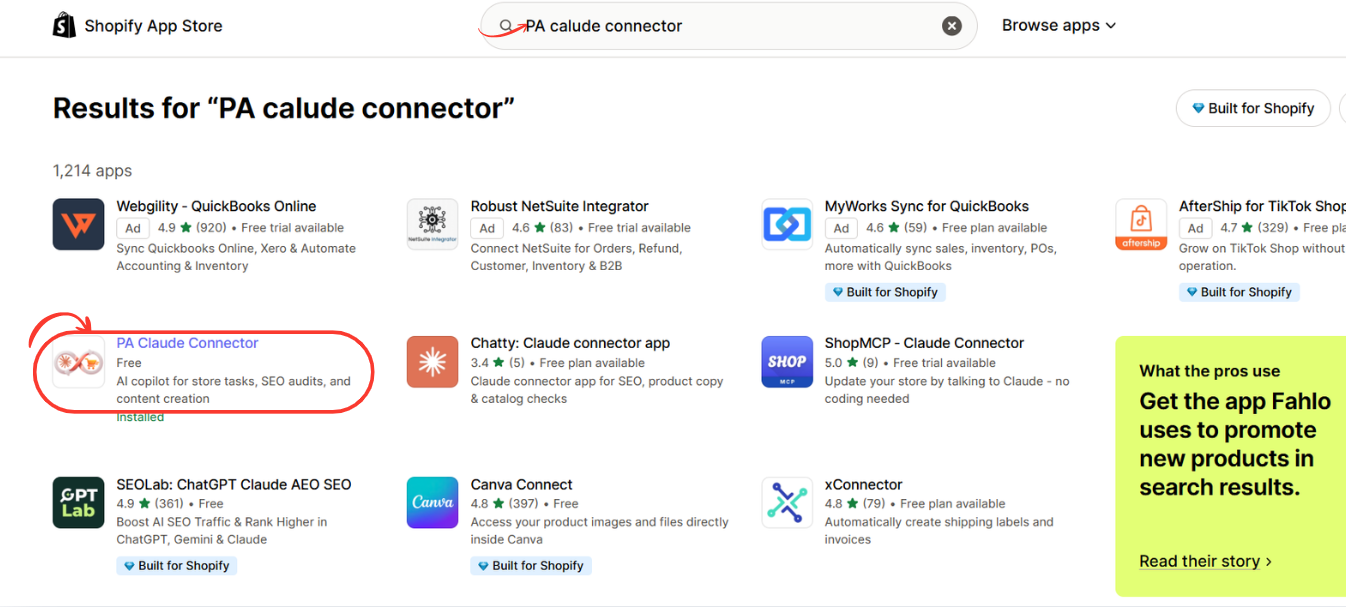
Image 2: Find PA Claude Connector in the Shopify App Store search results and click the highlighted application.
Image explanation
The screenshot displays multiple Shopify applications in the search results.
PA Claude Connector is circled in red.
Its description identifies it as an AI copilot for Shopify store tasks, SEO audits, and content creation.
The example also shows an Installed status, indicating that this Shopify store has already installed the application.
If you’re installing it for the first time, open the app listing to continue.
Step 3: Install PA Claude Connector in Shopify
After opening the application listing, review its description, pricing, and requested functionality.
Click Install to begin the installation process.
Shopify may ask you to sign in or select the store where you want to install the app.
Review the permissions requested by the application and authorize the installation if you’re comfortable with them.
If PA Claude Connector is already installed, click Open instead.

Image 3: Open the PA Claude Connector listing and click Install or Open to access the application in Shopify admin.
Image explanation
The screenshot shows the PA Claude Connector listing.
On the left, the application name, pricing information, developer name, and black Open button are displayed.
The right side contains promotional images explaining the application’s Claude-powered functionality.
The listed developer is PeakApps.
Once installation is complete, the app becomes accessible through your Shopify admin.
Why this step matters: Installing the app provides the foundation for using its Claude-powered tools. The exact connection and authorization process may vary depending on the app version and your store permissions.
Step 4: Open Claude Assistant Inside Shopify Admin
Return to your Shopify admin.
Under Apps, find PA Claude Connector.
Expand the application menu and click Claude Assistant.
This opens the AI chat interface, where you can begin asking questions and using the assistant.

Image 4: Open Claude Assistant from the PA Claude Connector sidebar and locate the AI chat input.
Image explanation
The screenshot shows the Claude Assistant interface inside Shopify.
The Claude Assistant navigation option is highlighted in red.
In the center, the application displays the heading:
How can I help you today?
Several suggested prompts are displayed underneath, including questions about product descriptions, sales performance, returns policies, and missing SEO titles.
A red arrow highlights the message input near the bottom.
This is where you can enter your first question.
Note: This screenshot confirms that the assistant interface is available. It does not independently show the initial Claude authentication or authorization screens.
Step 5: Open Claude Assistant and Enter Your Alt Text Request
Sign in to your Shopify admin and open PA Claude Connector.
From the left sidebar, select Claude Assistant.
The AI workspace opens with suggested questions and a message input at the bottom.
Type the following request:
AI Prompt Copy
Write alt text for my Shopify product images. Review my available product catalog and suggest concise, descriptive alt text for each product and variant. Use relevant product details naturally, avoid keyword stuffing, and do not invent visual features. Clearly identify descriptions that need image-level verification. Organize the results into a report.

Image 1: Open PA Claude Connector, select Claude Assistant, and enter your product image alt text request.
Image explanation: The screenshot shows PA Claude Connector running inside Shopify admin, with Claude Assistant selected in the sidebar. At the bottom of the screen, the text input contains “Write Alt Text for Shopify Product Images.”
Click the orange send button to submit the prompt.
For better results, you can provide additional instructions about your store’s product categories, naming conventions, and desired description length.
Step 6: Review AI-Generated Alt Text Suggestions for Your Products
After submitting the prompt, Claude generates a list of suggested descriptions based on the available product catalog.
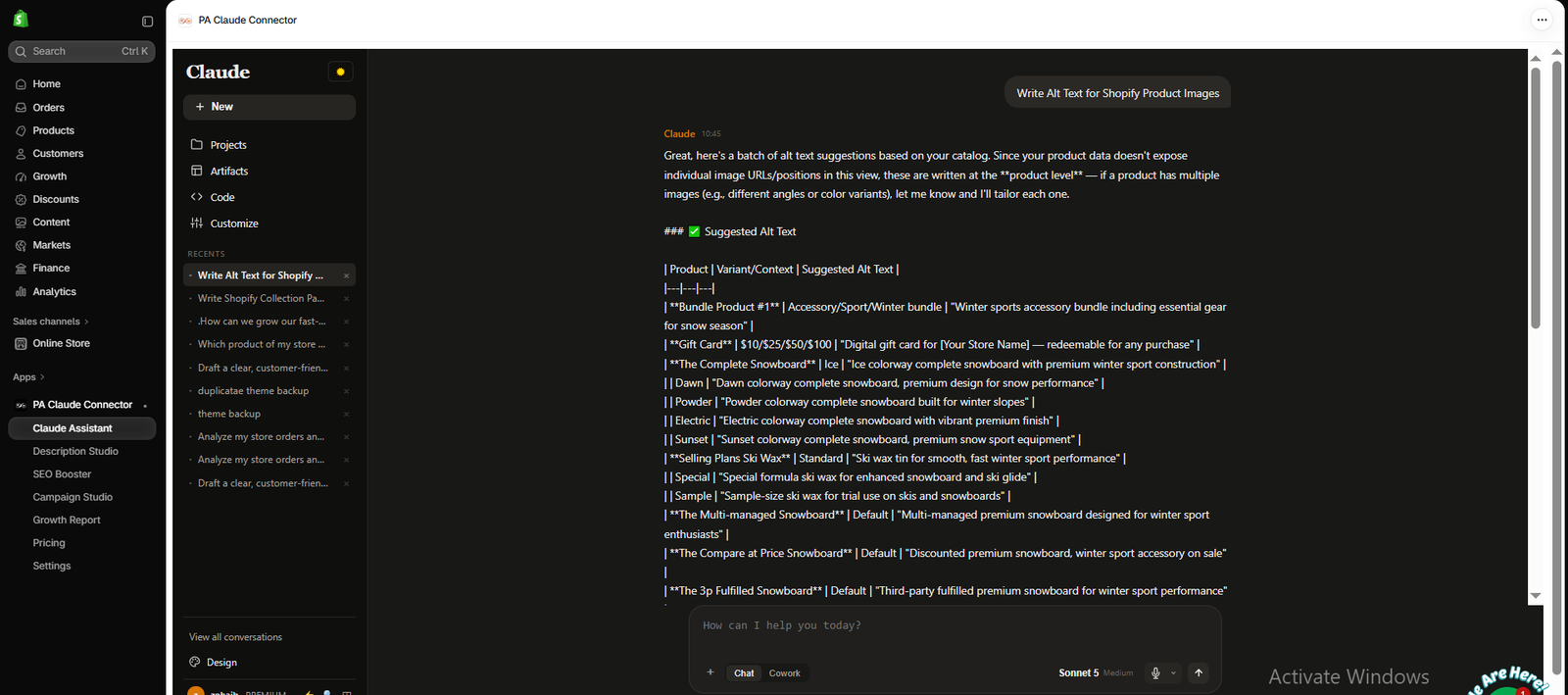
Image 2: Claude Assistant generates suggested alt text for products such as Gift Cards, snowboards, and ski wax variants.
Image explanation: The screenshot shows Claude returning a structured list with columns for product, variant or context, and suggested alt text.
The results include Bundle Product #1, Gift Card, The Complete Snowboard, and Selling Plans Ski Wax, among others.
For the snowboard, Claude provides separate suggestions for variants such as Ice, Dawn, Powder, Electric, and Sunset.
Importantly, Claude states that its available product data does not expose individual image URLs or positions. Therefore, these are product-level suggestions, not confirmed descriptions of the actual images.
Review every suggestion against the corresponding Shopify image before publishing it.
Step 7: Check Alt Text Best Practices and Download the Draft Report
Scroll down through the Claude response to review its additional recommendations.
The assistant explains how to improve descriptions and how image-level alt text differs from product-level suggestions.
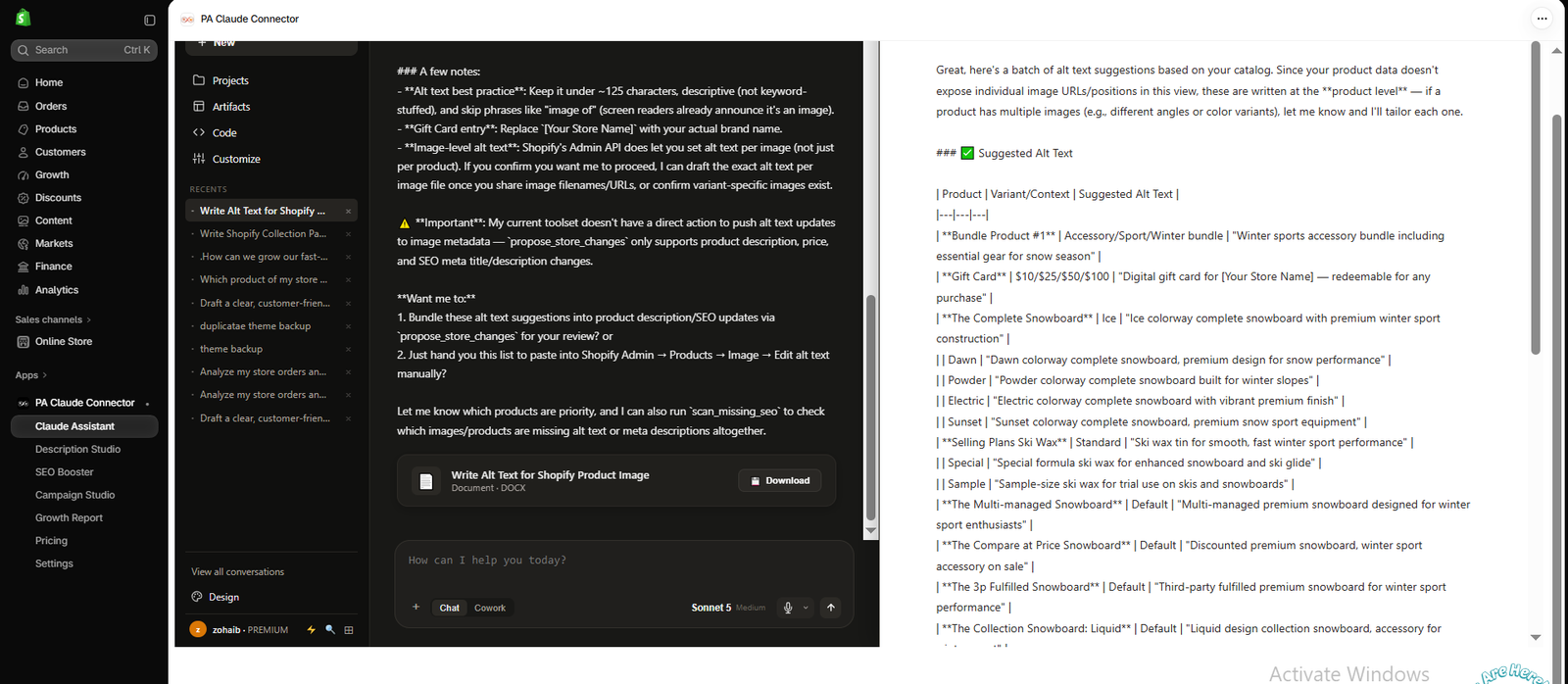
Image 3: Claude provides alt text writing recommendations, explains current image-access limitations, and generates a DOCX document.
Image explanation: The left side of the screenshot shows Claude’s guidance, including keeping descriptions concise, avoiding keyword stuffing, and replacing placeholder brand information.
It also explains that its current workflow cannot directly push image alt text updates to Shopify image metadata.
At the bottom of the response, a document titled Write Alt Text for Shopify Product Image appears with a Download button.
Click Download to save the generated DOCX document.
You can then review the suggestions, correct any inaccurate details, and prepare them for use in your Shopify store.
Step 8: Open the Generated Document and Review All Product Descriptions
Open the generated document preview to inspect the complete list of alt text suggestions.

Image 4: The generated document displays product and variant alt text suggestions that can be reviewed before adding them to Shopify.
Image explanation: The screenshot shows the Claude conversation on the left and the document preview on the right.
The document contains a table-like list of descriptions organized by product and variant.
At the top-right of the document preview, the Download button allows you to export the report.
Once downloaded, compare the text with the real product images and make any necessary adjustments.
For example, a description referring to a blue snowboard should only be used if the image actually shows a blue snowboard.
This helps ensure the final alt text is accurate and useful for customers.
Step 9: Add Your AI-Generated Alt Text to Shopify Product Images
After reviewing the suggested descriptions, you can manually add them to Shopify.
- Open Shopify Admin → Products.
- Select the product you want to optimize.
- Click the appropriate product image in the Media section.
- Find the alt text field or Add alt text option.
- Paste your reviewed description.
- Save the changes.
Repeat this process for other product images, ensuring every description accurately reflects its corresponding image.
Examples of Good and Bad Shopify Image Alt Text
| Product image | Poor alt text | Better alt text |
|---|---|---|
| Blue snowboard | Best snowboard cheap | Blue snowboard with geometric graphics |
| Winter jacket | Product image 1 | Black insulated winter jacket with front zipper |
| Gift card graphic | Gift card | Digital gift card with orange gift-box illustration |
| Ski wax | Buy ski wax online | Yellow rectangular ski wax block on white background |
The better examples are illustrative. Always adapt the descriptions to what appears in the actual photograph.
Frequently Asked Questions
1. Can AI write alt text for Shopify product images?
Yes. AI can generate suggested image descriptions using product information or images it can access.
2. Does PA Claude Connector automatically update Shopify image alt text?
The workflow shown in your screenshots generates suggestions and a downloadable report. It does not demonstrate automatic image alt text updates.
3. Is image alt text important for Shopify SEO?
Yes. Alt text can help search engines understand image content, while also improving accessibility for customers using screen readers.
4. Should every Shopify product image have different alt text?
Images containing different meaningful visual information should have descriptions reflecting those differences. Decorative images may not need descriptive alt text.
5. How long should Shopify product image alt text be?
Keep descriptions concise and meaningful. Approximately 125 characters or fewer is a useful writing guideline when appropriate, but accuracy matters more than a strict character target.
6. Can Claude generate alt text for multiple Shopify products?
Yes. Your screenshots demonstrate Claude preparing product-level and variant-level suggestions for multiple catalog items.
7. Can I download AI-generated product image alt text?
Yes. The demonstrated workflow provides a downloadable DOCX document.
Conclusion
Writing descriptive alt text for Shopify product images is an important part of making your online store more accessible and easier for search engines to understand.
With PA Claude Connector, merchants can use Claude AI to prepare alt text suggestions, organize them by product and variant, and download structured reports for review.
Rather than manually drafting every description from scratch, Shopify store owners can use AI as a starting point while retaining control over the final wording.
For the best results, review each suggestion against the actual product image before adding it to Shopify.
Start using AI for your Shopify store: PA Claude Connector on the Shopify App Store




