How to Add an FAQ Section to a Shopify Product Page
Introduction
A product page should do more than display photographs and a price. It should help shoppers understand what they are buying and feel confident about their next step. Even an attractive page can leave important questions unanswered: Does this product fit my needs? How do I care for it? What happens if I need to return it?
An FAQ section brings those answers directly onto the product page. Customers can find practical information without leaving the product they are considering.
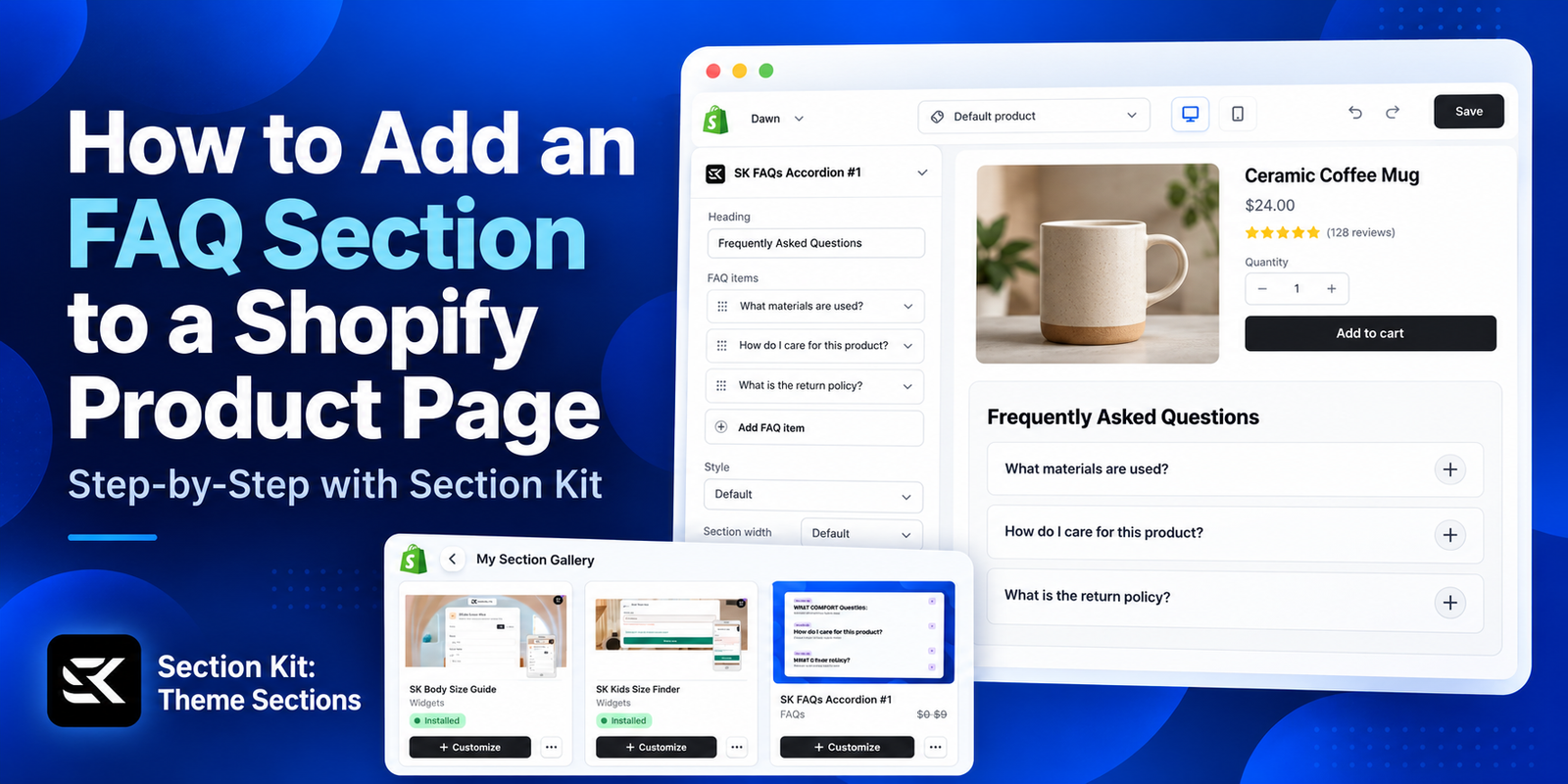
This guide explains why product FAQs matter, compares the available approaches, and walks through adding an accordion section with Section Kit: Theme Sections, using the supplied screenshots.
The Problem Many Shopify Store Owners Face
Merchants often put considerable effort into product images and descriptions, yet customers still ask the same questions about sizing, materials, delivery, care instructions, and returns.
Adding every answer to the main description can make it long and difficult to scan. Moving all the answers to a separate FAQ page creates another step for shoppers, particularly when their question relates to a specific product.
There is also a design challenge. A theme may already include collapsible content, but its appearance or settings might not suit the store. Creating a custom alternative can require development work, while using a full page builder introduces another editing workflow.
The result is a familiar gap: shoppers need clearer information, and merchants need a manageable way to present it.
Why Your Product Page Needs an FAQ Section
Answer questions where purchase decisions happen
An FAQ lets visitors check important details while they are looking at the product. For example, a clothing store can explain fit and washing instructions, while a furniture store can answer questions about assembly and dimensions.
Give customers a way to help themselves
Clear answers to recurring questions can reduce the need for customers to contact support. This is especially useful when your team is unavailable and shoppers want an immediate answer.
Keep the page easy to scan
An accordion presents questions as expandable rows. Visitors can open the topics they need without scrolling through a long block of text.
Set clear expectations
Accurate answers about materials, delivery, compatibility, and returns help shoppers understand what to expect. Write FAQs to resolve uncertainty; avoid promises your store cannot reliably fulfil.
How Section Kit Compares With Other Options
The right approach depends on the design you need and how you prefer to maintain your store.
| Approach | When it makes sense | What to consider |
| Built-in theme accordion or collapsible content | Your theme already offers a suitable design | Available settings and layouts depend on the theme |
| Custom development | You need a specific design or behaviour | Building and maintaining the section requires development work |
| Full page builder | You want to redesign a larger part of the product page | You will need to learn and maintain the builder’s editing workflow |
| Section Kit: Theme Sections | You want to add a premade section and edit it in Shopify’s theme editor | Check the selected section’s price, settings, and suitability for your product template |
Section Kit offers a library of more than 500 premade sections, including FAQs, with customization inside Shopify’s theme editor. Its listing describes free sections and premium sections available through one-time charges. Check the selected section’s current price before adding it.
In the supplied screenshots, SK FAQs Accordion #1 includes three presets. The editor also shows controls for layout, page width, spacing between rows, corner radius, desktop and mobile padding, and text styling. These settings help you adapt the section to your existing store design.
For a merchant who needs an FAQ area without rebuilding the entire page, this section-based workflow offers a practical starting point.
How to Add an FAQ Section to a Shopify Product Page: Step by Step
Before you begin: Some screenshots display Home page in the theme editor. To place the FAQ on a product page, switch to the appropriate Products template before adding the section. The example accordion also contains partner showcase content; replace that sample content with your product questions and answers.
Step 1: Install Section Kit: Theme Sections
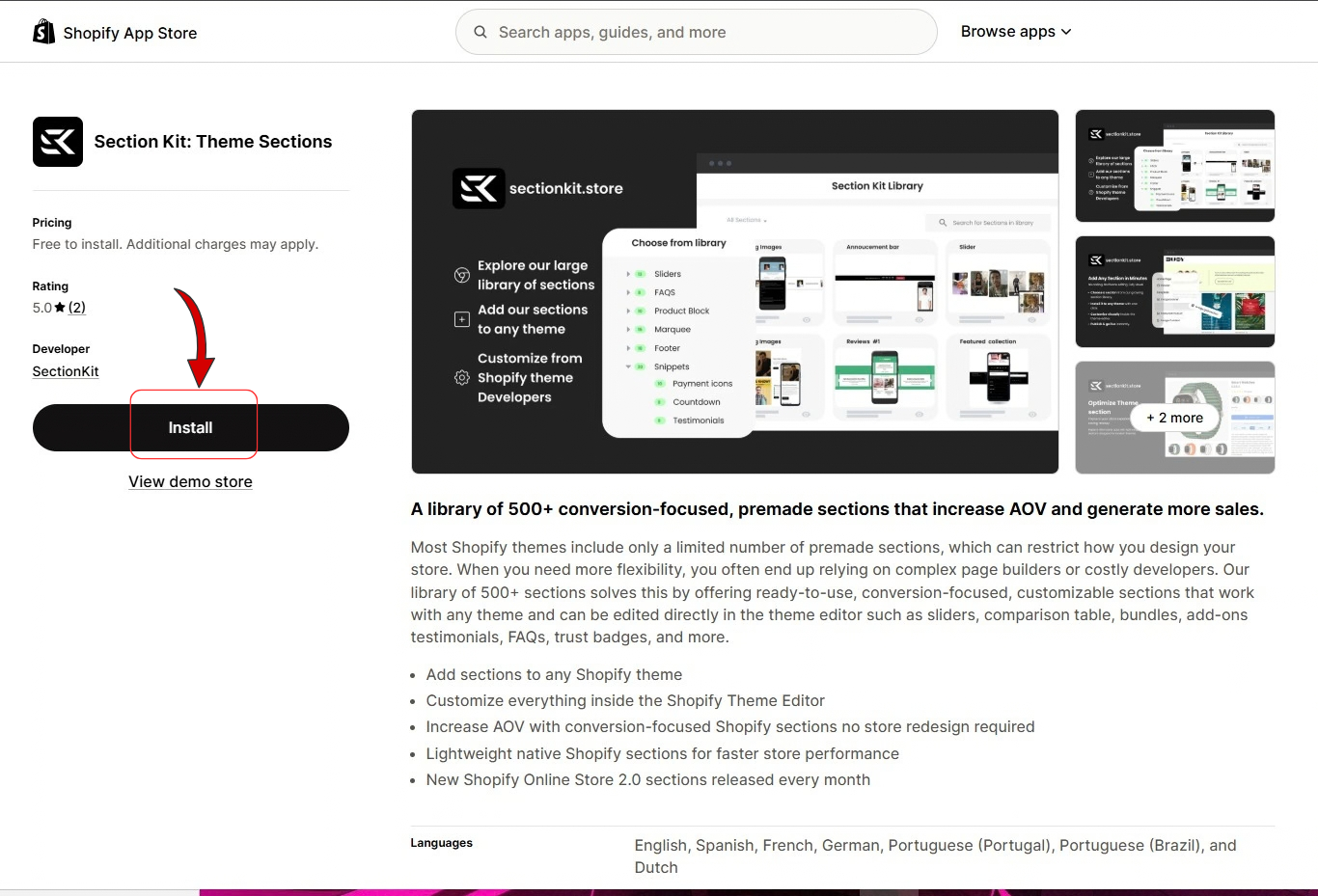
Open the Section Kit: Theme Sections listing in the Shopify App Store.
Click Install, as highlighted in the App Store screenshot, and complete Shopify’s installation process.
Once installed, open the app from your Shopify admin.
Step 2: Open Explore Sections and Search for an FAQ
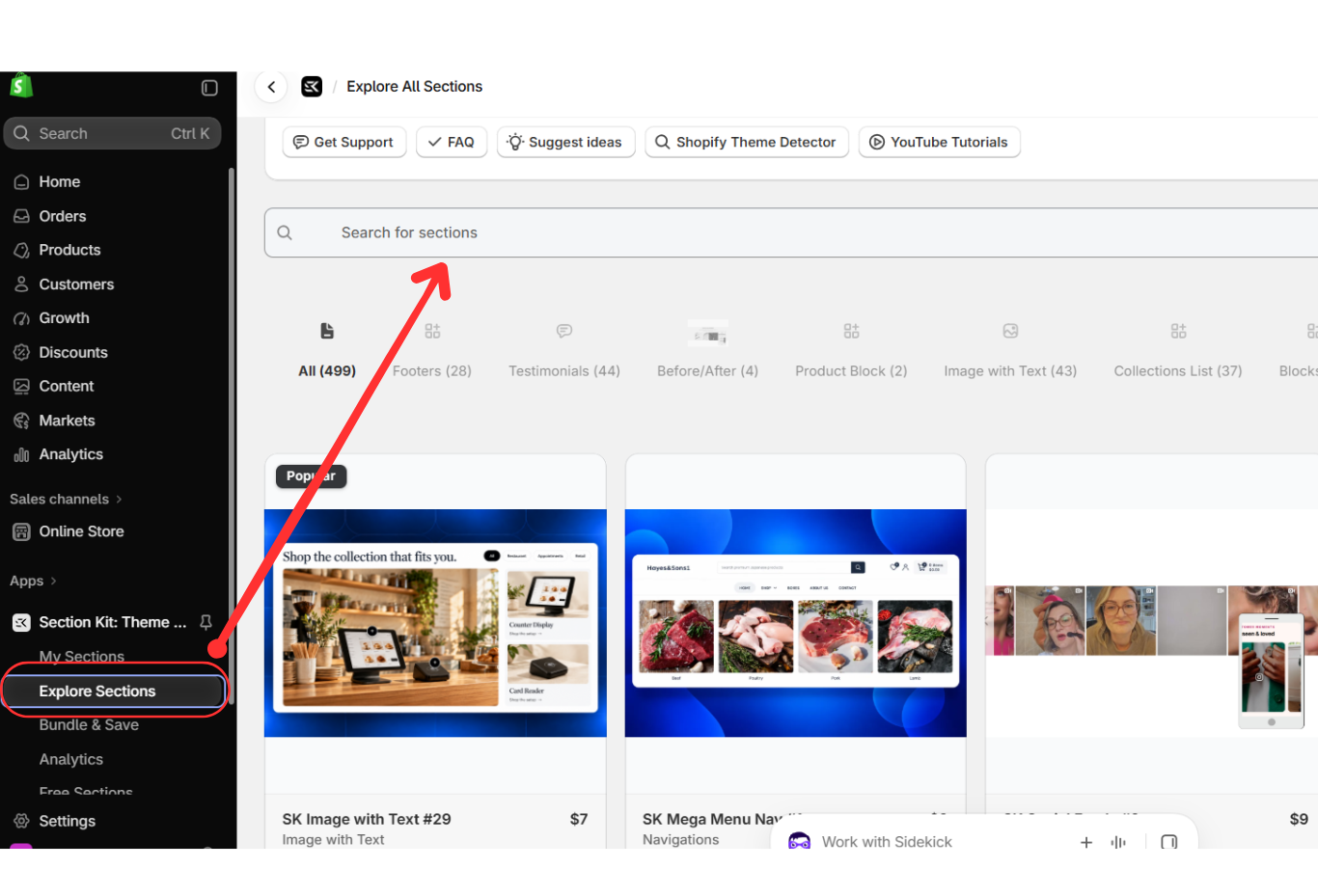
Select Explore Sections from the app’s left-hand navigation.
Use the Search for sections field shown in the screenshot to search for “FAQ.” Browse the available designs and open the one you want to use.
This guide follows SK FAQs Accordion #1, the section selected in the supplied images.
Step 3: Preview the Section and Add It to My Sections
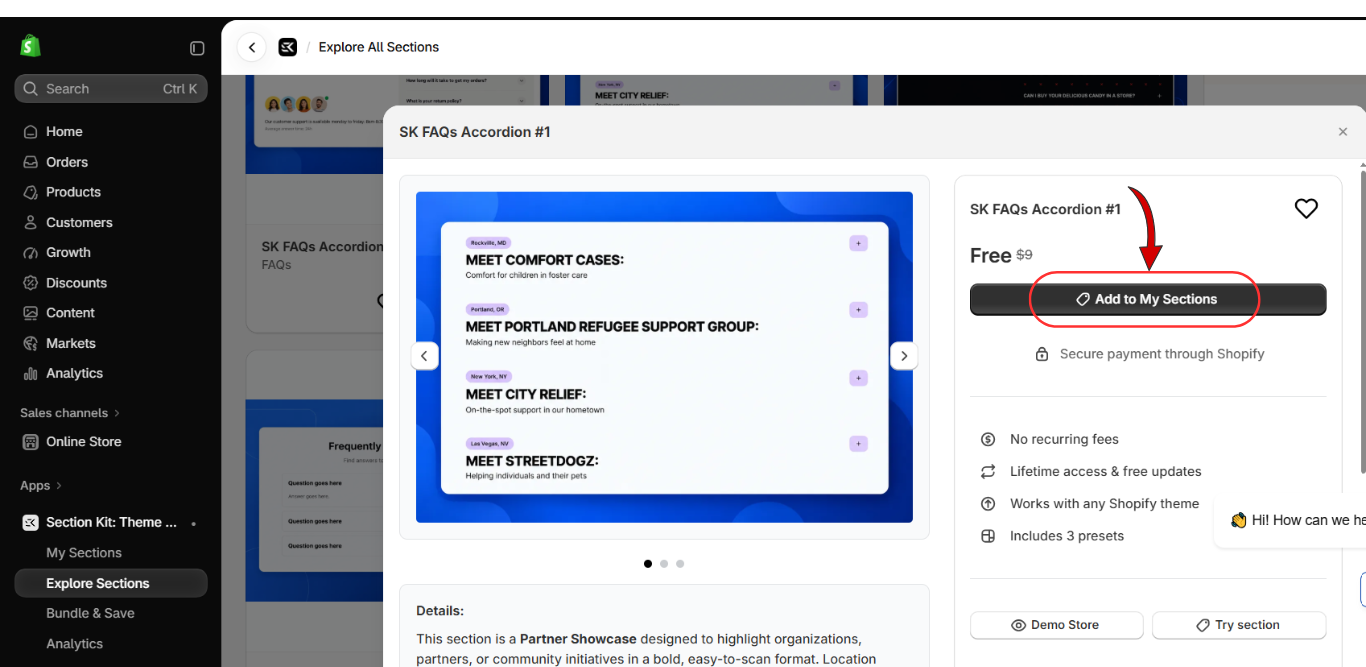
Open the section’s details window to inspect its preview and available presets.
The screenshot shows a preview carousel and an Add to My Sections button. Review the design and current price, then click Add to My Sections.
The section is shown as free in your screenshot. Availability and pricing can change, so use the price displayed in your app when completing this step.
Step 4: Find the Section in My Sections
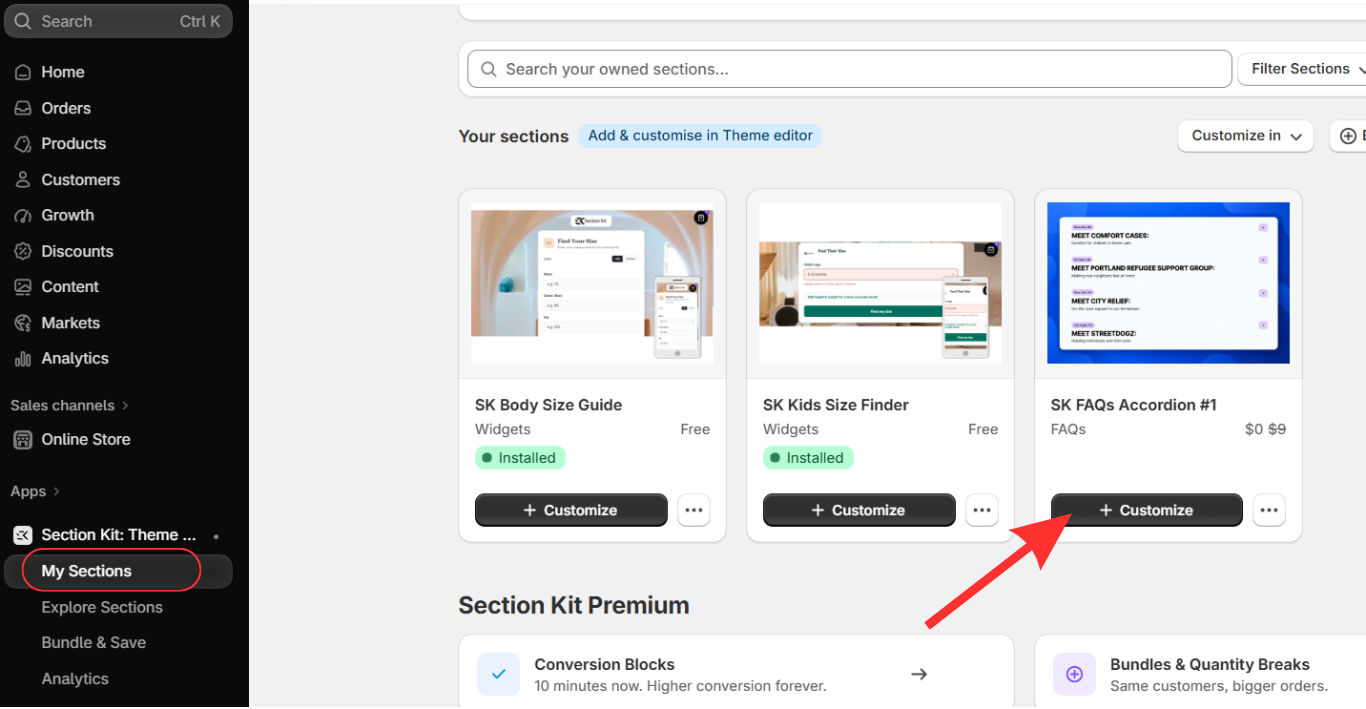
Select My Sections in the left-hand navigation.
Find SK FAQs Accordion #1 in your section gallery, then click Customize on its card.
This opens the theme selection window shown in the next screenshot.
Step 5: Install the Section in Your Chosen Theme
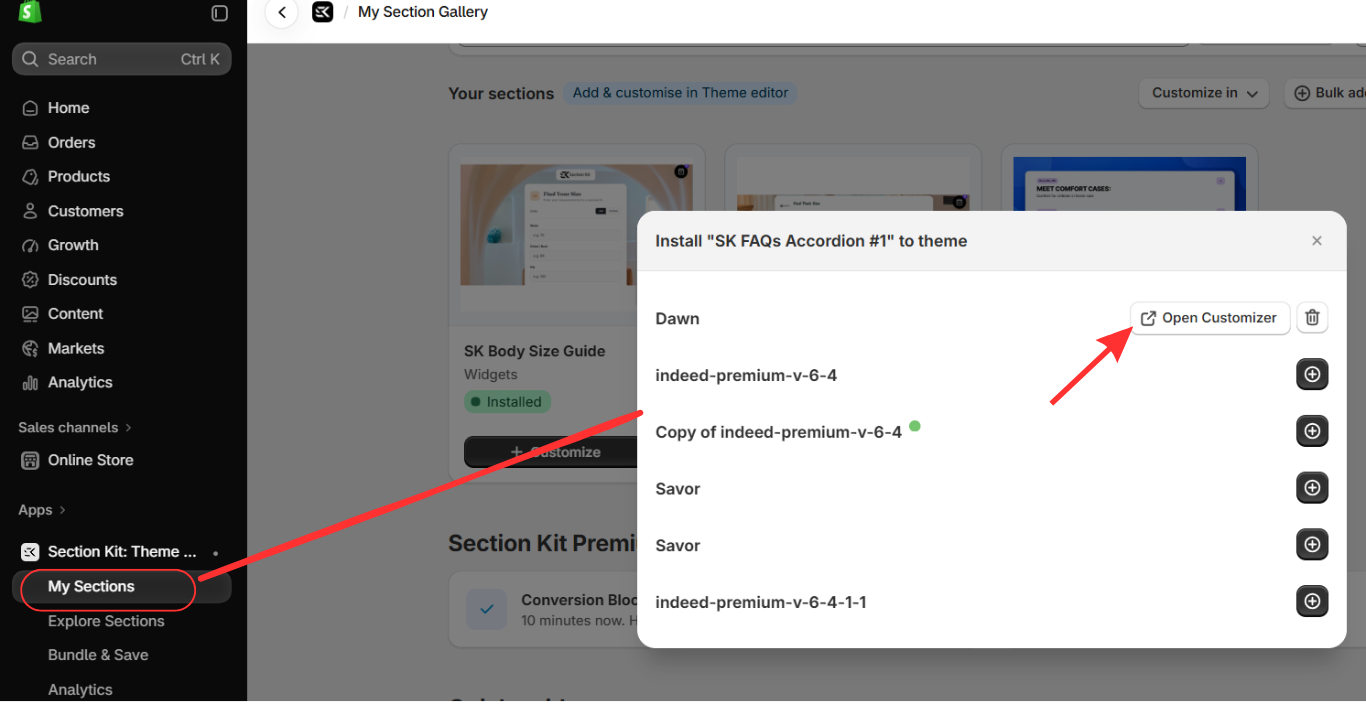
In the window titled Install “SK FAQs Accordion #1” to theme, locate the theme you want to edit.
The screenshot shows Open Customizer beside Dawn, with plus buttons beside other themes. If your chosen theme still shows a plus button, use it to install the section there. Once it is available, click Open Customizer to enter Shopify’s theme editor.
Make sure you are editing the intended theme. The screenshots show Dawn marked as Draft, so saving those changes does not immediately update the live storefront.
Step 6: Switch From Home Page to a Product Template
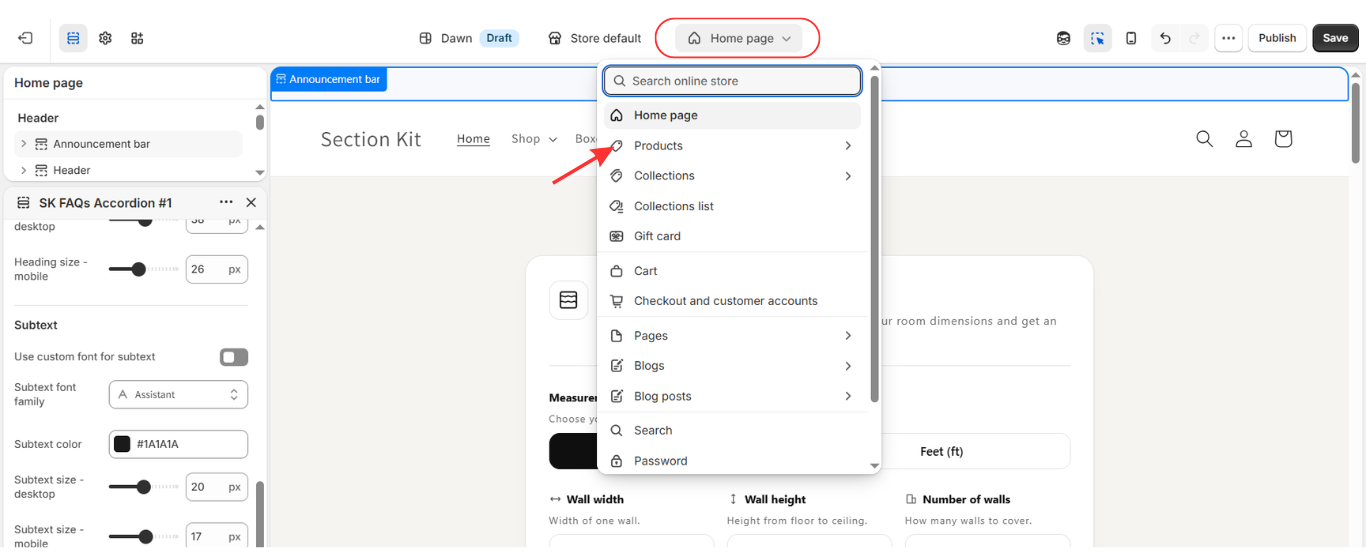
At the top of the theme editor, click the dropdown currently labelled Home page.
Select Products, as highlighted in the screenshot, then choose Default product or the product template you want to customize.
Template selection matters: An FAQ added to a product template appears on the products assigned to that template. If the answers only apply to one product or product group, create a separate product template and assign it to the relevant products through Shopify admin.
Preview the product you want to check before continuing.
Step 7: Add the FAQ Section to the Product Template
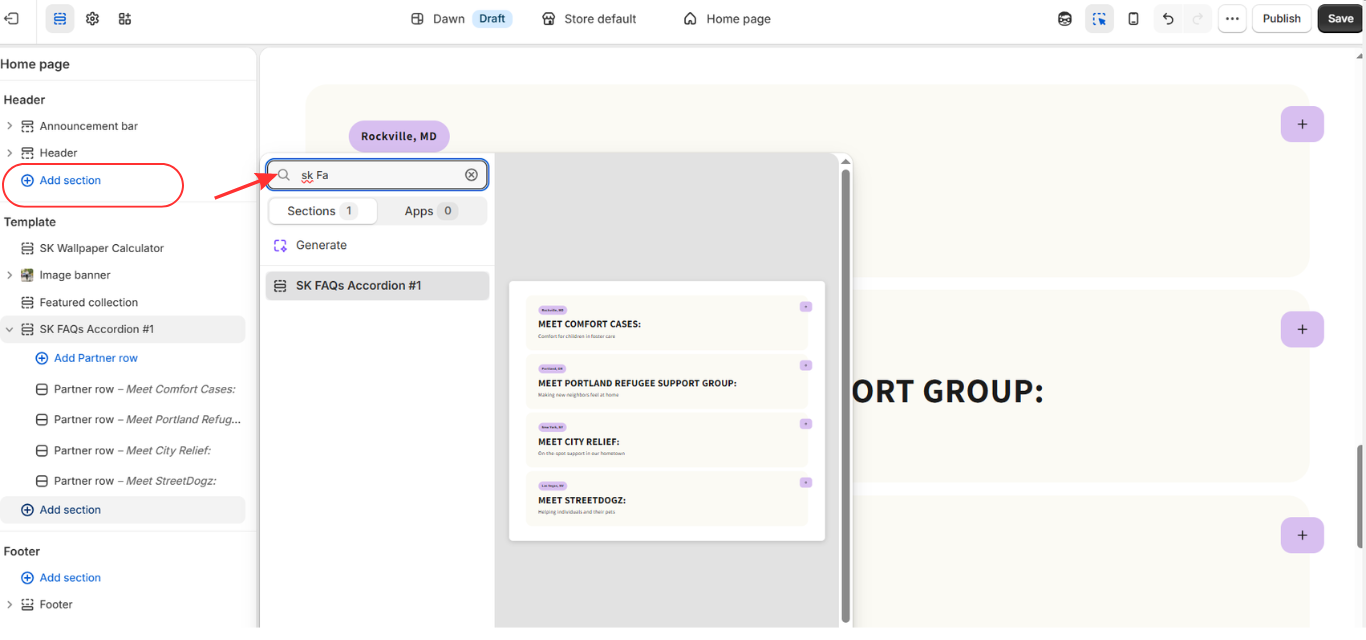
In the left sidebar, find the Template area and click Add section.
Search for SK FAQs Accordion #1. The screenshot shows that typing part of the name, such as “SK Fa,” brings up the section.
Click the matching result to add it.
For a product-page FAQ, use Add section within the product template, rather than the Header or Footer area. Move the section to a suitable position, such as below the product description, so shoppers can find it naturally.
Step 8: Customize the Layout and Save
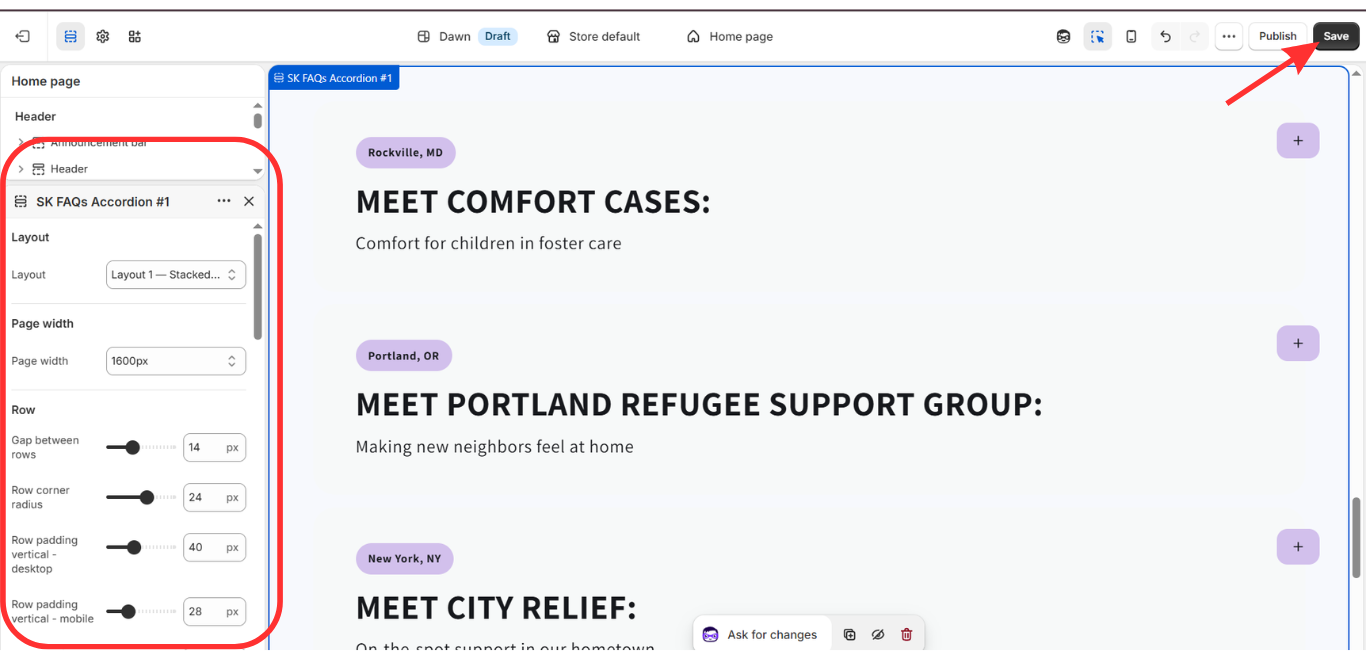
Click the section name to open its design settings.
The supplied image show controls for:
- Layout and page width.
- Gaps between rows and row corner radius.
- Separate desktop and mobile vertical padding.
- Heading sizes.
- Subtext font, color, and desktop and mobile sizes.
Open the accordion rows in the preview to check how the answers look when expanded. Then switch to mobile preview and check text wrapping, spacing, and the expand buttons.
Click Save in the top-right corner, as highlighted in the final screenshot.
If you edited the live theme, check the product page on your storefront after saving. If you edited a draft theme, preview and review it first, then publish that theme when it is ready to go live.
Tips for Writing a Useful Product FAQ
Start with questions customers already ask through email, chat, reviews, or social media. Those questions reveal information that your current product page may be missing.
Put the most relevant questions first. A sizing question might be a priority for clothing, while compatibility could matter more for an accessory.
Keep answers aligned with your product descriptions and store policies. Review them when product specifications, shipping information, or return terms change.
An FAQ can help shoppers make informed decisions, but it should support a clear product page rather than substitute for essential product information.
Make Your Product Page More Helpful
A well-written FAQ gives shoppers convenient access to the details they need before ordering. With Section Kit, you can select a premade accordion, add it to the appropriate product template, and customize it inside Shopify’s theme editor.
Choose relevant questions, replace the example content carefully, and review the finished section on desktop and mobile.
Explore the app and available FAQ designs here:
App Link Here:Section Kit: Theme Sections — Shopify App Store




