HOW TO ADD A QUICK-BUY OPTION TO A SHOPIFY STORE
Introduction
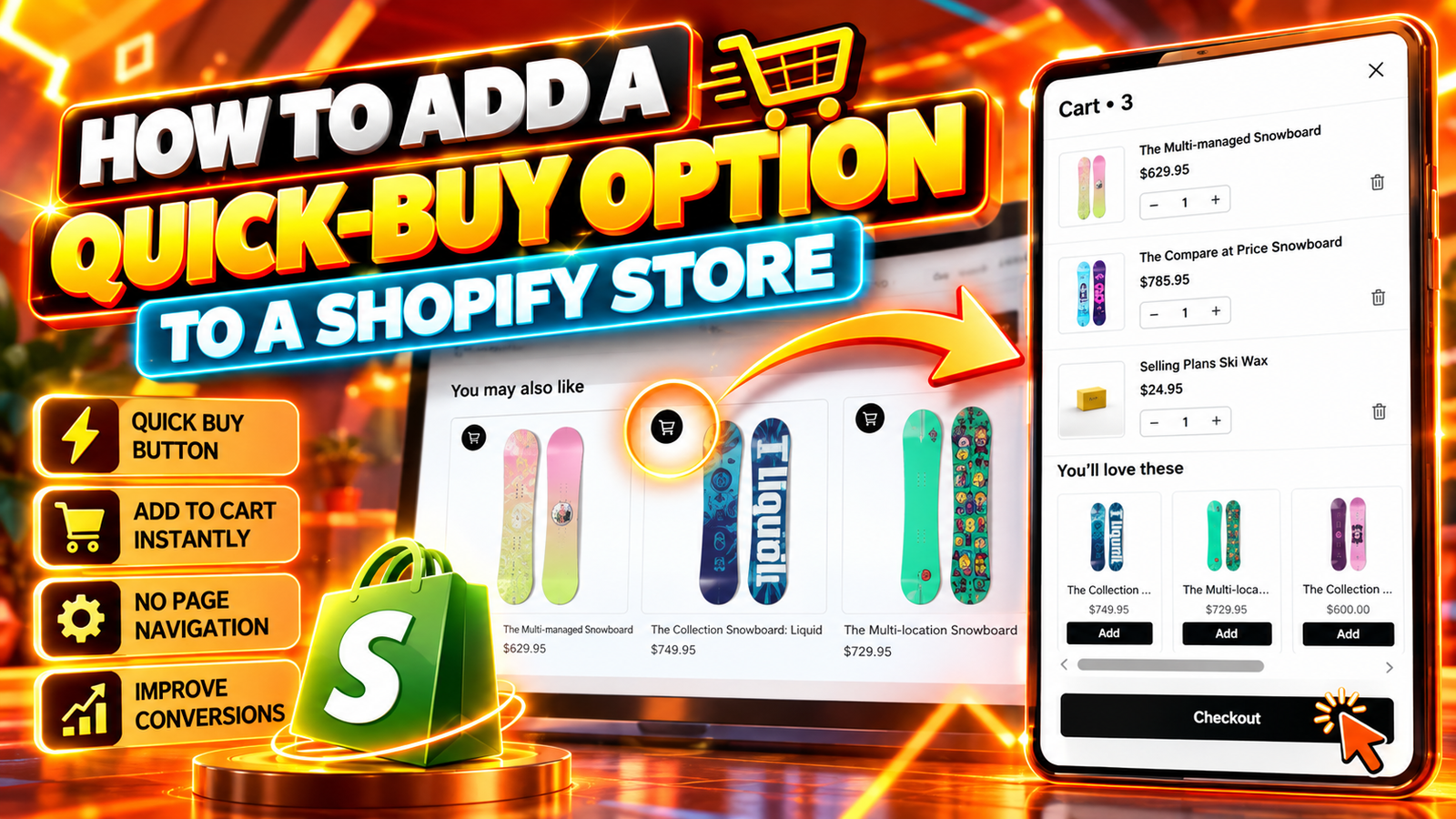
A Shopify quick buy button allows customers to add products to their shopping cart directly from product listings without opening individual product pages. This makes shopping faster and more convenient, especially when customers want to explore multiple products.
With SA Sticky Add to Cart Drawer, Shopify merchants can activate customizable quick-buy buttons, select different shopping cart icons, and allow customers to review selected items through an interactive cart drawer.
This guide explains the problems merchants face, the importance of quick-buy functionality, and how to add a quick-buy option to a Shopify store step by step.
Common Problems Shopify Merchants Face
Too Many Steps to Add Products
Customers may need to open individual product pages before adding items to their carts. This creates unnecessary navigation and slows down shopping.
Limited Quick-Buy Customization
Some Shopify themes provide basic add-to-cart functionality but do not offer enough control over button positioning, appearance, and icons.
Interrupted Shopping Experience
Moving repeatedly between product pages and collection pages can make browsing inconvenient, particularly when customers want to purchase several products.
Difficult Cart Access
Customers also need an easy way to review their selected products, update quantities, and proceed to checkout.
Why a Shopify Quick Buy Button Is Important
A Shopify quick buy button helps customers select products without unnecessary page navigation.
When combined with an interactive cart drawer, it allows shoppers to review their items while remaining on the same page.
This can improve shopping convenience and create more opportunities for customers to discover additional products.
Why Shopify Stores Need a Quick-Buy App
Custom quick-buy functionality may require Liquid, JavaScript, CSS, and ongoing theme maintenance.
SA Sticky Add to Cart Drawer simplifies the process by providing configurable quick-buy buttons, multiple icon designs, adjustable positioning, and a customizable side cart.
The application also includes upsell recommendations and other cart enhancements.
Step-by-Step: How to Add a Quick-Buy Option to a Shopify Store
Step 1: Open the Shopify App Store
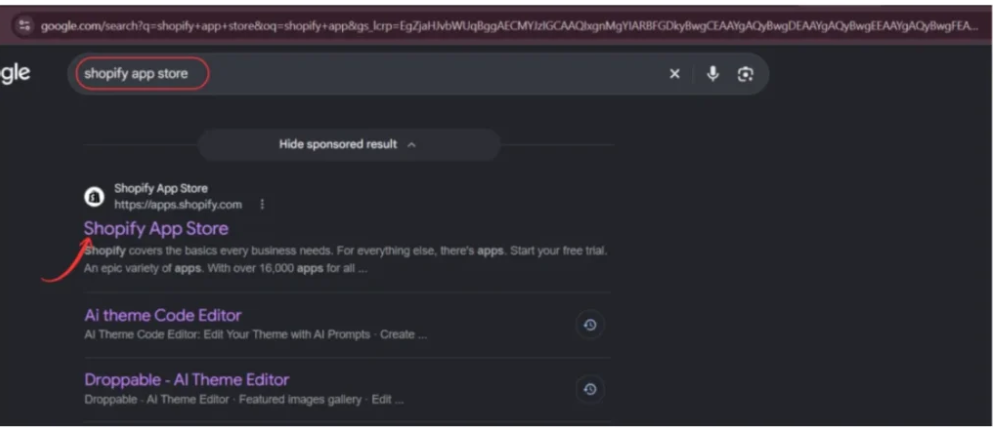
Open Google and search for Shopify App Store.
Select the official Shopify App Store website from the search results.
Step 2: Search for SA Sticky Add to Cart Drawer
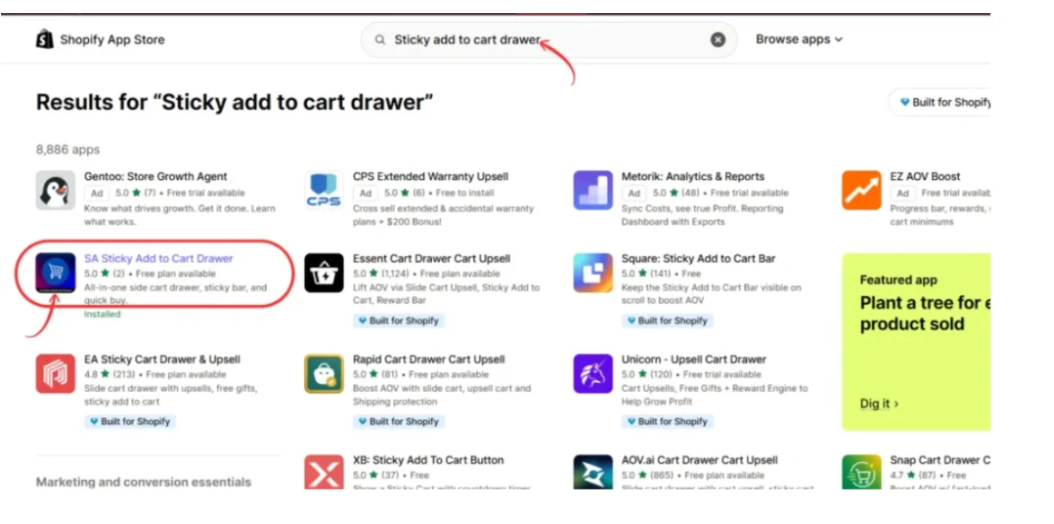
Inside the Shopify App Store, enter Sticky add to cart drawer in the search bar.
Find SA Sticky Add to Cart Drawer in the search results and select the application.
Step 3: Install the Quick-Buy App
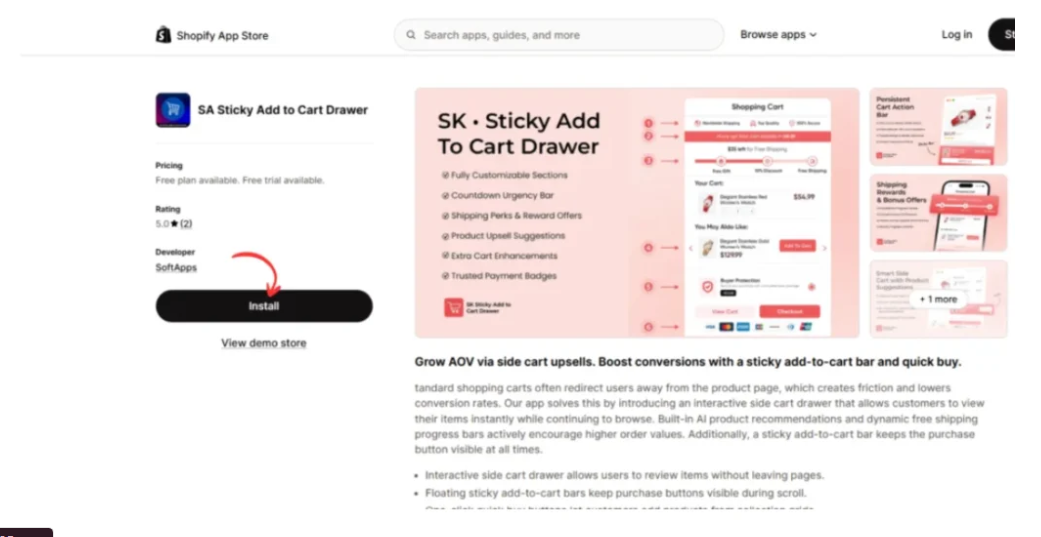
Open the app listing and review the available features and pricing.
Click Install to add the application to your Shopify store.
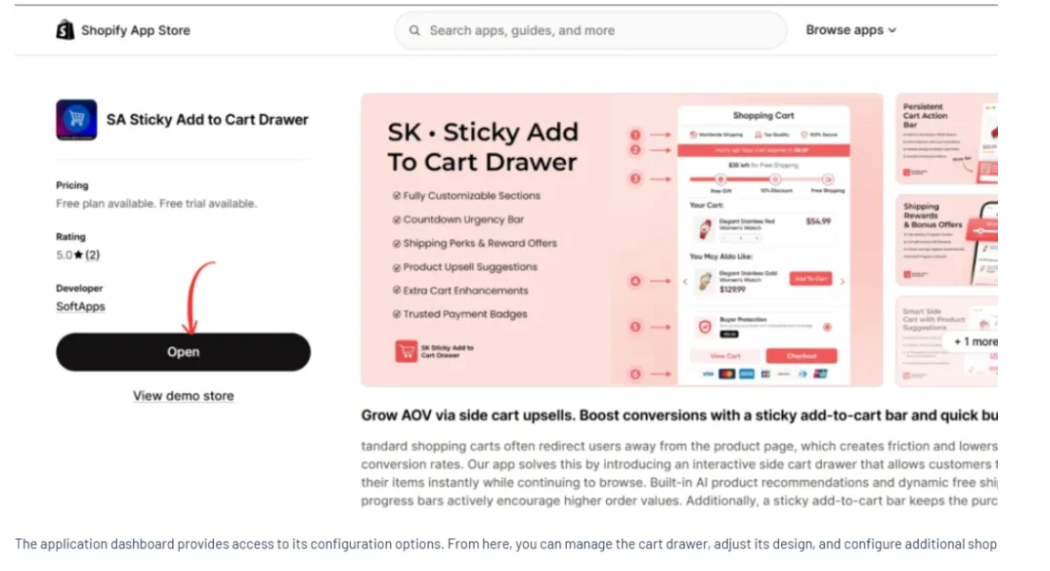
Step 4: Open the Application
After installation, click Open.
You can also access the application from the Apps section of your Shopify admin.
The application provides settings for quick-buy buttons, side cart functionality, and other cart enhancements.
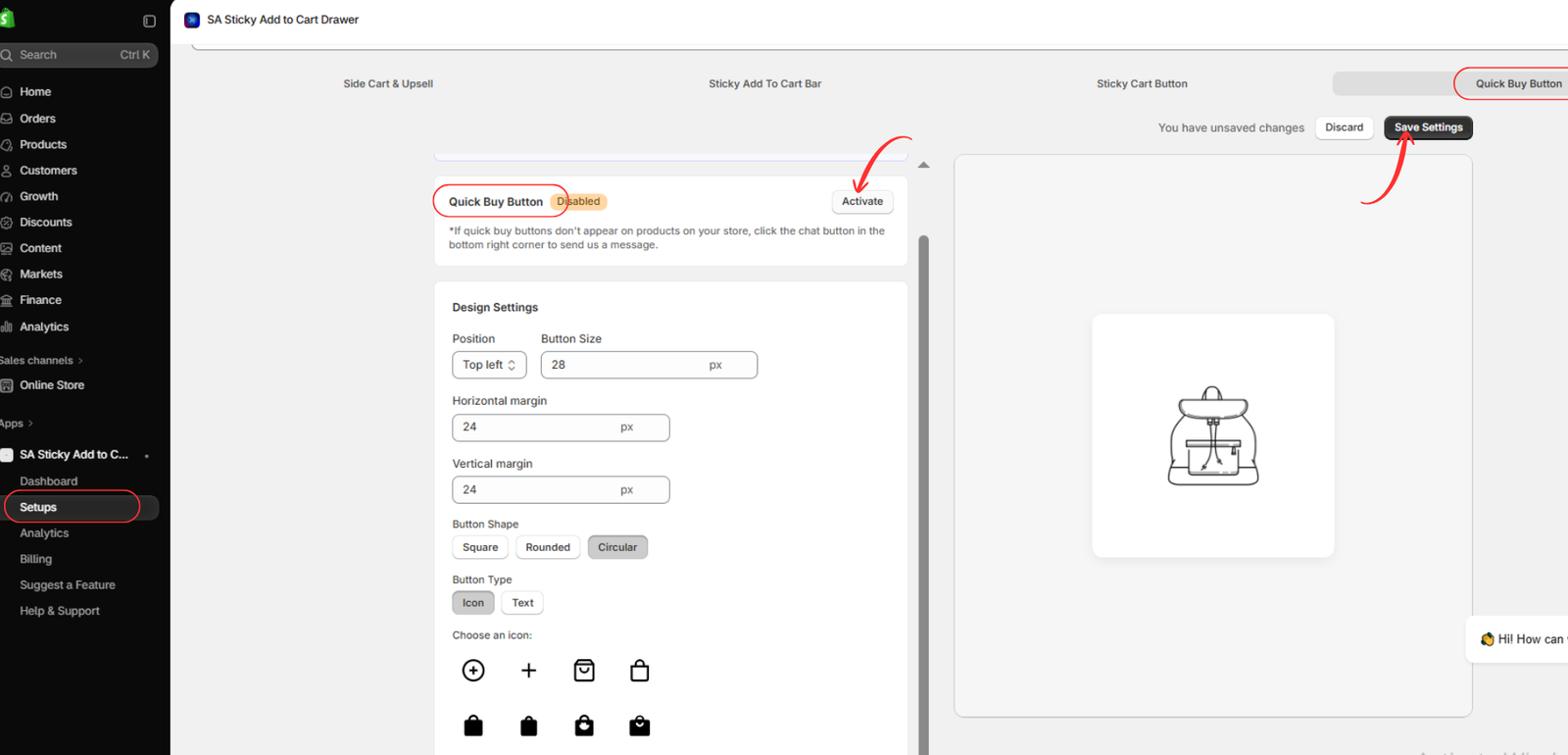
Step 5: Activate the Quick Buy Button
Inside the application, navigate to Setups.
Select Quick Buy Button from the top navigation.
If the feature displays Disabled, click Activate.
After activation, review the available design settings and click Save Settings when your changes are complete.
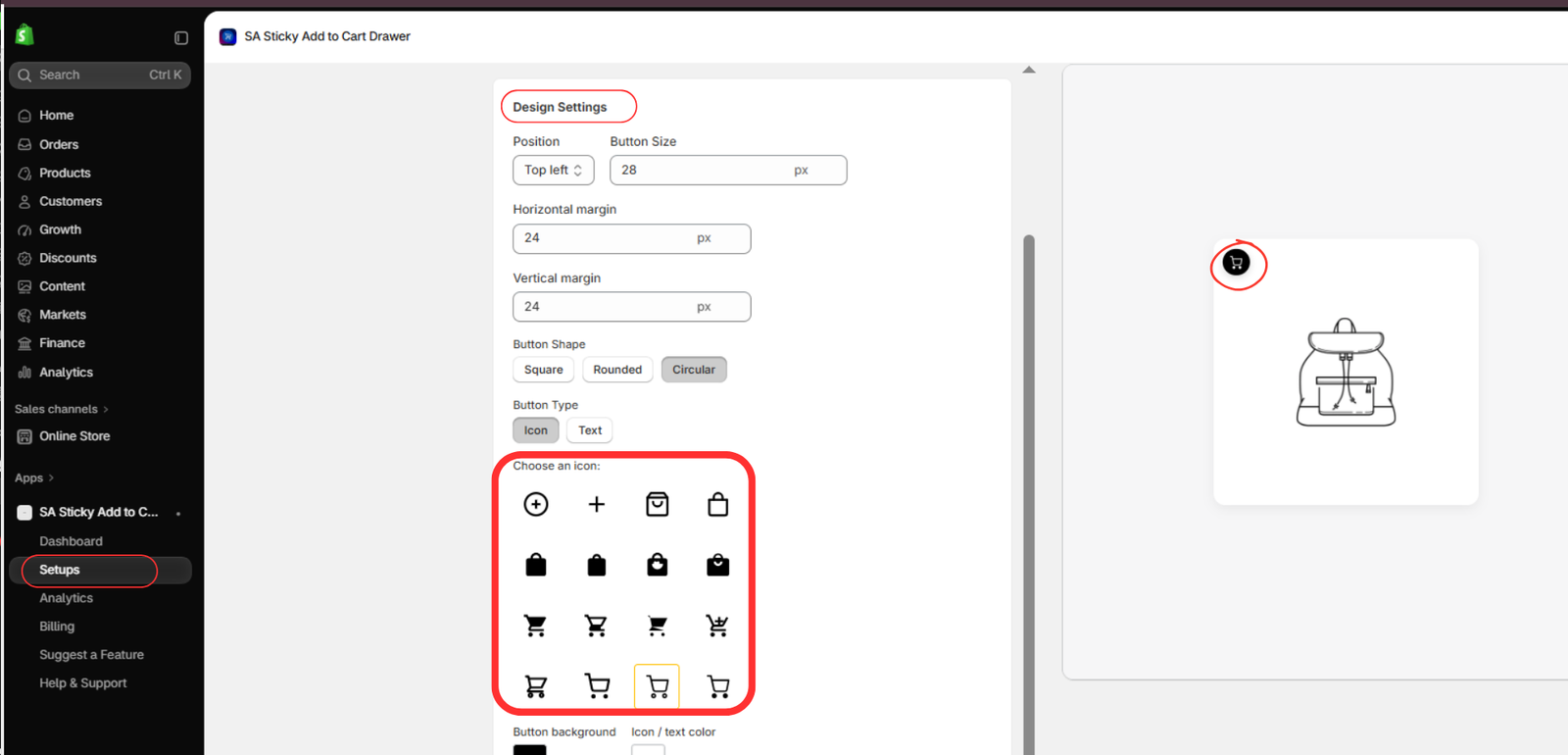
Step 6: Customize the Quick Buy Button Design
Under Design Settings, customize the appearance of your quick-buy button.
You can adjust the button position, size, horizontal margin, vertical margin, shape, and type.
Choose between square, rounded, and circular button styles. You can also select an icon or text-based button.
The app provides multiple shopping cart, shopping bag, and plus-sign icons.
Use the preview panel to check your design before saving.
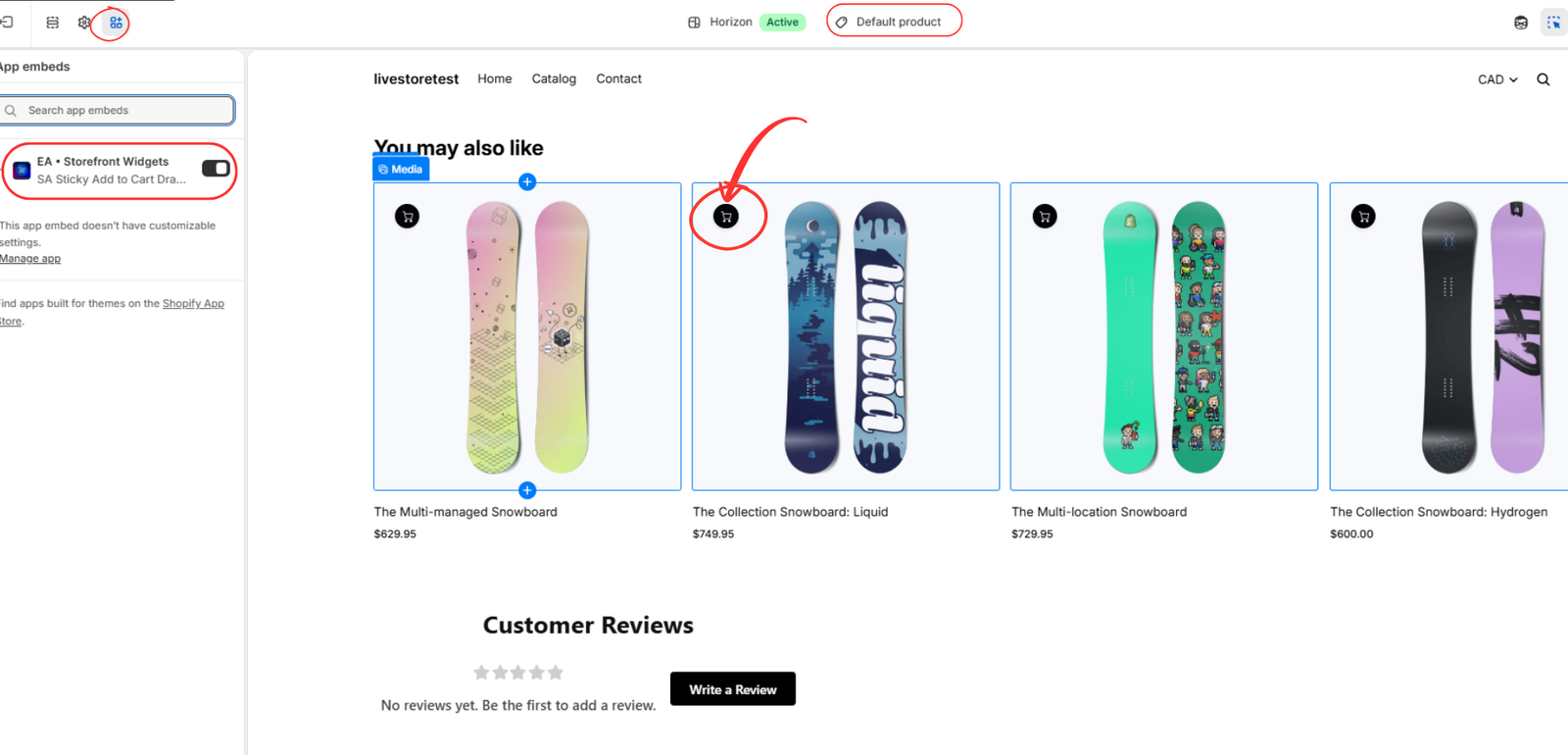
Step 7: Enable Quick Buy in the Shopify Theme
Open Shopify Admin → Online Store → Themes → Customize.
Select App embeds in the theme editor.
Find EA • Storefront Widgets, associated with SA Sticky Add to Cart Drawer, and enable it.
Open a page containing product cards to preview the quick-buy icons.
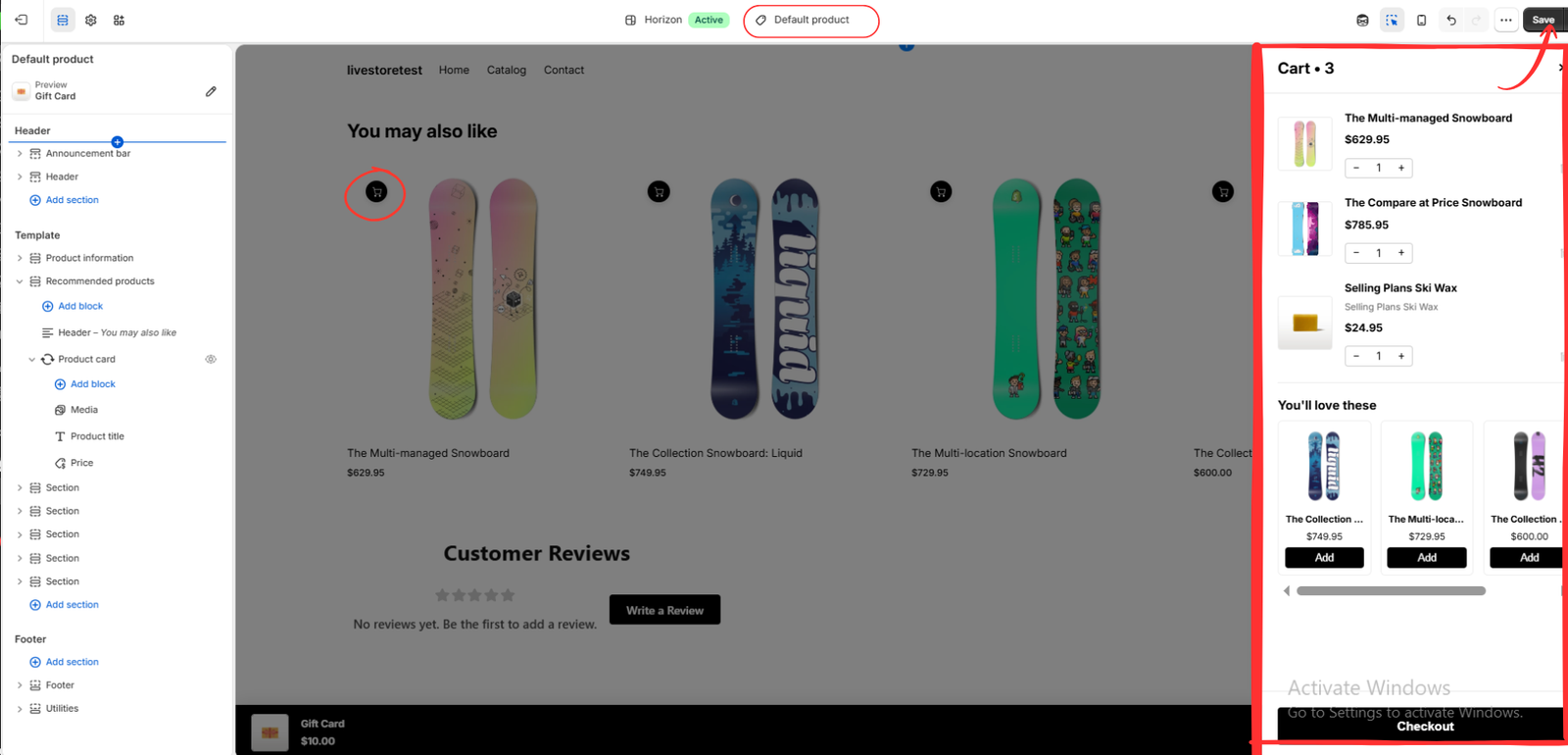
As shown below, small shopping cart icons appear over the product images, allowing customers to add supported products directly from the listing.
Step 8: Test Quick Buy and the Cart Drawer
Open your storefront preview and click a quick-buy icon on a product card.
For products that do not require additional option selection, the product can be added directly to the cart.
The side cart drawer then allows customers to review selected products without leaving the current page.
As shown in your final image, the cart drawer displays product images, titles, prices, quantity controls, recommended products, and a checkout button.
Test several products, check the mobile layout, and confirm that cart updates work correctly.
Finally, click Save in the Shopify theme editor.
Best Practices for Shopify Quick Buy Buttons
Keep quick-buy buttons recognizable and easy to use. Choose a consistent design that matches your storefront branding.
Make sure buttons remain accessible on mobile devices and do not cover important product information.
For products requiring variant selections, confirm that shoppers can select the correct size, color, or other options before adding an item.
Test the complete shopping process, including cart updates and checkout navigation.
How SA Sticky Add to Cart Drawer Helps Merchants
SA Sticky Add to Cart Drawer provides configurable quick-buy functionality alongside an interactive side cart.
Merchants can customize button placement, choose icons, adjust the design, and provide customers with easier cart access.
The application also supports product recommendations and other cart customization options.
Explore the application on the Shopify App Store.
Conclusion
Adding a Shopify quick buy button can make product selection more convenient and reduce unnecessary navigation.
With SA Sticky Add to Cart Drawer, merchants can activate quick-buy buttons, customize their appearance, and allow customers to review selected items through an interactive cart drawer.




