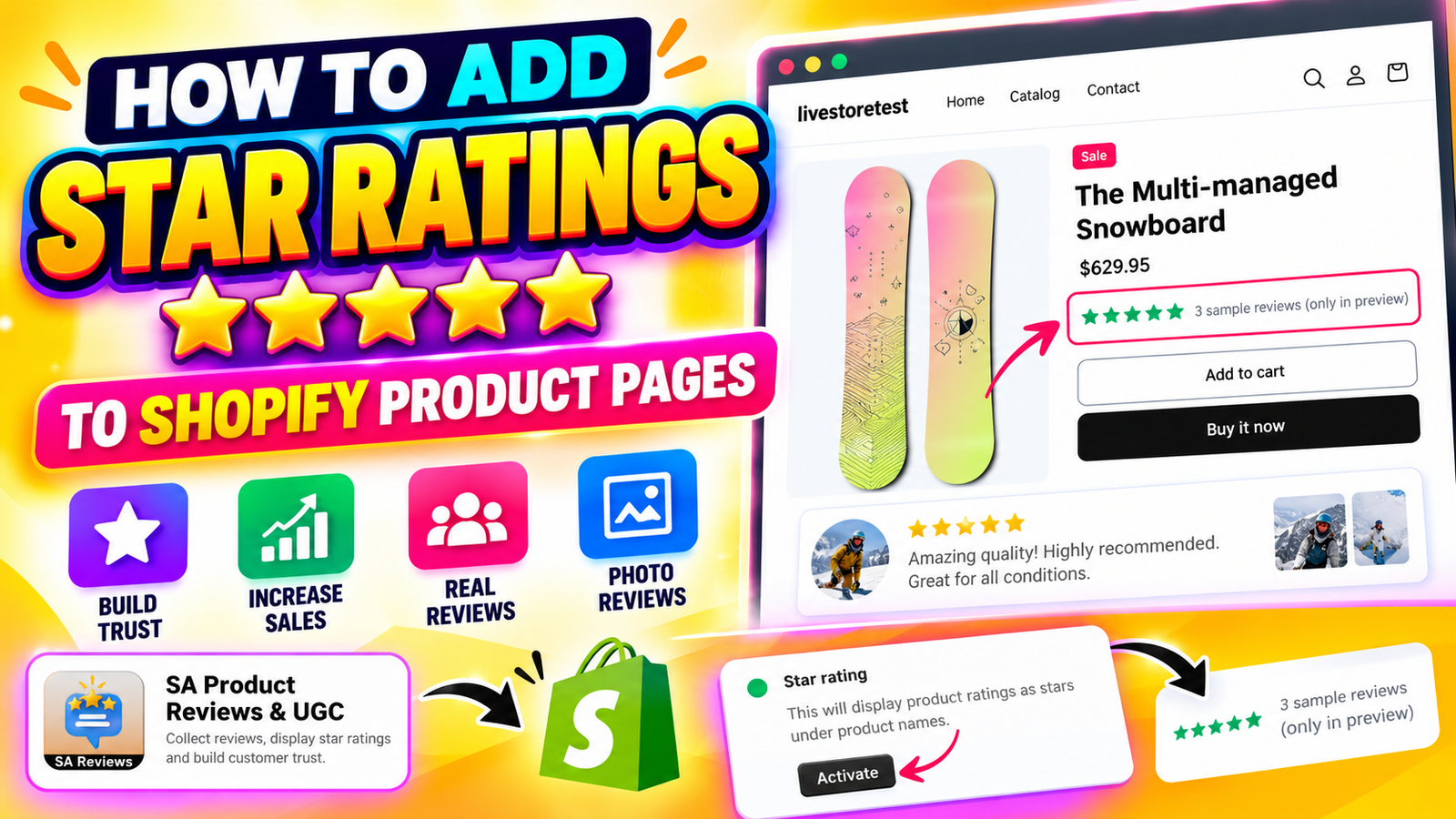
HOW TO ADD STAR RATINGS TO SHOPIFY PRODUCT PAGES
Introduction
Star ratings are one of the most recognizable trust signals in online shopping. When customers visit a Shopify product page, they often look for ratings and reviews before deciding whether to purchase.
A product with authentic customer ratings can provide useful information about product quality, customer satisfaction, and the experiences of previous buyers.
However, many Shopify merchants struggle to display star ratings correctly on their product pages. Depending on the theme and review app being used, ratings may not appear automatically, or merchants may be unsure how to position them.
In this guide, you’ll learn how to add star ratings to Shopify product pages using SA Product Reviews & UGC. We’ll cover the challenges merchants face, the importance of product ratings, and the step-by-step process of activating and displaying star ratings without manually editing theme code.
Why Shopify Merchants Struggle to Display Star Ratings
Many Shopify store owners focus on product photography, descriptions, and pricing while overlooking customer ratings.
Even when customers have submitted reviews, their ratings may not appear in the desired location on the storefront.
Common challenges include:
- Star ratings not appearing on product pages.
- Difficulty finding the correct review widget settings.
- Uncertainty about adding app blocks in the Shopify theme editor.
- Ratings appearing in an unsuitable position.
- Limited technical knowledge of Liquid, CSS, and theme customization.
- Inconsistent review displays across different product templates.
These issues can make it difficult for merchants to present customer feedback effectively.
Why Shopify Stores Need a Product Review App
A dedicated product review app simplifies the process of collecting, managing, and displaying customer feedback.
Instead of manually building a star rating system, merchants can use review widgets and theme app blocks to integrate ratings into their storefront.
SA Product Reviews & UGC, also known as SectionKit Review, provides features including:
- Product review collection and management.
- Star rating badges for product pages.
- Photo reviews and customer testimonials.
- Review boxes, popups, and carousels.
- Automated review request emails.
- QR code review collection.
- Discount and loyalty reward settings.
For merchants who want to add star ratings to Shopify product pages, the Star Rating Badge feature provides a convenient starting point.
Importance of Star Ratings on Shopify Product Pages
Star ratings help customers evaluate products quickly without reading every review.
They can also encourage shoppers to explore customer feedback before purchasing.
Build customer trust: Authentic ratings provide social proof from people who have purchased or experienced the product.
Improve product transparency: Ratings help shoppers understand how other customers evaluate the product.
Support purchasing decisions: Customers can compare products using visible review information.
Increase review visibility: Star rating badges make existing customer feedback easier to discover.
Improve the shopping experience: Well-positioned ratings help shoppers access relevant product information more conveniently.
Star ratings are most valuable when they reflect genuine customer feedback rather than artificial or misleading scores.
How to Add Star Ratings to Shopify Product Pages: Step-by-Step Guide
Follow these steps to activate and display star ratings using SA Product Reviews & UGC.
Step 1: Open the Shopify App Store
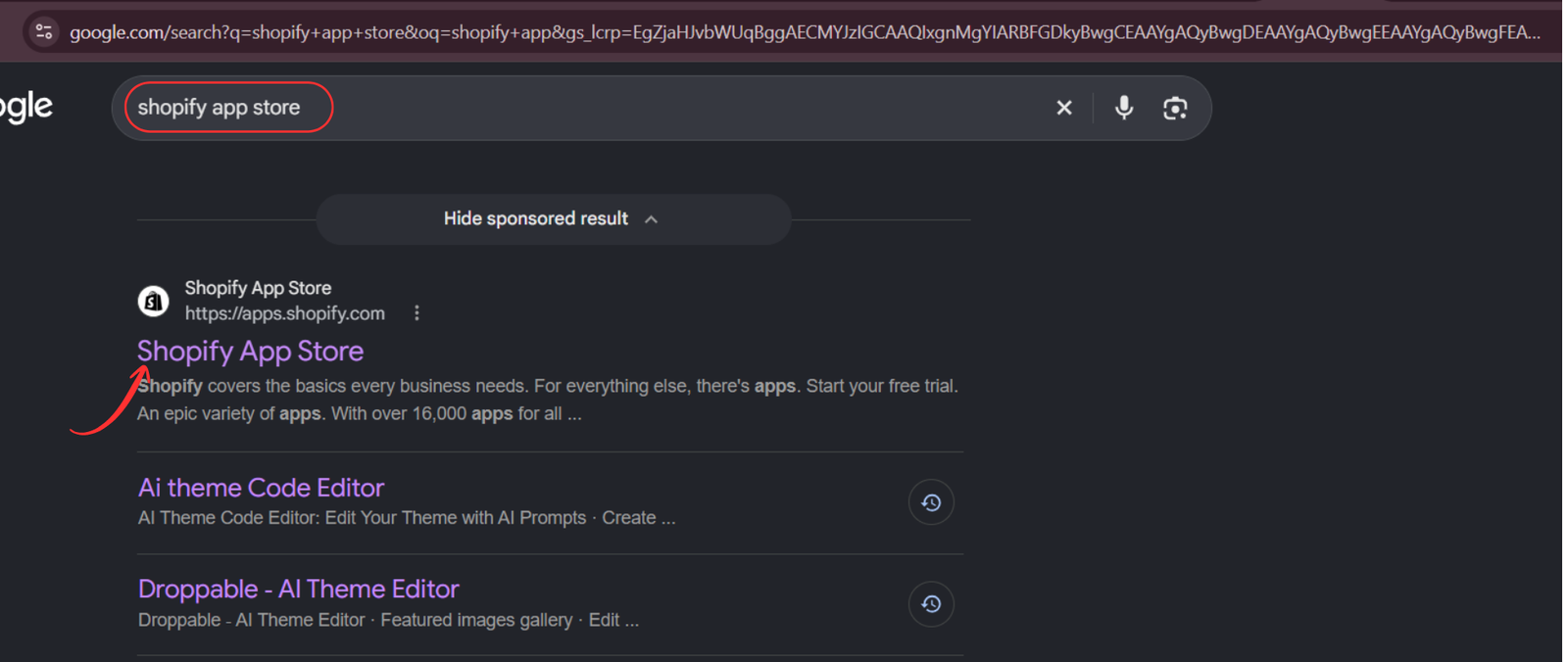
First, open your preferred browser and search for Shopify App Store on Google.
Click the official Shopify App Store result to access the marketplace.
Step 2: Search for SA Product Reviews & UGC
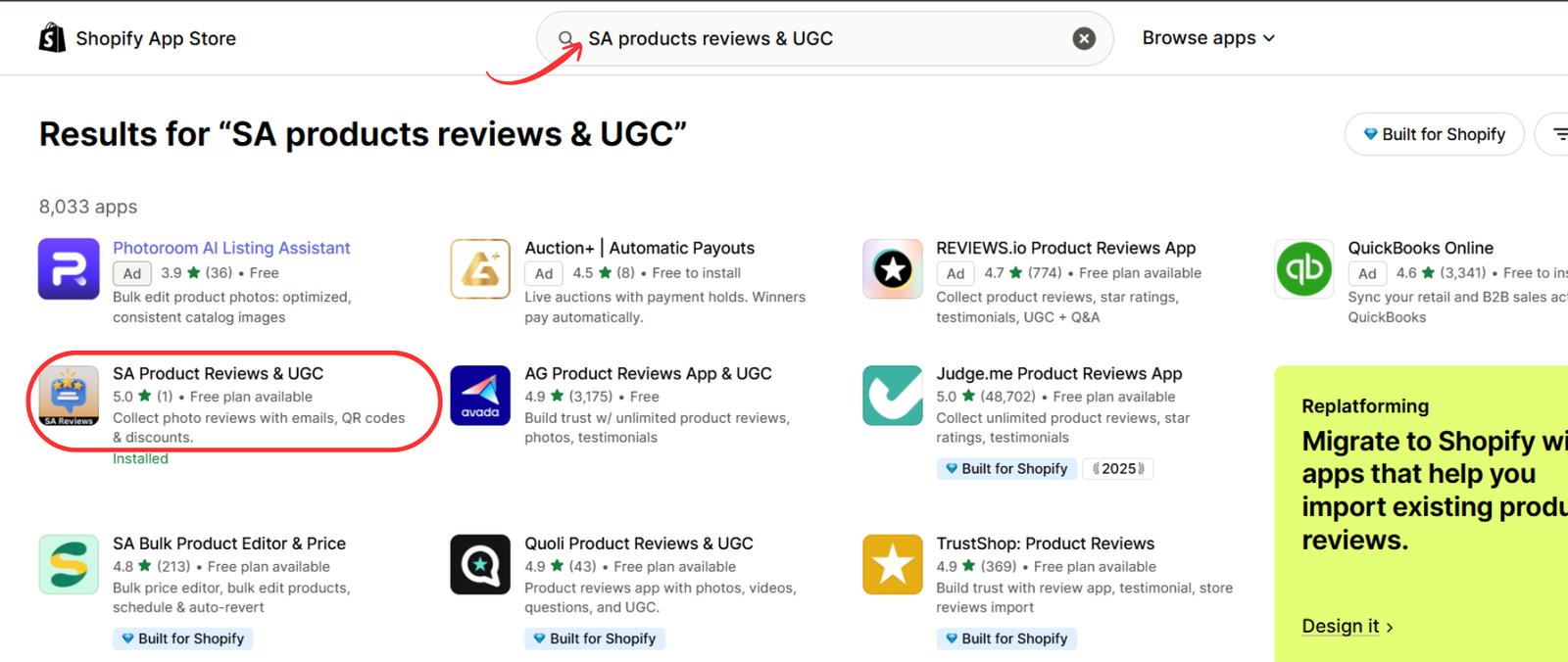
Once you’re on the Shopify App Store, locate the search bar.
Enter SA Product Reviews & UGC and search for the application.
Find the app in the search results and click its name to open the listing page.
Step 3: Install the Product Review App
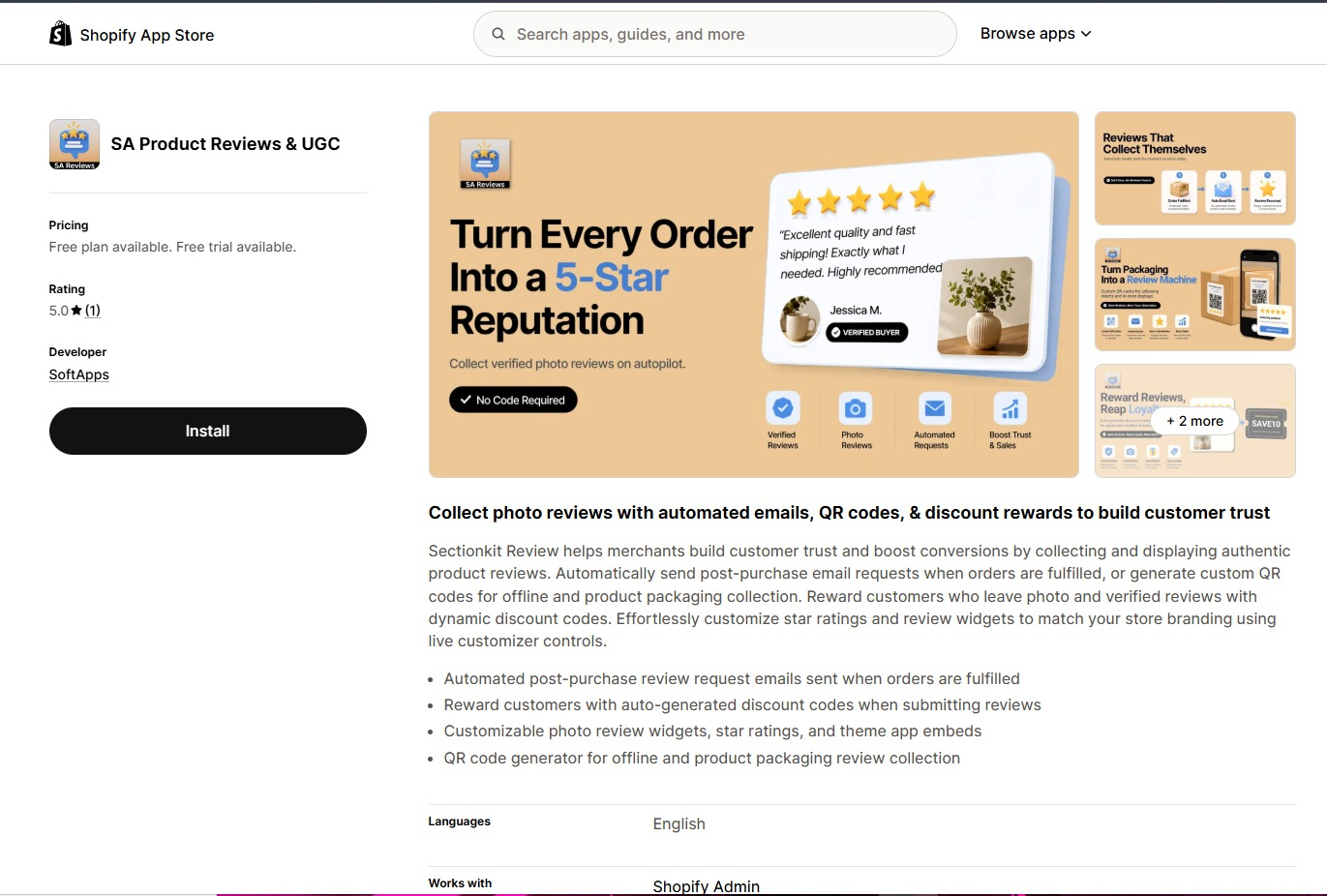
On the app listing page, review its features and available pricing options.
Click Install to begin adding the application to your Shopify store.
Follow Shopify’s authorization process and approve the required permissions.
You can also access the app directly:Install SA Product Reviews & UGC
Step 4: Open the Installed Application
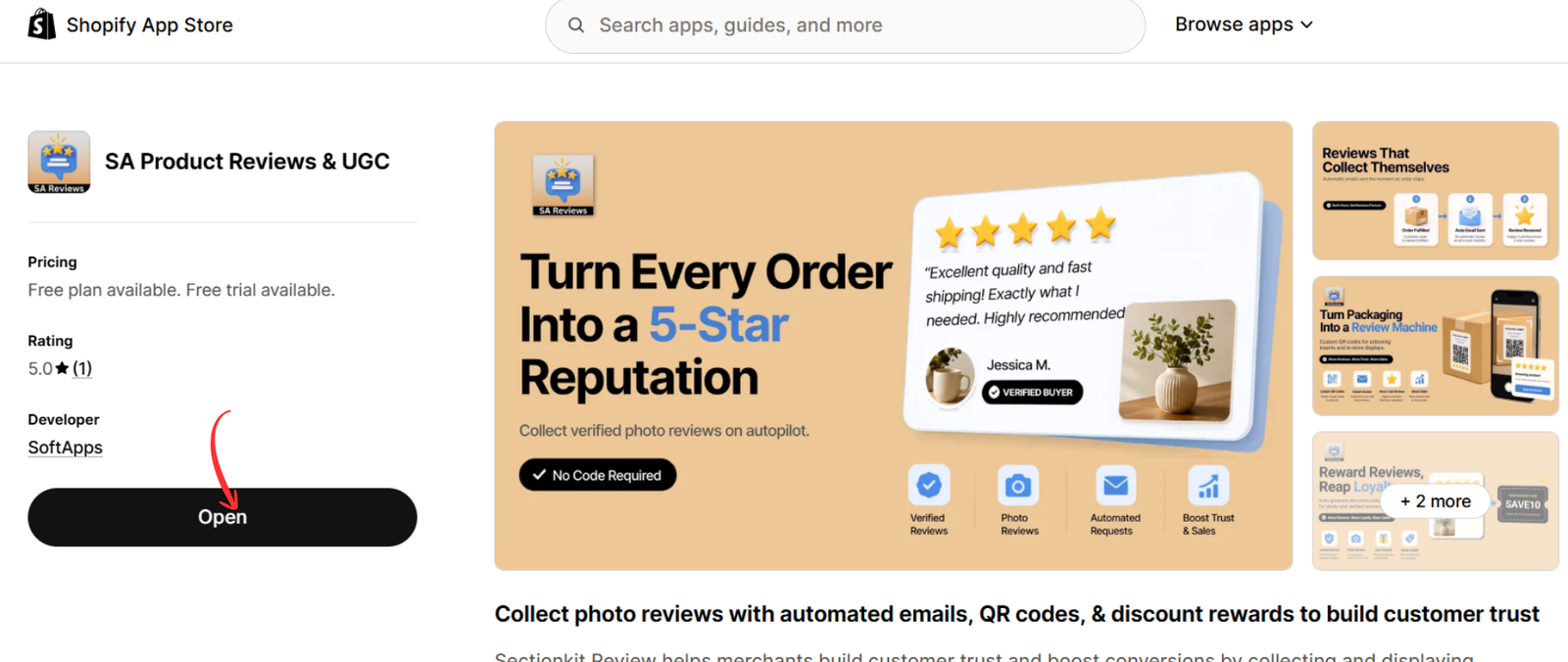
After installing the app, click Open to access its dashboard.
Alternatively, navigate to your Shopify admin, locate the Apps section, and select SA Product Reviews & UGC.
The application dashboard provides access to review collection, display settings, branding, and review management tools.
Step 5: Activate the Star Rating Feature
Inside the SA Product Reviews & UGC dashboard, locate Display reviews in the left navigation menu.
Click Display reviews to access the available review display widgets.
Scroll to the Advanced section and find the Star rating feature.
The Star rating option is designed to display product ratings as stars under product names.
Click Activate to enable this feature.

Step 6: Add the Star Rating Badge in the Shopify Theme Editor
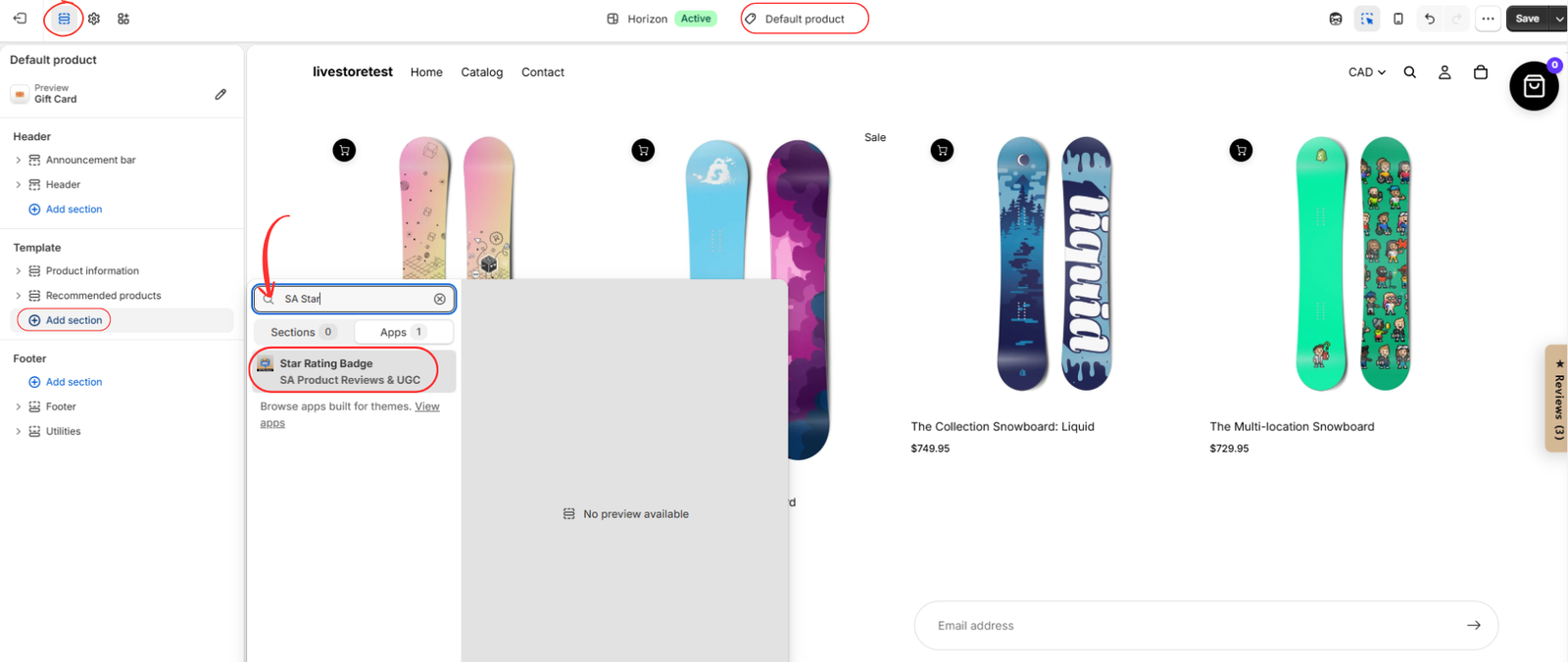
After activating the Star rating feature, open your Shopify theme editor.
Navigate to Online Store → Themes → Customize.
At the top of the theme editor, select the appropriate product template, such as Default product.
Choose the section where you want to display star ratings.
Click Add section or Add block, depending on your theme’s layout and the desired position.
In the search field, enter SA Star.
Under the Apps tab, select Star Rating Badge from SA Product Reviews & UGC.
This adds the app’s star rating component to your selected theme section.
Step 7: Position the Star Rating Badge and Save
Once the Star Rating Badge has been added, locate it in the theme editor’s left sidebar.
Move the block to the position where you want customers to see the ratings, if your theme supports repositioning.
For example, merchants may choose to display ratings near product information or within another compatible section of the product template.
Check the storefront preview to confirm that the badge appears in the intended location.
Finally, click Save in the upper-right corner of the Shopify theme editor.
After saving, open your storefront and inspect the relevant product pages to confirm the badge displays correctly.
The example shown in the image includes sample reviews in the theme preview. Actual storefront ratings should reflect genuine reviews associated with your products.

Best Practices for Displaying Star Ratings on Shopify
Adding star ratings is only the beginning. Their placement, appearance, and accuracy also influence how useful they are to customers.
Place ratings near important product information. Position star ratings close to the product title or price where customers can easily notice them. The exact placement depends on your Shopify theme.
Display genuine customer ratings. Only show ratings that accurately represent real customer feedback. Avoid manually inflating scores or presenting sample reviews as actual customer experiences.
Make ratings easy to understand. Use recognizable star icons, readable text, and sufficient contrast against the page background.
Optimize for mobile devices. Check that star ratings remain visible and correctly aligned on smartphones and tablets.
Keep the storefront consistent. Use similar rating styles across product pages to maintain a professional appearance.
Troubleshooting: Shopify Star Ratings Not Showing
If star ratings do not appear after completing the setup, check the following.
Check the Star Rating Feature
Return to SA Product Reviews & UGC → Display reviews and confirm that the Star rating feature is activated.
Verify the Theme App Block
Open your Shopify theme editor and check that the Star Rating Badge has been added to the correct product template or section.
Check Product Reviews
Verify that the product has genuine review data available. Products without reviews may not display an average rating, depending on the app’s configuration.
Save and Preview Your Theme
Save your theme changes, then open the storefront in a separate browser tab to check the published result.
Check Other Product Templates
If your store uses multiple product templates, confirm that the Star Rating Badge has been added wherever you want it to appear.
Frequently Asked Questions
Can I add star ratings to Shopify product pages without coding?
Yes. Compatible Shopify review apps provide theme app blocks that let merchants add star ratings through the visual theme editor without manually writing Liquid or JavaScript.
Where should I display star ratings on a Shopify product page?
A common location is near the product title or price, where shoppers can easily find customer feedback before purchasing.
Why are my Shopify product star ratings not showing?
Possible reasons include an inactive rating feature, a missing theme app block, the wrong product template, or unavailable review data.
Can I display photo reviews alongside star ratings?
Yes. SA Product Reviews & UGC includes photo review functionality and review display widgets that can complement star rating badges.
Conclusion
Star ratings are a useful way to make authentic customer feedback more visible on Shopify product pages.
They help shoppers evaluate products, understand customer experiences, and make more informed purchasing decisions.
With SA Product Reviews & UGC, Shopify merchants can activate a star rating feature, add the Star Rating Badge through the theme editor, and customize its placement without manually editing theme code.
By following this tutorial, you can add star ratings to Shopify product pages and create a more informative shopping experience.
Ready to display customer ratings on your store? Explore SA Product Reviews & UGC on the Shopify App Store.




