BEST DESIGN AND BUTTON TEXT FOR A SHOPIFY STICKY ADD TO CART BAR
Introduction
A sticky Add to Cart bar helps customers access the purchase action while scrolling through a product page.
However, simply adding a sticky button is not enough. Its design, placement, contrast, and wording can affect how easily shoppers understand and use it.
A well-designed Shopify sticky add to cart bar should feel like part of the storefront rather than an unrelated promotional element.
In this guide, we will discuss effective button text, design principles, and practical configuration steps using SA Sticky Add to Cart Drawer.
Common Sticky Cart Design Problems
Buttons Blend Into the Background
A purchase button with poor contrast may be difficult to identify.
Button Text Is Confusing
Customers should understand exactly what will happen when they click the button.
Sticky Bars Cover Important Content
A large sticky bar can obscure product information or navigation controls, especially on mobile devices.
Too Many Visual Elements
Crowded designs can distract from the main purchasing action.
Inconsistent Branding
A sticky bar that uses unrelated colors or styles can make the storefront feel less polished.
Why Sticky Add to Cart Design Matters
A sticky purchase bar should make the purchasing process more convenient.
Its main purpose is to keep the Add to Cart action accessible without requiring customers to scroll back to the original button.
A clear design helps customers recognize the action quickly.
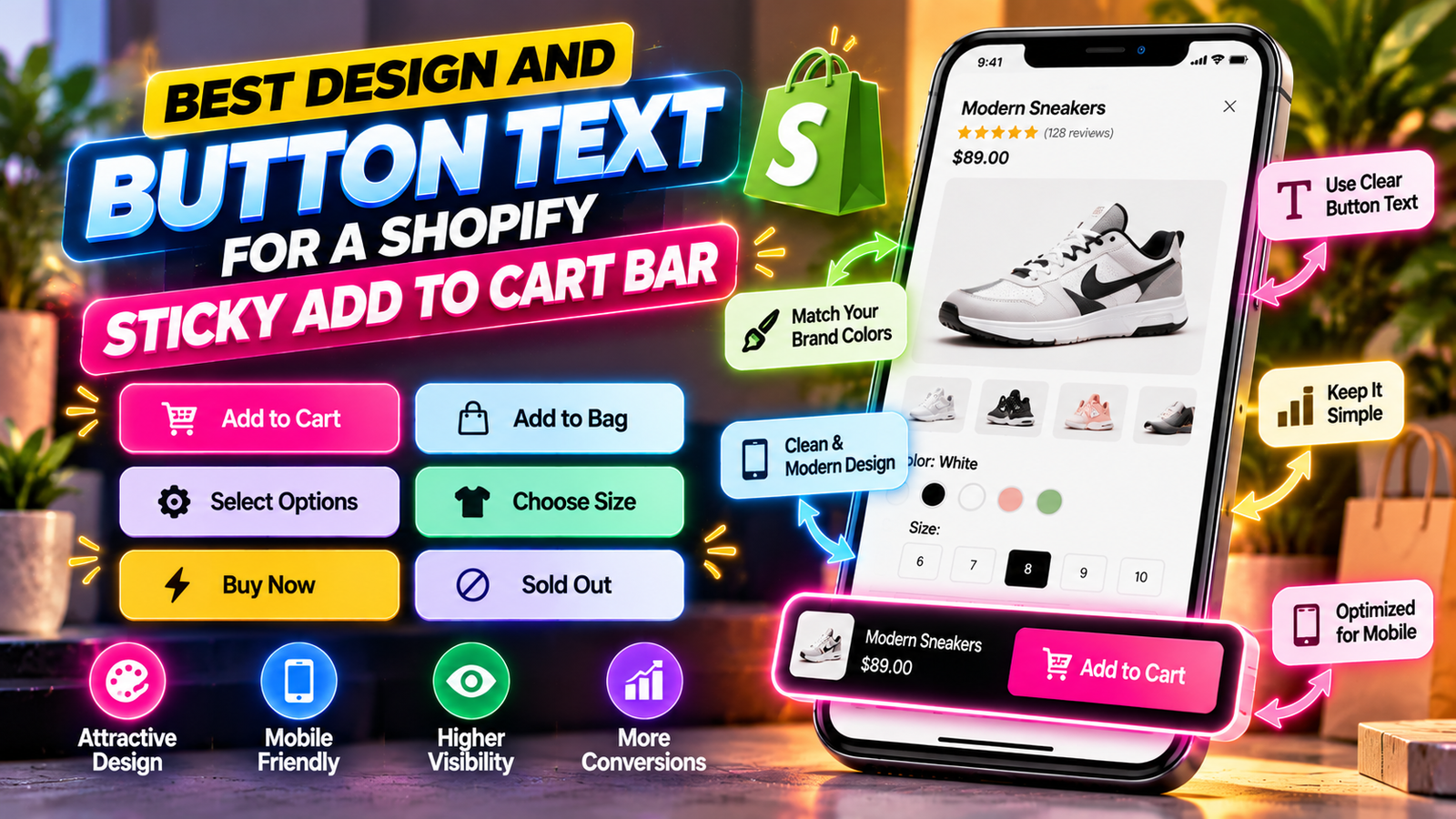
Best Button Text for Shopify Stores
Add to Cart
This is a familiar label suitable for many stores.
It clearly communicates that the product will be added to the shopping cart.
Add to Bag
This label may suit fashion and lifestyle brands that use bag terminology throughout their storefront.
Select Options
This may be appropriate when customers must choose product options before adding an item.
Choose Size
This can be useful for apparel stores when a size selection is required.
Buy Now
Use this label only when the button actually performs the expected immediate-purchase action.
Do not label a standard Add to Cart button as Buy Now if it only adds the product to the cart.
Recommended Design Principles
Use Clear Contrast
Choose button and text colors that remain readable.
Match Your Brand
Use visual styles that complement the rest of your Shopify theme.
Keep the Bar Compact
Avoid taking up unnecessary mobile screen space.
Prioritize the Main Action
The Add to Cart button should remain the most recognizable interactive element.
Test Different Screen Sizes
A design that works on desktop may need adjustment on mobile.
Introducing SA Sticky Add to Cart Drawer
SA Sticky Add to Cart Drawer provides a configurable sticky Add to Cart bar with scroll visibility and design settings.
Merchants can use the app to create a sticky purchase experience that fits their storefront.
App link: https://apps.shopify.com/sk-sticky-add-to-cart-drawer
Step-by-Step Guide to Configure the Sticky Bar
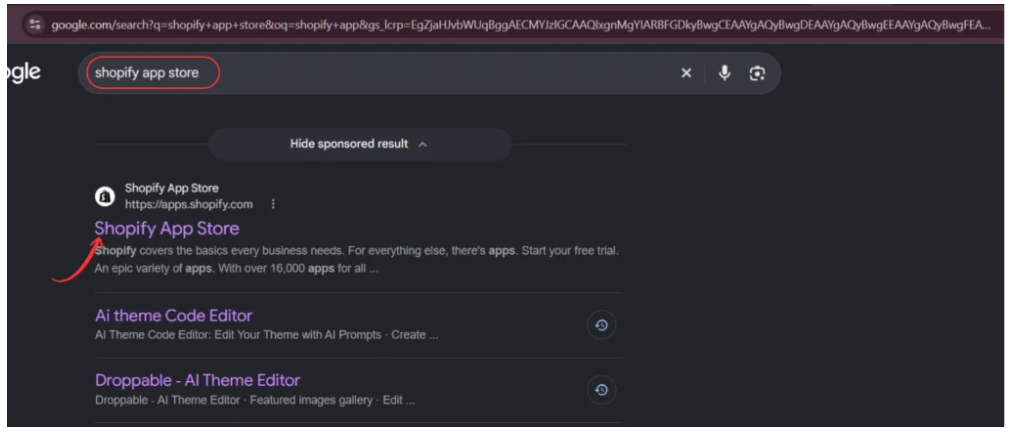
Step 1: Find the App
Open the Shopify App Store and search for SA Sticky Add to Cart Drawer.
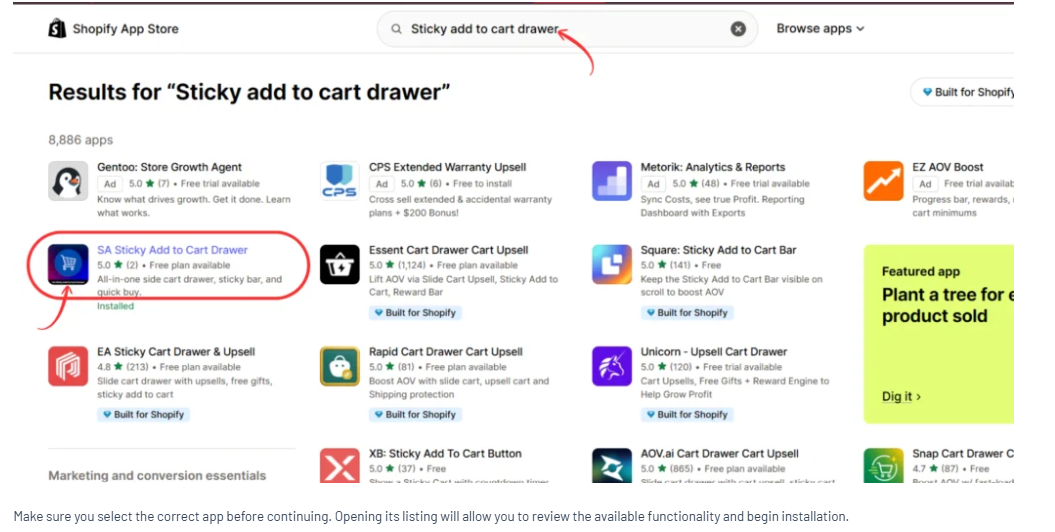
Step 2: Open the Application
Install or open the app from its listing.

Step 3: Activate the Sticky Add to Cart Bar
Navigate to Setups → Sticky Add To Cart Bar.
Activate the feature and review its general settings.
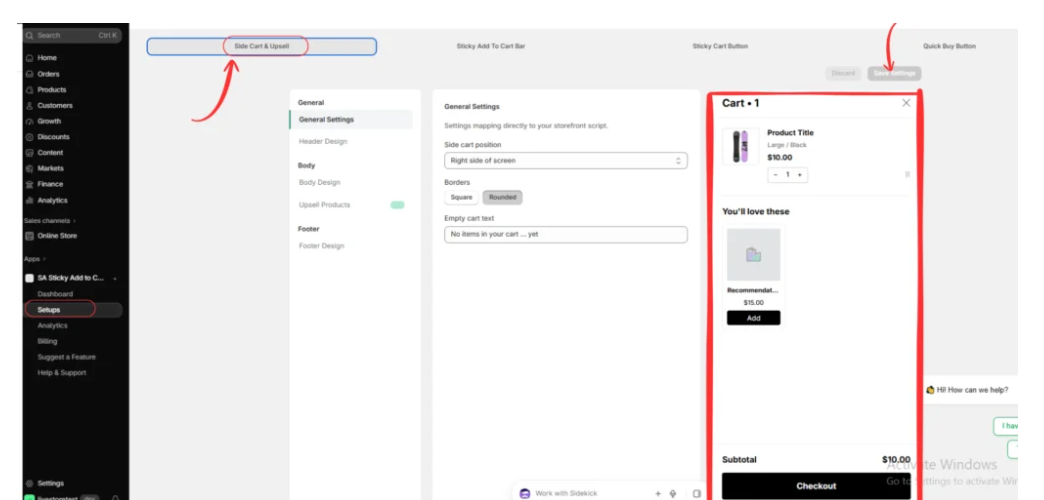
Step 4: Activate the Quick Buy Button
Inside the application, navigate to Setups.
Select Quick Buy Button from the top navigation.
If the feature displays Disabled, click Activate.
After activation, review the available design settings and click Save Settings when your changes are complete.
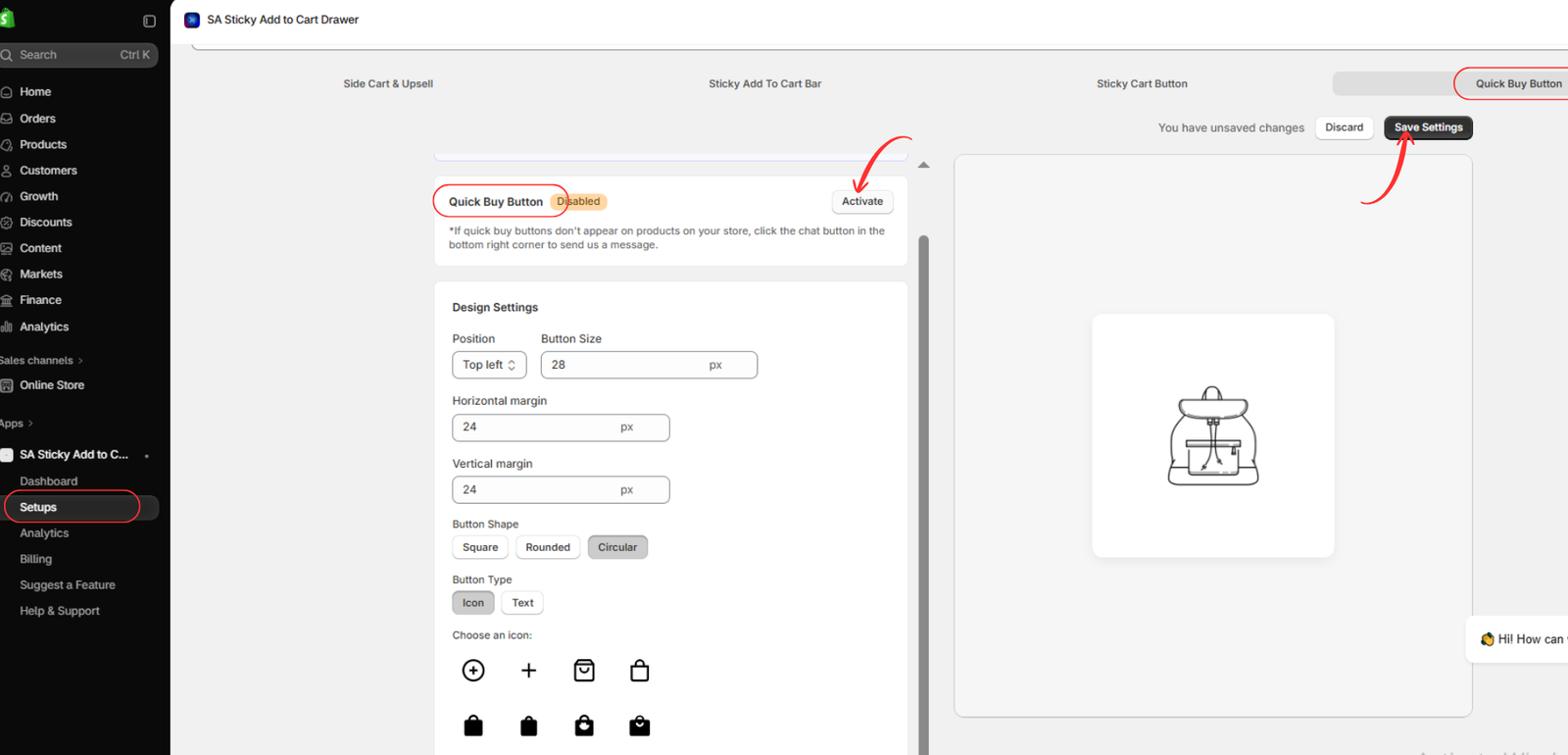
Step 5: Customize the Quick Buy Button Design
Under Design Settings, customize the appearance of your quick-buy button.
You can adjust the button position, size, horizontal margin, vertical margin, shape, and type.
Choose between square, rounded, and circular button styles. You can also select an icon or text-based button.
The app provides multiple shopping cart, shopping bag, and plus-sign icons.
Use the preview panel to check your design before saving.
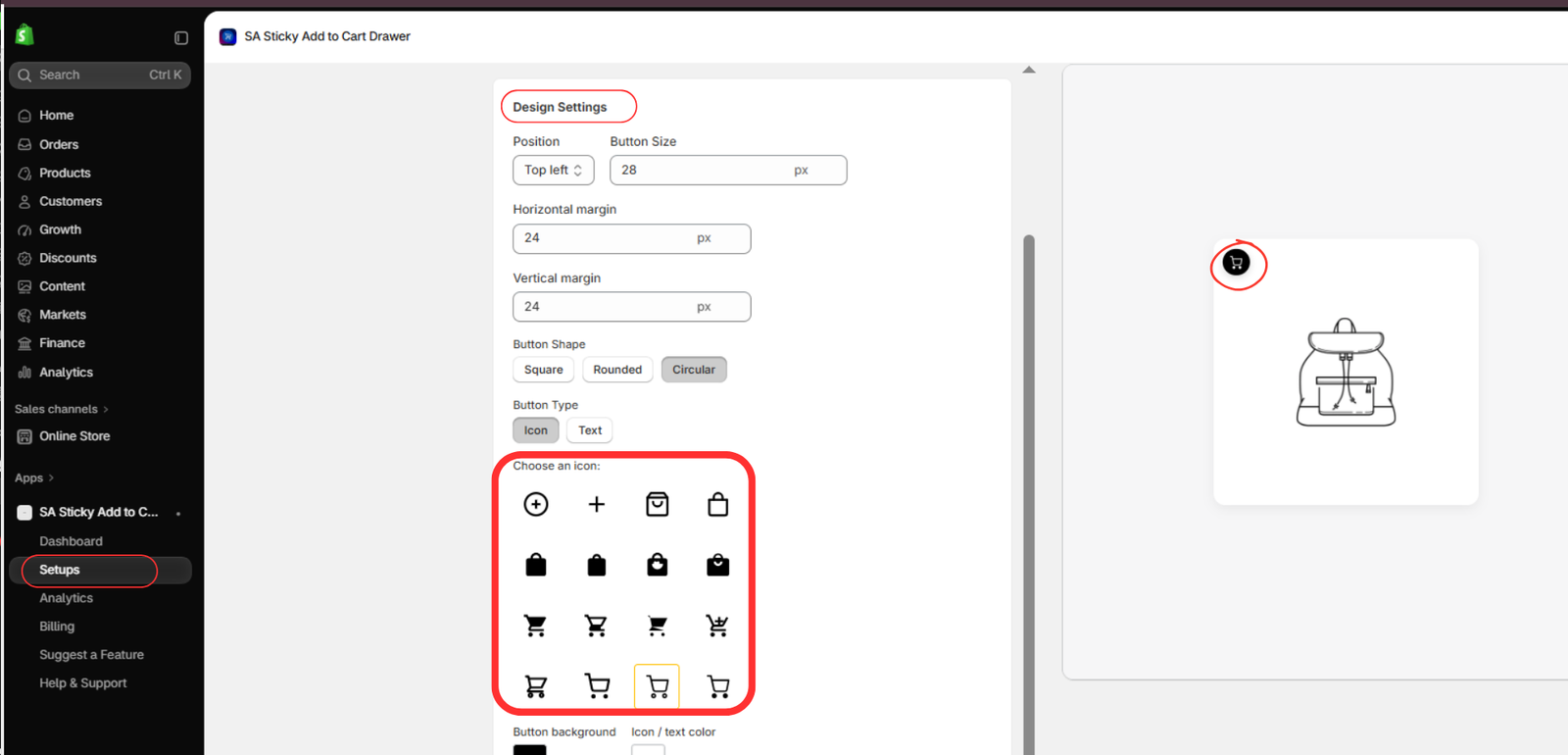
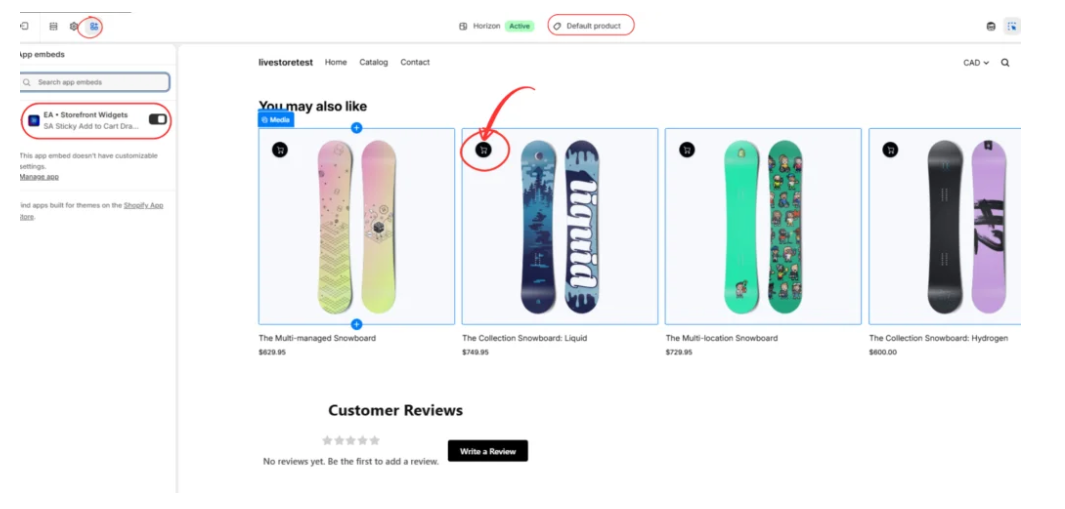
Step 6: Enable the App Embed and Show Buy button
Open the Shopify theme editor and enable EA • Storefront Widgets.
Then you can see the buy button on each products
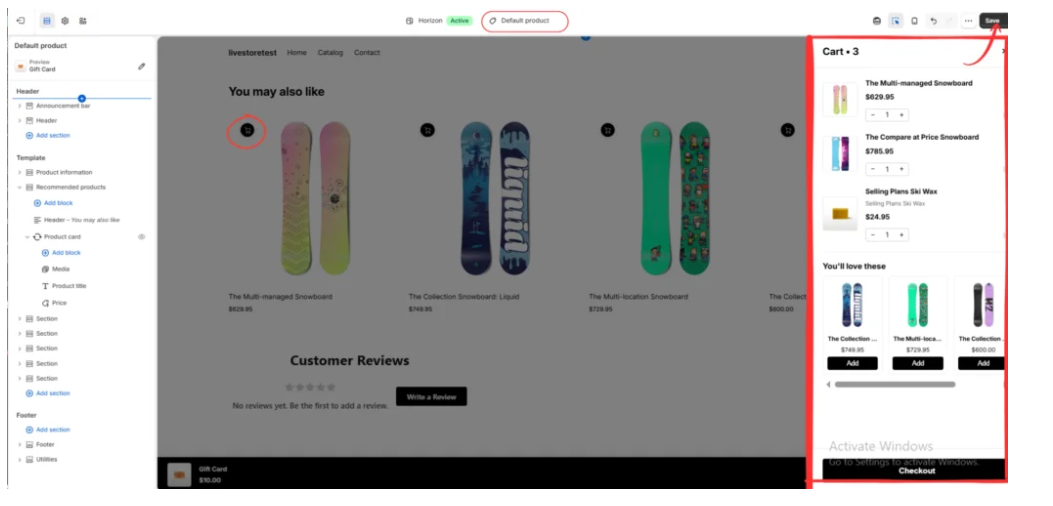
Step 7: Preview the Sticky Bar
Open the product page template and inspect the bar.
Common Mistakes to Avoid
Avoid unclear button labels, poor color contrast, oversized sticky bars, unnecessary animation, and controls that overlap important page content.
Also, test products with different variants and availability states.
How to Evaluate Sticky Bar Performance
Monitor product page interactions, add-to-cart activity, mobile usability, and conversion behavior.
Compare results over a meaningful period and consider testing alternative designs.
Conclusion
The best Shopify sticky add to cart bar combines clear wording, accessible placement, and consistent branding.
With SA Sticky Add to Cart Drawer, merchants can configure sticky purchase controls and preview their appearance within compatible Shopify themes.
Explore the app: https://apps.shopify.com/sk-sticky-add-to-cart-drawer




