HOW TO ADD A STOCK COUNTDOWN BAR TO A SHOPIFY PRODUCT PAGE
Shopify Tutorial | Stock Countdown Bar | Low Stock Alerts | AB Sales Popup | 2026

Introduction
Imagine a customer visiting your Shopify store and finding a product they really like. They check the images, read the description, and consider adding it to their cart.
However, they may decide to leave the product page and return later.
If the product has limited inventory, displaying the actual remaining stock can help shoppers make an informed purchasing decision.
For example, a product page might display:

This type of notification is called a stock countdown bar.
It communicates how much inventory is available and can help customers understand when a product is genuinely running low.
However, adding a stock countdown manually can require Shopify Liquid customization, inventory data integration, and CSS styling.
With AB Sales Popup, merchants can configure stock countdown messages, customize progress bar colors and animations, and choose which products or collections should display the countdown.
In this guide, you’ll learn how to add a stock countdown bar to Shopify product pages without manually editing theme code, using actual screenshots from AB Sales Popup.
What Is a Shopify Stock Countdown Bar?
A Shopify stock countdown bar is a visual element that displays product inventory information using text, numbers, and a progress indicator.
It can communicate the number of items remaining, the number sold, or a low-stock message.
For example, a counter may display “Only 10 items left” when the product’s available inventory reaches that amount.
Unlike a countdown timer, which measures time remaining, a stock countdown bar tracks product availability.
Why Add a Stock Countdown Bar to Shopify?
1. Communicate limited availability
Customers can see when a product has a genuinely limited quantity remaining.
2. Help customers make informed decisions
Displaying available inventory gives shoppers useful information when deciding whether to purchase now or later.
3. Highlight product demand
A stock countdown can complement genuine sales data to communicate product popularity.
4. Improve product-page presentation
A well-designed progress bar can make important inventory information easier to notice.
5. Support conversion experiments
Stock countdowns may influence purchase decisions, but they do not guarantee more sales. Their effectiveness depends on the product, audience, and accuracy of the information.
Common Problems With Manually Adding Stock Countdown Bars
Some Shopify merchants struggle with implementing inventory countdowns because of outdated stock values, theme compatibility issues, variant-specific inventory, and mobile design problems.
A manual implementation also needs to avoid misleading shoppers when inventory isn’t tracked or when stock is replenished.
A dedicated app can simplify the appearance and configuration of stock countdown elements.
Introducing AB Sales Popup
AB Sales Popup provides Shopify merchants with tools for displaying sales notifications, visitor counters, sold counters, stock countdown bars, and countdown timers.
Its Stock Countdown feature lets merchants configure inventory messages, styling, stock visibility rules, and product or collection targeting.
Key Features
- Custom stock countdown messages.
- Dynamic stock and sold quantity placeholders.
- Custom text and number colors.
- Animated inventory progress bar.
- Flat and Capsule styles.
- Low-stock display threshold.
- Sold-out message configuration.
- Product variant support setting.
- Product and collection selection.
- Stock bar background and foreground colors.
- Shopify theme app block integration.
App Link: AB Sales Popup — Shopify App Store
Step-by-Step Guide: How to Add a Stock Countdown Bar to Shopify
Step 1: Search for the Shopify App Store
First, open Google in your browser and search for Shopify App Store.
Click the official Shopify App Store result.

Image 1: Finding the official Shopify App Store through Google.
Image explanation: This screenshot shows the Shopify App Store search result highlighted.
You can also open the Shopify App Store directly at apps.shopify.com.
Step 2: Search for AB Sales Popup
Inside the Shopify App Store, locate the search bar and type AB Sales Popup.

Image 2: Searching for AB Sales Popup in the Shopify App Store.
Image explanation: The red circle highlights AB Sales Popup in the search results.
Look for the black application icon featuring a yellow notification bell.
Click the listing to open the app details.
Step 3: Install and Open AB Sales Popup
Review the application listing and click Install to add the app to your Shopify store.
If you have already installed it, click Open.
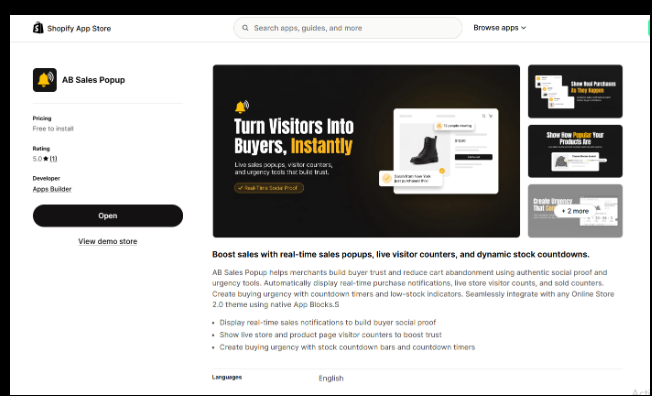
Image 3: AB Sales Popup listing showing its sales notification, visitor counter, and urgency features.
Image explanation: The screenshot displays the app listing with its primary social proof and urgency tools.
After installing the app, open it from your Shopify Admin.
Step 4: Enable the Stock Countdown Feature
Navigate to:
Shopify Admin → Apps → AB Sales Popup → Dashboard
Scroll down to Manage Features.
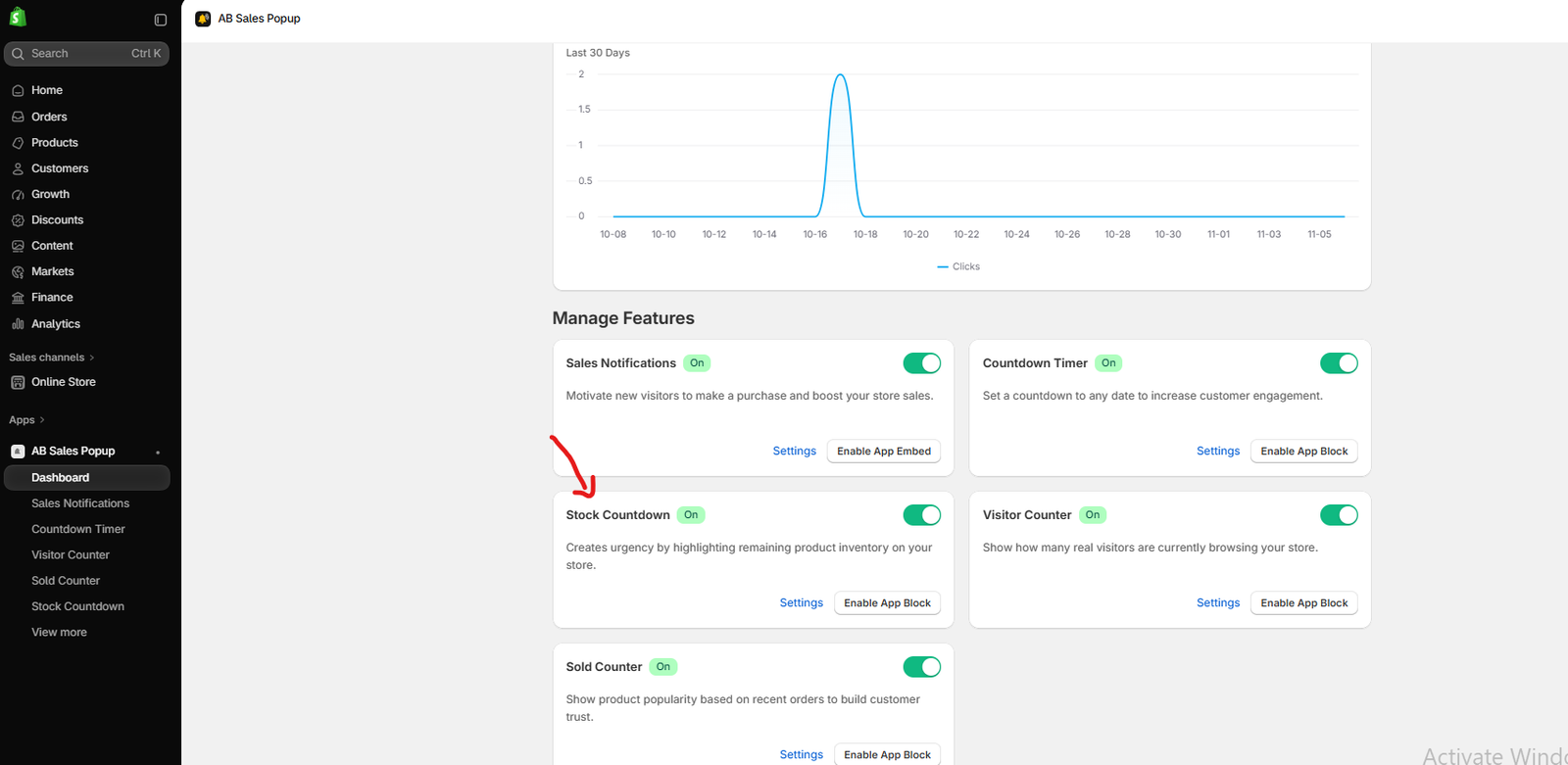
Image 4: AB Sales Popup dashboard showing the Stock Countdown feature and its configuration options.
Image explanation: Your screenshot shows five features available inside the AB Sales Popup dashboard:
- Sales Notifications
- Countdown Timer
- Stock Countdown
- Visitor Counter
- Sold Counter
The red arrow points toward the Stock Countdown card.
The Stock Countdown section includes a green On status, a Settings link, and an Enable App Block button.
Make sure Stock Countdown is turned On, then click Settings.
Alternatively, select Stock Countdown from the left sidebar.
Step 5: Customize the Stock Countdown Message and Design
Once you open the Stock Countdown section, the Content Settings page appears.

Image 5: Stock Countdown settings showing heading text, inventory variables, font styling, progress bar preview, and stock display options.
Image explanation: This screenshot shows the Stock Countdown configuration page with the status set to On.
The page includes Content Settings and Stock Countdown List tabs.
Under Content & Design, merchants can customize several important options.
Customize the heading text
The Heading text field contains the example:
Hurry up! Only {{stock_number}} items left in stock. {{sold_number}} items have been sold.
The app supports two dynamic placeholders:
{{stock_number}} — displays the stock quantity used by the app.
{{sold_number}} — displays the applicable sold quantity.
These placeholders allow the displayed message to use configured inventory and sales information rather than manually entered numbers.
Adjust font styling
The screenshot shows the Heading font family set to Inherit and the Heading font size set to 14px.
You can also adjust the heading text color, numbers font color, and text alignment.
In the example, the text and number color are both #FF6666, a coral-red shade.
Choose the countdown style
Under Style, the app provides Flat and Capsule options.
Flat is selected in your screenshot.
Choose the style that best matches your Shopify product page design.
Review the preview
On the right side, the Preview panel demonstrates how the stock countdown will appear.
The example reads:
“Hurry up! Only 24 items left in stock. 10 items have been sold.”
A coral-colored progress bar is displayed below the message.
The preview numbers are examples; the storefront must use accurate inventory and sales data.
Step 6: Configure Stock Countdown Rules and Progress Bar Colors
Scroll further down to Stock Countdown Settings.
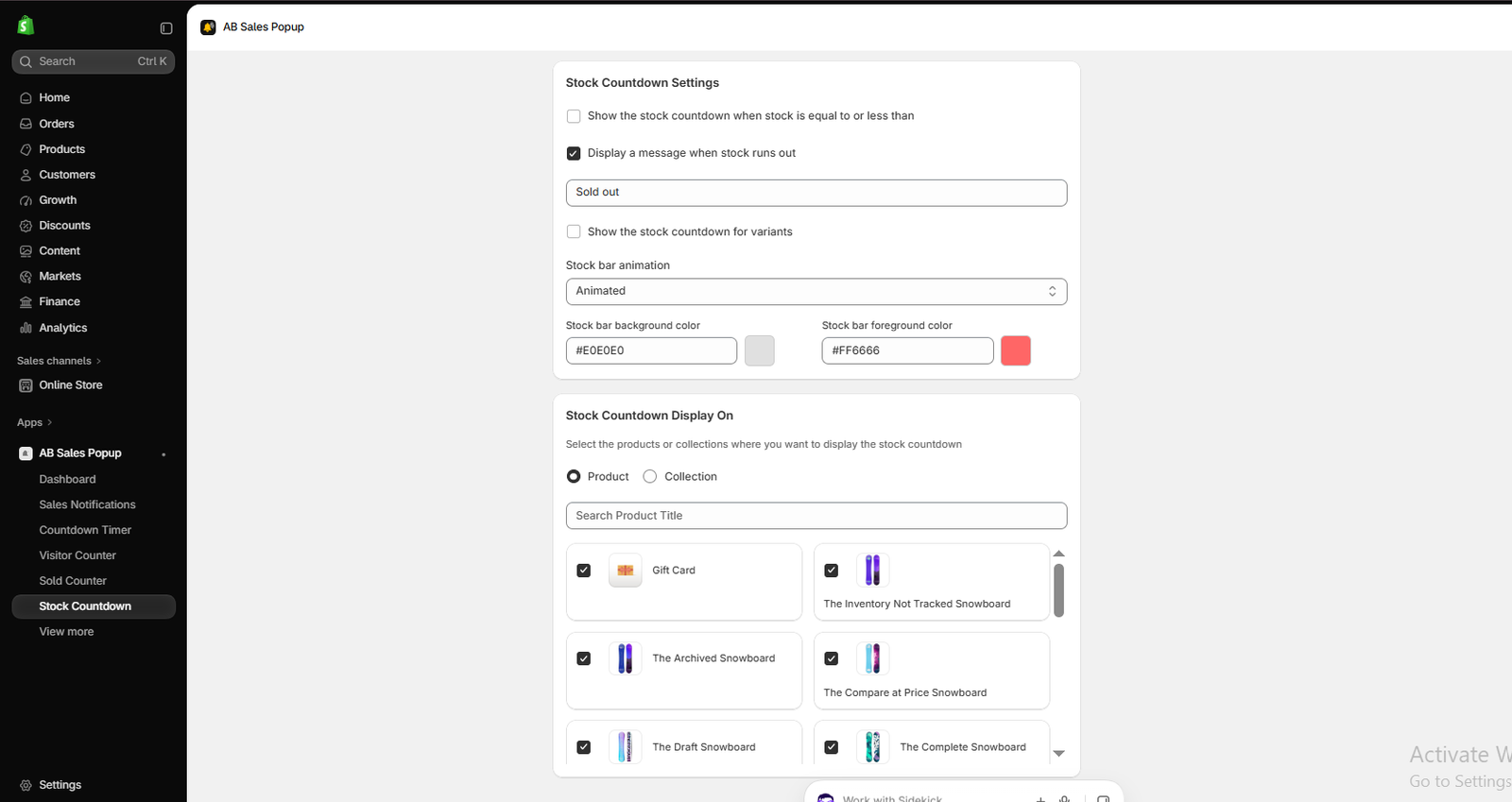
Image 6: Configuring stock thresholds, sold-out messages, variant settings, progress bar animation, colors, and product selection.
Image explanation: This screenshot shows the main inventory display and targeting options.
Set a low-stock visibility threshold
The app includes an option labeled Show the stock countdown when stock is equal to or less than.
Enable this option when you want the countdown to appear only after inventory reaches a chosen threshold.
For example, merchants might choose to show the countdown when 10 or fewer units remain.
In your screenshot, this checkbox is not selected.
Display a sold-out message
The Display a message when stock runs out option is enabled.
The corresponding message field contains:
Sold out
This allows the storefront to communicate when tracked inventory reaches zero, subject to the app’s stock logic.
Enable variant-specific stock countdowns
The interface includes Show the stock countdown for variants.
This option can be useful for products with different sizes, colors, or other variants.
For example, one shoe size may have five units remaining while another has 20.
The setting is unchecked in your screenshot. Enable it if you need the countdown to respond to variant-level inventory and the app supports your product configuration.
Choose stock bar animation
The Stock bar animation dropdown is set to Animated.
Animation can make the progress bar more noticeable, but it should remain subtle and not distract customers.
Customize stock bar colors
The screenshot shows these values:
| Setting | Example value |
|---|---|
| Stock bar background | #E0E0E0 |
| Stock bar foreground | #FF6666 |
| Animation | Animated |
| Sold-out message | Sold out |
The light gray background and coral progress bar create a simple visual contrast.
Step 7: Select Products or Collections for the Stock Countdown
Below the appearance settings, locate Stock Countdown Display On.
This section allows you to choose whether to target products or collections.
In your screenshot, Product is selected.
There is a Search Product Title field and a list of products with selection checkboxes.
Examples visible in your screenshot include Gift Card, The Inventory Not Tracked Snowboard, The Archived Snowboard, The Compare at Price Snowboard, The Draft Snowboard, and The Complete Snowboard.
Select the products where you want the stock countdown bar to appear.
For inventory-based countdowns, choose products with properly configured Shopify inventory tracking. Products without tracked inventory may not have meaningful remaining-stock figures, and draft or archived products will not be publicly visible until made available.
You can also choose Collection if you want to target a group of eligible products.
Save the configuration after completing your selection.
Step 8: Enable the Stock Countdown App Block
Return to the AB Sales Popup dashboard and locate Stock Countdown under Manage Features.
Click Enable App Block.
In the Shopify theme editor, open the product page template where you want the stock countdown displayed.
Add the AB Sales Popup Stock Countdown app block to a compatible product section, position it near the product price or purchase controls, and click Save.The supplied screenshots show the Enable App Block button, but not the final theme editor placement screen. The instructions here describe the expected Shopify app block setup workflow.
Step 9: Preview the Stock Countdown on Your Shopify Product Page
After configuring the app block, open your product page preview.
Check that the stock countdown bar appears on the intended products, that the available quantity is correct, and that its design fits your Shopify theme.
Test the counter on desktop and mobile.
Also test how it behaves when stock changes, when a different variant is selected, and when the product becomes sold out.
Best Locations for a Stock Countdown Bar on Shopify
A stock countdown should appear near relevant product information without interfering with essential controls.
| Placement | Why it may work |
|---|---|
| Below product price | Makes availability visible during evaluation |
| Above Add to Cart | Places inventory information near the purchase decision |
| Below variant selector | Useful when different variants have different stock |
| Near delivery information | Keeps useful purchase details together |
For many product pages, placing the stock countdown below the price or variant selector is a practical starting point.
Best Practices for Shopify Stock Countdown Bars
Use accurate inventory numbers
Always display counts based on reliable inventory data. Never invent stock shortages to create pressure.
Show low-stock messages only when relevant
Using a genuine threshold prevents every product from appearing artificially scarce.
Keep colors consistent
Choose progress bar colors that match your Shopify theme while remaining readable.
Test product variants
If inventory differs by variant, confirm that the displayed stock count changes correctly.
Avoid excessive urgency
Avoid combining multiple countdown timers, stock alerts, and purchase notifications in a way that overwhelms shoppers.
Handle sold-out products correctly
A sold-out message should reflect actual product availability and selling rules.
Frequently Asked Questions
1. What is a stock countdown bar in Shopify?
A stock countdown bar displays remaining inventory information through text and a visual progress indicator.
2. Can I add a stock countdown without coding?
Yes. AB Sales Popup provides a configurable Stock Countdown feature and an Enable App Block option.
3. Can I change the stock countdown message?
Yes. The app supports customizable heading text with {{stock_number}} and {{sold_number}} variables.
4. Can I display the stock countdown only when inventory is low?
Yes. The app includes a setting for displaying the countdown when stock is equal to or below a configured threshold.
5. Can I customize the progress bar colors?
Yes. The interface provides separate background and foreground color settings.
6. Can I show a sold-out message?
Yes. The app includes an option for displaying a custom message when stock runs out.
7. Does the stock countdown support product variants?
The app includes a variant-specific stock countdown option. Test it with your actual Shopify products.
8. Can I choose specific products or collections?
Yes. The Stock Countdown Display On section provides Product and Collection targeting options.
9. Will a stock countdown increase my Shopify sales?
It may help customers understand limited product availability, but there is no guaranteed conversion increase. Its value depends on accurate information and appropriate implementation.
Conclusion
Adding a stock countdown bar to your Shopify product page is a practical way to communicate genuine inventory availability.
By showing customers how many products remain in stock, merchants can make useful purchasing information more visible and help shoppers make informed decisions.
With AB Sales Popup, Shopify merchants can configure stock countdown messages, adjust styling, customize animated progress bars, set visibility thresholds, display sold-out messages, and target specific products or collections without manually editing theme code.
The screenshots in this guide demonstrate how to enable the Stock Countdown feature, customize its appearance, and configure inventory display settings.
For the best results, ensure that your inventory tracking is accurate, keep the countdown design consistent with your Shopify theme, and verify the final experience on desktop and mobile.
Want to add a customizable stock countdown bar to your Shopify product pages?Install AB Sales Popup on Shopify




