HOW TO CREATE A SHOPIFY THEME BACKUP USING AN AI ASSISTANT
Shopify Tutorial | PA Claude Connector by PeakApps | Theme Backup, AI Assistance & Store Protection
Introduction
Your Shopify theme is one of the most important parts of your online store. It controls your storefront’s appearance, product pages, navigation, sections, and customer shopping experience.
But what happens if a theme customization goes wrong?
A small Liquid code error, an incorrect CSS modification, or a third-party app update can affect your store’s design or functionality.
That’s why creating a Shopify theme backup before making changes is essential.
Traditionally, merchants duplicate their themes manually through Shopify admin. With an AI assistant such as PA Claude Connector, merchants can also ask for guidance on creating backups and understanding their theme management options.
However, there is an important distinction: an AI assistant can only duplicate a Shopify theme directly if it has the necessary permissions. Otherwise, it can explain how to create the backup manually.
In this tutorial, you’ll learn how to create a Shopify theme backup using an AI assistant, how to handle permission errors, and how to protect your theme before making changes.
We’ll use real screenshots from PA Claude Connector and Shopify admin to explain the process.
The Merchant’s Challenge: Why Shopify Theme Backups Matter
1. Accidental theme modifications
Editing Liquid, CSS, or JavaScript can introduce unexpected errors. A backup helps preserve a version of your store before making major changes.
2. Broken layouts after installing apps
Some applications modify theme files or add functionality that may affect existing storefront elements.
3. Shopify theme updates
Updating a theme may require reviewing customizations and ensuring important features still work.
4. AI-generated coding changes
AI-powered tools can simplify theme customization, but generated modifications still need testing.
5. Difficulty recovering previous designs
Without a backup, recovering a previous layout may require manually reconstructing changes.
6. Limited technical experience
Many Shopify merchants are unfamiliar with theme files and prefer a simpler way to manage store backups.
Why Is Creating a Shopify Theme Backup Important?
A theme backup gives you an additional recovery option if a customization produces an unwanted result.
For example, imagine you are preparing to redesign your product page. Before modifying the theme, you create a duplicate.
If the new design introduces problems, you can return to the original theme version while investigating the issue.
Theme backups are especially useful before major design changes, custom Liquid modifications, theme updates, or experiments with AI-generated sections.
Important: Duplicating a Shopify theme is not a full-store backup. It does not independently back up your orders, customer database, product catalog, or every resource used by your store.
Introducing PA Claude Connector by PeakApps
PA Claude Connector is a Shopify application that brings AI-assisted workflows into Shopify admin.
It includes Claude Assistant, Description Studio, SEO Booster, and other store management tools.
For theme management, merchants can use Claude Assistant to ask questions about backups, theme duplication, and store maintenance.
The AI assistant can explain the necessary steps and, where authorized functionality is available, attempt supported store actions.
Your screenshots demonstrate both the AI Assistant and Shopify’s built-in theme duplication workflow.
App Link: PA Claude Connector on the Shopify App Store
Step 1: Search for the Shopify App Store
Open Google and search for Shopify App Store. Click the official Shopify App Store result highlighted by the red arrow.

Image 1: Open the official Shopify App Store from Google search results.
Step 2: Search for PA Claude Connector
Enter PA Claude Connector in the Shopify App Store search bar. Select the application highlighted in the red circle.

Image 2: Locate PA Claude Connector in the Shopify App Store results.
Step 3: Install or Open the App
Open the PA Claude Connector listing. Click Install if you are a new user, or Open if the app is already installed.

Step 4: Open PA Claude Connector and Launch Claude Assistant
First, open your Shopify admin dashboard and locate PA Claude Connector in the Apps sidebar.
Click Claude Assistant to open the AI-powered chat workspace. This is where you can ask questions about Shopify themes, backups, products, and other store management tasks.
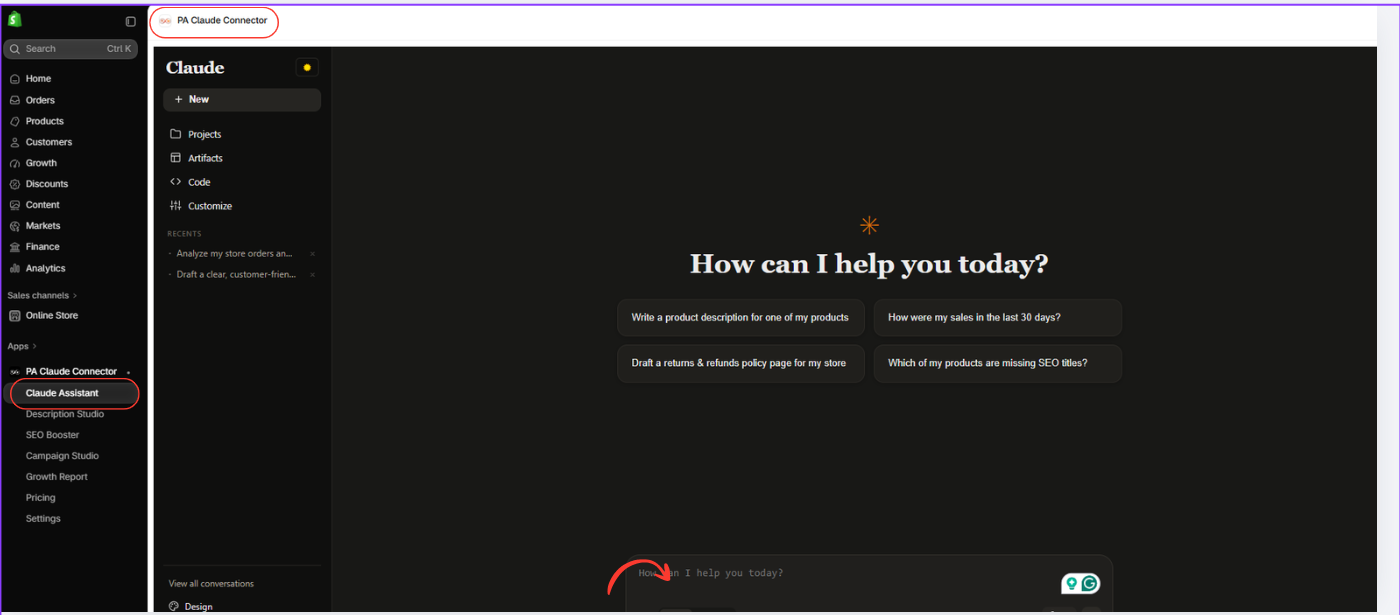
Image 1: Open PA Claude Connector and select Claude Assistant to begin the Shopify theme backup process.
Image explanation
The screenshot shows the PA Claude Connector application inside Shopify admin.
On the left, the Claude Assistant option is highlighted with a red circle.
The main workspace displays the heading “How can I help you today?” along with suggested prompts.
At the bottom, a red arrow highlights the AI chat input.
Click the input field and type a request such as:
Help me create a backup of my current Shopify theme. Check whether you have permission to duplicate it. If not, guide me through the manual backup process without changing my live theme.
The assistant can then check the available capabilities and explain the necessary steps.
Step 5: Open Shopify Online Store and Find the Duplicate Option
Next, open Online Store → Themes from your Shopify admin.
Locate the theme you want to back up, click its three-dot menu (...), and select Duplicate.

Image 2: Open Shopify Online Store, locate the theme actions menu, and select Duplicate to create a theme backup.
Image explanation
This screenshot shows the Shopify theme management page.
The left sidebar highlights Online Store. In the main workspace, you can see the current theme and the draft theme library.
The red arrow points toward the three-dot actions menu for a theme, and the Duplicate option is circled in red.
When you click Duplicate, Shopify creates a separate copy of the selected theme.
This is particularly useful before making custom Liquid changes, installing theme-modifying apps, or updating your storefront.
After duplication, verify that the copied theme appears in your theme library.
Step 6: Explore the PA Claude Connector Dashboard
PA Claude Connector also provides other tools for Shopify store management.
The following screenshot shows Description Studio, one of the additional workspaces available in the app.
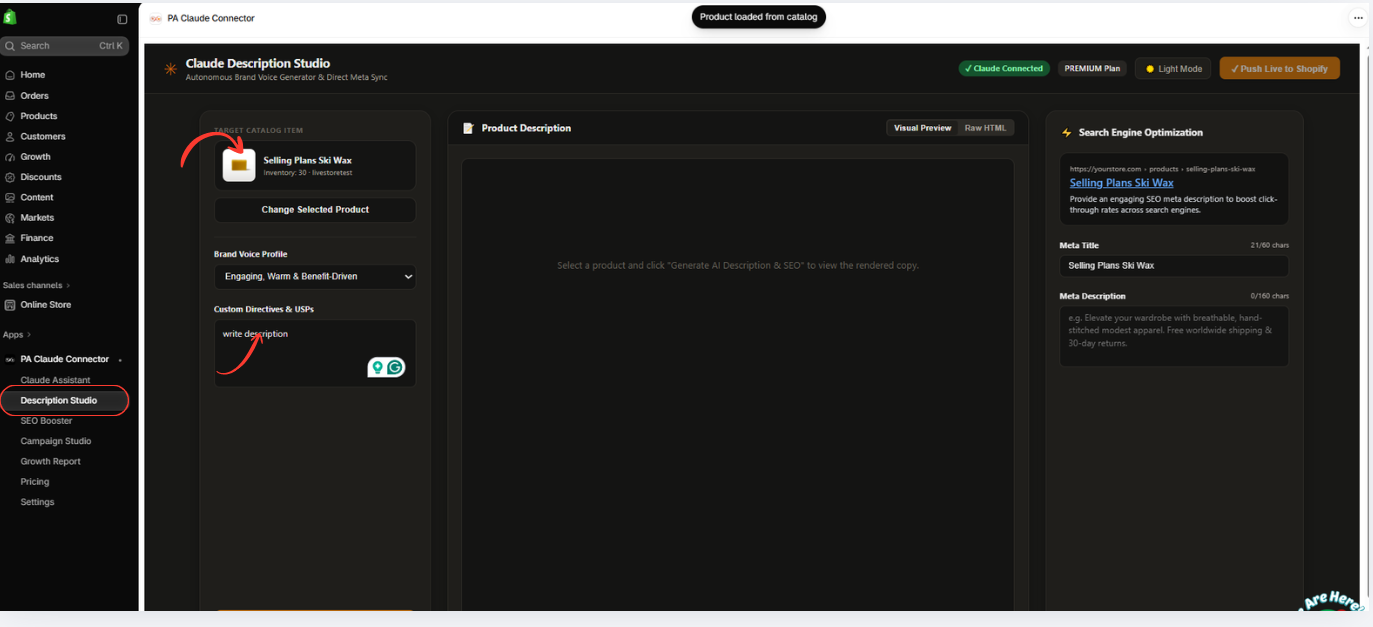
Image 3: PA Claude Connector’s Description Studio, showing product content and SEO settings.
Image explanation
The screenshot shows Description Studio with Selling Plans Ski Wax selected as the target product.
You can see its Brand Voice Profile, Custom Directives & USPs, Product Description workspace, and Search Engine Optimization fields.
This interface helps merchants prepare AI-assisted product content.
Although Description Studio is not required for creating a theme backup, it demonstrates another part of PA Claude Connector’s Shopify admin integration.
For actual backup requests, use Claude Assistant and Shopify’s Themes page.
Step 7: Ask Claude to Create a Theme Backup and Review Its Response
Return to Claude Assistant.
Enter your theme backup request and submit it.
In your example, the assistant attempts to duplicate the theme but encounters a permission restriction.

Image 4: Claude Assistant explains the theme duplication permission error and provides manual backup instructions.
Image explanation
The screenshot shows a conversation titled duplicate theme backup.
Claude reports that theme duplication failed because the integration does not have the required authorization.
The response mentions the write_themes permission and an additional Shopify-granted exemption.
Because the app cannot complete the duplication in this example, Claude recommends creating the backup manually through Shopify admin.
The screenshot also shows a generated DOCX document titled duplicate theme backup, accompanied by a Download button.
This is a useful demonstration of how the assistant can provide instructions and a downloadable document even when it cannot complete the requested store action.
Important: The screenshot confirms that automatic theme duplication failed in this example. It does not show a successfully created backup.
Step 8: Understand Other Shopify Management Options in the App
The final screenshot shows PA Claude Connector’s product-selection interface inside Description Studio.

Image 5: PA Claude Connector’s Shopify product picker, where merchants can search for and select catalog products.
Image explanation
The screenshot displays a product picker with a search field at the top.
Several Shopify products are visible, including Gift Card and Selling Plans Ski Wax.
A red arrow highlights the selected product, while another points toward the search field.
The dialog also includes an Add button.
This functionality is used for product content workflows and is not part of the theme backup process.
You can skip this step when creating a backup; it is included to explain the fifth supplied screenshot.
Step 9: Verify Your Shopify Theme Backup
Once you have duplicated your theme using Shopify’s built-in controls, return to Online Store → Themes.
Check that a new theme copy appears in your theme library.
Rename the backup to something descriptive, such as Theme Backup — Before Customization.
Preview the duplicated theme to confirm that its appearance is as expected.
Keep it unpublished until you need to restore or reuse that version.
Conclusion
Creating a Shopify theme backup is an important precaution before making changes to your online store.
With PA Claude Connector, merchants can ask an AI assistant for theme management guidance, understand permission restrictions, and obtain instructions for duplicating their themes.
As demonstrated by your screenshots, Claude Assistant may not always have permission to perform theme modifications directly. In those situations, Shopify’s built-in Duplicate feature provides a practical alternative.
By creating and verifying theme backups before making changes, merchants can experiment with greater confidence and maintain a recovery option if something goes wrong.
App Link: Install PA Claude Connector on Shopify




