HOW TO USE SOCIAL PROOF POPUPS WITHOUT ANNOYING YOUR CUSTOMERS
Shopify Tutorial | Social Proof Popups | Customer Experience | Sales Notifications | AB Sales Popup | 2026
Introduction
Social proof is an important part of building trust in an online store. When visitors see genuine customer purchases, product reviews, or other shopping activity, they may feel more confident about buying from a business.
However, there’s a problem that many Shopify merchants overlook.
Too many social proof popups can annoy customers instead of helping them.
Imagine visiting a Shopify store to purchase a pair of shoes. Before you even finish reading the product description, a sales notification appears. A few seconds later, another popup shows up. Then another notification covers the Add to Cart button.
Instead of building trust, these interruptions can make the shopping experience frustrating.
The solution isn’t necessarily to remove social proof. It’s to use it thoughtfully.
With AB Sales Popup, Shopify merchants can customize notification timing, appearance, placement, content, and display rules without manually editing theme code.
In this guide, you’ll learn how to use social proof popups without annoying customers, with step-by-step instructions and actual AB Sales Popup screenshots.
What Are Social Proof Popups on Shopify?
Social proof popups are small notifications that display information about customer activity on an online store.
They may show genuine recent purchases, product popularity, or other verified shopping activity.
For example, a purchase notification might say:
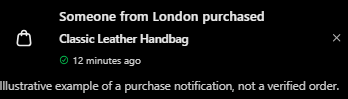
However, social proof should support the shopping experience, not interrupt it.
Why Do Social Proof Popups Annoy Customers?
1. Notifications appear immediately
Customers often need a few moments to understand the product page. A popup that appears too quickly may distract them.
2. Popups appear too frequently
Repeated notifications can become frustrating, especially when customers are trying to read product information.
3. Popups cover important buttons
A poorly positioned notification may cover Add to Cart, product variants, navigation, or other essential controls.
4. Notifications look too promotional
Bright colors, unnecessary animations, and oversized text may feel intrusive, particularly on minimalist storefronts.
5. Customers cannot dismiss notifications
A popup without an accessible close button can reduce the customer’s sense of control.
6. Notifications show misleading activity
Fake purchases, inaccurate times, or fabricated customer information can undermine trust rather than build it.
Why Is a Balanced Social Proof Strategy Important?
Effective social proof should feel informative instead of aggressive.
A thoughtful popup strategy can help a Shopify store display authentic purchases, highlight customer interest, and maintain a professional appearance.
The goal is not to show as many notifications as possible.
The goal is to provide the right information, at the right time, without disrupting the customer.
Introducing AB Sales Popup for Shopify
AB Sales Popup provides tools for displaying purchase notifications and other engagement elements on Shopify stores.
Its Sales Notifications feature includes:
- Festive, Basic, and Custom popup themes.
- Light Mode and Dark Mode.
- Customer and product information customization.
- Background, text, accent, and border colors.
- Rounded and Capsule popup shapes.
- Separate desktop and mobile positioning.
- Initial delay and display duration.
- Delay between notifications.
- Randomization settings.
- Product and collection targeting.
- Advanced popup display controls.
- Verified Orders Feed interface.
App link: AB Sales Popup — Shopify App Store
Step-by-Step Guide: How to Configure Social Proof Popups Without Annoying Customers
Step 1: Open the Shopify App Store
Open Google and search for Shopify App Store.
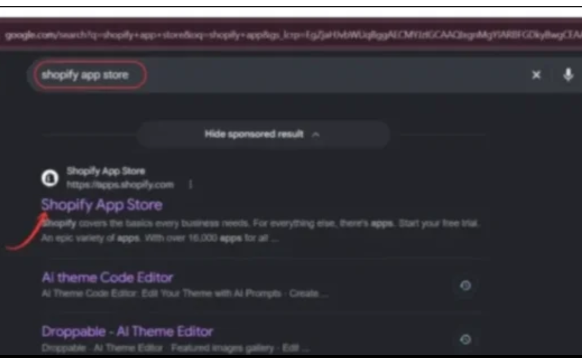
Image 1: Find the official Shopify App Store using Google search.
Image explanation: The screenshot highlights the official Shopify App Store result.
Click the result to open the Shopify App Store, or go directly to apps.shopify.com.
Step 2: Search for AB Sales Popup
Inside the Shopify App Store, use the search bar to find AB Sales Popup.
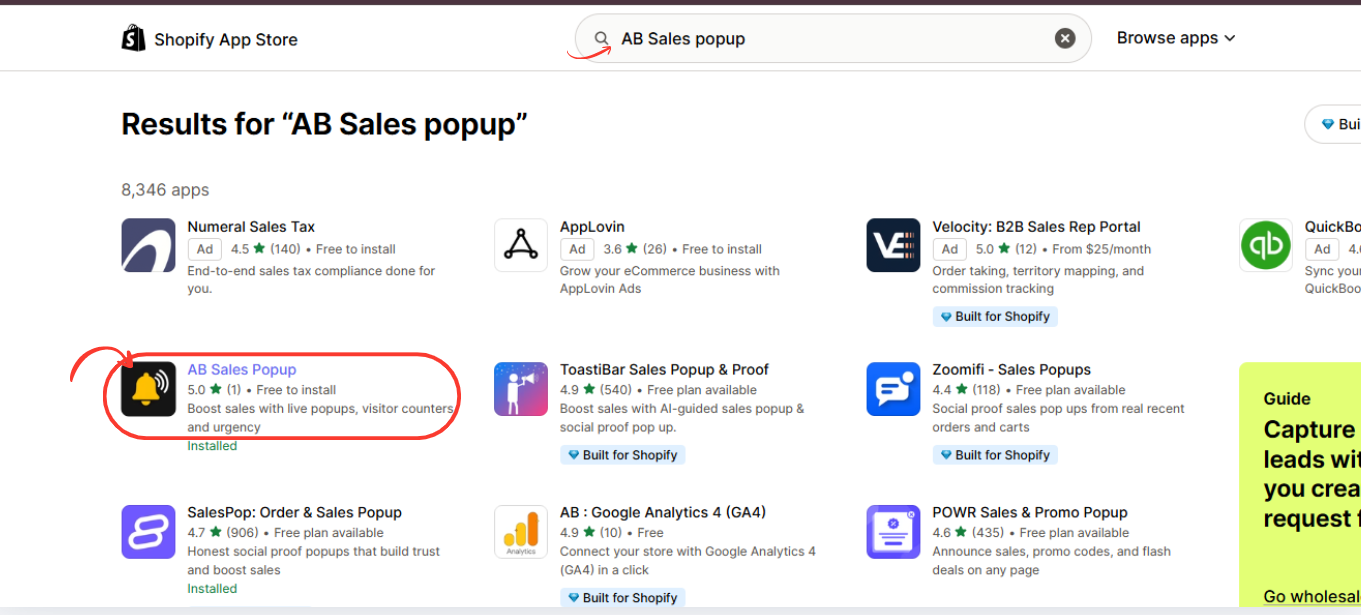
Image 2: Search for AB Sales Popup and select the application with the yellow notification bell icon.
Image explanation: Your screenshot shows AB Sales Popup highlighted in the app search results.
Open its listing and select Install if you’re using it for the first time.
If it’s already installed, choose Open.
Step 3: Install and Open AB Sales Popup
On the app listing, review the available features and click Install.
If the application is already installed, click Open.
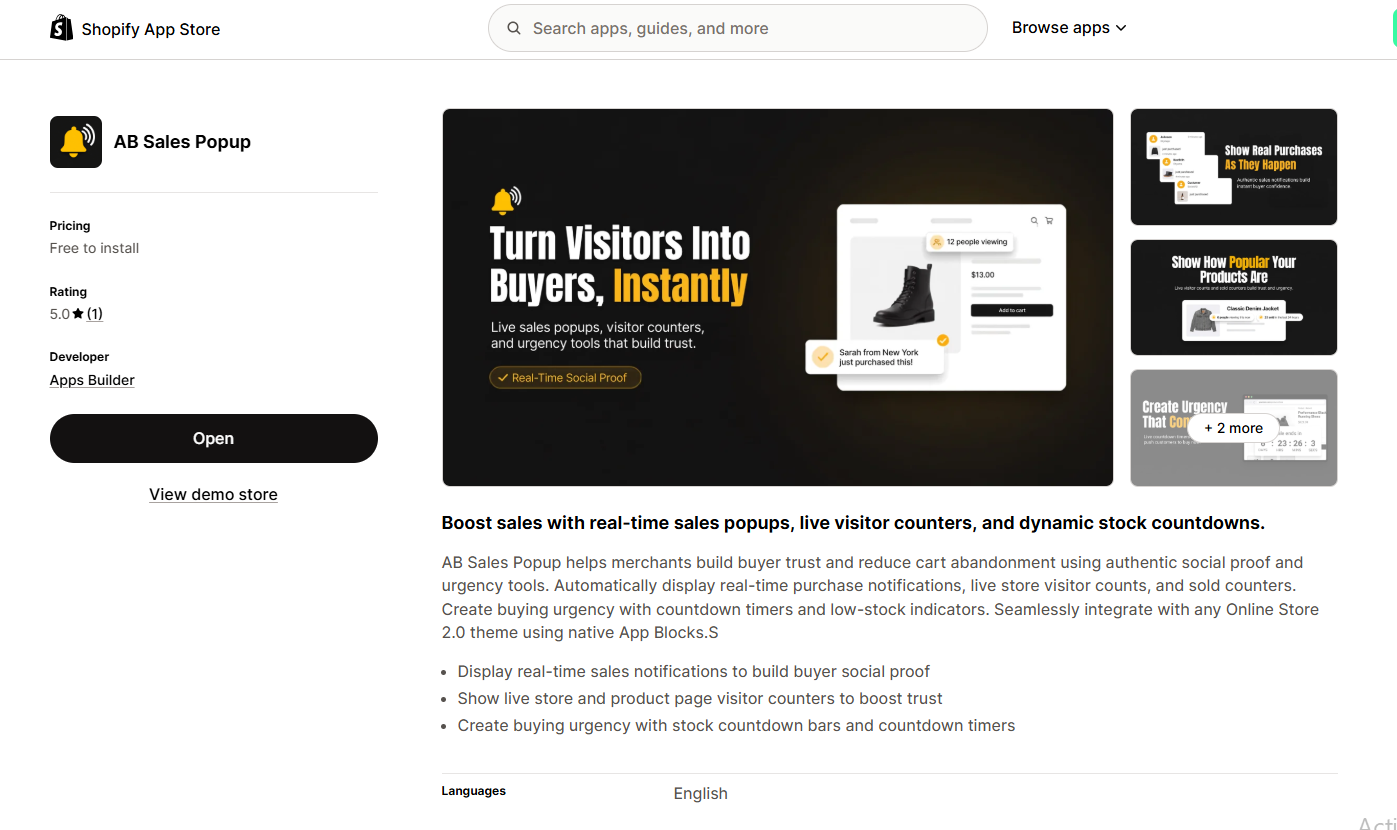
Image 3: Official AB Sales Popup listing displaying the app description, screenshots, and Open button.
Image explanation: Your screenshot shows the AB Sales Popup listing and its main promotional image.
The app is designed to help Shopify merchants display sales notifications, visitor counters, and other urgency elements.
Once installation is complete, the application will be accessible through your Shopify Admin.
Step 4: Open Sales Notifications
After installing the application, navigate to:
Shopify Admin → Apps → AB Sales Popup → Sales Notifications

Image 3: AB Sales Popup Sales Notifications page displaying popup themes, appearance controls, dynamic content, and preview.
Image explanation: The screenshot shows that Sales Notification is turned On.
At the top are three tabs: Popup Content, Settings, and Verified Orders Feed.
The Popup Content tab allows merchants to configure how their purchase notifications look and what information they contain.
The right-hand Preview panel demonstrates the selected popup design.
Before adjusting frequency and placement, start by choosing an appropriate notification style.
Step 5: Choose a Simple Popup Theme
The app provides three popup themes: Festive, Basic, and Custom.
For stores looking for a less distracting social proof experience, the Basic theme is a useful starting point.
Image 4: Selecting the Basic popup theme for a cleaner and more subtle purchase notification.
Image explanation: The screenshot shows the Basic theme enabled, with a compact sales notification preview.
The preview contains a product image, purchase information, purchase time, and a Sample label.
A simple design can work well for fashion, beauty, electronics, and other Shopify stores that want to maintain a clean appearance.
You can switch between Light Mode and Dark Mode according to your store’s existing color palette.
Step6: Customize Popup Colors to Match Your Store
If you prefer a branded notification, select Custom.

Image 5: Custom theme controls for background color, text color, accent color, and border color.
Image explanation: Your screenshot shows four customizable color fields.
| Setting | Example color |
|---|---|
| Background | #FFFFFF |
| Text | #000000 |
| Accent / Link | #000000 |
| Border | #E5E7EB |
These colors create a minimal white notification with dark text and a subtle border.
For a professional appearance, choose a combination that matches your Shopify theme and provides sufficient contrast.
Avoid using unnecessarily bright backgrounds or multiple competing accent colors.
Step 7: Set an Initial Popup Delay
Open the Settings tab.

Image 7: Configure the initial delay, display duration, delay between notifications, and product targeting.
Image explanation: This screenshot is particularly important for preventing notification overload.
Under Display settings, the app provides the following controls:
| Setting | Value in screenshot |
|---|---|
| Initial delay | 2 seconds |
| Display duration | 5 seconds |
| Delay between notifications | 5 seconds |
| Randomize delay | Off |
| Random notification order | Off |
The Initial delay determines how many seconds pass before the first notification appears.
Although your screenshot shows 2 seconds, you can test a longer delay, such as 8–12 seconds, to give visitors time to explore the page.
This is a suggested testing range, not a proven ideal setting for every store.
Step 8: Control How Long Each Popup Stays Visible
In the same Display settings section, find Display duration.
This determines how long a notification remains visible before disappearing.
Your screenshot uses 5 seconds.
As a starting point, consider testing a display duration around 4–6 seconds, depending on the amount of text.
A popup needs to remain visible long enough to be read, but shouldn’t unnecessarily obstruct the page.
If the notification contains several lines, test whether the display duration is sufficient on both mobile and desktop.
Step 10: Increase the Delay Between Notifications
Next, locate Delay between notifications.
Your screenshot shows 5 seconds.
If notifications feel too frequent, try increasing this interval.
For example, you could test 20–30 seconds between notifications and compare the customer experience with a shorter interval.
The ideal frequency depends on the number of authentic purchases available and how customers browse your store.
Avoid repeating the same purchase so frequently that it creates a misleading impression of constant buying activity.
Step 9: Choose Where Social Proof Notifications Appear
Scroll to Show Notification On.
The same screenshot shows two targeting options: Product and Collection.
You can use the product picker to select eligible products.
For example, a merchant might display purchase notifications on selected best-selling product pages rather than throughout the entire storefront.
This approach helps keep the shopping experience relevant.
Only display purchase information associated with genuine transactions. Product-page targeting should not imply that a specific product was purchased when it wasn’t.
Step 10: Configure Advanced Settings to Reduce Interruptions
Scroll down to Advanced Settings.
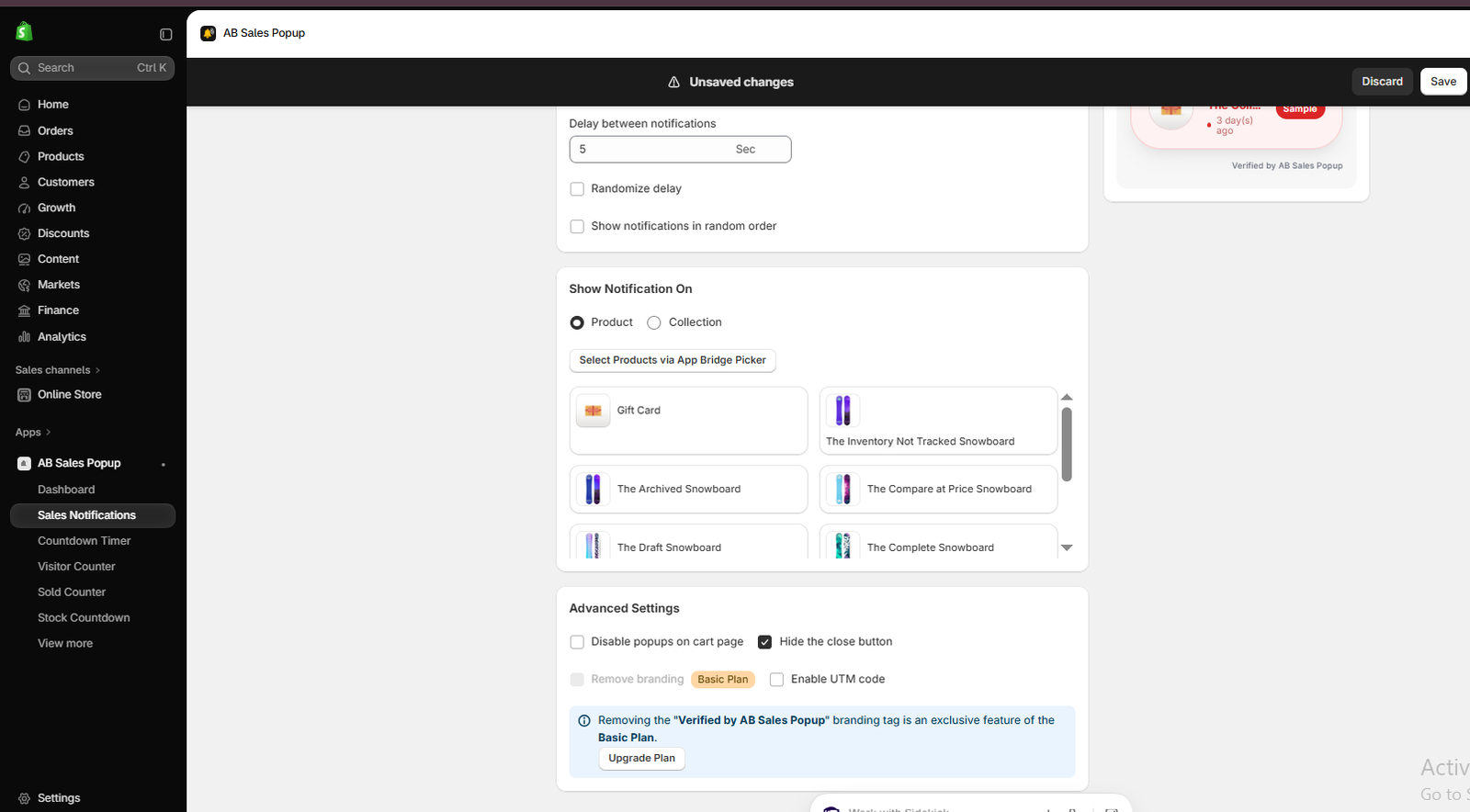
Image 8: Advanced Settings showing controls for disabling cart-page notifications, hiding the close button, branding, and UTM tracking.
Image explanation: Your screenshot shows these options:
Disable popups on cart page: Consider enabling this option so notifications don’t interfere with the shopping cart experience.
Hide the close button: The screenshot shows this checkbox selected. For better user control, consider leaving the close button visible so customers can dismiss notifications.
Remove branding: This is identified as a plan-dependent feature in the app interface.
Enable UTM code: This provides an option for tracking parameters.
For a less intrusive setup, prioritize customer control and avoid displaying unnecessary popups during important buying actions.
Step 11: Save and Enable Sales Notifications
Once the settings are configured, click Save at the top-right of the application.
If the app embed isn’t already enabled, return to:
AB Sales Popup → Dashboard → Sales Notifications → Enable App Embed
In the Shopify Theme Editor, enable the relevant Sales Notifications app embed.
Save the theme changes to publish the configuration.
Step 12: Preview Your Popups on Desktop and Mobile
Open your Shopify storefront and test the notifications.
Check whether they cover important elements, such as the Add to Cart button, variant selectors, sticky cart bars, cookie banners, or live chat widgets.
Also confirm that the notification text is readable and that the close button works where enabled.
The best popup position depends on your particular theme and other installed storefront widgets.
Step 13: Measure Whether Customers Respond Positively
After publishing, monitor how visitors interact with your store.
Pay attention to conversion rate, add-to-cart activity, revenue per visitor, and feedback about the shopping experience.
To assess whether the popups actually help, consider running an A/B test with notifications enabled for one group of visitors and disabled for another.
That can provide stronger evidence than comparing sales before and after installation.
Recommended Social Proof Popup Settings
The following values are reasonable starting points to test, not guaranteed best-performing settings.
| Setting | Suggested starting point |
|---|---|
| Popup theme | Basic or minimal Custom |
| Initial delay | 8–12 seconds |
| Display duration | 4–6 seconds |
| Delay between popups | 20–30 seconds |
| Close button | Visible |
| Cart-page notifications | Disabled |
| Purchase information | Genuine orders only |
| Mobile placement | Away from key purchase controls |
Mistakes Shopify Merchants Should Avoid
Using fake sales notifications
A purchase notification should not invent customers, products, locations, or transaction times.
Showing too many popups
Even genuine purchase notifications can become distracting when shown excessively.
Covering important page elements
Customers should always be able to navigate the storefront and complete purchases without obstruction.
Ignoring mobile usability
A notification that looks acceptable on desktop can take up too much space on mobile.
Making every popup highly animated
Constant motion can distract shoppers from the product they’re evaluating.
Disabling customer control
Give visitors an accessible way to dismiss notifications where possible.
Frequently Asked Questions
1. Can social proof popups annoy Shopify customers?
Yes. Excessive frequency, poor positioning, misleading messages, or intrusive designs may frustrate shoppers.
2. How often should I display a sales popup?
There is no universally ideal frequency. Test longer intervals, such as 20–30 seconds, and adjust based on actual customer behavior.
3. Should sales popups appear immediately?
Not necessarily. A short initial delay gives visitors time to understand the page before seeing a notification.
4. Can I customize popup timing in Shopify without coding?
Yes. AB Sales Popup provides controls for initial delay, display duration, and delay between notifications.
5. Should I show sales popups on the cart page?
Consider disabling them if they interfere with the checkout journey or distract customers from completing a purchase.
6. Can customers close sales notifications?
The app includes a Hide the close button setting. Leave the close button visible if you want customers to dismiss notifications.
7. Should I show fake purchase notifications to new customers?
No. Social proof should represent authentic customer activity. Fabricated purchases can damage trust.
8. Can social proof popups improve Shopify conversions?
They may help build trust in some stores, but results vary. Their effectiveness depends on accurate information, sensible presentation, and the shopping experience.
Conclusion
Social proof popups can help Shopify merchants communicate genuine customer activity, but they should never become a distraction.
The most effective approach is to keep notifications informative, authentic, and easy to dismiss.
By controlling popup timing, placement, appearance, and frequency, you can provide useful social proof without overwhelming your customers.
With AB Sales Popup, Shopify merchants can configure purchase notifications through a visual interface, test different designs, choose display locations, and manage how often notifications appear.
Start with subtle settings, use genuine purchase data, and evaluate the results through customer behavior rather than assuming more popups mean more sales.
Want to add professional, customizable social proof popups to your Shopify store?Install AB Sales Popup on Shopify




