HOW TO ADD A STICKY ADD-TO-CART BAR TO SHOPIFY PRODUCT PAGES
Introduction
A smooth shopping experience is essential for every successful Shopify store. Customers expect to browse products, explore images, read descriptions, and add items to their cart without unnecessary interruptions. However, when shoppers scroll through long product pages, the Add to Cart button can disappear from view, making the purchasing process less convenient.
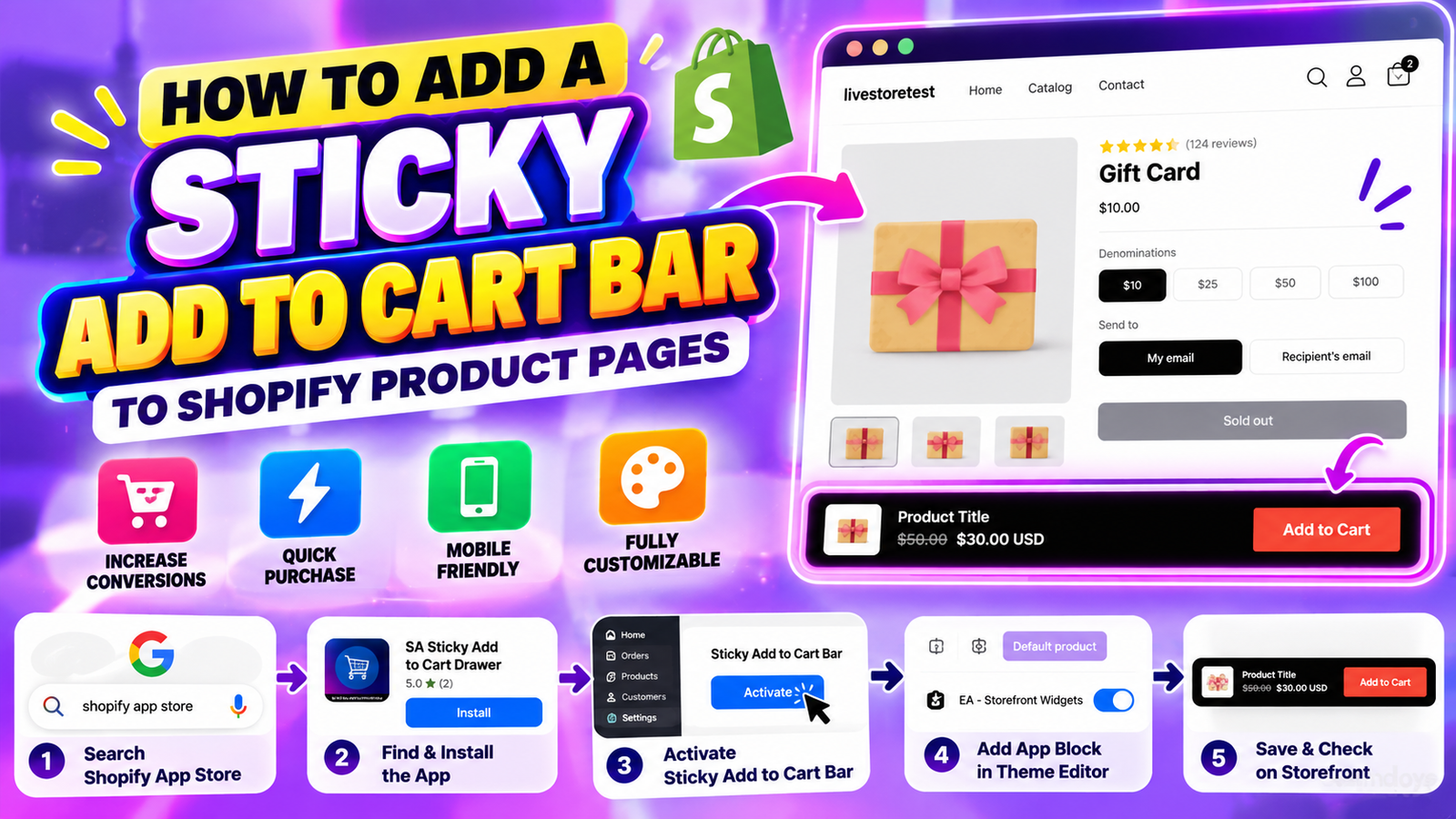
A sticky add-to-cart bar for Shopify helps solve this problem by keeping the purchasing option accessible while customers explore product details. Instead of scrolling back to the top of the page, shoppers can add products to their cart directly from a bar that remains visible as they scroll.
In this guide, we will explain why Shopify merchants need a sticky add-to-cart bar, how it can improve the shopping experience, and how to set it up using the SA Sticky Add to Cart Drawer app.
The problem Shopify merchants face
Many Shopify product pages contain detailed descriptions, size charts, customer reviews, product recommendations, and other important information. While these elements help customers make informed decisions, they can also push the original Add to Cart button out of sight.
This creates several challenges for Shopify merchants:
- Hidden purchasing options: Customers may have to scroll back to find the Add to Cart button.
- Mobile shopping difficulties: Limited screen space makes navigating long product pages more inconvenient.
- Interrupted buying decisions: Extra steps between choosing a product and adding it to the cart can create friction.
- Inconsistent shopping experiences: Different product layouts may place purchasing controls in different locations.
- Missed conversion opportunities: Interested customers may leave before completing an add-to-cart action.
Even small usability problems can affect how comfortably customers shop. Making the purchase button easier to access helps create a more convenient shopping experience.
Why Shopify stores need a sticky add-to-cart app
A sticky add-to-cart app allows merchants to provide a persistent purchasing option without manually developing and maintaining custom theme code.
The SA Sticky Add to Cart Drawer app provides tools for adding a sticky purchase bar, customizing its appearance, and controlling its visibility.
With the app, merchants can configure a sticky bar that complements their storefront design while giving customers easier access to the Add to Cart button.
Install the app: SA Sticky Add to Cart Drawer on the Shopify App Store
Why a sticky add-to-cart bar is important
A sticky add-to-cart bar can improve several aspects of the customer journey.
Better product-page navigation: Customers can continue exploring product details without losing access to the purchasing button.
Improved mobile usability: A persistent purchasing option is particularly helpful on smaller screens, where scrolling takes more effort.
Reduced purchasing friction: Keeping the Add to Cart button accessible reduces the number of actions required to add a product.
Consistent storefront experience: A customizable sticky bar can match the store’s colors and visual identity.
Potential conversion benefits: Easier access to purchasing controls may encourage more add-to-cart actions, although actual results depend on store design, traffic, and customer behavior.
How to add a sticky add-to-cart bar to Shopify product pages
Follow the steps below to install the app, activate the sticky bar, and display it on your Shopify storefront.
Step 1: Open the Shopify App Store
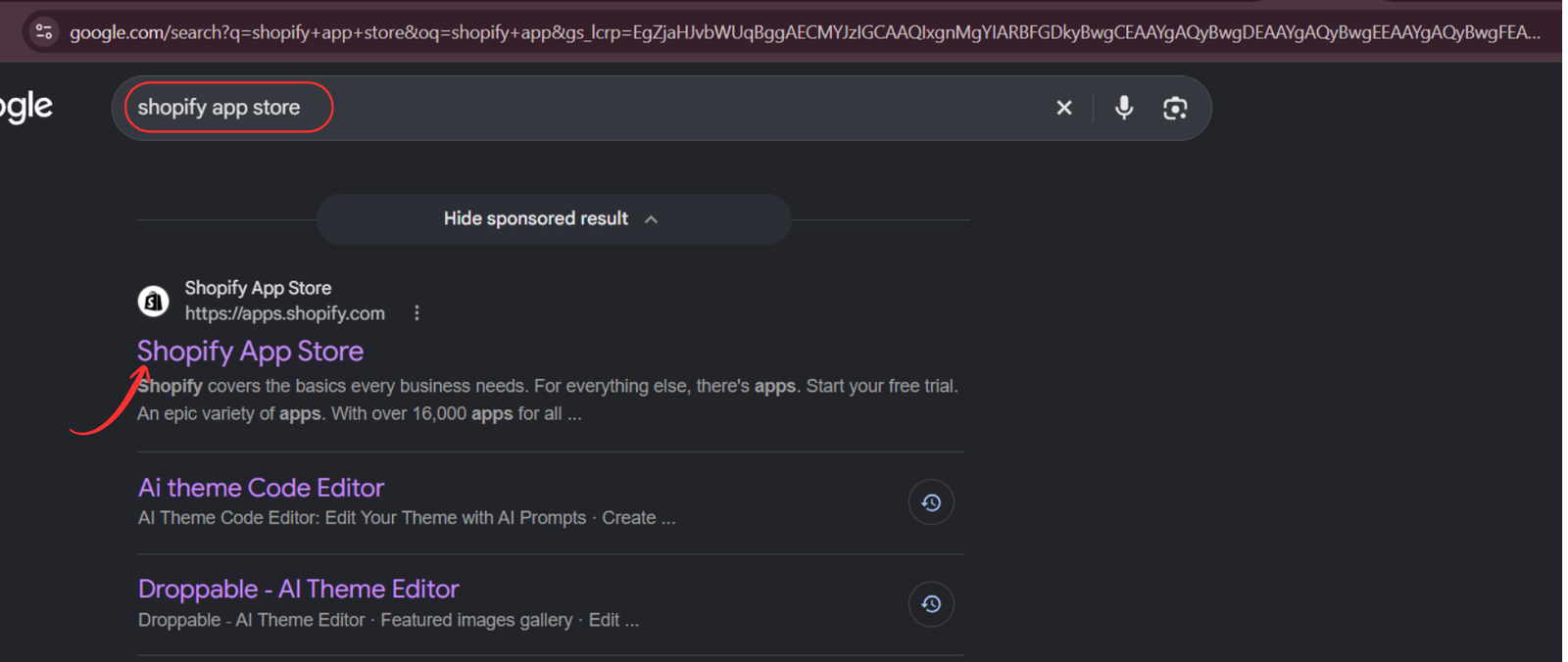
Start by opening your preferred web browser and searching for Shopify App Store on Google.
Select the official Shopify App Store website from the search results. This is where you can discover and install apps that extend your store’s functionality.
You can also visit the Shopify App Store directly at apps.shopify.com.
Step 2: Search for SA Sticky Add to Cart Drawer
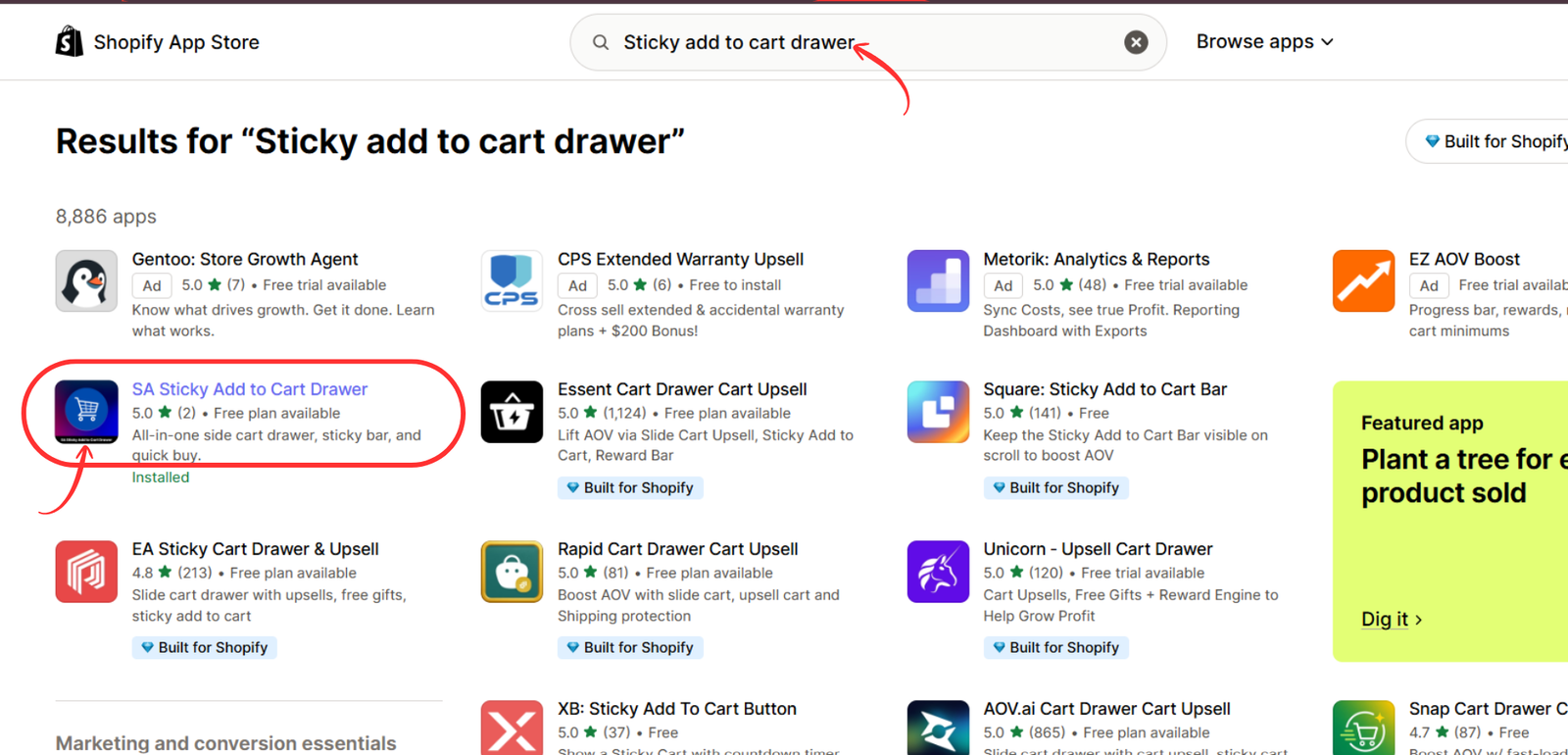
Once you are on the Shopify App Store, locate the search bar at the top of the page.
Enter Sticky add to cart drawer and review the search results. Find the app named SA Sticky Add to Cart Drawer, as highlighted in the image below.
Select the app to open its listing and learn about its available features.
Step 3: Install the sticky add-to-cart app
On the app listing page, review the app description, features, and available pricing plans.
Click the Install button to begin installing the app on your Shopify store. Shopify may ask you to sign in, select your store, and approve the app’s requested permissions.
Once installation is complete, the app becomes available in your Shopify admin.

Step 4: Open the app in Shopify
After installation, return to the app listing or access the application through the Apps section of your Shopify admin.
Click Open to launch the app dashboard.
From the dashboard, you can access the settings needed to configure your storefront’s sticky add-to-cart bar, including activation, display behavior, and design options.
Step 5: Activate the sticky add-to-cart bar
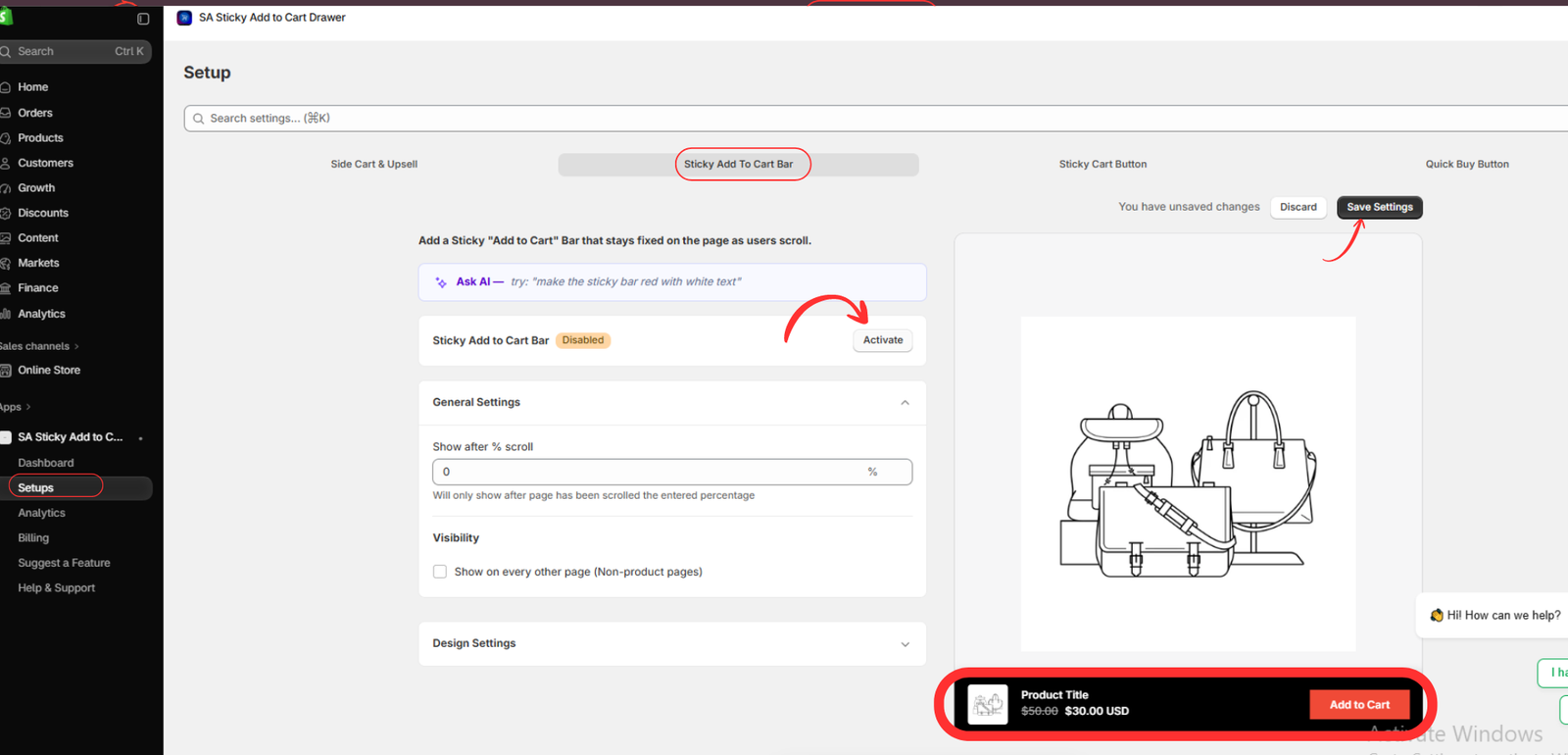
Inside the app dashboard, select Setups from the left navigation menu.
Open the Sticky Add To Cart Bar tab. This section contains the controls for displaying a persistent Add to Cart button on your storefront.
Locate the Activate button and click it to enable the feature.
You can also review the general settings:
- Show after % scroll: Decide how far a visitor should scroll before the sticky bar appears.
- Visibility: Configure whether the bar should also appear on non-product pages, where supported.
- Design Settings: Adjust the appearance to better match your Shopify theme.
After making your changes, click Save Settings.
For a clean customer experience, start with a simple design that uses readable text and a prominent Add to Cart button.
Step 6: Enable the app embed in the Shopify theme editor
Activating the feature inside the app is only part of the setup. You also need to enable its storefront integration in your Shopify theme.
Open your Shopify admin and navigate to Online Store → Themes → Customize.
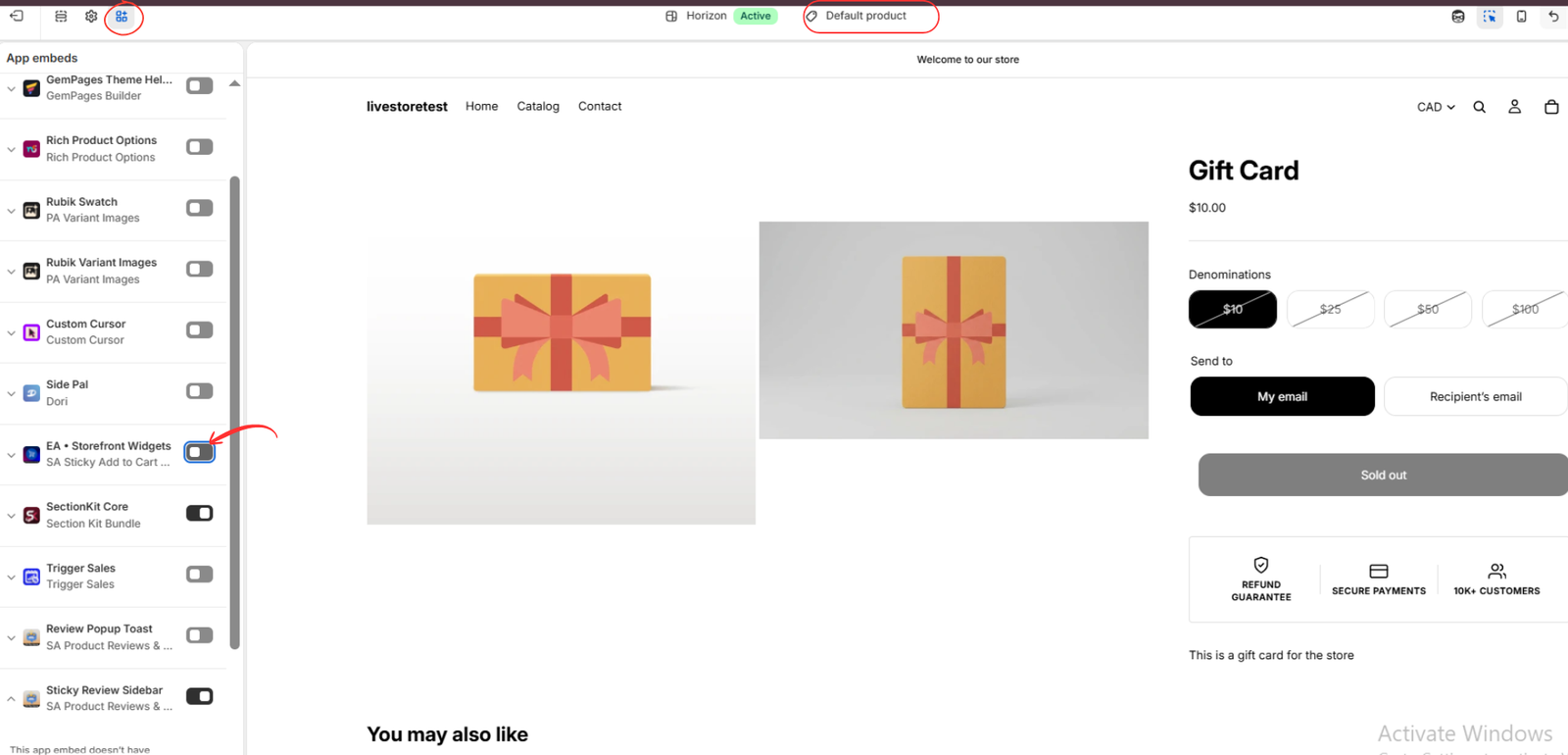
In the theme editor, open App embeds using the icon in the left-side toolbar.
Find EA • Storefront Widgets, associated with SA Sticky Add to Cart Drawer.
Turn on the toggle beside the app embed.
This step allows the app’s storefront functionality to run within your theme. Make sure you are editing the theme where you want the sticky bar to appear.
Step 7: Save and verify the sticky add-to-cart bar
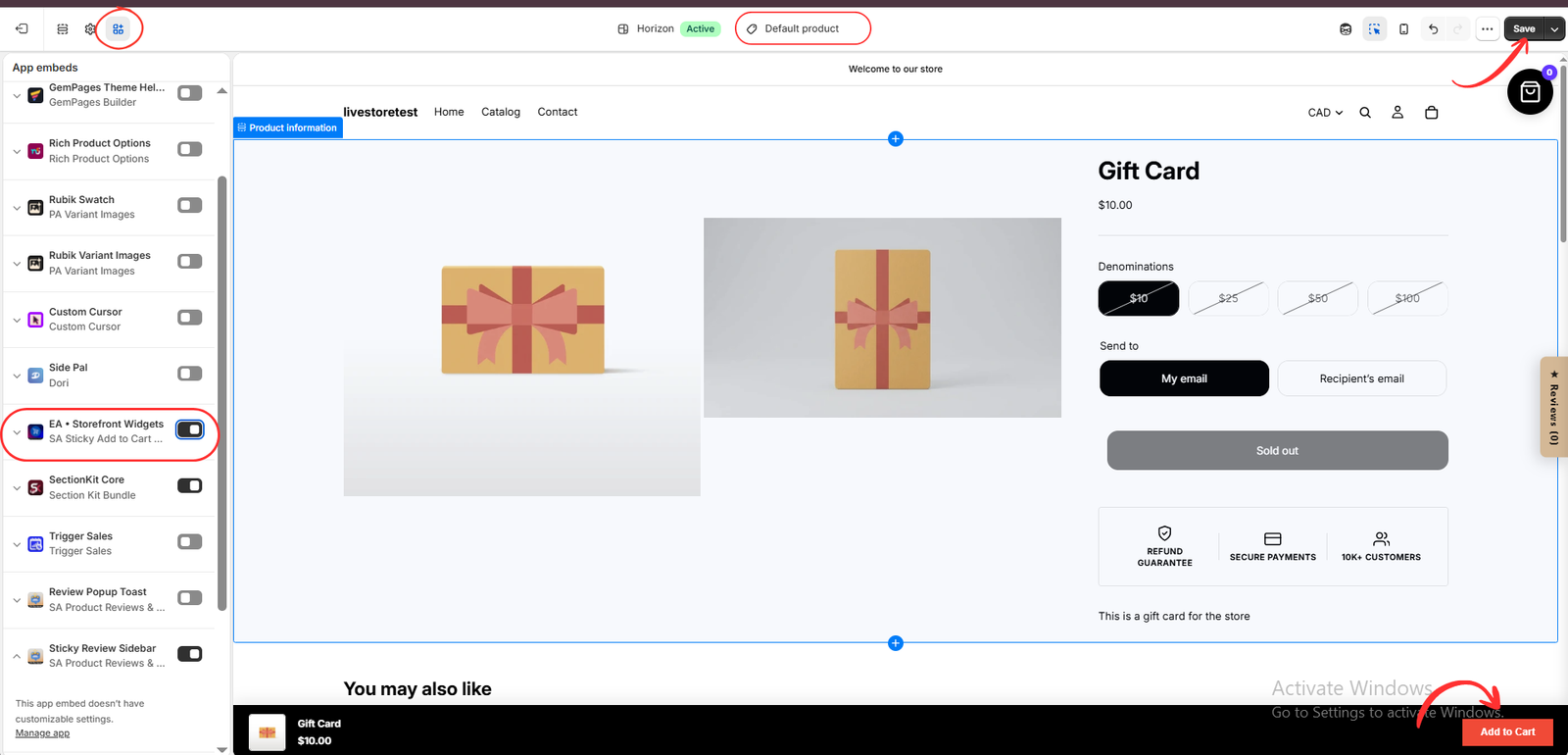
After enabling the app embed, click Save in the upper-right corner of the Shopify theme editor.
Next, open a product page in your storefront preview and scroll down to test the sticky bar.
Check that the bar displays correctly, the product information is readable, and the Add to Cart button works as expected.
As shown in the image below, the sticky bar appears along the bottom of the storefront, providing customers with a convenient purchasing option.
Step 8: Optimize the sticky bar for your store
After completing the setup, review how the sticky bar behaves on desktop and mobile devices.
Choose a button color that stands out without clashing with your theme. Make sure the bar does not cover important product information, navigation controls, or other interactive elements.
Test products with different variants and availability statuses. Confirm that the sticky bar behaves correctly when a product is sold out or when a customer needs to select a variant.
Finally, monitor your store’s add-to-cart rate and conversion rate to understand whether the new experience is helping shoppers.
Best practices for a high-performing sticky add-to-cart bar
A sticky add-to-cart bar should support the purchasing experience rather than distract customers.
Keep its layout simple, use a clear Add to Cart label, and maintain sufficient contrast between the button and background. On mobile devices, avoid making the bar so tall that it takes up a large portion of the screen.
Consider displaying the bar only after customers scroll past the original purchasing controls. This prevents unnecessary duplication at the top of the page.
It is also important to test the feature alongside existing cart drawers, upsell tools, and theme customizations to avoid overlapping interface elements.
Conclusion
Adding a sticky add-to-cart bar to Shopify product pages is a practical way to make purchasing more convenient.
By keeping the Add to Cart button accessible while shoppers browse product information, merchants can reduce navigation friction and create a more consistent shopping experience across devices.
With SA Sticky Add to Cart Drawer, you can activate a sticky purchasing bar, customize its settings, and integrate it with your Shopify theme without building the feature from scratch.
Ready to improve your Shopify product pages?
Install SA Sticky Add to Cart Drawer and follow the steps above to get started.




