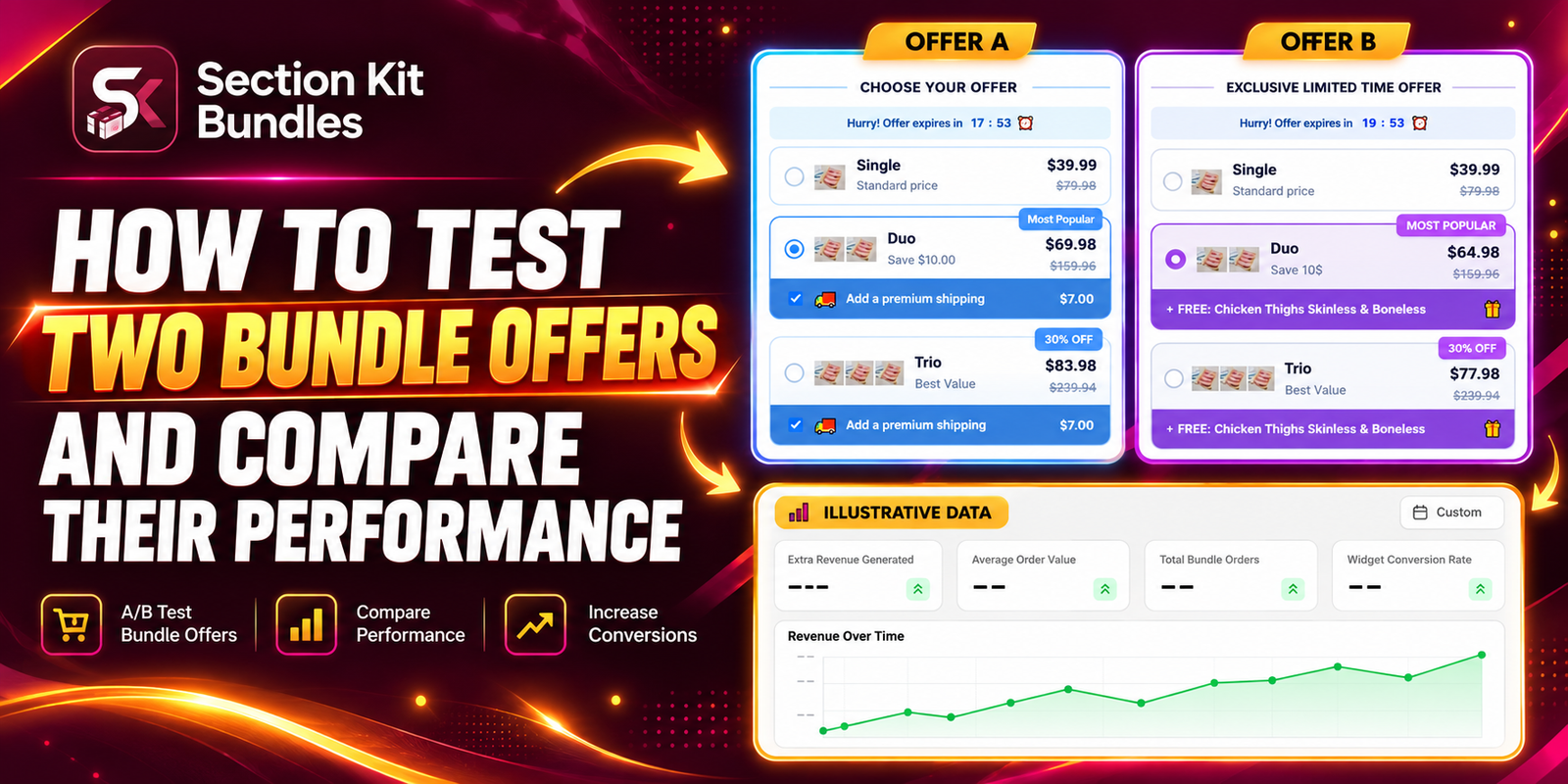
HOW TO TEST TWO BUNDLE OFFERS AND COMPARE THEIR PERFORMANCE
Introduction
A bundle offer can look convincing without being the best option for your customers. One discount may attract more orders, while another generates more revenue from each visitor. Testing two offers helps you replace assumptions with a measurable comparison.
This guide explains how to test two Shopify bundle offers using Section Kit Bundles. The nine supplied images appear in their original order, covering installation, theme checks, offer creation, the A/B Testing control, and analytics. The images demonstrate the setup path; they do not document a completed experiment or establish a winning variant.
The Main Problem: Merchants Have to Choose Without Clear Evidence
Should you offer a percentage discount, a lower bundle price, or a free gift? A merchant can change a promotion and see sales rise, but that alone does not show the offer caused the improvement. Advertising, traffic quality, stock availability, and seasonal demand can change at the same time.
Comparing raw revenue is also misleading when one offer receives more visitors. A fair comparison needs consistent measurement, comparable exposure, and a defined success metric. Otherwise, a larger discount may look successful while leaving less profit per sale.
Why Use an App for Bundle Offer Testing?
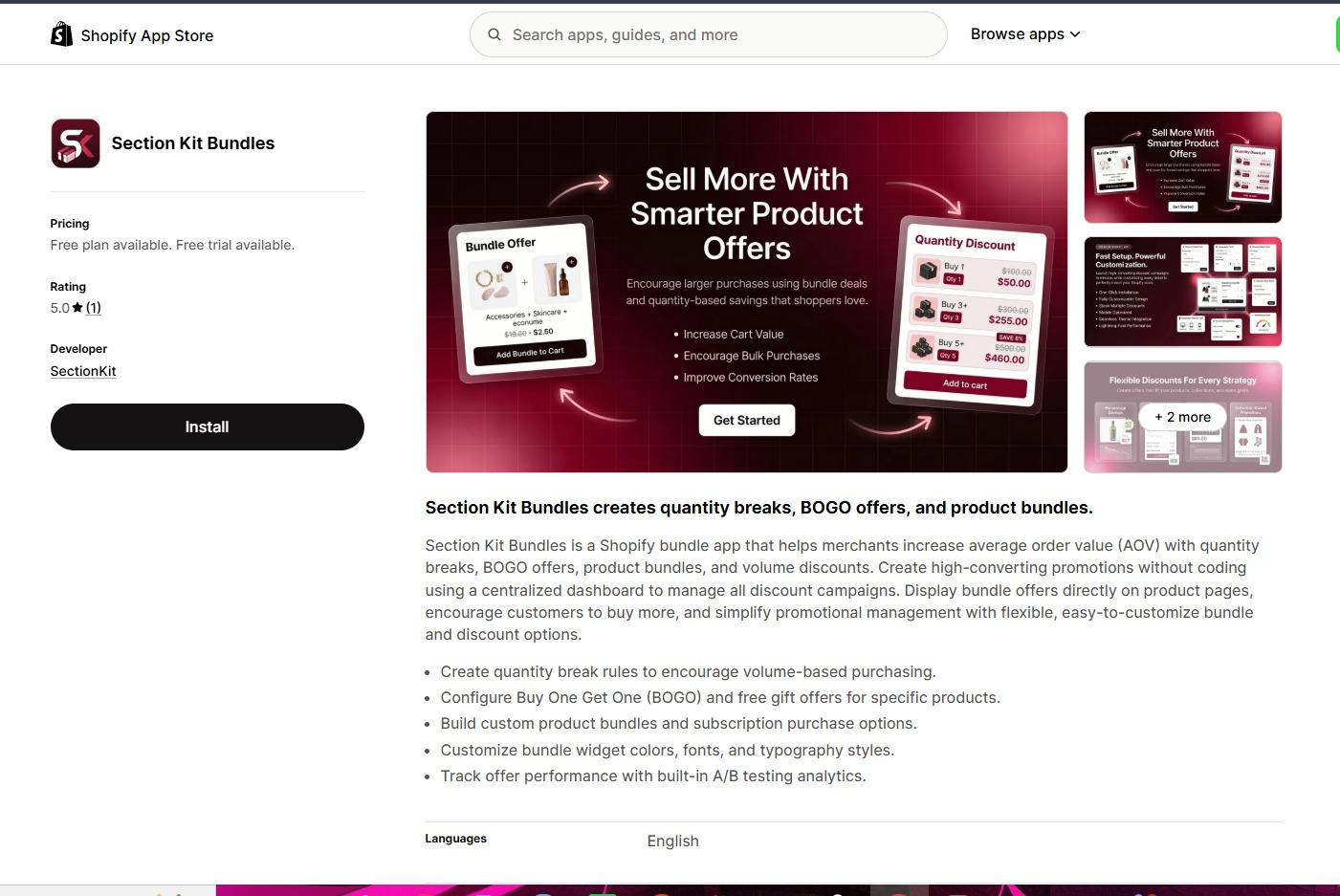
Section Kit Bundles brings offer creation and performance reporting into the same workflow. Its official Shopify App Store listing describes built-in A/B testing analytics, along with quantity breaks, BOGO offers, and product bundles. Check the current plan details for access to the testing features you need.
An integrated workflow helps you manage the offer presentation and review its results without manually editing theme code. You still need a clear testing question and reliable data before deciding which version to keep.
Why Testing Two Offers Matters
A useful test tells you whether a specific change improves a meaningful business outcome. For example, a free gift may encourage more purchases but cost more to fulfill. A quantity discount may increase order size while reducing profit on orders customers would have placed anyway.
Define a primary metric before launch, such as revenue per exposed visitor. Use conversion rate, average order value, and profit as supporting measures. Decide in advance how much improvement would justify adopting the alternative.
Plan a Fair Comparison Before You Start
Write a simple hypothesis: “A 15% discount on three units will generate more revenue per visitor than a 10% discount on three units.” Keep the product, two-unit tier, design, market, and other settings consistent so the test focuses on the discount change.
If you compare a free-gift offer with a percentage discount, treat it as a comparison of two complete promotion strategies. That can be useful, but you will not be able to attribute any difference to a single design or pricing element.
Set a test period and sample-size target appropriate to your traffic and the improvement you want to detect. Run across a full business cycle where practical, rather than stopping after a good day. Avoid changing ads, prices, or either variant during the test. Low traffic may produce an inconclusive result.
Step 1: Install Section Kit Bundles
Open Section Kit Bundles in the Shopify App Store, click Install, choose your store, and review the requested access. Complete installation and open the app from your Shopify admin. If the app is already installed, check that your plan includes the required A/B testing features.
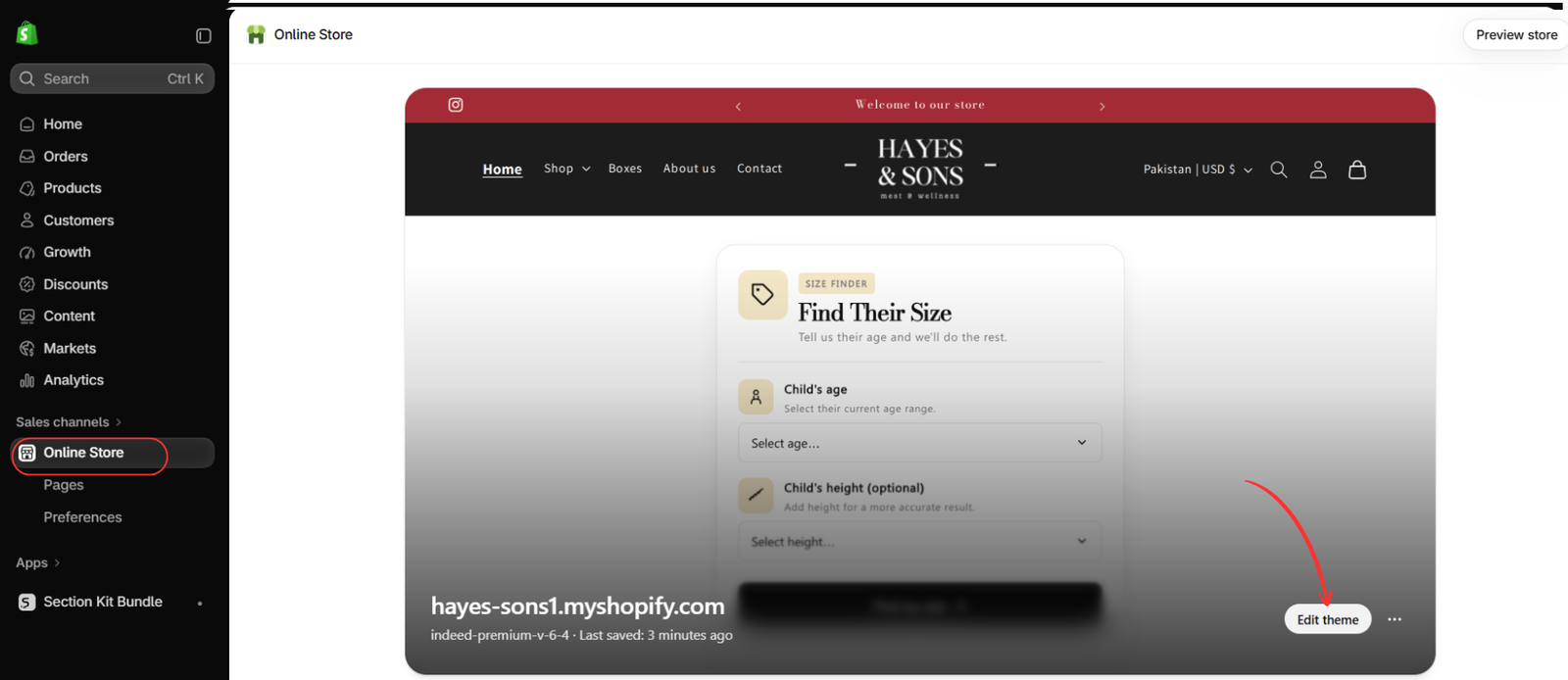
Step 2: Open the Theme You Want to Test
Go to Online Store → Themes and open the relevant theme. Image 2 highlights Edit theme. Check the theme where the offer will appear so you can identify the correct product template and preview the customer experience.
If you prepare the offer on a duplicate theme, test its appearance there first. A private theme preview can help verify the design, but it does not provide normal customer traffic for a live experiment.
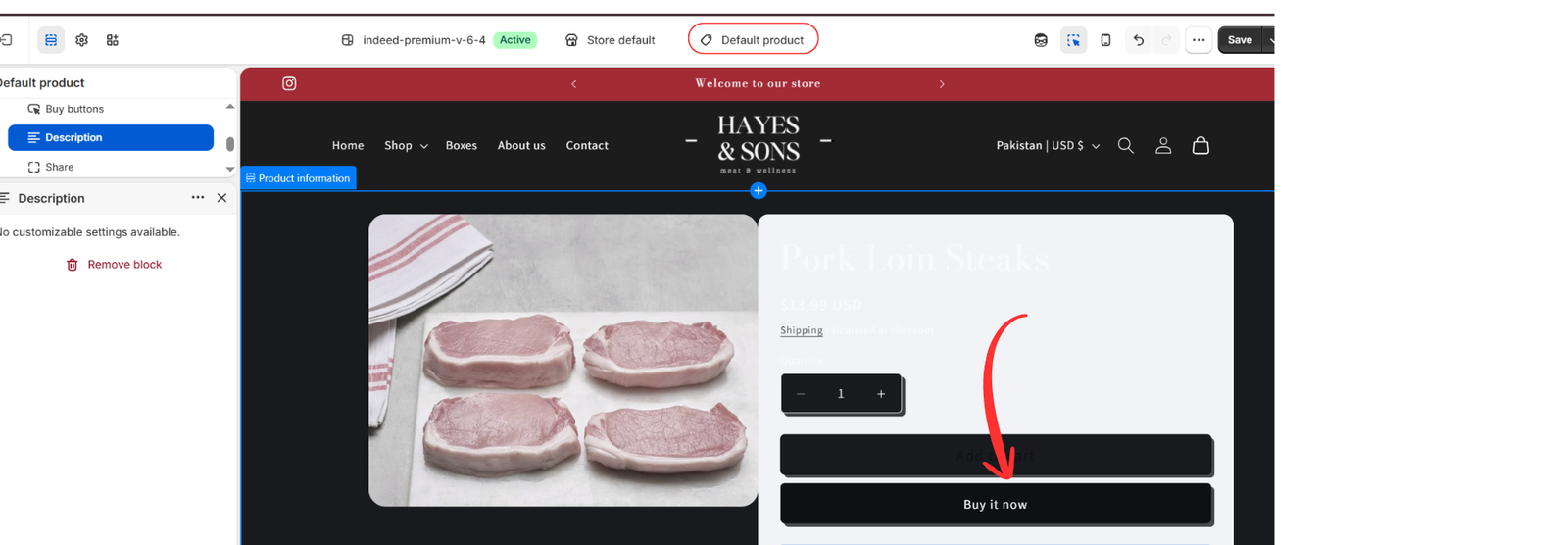
Step 3: Check the Product Page Before Adding the Offer
In the theme editor, select the relevant product template. Image 3 shows Default product and the product purchase area. Confirm that the product, variants, and purchase controls work before introducing a bundle offer.
The highlighted Buy it now button is a theme purchase control, not the app’s A/B test launcher. Use this step to review the baseline page and note any theme issues that could affect both variants.
Step 4: Review Your Store’s Baseline Analytics
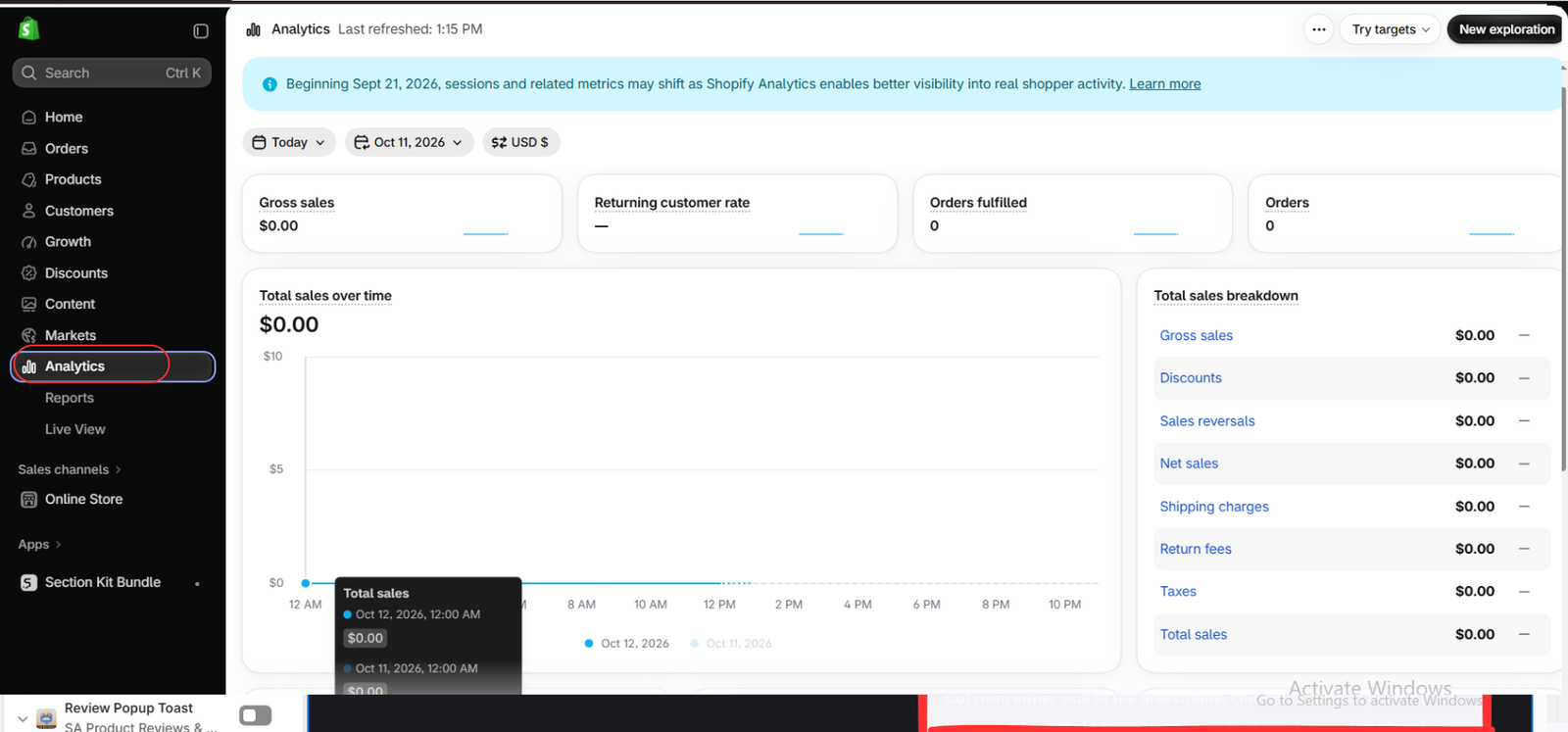
Open Analytics in Shopify admin. Note the reporting dates, order volume, and store sales before launching the test. This gives context for traffic or sales changes during the experiment.
Image 4 shows a report with zero values for the selected period. It does not demonstrate a problem with the app or predict future results. Shopify’s overall store analytics are useful context, but totals across the whole store cannot identify which bundle variant performed better.
Step 5: Create the Offer You Want to Test
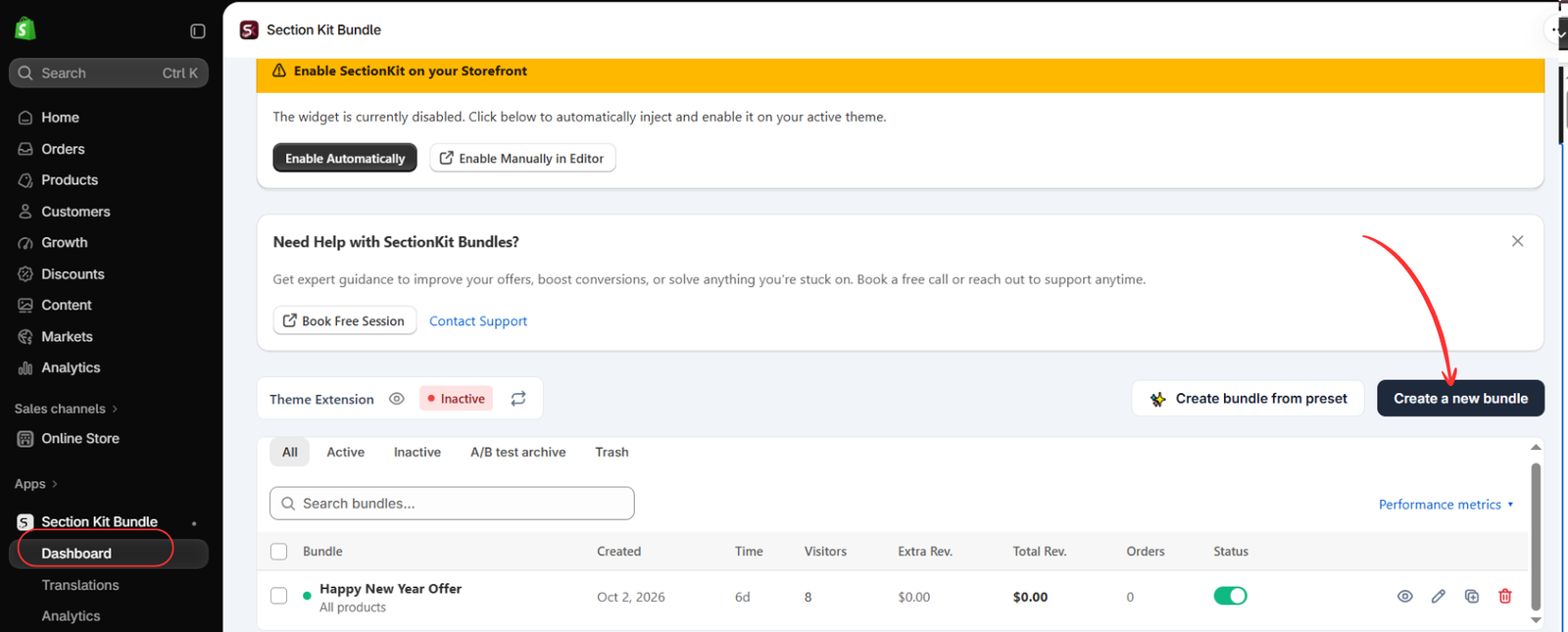
Return to Apps → Section Kit Bundle → Dashboard and click Create a new bundle. Give the offer a descriptive name and choose eligible products that have enough stock for the test.
Image 5 shows a theme extension marked Inactive. Offer creation and storefront activation are separate requirements. Complete the integration checks before collecting live results.
Step 6: Select a Suitable Bundle Template
On the template page, choose a layout that fits the promotion. Image 6 highlights Classic volume discount and Use this template. This is a suitable starting point for testing two quantity-discount offers.
Configure the baseline offer, including its products, quantities, prices, and savings. Keep the design consistent between versions unless design itself is the variable you intend to test. Do not create two unrelated active promotions and assume they will be randomly compared.
Step 7: Enable A/B Testing and Configure Both Variants
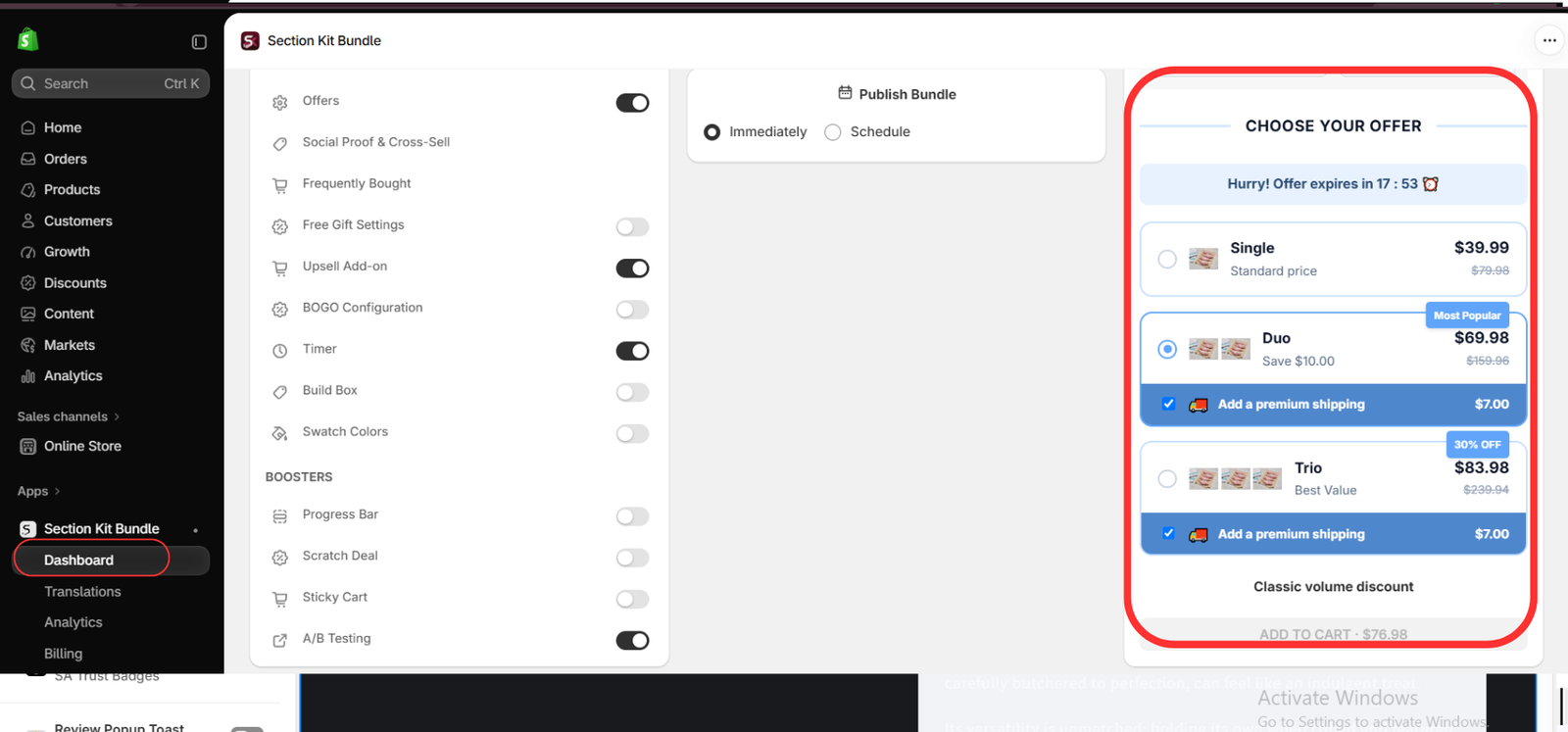
Inside the offer editor, locate the A/B Testing control in the left panel. Image 7 shows this control near the bottom of the feature list and a live offer preview on the right. Enable it to access the app’s available test configuration.
Set up Variant A as your baseline and Variant B as the alternative using the testing controls available in your app. Review each variant’s products, quantities, discount values, labels, and preview. Change only the element defined in your hypothesis when you want to isolate its effect.
Before publishing, inspect the available allocation, duration, and variant settings. Use an equal traffic split if the app offers it and it suits your test plan. Confirm how exposure and orders are attributed. The supplied image does not show the configuration dialog or prove that a particular split, scheduling rule, or significance calculation is available.
Check the publishing or scheduling options shown in the editor. Publish only after both versions are ready and the test settings have been reviewed. Keep a record of the start time and the values used in each variant.
Step 8: Enable the App Embed and Verify the Storefront
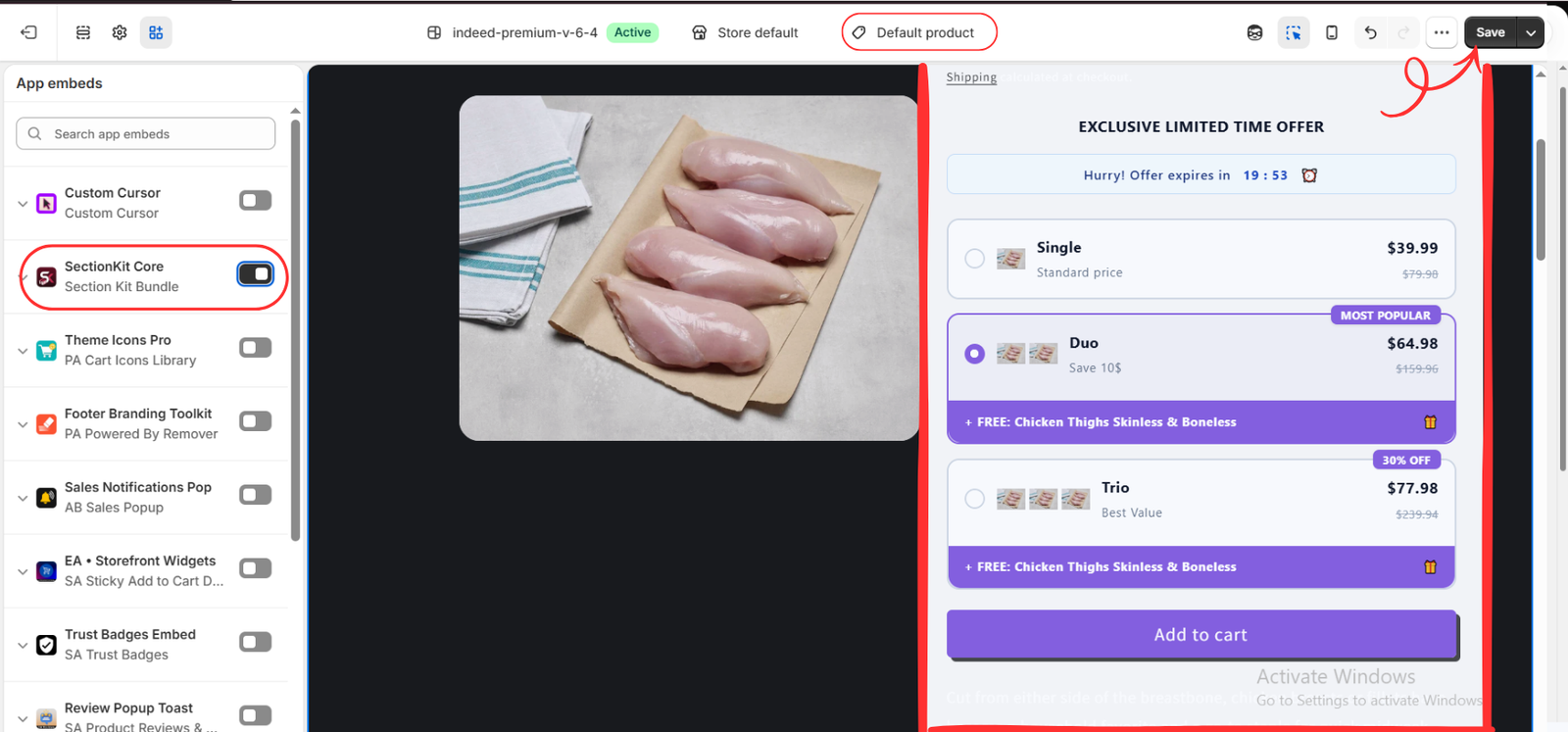
Open the theme editor’s App embeds panel and enable SectionKit Core under Section Kit Bundle, as shown in Image 8. Select the relevant product template and click Save. Confirm the bundle appears on an eligible product.
Test the intended customer path for both variants using the app’s preview or test tools where available. Check product quantities, variant selection, gift conditions, cart totals, and checkout discounts on desktop and mobile. Do not treat a single preview session as proof of correct traffic allocation.
The purple widget shown in Image 8 demonstrates a storefront design. Its color and prices alone do not establish that it is Variant B of the blue offer in Image 7. Use your saved variant settings to verify the actual experiment.
Step 9: Open Analytics and Review the Test Results
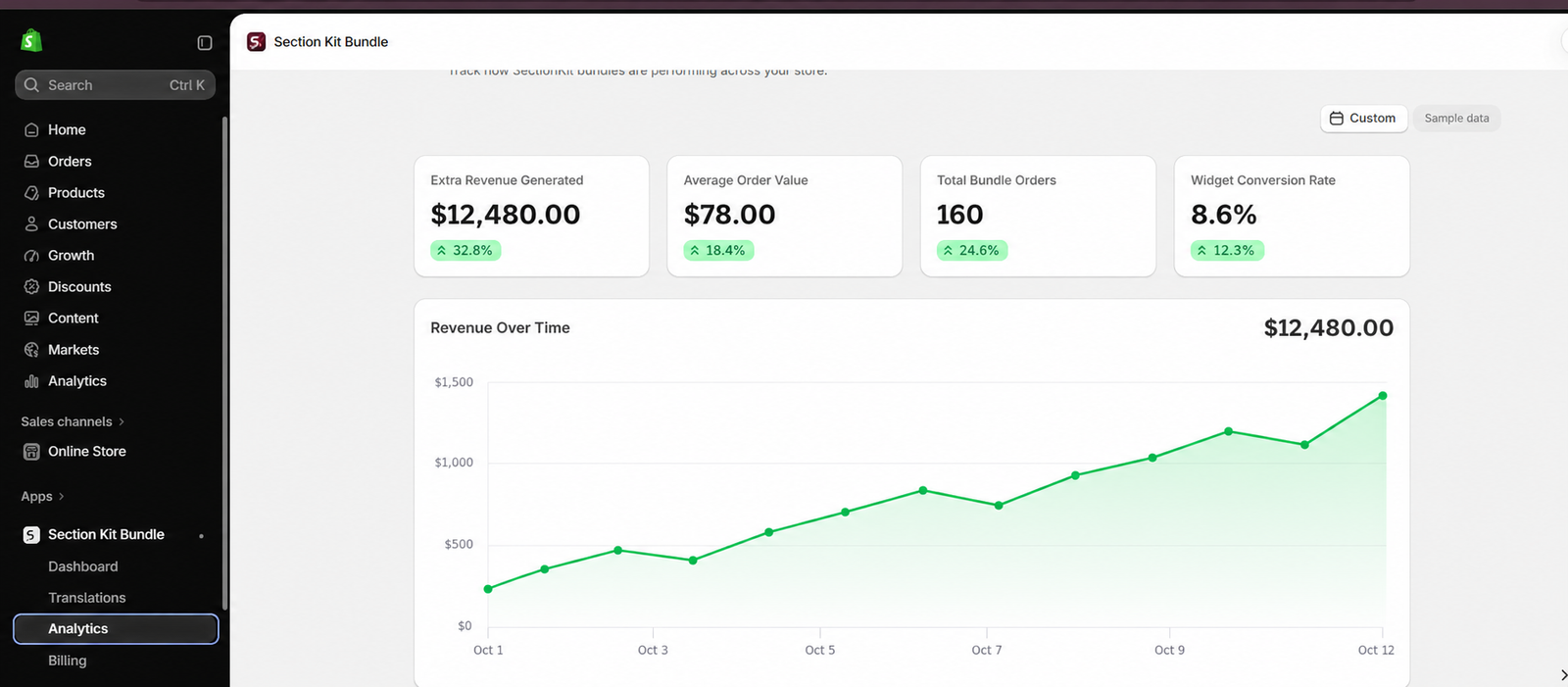
After the test has collected enough exposure, open the app’s Analytics area. Image 9 shows cards for Extra Revenue Generated, Average Order Value, Total Bundle Orders, and Widget Conversion Rate, plus a revenue chart.
The displayed figures are illustrative and are not verified results from this test. The image does not show separate Variant A and Variant B totals, visitor counts, or a statistically supported winner. Use the app’s available variant-level reporting to compare the two offers over the same test period. If only aggregate totals are available in your view, they are insufficient to choose a winner.
Confirm the meaning of each metric before using it. For example, an “Extra Revenue” label does not by itself prove revenue would not have occurred without the offer. Likewise, check whether widget conversion uses visitors, sessions, or another exposure count as its denominator.
How to Compare Two Bundle Offers Fairly
Use consistent definitions and the same attribution window for both variants. Normalize results by exposure so a version receiving more traffic does not automatically appear better.
| Metric | Calculation | What it helps assess |
|---|---|---|
| Conversion rate | Attributed orders ÷ exposed visitors × 100 | How frequently an exposure becomes an order |
| Average order value | Attributed order revenue ÷ attributed orders | Average value of completed orders |
| Revenue per visitor | Attributed order revenue ÷ exposed visitors | Revenue normalized for exposure |
| Contribution per visitor | Revenue minus relevant variable costs, divided by exposed visitors | Whether the offer improves commercial value |
These are comparison formulas, not a promise that the app exposes every required field. Use the same revenue basis for both versions, such as sales after discounts and refunds, and account consistently for gifts, fulfillment, and other variable costs.
A Simple Illustrative Comparison
| Measure | Offer A | Offer B |
|---|---|---|
| Exposed visitors | 1,000 | 1,000 |
| Attributed orders | 40 | 45 |
| Attributed revenue | $2,400 | $2,475 |
| Conversion rate | 4.0% | 4.5% |
| Average order value | $60 | $55 |
| Revenue per visitor | $2.40 | $2.475 |
This invented example shows why one metric is not enough. Offer B has a lower average order value but generates 3.125% more revenue per visitor. That observed difference does not establish statistical confidence, and higher gift or discount costs could reverse the profit comparison.
Decide Whether to Keep, Repeat, or Stop the Test
Check that allocation, tracking, inventory, and checkout behavior remained reliable. Review uncertainty around the observed difference using an appropriate statistical method or any documented confidence reporting available in the app. Avoid repeatedly checking and stopping as soon as one version leads.
If the result is sufficiently reliable and the winning offer improves your chosen metric without unacceptable cost, retain it using the app’s available controls and end the experiment. If data is sparse or the difference remains uncertain, record the result as inconclusive. Extend the test only with a reasoned plan, or run a new experiment with a clearer hypothesis.
Conclusion
Testing two bundle offers starts with a clear question and ends with a fair comparison. Build the variants, verify the customer experience, collect comparable data, and assess revenue and profit alongside conversion and order value.
Explore Section Kit Bundles to create your offers and use its available A/B testing analytics. Let measured results guide the promotion you keep, rather than choosing solely from its appearance.
Feature reference: official Section Kit Bundles Shopify App Store listing. Steps follow the supplied images. Testing settings, reporting details, and feature access may vary by current app version and plan.




