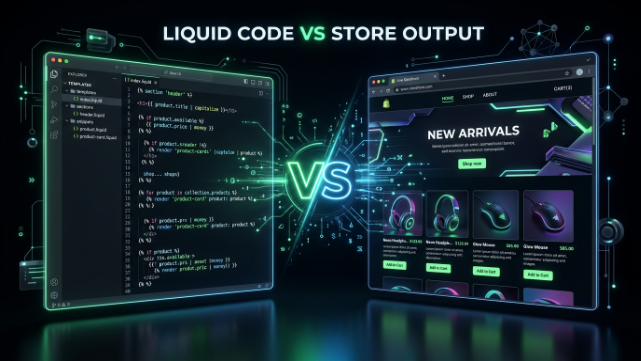
The Complete Guide to Shopify Liquid
If you’ve ever opened a Shopify theme file and seen a bunch of curly braces and percent signs scattered around your HTML, you’ve met Liquid. It looks intimidating the first time you see it, but once it clicks, you’ll realize it’s actually one of the friendlier templating languages out there. In this guide, we’re going to walk through everything you need to know about Shopify Liquid, from the absolute basics to the kind of stuff that separates a beginner theme editor from someone who can genuinely build and customize Shopify stores for a living.
Whether you’re a store owner trying to tweak your own theme, a freelancer picking up Shopify projects, or someone at an agency like TheScriptFlow building custom themes for clients, this guide is meant to get you comfortable with Liquid from the ground up.
What Exactly Is Liquid?
Liquid is the templating language that Shopify built and open sourced back in 2006. It’s written in Ruby, and it’s what powers every single Shopify theme you’ve ever seen. When you’re browsing a Shopify store and you see a product price, a collection grid, or a “you might also like” section, Liquid is the thing that’s pulling that data from Shopify’s backend and rendering it into the HTML that shows up in your browser.
Think of it this way: your theme’s HTML is the skeleton, your CSS is the skin and clothing, and Liquid is what breathes life into it by connecting the static design to actual store data. Without Liquid, your theme would just be a bunch of hardcoded HTML with no real products, no real prices, and no real customer information.
The beauty of Liquid is that it’s designed to be safe. Since merchants and theme developers are writing code that runs on Shopify’s servers, Shopify needed a language that couldn’t be used to do anything malicious or break the platform. Liquid gives you enough power to build incredibly dynamic storefronts, but it stops short of being a full programming language, which keeps things secure and predictable.
The Building Blocks: Objects, Tags, and Filters
Everything in Liquid boils down to three core concepts, and once you understand these three things, the rest of Liquid starts to make a lot more sense.
Objects are pieces of information that Liquid pulls from your store and displays on the page. You’ll recognize them because they’re wrapped in double curly braces, like this: {{ product.title }}. That little snippet is telling Shopify “grab the title of this product and print it right here.” Objects can represent almost anything in your store, products, collections, customers, orders, the cart, images, and dozens of other pieces of data.
Tags are what create the logic in your theme. They’re wrapped in curly braces and percent signs, like {% if %} or {% for %}. Tags don’t output anything by themselves, they control the flow of your template. This is where you’ll write conditional statements, loops, and variable assignments. If objects are the “what,” tags are the “how” and “when.”
Filters are small tools that let you modify the output of an object before it gets displayed. They’re used with a pipe character, like {{ product.title | upcase }}, which would take the product title and convert it to all uppercase letters. Filters are incredibly handy for formatting things like currency, dates, and text without needing to write complicated logic.
Once these three concepts feel natural to you, reading and writing Liquid becomes second nature.
Getting Comfortable With Liquid Objects
Objects are probably where you’ll spend most of your time as a theme developer, so let’s dig a little deeper. Shopify exposes a huge library of objects that represent basically every piece of data in your store. You’ve got the product object, which lets you access things like product.title, product.price, product.description, and product.images. You’ve got the collection object for pulling collection titles, descriptions, and the products inside them. There’s the cart object, the customer object, the shop object, and many more.
Each object has its own set of properties, and learning these properties is honestly one of the best ways to level up your Liquid skills. Shopify’s official documentation has a full reference of every object and its properties, and bookmarking that page will save you so much time down the road. Instead of guessing what property you need, you can just search it and get the exact syntax.
One thing that trips people up early on is understanding that objects can be nested. For example, product.featured_image.alt is pulling the alt text from the featured image, which is itself a property of the product object. Once you get used to this dot notation, navigating even deeply nested data becomes intuitive.
Working With Tags: Control Flow and Logic
This is where Liquid starts to feel like real programming. Tags let you control what shows up on the page and under what conditions.
The if tag is probably the one you’ll use the most. It lets you show or hide content based on a condition. A simple example would be checking if a product is on sale and only showing a “Sale” badge if that condition is true. You can also use unless, which is basically the opposite of if, and case and when statements when you’re checking a variable against multiple possible values.
The for tag is your loop, and it’s essential for anything involving lists. If you want to display every product in a collection, you’d use a for loop to go through each item and print it out. Inside a for loop, Liquid also gives you helpful variables like forloop.index and forloop.first that let you do things like add special styling to the first item in a list or number your items automatically.
Then there are assign and capture, which let you create your own variables. This is huge for keeping your code clean. Instead of repeating the same complicated Liquid logic multiple times in a template, you can calculate it once, store it in a variable using assign, and then just reference that variable wherever you need it.
There are also tags specifically for theme architecture, like include and render, which let you pull in reusable snippets of code. This is one of the most important habits to build as a Liquid developer. Instead of copying and pasting the same block of code across multiple template files, you build a snippet once and render it wherever it’s needed. It keeps your codebase organized and makes future edits so much easier.
Filters: The Small Details That Make a Big Difference
Filters don’t get talked about as much as objects and tags, but they’re where a lot of the polish in a well built theme comes from. Shopify gives you filters for formatting money values, so instead of showing a raw number like 2500, you can display it properly formatted as currency using something like the money filter.
There are filters for working with strings, like truncate, which cuts off long text and adds an ellipsis, or replace, which swaps out parts of a string. There are date filters that let you format timestamps into readable dates. There are even filters for image manipulation, letting you resize, crop, and optimize images directly within your Liquid code without needing to touch the actual image files.
Getting familiar with the filter library is one of those things that feels tedious at first but pays off constantly. Once you know that a filter exists for something, you stop writing unnecessarily complicated logic to achieve the same result.
Understanding Shopify’s Theme Architecture
Liquid doesn’t exist in a vacuum, it lives inside Shopify’s theme file structure, and understanding that structure is just as important as understanding the language itself.
Every Shopify theme is built from a combination of layout files, template files, sections, snippets, and config files. The layout file, usually theme.liquid, is the master wrapper that every page on your store gets rendered inside of. Template files control individual page types, like your product pages, collection pages, and cart page. Sections are reusable, customizable blocks of content that merchants can add, remove, and rearrange through the theme editor. Snippets are smaller reusable pieces of code meant to be included inside other files.
Since Shopify introduced Online Store 2.0, sections became even more powerful. Now, sections can be added to almost any template, not just the homepage, and merchants get a lot more drag and drop flexibility without a developer needing to touch the code every time. As a Liquid developer, understanding how sections and blocks work together, along with their schema settings, is essential if you want to build themes that are genuinely flexible for the merchants using them.
Common Mistakes Beginners Make With Liquid
When you’re first learning Liquid, there are a few mistakes almost everyone makes at some point. One of the biggest ones is forgetting that Liquid objects can be empty or nil, and not accounting for that in your code. If you’re pulling data that might not exist, like a metafield that hasn’t been filled in for every product, your theme can break or display awkwardly if you don’t check for that first.
Another common mistake is overusing complicated logic directly in template files instead of breaking things into snippets. It might work fine at first, but as your theme grows, files become bloated and hard to maintain. Getting into the habit of modularizing your code early will save you a massive headache later.
People also tend to underestimate how much filters can simplify their code. It’s common to see beginners write long chains of if statements to format something that could have been handled with a single filter. The more familiar you get with Shopify’s filter library, the cleaner your code naturally becomes.
Liquid and Performance: Why It Matters for Pakistani Businesses
For store owners here in Pakistan, site speed is not just a nice to have, it directly affects conversions. A lot of Pakistani ecommerce traffic still comes from mobile devices on 3G or unstable 4G connections, especially outside the major cities. If your theme is bloated with unnecessary Liquid loops, unoptimized images, or too many nested includes, your page load times suffer, and that translates directly into lost sales.
Writing efficient Liquid code isn’t just about clean architecture for its own sake, it genuinely impacts how fast your store loads for real customers. Using image filters to serve properly sized images instead of full resolution files, minimizing unnecessary loops on collection pages with hundreds of products, and being smart about how many sections and snippets you’re rendering on a single page all add up to a noticeably faster storefront.
If you’re running a store that ships internationally from Pakistan, or even one that’s focused purely on the local market with cash on delivery and local courier integrations, a fast-loading theme built on efficient Liquid code gives you a real competitive advantage over stores that are running bloated, poorly optimized themes.
Liquid and Metafields: Unlocking Custom Data
One of the most powerful things you can do with Liquid is combine it with metafields. Metafields let you add custom data to products, collections, customers, and other objects that isn’t part of Shopify’s default fields. Maybe you want to add a “care instructions” field to your products, or a “size chart” image, or specific technical specifications for electronics.
Once you’ve created a metafield, you can pull that data into your theme using Liquid, giving you complete control over how custom information is displayed. This is especially useful for niche businesses that need to show information Shopify doesn’t account for by default, things like fabric composition for a clothing brand, or compatibility details for a phone accessories store.
Learning to work with metafields through Liquid opens up a huge amount of customization potential, and it’s one of the skills that really separates a basic theme editor from someone who can build genuinely custom solutions for clients.
How to Actually Get Better at Liquid
The honest truth is that Liquid is one of those skills you learn best by doing. Reading documentation will get you comfortable with the syntax, but actually opening up a theme, breaking things, and figuring out how to fix them is what builds real understanding.
A great way to practice is to duplicate a free Shopify theme and just start experimenting. Try adding a new section, try pulling in a metafield, try building a custom snippet for something like a countdown timer or a related products carousel. Shopify’s documentation is genuinely well written, and the Shopify community forums and Discord servers are full of people who’ve run into the exact same problems you’re going to run into.
It also helps enormously to read other people’s code. Downloading a few well-built free themes and just studying how they structured their sections, snippets, and logic will teach you patterns you wouldn’t necessarily think of on your own.
Wrapping It Up
Shopify Liquid might look overwhelming the first time you open a theme file, but once you understand objects, tags, and filters, and how they work together inside Shopify’s theme architecture, it becomes a genuinely enjoyable language to work with. It’s flexible enough to build incredibly custom storefronts, but structured enough that you’re never far from good documentation or a clear answer.
If you’re a store owner who wants a theme that actually reflects your brand instead of looking like every other Shopify store out there, or if you’re dealing with performance issues, custom functionality requests, or just want a second pair of eyes on your existing theme code, that’s exactly the kind of work we handle at TheScriptFlow. We build and customize Shopify themes for businesses across Pakistan and internationally, and we’d be glad to help you get the most out of your store.