The Complete Guide to WordPress Database Optimization
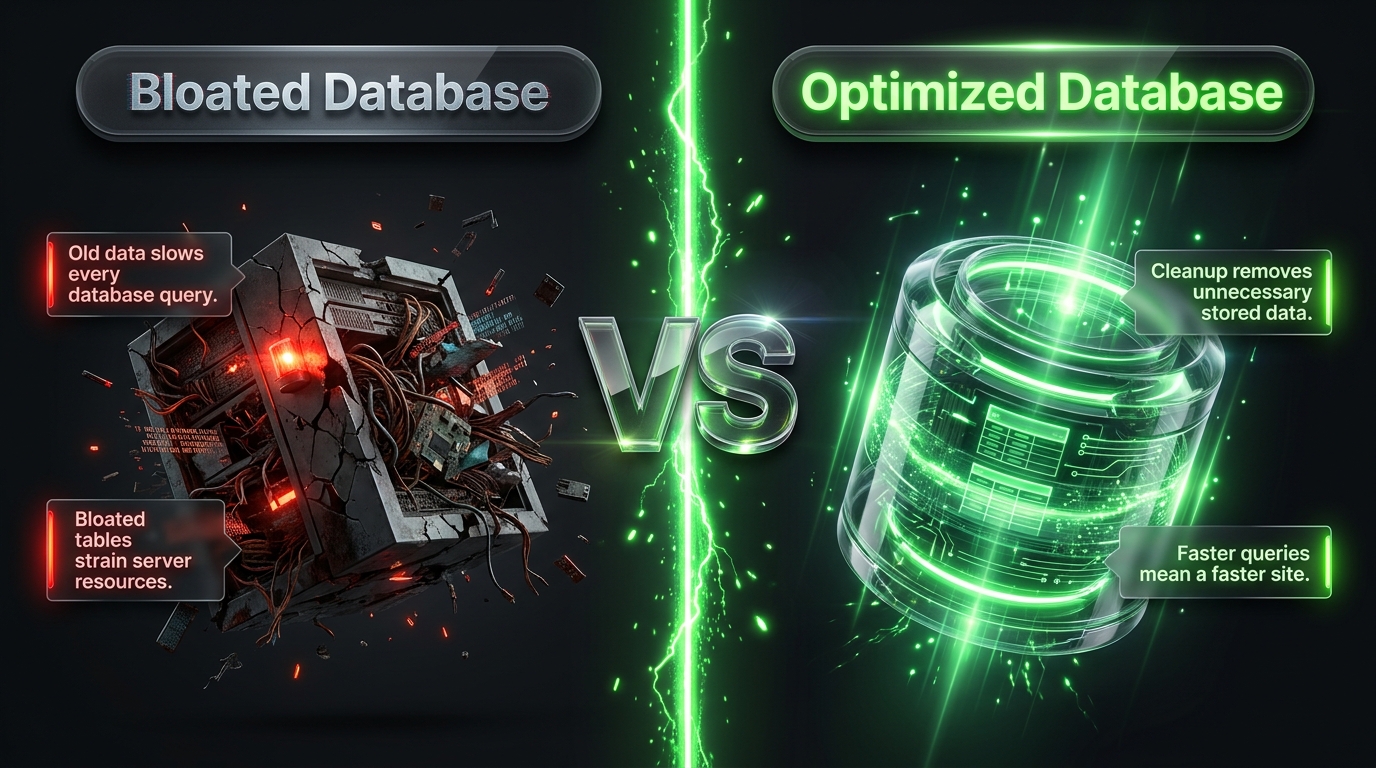
Behind every WordPress site sits a database quietly doing most of the real work. Every post, page, comment, setting, and plugin configuration lives there. As your site grows and ages, that database accumulates clutter old revisions, spam comments, expired data that can quietly slow down every single page load.
Database optimization doesn’t get nearly as much attention as caching or image compression, but for many sites, it delivers a surprisingly noticeable speed boost, especially on sites that have been running for a year or more without any cleanup. This guide covers exactly what’s cluttering your database, how to clean it safely, and how to keep it lean going forward.
What Is the WordPress Database, Exactly?
WordPress uses a MySQL (or MariaDB) database to store nearly everything that isn’t a file your posts and pages, comments, user accounts, plugin settings, theme customizations, and more. Every time a visitor loads a page, WordPress runs multiple queries against this database to pull together the content and settings needed to build that page.
A lean, well-organized database means faster queries, which means faster page loads. A bloated, cluttered database means the opposite — slower queries dragging down every part of your site, even pages that seem unrelated to the clutter itself.
Why Databases Get Bloated Over Time
WordPress is designed to be forgiving and non-destructive, which is generally a good thing — but it also means the platform tends to keep data around rather than aggressively deleting it. Common sources of bloat include:
- Post revisions. WordPress saves a new revision every time you update a post or page, and by default, it keeps every single one indefinitely.
- Spam and trashed comments. These often sit in your database long after they’ve been marked as spam or moved to trash.
- Expired transients. Transients are temporary cached data that plugins use for performance, but expired ones aren’t always cleaned up automatically.
- Orphaned metadata. When you delete a post, plugin, or user, related metadata sometimes remains behind in the database.
- Unused tables. Old plugins you’ve since removed sometimes leave their database tables behind, even after deactivation.
- Unoptimized tables. Over time, database tables can become fragmented, requiring more resources to query efficiently than a freshly optimized table would.
None of these individually cause a dramatic slowdown, but together, especially on a site that’s been active for years, they add up.
Signs Your Database Needs Attention
- Your site has been running for a year or more without any database cleanup
- The WordPress admin dashboard feels sluggish, particularly the Posts or Comments screens
- Your hosting provider has flagged high database resource usage
- Your database backup file size seems unusually large relative to your actual content
- You’ve deactivated and deleted several plugins over time without checking for leftover tables
If any of these sound familiar, it’s a good sign that a cleanup is overdue.
Before You Start: Back Up Your Database
This can’t be overstated: never optimize or clean your database without a fresh backup first. While most cleanup tasks are safe and reversible in principle, mistakes happen, and a backup ensures you can always restore your site to its previous state if something goes wrong.
Use a plugin like UpdraftPlus, BackWPup, or Duplicator to create a full backup, or make sure your hosting provider’s automated backup system has run recently before proceeding.
What You Can Safely Clean Up
Post Revisions
WordPress keeps every revision of every post and page by default. On content heavy sites with frequent edits, this can add up to thousands of unnecessary database rows over time.
How to manage it:
- Limit the number of revisions WordPress keeps by adding a line to your
wp-config.phpfile, such as defining a maximum revision count - Use a cleanup plugin to delete existing excess revisions in bulk
- Consider disabling revisions entirely for specific post types if you don’t rely on them
Spam and Trashed Comments
Spam comments, even when caught by a spam filter, are often stored in your database rather than deleted outright, and trashed comments typically sit for 30 days before WordPress automatically removes them.
How to manage it:
- Empty your spam and trash comment folders regularly through the WordPress dashboard
- Use a cleanup plugin to automate this process going forward
Expired Transients
Transients are meant to be temporary, but not all plugins clean up after themselves properly, leaving expired transient data behind indefinitely.
How to manage it:
- Use a database cleanup plugin with a dedicated transient clearing feature
- Avoid manually deleting transients through direct database access unless you’re confident about what you’re removing, since some transients are actively in use
Orphaned Metadata
When posts, users, or comments are deleted, associated metadata doesn’t always get cleaned up automatically, leaving orphaned rows in your database.
How to manage it:
- Most reputable database cleanup plugins include an option to detect and remove orphaned metadata safely
Leftover Tables From Deleted Plugins
Some plugins create their own dedicated database tables, which aren’t always removed when you delete the plugin, especially if you deactivated it without using the plugin’s own uninstall process.
How to manage it:
- Review your database tables periodically (via your hosting control panel or a plugin) and cross reference unfamiliar table names against plugins you’ve previously used
- Only remove tables you’re confident are no longer needed, and always back up first
Recommended Database Cleanup Plugins
WP-Optimize
One of the most popular and comprehensive options, WP Optimize handles post revisions, spam comments, trashed items, and transients, and also includes table optimization and even its own caching and image compression features, making it something of an all-in-one tool.
Advanced Database Cleaner
Focuses specifically on database cleanup with a clear, straightforward interface, offering scheduled automatic cleanups and detailed scanning for orphaned data and unused tables.
WP-Sweep
A lightweight, free option focused purely on cleanup tasks revisions, spam, transients, and orphaned data without additional caching or image features bundled in.
phpMyAdmin (Manual/Advanced Option)
For those comfortable working directly with their database, most hosting control panels provide access to phpMyAdmin, allowing manual inspection and cleanup. This offers the most control but also carries the most risk if you’re not entirely sure what you’re doing always back up first, and consider this route only if you’re comfortable with SQL basics.
Step-by-Step: Cleaning Your Database Safely
Step 1: Back Up Your Database
As covered above, this step is non-negotiable. Confirm your backup completed successfully before proceeding.
Step 2: Install a Reputable Cleanup Plugin
Choose one of the options above based on your comfort level and whether you want additional features bundled in.
Step 3: Run a Scan First
Most cleanup plugins offer a scan feature that shows what it plans to remove before actually deleting anything. Review this list rather than blindly approving a bulk cleanup.
Step 4: Clean Up in Stages
Rather than deleting everything at once, start with clearly safe categories spam comments, trashed items, expired transients before moving to more nuanced categories like orphaned metadata or old revisions.
Step 5: Optimize Your Database Tables
After removing unnecessary data, run a table optimization process (most cleanup plugins include this), which reorganizes your database tables to run more efficiently, similar to defragmenting a hard drive.
Step 6: Test Your Site
After cleanup, click through your site to confirm everything still works as expected check posts, comments, forms, and any custom functionality that relies on plugin data.
Step 7: Schedule Regular Cleanups
Most cleanup plugins allow you to schedule automatic cleanups on a recurring basis (weekly or monthly), so bloat doesn’t have the chance to build up again.
Setting Sensible Limits Going Forward
Beyond one-time cleanup, a few ongoing settings help keep your database lean without requiring constant manual attention:
- Limit post revisions. Keeping the last 5 to 10 revisions per post is usually more than enough for most sites, rather than storing an unlimited history.
- Set comment trash auto emptying. WordPress’s default 30 day auto empty for trashed comments is reasonable for most sites; adjust only if you have a specific reason to.
- Schedule automatic cleanups. Set your chosen plugin to run cleanup tasks automatically on a weekly or monthly basis rather than relying on remembering to do it manually.
- Review plugins periodically. When you remove a plugin, check whether it left behind any database tables, and clean those up if it did.
How Often Should You Optimize Your Database?
| Site Type | Recommended Frequency |
|---|---|
| Low traffic blog or brochure site | Every 1 to 3 months |
| Active blog with frequent posts | Monthly |
| Ecommerce site | Monthly, with closer monitoring of order-related tables |
| High traffic or membership site | Weekly to biweekly, often automated |
Automating this process through your cleanup plugin’s scheduling feature is generally the most reliable approach, since it removes the need to remember to do it manually.
Common Mistakes to Avoid
Skipping the Backup Step
This is the single most important precaution, and skipping it turns a routine maintenance task into a genuine risk.
Deleting Data You Don’t Understand
If a cleanup plugin flags something you don’t recognize particularly unfamiliar database tables do some research before deleting it rather than assuming it’s safe to remove.
Over-Aggressive Revision Limits
While unlimited revisions are excessive, setting your limit too low (like keeping only a single revision) removes your ability to roll back further if you notice an editing mistake days later. A middle ground of 5 to 10 revisions works well for most sites.
Manually Editing the Database Without a Plan
If you’re using phpMyAdmin or similar direct database access, always know exactly what a query will do before running it, and test on a staging site first if at all possible.
Treating This as a One Time Fix
Database bloat re accumulates naturally as your site continues to operate. Scheduling automatic recurring cleanups is far more effective than an occasional manual pass whenever you remember.
Final Thoughts
Database optimization is one of the quieter, less glamorous parts of WordPress maintenance, but for sites that have been running for a while without any cleanup, it can deliver a genuinely noticeable improvement in speed and responsiveness both for your visitors and for your own experience managing the site.
Back up first, clean up in sensible stages, and set up automatic recurring cleanups so bloat doesn’t have the chance to build back up. Paired with good caching and optimized images, a lean database rounds out a WordPress site that’s fast from every angle not just on the surface, but all the way down to the data powering it.