The Complete Guide to WordPress Maintenance
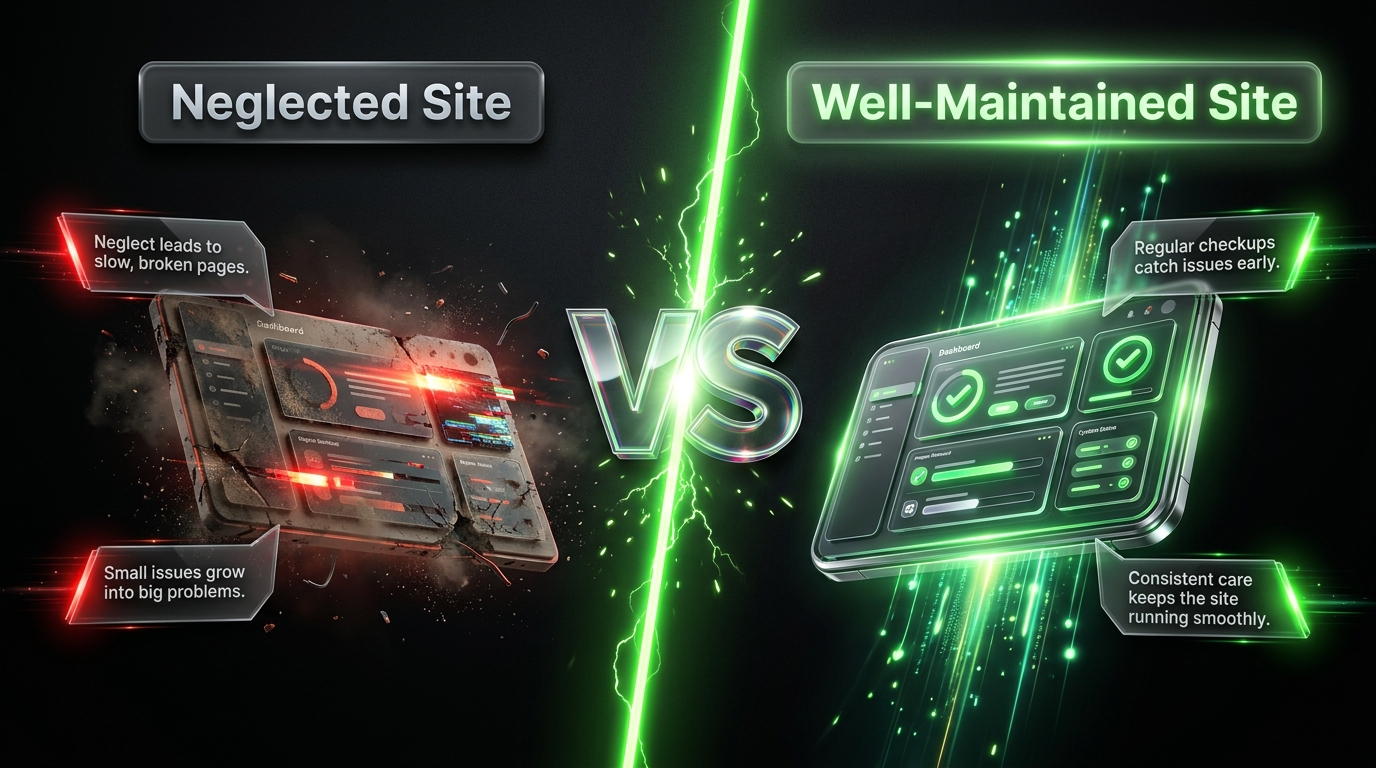
If you own a WordPress website, here’s an uncomfortable truth: launching your site was just the beginning. What happens after launch determines whether your site stays fast, secure, and functional or slowly turns into a liability.
WordPress maintenance isn’t glamorous. It doesn’t get the same attention as design or content strategy. But skip it, and you’re gambling with your site’s uptime, your search rankings, and in some cases, your entire business.
This guide walks you through everything you need to know about maintaining a WordPress site what to do, how often to do it, and why each task matters. Whether you manage one site or fifty, you’ll walk away with a clear, practical system you can actually follow.
Why WordPress Maintenance Matters More Than You Think
WordPress powers a huge share of the websites on the internet. That popularity is exactly why it’s such a common target for hackers, spammers, and bots. An outdated plugin or a forgotten backup isn’t just a minor inconvenience it’s an open door.
Here’s what neglecting maintenance actually costs you:
- Security breaches. Most WordPress hacks exploit known vulnerabilities in outdated plugins, themes, or core files vulnerabilities that already have patches available.
- Slow load times. Bloated databases, unoptimized images, and outdated code all drag down performance, which hurts both user experience and SEO.
- Broken functionality. Plugin conflicts and abandoned updates can quietly break checkout pages, contact forms, or entire layouts.
- Lost revenue. For ecommerce or lead generation sites, even an hour of downtime can mean lost sales and lost trust.
- SEO damage. Search engines penalize slow, insecure, or frequently down websites, which can undo months of content and link-building work.
The good news? Most of these problems are entirely preventable with a consistent maintenance routine. You don’t need to be a developer to keep your site healthy — you just need a system.
The Core Pillars of WordPress Maintenance
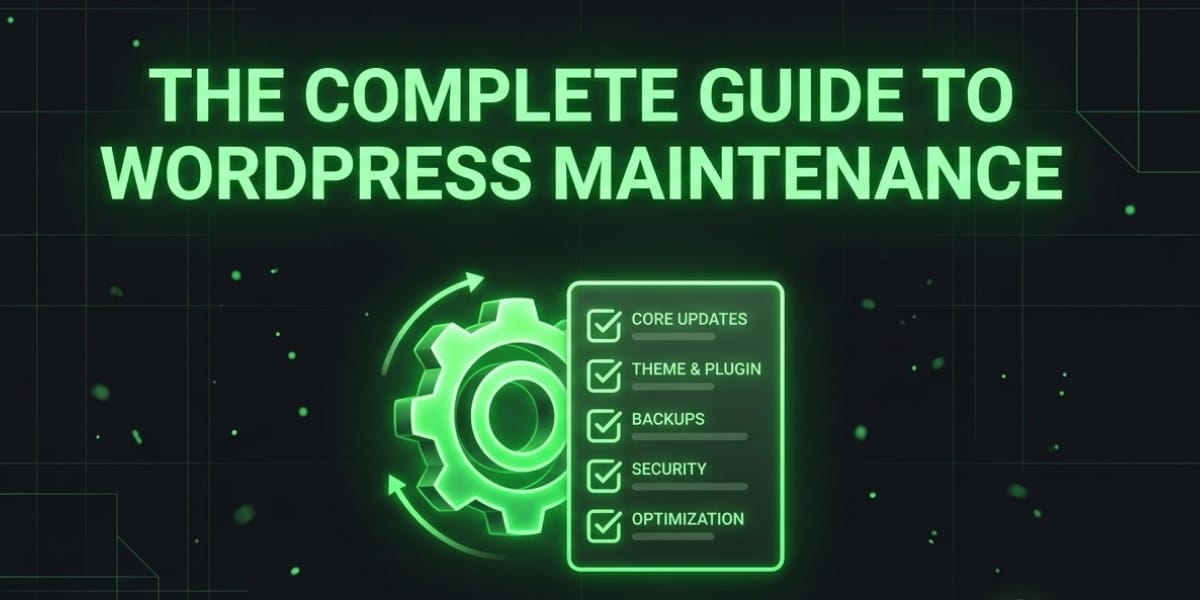
Before diving into specific tasks, it helps to understand the five main pillars that make up a solid maintenance strategy:
- Backups protecting your data
- Updates keeping software current
- Security locking down vulnerabilities
- Performance keeping things fast
- Monitoring catching problems early
Let’s break each one down.
1. Backups: Your Safety Net
If you only do one thing from this entire guide, make it this: back up your site regularly, and store those backups somewhere other than your hosting server.
Why backups are non negotiable
No matter how careful you are, things go wrong. A plugin update can break your site. A hacker can slip through. A hosting provider can suffer data loss. Without a recent backup, any of these scenarios can mean starting from scratch.
What a good backup strategy looks like
- Frequency: Daily backups for active sites (especially ecommerce or blogs with frequent updates); weekly at minimum for low-traffic or static sites.
- Storage location: Always store backups off site think Google Drive, Dropbox, or Amazon S3 not just on your hosting server.
- What to back up: Your database (posts, pages, comments, settings) and your files (themes, plugins, uploads, core WordPress files).
- Retention: Keep at least 30 days of backups so you can roll back even if a problem isn’t discovered right away.
- Testing: Periodically test your backups by restoring them to a staging site. A backup you’ve never tested is a backup you can’t trust.
Popular backup plugins include UpdraftPlus, BackWPup, and Duplicator. Many managed WordPress hosts also include automated backups as part of their hosting plans — worth checking before you pay for a separate tool.
2. Updates: The Foundation of a Healthy Site
WordPress, along with its plugins and themes, is constantly being improved and patched. Skipping updates is one of the most common — and most dangerous — maintenance mistakes.
What needs updating
- WordPress core the main software that runs your site
- Plugins third party tools that add functionality
- Themes your site’s design and layout
- PHP version the programming language WordPress runs on
Best practices for safe updates
Updating blindly can sometimes break your site, so follow this process:
- Back up first. Always create a fresh backup before running updates.
- Update on staging. If you have a staging environment, test updates there before pushing to your live site.
- Update one thing at a time when possible, especially for major plugin or theme updates, so you can quickly identify what caused any issue.
- Read the changelog. A quick scan tells you what’s changed and whether it might affect your setup.
- Check your site afterward. Click through key pages homepage, checkout, contact forms to confirm everything still works.
How often should you update?
- Security patches: Apply immediately.
- Minor updates: Weekly or biweekly.
- Major updates: Monthly, with extra testing.
Letting updates pile up makes each one riskier, since more changes are happening at once. Little and often beats big and rare.
3. Security: Locking the Doors
Think of WordPress security like locking your house you don’t do it once and forget about it. You reinforce it continually.
Essential security measures
- Strong passwords and two factor authentication (2FA) for all admin accounts.
- Limit login attempts to block brute force attacks.
- Use a security plugin like Wordfence, Sucuri, or iThemes Security to monitor for malware, firewall threats, and file changes.
- Keep everything updated (see above updates and security go hand in hand).
- Remove unused plugins and themes. Inactive software can still be exploited even if it’s not “running.”
- Change the default login URL (from
/wp-adminto something custom) to reduce automated attack attempts. - Use an SSL certificate to encrypt data between your site and its visitors.
- Set proper file permissions so files and folders aren’t more accessible than they need to be.
Signs your site may already be compromised
- Unexpected admin users you didn’t create
- Strange redirects to unfamiliar websites
- A sudden spike in server resource usage
- Search engines flagging your site as unsafe
- Unfamiliar files appearing in your file directory
If you notice any of these, act quickly: restore from a clean backup, change all passwords, and consider bringing in a security specialist if the issue is beyond your comfort level.
4. Performance: Keeping Things Fast
Speed isn’t just a nice to have. It affects conversions, bounce rates, and search rankings. A one-second delay in load time can measurably reduce visitor engagement.
Key performance tasks
Optimize images Large, uncompressed images are one of the biggest culprits behind slow sites. Use tools like Smush or ShortPixel to compress images without losing visible quality, and consider serving images in modern formats like WebP.
Use caching Caching plugins (WP Rocket, W3 Total Cache, WP Super Cache) store static versions of your pages so they load faster for repeat visitors.
Clean up your database Over time, your database accumulates clutter spam comments, post revisions, expired transients. Plugins like WP Optimize can clean this up automatically on a schedule.
Choose quality hosting No amount of optimization fully compensates for cheap, overcrowded shared hosting. If your site has outgrown its host, upgrading can deliver a bigger speed boost than any plugin.
Use a Content Delivery Network (CDN) A CDN like Cloudflare distributes your site’s static content across servers worldwide, so visitors load your site from a server near them rather than one far away.
Minimize plugins Every plugin adds some overhead. Periodically audit your plugin list and remove anything you’re not actively using.
How to measure performance
Use free tools like Google PageSpeed Insights, GTmetrix, or Pingdom to check load times and get specific recommendations. Run these tests quarterly, or after any major change to your site.
5. Monitoring: Catching Problems Before Visitors Do
Maintenance isn’t just about doing tasks it’s about knowing when something’s gone wrong before your visitors tell you.
What to monitor
- Uptime. Tools like UptimeRobot or Pingdom alert you the moment your site goes down.
- Broken links. Dead links hurt user experience and SEO; tools like Broken Link Checker can flag these automatically.
- 404 errors. A rising number of these often signals a deeper structural issue.
- SEO rankings. Track keyword positions and organic traffic through Google Search Console.
- Security scans. Many security plugins offer scheduled malware and vulnerability scans.
Set up alerts wherever possible so problems land in your inbox instead of requiring you to check manually every day.
Building a WordPress Maintenance Schedule
Trying to remember every task ad hoc is a recipe for things slipping through the cracks. Instead, build a recurring schedule.
Daily
- Monitor uptime (automated)
- Check for and moderate spam comments
Weekly
- Run a backup (if not automated daily)
- Install available plugin and theme updates
- Review broken links and 404s
- Check site speed on key pages
Monthly
- Update WordPress core (if a major release is out)
- Clean up the database
- Review and remove unused plugins/themes
- Run a full security scan
- Test your backup restoration process
- Review analytics for unusual traffic patterns
Quarterly
- Full performance audit (PageSpeed, GTmetrix)
- Review and update user accounts/permissions
- Check SSL certificate status
- Review hosting plan against current traffic needs
- Update legal pages (privacy policy, terms) if regulations have changed
Annually
- Full site audit — content, design, SEO, and security
- Renew domain registration and hosting contracts
- Reassess whether your current theme and plugin stack still serve your goals
DIY Maintenance vs. Hiring a Professional
Should you handle maintenance yourself, or pay someone else to do it?
DIY makes sense when:
- You’re comfortable with basic technical tasks
- Your site is relatively simple
- You have time to dedicate weekly
- Budget is a primary concern
Hiring a professional makes sense when:
- Your site generates significant revenue and downtime is costly
- You lack the time or technical comfort to manage it yourself
- You want proactive monitoring rather than reactive fixes
- You’re managing multiple sites
Many agencies and freelancers offer WordPress maintenance packages that bundle backups, updates, security monitoring, and performance checks into a monthly retainer. For business-critical sites, this is often money well spent it turns an unpredictable risk into a predictable, budgeted cost.
Common WordPress Maintenance Mistakes to Avoid
Even well intentioned site owners fall into these traps:
- Updating everything at once without testing. This makes it hard to pinpoint what broke if something does.
- Storing backups only on the same server as the site. If the server fails, your backup fails with it.
- Ignoring PHP version updates. An outdated PHP version can silently hurt both security and speed.
- Using too many plugins “just in case.” Every unused plugin is unnecessary risk and bloat.
- Never testing backups. A backup is only useful if you know it actually works.
- Treating security as a one time setup. Threats evolve, so your defenses need to as well.
- Skipping staging environments. Testing changes directly on a live site is asking for trouble.
Essential Tools for WordPress Maintenance
Here’s a quick reference toolkit to get you started:
| Task | Recommended Tools |
|---|---|
| Backups | UpdraftPlus, BackWPup, Duplicator |
| Security | Wordfence, Sucuri, iThemes Security |
| Performance | WP Rocket, W3 Total Cache, Smush |
| Database cleanup | WP Optimize |
| Uptime monitoring | UptimeRobot, Pingdom |
| Broken link checking | Broken Link Checker |
| Speed testing | Google PageSpeed Insights, GTmetrix |
| SEO monitoring | Google Search Console, Yoast SEO |
Final Thoughts
WordPress maintenance isn’t a single task you check off a list it’s an ongoing habit, much like maintaining a car or a house. Skip it for too long, and small issues compound into expensive, stressful problems. Stay consistent, and your site stays fast, secure, and dependable for the people who rely on it.
Start small if you need to. Set up automated backups this week. Schedule a recurring calendar reminder for updates. Install a security plugin. Each step you take reduces your risk and moves you toward a site that runs smoothly in the background exactly how a website should work.
Your visitors will never see the maintenance happening behind the scenes. But they’ll absolutely notice if you skip it.